Introduction
For WiFi and VPN connections, Microsoft recommends moving from MSCHAPv2-based (password) connections to certificate-based authentication such as EAP-TLS.
EAP-TLS (certificate-based authentication) requires a Public Key Infrastructure to enroll and manage certificates to be used for Wi-Fi. That’s why our cloud PKI and RADIUS are designed to easily integrate with Azure AD, so organizations can easily use their Azure AD for WPA2-Enterprise. Below, we break down the solution into three steps: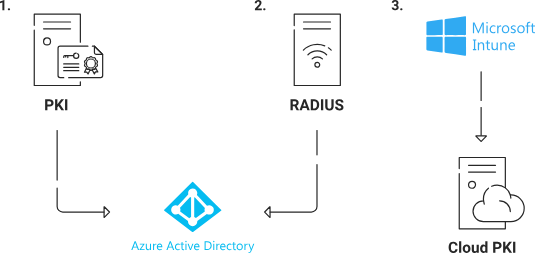
- Tie your PKI Infrastructure to Azure AD.
- Tie your RADIUS Infrastructure to Azure AD.
- Tie your Device Management platform to SecureW2 cloud PKI.
Creating a SAML Application in Azure
The SAML application is a crucial connection between the IDP and the JoinNow MultiOS Management Portal. The application allows a user to enter their credentials, which are then passed to the IDP for verification.
To create a SAML application in Microsoft Azure, perform the following steps:
- Log in to the Microsoft Azure Portal.
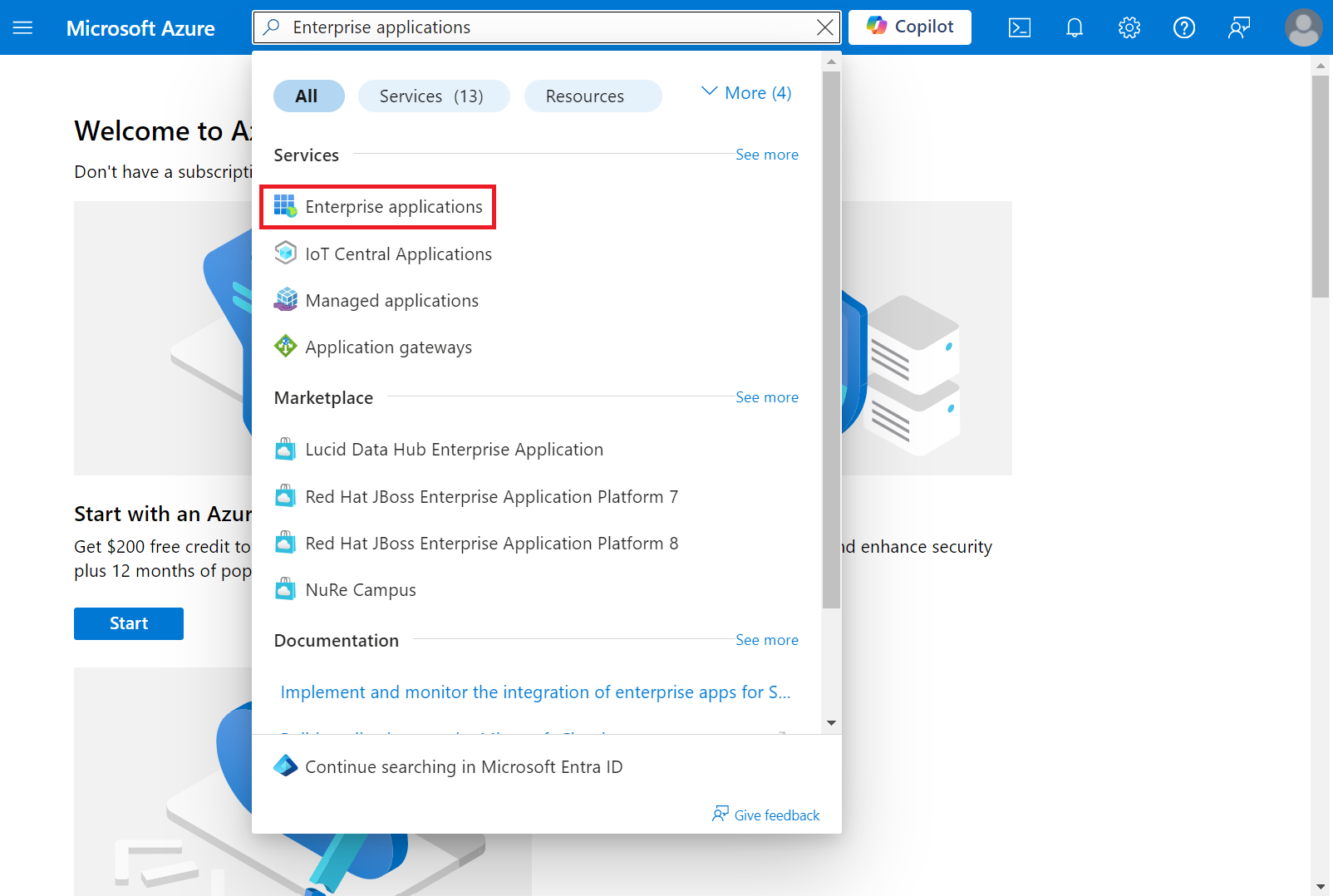
- Type “Enterprise applications” in the search box and click Enterprise applications.
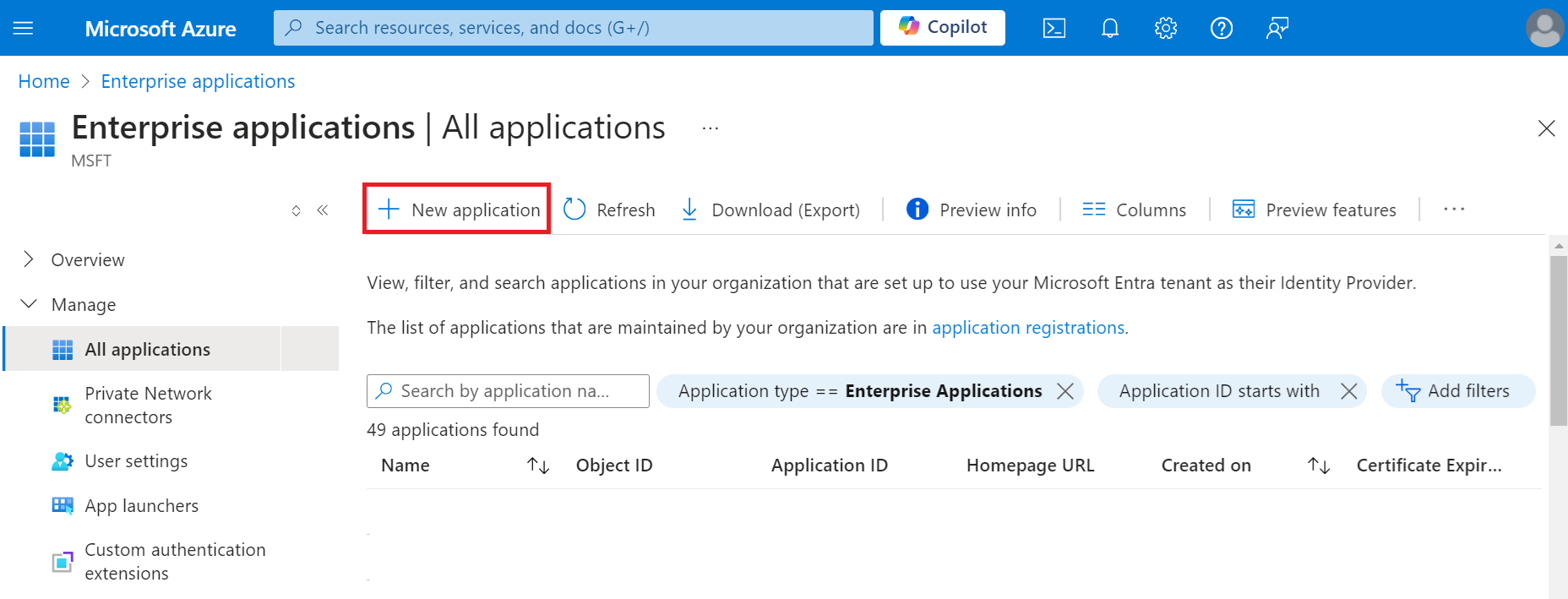
- Click New application.
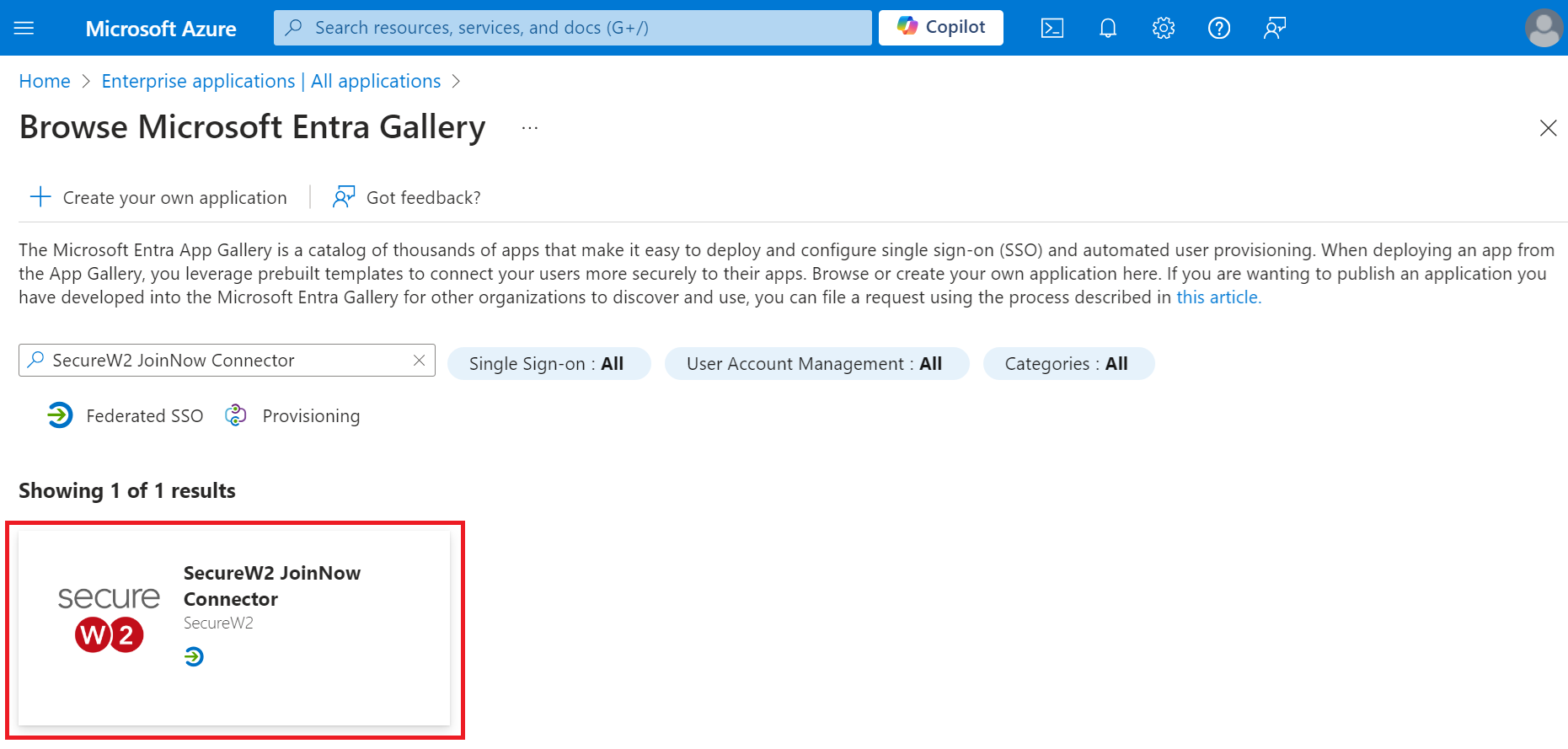
- On the Browse Microsoft Entra Gallery page, type “SecureW2 JoinNow Connector” and select SecureW2 JoinNow Connector.
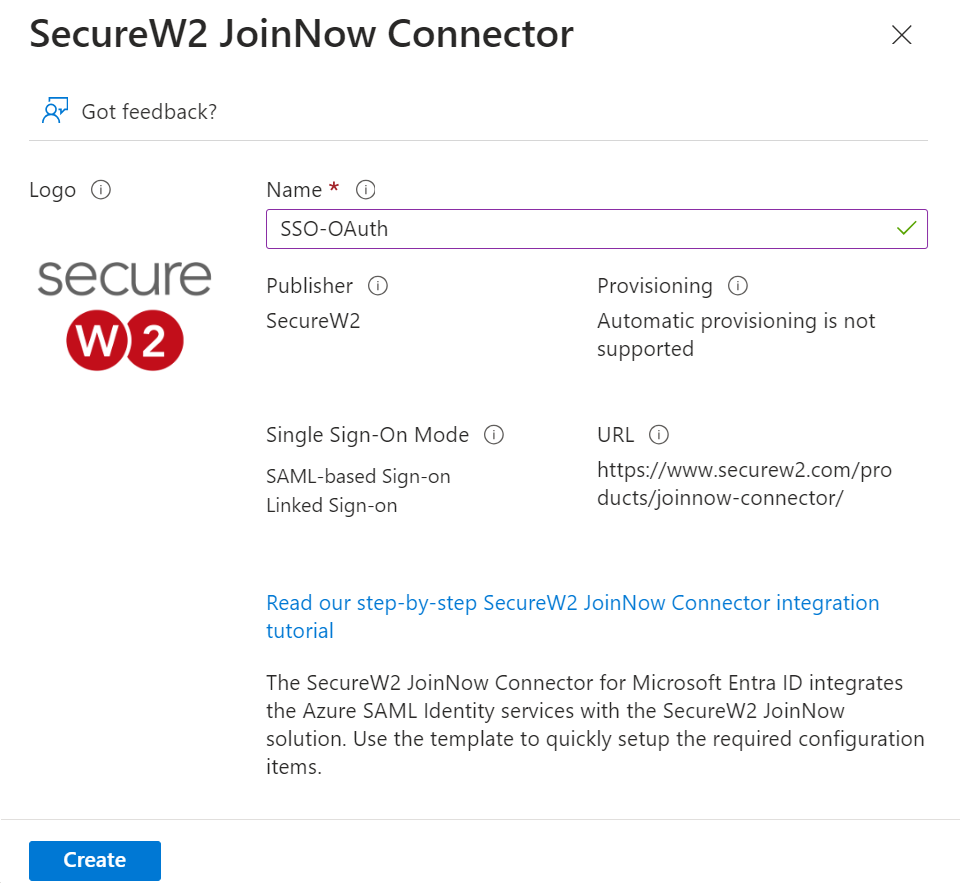
- On the SecureW2 JoinNow Connector pop-up window, enter the name of the application and click Create.
Creating a Core Provider in SecureW2
To create an IDP in SecureW2, perform the following steps:
- Log in to the JoinNow Management Portal.
- Navigate to Integrations Hub > Core Platforms.
- Click Add.
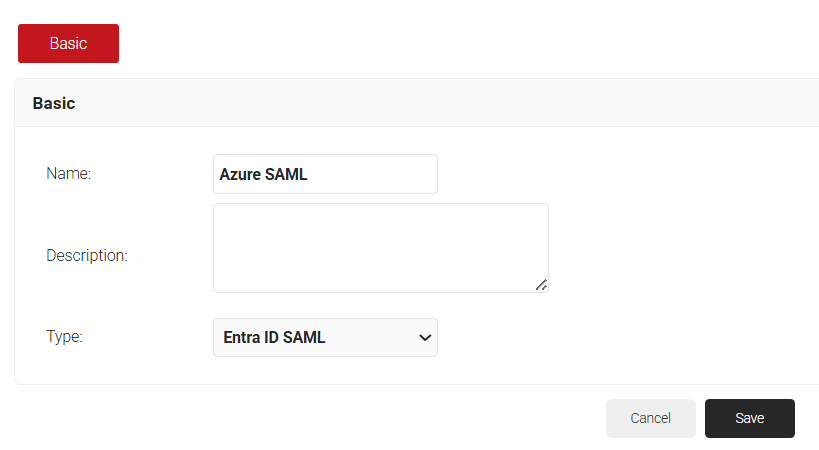
- In the Basic section, enter the name of the IDP in the Name field.
- In the Description field, enter a suitable description for the IDP.
- From the Type drop-down list, select Entra ID SAML.
- Click Save.
- The page refreshes and displays the Configuration, Attribute Mapping, and Groups tabs.
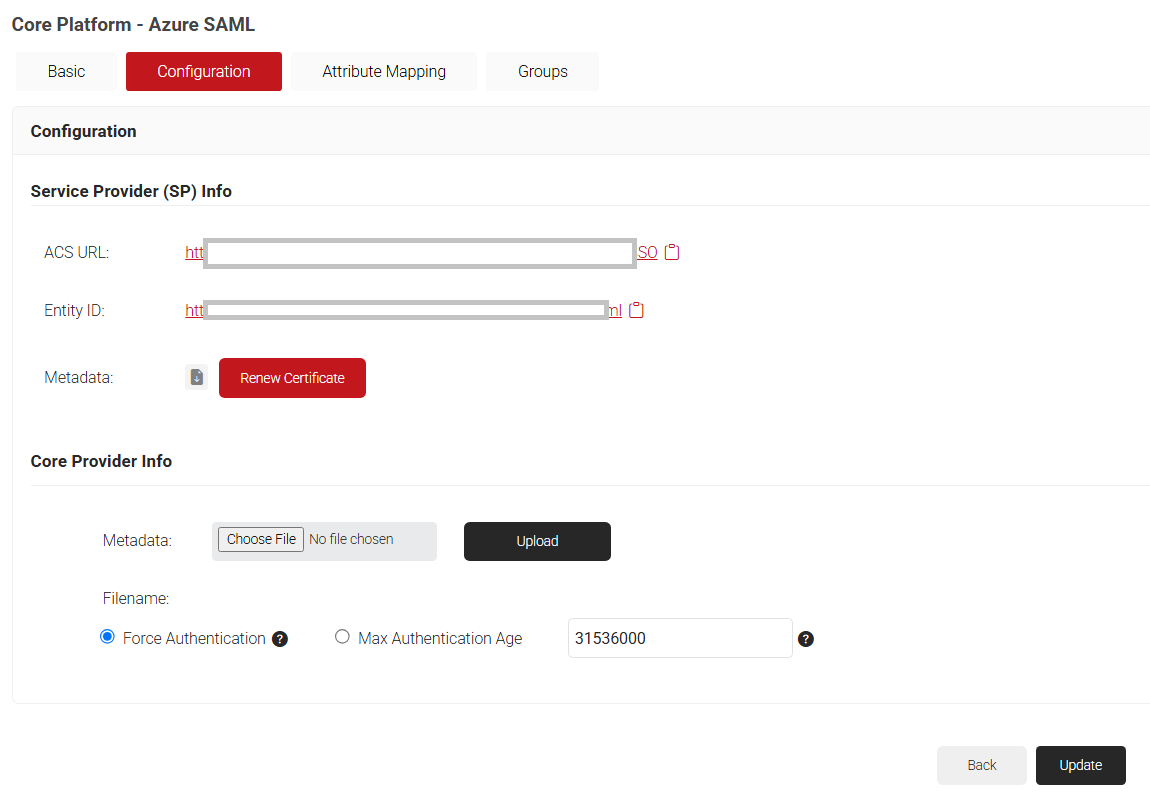
- Click the Configuration tab.
- Copy the ACS URL and Entity ID to your clipboard and save it in a text file. This will be used later while connecting with your SAML application.
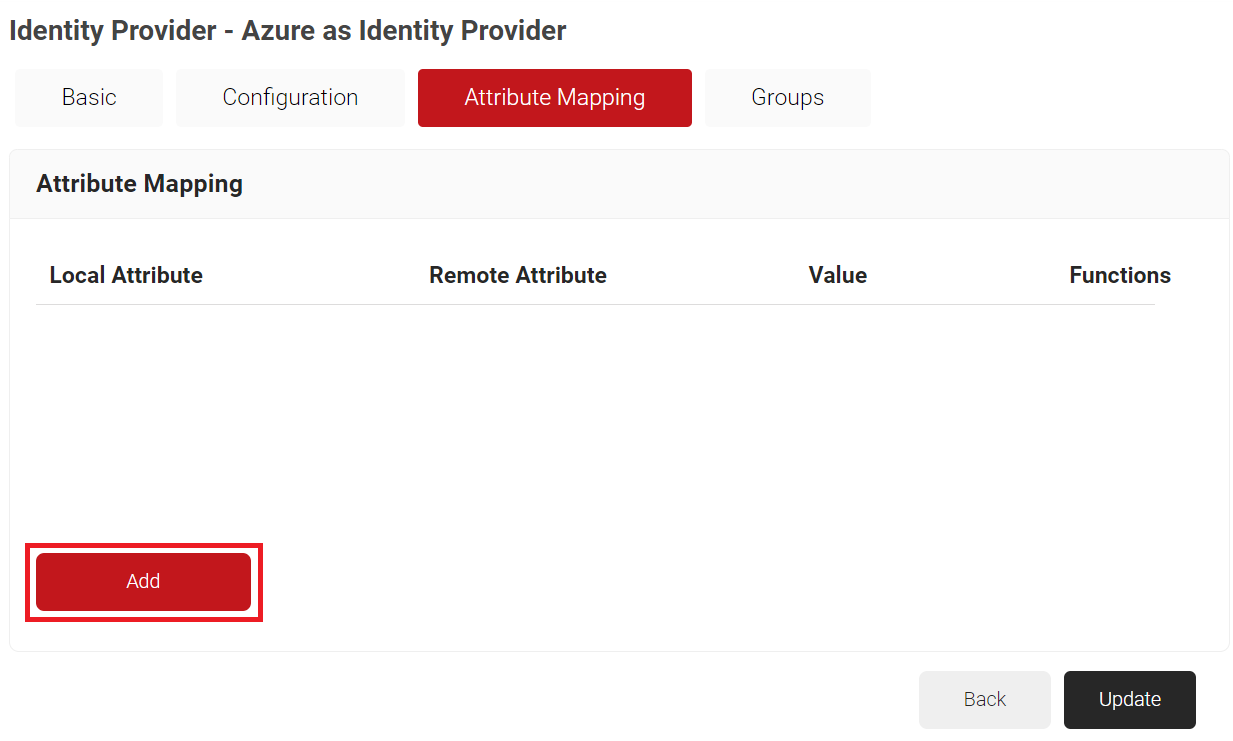
- Click the Attribute Mapping tab.
- Click Add.
- In the Local Attribute field, enter a name for the attribute that corresponds with the Remote Attribute. This is used during Policy Configuration.
- In the Remote Attribute drop-down list, select the Azure attributes configured for user and group attributes. If the Azure attributes are unavailable in the default values, select the User Defined option and enter the exact attribute name configured in Azure.
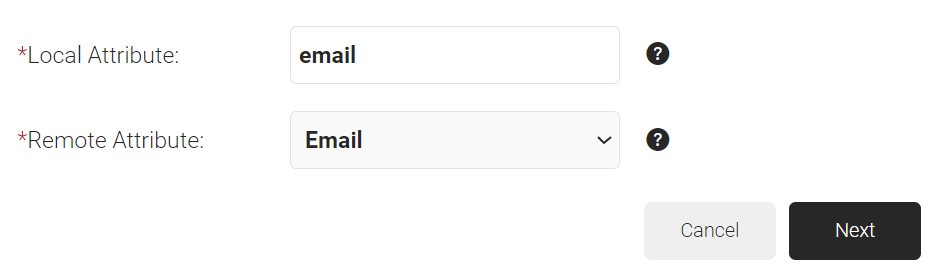
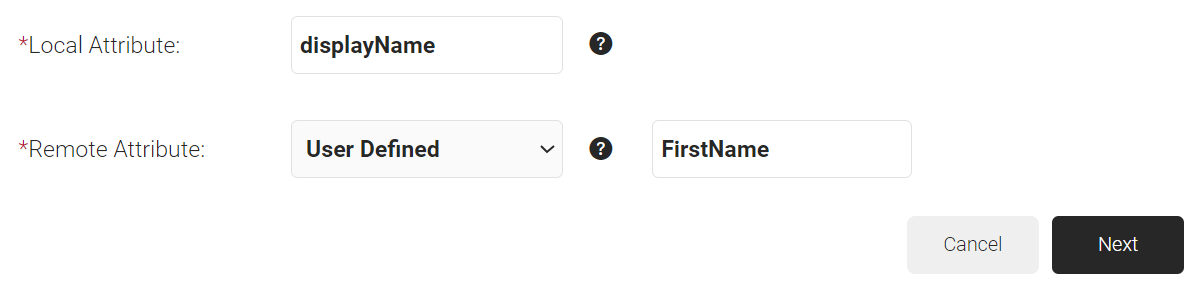
- Click Next to create the custom attribute with the appropriate mapping.
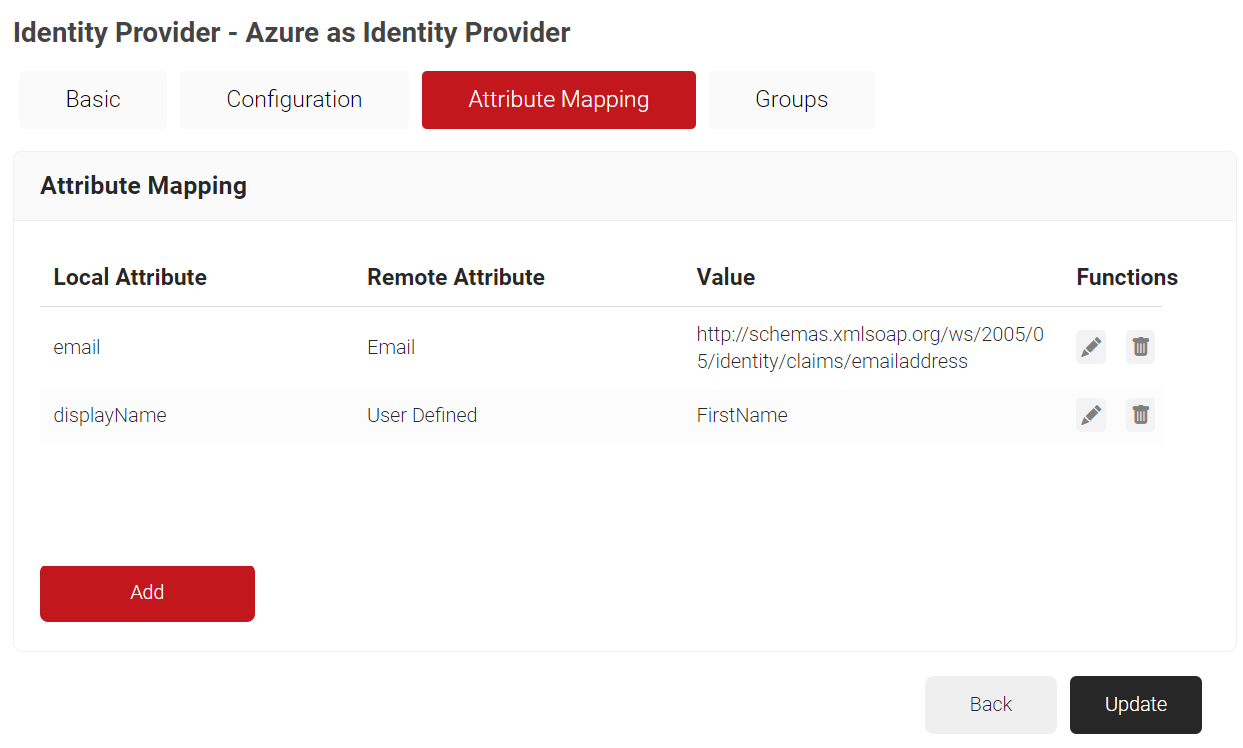
- Click Update.
- To map a group from the Azure Active Directory to the JoinNow Management Portal, follow these steps:a. Select the Basic tab.b. In the Group Map Attribute field, enter
http://schemas.microsoft.com/ws/2008/06/identity/claims/groups obtained from the Configuring Group Mappings for SAML in Azure Active Directory section.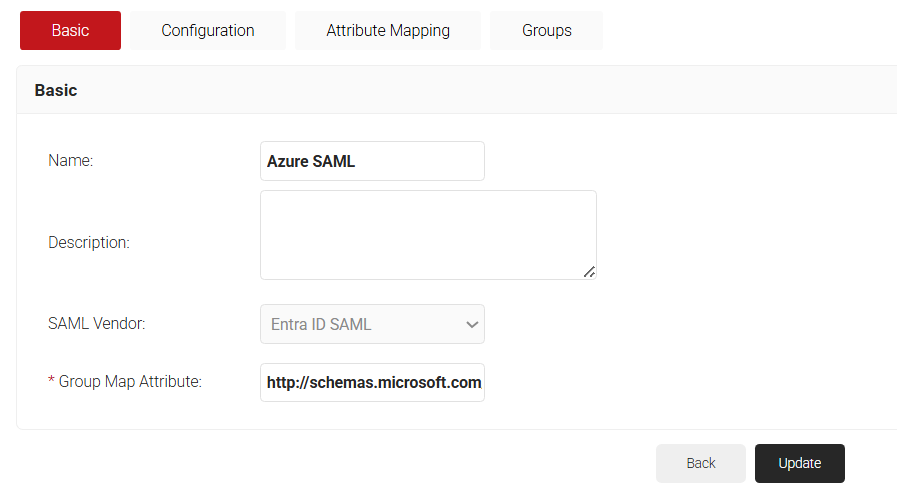
c. Select the Groups tab.d. Click Add.
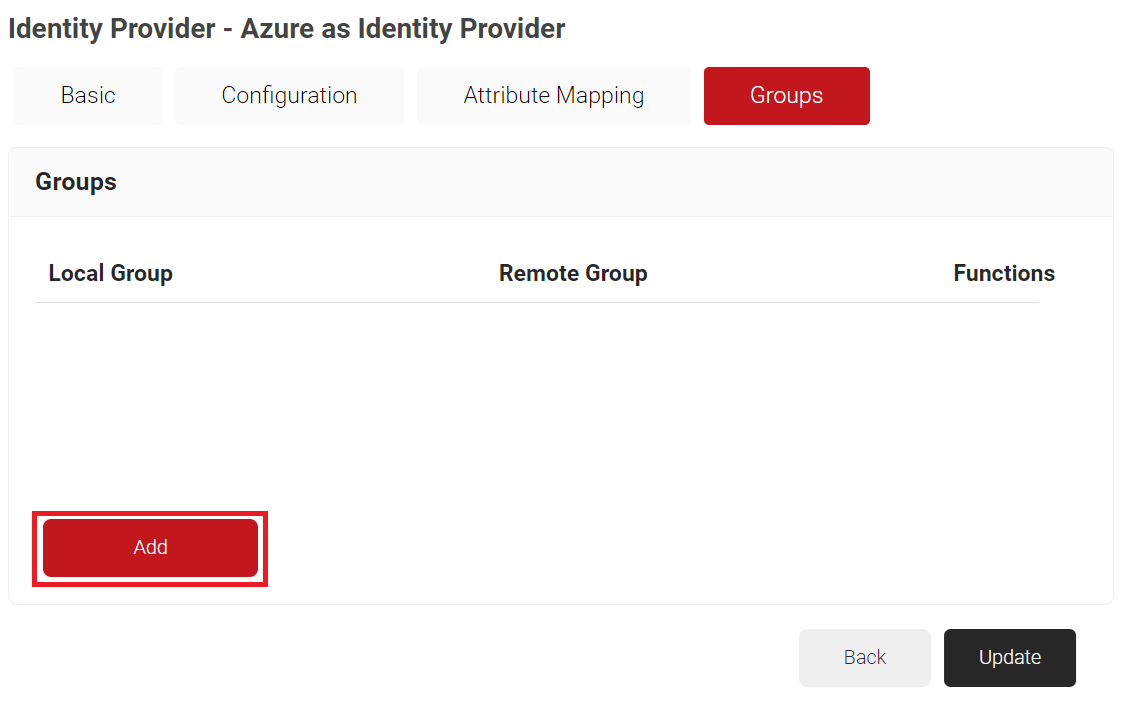
i. In the Local Group field, enter a Group name.
ii. In the Remote Group field, paste the Object ID value obtained from the Adding Users to the SAML Application (step 9) section.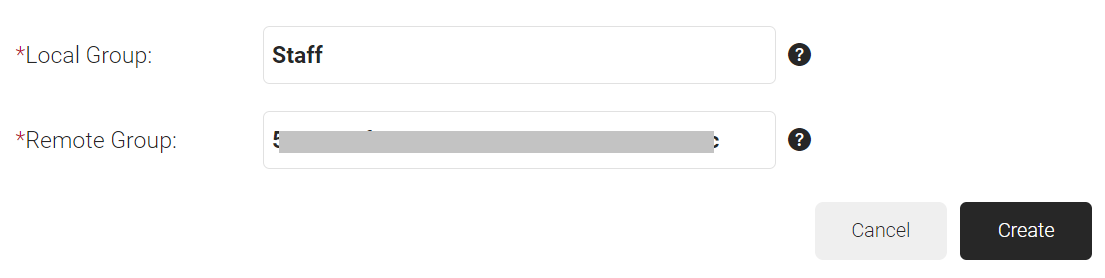
iii. Click Create.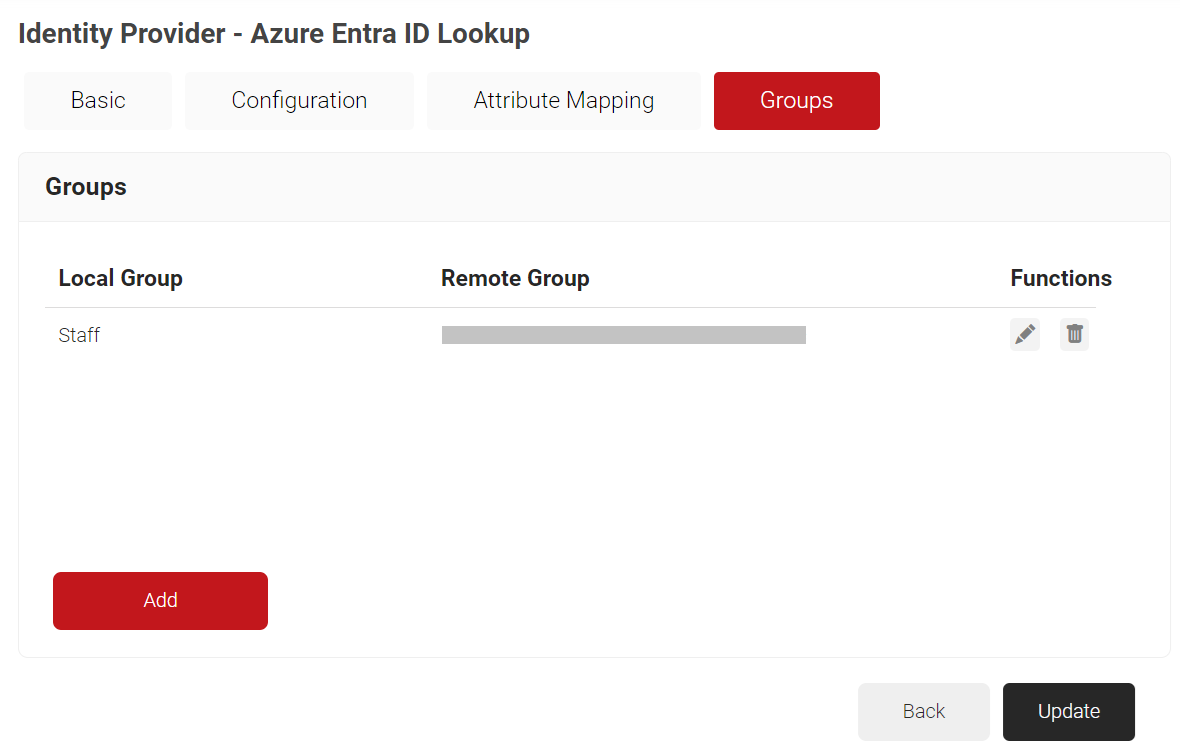
c. Click Update.
Configuring Single-Sign-On in Azure
To configure single sign-on in Microsoft Azure, perform the following steps:
- Log in to the Microsoft Azure Portal.
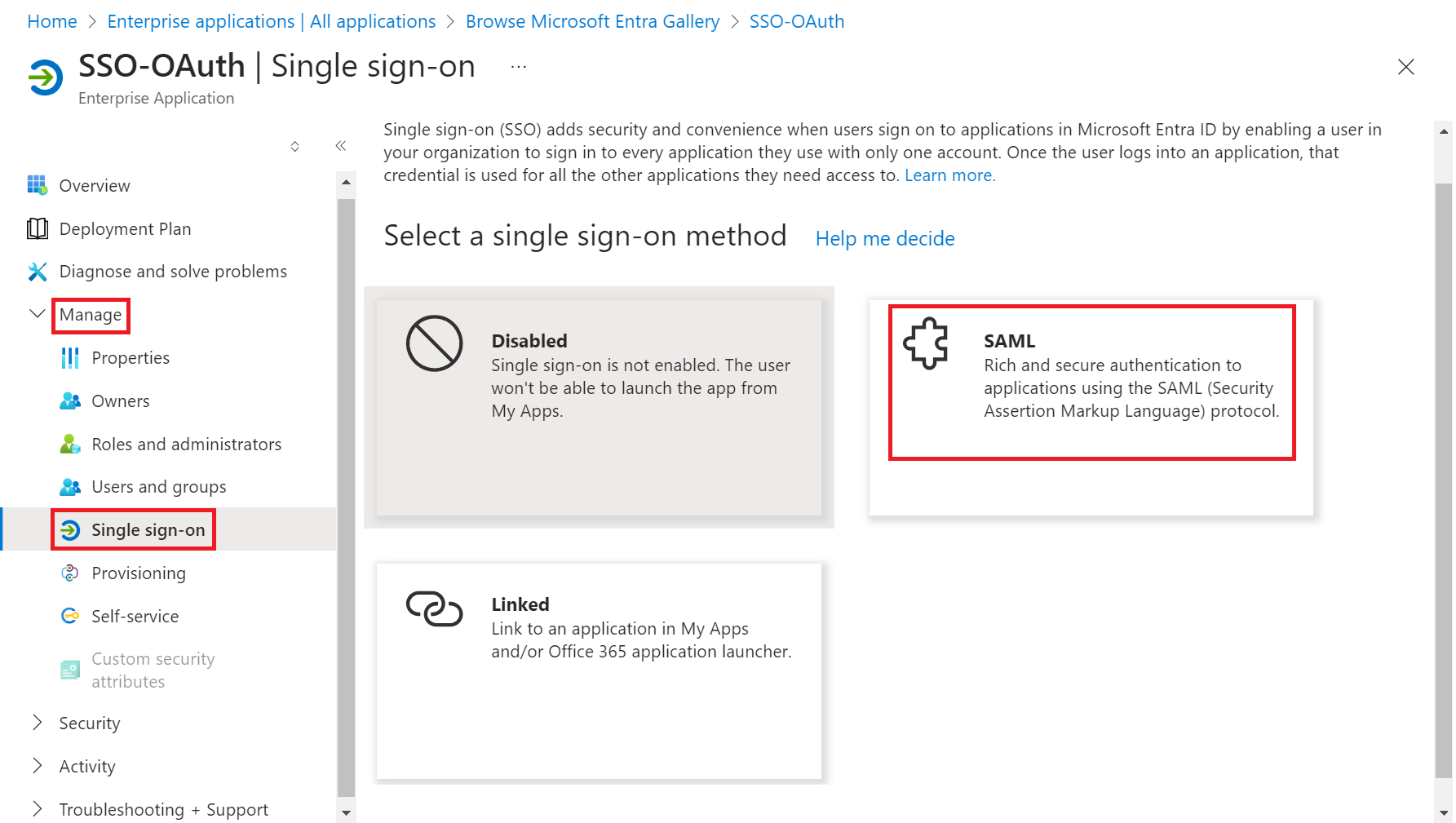
- On the left pane, navigate to Manage > Single sign-on.
- On the Single Sign-on page, select SAML-based Sign-on.
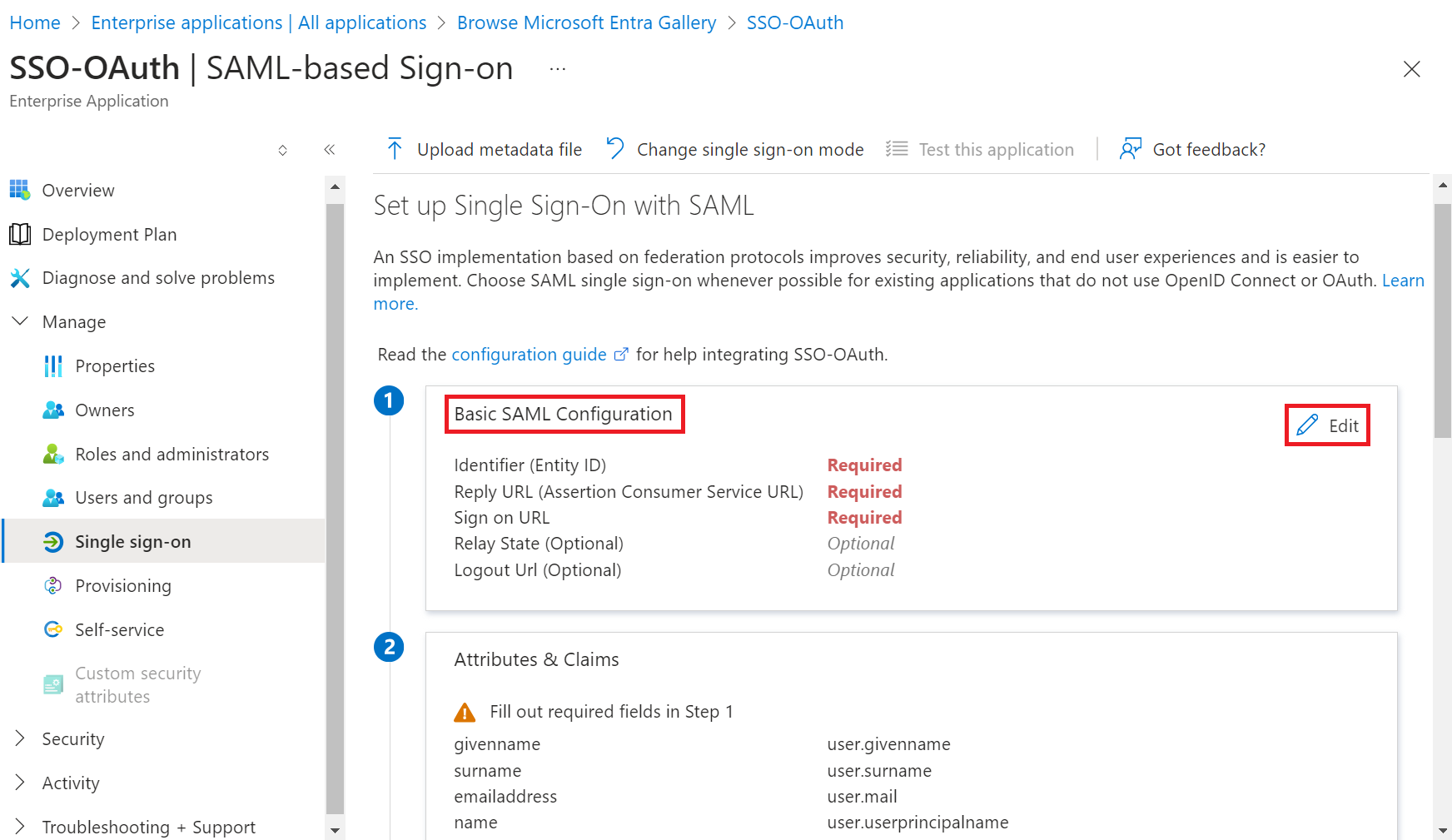
- In the Basic SAML Configuration section, click the Edit button.
- On the Basic SAML Configuration pop-up window:
a. In the Identifier (Entity ID) field, enter the Entity ID obtained in the Creating an Identity Provider in SecureW2 (step 11) section.
b. In the Reply URL (Assertion Consumer Service URL) and Sign on URL fields, enter the ACS URL obtained in the Creating an Core Platform in SecureW2 section.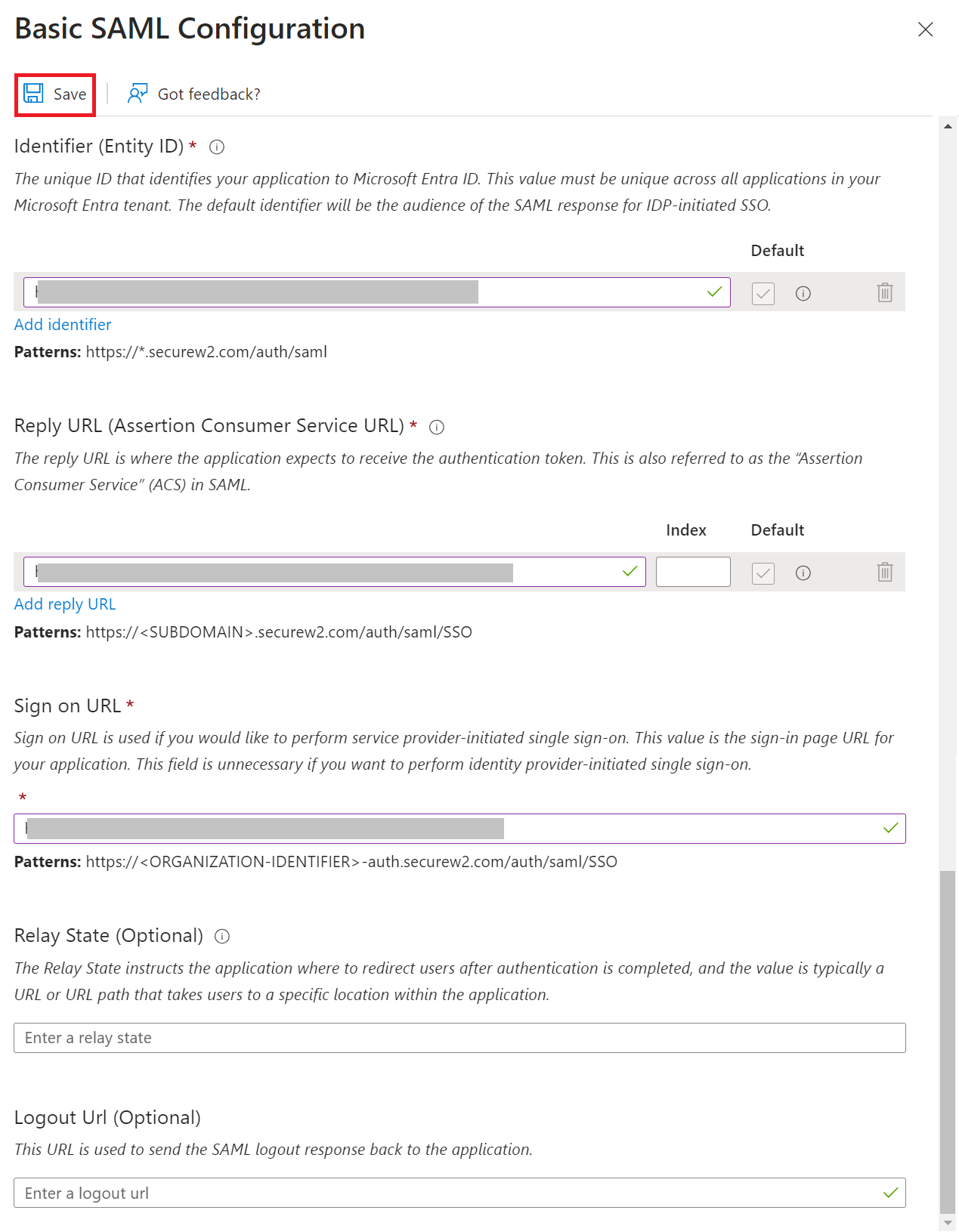
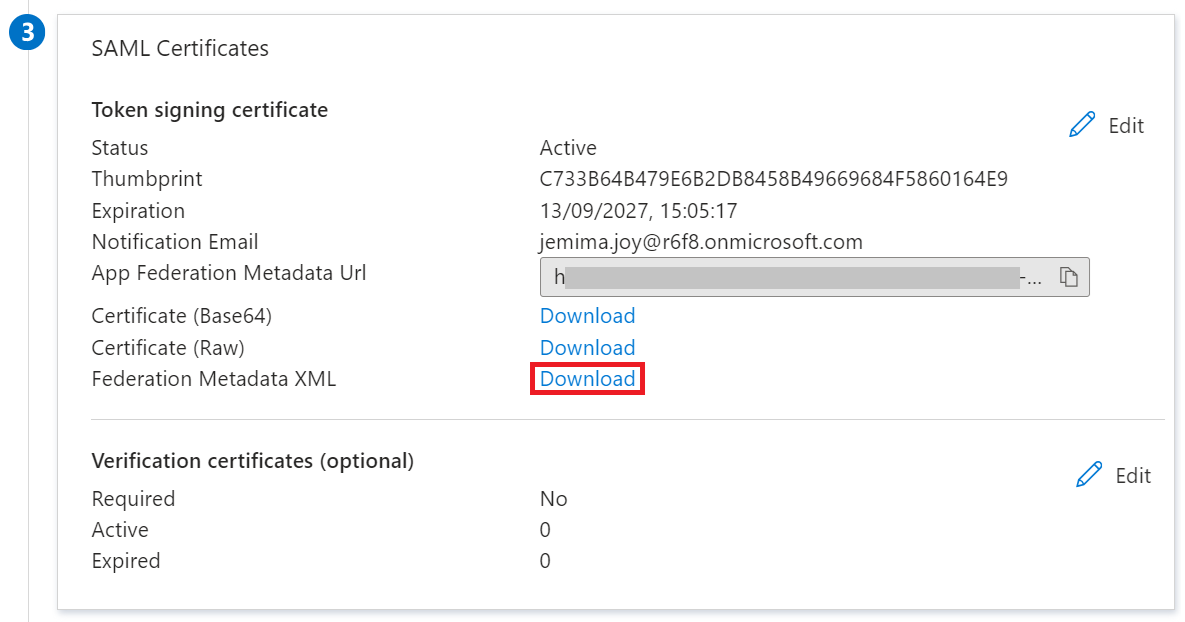
c. Click Save. - In the SAML Certificates section, click Download to obtain the Federation Metadata XML file from Azure.
Configuring the Core Platform with Azure Metadata
To upload the Azure metadata to SecureW2, perform the following steps:
- Log in to the JoinNow Management Portal.
- Navigate to Integrations Hub > Core Platforms.
- Click the Edit link of the SAML IDP created in the Creating an Core Platform in SecureW2 section.
- Click the Configuration tab.
- In the Core Provider (IDP) Info section, click Choose File to select the Metadata XML file you downloaded from Azure (refer to Configuring Single-Sign-On in Azure, step 6).
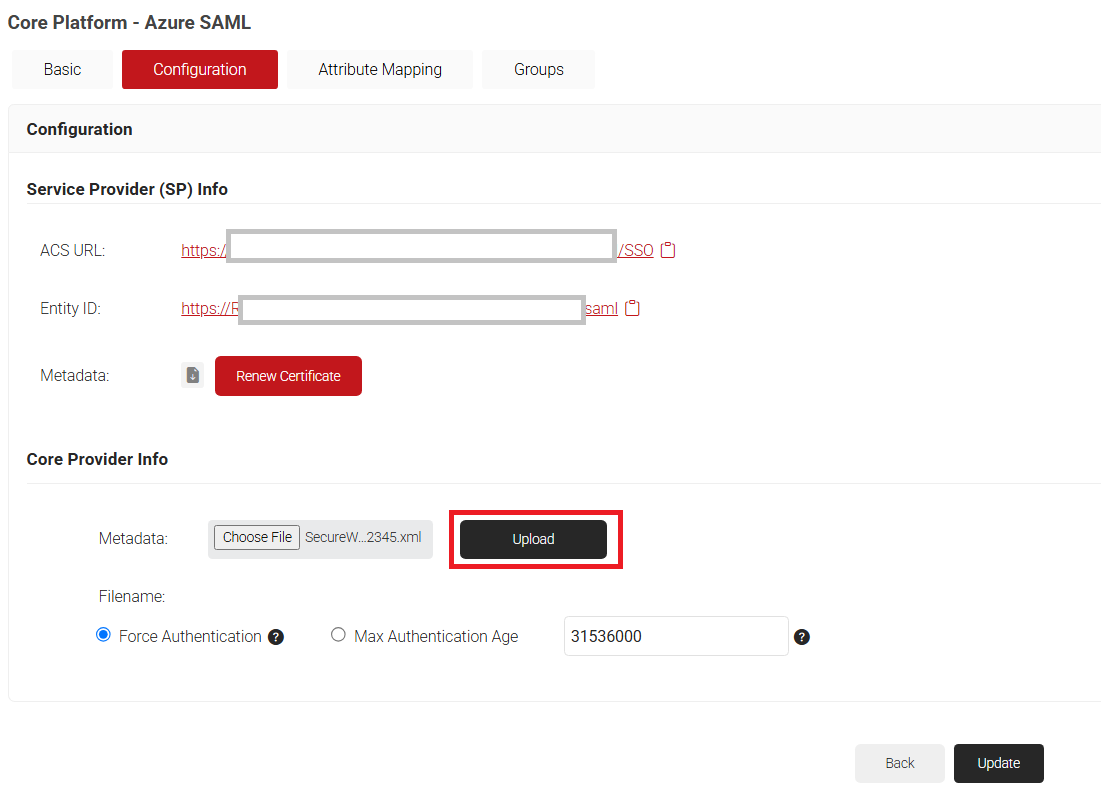
- Click Upload and then click Update.
Integrating Entra ID with the Azure SAML Application
After you’ve configured your SAML Application in Azure and SecureW2, it’s time to assign users to it. You can do this by directly assigning users, if you have them stored in Azure, or you can integrate it with your Active Directory. Below, we will show you how to do both.
Adding Users to the SAML Application
To add users to the SAML application in Microsoft Azure, perform the following steps:
- Log in to the Microsoft Azure Portal.
- Navigate to the SAML applic
Configuring Group Mappings for SAML in Azure Active Directory
ation you created in the Creating a SAML Application in Azure section.
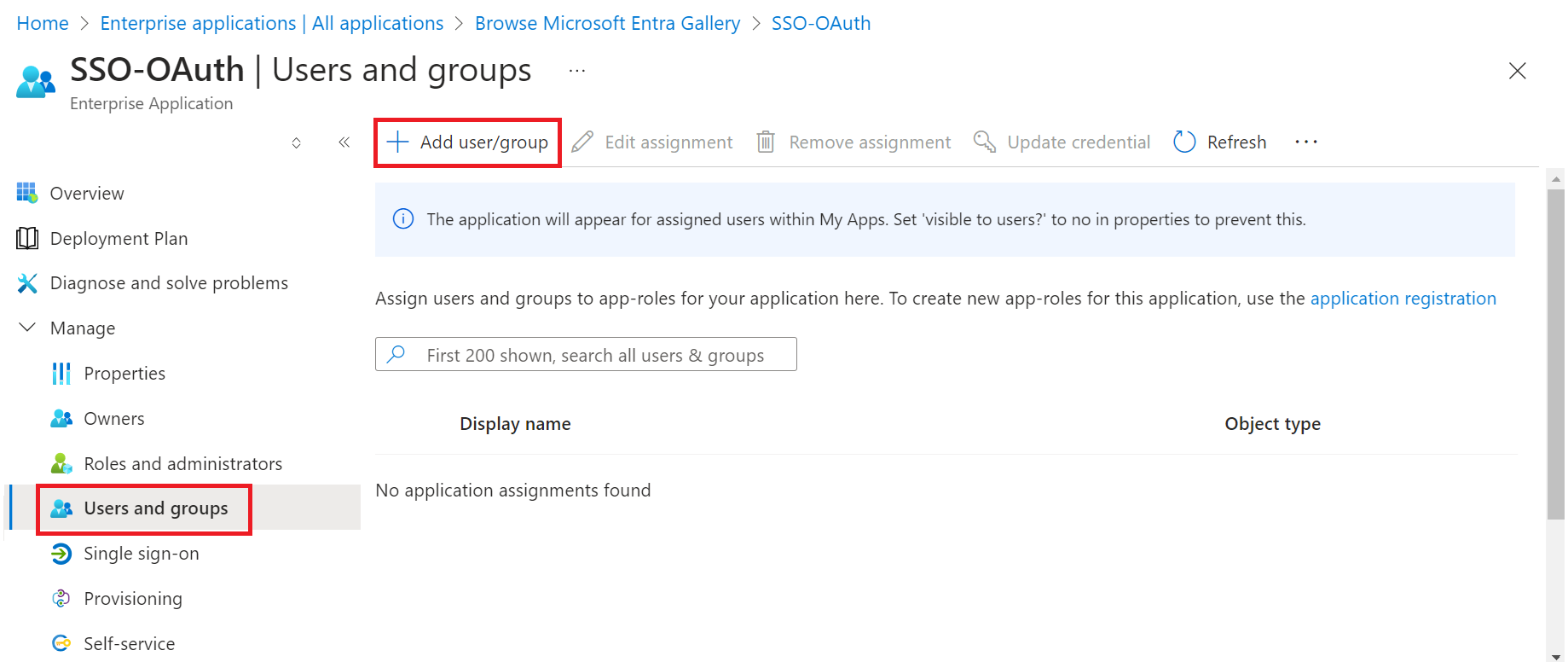
- Go to Manage > Users and groups.
- Click Add user/group.
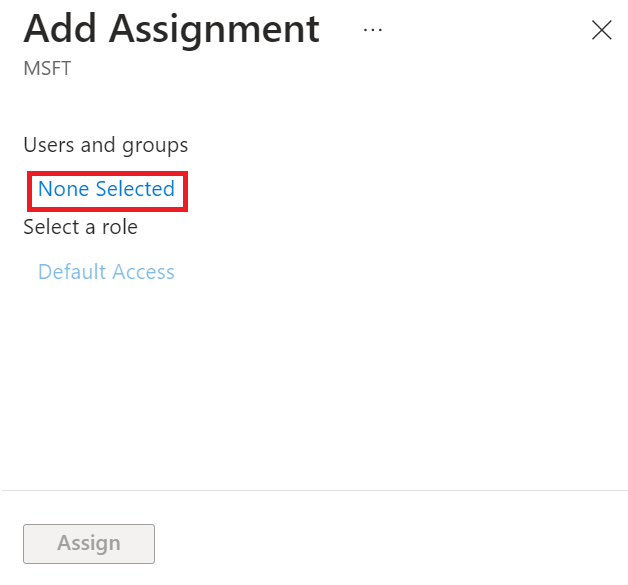
- On the Add Assignment page, click None Selected in the Users and groups section.
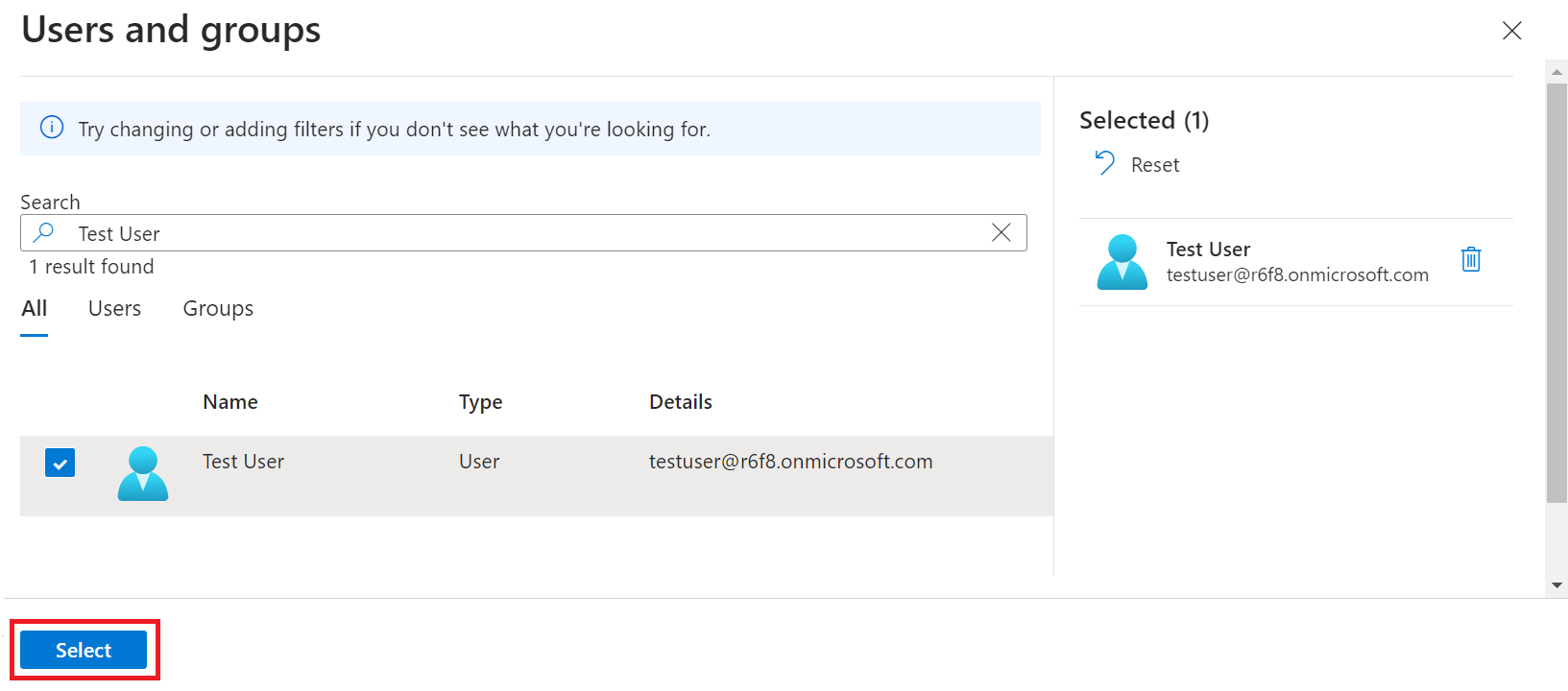
- On the Users and groups pop-up window, search for the user by name or email.
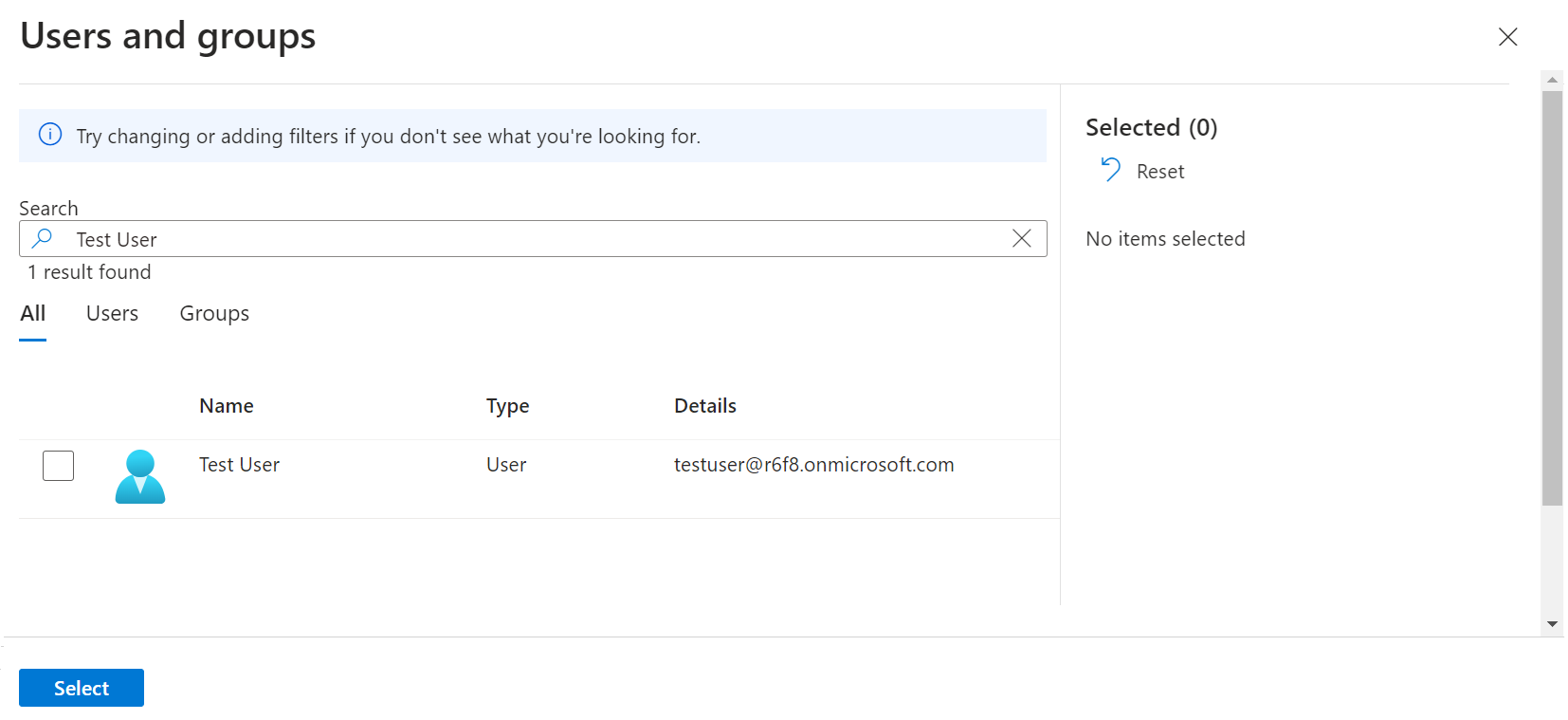
- Select the user, and then click Select.
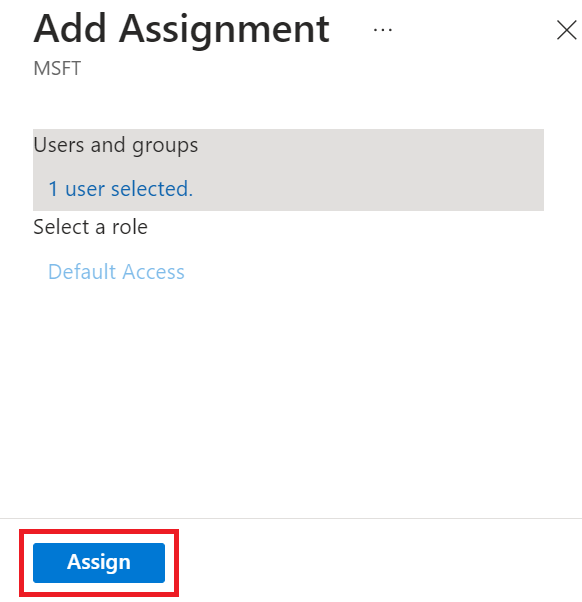
- On the Add Assignment page, click Assign.
- To create a group, perform the following steps:
a. Type “Groups” in the search box and click Groups.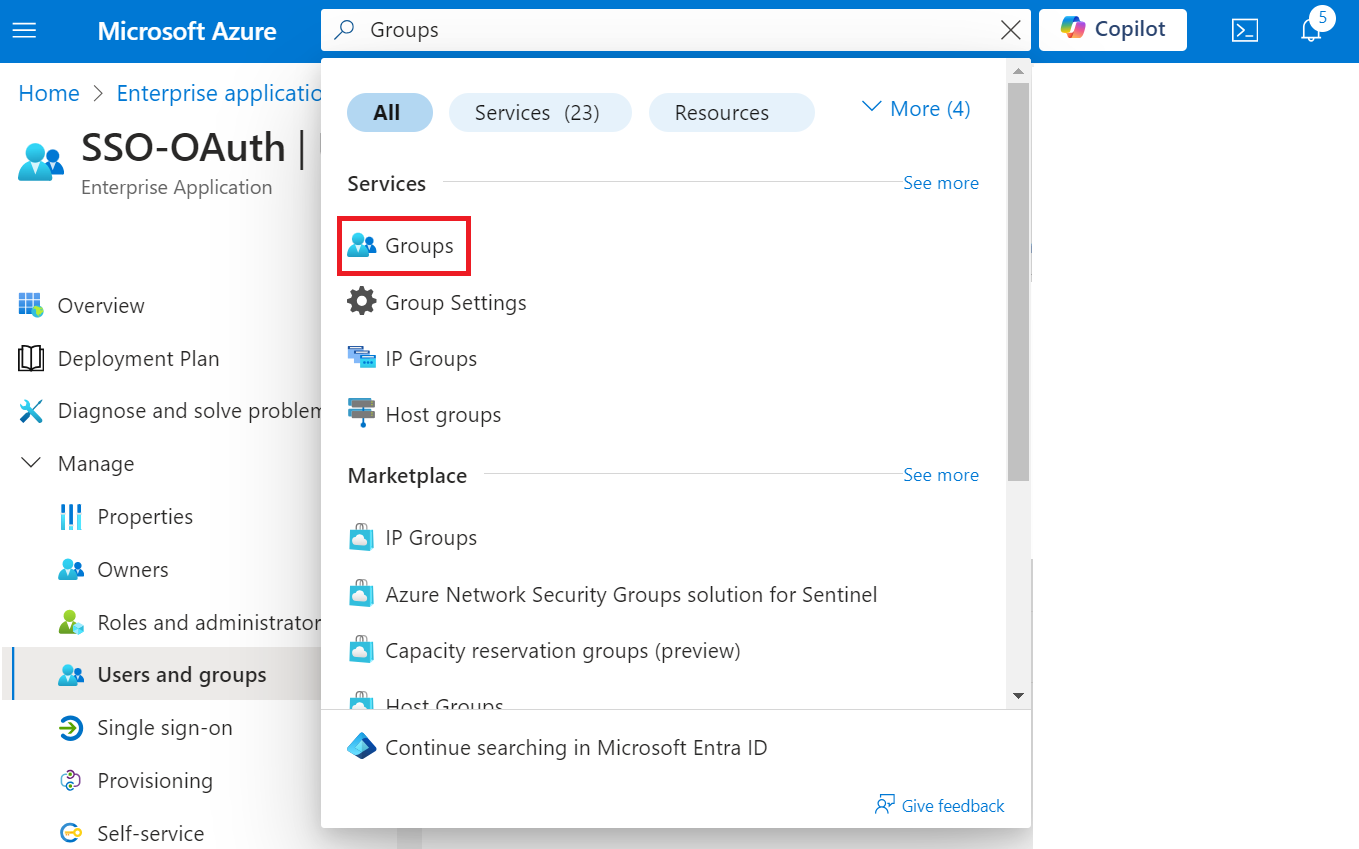
b. On the Groups page, click New group to add a new group.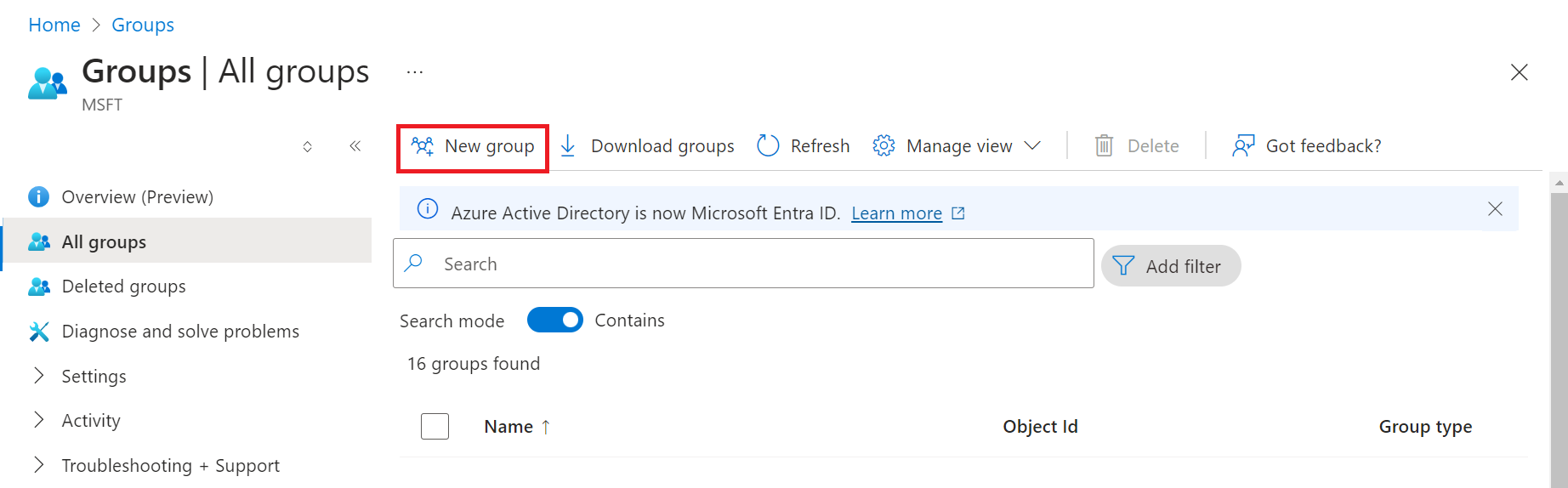
c. On the New Group page:
i. From the Group type drop-down list, select Security.
ii. In the Group name field, type a suitable name for the group.
iii. In the Group description field, type a description for the group.
iv. From the Membership type drop-down list, select Assigned.
v. In the Members field, click No members selected.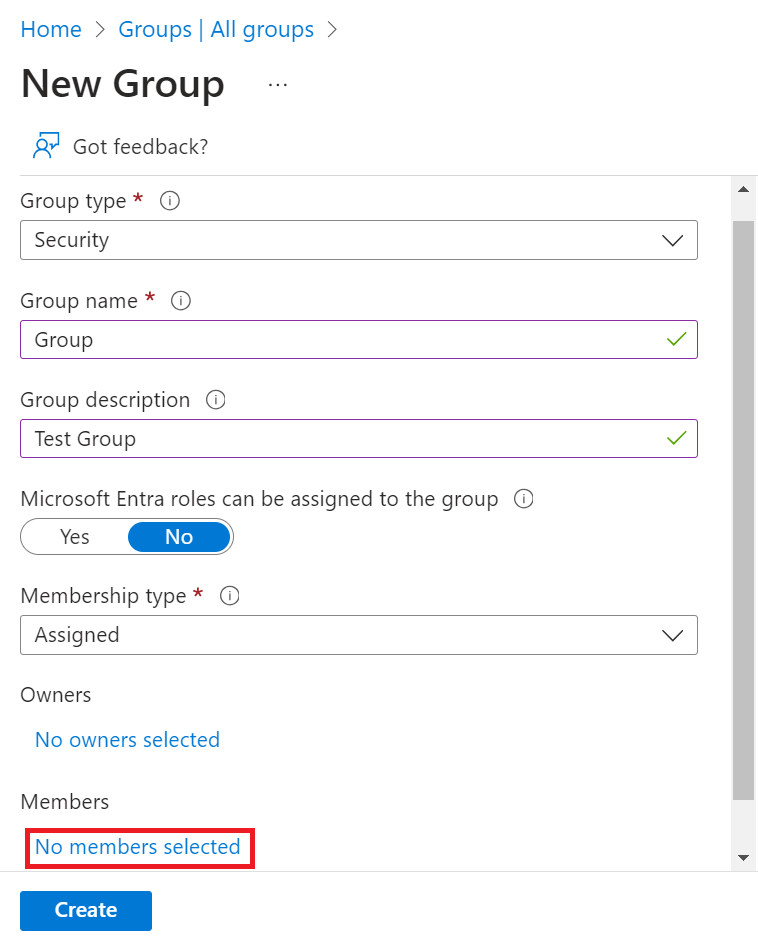
vi. On the Add members page, search for one or more members. Click on desired member/members from the list and click Select. The member/members are added to the group.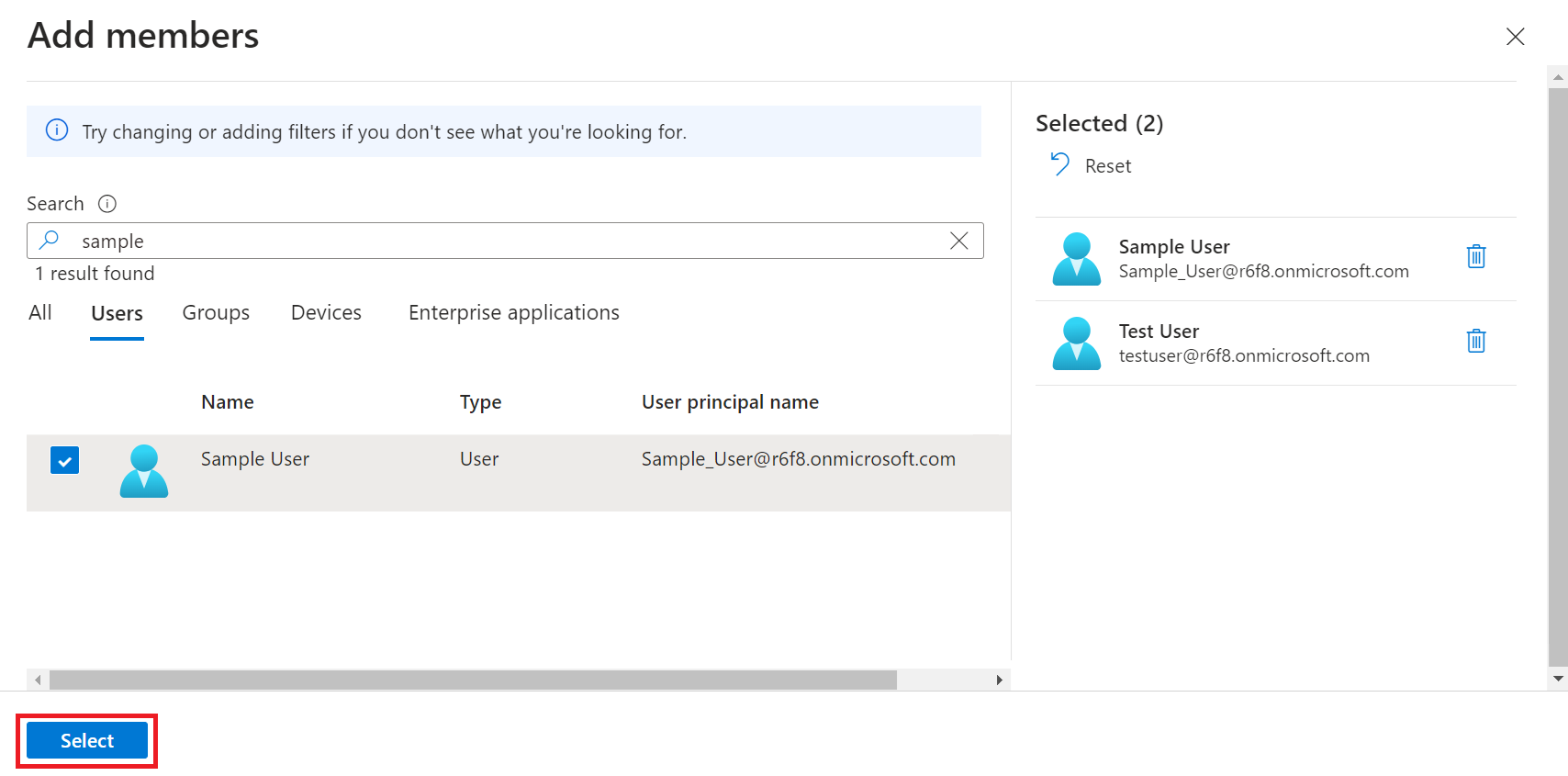
vii. Click Create.
NOTE: Repeat steps a-c to create additional groups and add members, as required.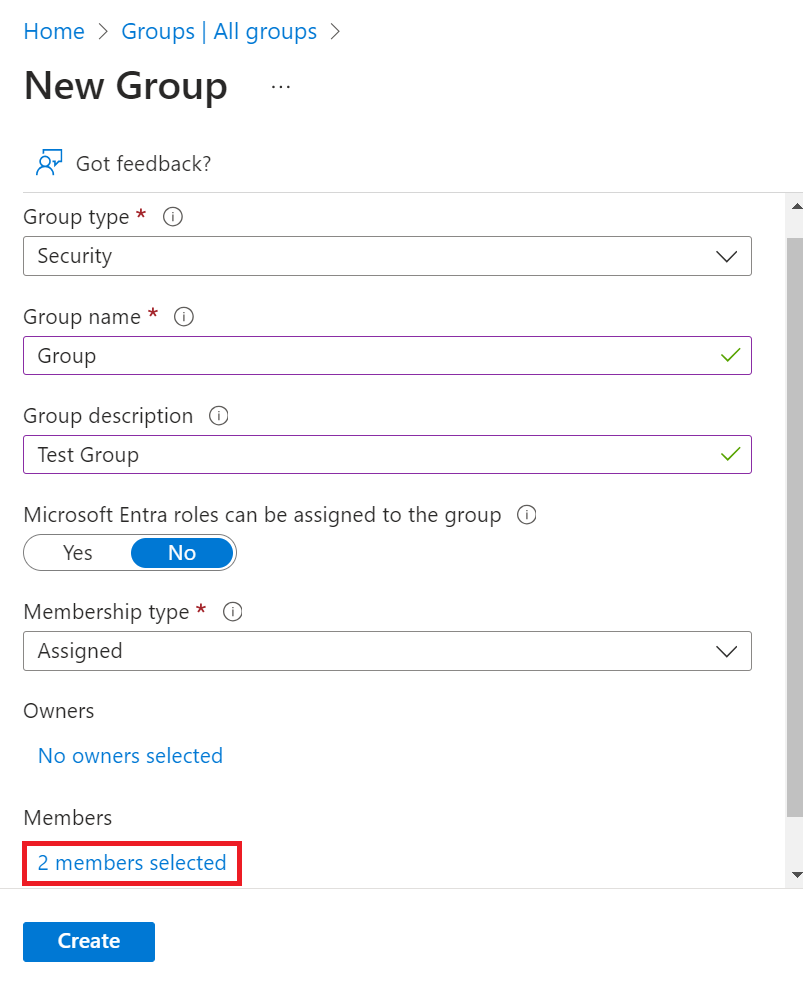
d. On the Groups screen, search for the group(s) created and copy the Object Id(s) of the group/groups to your clipboard, and save it on a word/text to be used later.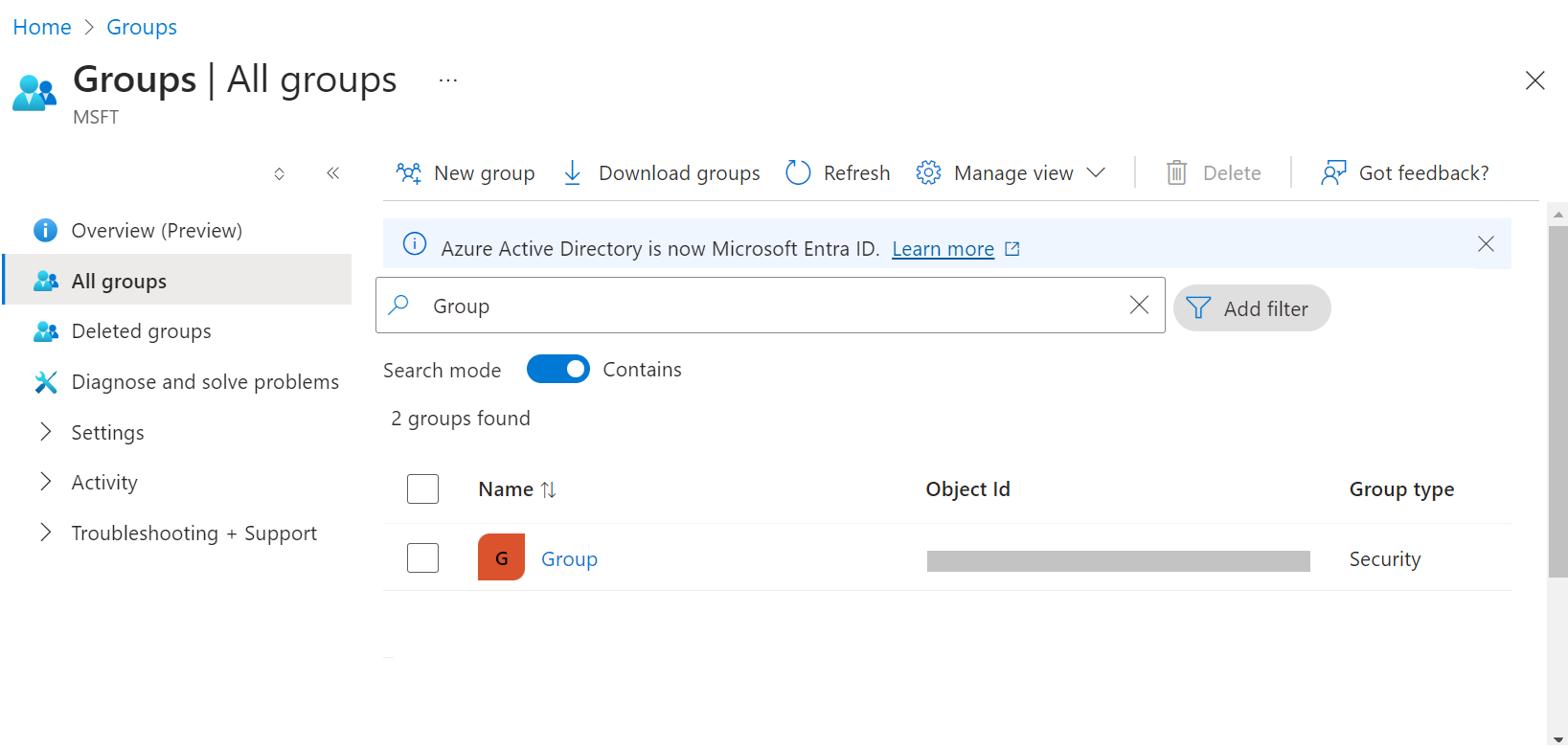
Grant SAML Application Access to Active Directory
To allow your SAML application to access Active Directory, perform the following steps:
- Log in to the Microsoft Azure Portal.
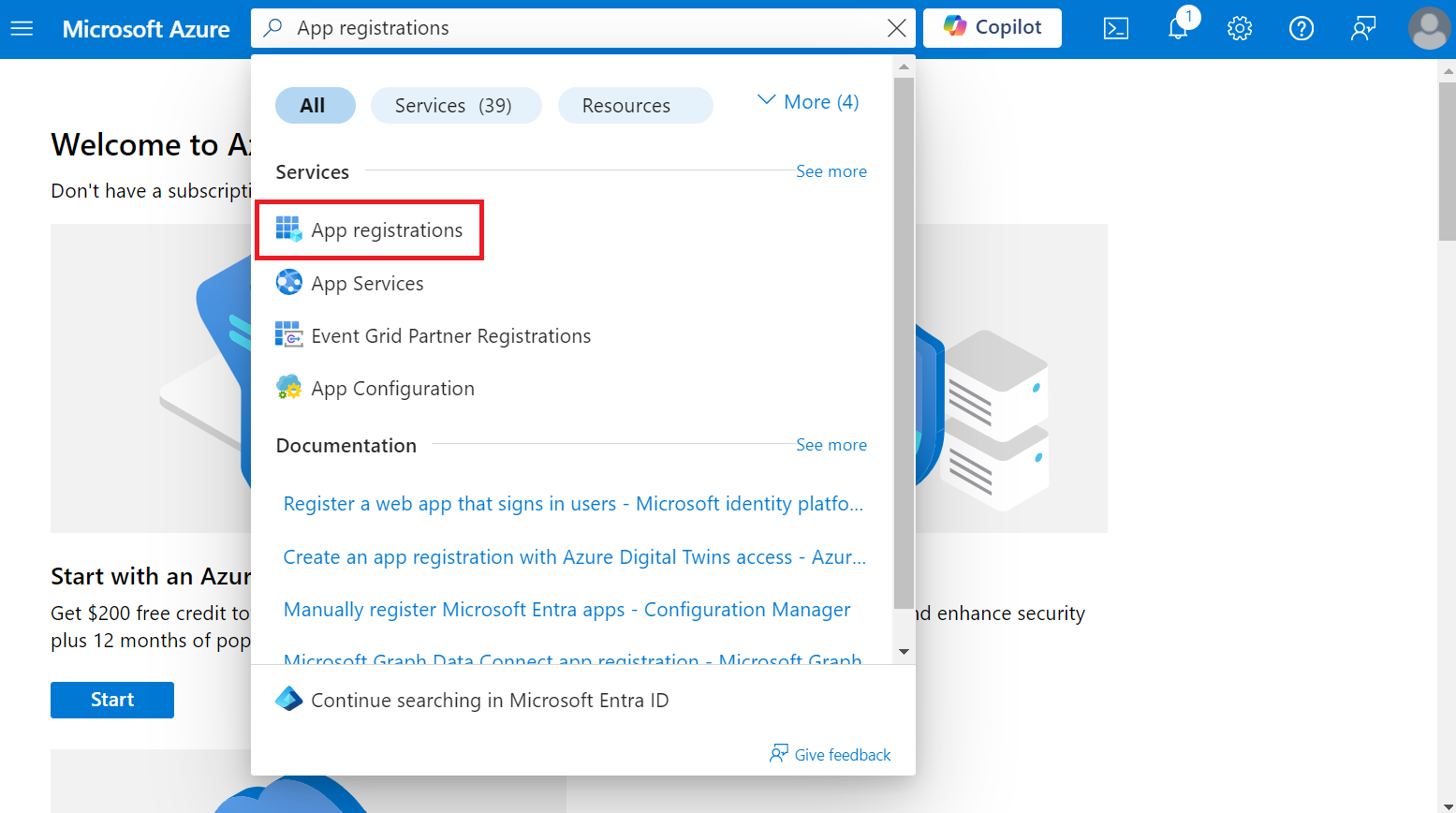
- Type “App registrations” in the search box and click App registrations.
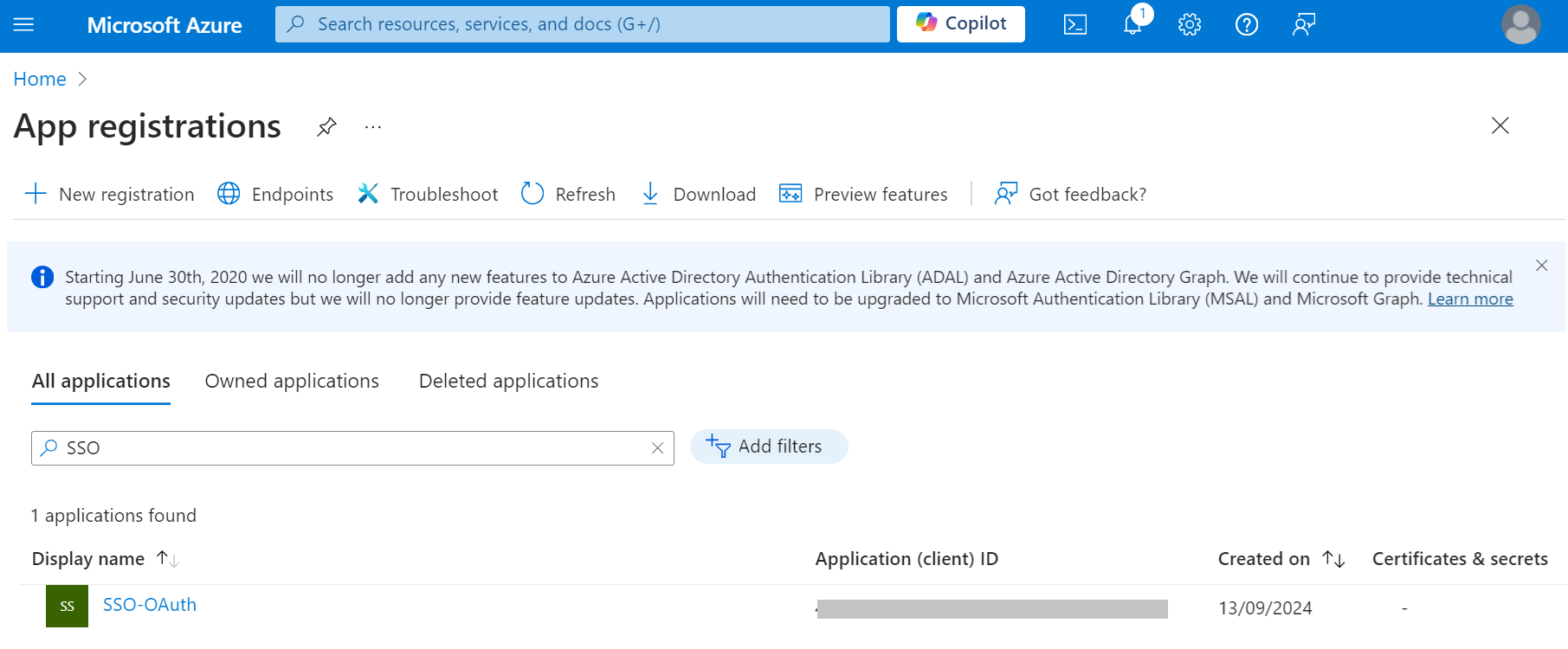
- Click the All applications tab and search for the application created in the Creating a SAML Application in Azure section and select the application.
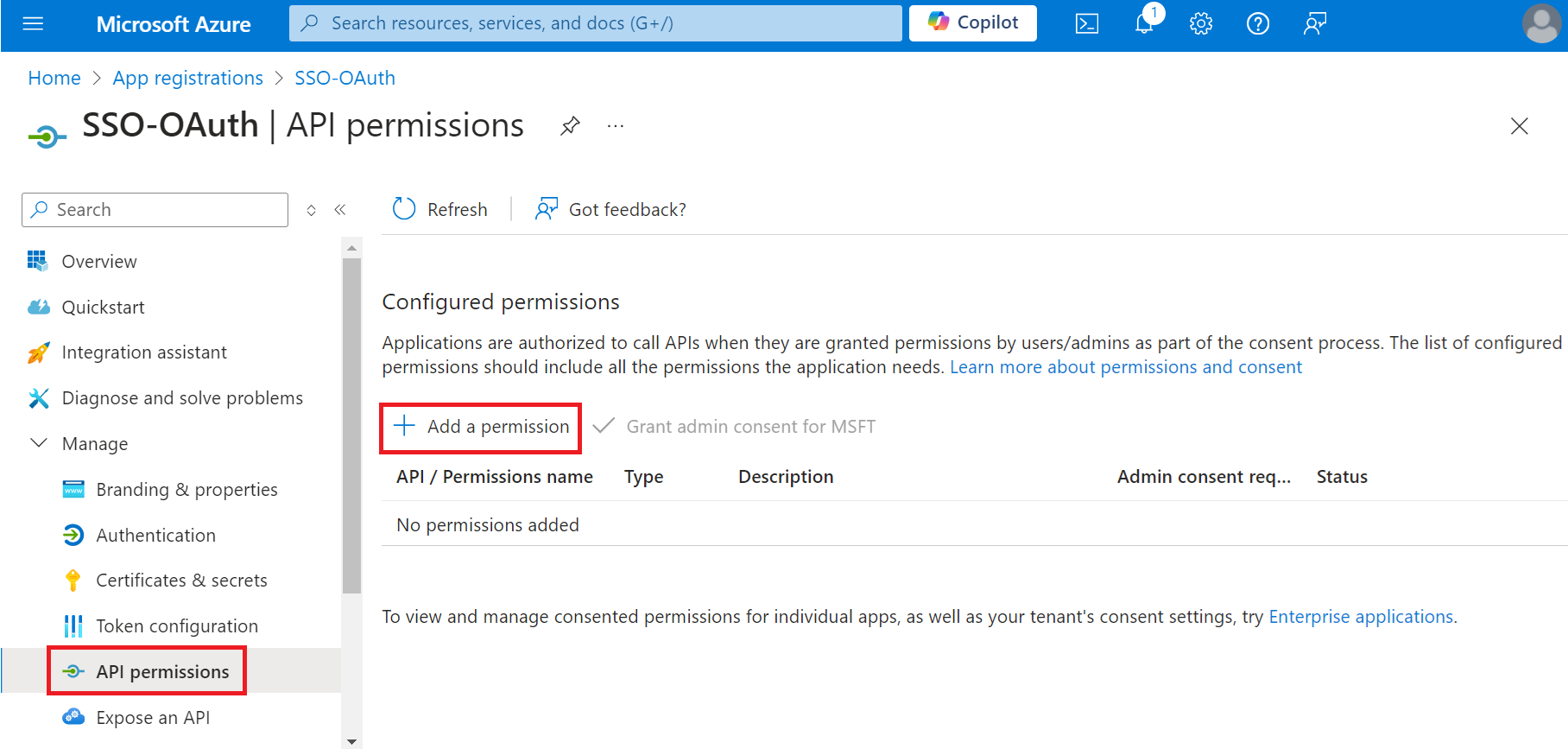
- On the displayed page, navigate to Manage > API permissions.
- On the API permissions screen, click Add a permission.
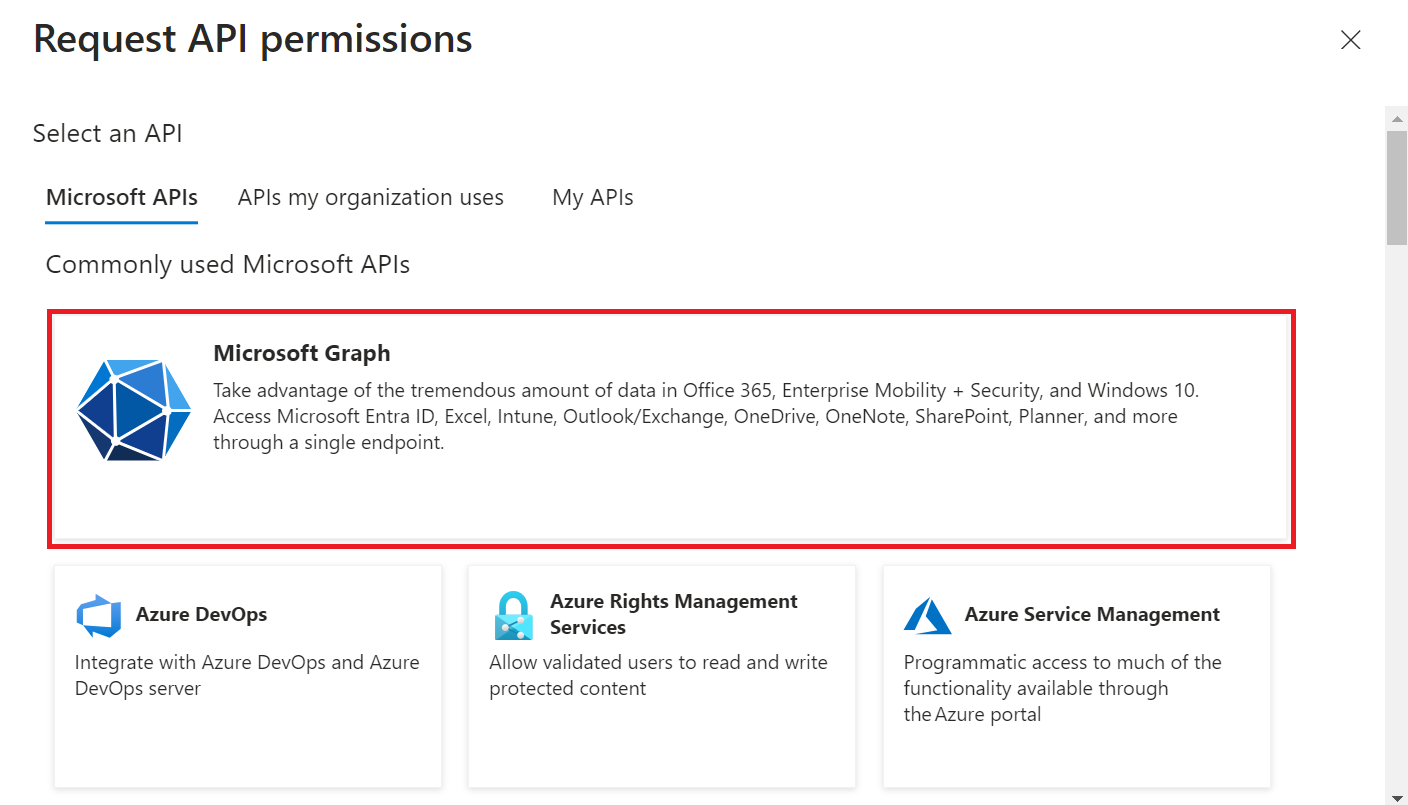
- Select Microsoft Graph.
- Select Delegated permissions.
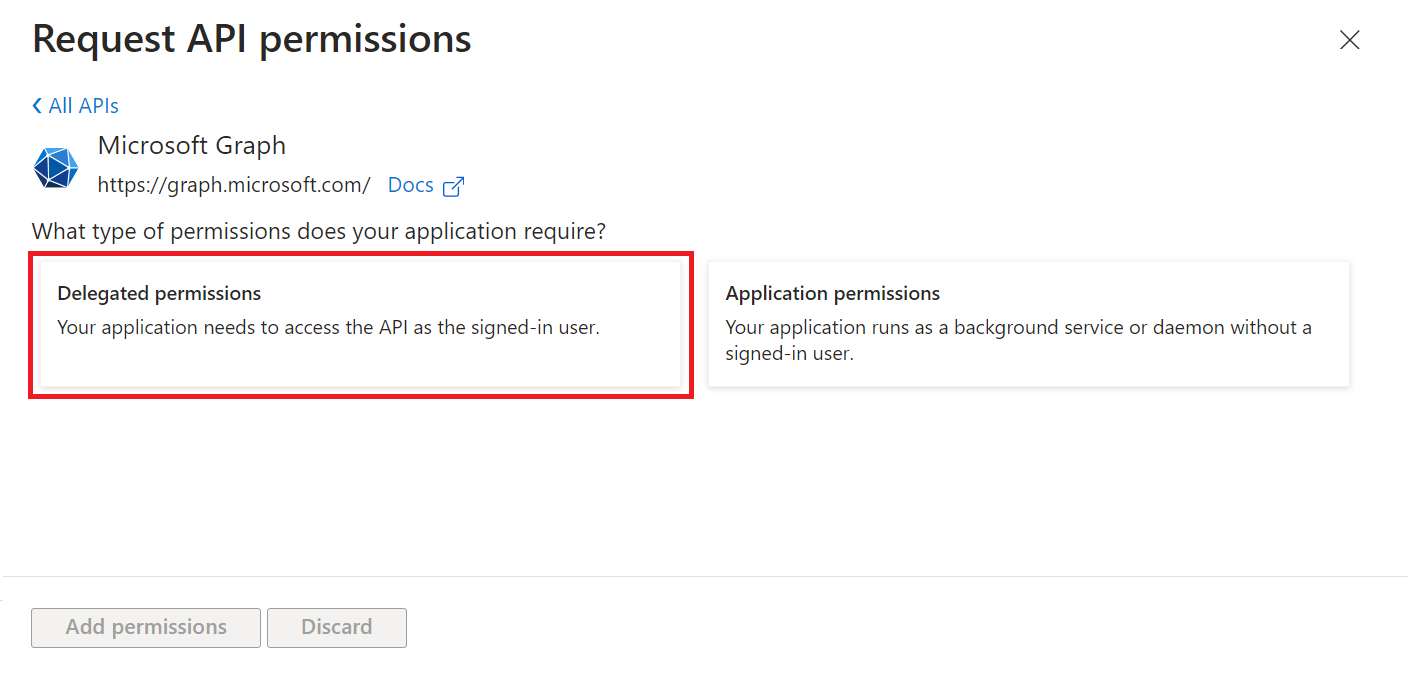
- In the Select permissions section, select the following permissions:
– Directory.Read.All
– Group.Read.All
– User.Read.All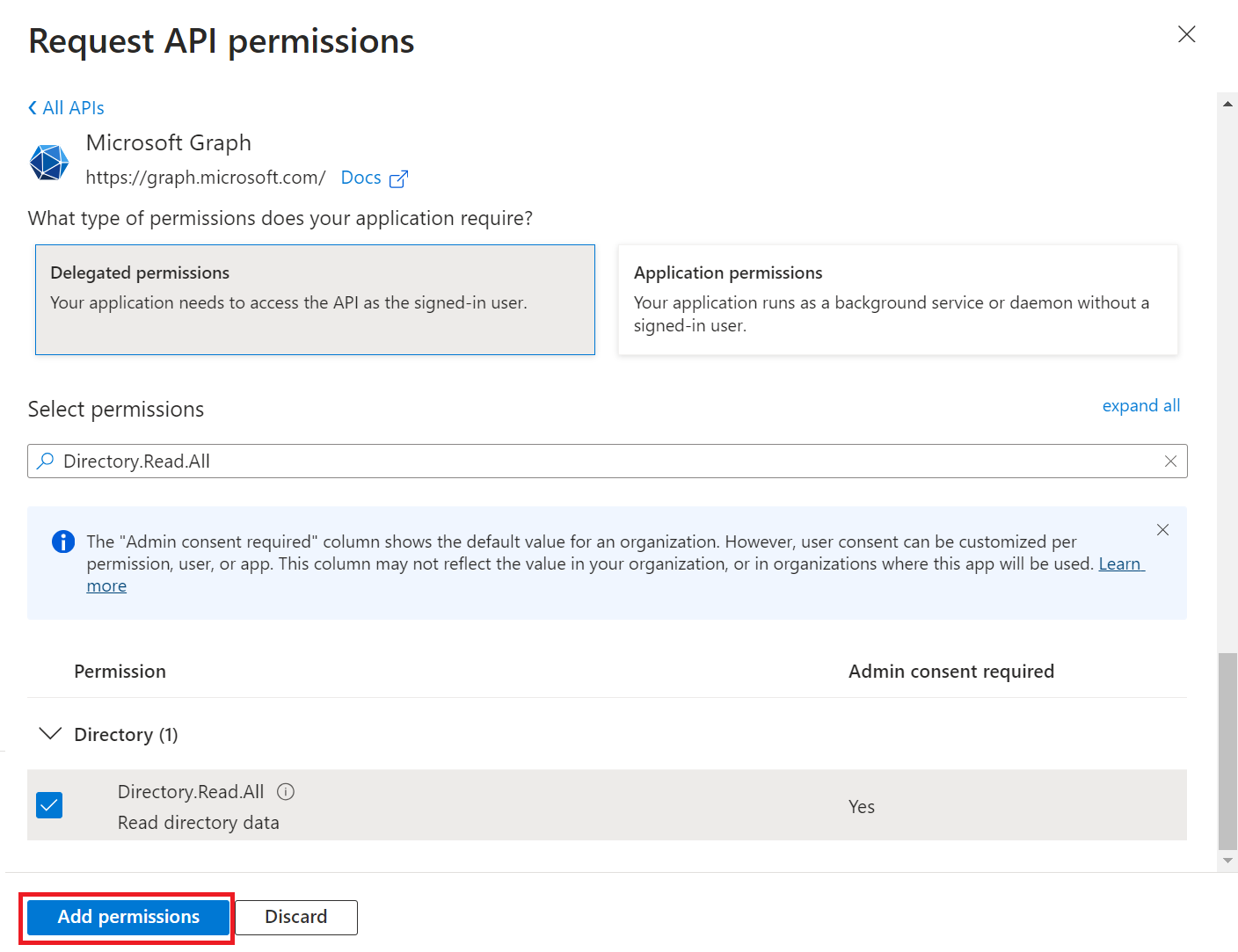
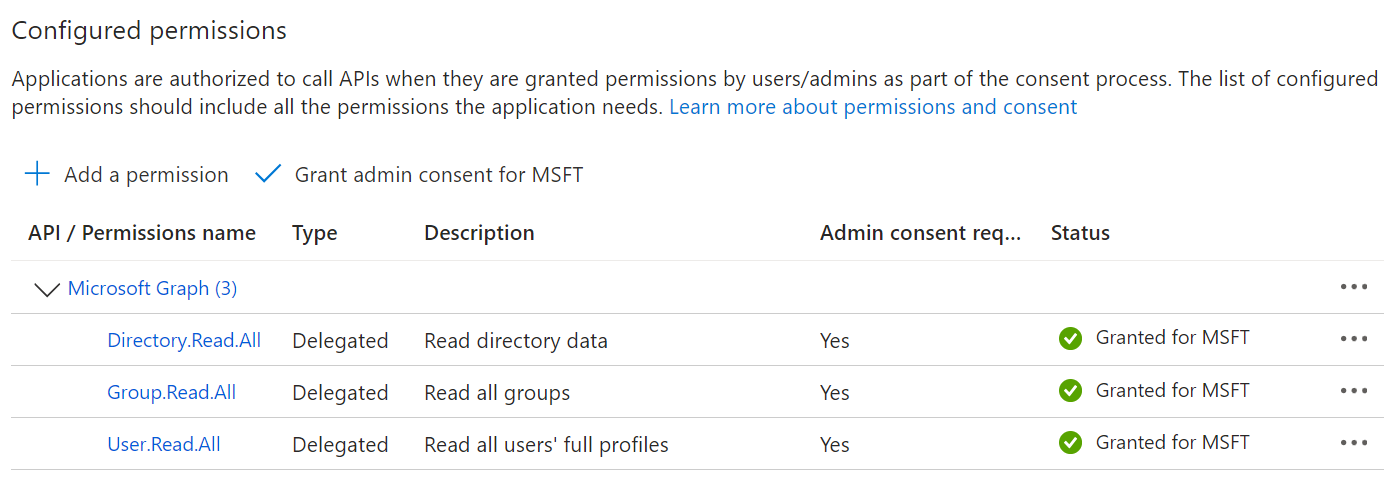
- Click Add Permissions, and the permissions will be added.
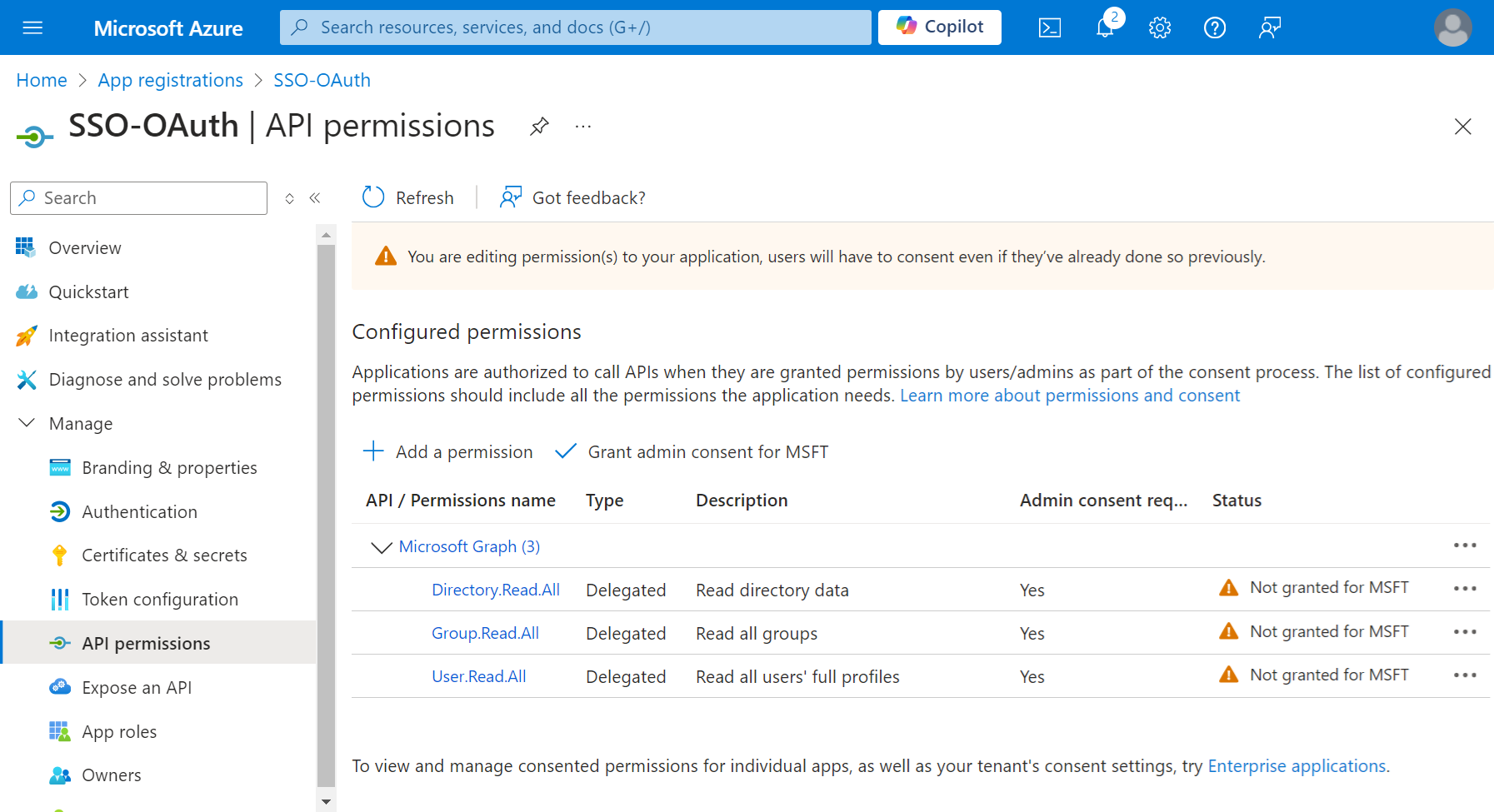
- After adding the permissions, click Grant admin consent for {your organization} to grant consent for the requested permissions.
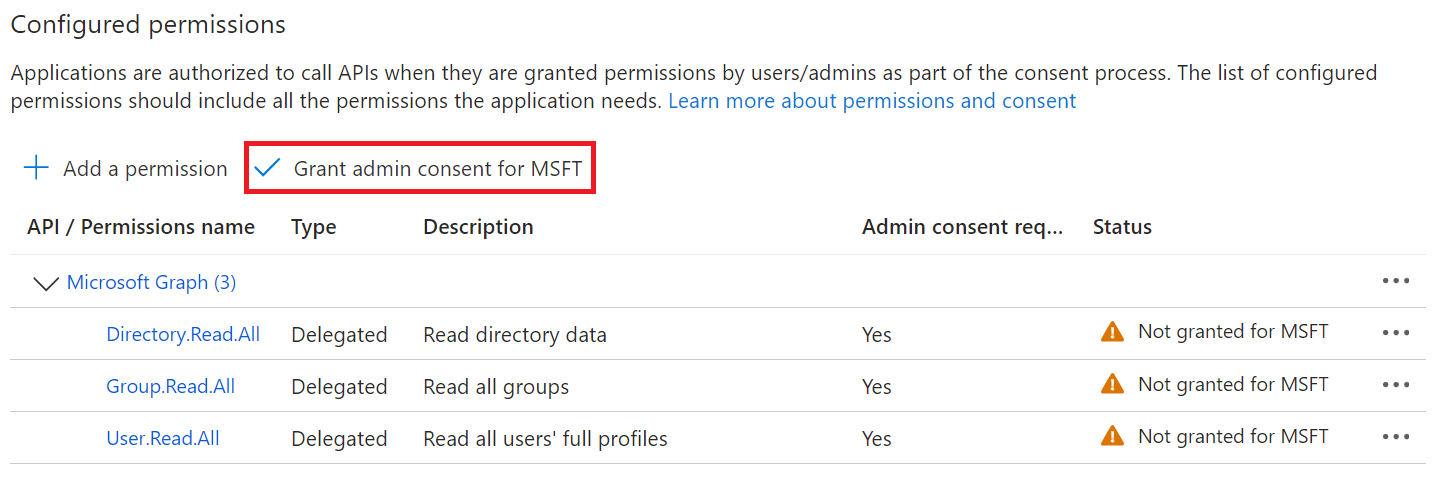
- In the Grant admin consent confirmation pop-up window, click Yes.

- The configured APIs are displayed on the Configured permissions page.
- Navigate to Manage > Manifest.
- Click the Microsoft Graph App Manifest (New) tab.
- On Microsoft Graph app manifest, change the value of the groupMembershipClaims variable to “All” in the source code.
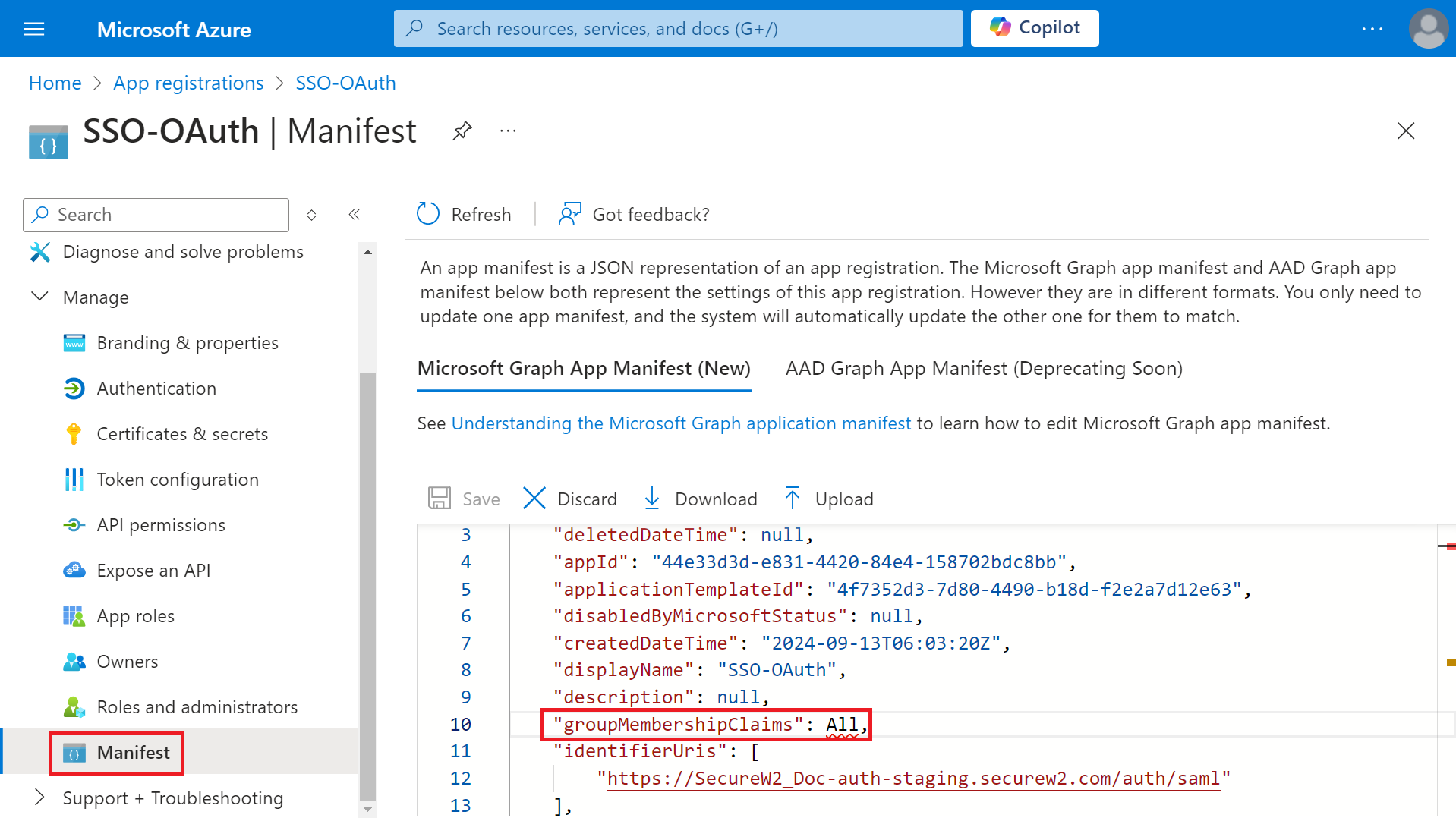
- Click Save.
Configuring Group Mappings for SAML in Azure Active Directory
To configure group mappings for SAML using Azure Active Directory, perform the following steps:
- Log in to the Microsoft Azure Portal.
- Type “Enterprise applications” in the search box and click Enterprise applications.
- Navigate to the SAML application you created in the Creating a SAML Application in Azure section.
- On the left pane, navigate to Manage > Single sign-on.
- In the Attributes & Claims section, click the Edit button.
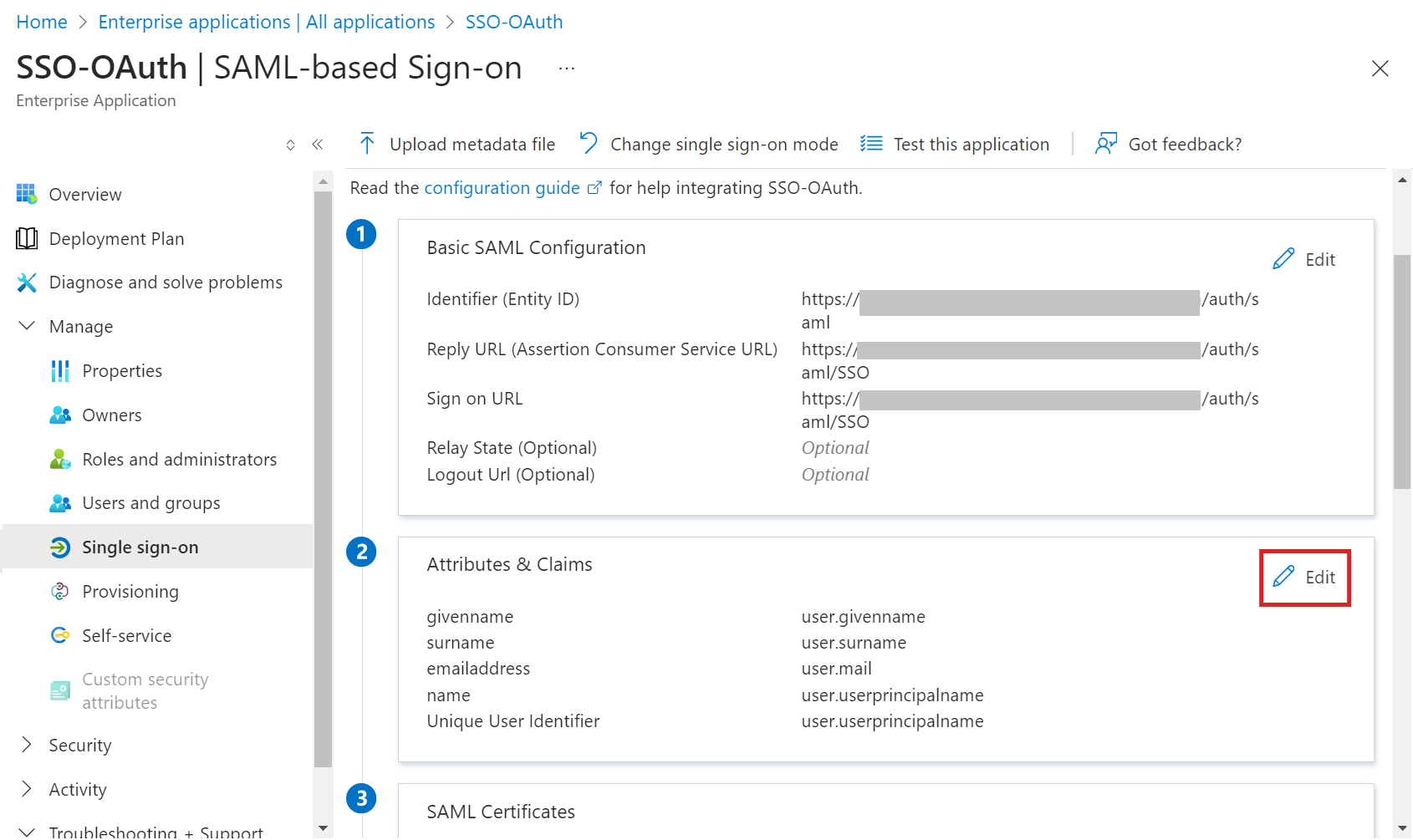
- On the Attributes & Claims page, click + Add a group claim.
- On the Group Claims pop-up window, configure the settings.
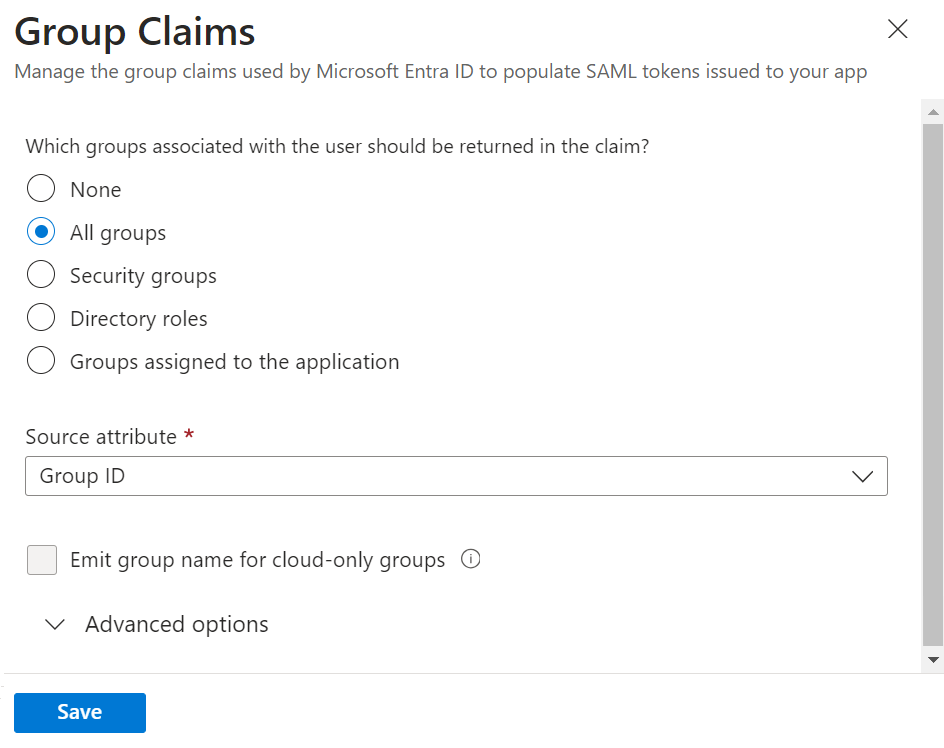
- Click Save.
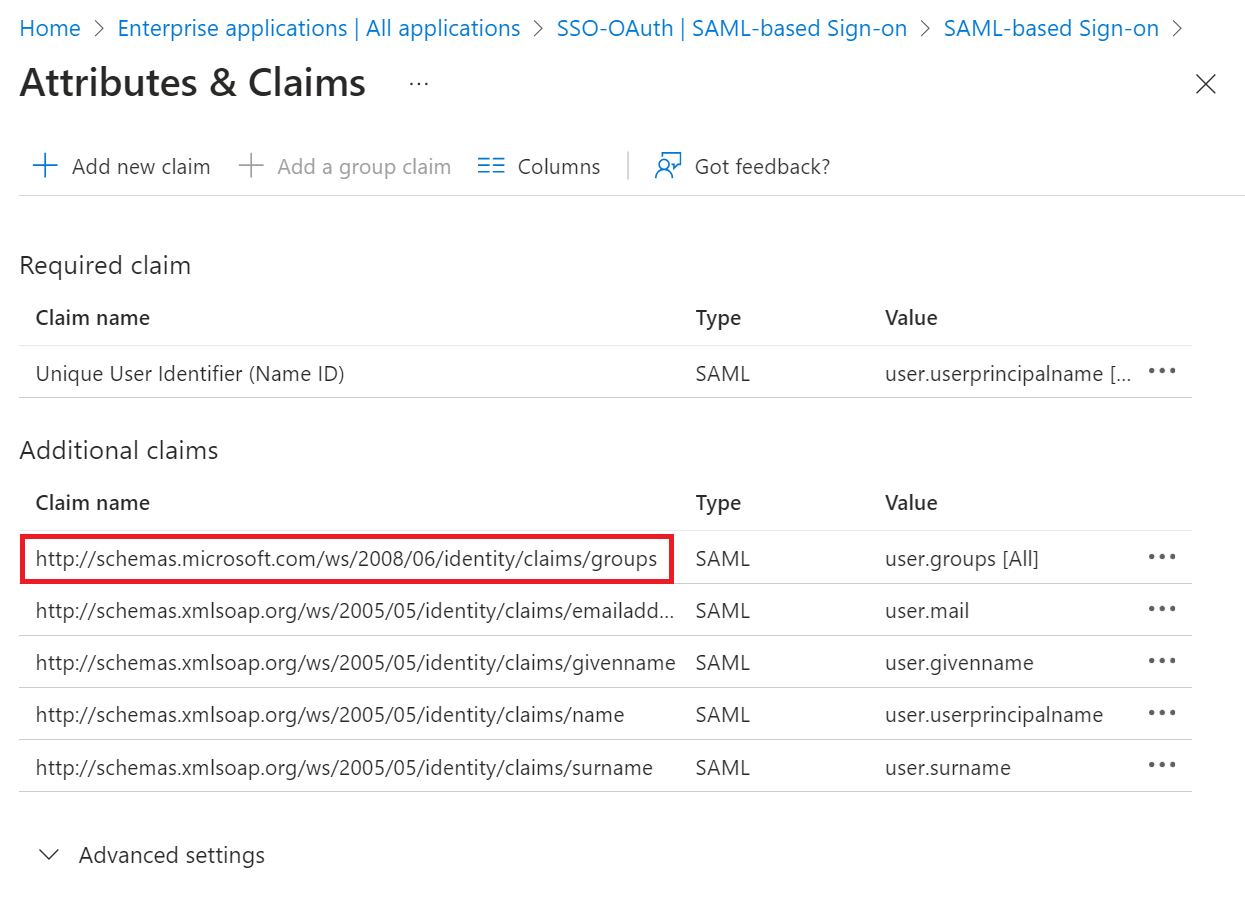
NOTE: If you don’t customize the Group Claim name, Azure will default to http://schemas.microsoft.com/ws/2008/06/identity/claims/groups, and this value must be entered as the Group Map Attribute on the JoinNow Management Portal.
Creating an Authentication Policy
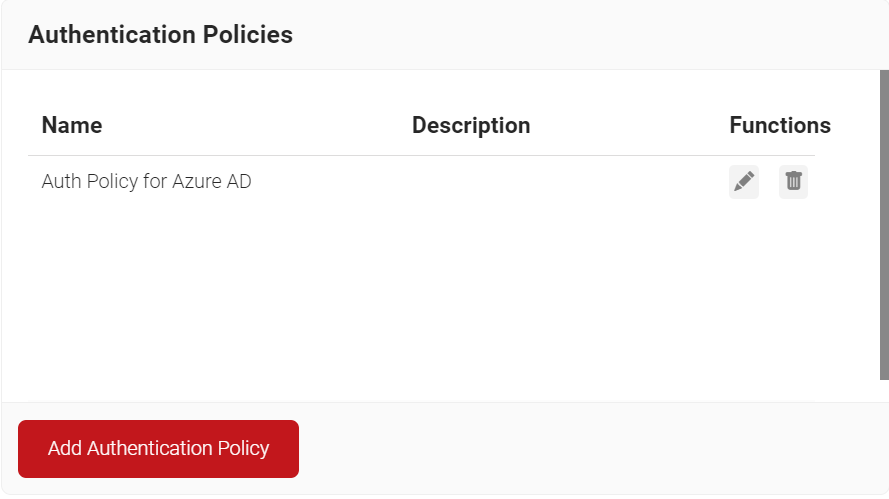
An Authentication Policy can be created from the Authentication page. If you’ve already set up an authentication policy through Getting Started, you can either edit it with the required values or create a new one.
To create a new Authentication Policy, perform the following steps:
- Navigate to Policy Management > Authentication.
- On the Authentication page, click Add Authentication Policy.
- In the Basic section, enter the name of the Authentication Policy in the Name field.
- In the Display Description field, enter a suitable description for the Authentication Policy.
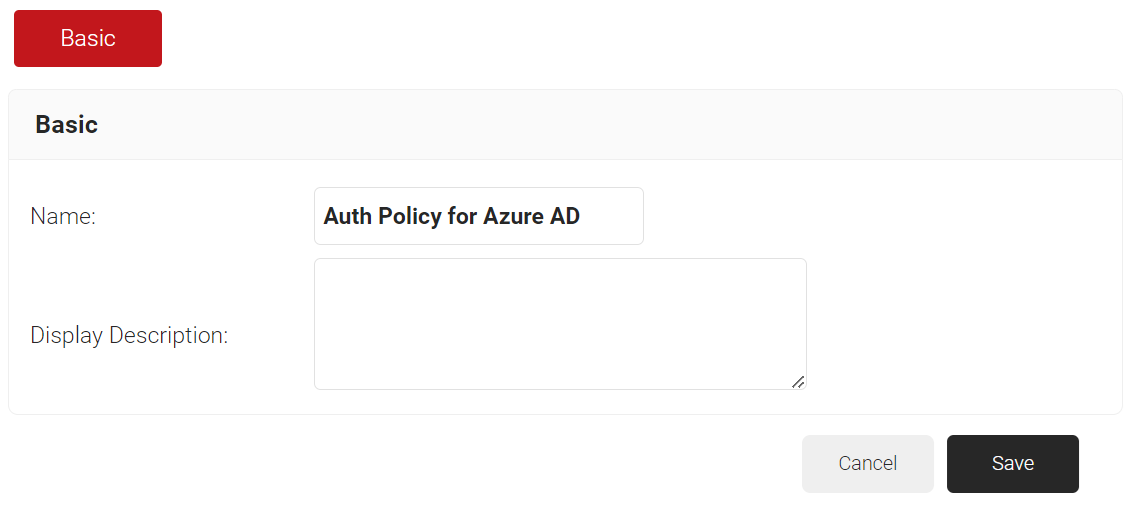
- Click Save.
- Click the Conditions tab.
- In the Profile drop-down list, ensure that your network profile is selected.
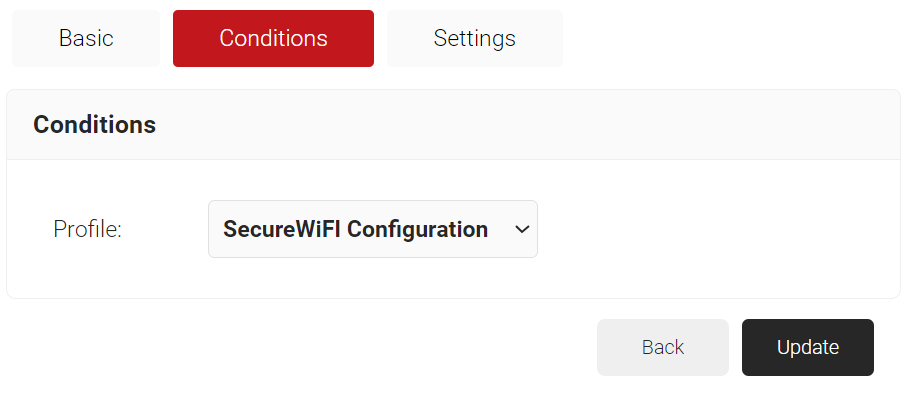
- Click the Settings tab.
- From the Core Provider drop-down list, select the IDP you created earlier (refer to the Creating an Core Provider in SecureW2 section).
- Select the Enable User Self Service check box.
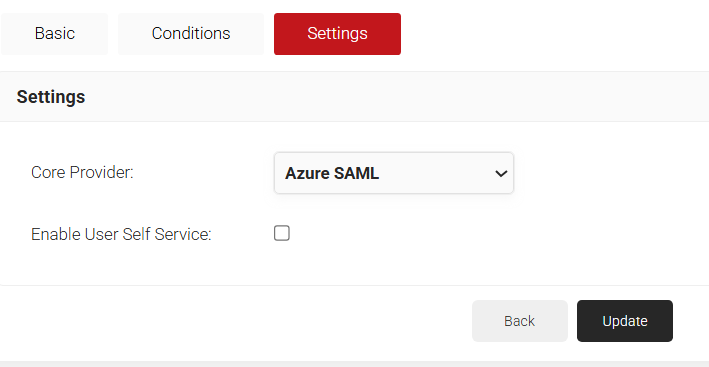
- Click Update.
Creating a Policy Workflow
To configure a Policy Workflow:
- Navigate to Policy Management > Policy Workflows.
- Click Add Policy Workflow.
- In the Basic section, enter the name of the policy engine workflow in the Name field.
- In the Display Description field, enter a suitable description for the policy engine workflow.
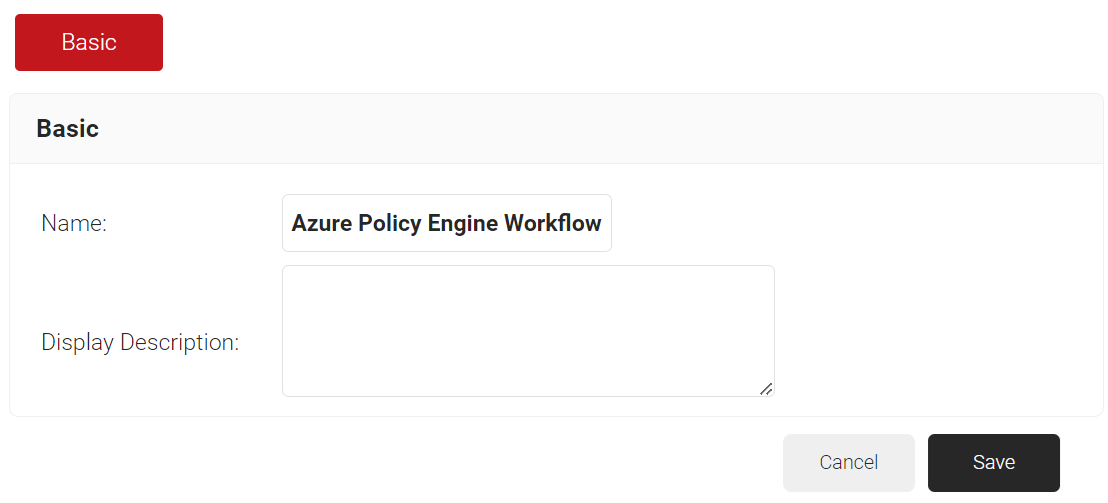
- Click Save.
- Select the Conditions tab.
- From the Core Provider drop-down list, select the IDP that you created earlier (refer to the Creating a Core Platform in SecureW2 section).
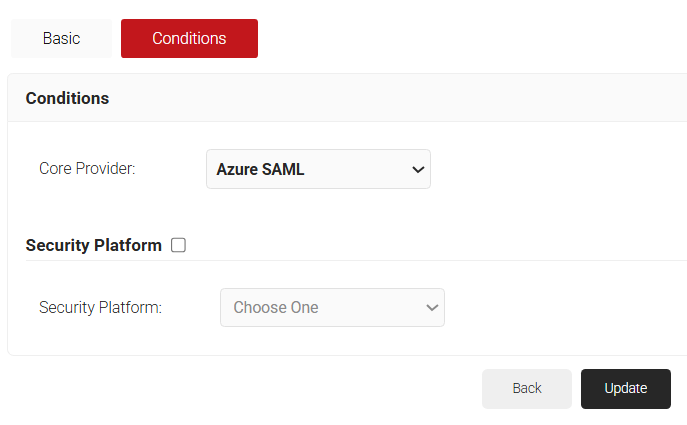
- Click Update.
Creating an Enrollment
To configure an enrollment policy:
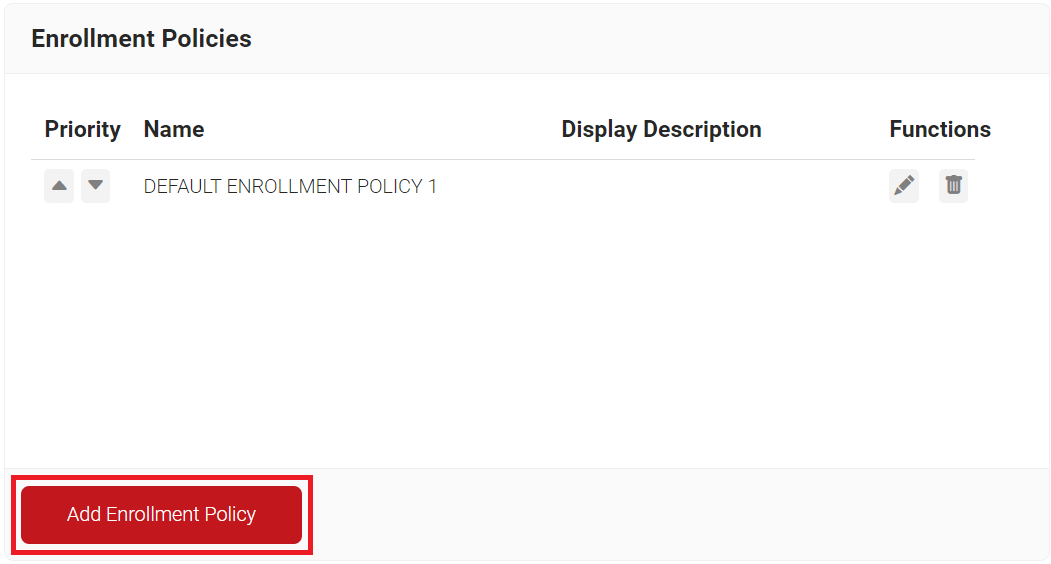
- Navigate to Policy Management > Enrollment.
- Click Add Enrollment Policy.
- In the Basic section, enter the name of the enrollment policy in the Name field.
- In the Display Description field, enter a suitable description for the enrollment policy
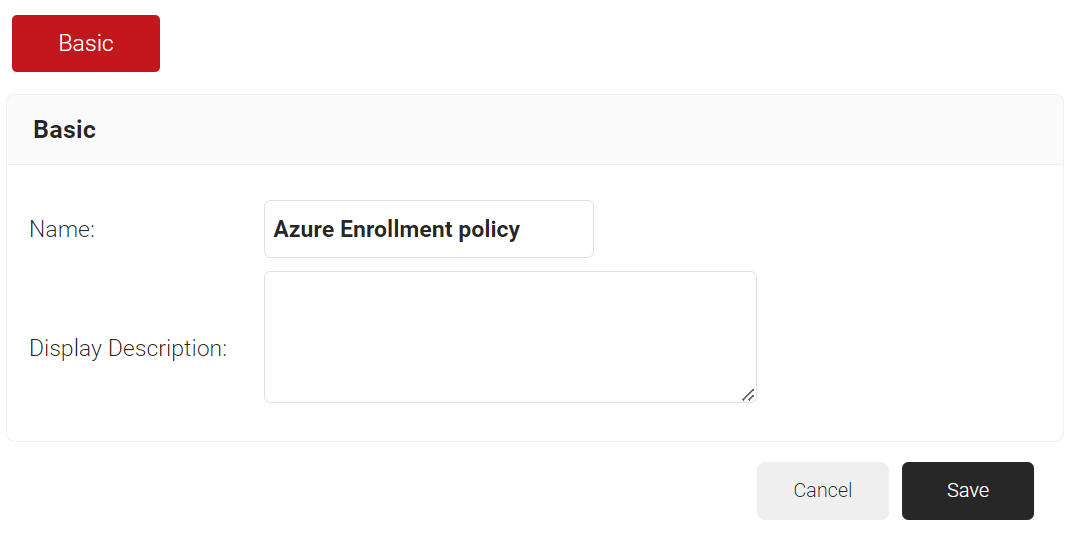
- Click Save.
- The page refreshes, and the Conditions and Settings tabs are displayed.
- Select the Conditions tab.
- In the Conditions section, from the Role list, select the role policy you created earlier (see the Creating a Policy Workflow section).
- From the Device Role list, select DEFAULT DEVICE ROLE POLICY.
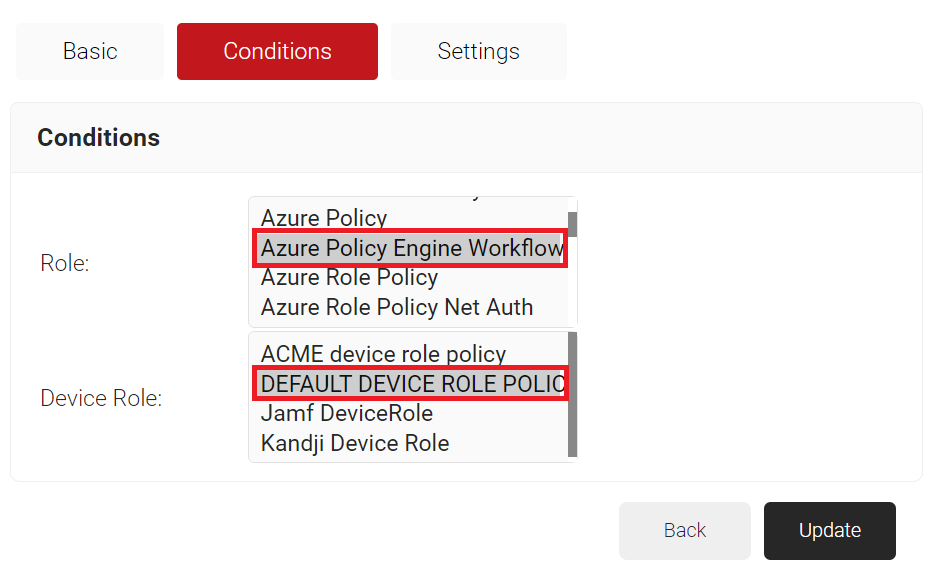
- Click Update.
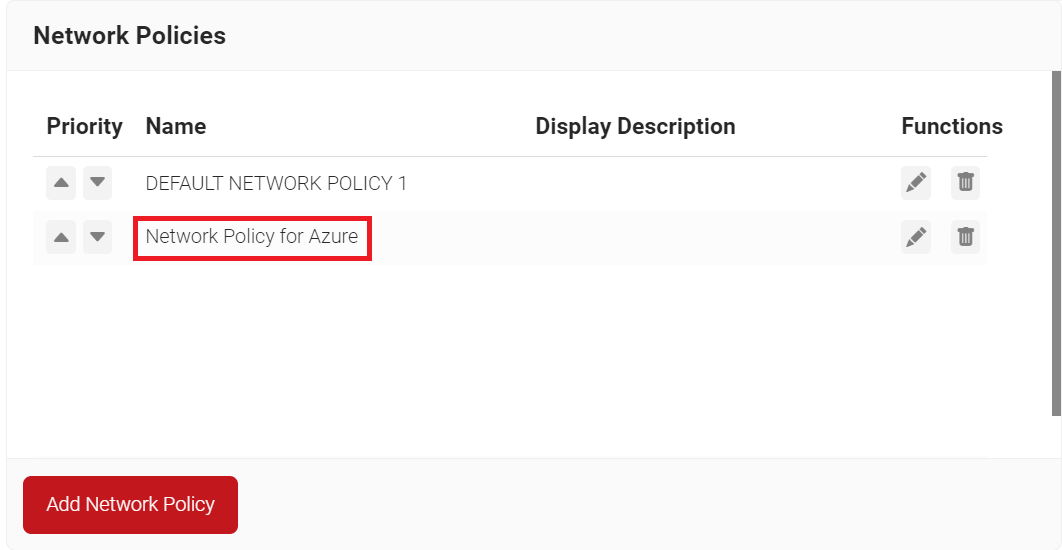
Creating a Network Policy
To configure a Network Policy, perform the following steps:
- Navigate to Policy Management > Network.
- On the Network page, click Add Network Policy.
- Under the Basic section, in the Name field, enter the name of the network policy.
- In the Display Description field, enter a suitable description for the network policy.
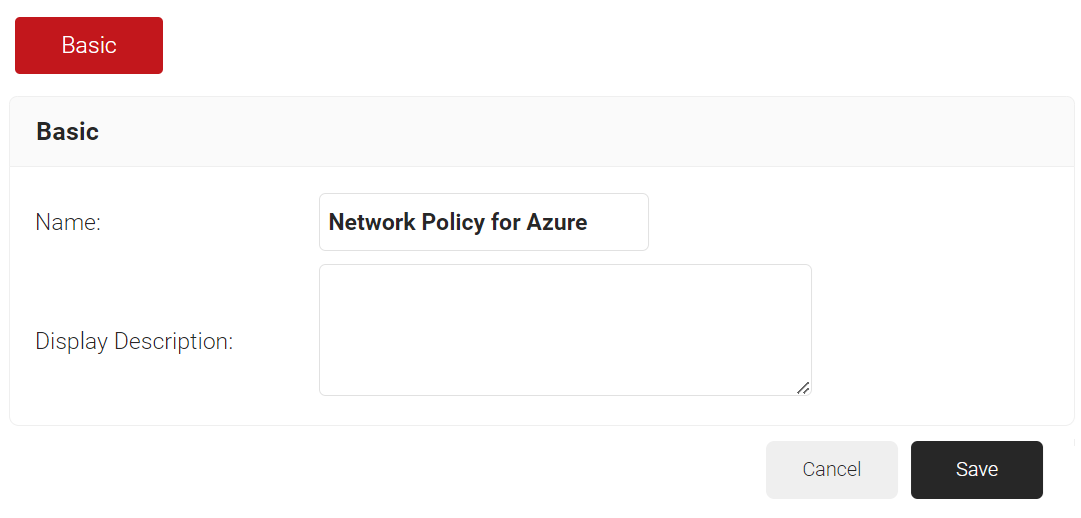
- Click Save.
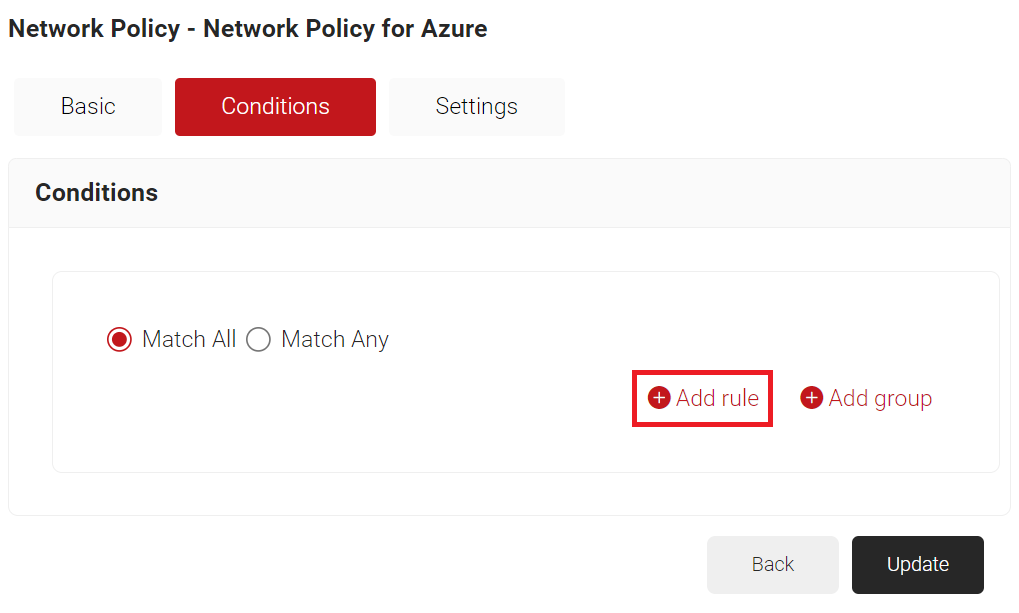
- Click the Conditions tab.
- Click Add rule and select the user role you want to assign to this network policy.
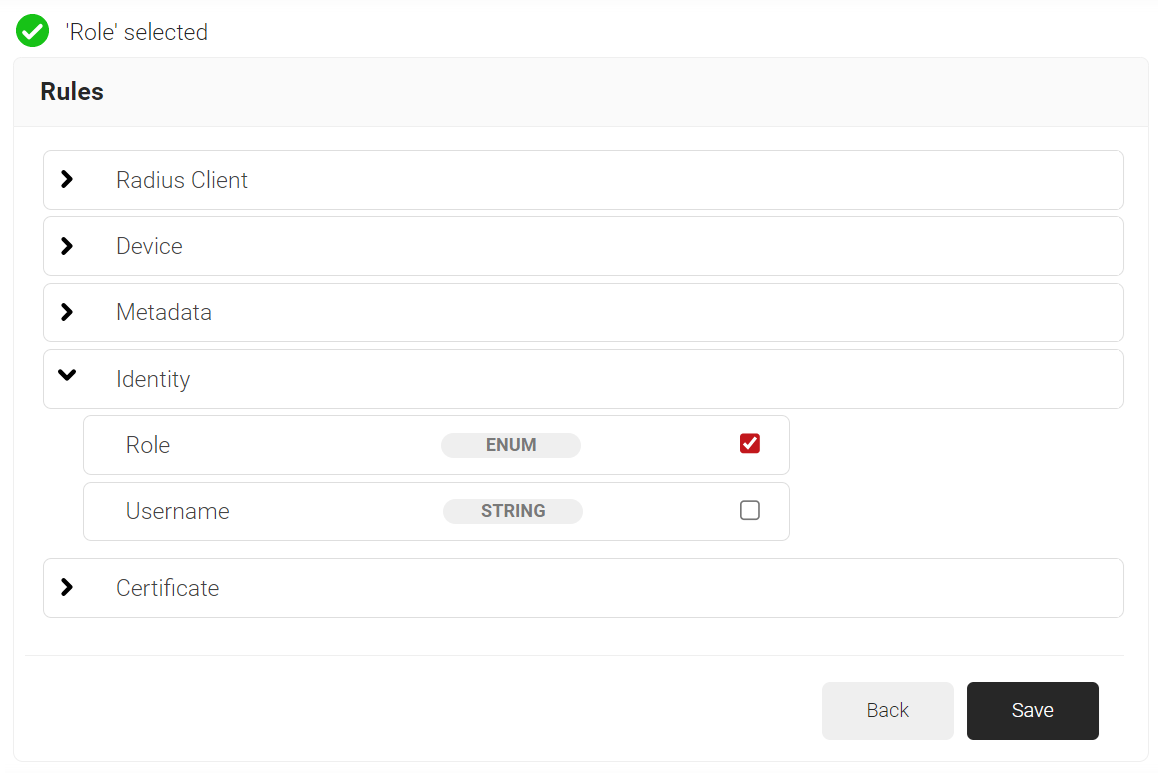
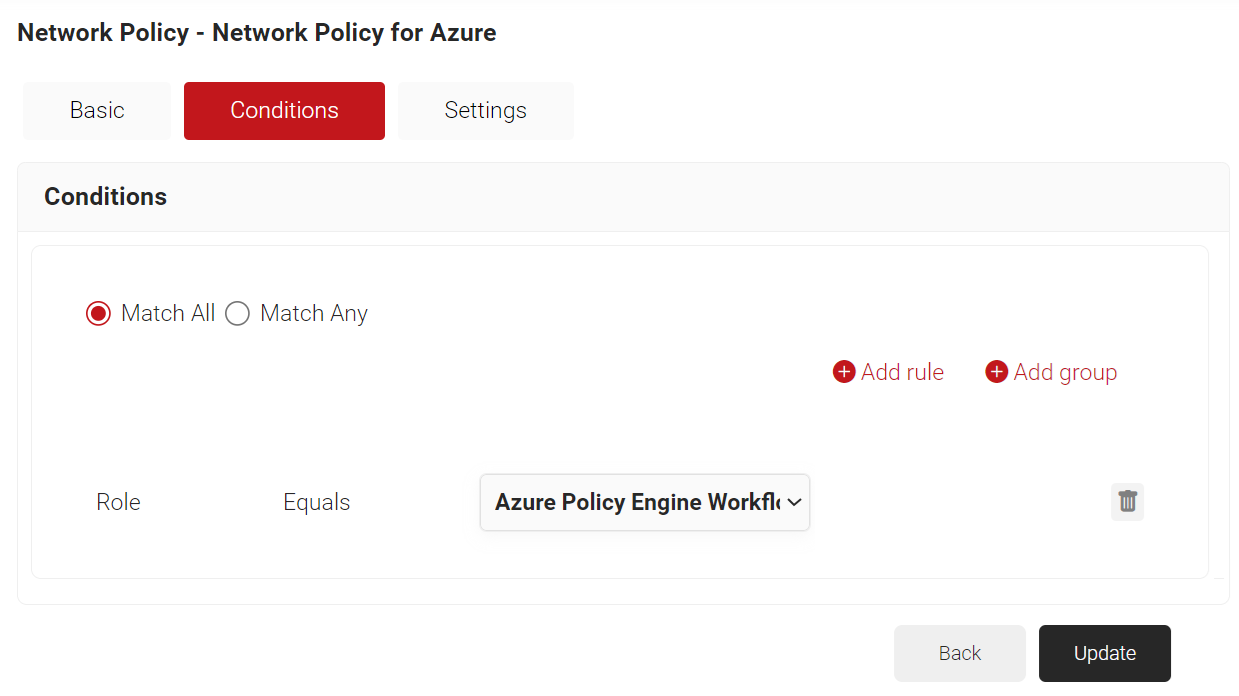
NOTE: You can assign a network policy to multiple user roles. - Click the Settings tab.
a. Click Add Attribute.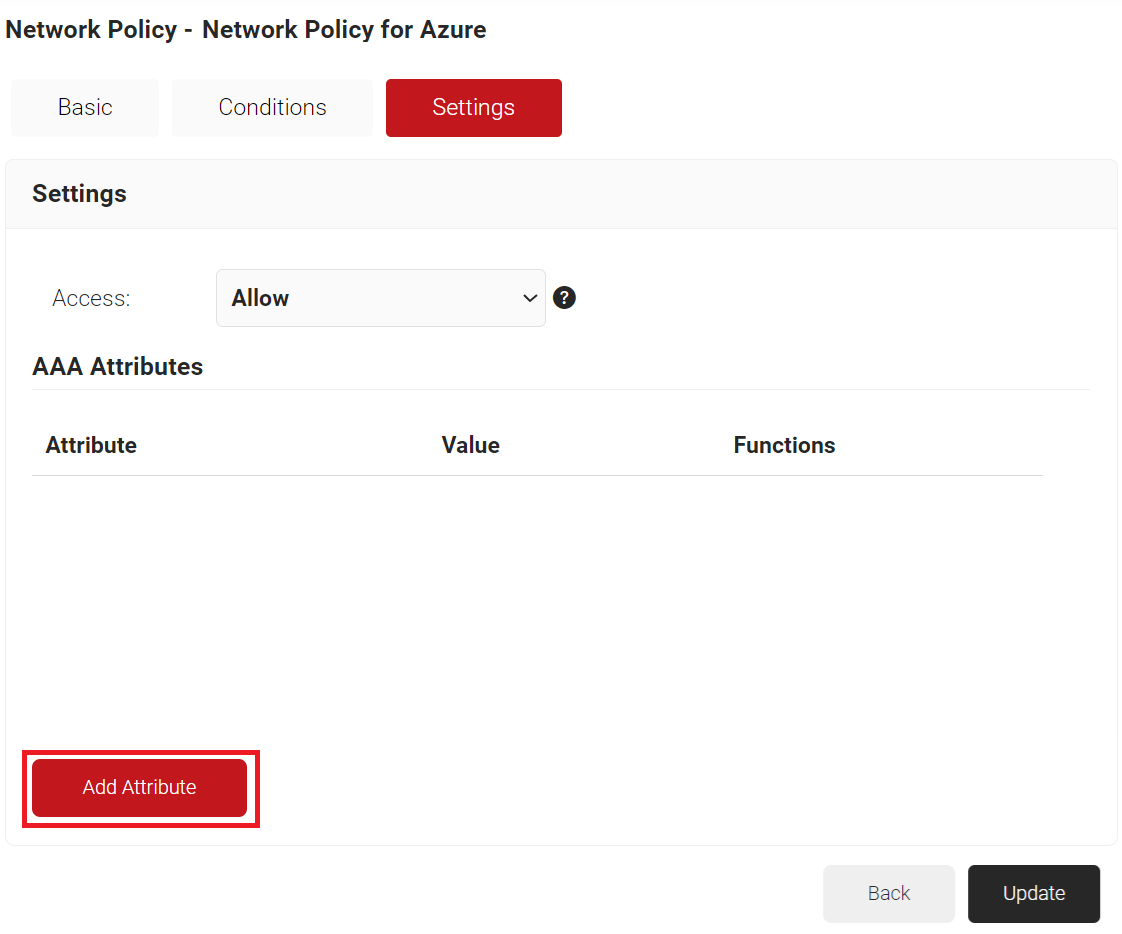
b. From the Dictionary drop-down list, select an option: Radius: IETF or Custom.
c. From the Attribute drop-down list, select an option.
d. In the Value field, enter the appropriate value for the attribute.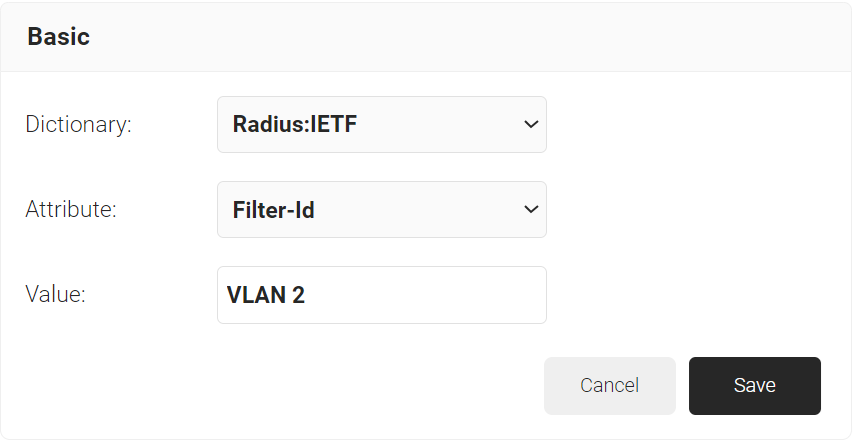
e. Click Save.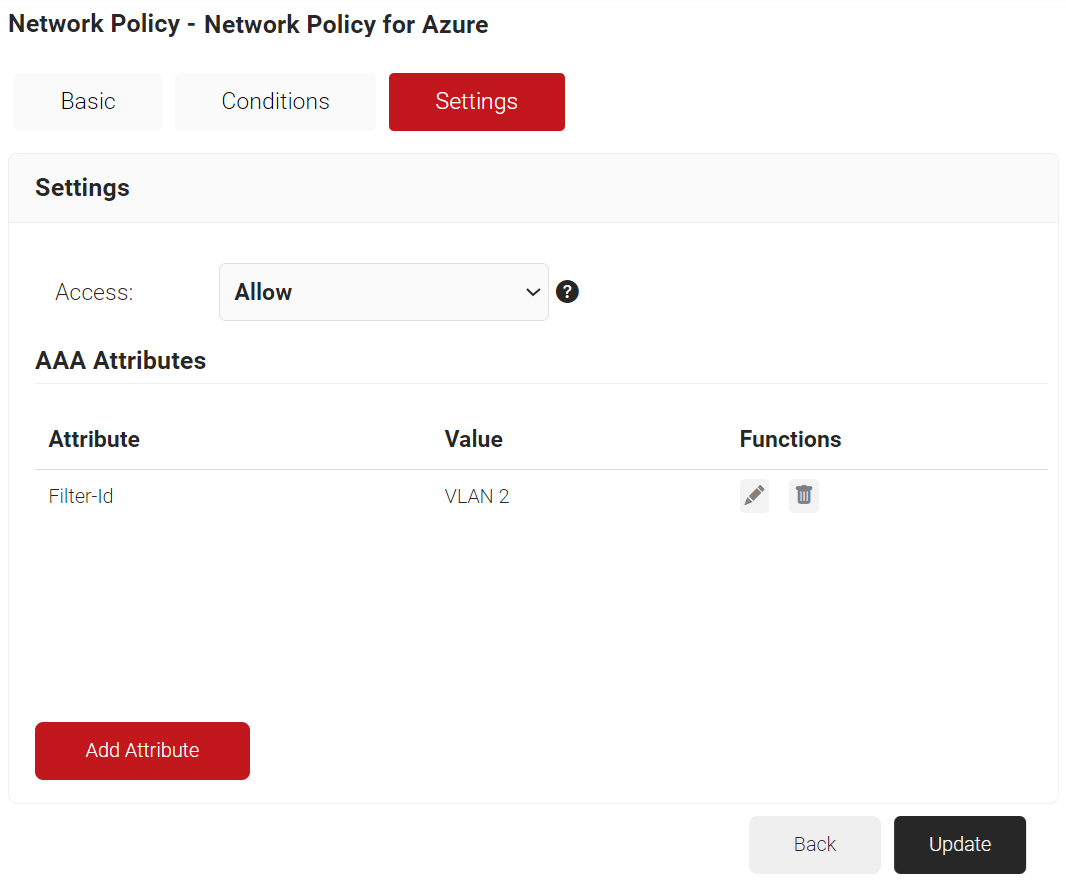
- Click Update.