To create a core provider in SecureW2:
- Log in to the JoinNow Management Portal.
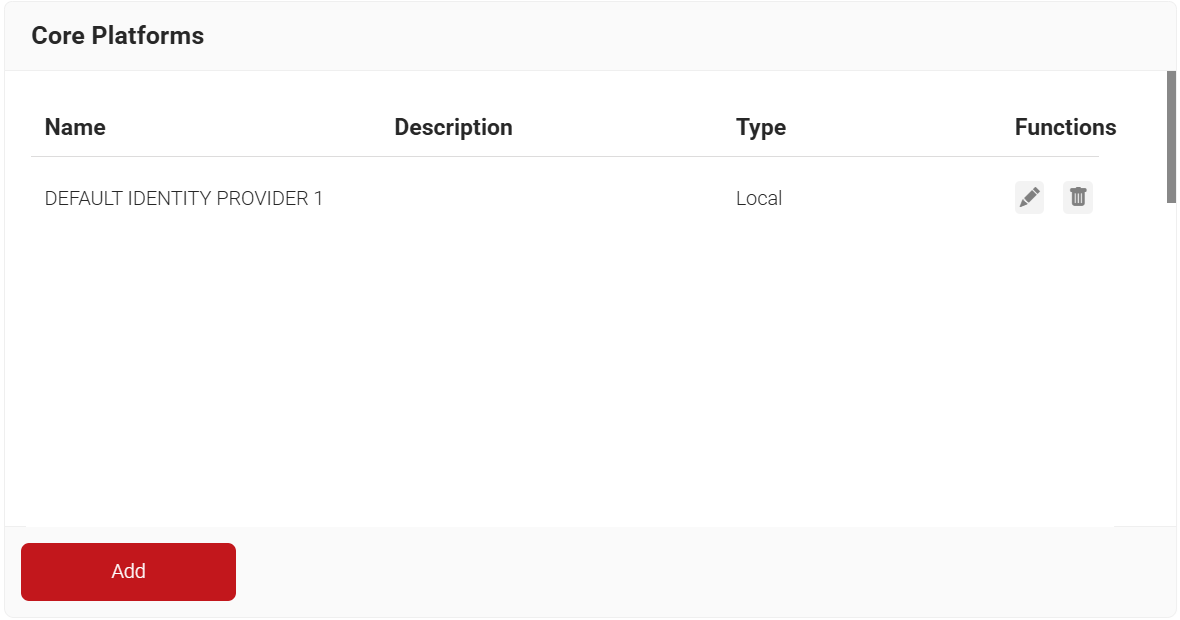
- Navigate to Integration Hub > Core Platforms.
- Click Add.
- In the Name and Description fields, enter the name and a suitable description for the core provider.
- From the Type drop-down list, select Okta SAML.
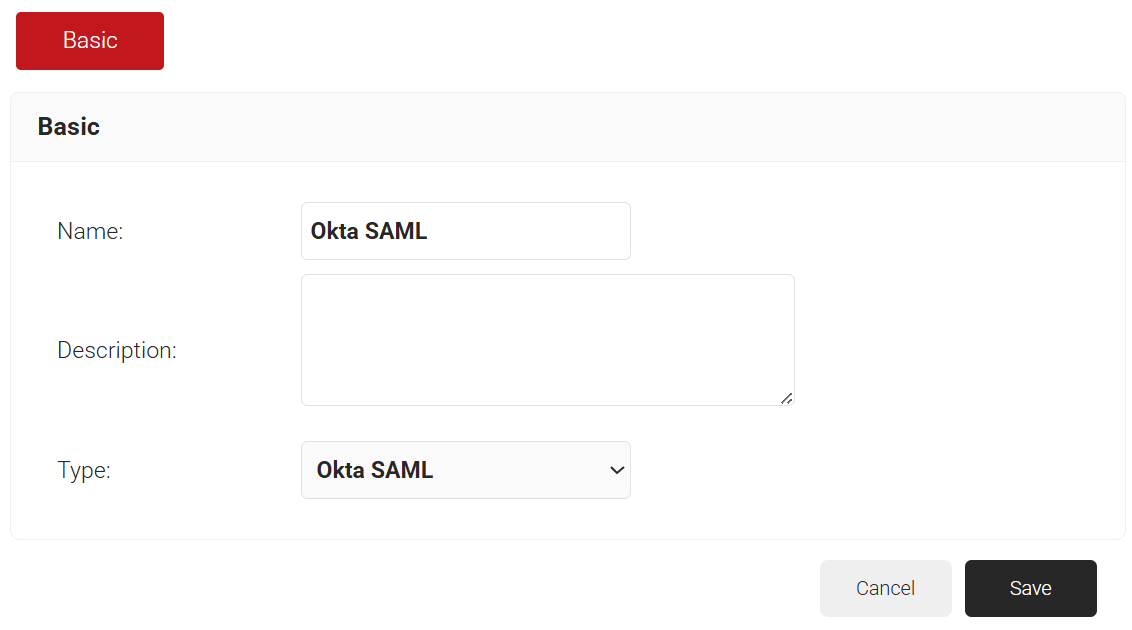
- Click Save.
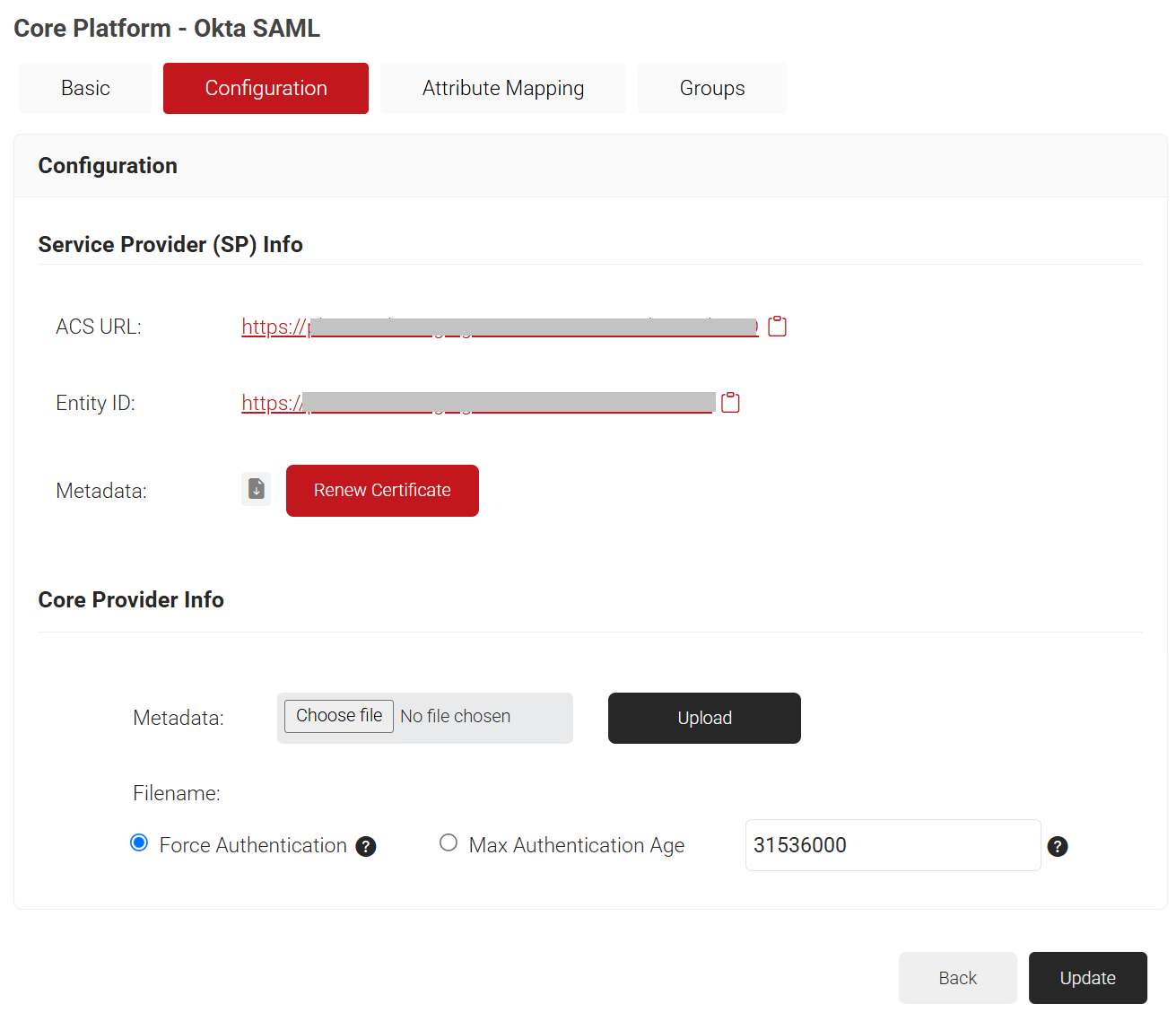
- The page refreshes, and the Configuration, Attribute Mapping, and Groups tabs are displayed.
- In the Configuration tab, under the Service Provider (SP) Info section, copy the Entity ID and ACS URL values to your console or clipboard. This will be used later while connecting with your SAML application.
To create a SAML application in Okta:
- Log in to the Okta portal.
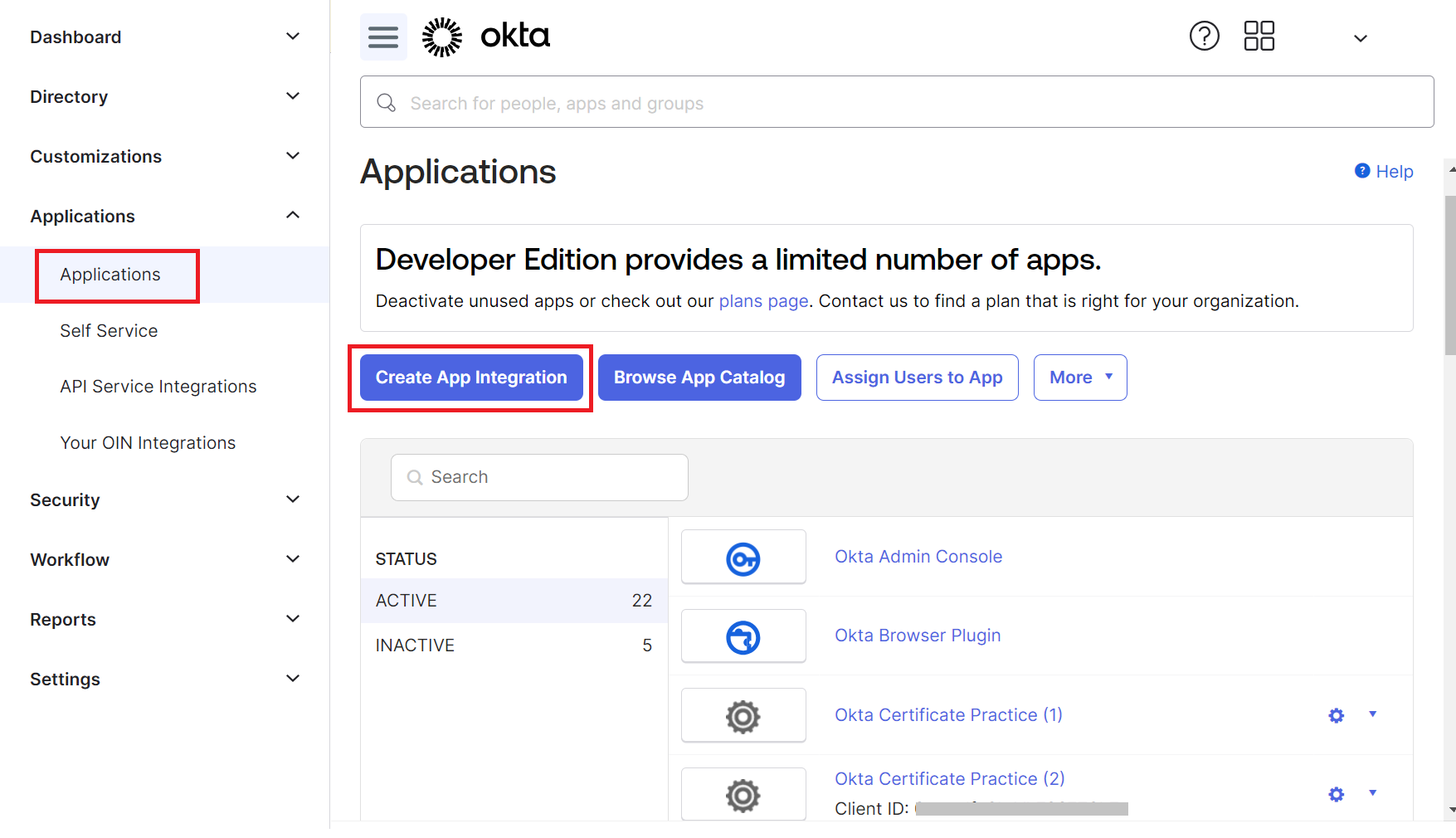
- Navigate to Applications > Applications.
- Click Create App Integration.
- In the Create a new app integration pop-up window, select SAML 2.0 as the sign-in method.
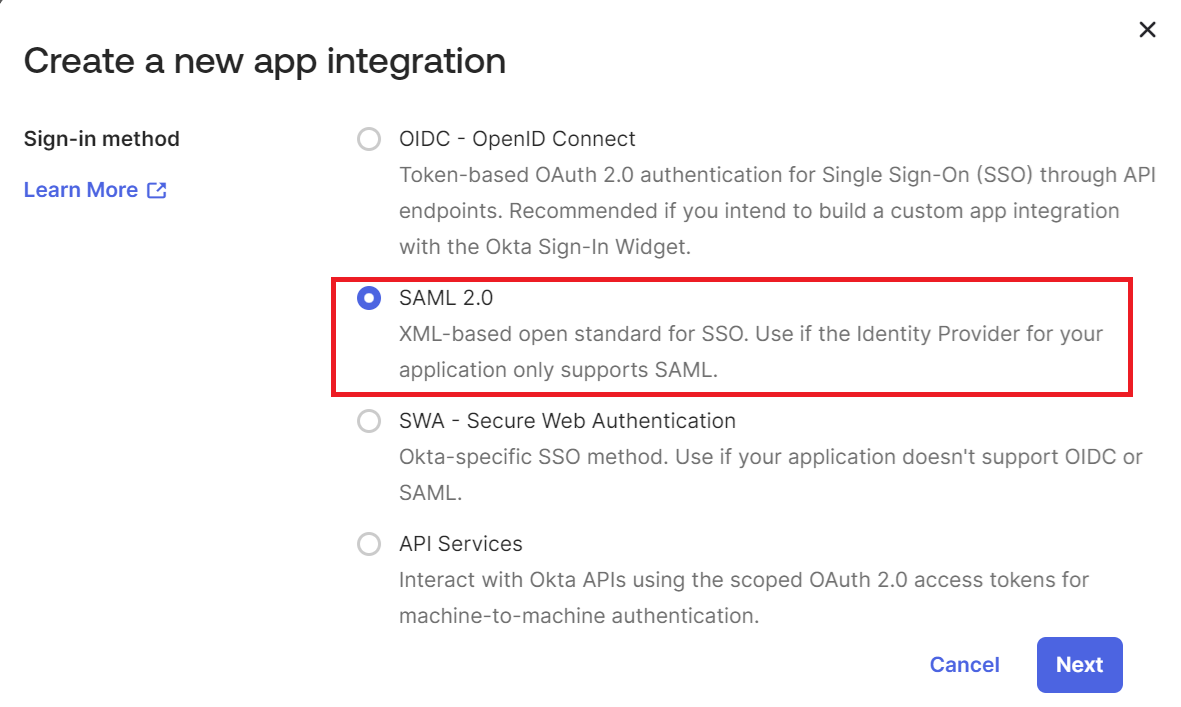
- Click Next.
- Under the General Settings tab, in the App name field, enter a unique name for the application.
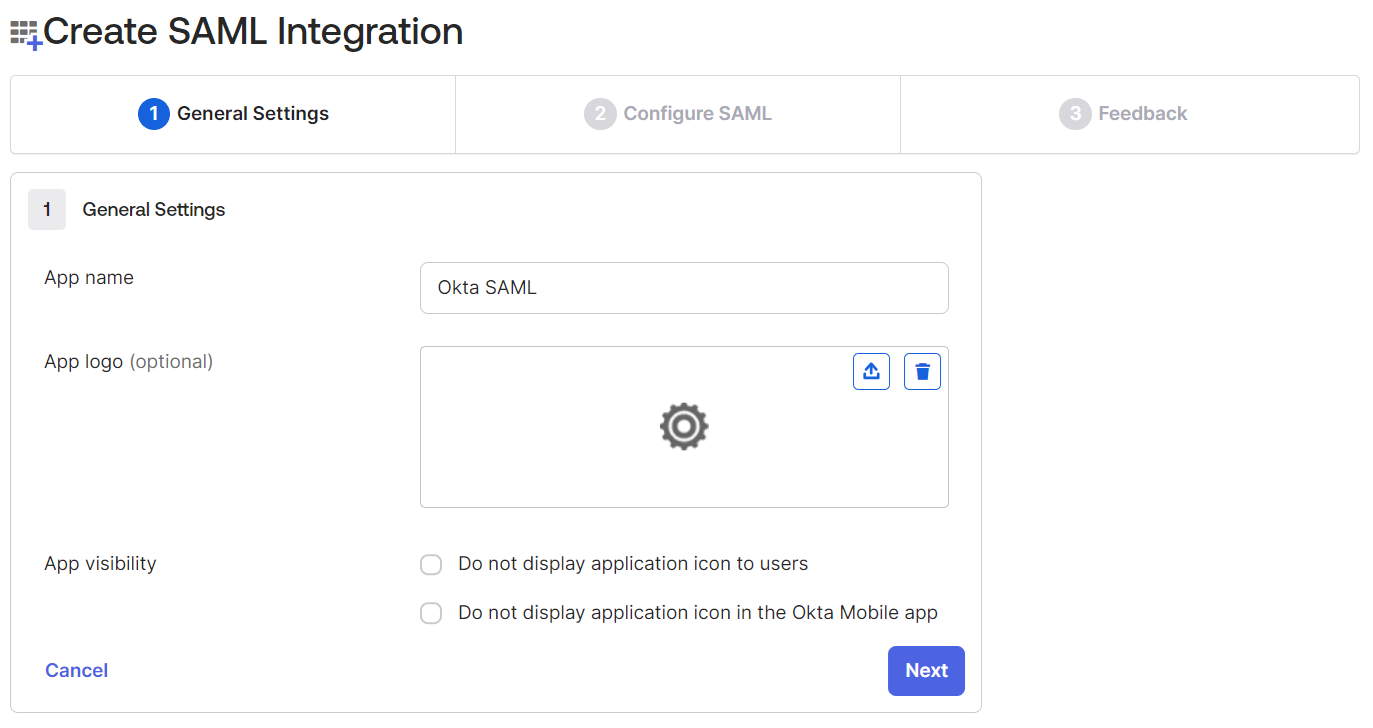
- Click Next.
- Under the Configure SAML tab, in the SAML Settings section, copy the ACS URL value from the JoinNow Management Portal and paste it into the Single sign-on URL field.
- Copy the Entity ID value from the JoinNow Management Portal and paste the value in the Audience URI (SP Entity ID) field.
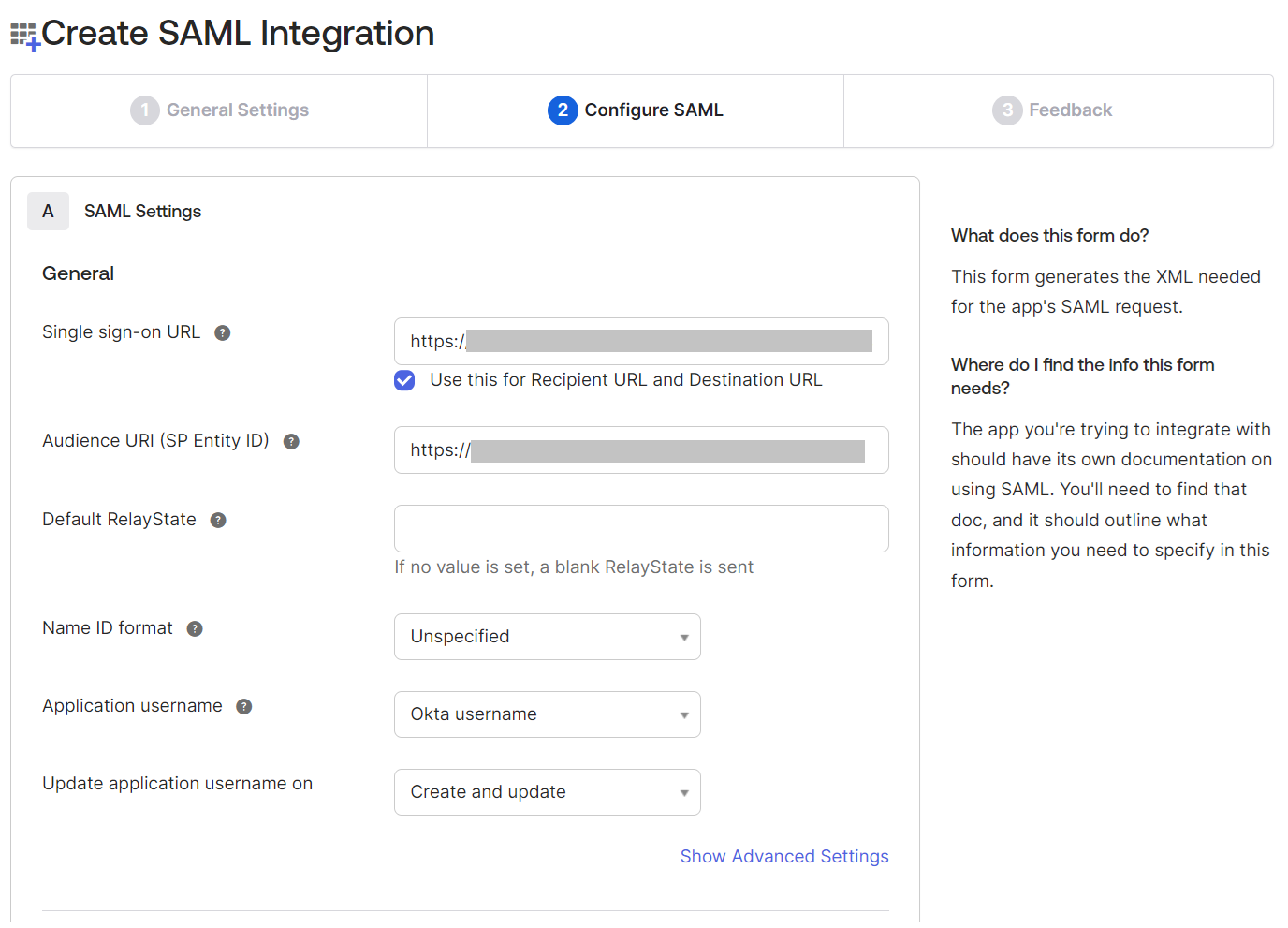
NOTE: To obtain the ACS URL and the Entity ID values, log in to the JoinNow Management Portal. Navigate to Integration Hub > Core Platforms > click the Edit link of the core provider you created, and then select the Configuration tab (refer to the Configuring a Core Provider in SecureW2 section, step 8). - Scroll down to the bottom of the page and click Next.
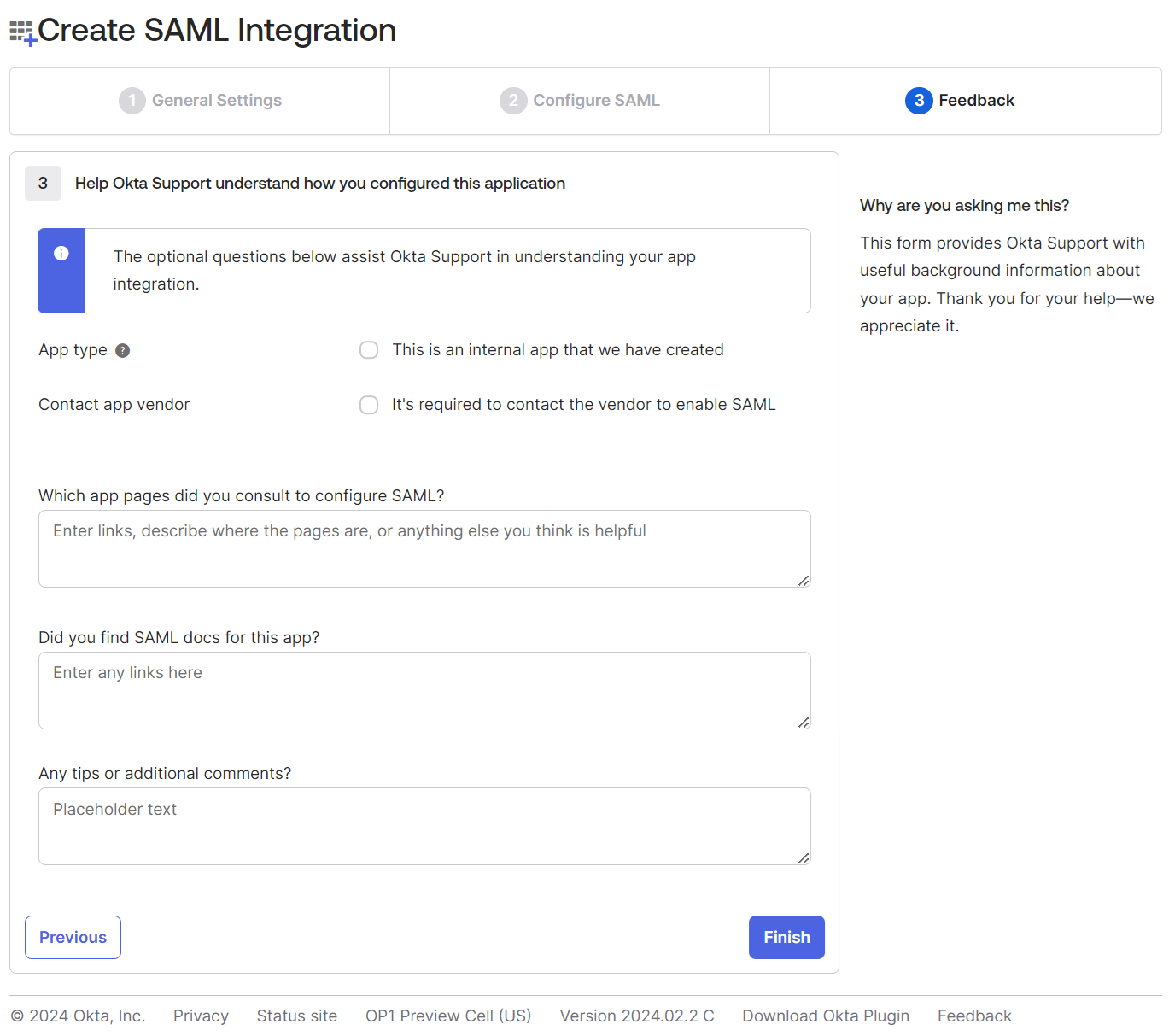
- Enter the optional details on the Feedback page and click Finish.
Attribute mapping defines the attributes provided by your core provider, which are used to grant user access. Once your core provider identifies a user, it sends the attributes to your SAML application, which then sends the attributes to SecureW2.
To map attributes in the SAML provider:
- Log in to the Okta portal.
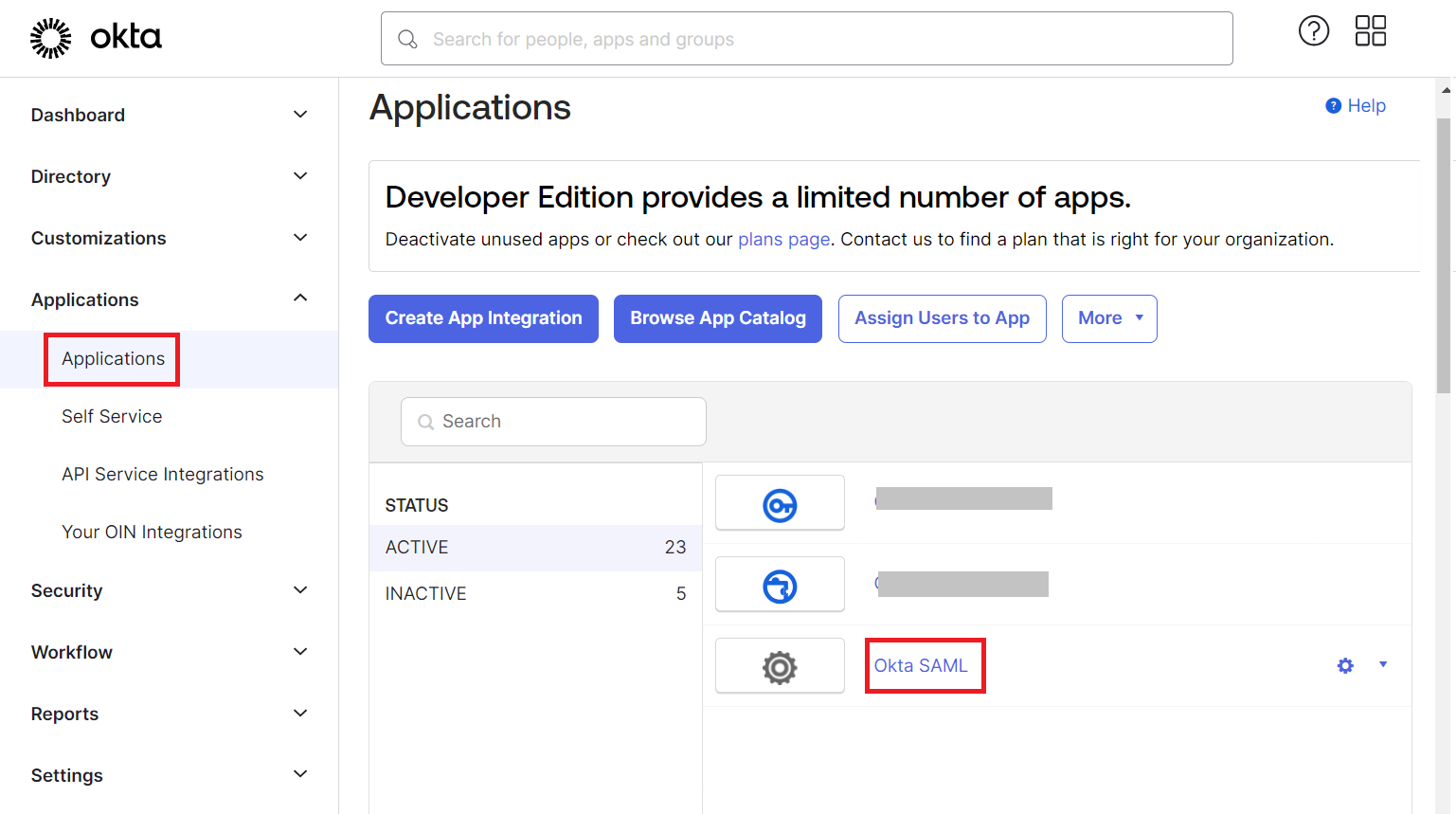
- Navigate to Applications > Applications.
- On the Applications page, open the newly created app integration and then select the General tab.
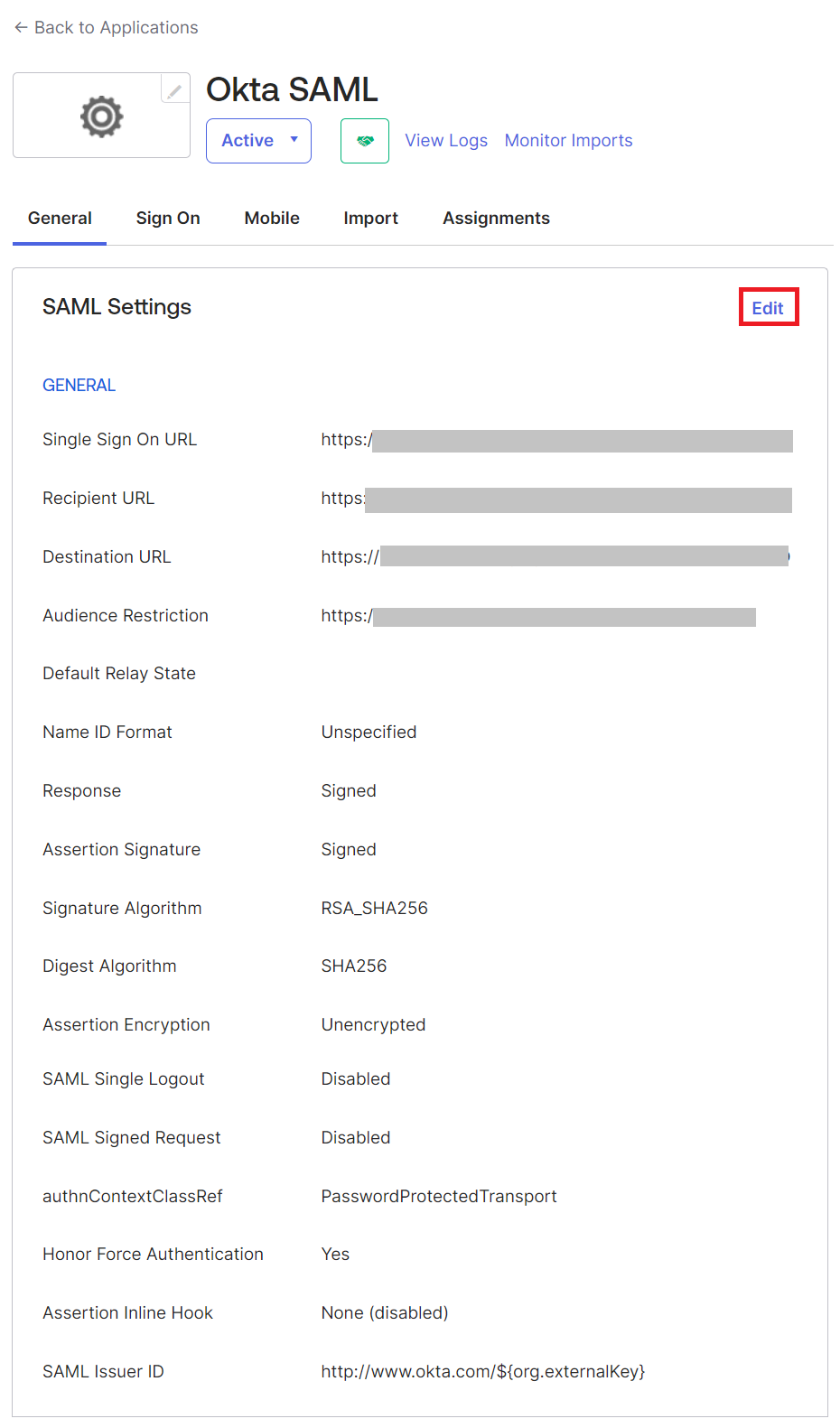
- Under the General tab, scroll down to the SAML Settings section and click the Edit link.
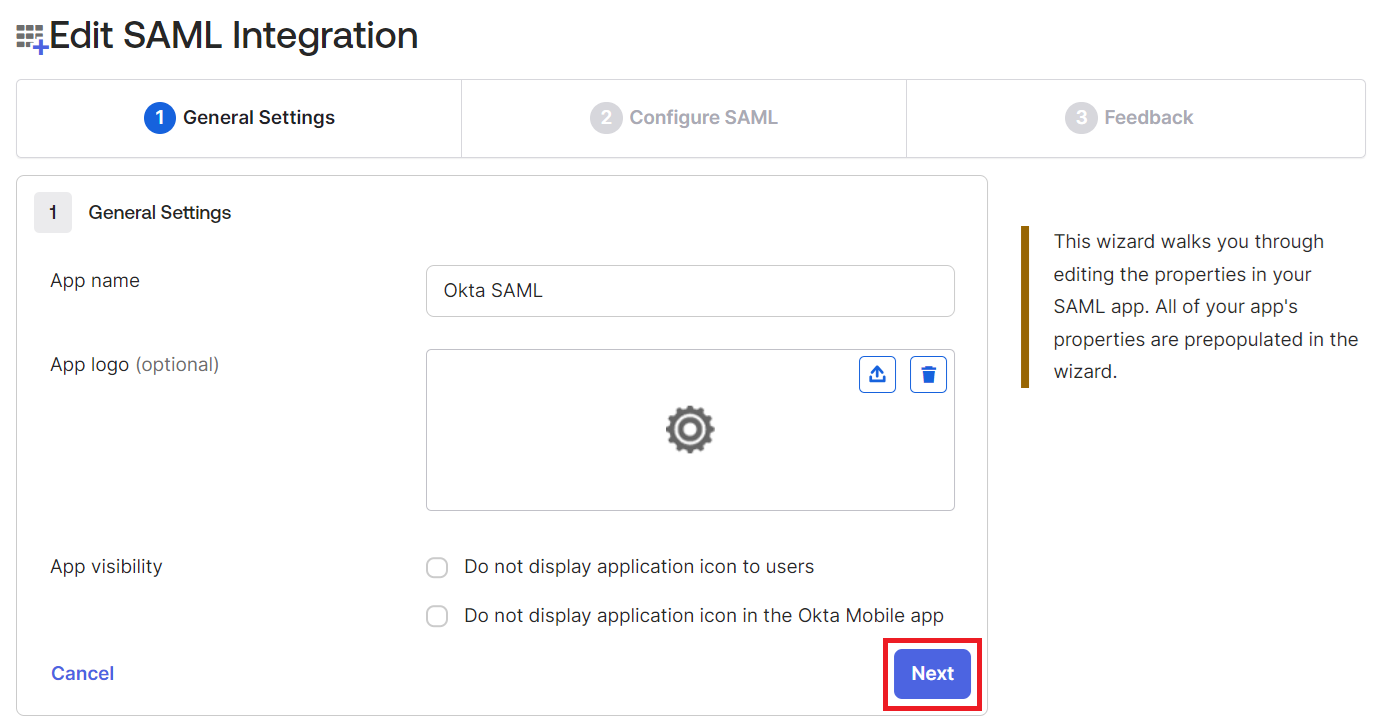
- Click Next.
- Under the Configure SAML tab, scroll down to the Attribute Statements (optional) section and enter the following attributes in the fields:
Name Value email user.email firstname user.firstname lastname user.lastname 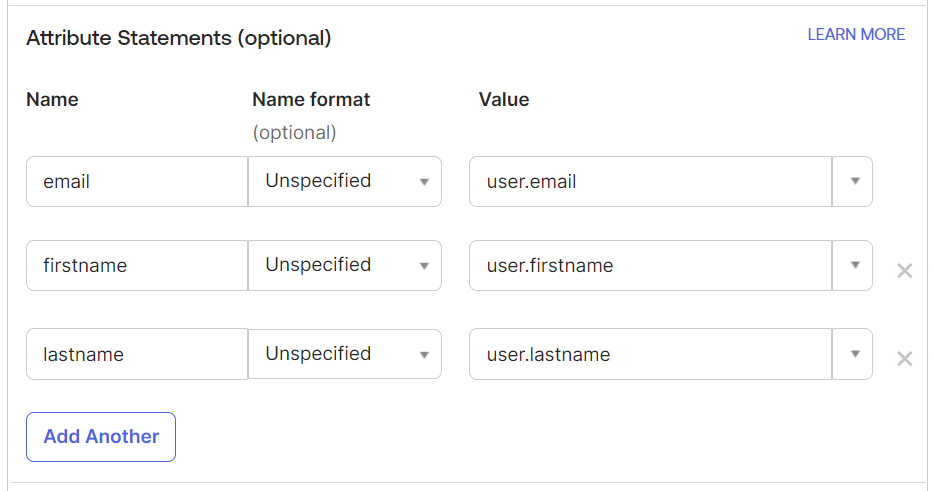
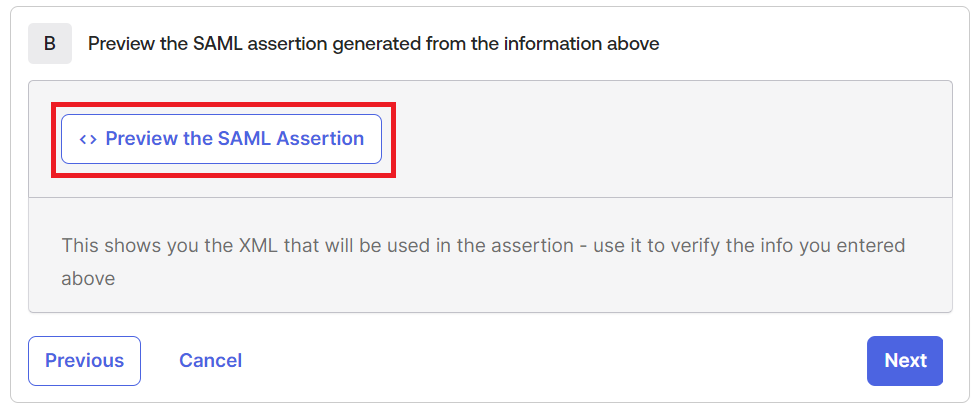
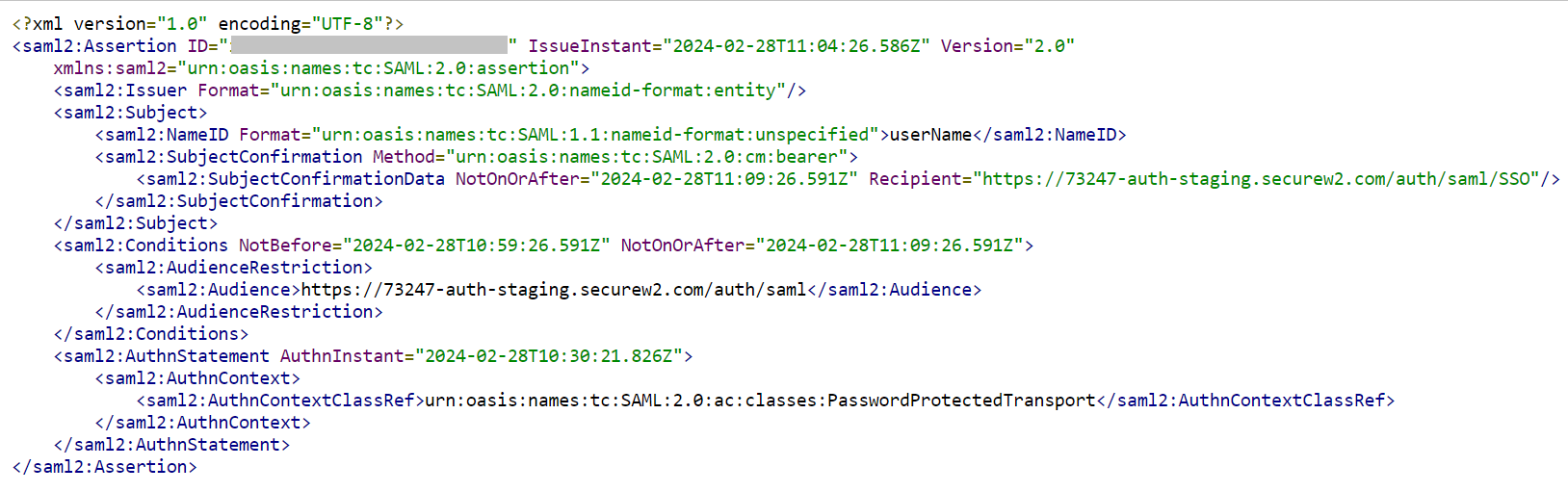
- Scroll down to the Preview the SAML assertion generated from the information above section and click the Preview the SAML Assertion button. The IdP metadata is displayed in a new tab.
- Copy the entire content, paste it into a text editor, and then save the metadata as an .xml file on your computer. You can use this metadata to integrate the JoinNow Management Portal with Okta.
- To configure the JoinNow Management Portal for attribute mapping:
- Navigate to Integration Hub > Core Platforms and click the Edit link of the core provider you created earlier (refer to the Configuring a Core Provider in SecureW2 section).
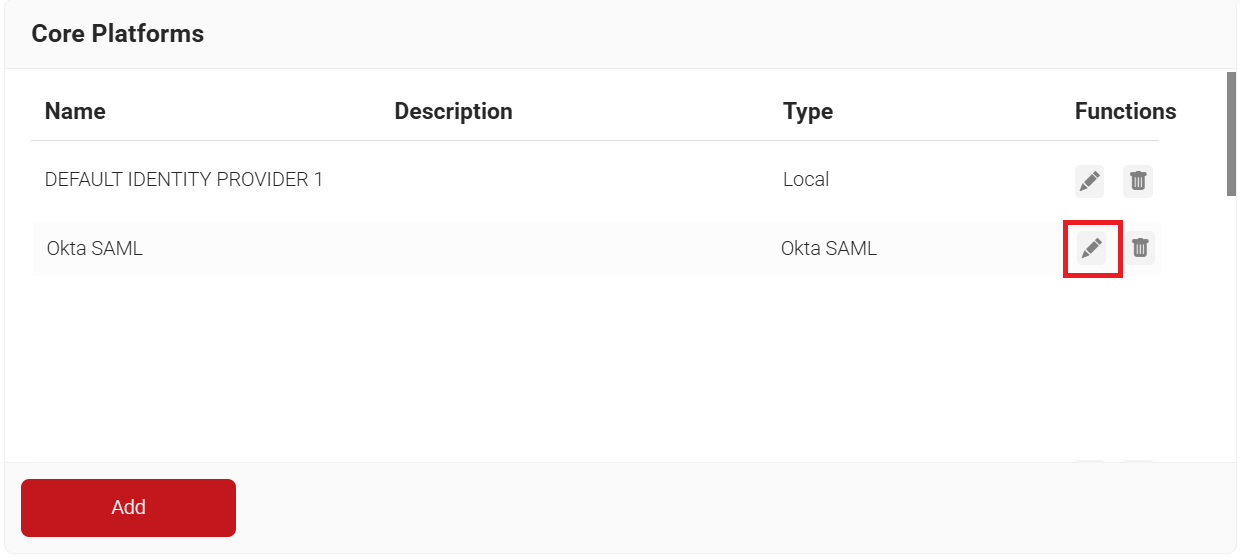
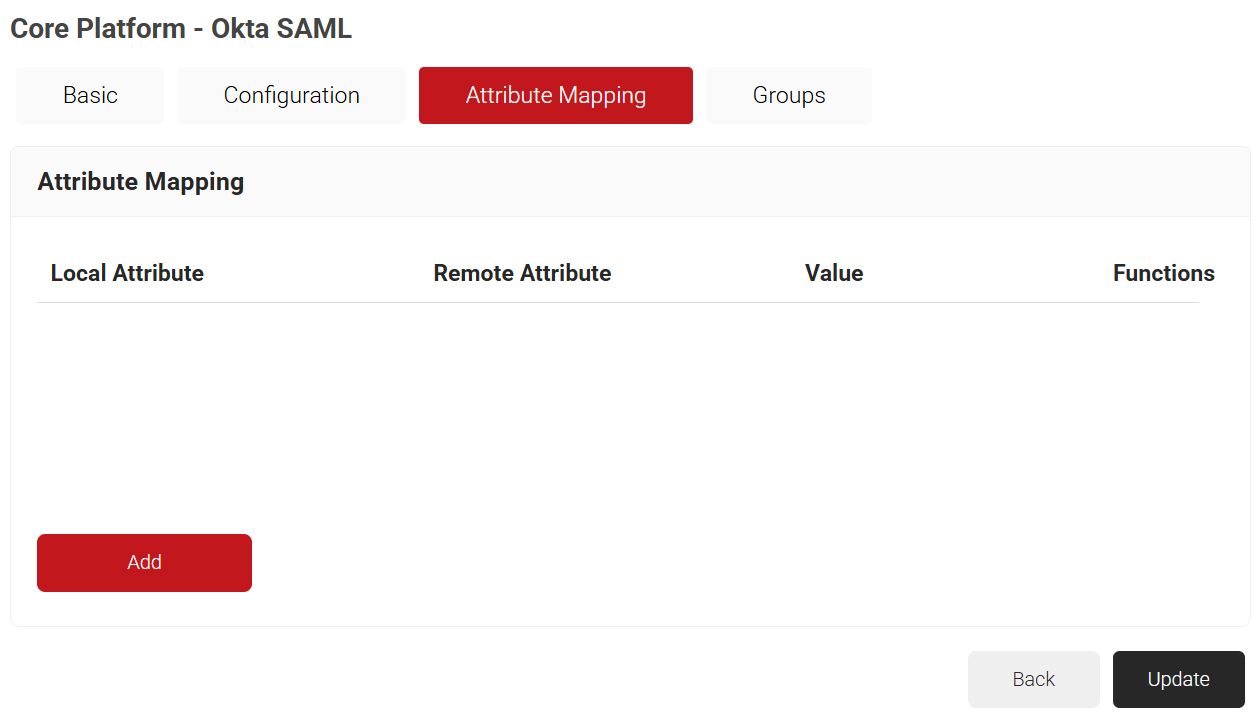
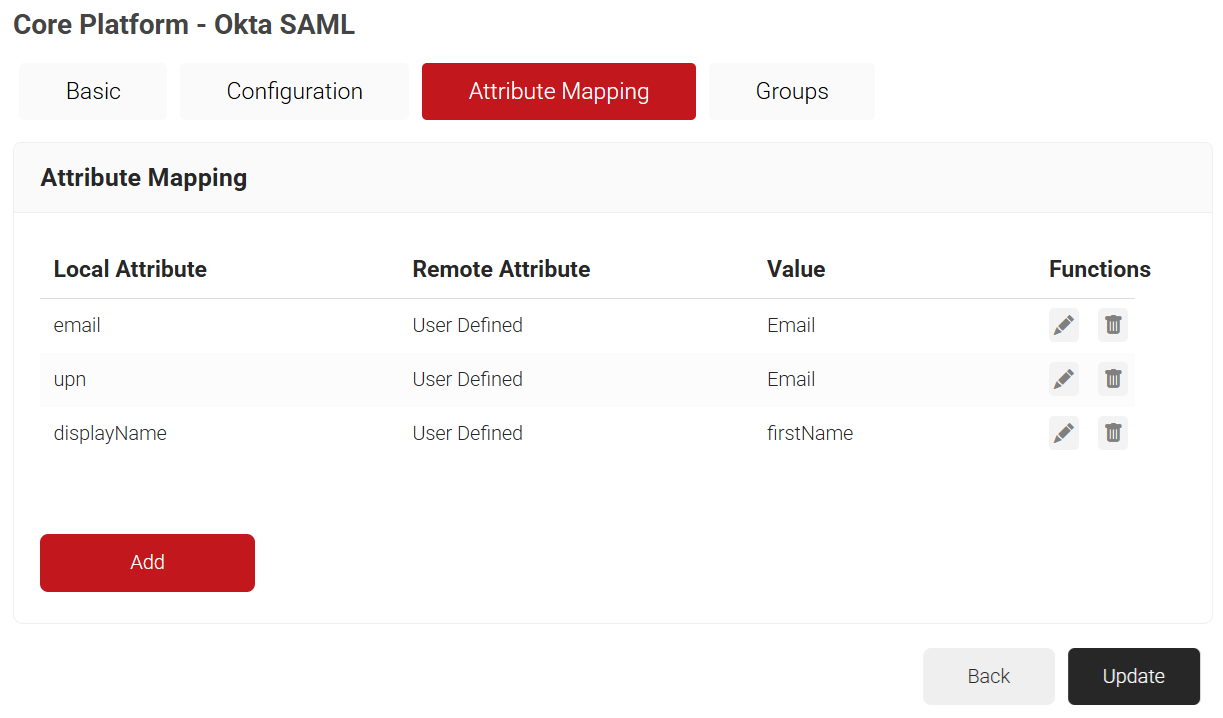
- Select the Attribute Mapping tab and then click Add.
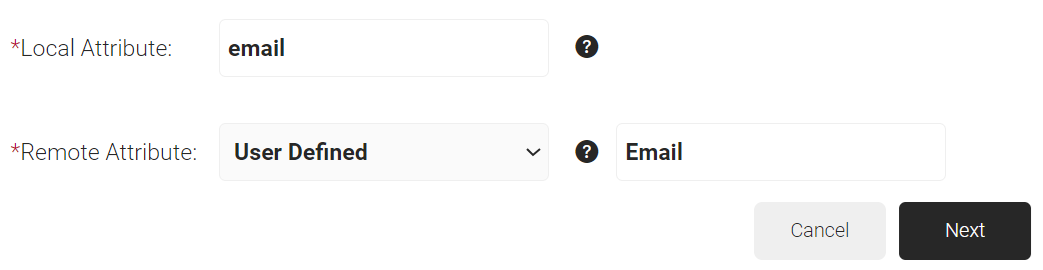
- In the Local Attribute field, enter email as the name of the variable.
- From the Remote Attribute drop-down list, select User Defined.
- In the field next to the Remote Attribute field, enter Email and click Next.
- Click Add.
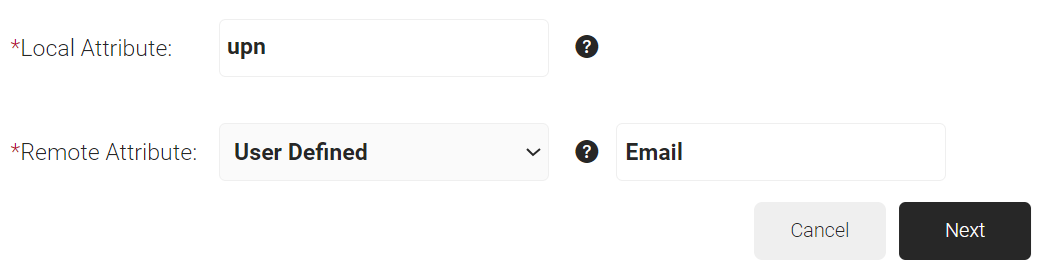
- In the Local Attribute field, enter upn as the name of the variable.
- From the Remote Attribute drop-down list, select User Defined.
- In the field next to the Remote Attribute field, enter Email and click Next.
- Click Add.
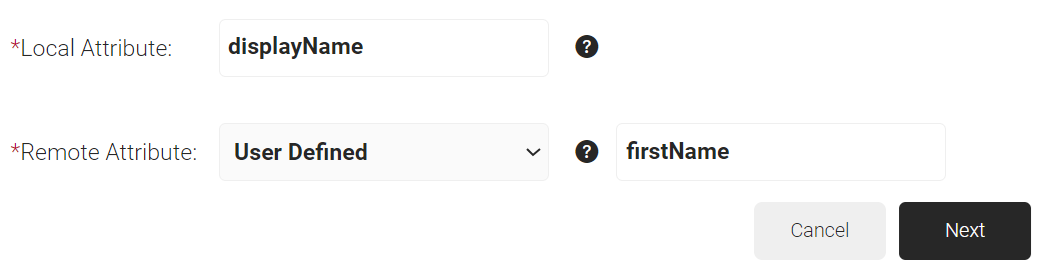
- In the Local Attribute field, enter displayName as the name of the variable.
- From the Remote Attribute drop-down list, select User Defined.
- In the field next to the Remote Attribute field, enter firstName and click Next.
- Click Update.
- Navigate to Integration Hub > Core Platforms and click the Edit link of the core provider you created earlier (refer to the Configuring a Core Provider in SecureW2 section).
To upload the Okta metadata to SecureW2:
- Log in to the JoinNow Management Portal.
- Navigate to Integration Hub > Core Platforms.
- On the Core Platforms page, click the Edit link for the IdP you created earlier (refer to the Configuring a Core Provider in SecureW2 section).
- Select the Configuration tab.
- Under the Core Provider Info section, in the Metadata field, click the Choose file button to upload the metadata file obtained from Okta (refer to the 3.3 Configuring Attribute Mapping in SecureW2 section, step 8).
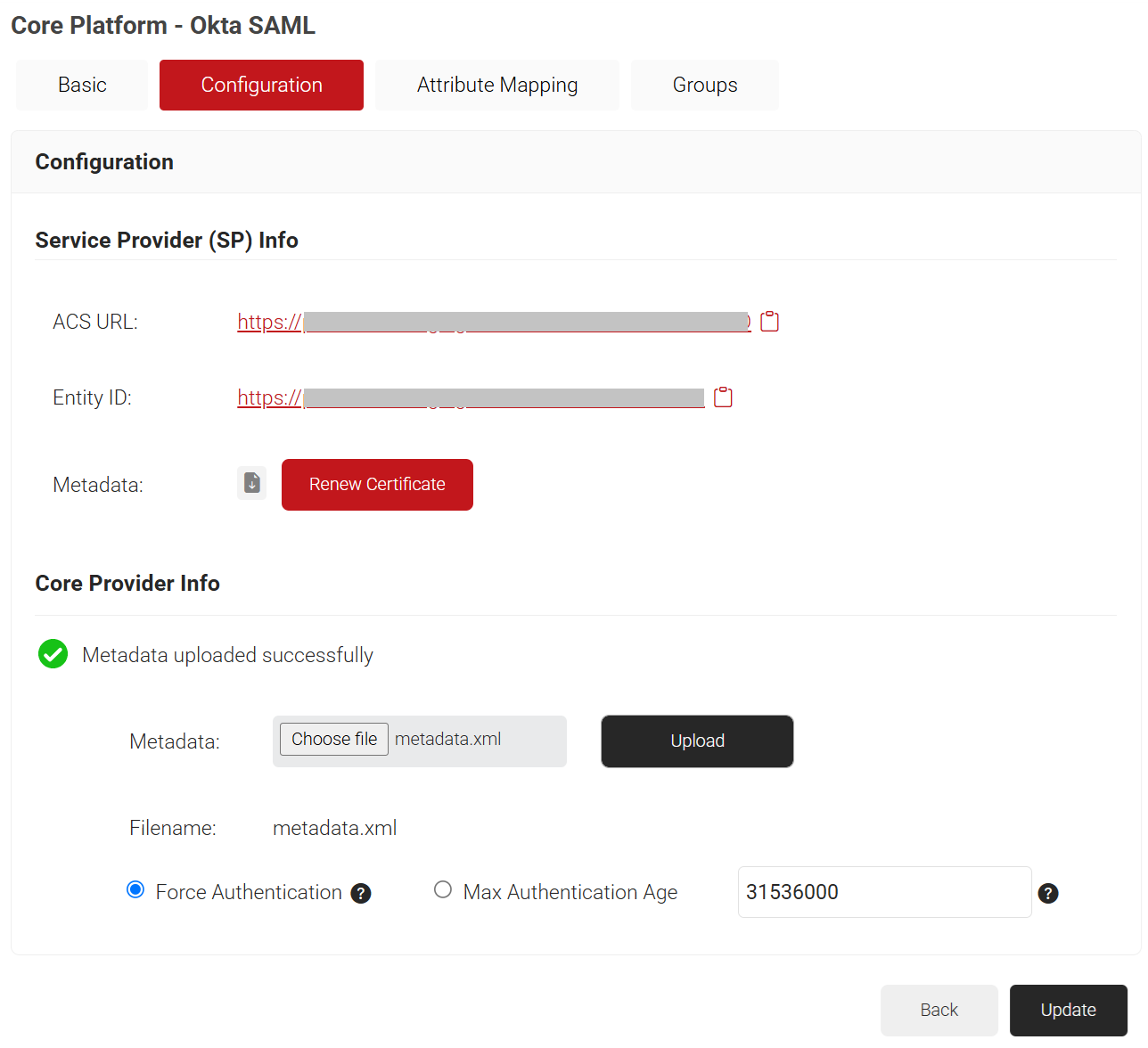
- Click Upload and then click Update.
To assign a user to the application:
- Log in to the Okta portal.
- Navigate to Applications > Applications and then select the newly created app.
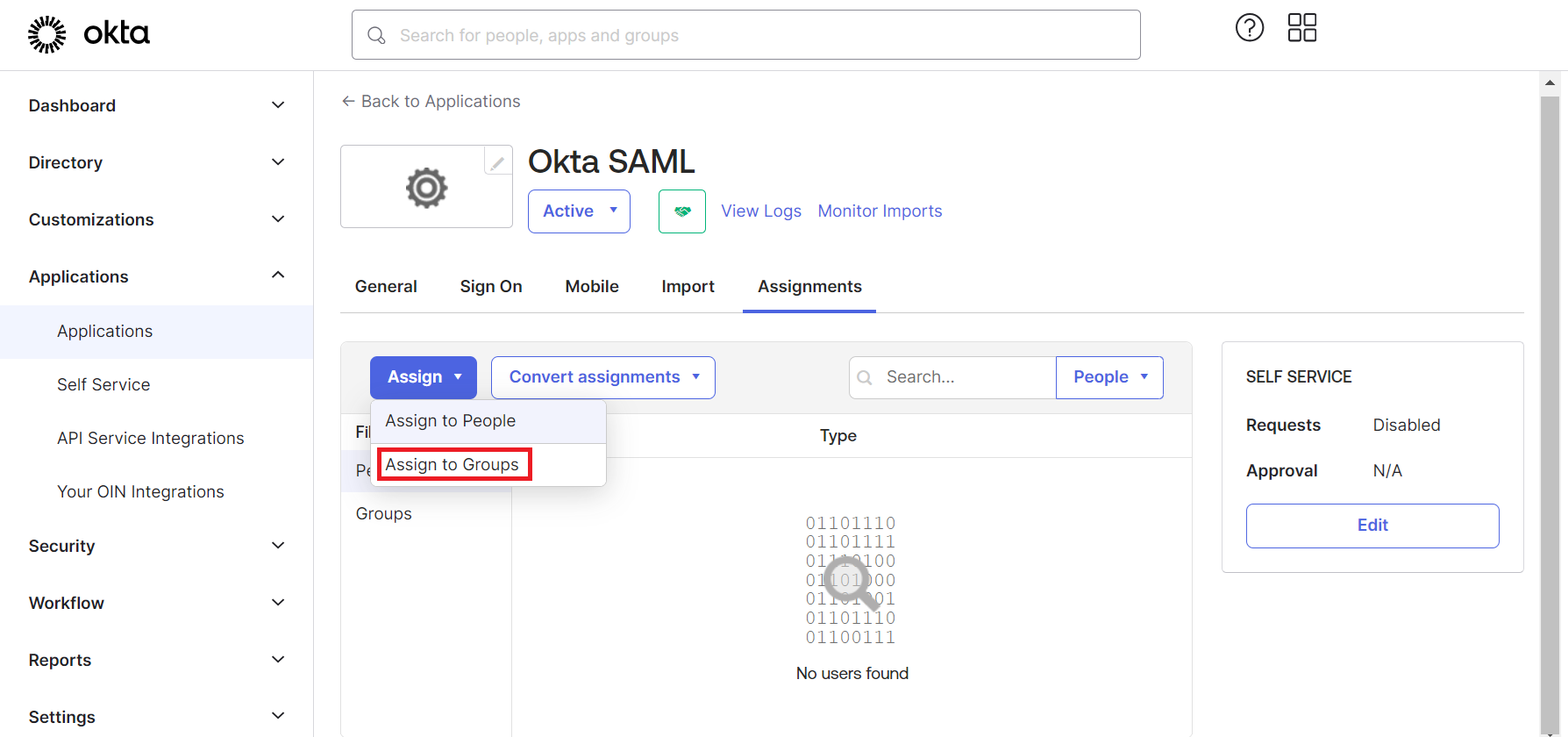
- Under the Assignments tab, from the Assign drop-down menu, click Assign to People.
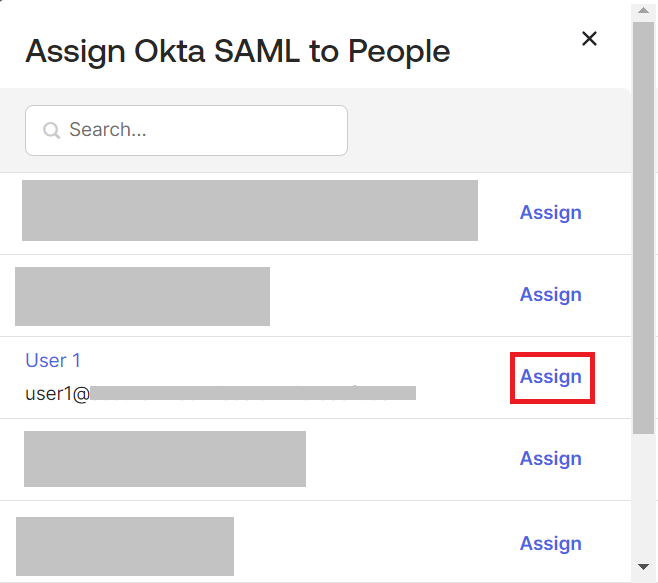
- On the Assign Okta SAML to People pop-up window, click Assign for the corresponding users.
- Under the Assignments tab, from the Assign drop-down menu, click Assign to People.
To assign a group to the application:
- Navigate to Applications > Applications and then select the newly created app.
- Under the Assignments tab, from the Assign drop-down menu, click Assign to Groups.
- On the Assign Okta SAML to Groups pop-up window, click Assign for the corresponding groups.
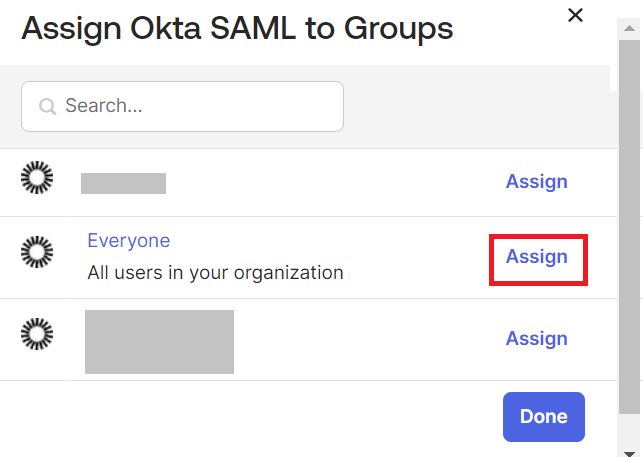
- Under the Assignments tab, from the Assign drop-down menu, click Assign to Groups.
To add an authentication policy, perform the following steps:
- Navigate to Policy Management > Authentication.
- On the Authentication page, click the Edit link for your network profile’s authentication policy.
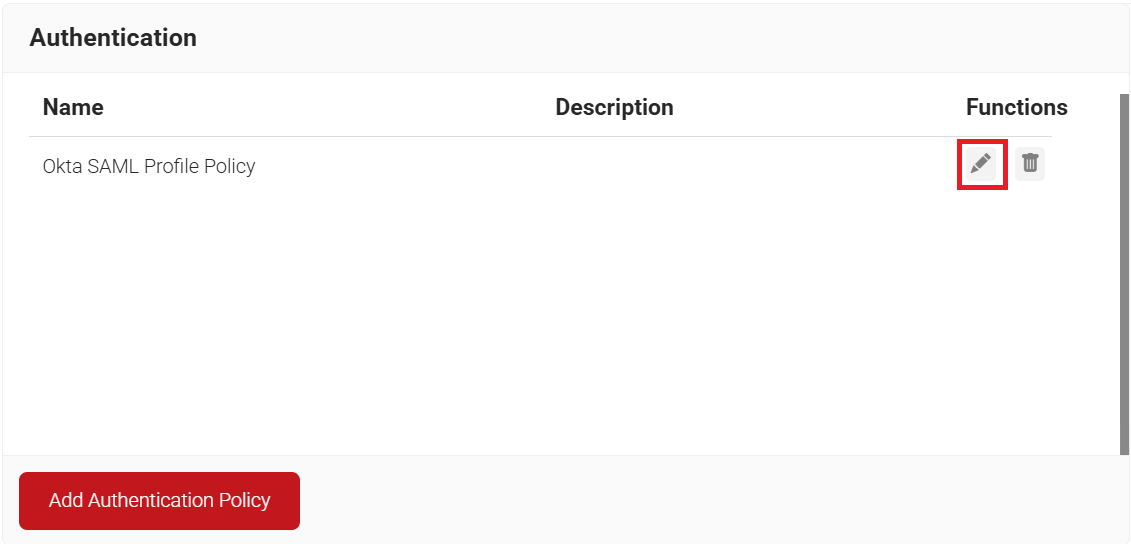
- Select the Conditions tab and make sure that your network profile is displayed in the Profile field.
- Select the Settings tab.
- From the Core Provider drop-down list, select the core provider that you created earlier (refer to the Configuring a Core Provider in SecureW2 section).
- Select the Enable User Self Service checkbox, if required.
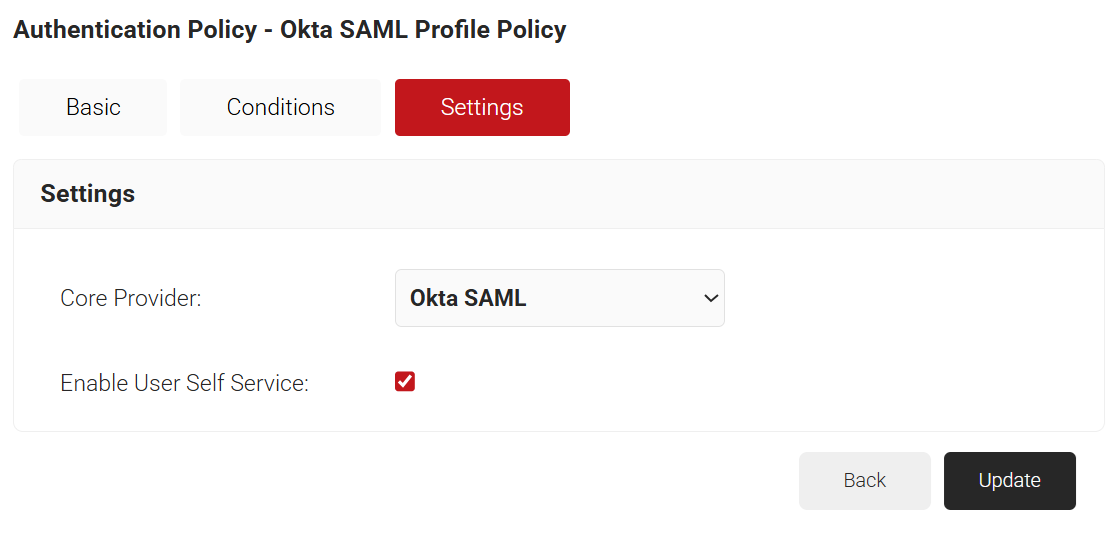
- Click Update.
To add a policy workflow in SecureW2:
- Navigate to Policy Management > Policy Workflows.
- Click Add Policy Workflow.
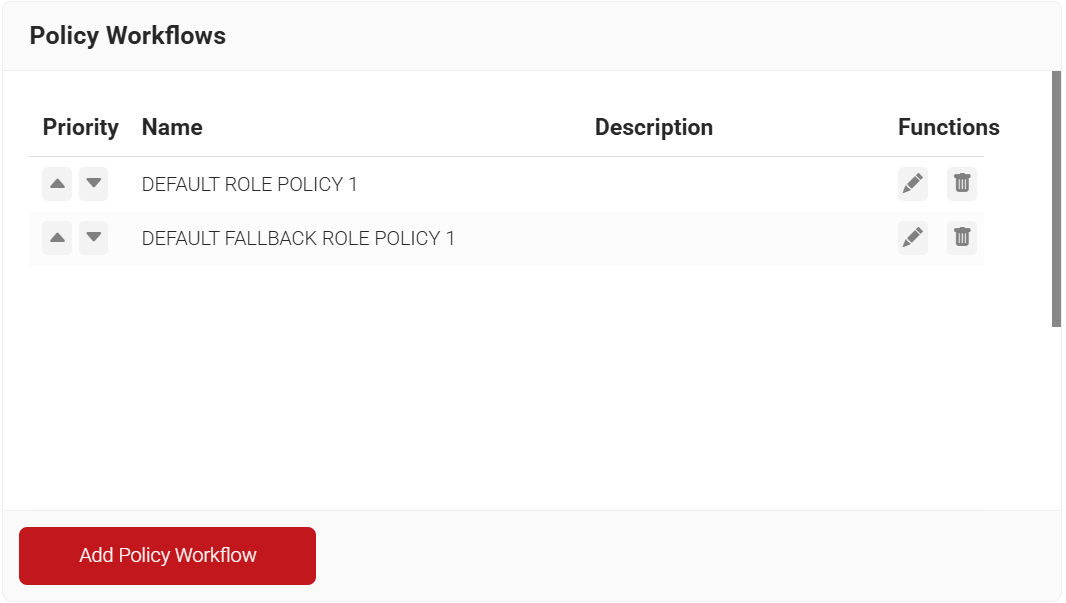
- In the Name and Display Description fields, enter the name and a suitable description for the Policy Workflow.
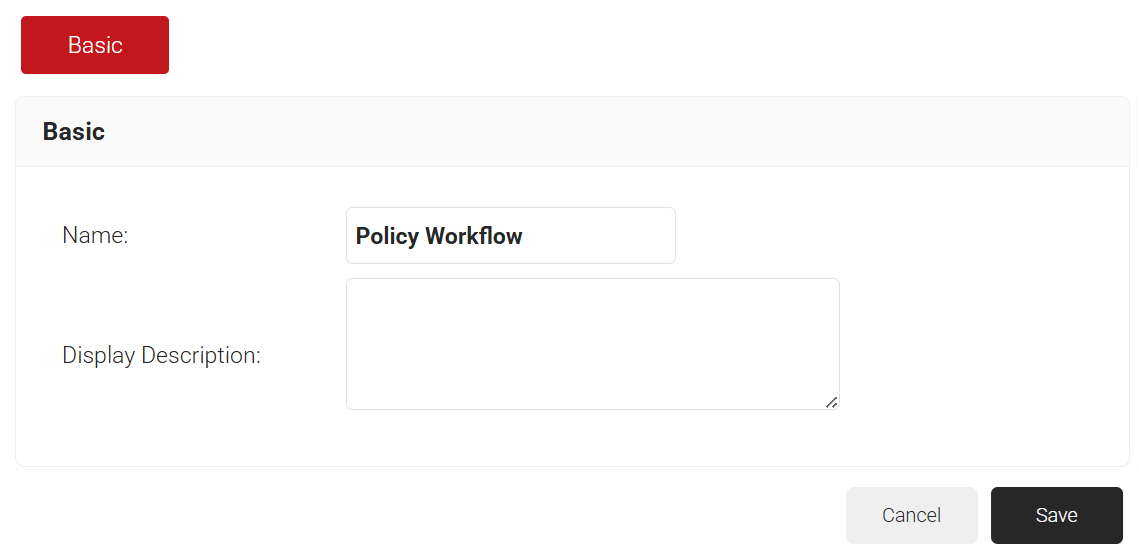
- Click Save.
- The page refreshes, and the Conditions tab is displayed.
- Select the Conditions tab.
- From the Core Provider drop-down list, select the core provider you created earlier (refer to the Configuring a Core Provider in SecureW2 section).
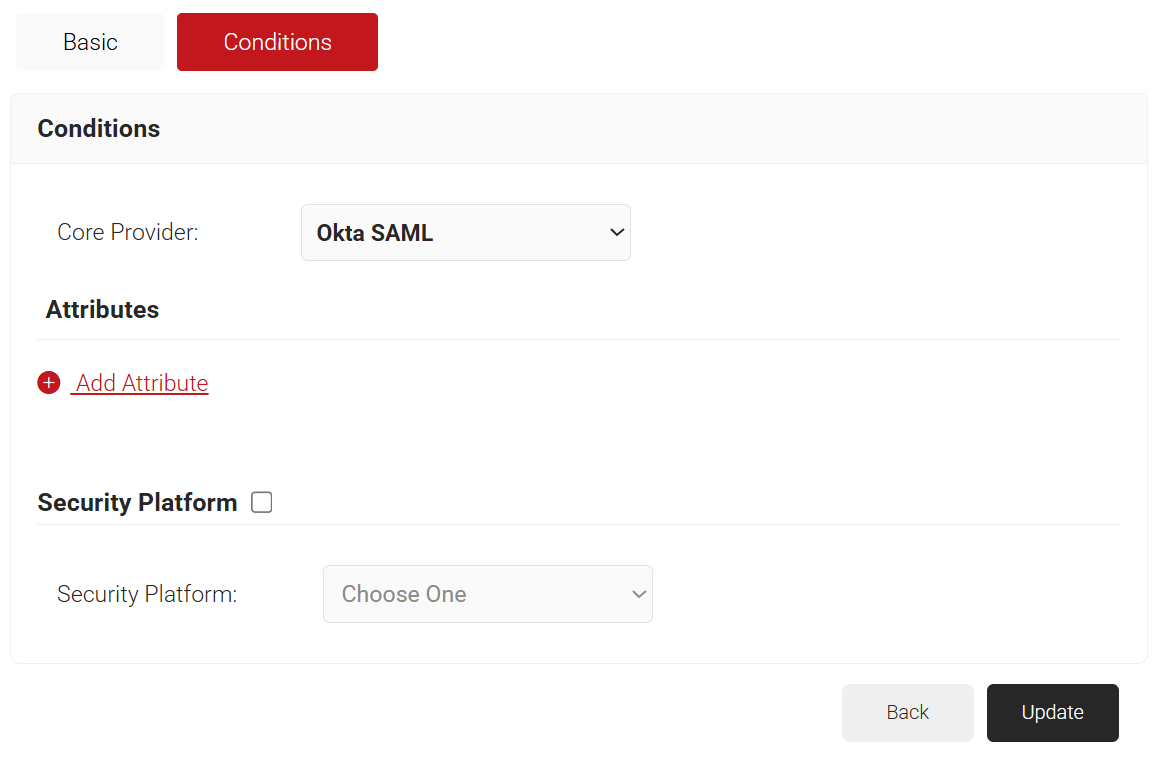
- Click Update.
A network Policy specifies how Cloud RADIUS will authorize access to a particular User Role.
To configure the Network Policy, perform the following steps:
- Navigate to Policy Management > Network.
- Click Add Network Policy.
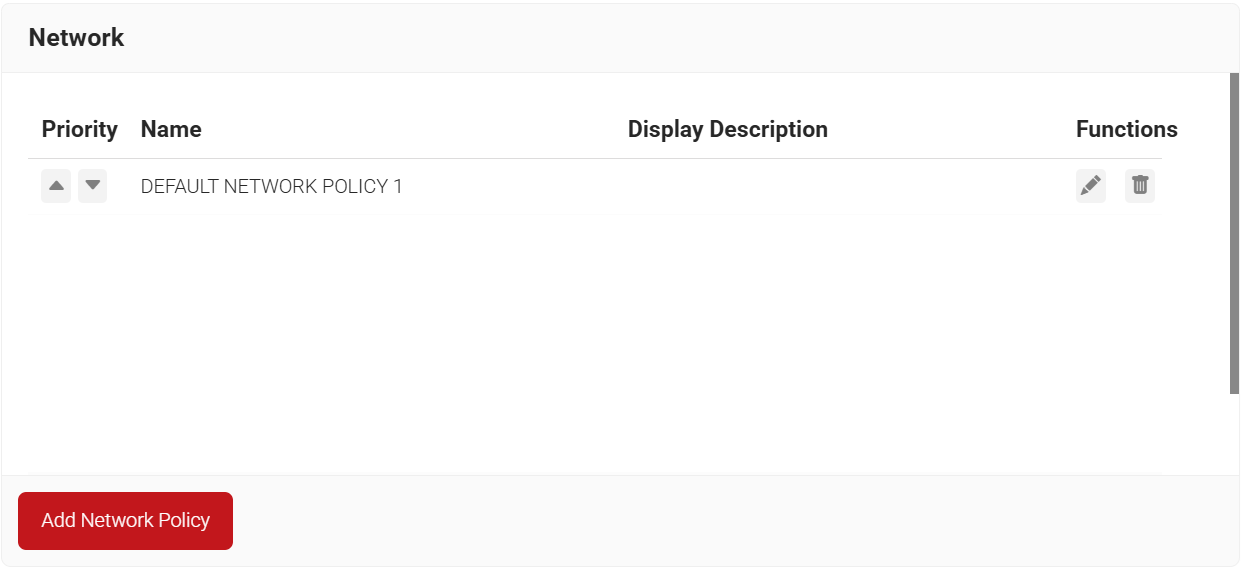
- In the Name and Display Description fields, enter the name and a suitable description for the network policy.
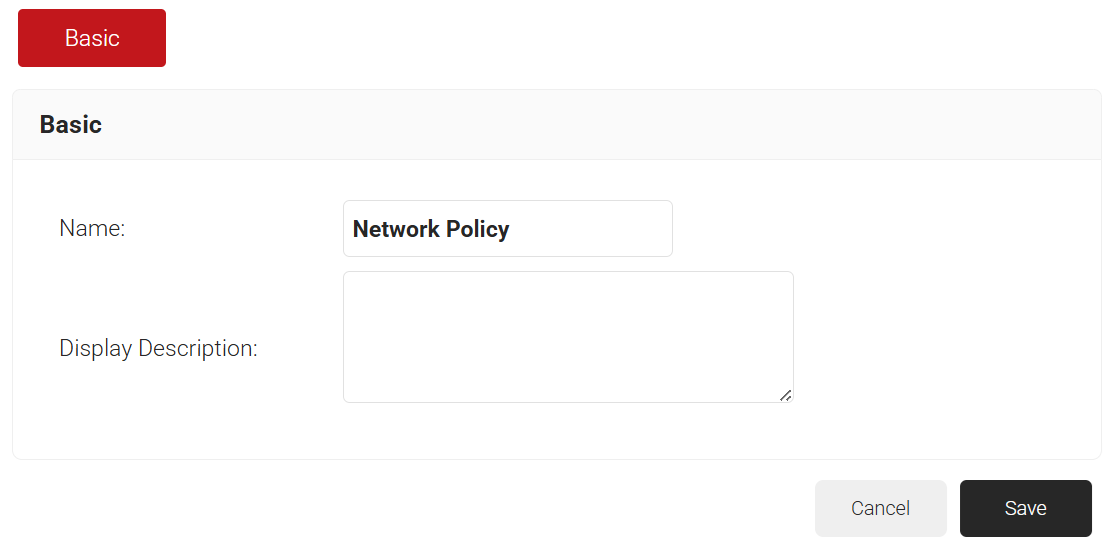
- Click Save.
- The page refreshes, and the Conditions and Settings tabs are displayed.
- Select the Conditions tab.
- In the Conditions section, select Match All or Match Any based on your requirement to set authentication criteria. In the case explained here, we are selecting Match All.
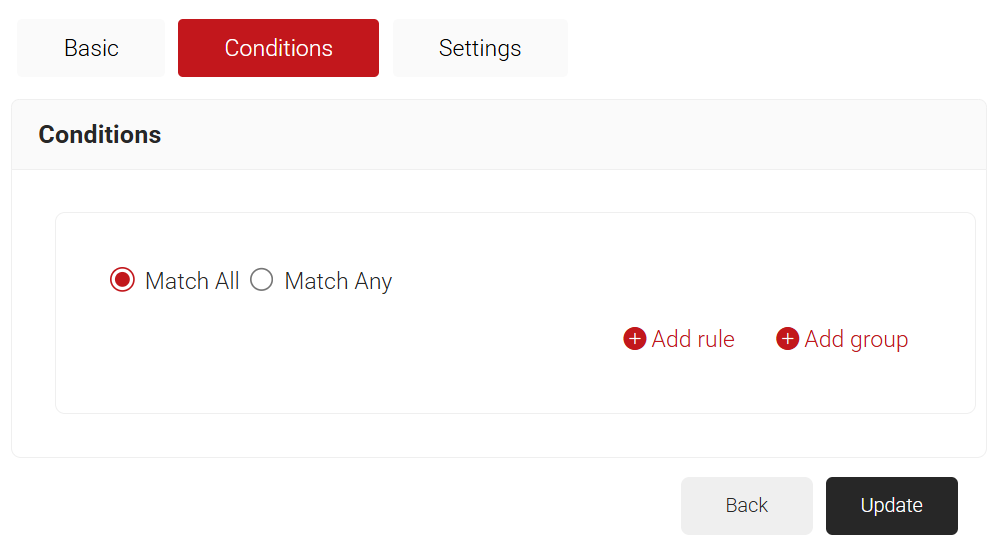
- Click the Add rule and select the policy workflow you want to assign to this network policy. It is essential to select the appropriate policy workflow, as it triggers the network policy. This menu offers various rules that you can select based on your business requirements.
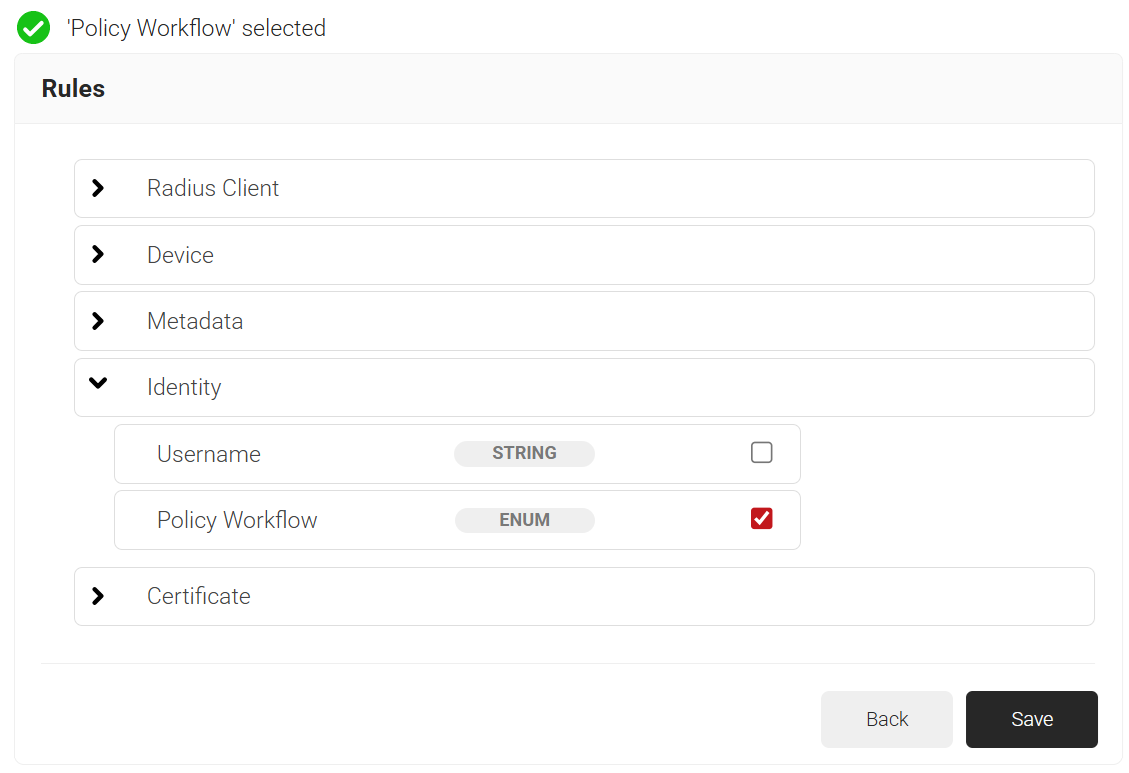
- Click Save.
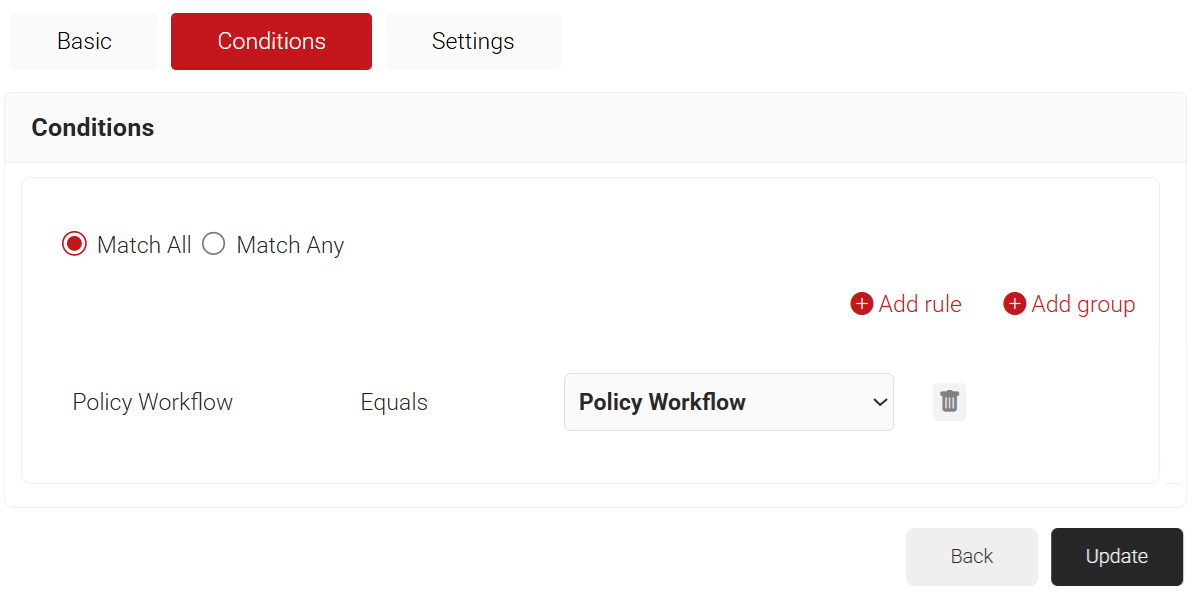
- The Policy Workflow option appears under the Conditions tab.
- From the Policy Workflow Equals drop-down list, select the policy workflow you created earlier. You can select multiple User Roles to assign to a Network Policy.
- Select the Settings tab.
- From the Access drop-down list, select any one of the options to allow or deny authentication requests. The default value is “Allow”.
- To configure MFA, select the checkbox to enable MFA.
- From the Perform MFA Using drop-down list, select a Core Provider for MFA.
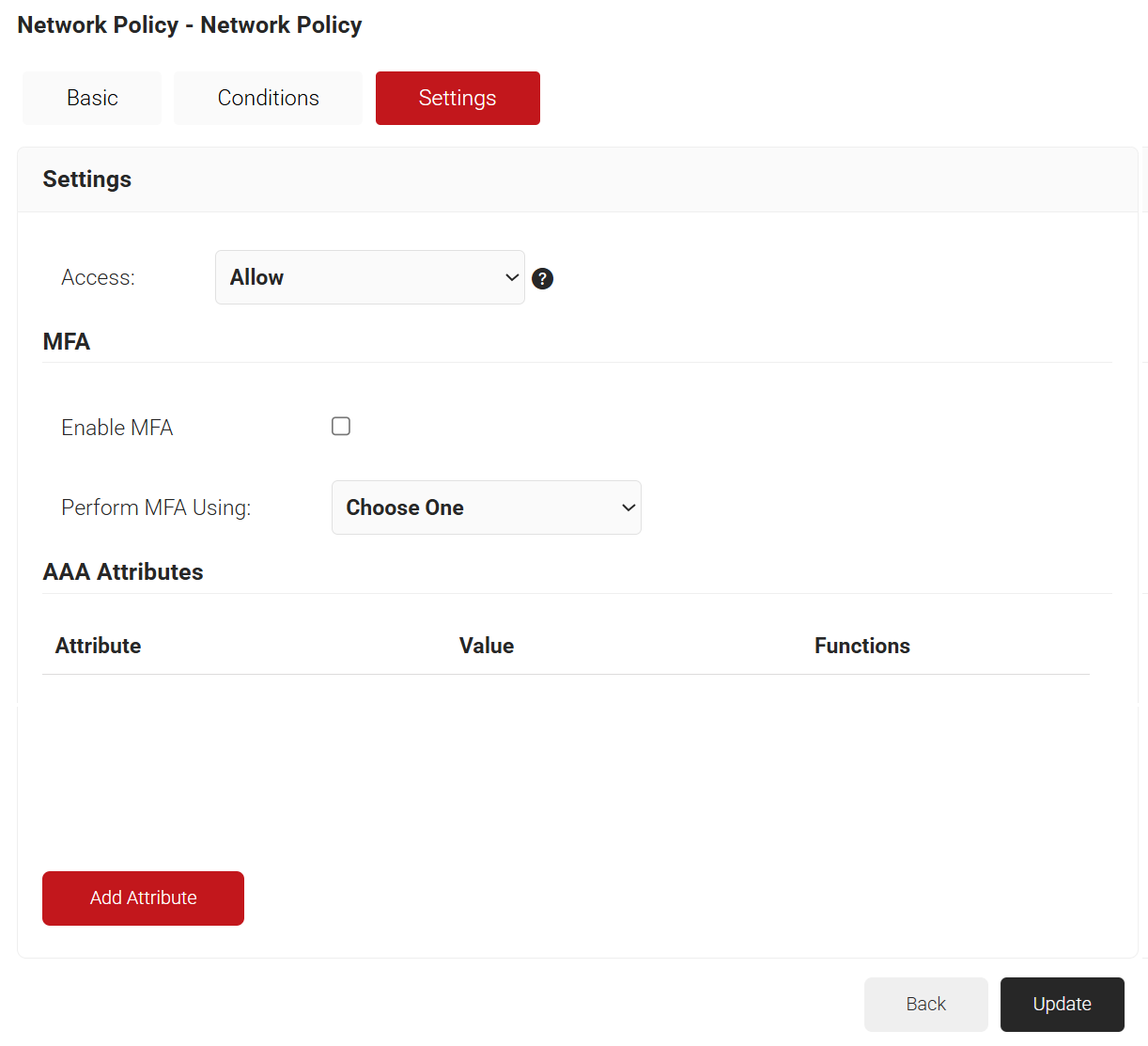
- Click Add Attribute.
- From the Dictionary drop-down list, select an option:
- Radius: IETF – This is what we will use for the following attributes, as we are using standard RADIUS attributes for VLAN assignment.
- Custom: Used for any VSAs (Vendor-Specific Attributes).
- From the Dictionary drop-down list, select an option:
- From the Attribute drop-down list, select any of the following options:
- Framed-Protocol
- Framed-IP-Address
- Framed-IP-NetMask
- Framed-Routing
- Filter-Id
- Framed-MTU
- Framed-Compression
- Reply-Message
- Framed-Route
- Framed-IPX-Network
- State
- Class
- Session-Timeout
- Tunnel-Type
- Tunnel-Medium-Type
- Tunnel-Private-Group-ID
- Framed-Pool
- User-Name
- In the Value field, enter the appropriate value for the attribute.
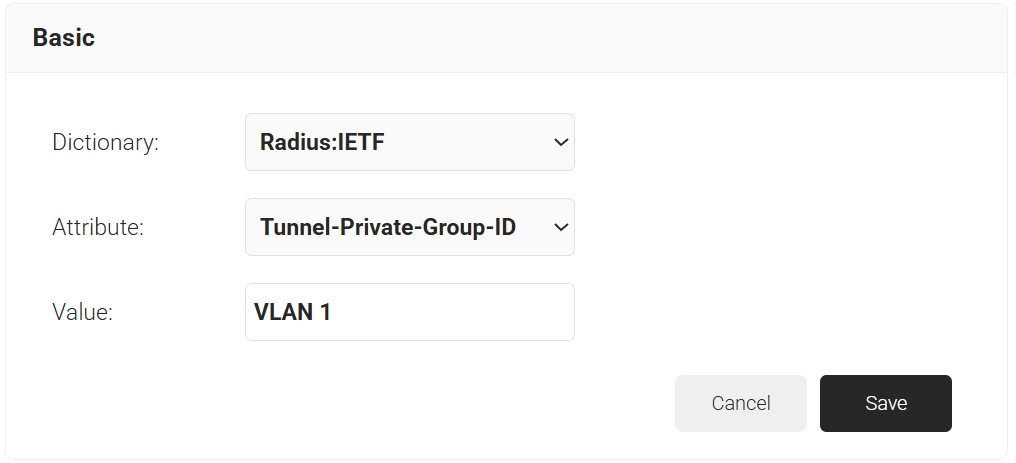
- Click Save.
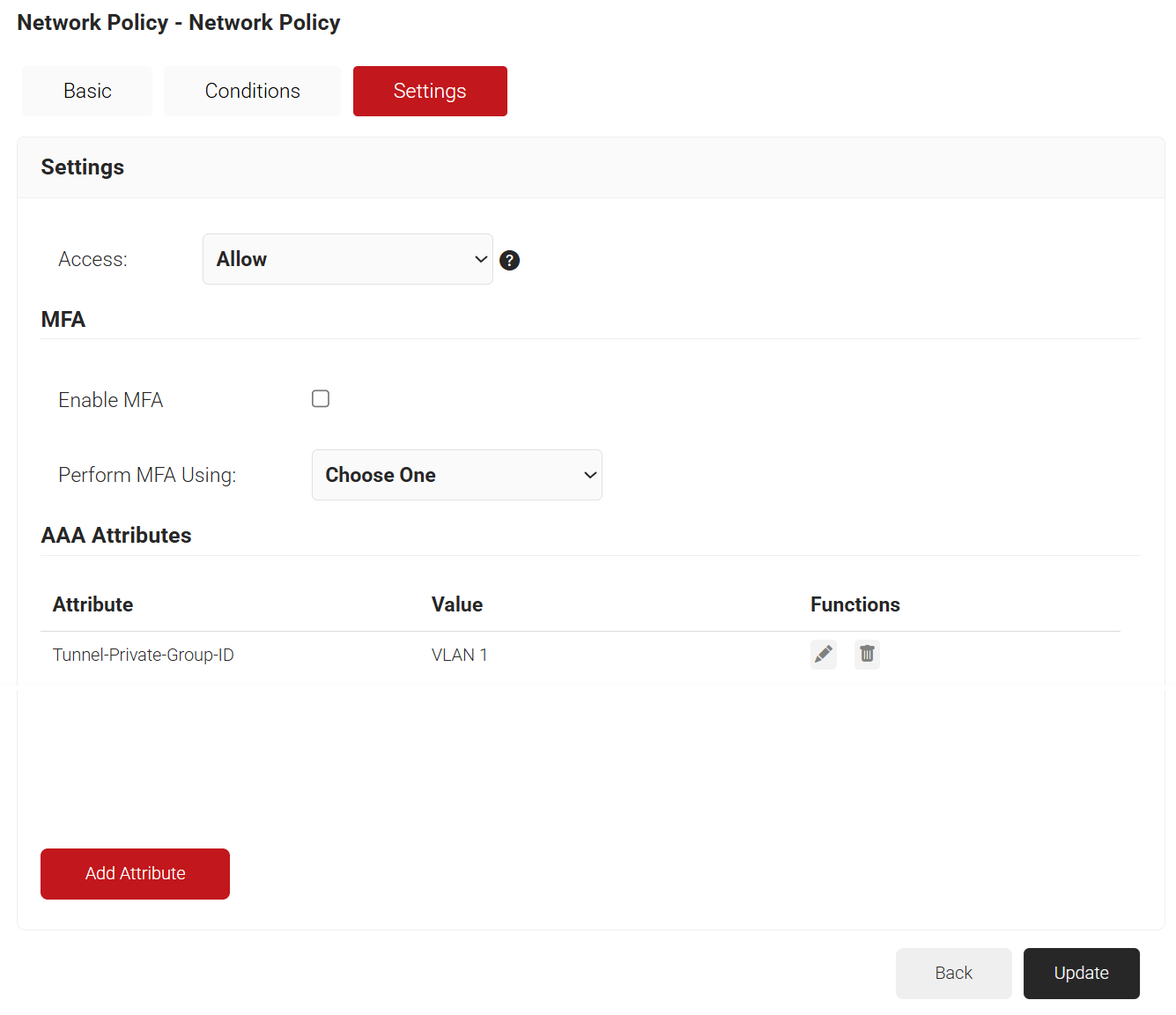
- Repeat for any other RADIUS attribute you would like to send. For reference, here is what is commonly required for VLAN Assignment:
- Tunnel-Medium-Type: IEE-802
- Tunnel-Private-Group-ID: {VLAN Name}
- Server Tunnel-Type: VLAN
- Click Update.
To configure Web Authentication:
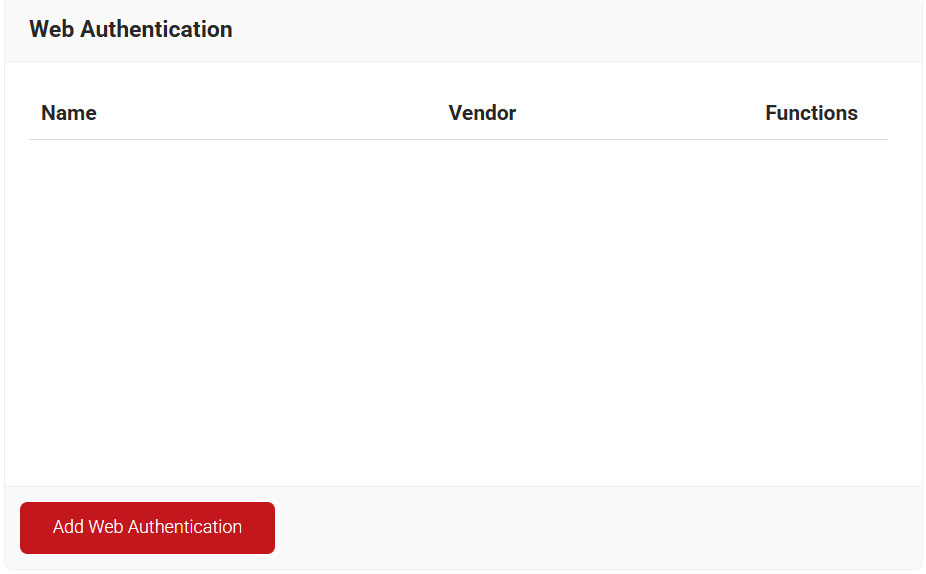
- Navigate to Device Onboarding > Web Authentication.
- Click Add Web Authentication.
- In the Name field, enter a name for your Web Authentication.
- In the Display Description field, enter a welcome message for your users.
- From the Vendor drop-down list, select your WLC vendor.
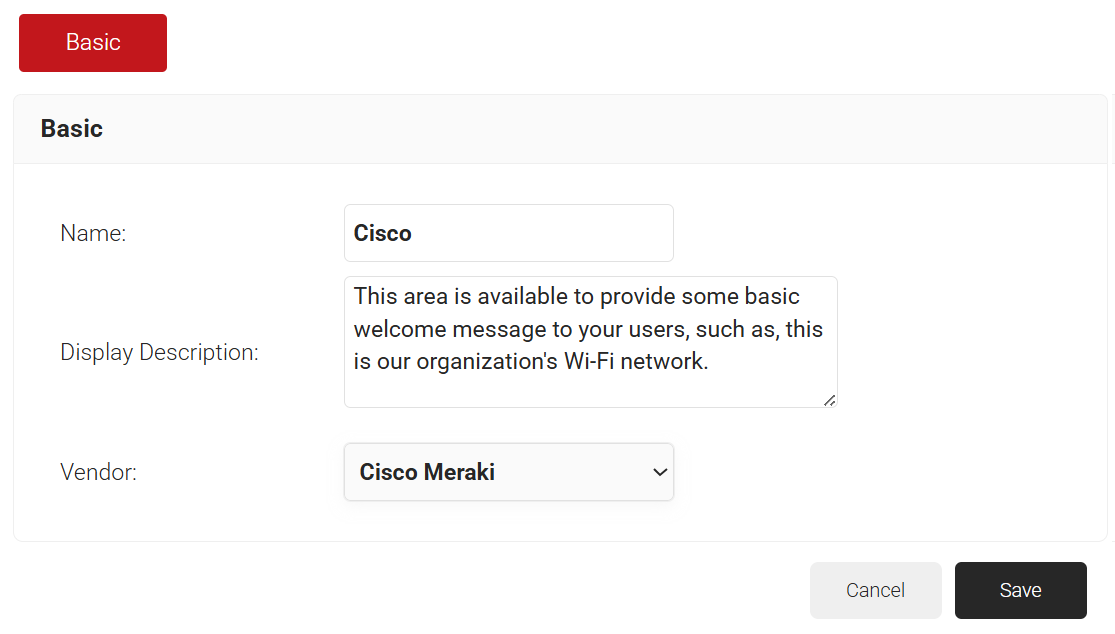
- Click Save.
- The page refreshes, and the Configuration, Authentication, and Customization tabs are displayed.
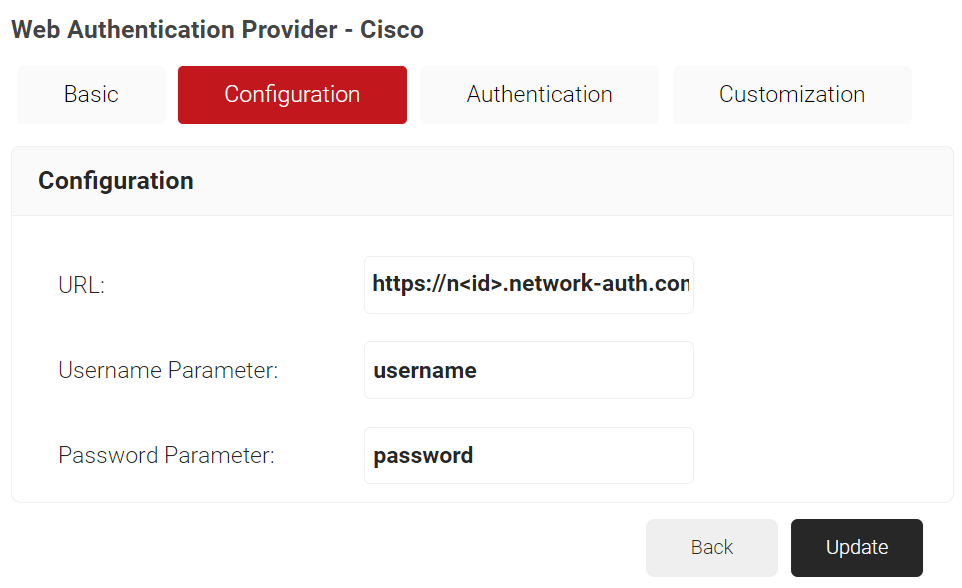
- Select the Configuration tab.
- In the URL field, enter the web authentication redirect URL. An example with Cisco is used for this demonstration.
- In the Username Parameter field, enter the username to be entered by the users.
- In the Password Parameter field, enter the password to be entered by the users.
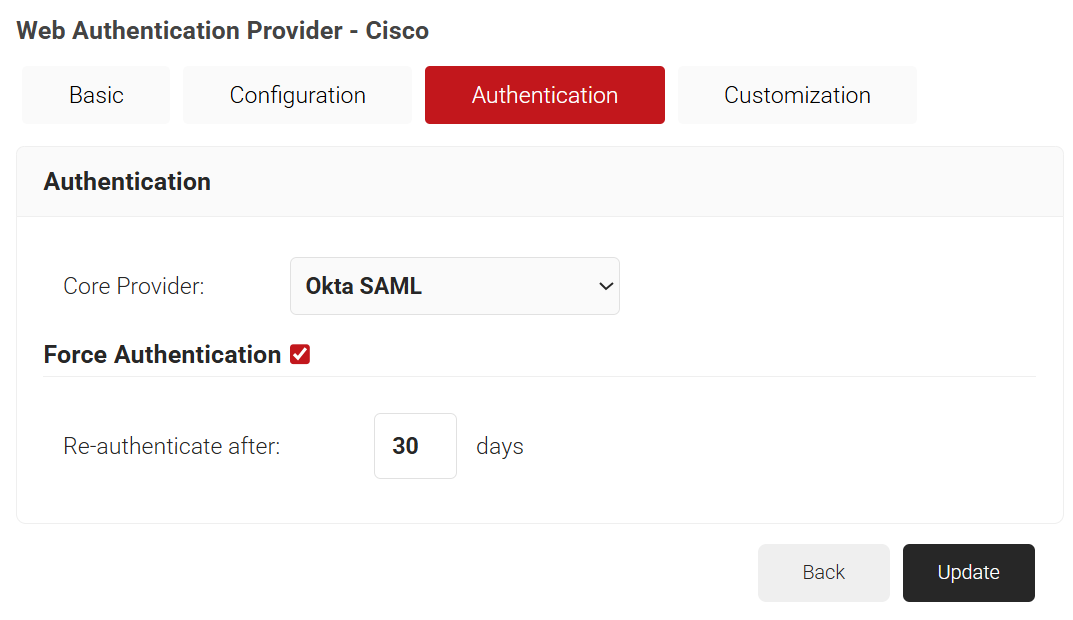
- Select the Authentication tab.
- From the Core Provider drop-down list, select the core provider created earlier (refer to the Configuring a Core Provider in SecureW2 section).
- Select the Force Authentication checkbox to re-authenticate the device after a set time period.
- In the Re-authenticate after field, enter the number of days after which the device must undergo re-authentication to maintain device trust. This practice minimizes frequent authentication while ensuring ongoing authorization for WiFi connectivity at specified intervals.
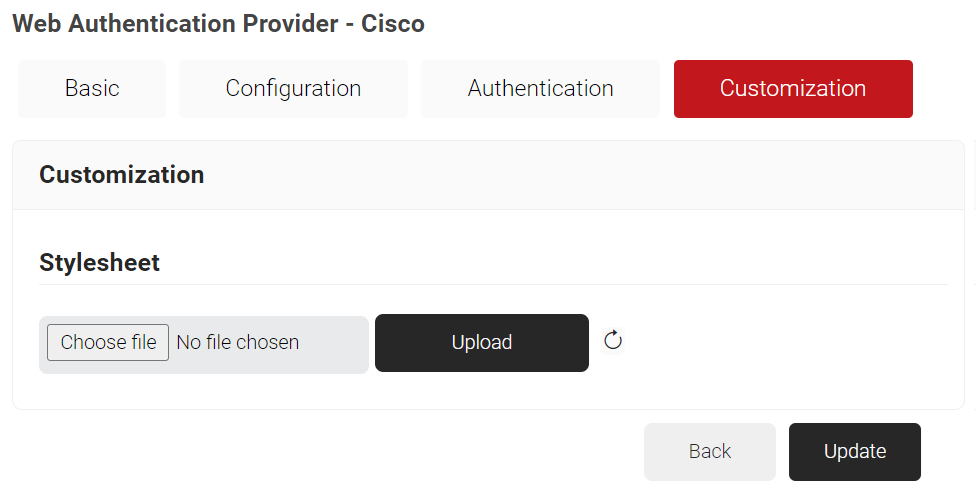
- Select the Customization tab.
- In the Stylesheet field, click Choose file and upload the necessary stylesheet from your computer, and click Upload.
- Click Update.
The network SSID for onboarding the users has been configured to point to CloudRADIUS for RADIUS authentication.
To set up RADIUS servers:
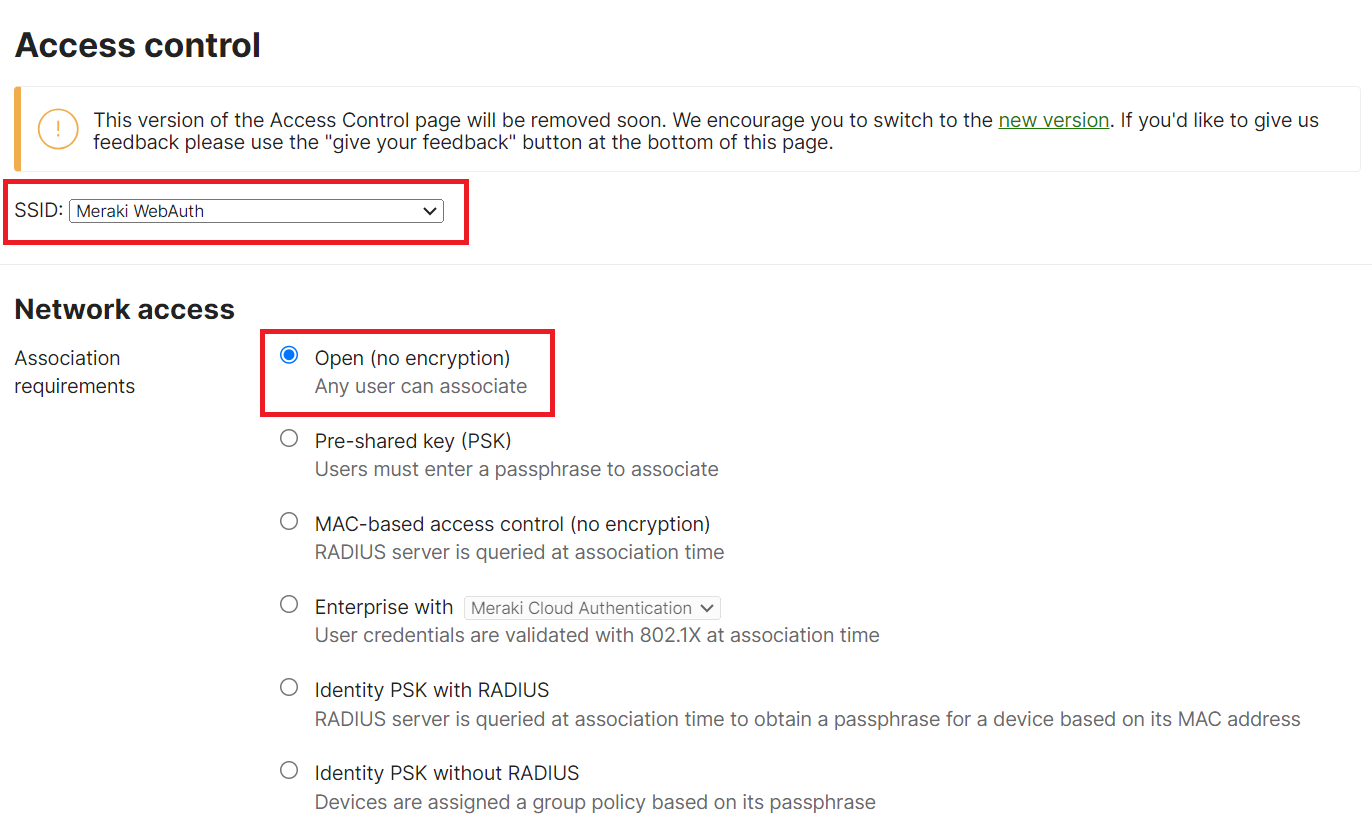
- Navigate to Wireless > Access Control.
- From the SSID drop-down list, select the required SSID.
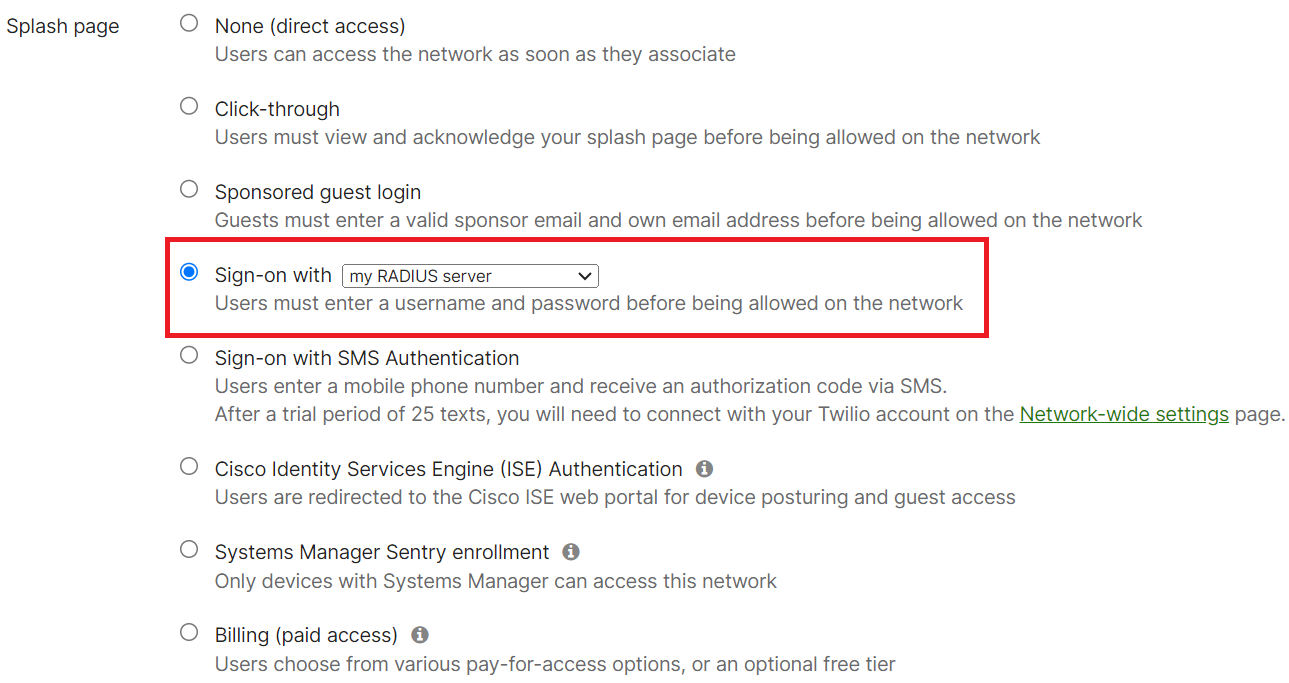
- In the Network access section, select the Open (no encryption) radio button.
- Scroll down to the Splash page section and select the Sign-on with radio button.
- From Sign-on with drop-down list, select my RADIUS server.
- In the RADIUS for splash page section, click Add a server.

- Navigate to RADIUS > RADIUS Configuration in the JoinNow Management Portal. Copy the values from the Primary IP Address, Authentication Port, and Shared Secret values.
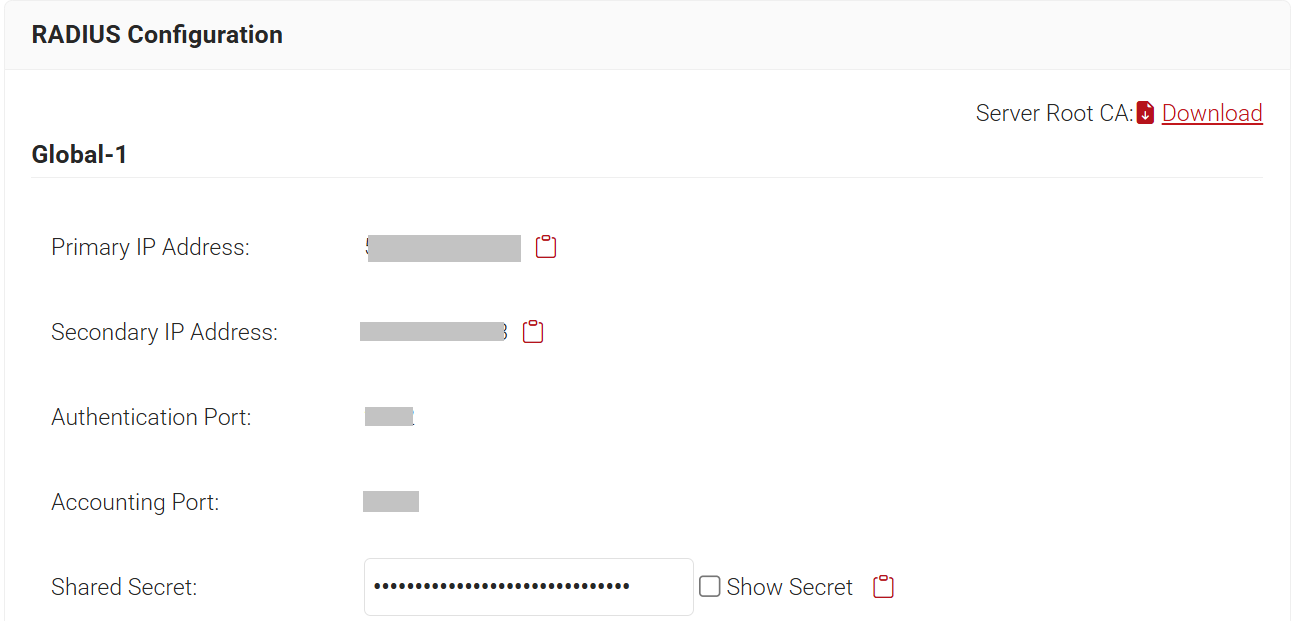
- Paste the Host (IP Address), Port (Authentication Port), and Secret values in the Meraki Portal.

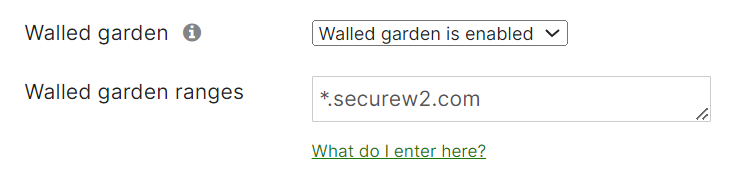
- From the Walled garden drop-down list, select Walled garden is enabled.
- In the Walled garden ranges field, enter *.securew2.com
- Scroll to the bottom of the page and click Save Changes.
The network SSID for onboarding the users has been configured to point to CloudRADIUS for RADIUS authentication.
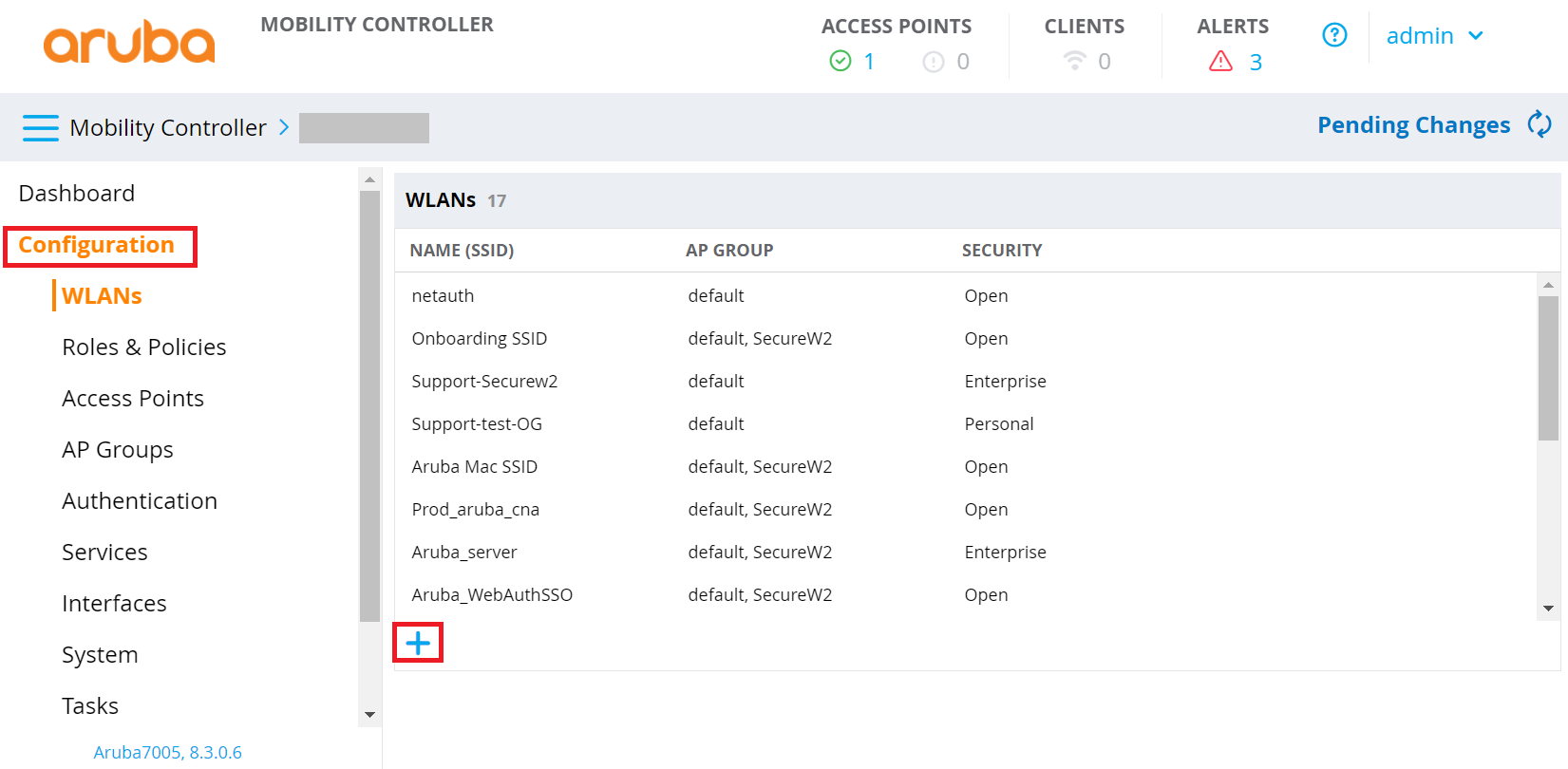
- Log in to the Aruba management portal.
- On the left pane, navigate to Configuration > WLANs and click the (+) icon.
- On the General tab:
- In the Name (ssid) field, enter a name for the SSID.
- For Primary usage, select the Guest option.
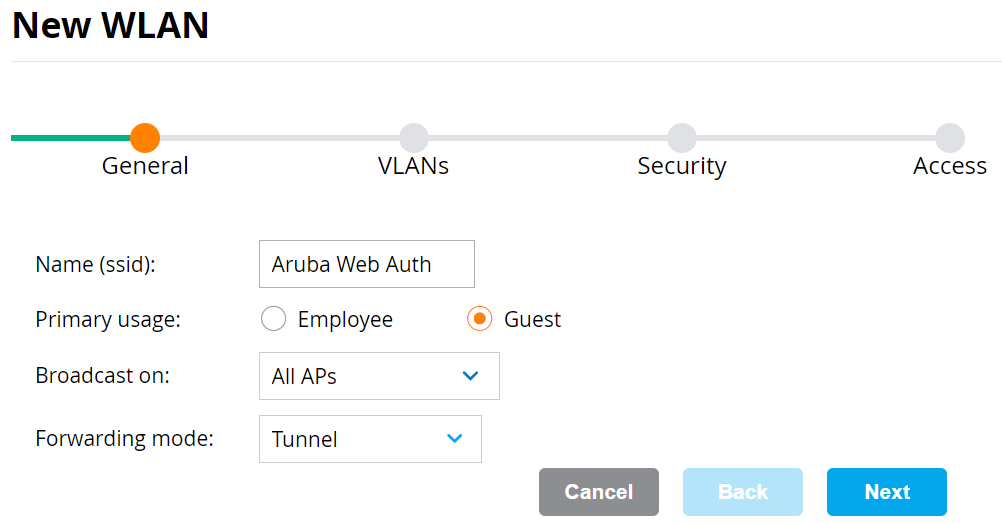
- Click Next.
- On the VLANs tab, select your VLAN ID.
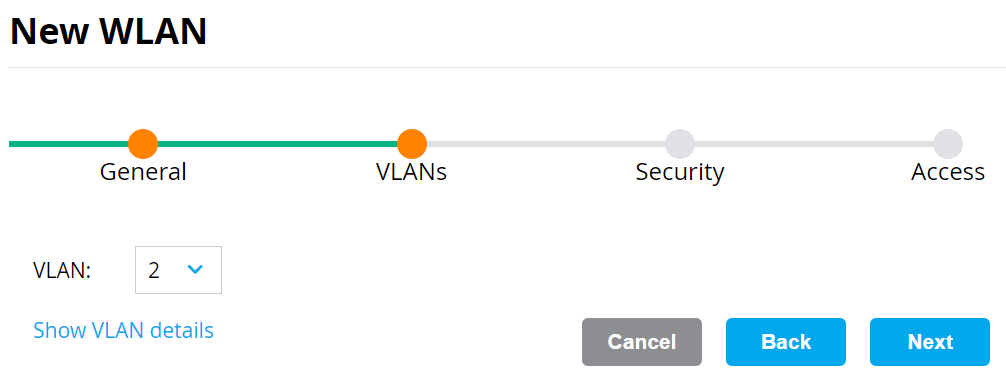
- Click Next.
- On the Security tab:
- Select ClearPass or other external captive portal.
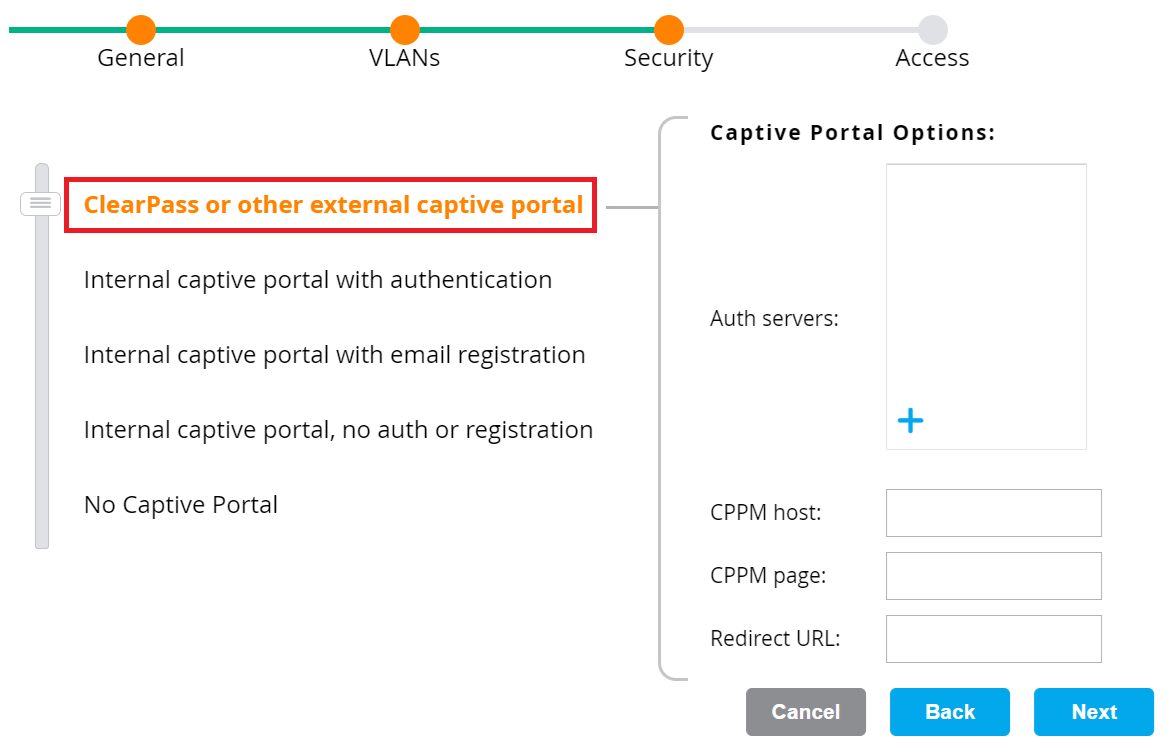
- In the Auth servers section, click the (+) icon.
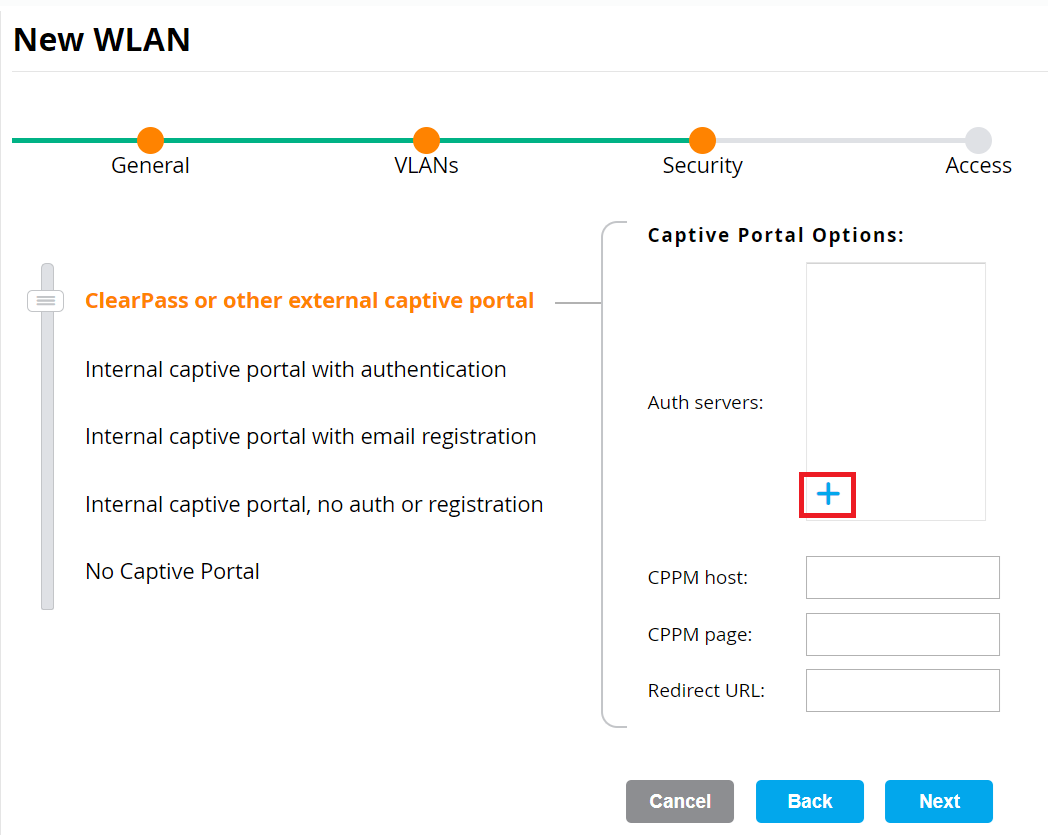
- On the Add Existing Server pop-up window, click the (+) icon.
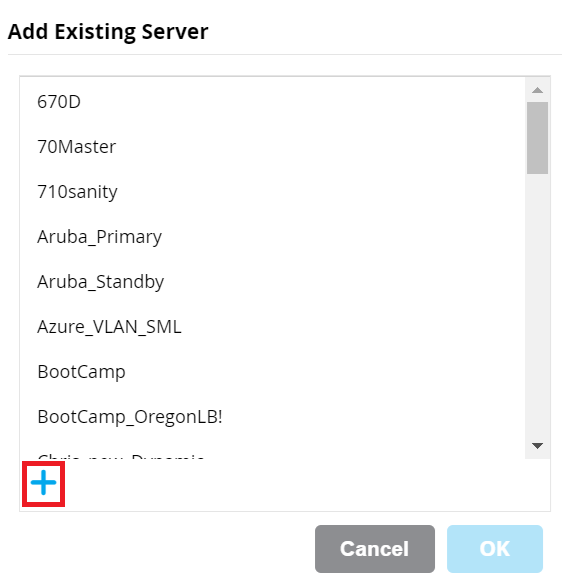
- On the Create new server pop-up window, add the following details:
- Select the RADIUS radio box.
- In the Name field, enter the name of the RADIUS server.
- Navigate to RADIUS > RADIUS Configuration in the JoinNow Management Portal. Copy the values from the Primary IP Address, Authentication Port, and Shared Secret values.
- Paste the IP Address, Auth Port, Accounting port, Shared key, and Retype key values in the Aruba Portal.
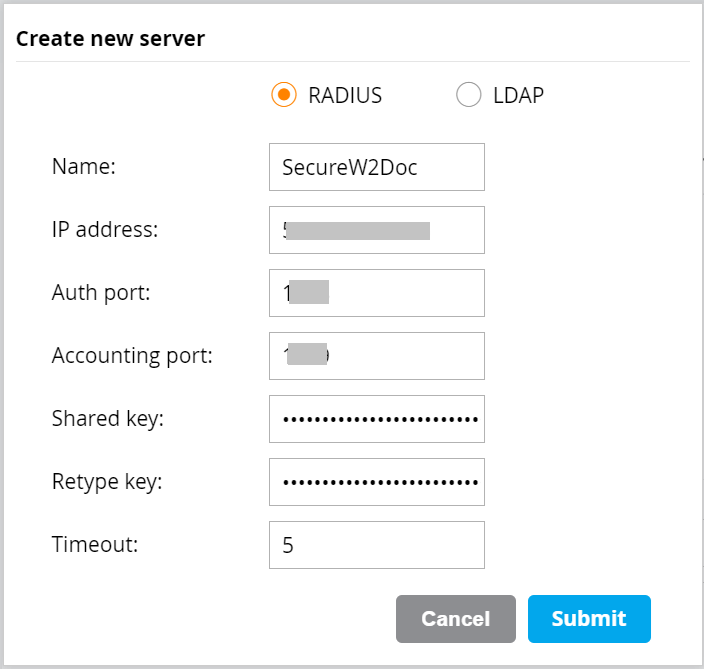
NOTE: Contact SecureW2 Support for IP Address, Auth Port, Accounting port, and Shared Secret values. - Click Submit.
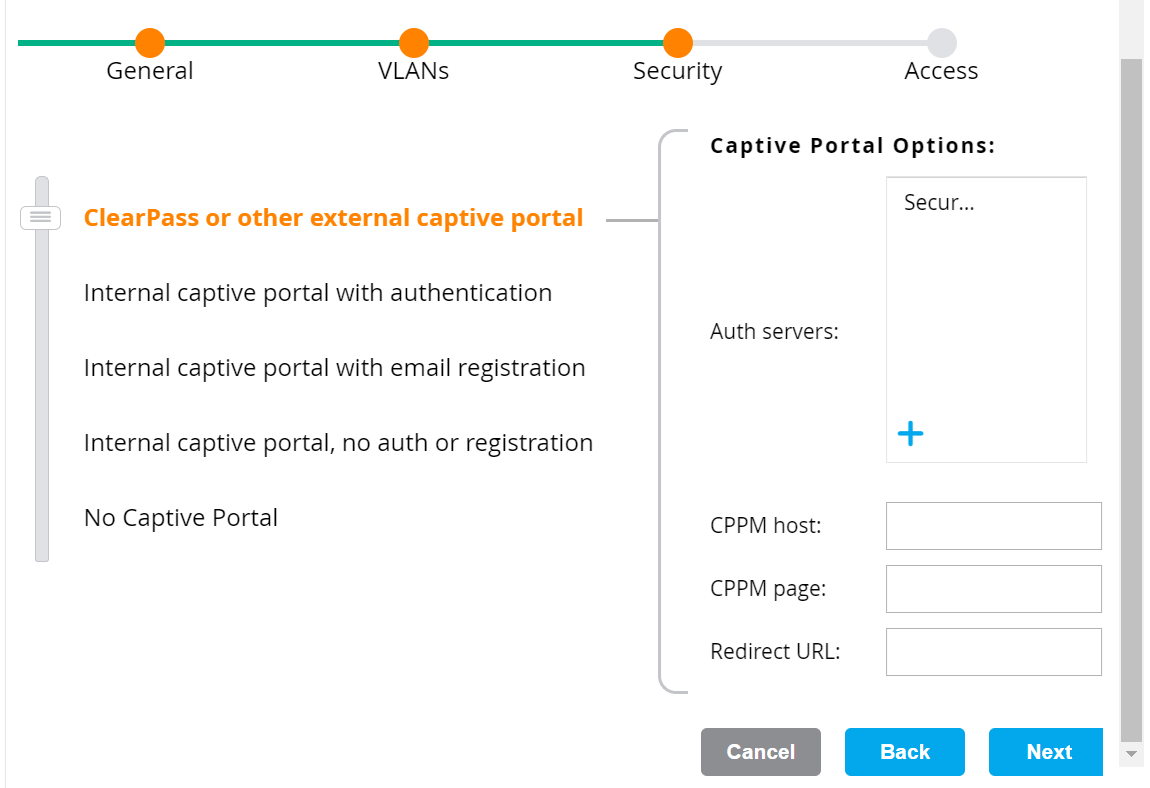
- Enter the Web Auth SSO landing page URL in the CPPM host and CPPM page fields.
- CPPM host: https://cloud.securew2.com
- CPPM page: /public/{orgid}/webauth/{profilename}/
- For example, if the network profile to onboard users is https://cloud.securew2.com/public/12345/webauth/Cisco, the CPPM Page will be /public/16862/webauth/Cisco/.
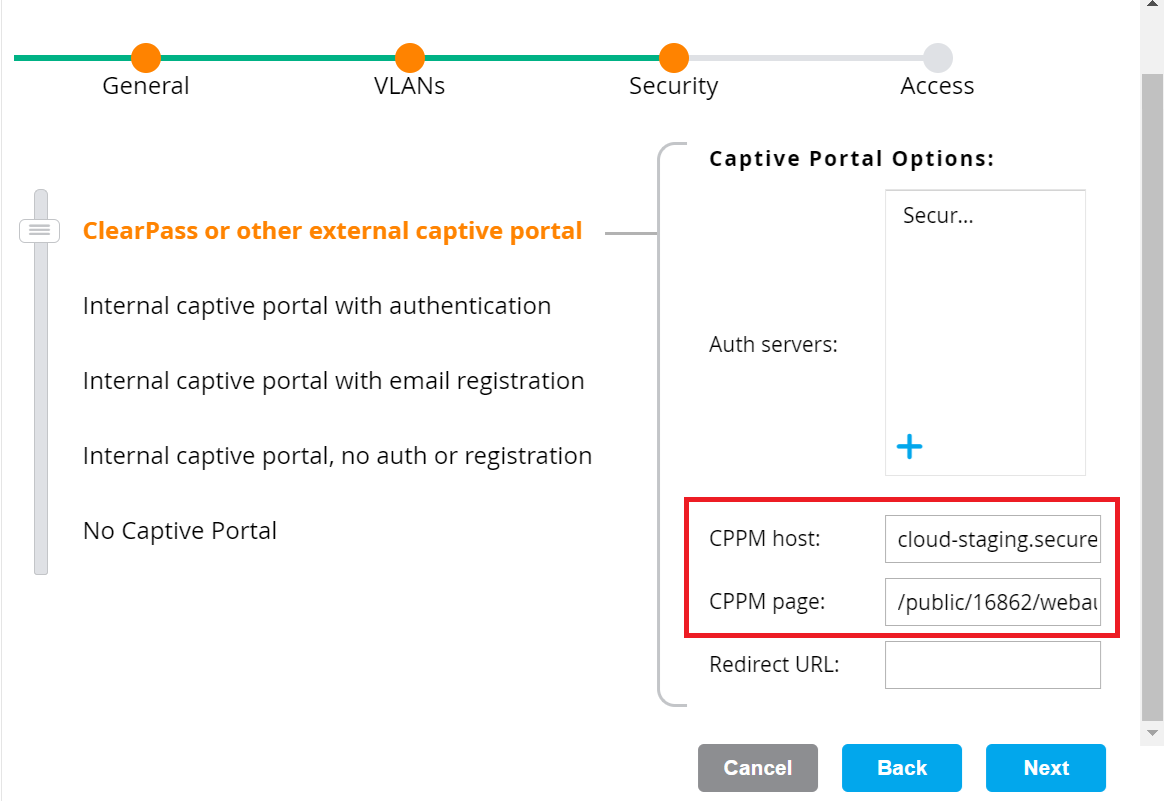
- Click Next.
- Select ClearPass or other external captive portal.
- On the Access tab, the Default role is displayed.
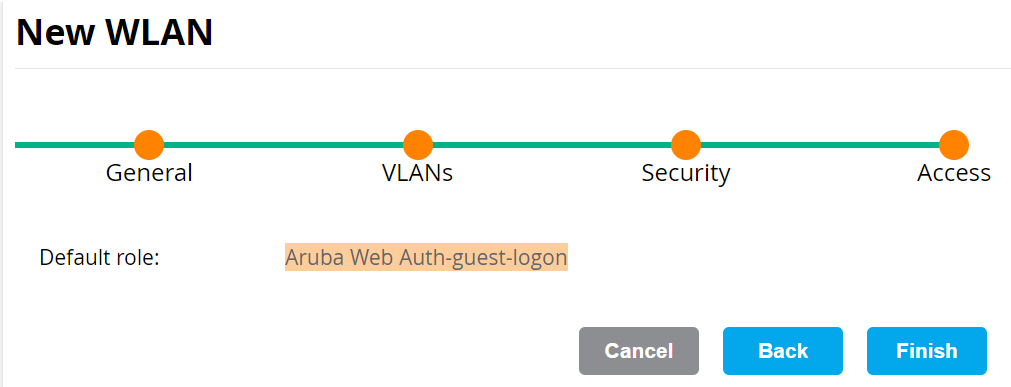
- Click Finish. The new SSID appears in the WLANs section.
- Navigate to Roles & Policies and update this role to allow https and http access to *.securew2.com.
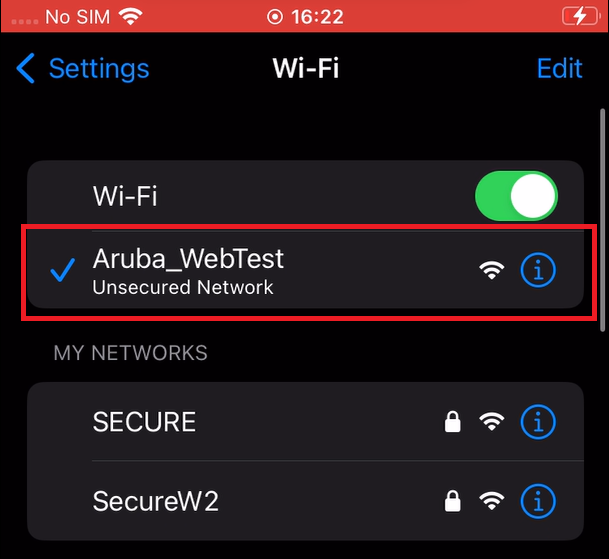
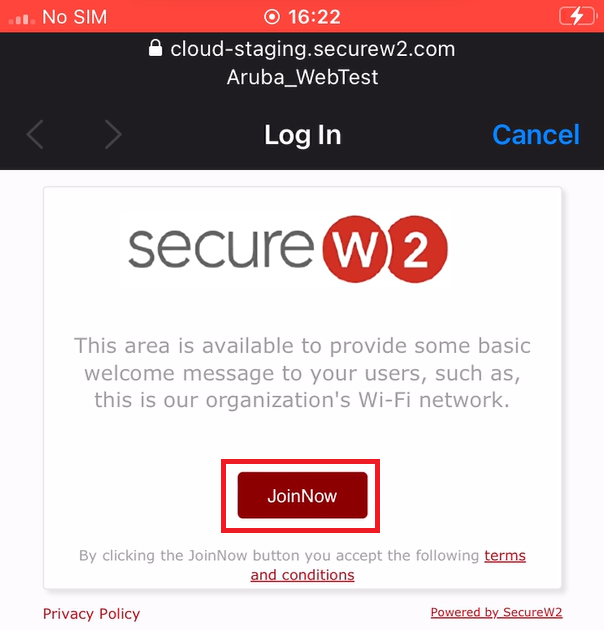
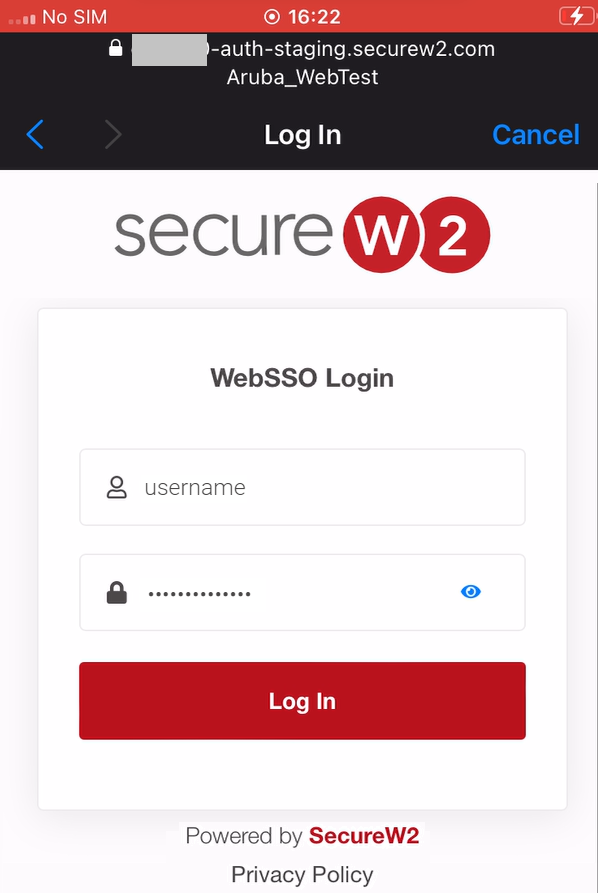
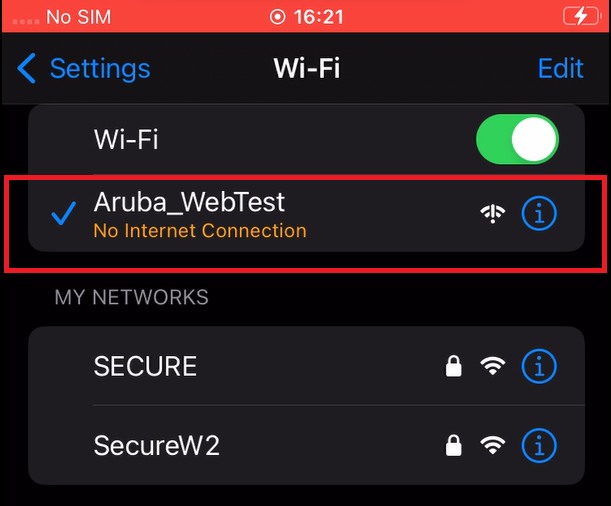
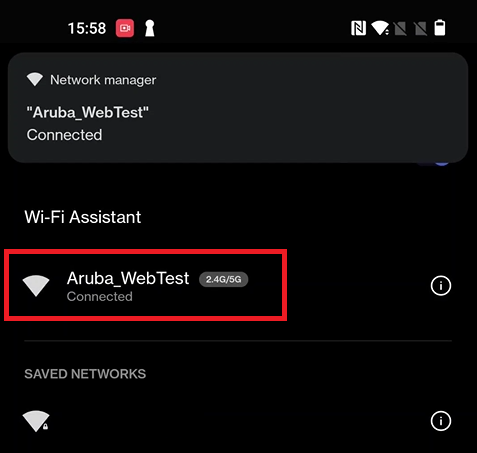
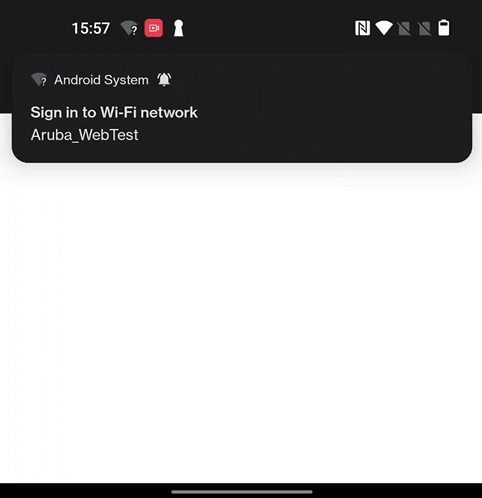
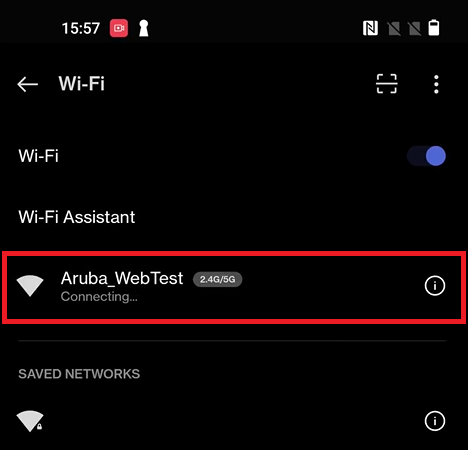
The connected devices and their details can be tracked on the Devices page in the JoinNow Management Portal (navigate to Data and Monitoring -> Devices).
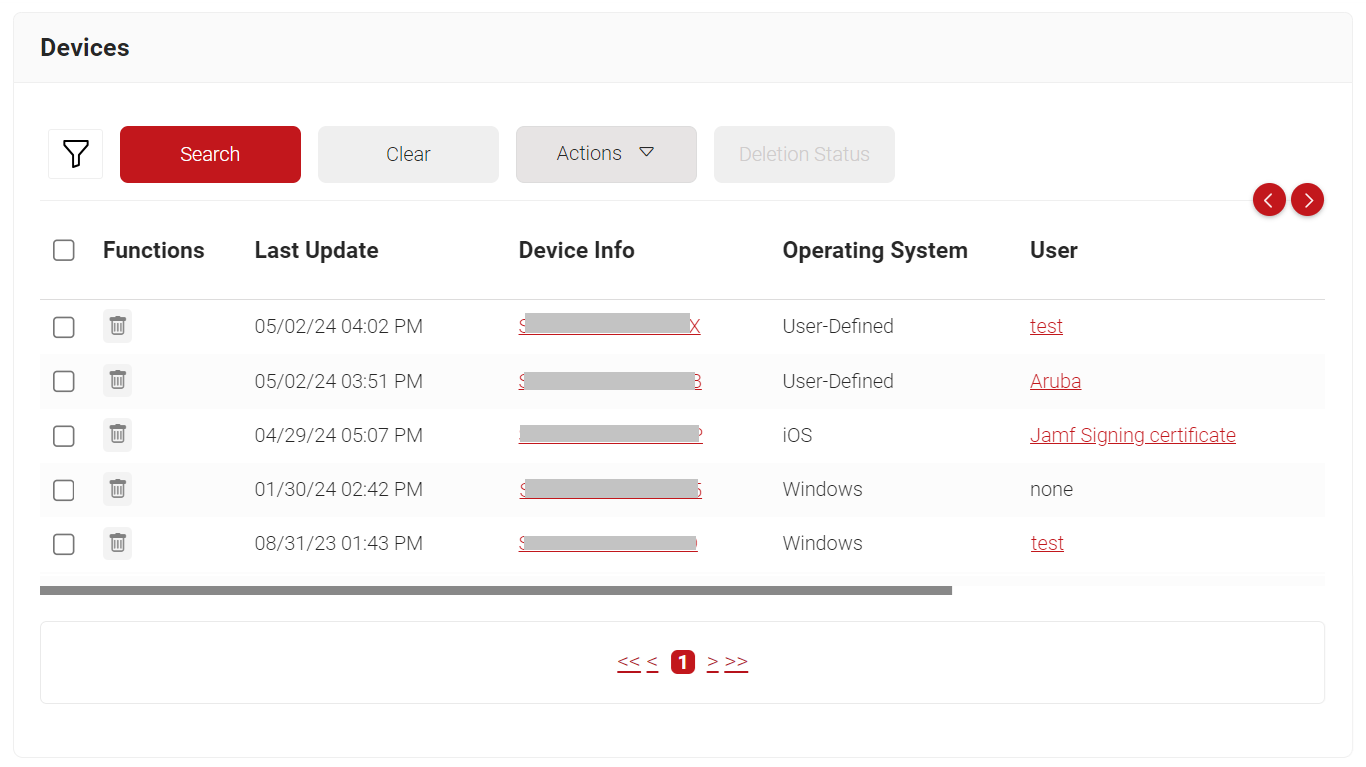
You can also generate a report on web-authenticated devices using the JoinNow Management Portal. It is available under the Predefined Reports section (Data and Monitoring > Reports > Predefined Reports).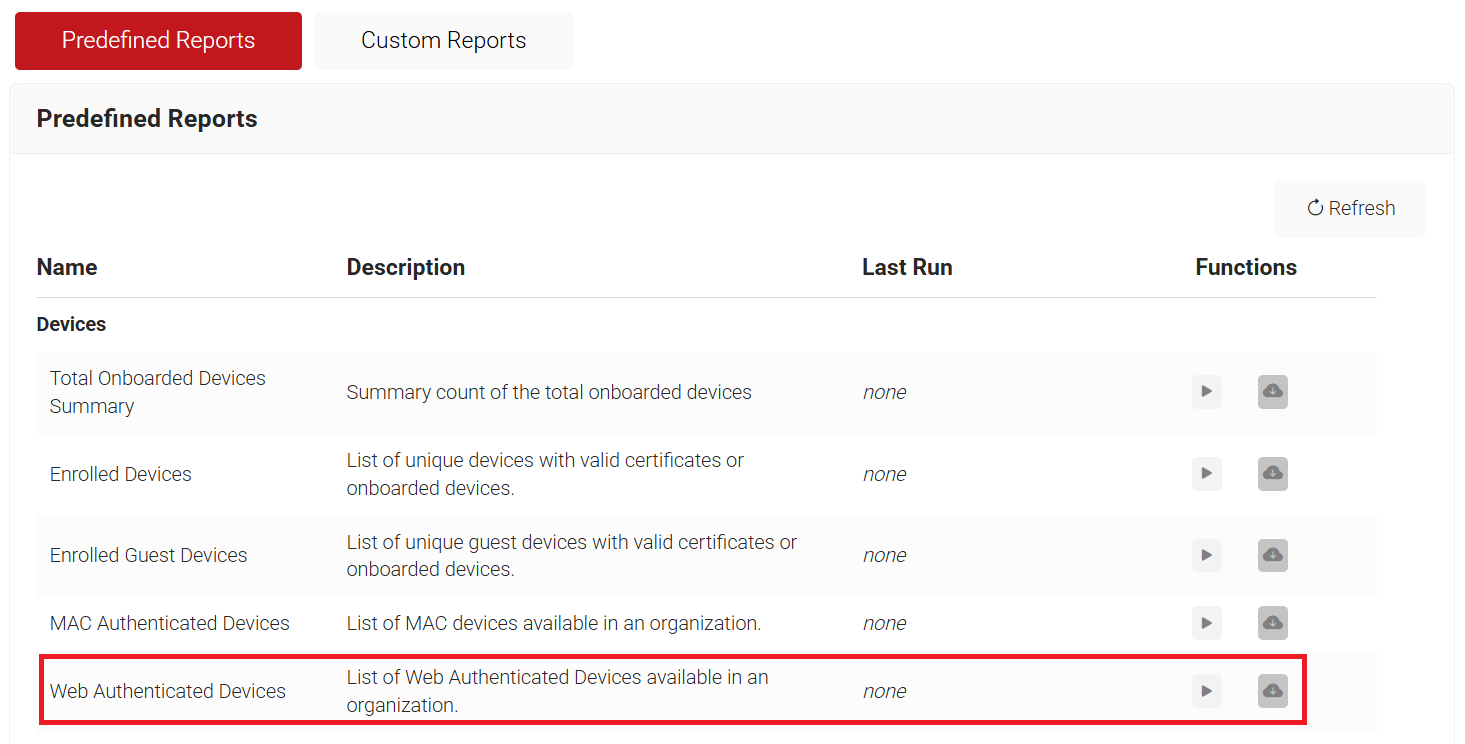
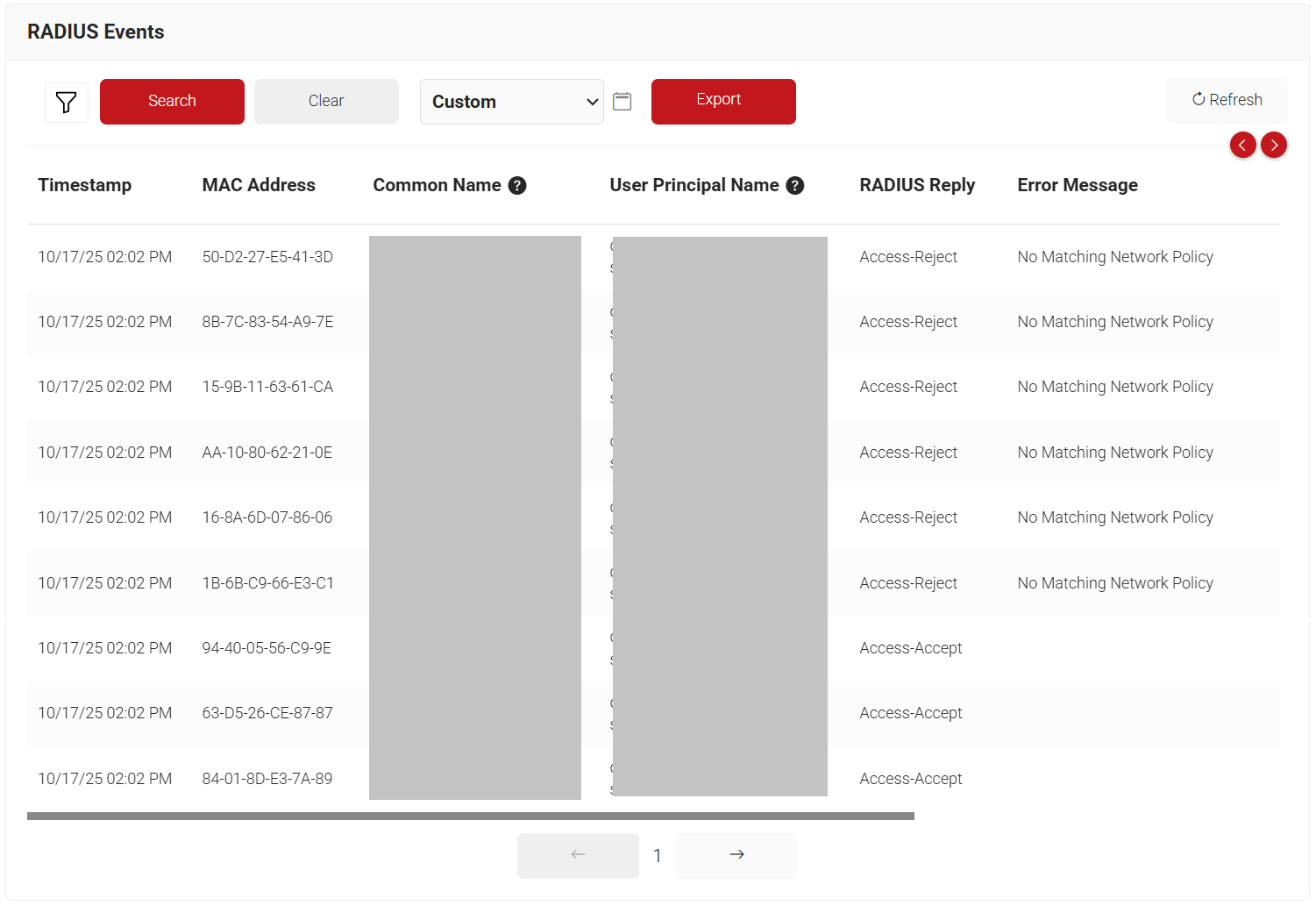
To view the RADIUS Events, navigate to Data and Monitoring > RADIUS Events.