To add a Root CA, follow these next steps:
- Log in to the JoinNow Management Portal.
- Navigate to Dynamic PKI > Certificate Authorities.
- Click Add Certificate Authority.
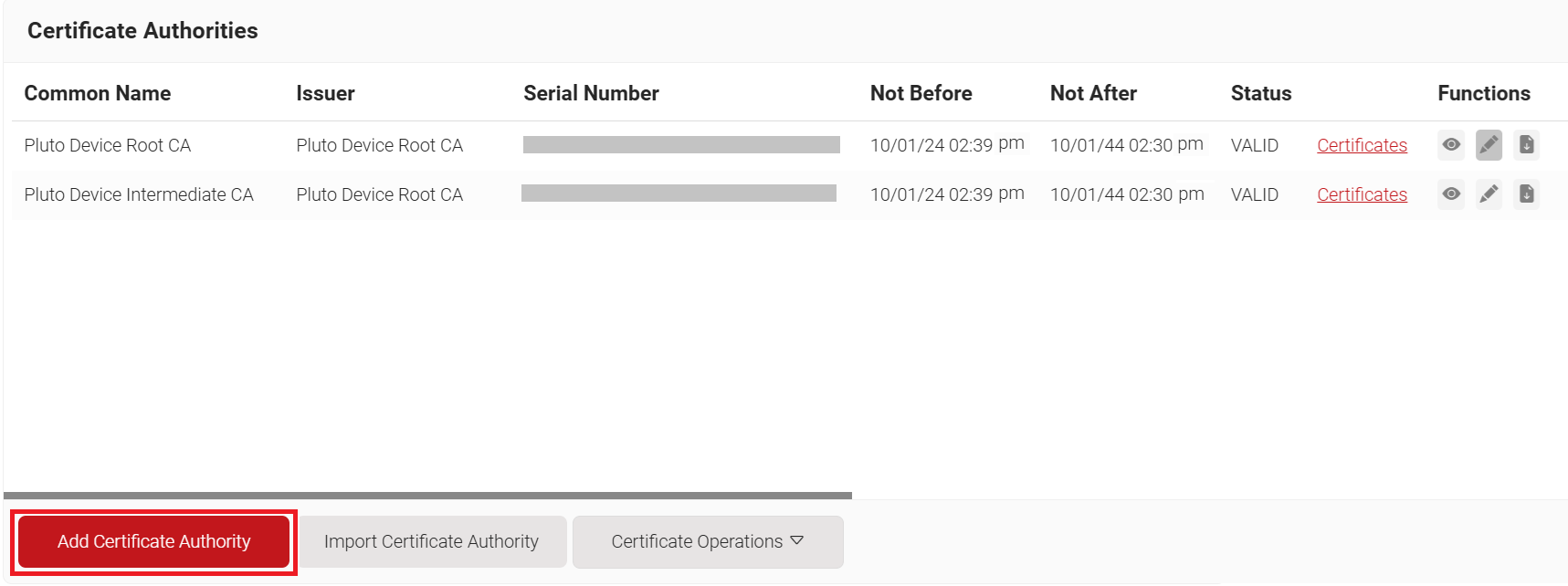
- In the Basic section, from the Generate CA For drop-down list, select the Device and User Authentication option to authenticate devices and users.
- From the Type drop-down list, select Root CA.
- In the Common Name field, enter the common name of the root CA (e.g., “OpenVPN Root CA”).
- From the Key Size drop-down list, select 2048 for the CA certificate key pair.
- From the Signature Algorithm drop-down list, select the signature algorithm for the certificate signing request. The option available is SHA-256.
- In the Validity Period (in years) field, enter the validity period of the CA certificate.
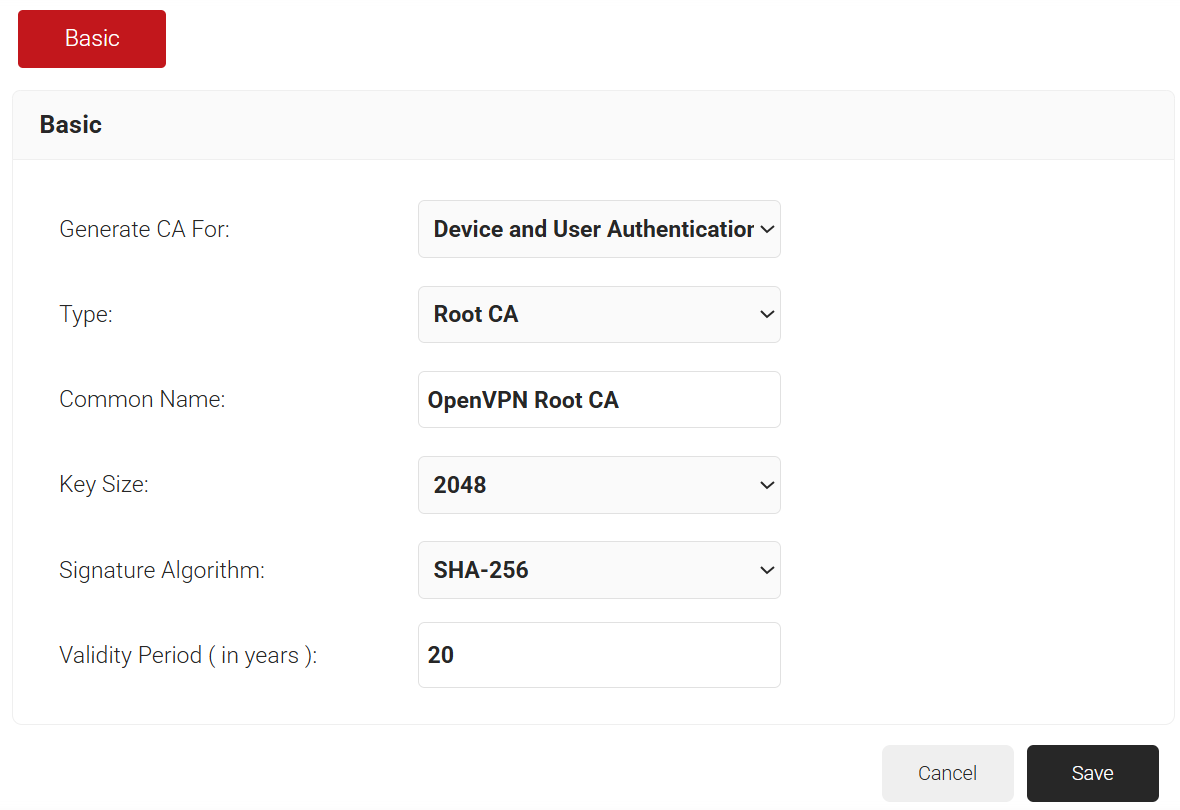
- Click Save.
SecureW2 recommends the use of an Intermediate CA as a best practice for easy identification and management of your CAs.
To create a new intermediate CA:
- Navigate to Dynamic PKI > Certificate Authorities.
- Click Add Certificate Authority.
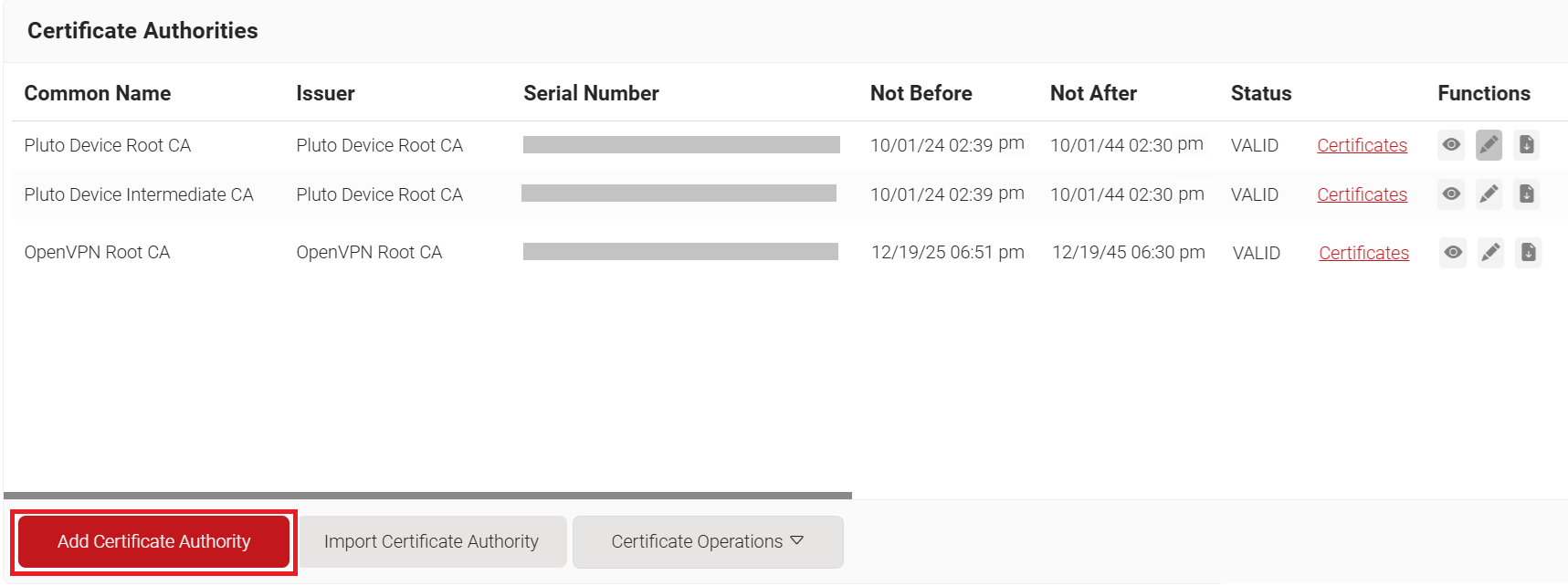
- In the Basic section, from the Generate CA For drop-down list, select the Device and User Authentication option to authenticate devices and users.
- From the Type drop-down list, select Intermediate CA.
- From the Certificate Authority drop-down list, select either an internal or external CA.
- In the Common Name field, enter the Common Name for the intermediate CA (e.g., “OpenVPN Intermediate CA”).
- From the Key Size drop-down list, select 2048 for the CA certificate key pair.
- From the Signature Algorithm drop-down list, select the signature algorithm for the certificate signing request. The option available is SHA-256.
- In the Validity Period (in years) field, enter the validity period for the Intermediate CA in terms of the number of years.
- In the Notifications section:
- From the Expiry Notification Frequency (in days) drop-down list, select the frequency interval for which a certificate expiration notification should be sent to users.
- Select the Notify user on successful Enrollment checkbox to notify users after a successful enrollment.
- In the Revocation section:
- In the Revoke Certificate if unused for field, select the number of days after which an unused certificate can be revoked.
- Since last usage – Select this checkbox to revoke the certificate after a specified number of days if it remains unused.
- Since certificate issuance – Select this checkbox to revoke the certificate after a specified number of days after it is issued.
- From the Reason Code drop-down list, select any one of the following reasons for which the certificate is revoked.
- Certificate Hold
- AA Compromise
- Privilege Withdrawn
- Unspecified
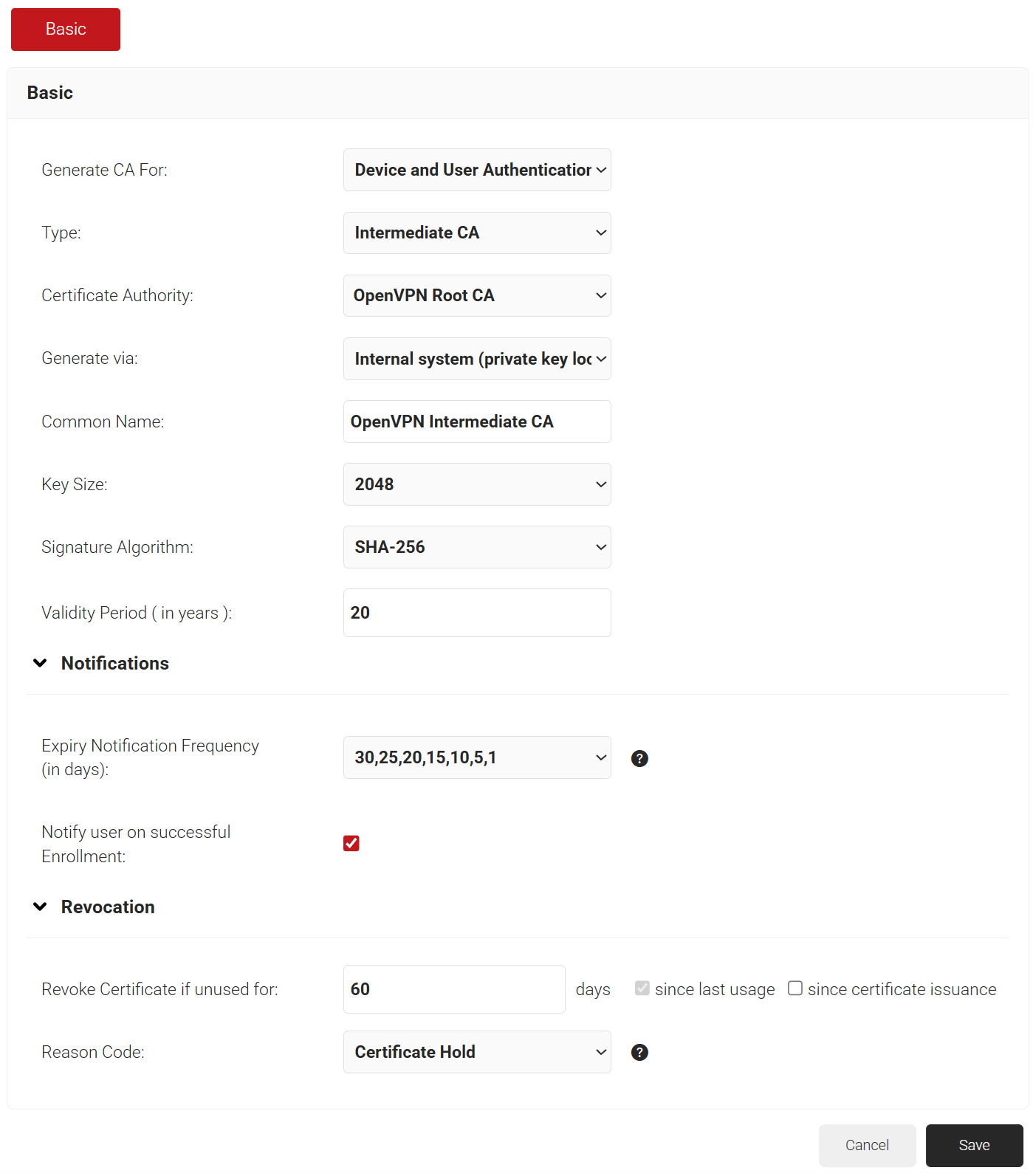
- In the Revoke Certificate if unused for field, select the number of days after which an unused certificate can be revoked.
- Click Save.
A certificate template defines how information is encoded in a certificate issued by the Certificate Authority. It includes a list of certificate attributes and specifies how information must be encoded in each attribute value.
To create a server template, perform the following steps:
- Navigate to Dynamic PKI > Certificate Authorities.
- Scroll to the Certificate Templates section and click Add Certificate Template.
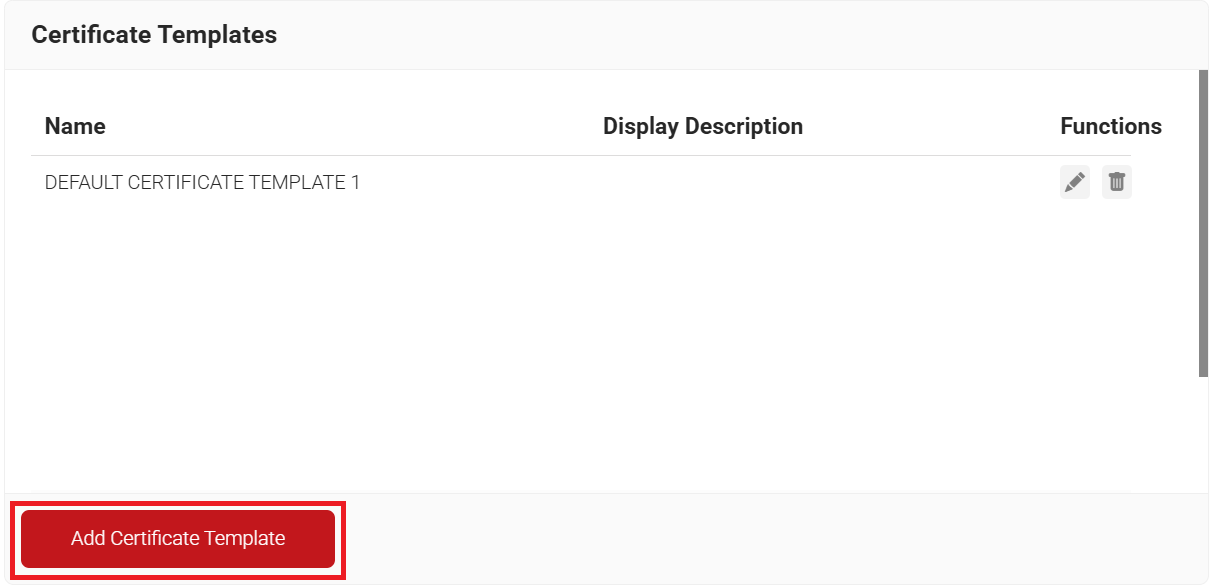
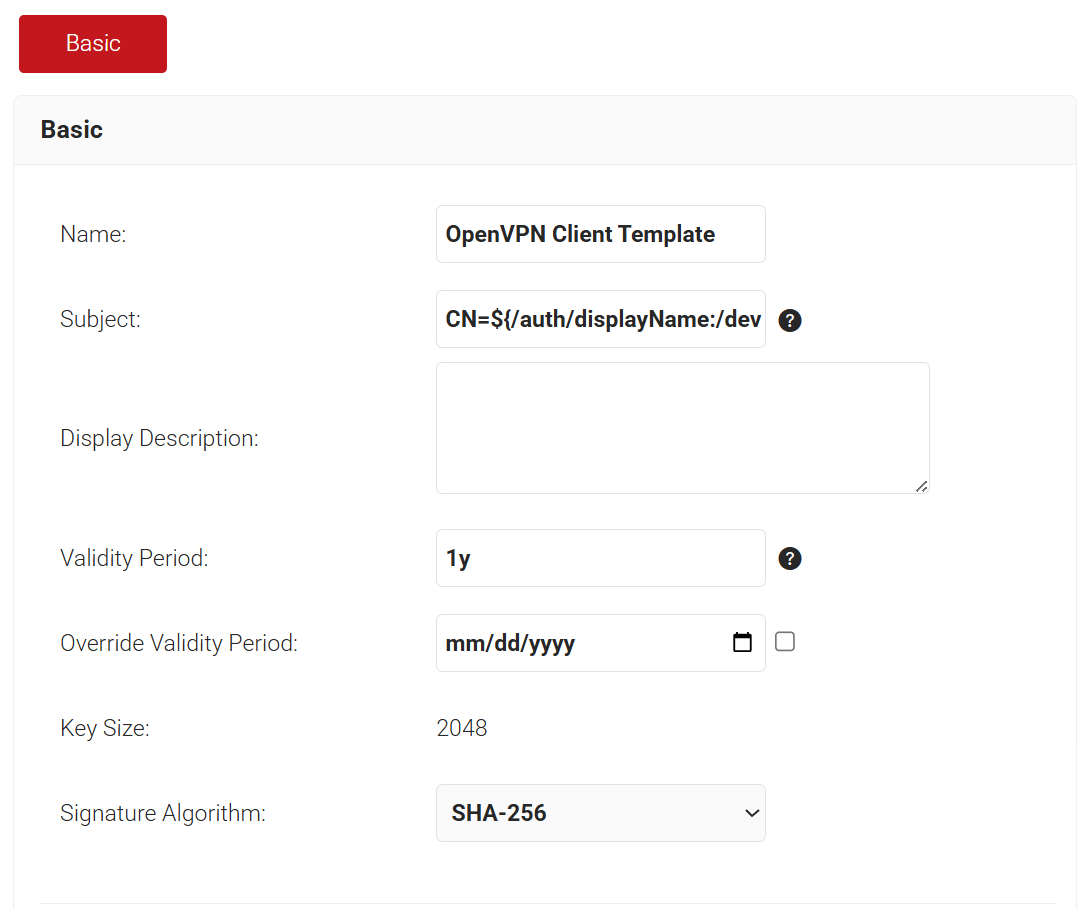
- In the Basic section, enter the name of the server template in the Name field (e.g., “OpenVPN Server Template”).
- In the Validity Period field, enter the validity period of the server template in d m y format (e.g., “0d 0m 1y” represents one year).
- In the Extended Key Usage section, from the Use Certificate For list, select Server Authentication.
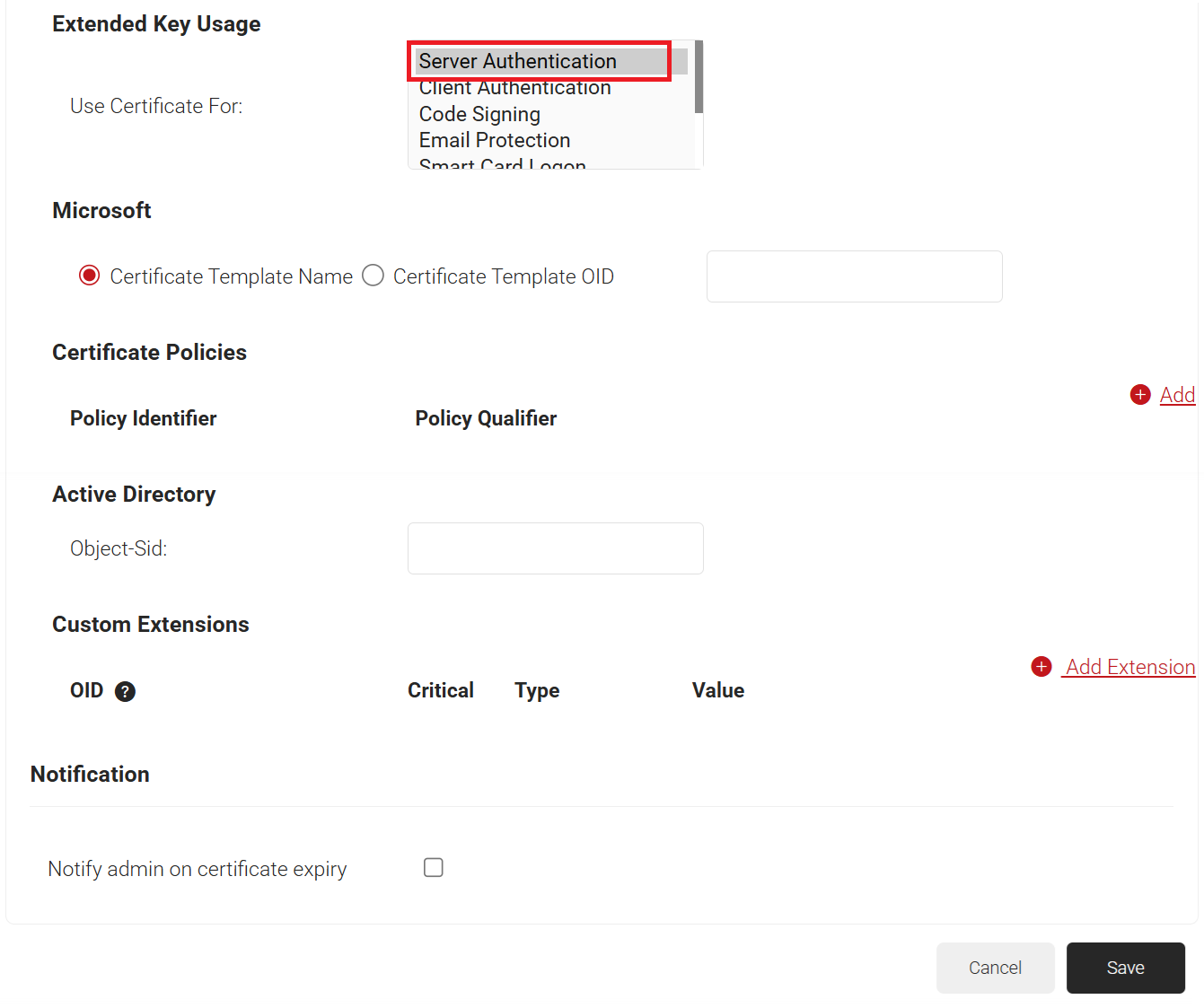
- Click Save.
To create a client template, perform the following steps:
- Navigate to Dynamic PKI > Certificate Authorities.
- Scroll to the Certificate Templates section and click Add Certificate Template.
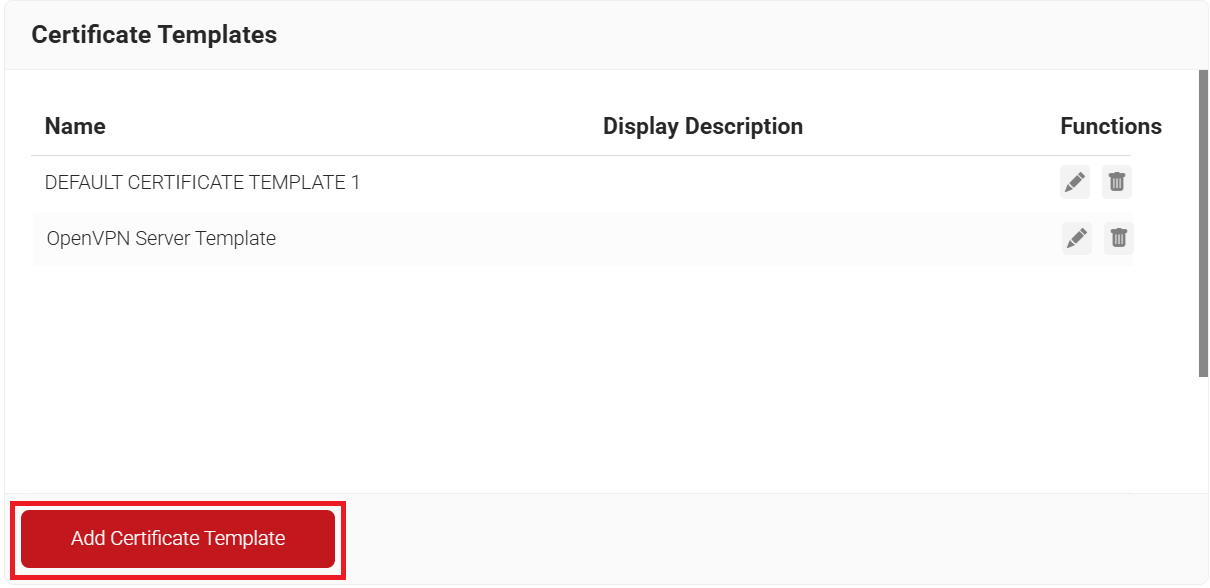
- In the Basic section, enter the name of the client template in the Name field (e.g., “OpenVPN Client Template”).
- In the Validity Period field, enter the validity period of the client template in d m y format (e.g., “0d 0m 1y” represents one year).
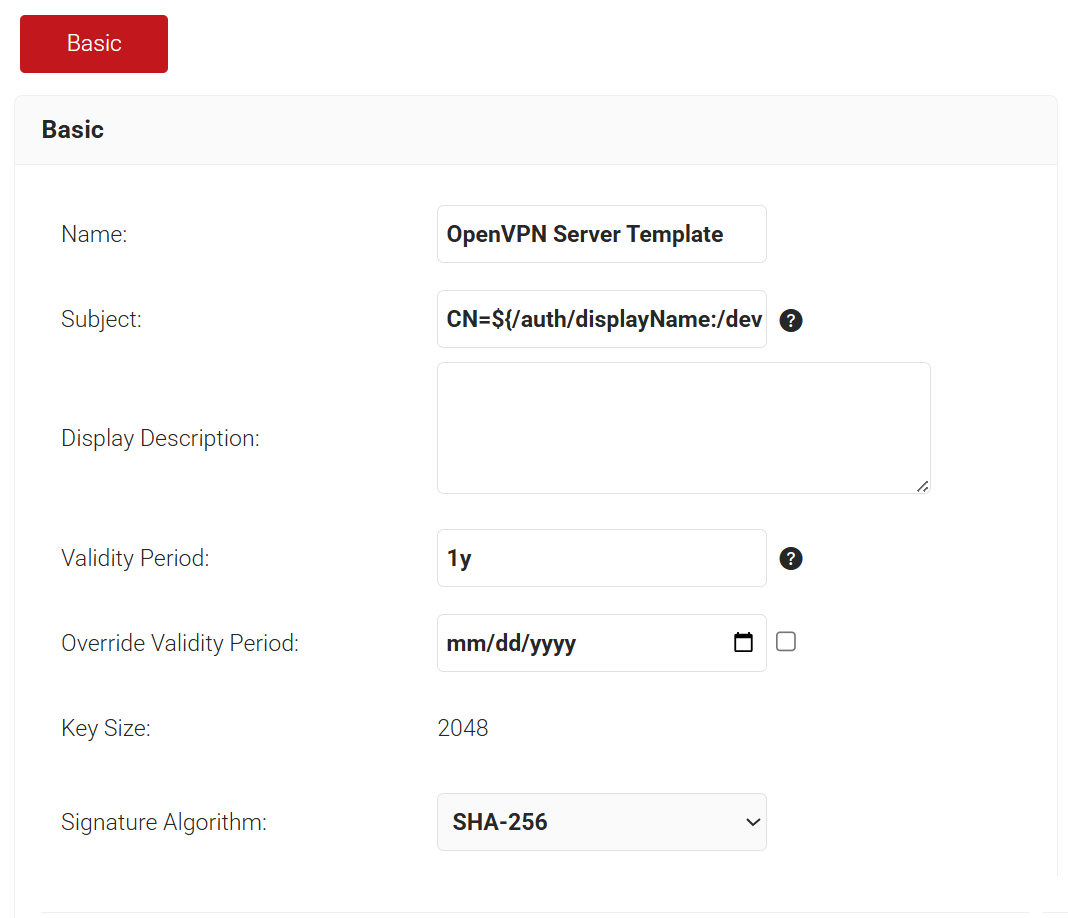
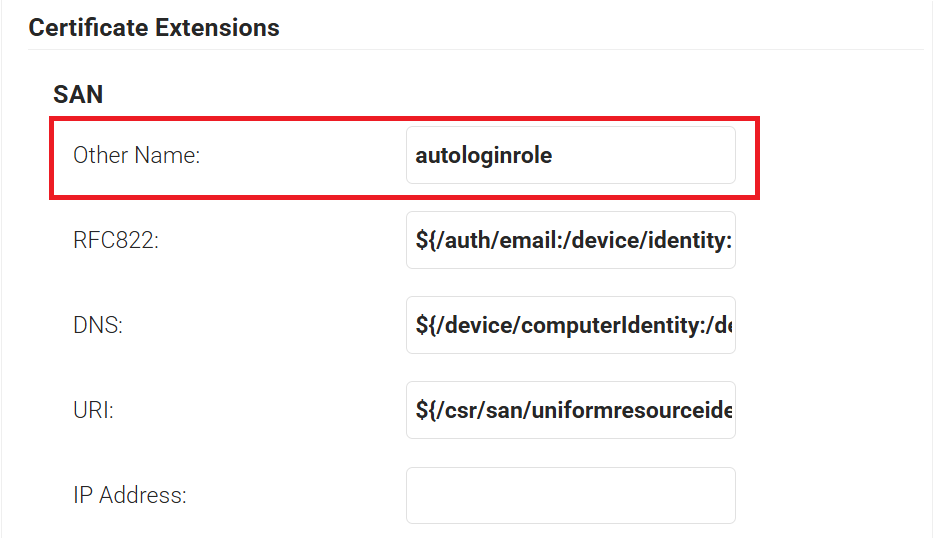
- (Optional, for deployments using auto-login profiles.) Under Certificate Extensions, in SAN > Other Name, replace the existing value with autologinrole.
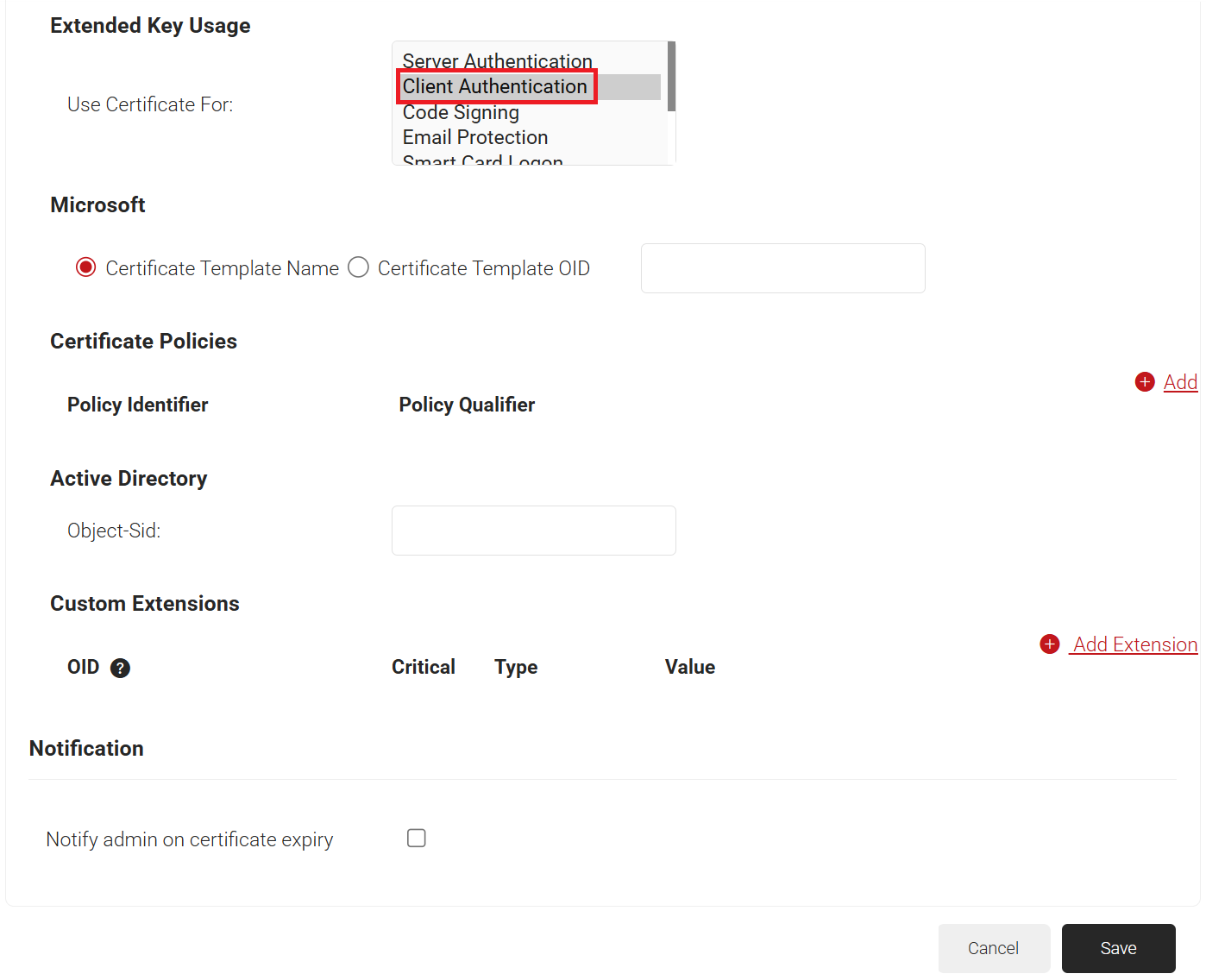
- In the Extended Key Usage section, from the Use Certificate For list, select Client Authentication.
- Click Save.
To create a server certificate and key, perform the following steps:
- Navigate to Dynamic PKI > Create Certificate.
- In the Device Info section, from the Operating System drop-down list, select Linux.
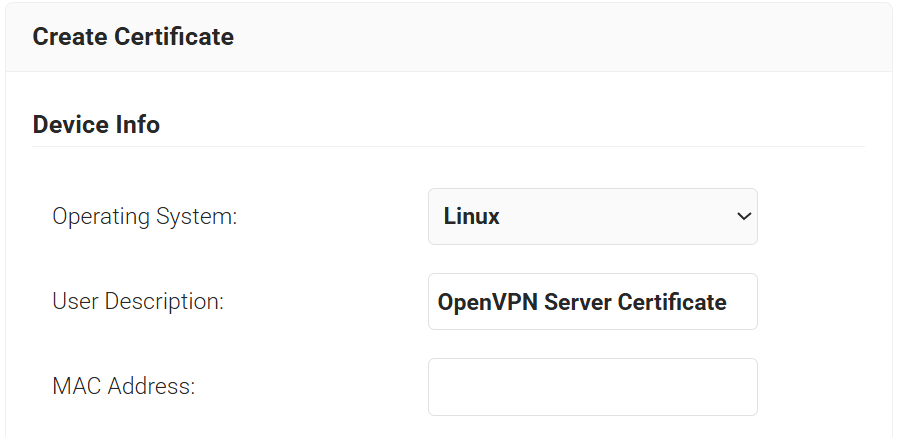
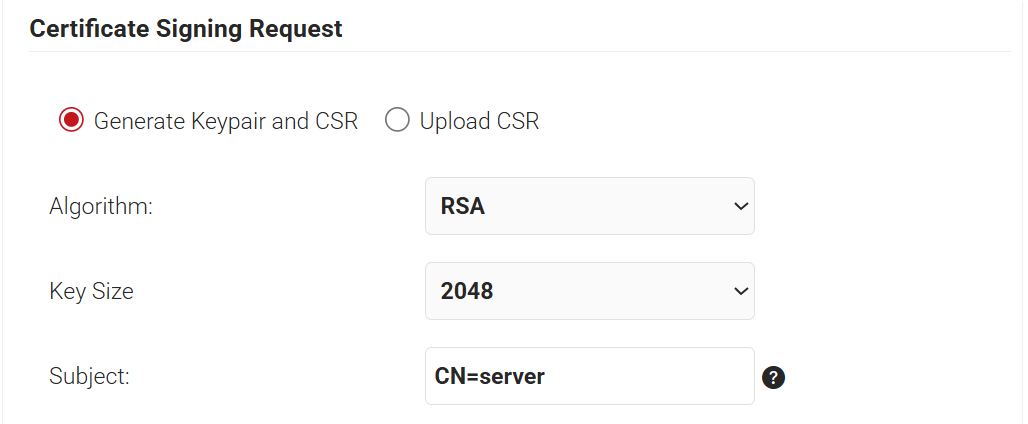
- In the Certificate Signing Request section:
- Select Generate Keypair and CSR.
- In the Subject field, type the common name of the Server Certificate (e.g., “CN=server”).
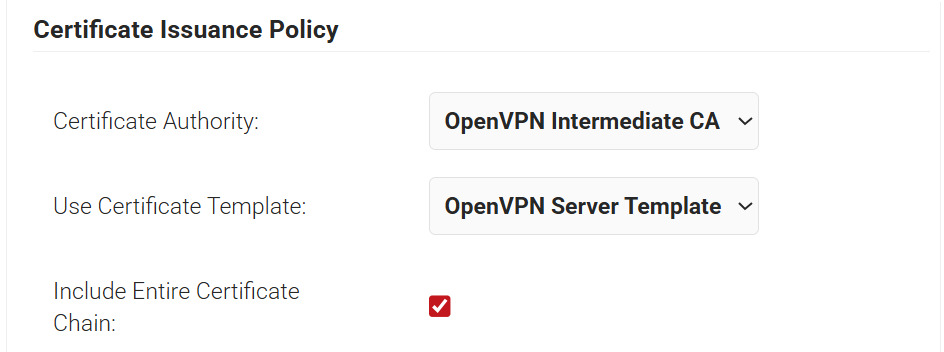
- In the Certificate Issuance Policy section:
- From the Certificate Authority drop-down list, select the Intermediate CA created in Step 3.
- From the Use Certificate Template drop-down list, select the Server Template created in Step 4.
- Select the Include Entire Certificate Chain checkbox.
- In the Distribution section:
- In the Format field, select PEM.
- In the Receive via field, select Download.

- Click Create.
- You’ll be prompted to create a password for the server’s private key.
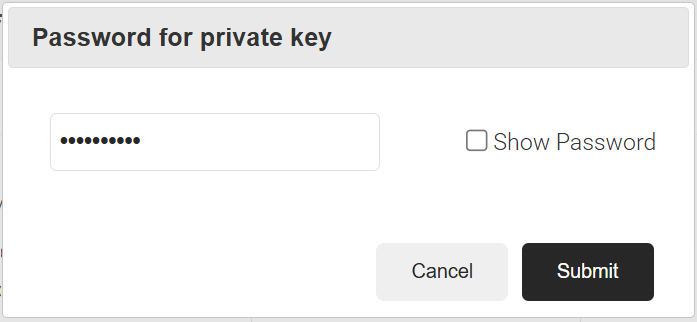
- You’ll be prompted to create a password for the server’s private key.
- A ZIP file downloads with the following files:
- Server Certificate (server.crt)
- Server Key (server.key)
- CA Bundle (cacert.crt)
To create a client certificate and key, perform the following steps:
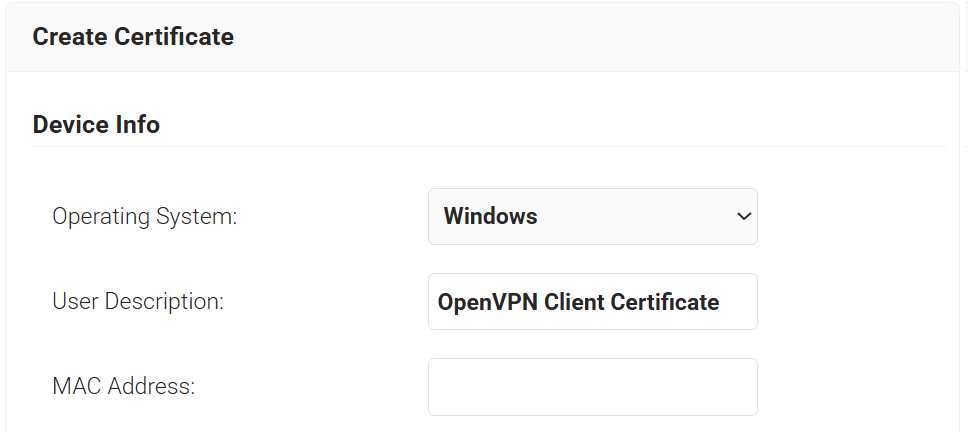
- Navigate to Dynamic PKI > Create Certificate.
- In the Device Info section, from the Operating System drop-down list, select your VPN user’s operating system (e.g., Windows or macOS).
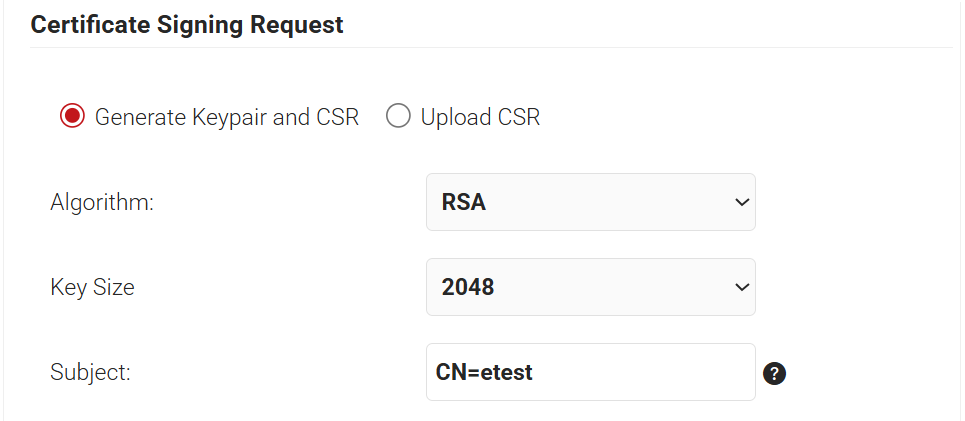
- In the Certificate Signing Request section:
- Select Generate Keypair and CSR.
- In the Subject field, type the client certificate’s common name of the Client Certificate (e.g., “CN=etest”).
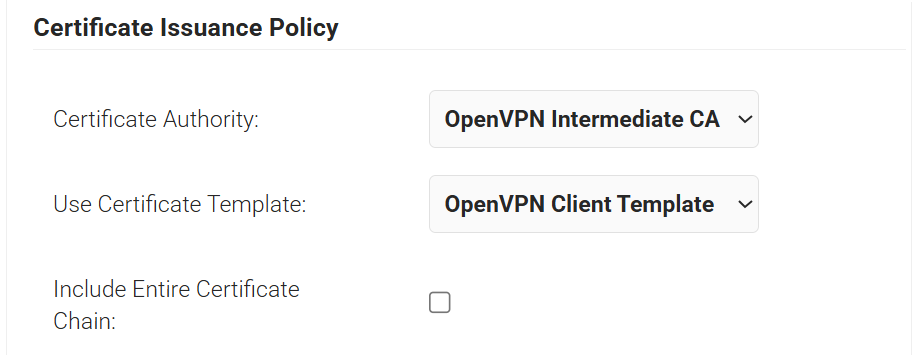
- In the Certificate Issuance Policy section:
- From the Certificate Authority drop-down list, select the Intermediate CA created in Step 3.
- From the Use Certificate Template drop-down list, select the Client Template created in Step 5.
- In the Distribution section:
- In the Format field, select PCKS12.
- In the Receive via field, select Download.
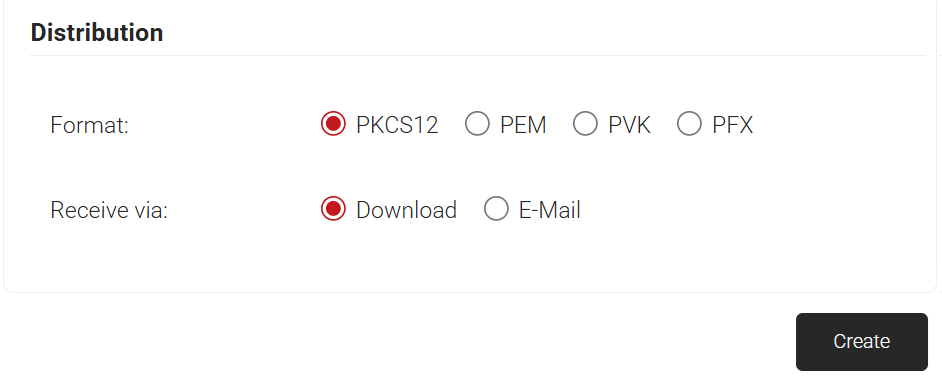
- Click Create.
- You’ll be prompted to create a password for the client’s private key.
- You’ll be prompted to create a password for the client’s private key.
- The client P12 file (“etest.p12”) outputs.
- Connect to the Access Server console and get root privileges.
- Create a directory:
mkdir epki && cd epki
- Place the CA bundle, server certificate, and key generated from SecureW2 via WinSCP or SCP in this new “epki” directory.
- Remove the password from the server key:
openssl rsa -in server.key -out newserver.key

- Create a tls_auth key for the OpenVPN server:
/usr/local/openvpn_as/scripts/certool --tls_auth
- Generate Diffie Hellman parameters for the OpenVPN server:
openssl dhparam -out dh.pem 2048
- Generate your auth token and add the generated file:
/usr/local/openvpn_as/scripts/certool --auth_token
- Configure X509 explicit/extended key usage based on RFC3280 TLS rules:
/usr/local/openvpn_as/scripts/sacli --key "external_pki.remote_cert_usage" --value
eku ConfigPut - Configure the use of the X509 “role” attribute for the declaration of auto-login permission:
/usr/local/openvpn_as/scripts/sacli --key "external_pki.autologin_x509_spec" --value
"subjectAltName,,autologinrole" ConfigPut - Generate the tls-crypt-v2 key:
/usr/local/openvpn_as/scripts/certool --tls_crypt2_server
- Load the newly generated files into the Access Server config database:
/usr/local/openvpn_as/scripts/sacli --key "external_pki.ta_key" --value_file ta.key ConfigPut
/usr/local/openvpn_as/scripts/sacli --key "external_pki.ca_crt" --value_file cacert.crt ConfigPut
/usr/local/openvpn_as/scripts/sacli --key "external_pki.server_crt" --value_file server.crt ConfigPut
/usr/local/openvpn_as/scripts/sacli --key "external_pki.server_key" --value_file newserver.key ConfigPut
/usr/local/openvpn_as/scripts/sacli --key "external_pki.dh_pem" --value_file dh.pem ConfigPut
/usr/local/openvpn_as/scripts/sacli --key "external_pki.auth_token_key" --value_file auth_token.key ConfigPut
/usr/local/openvpn_as/scripts/sacli --key "external_pki.tls_cryptv2_server" --value_file tls_crypt2.key ConfigPut - Start Access Server:
systemctl restart openvpnas
With the release of Access Server 2.14.2, we’ve made configuring client connection profiles for ePKI easier. Previously, creating these profiles required using the command line, as noted in the tutorial.
However, in version 2.14.2 and later, you can now create and manage ePKI client connection profiles directly from Access Server’s Client Web UI.
There are two types of ePKI profiles available:
- Generic ePKI profile:
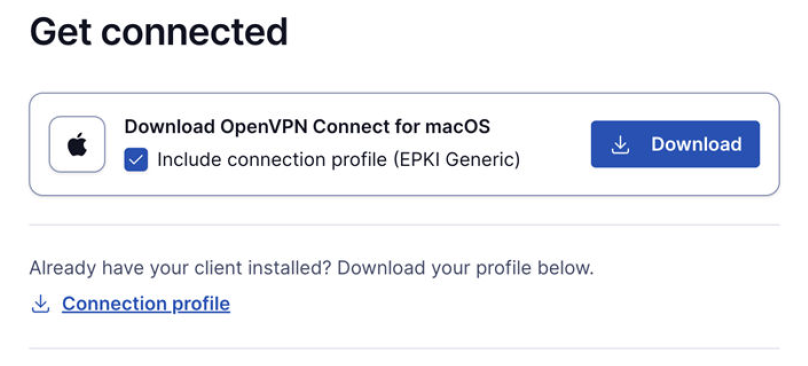
- This profile requires the user to authenticate with a password when connecting.
- Ideal for environments where a password-based security layer is needed in addition to certificate-based authentication.
- Auto-login ePKI profile:
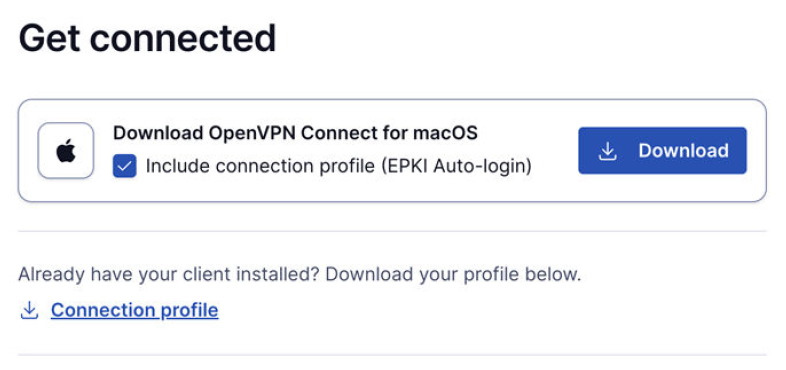
- This profile automatically uses the certificate for authentication without requiring a password.
- Suitable for unattended devices or systems where automatic, certificate-based login is needed.
In addition, the Import Profile from URL functionality in OpenVPN Connect allows users to import these connection profiles directly, making the configuration process faster and more seamless.
This update simplifies the ePKI setup, providing more flexibility and reducing the reliance on the command line.
- Log in to the JoinNow Management Portal.
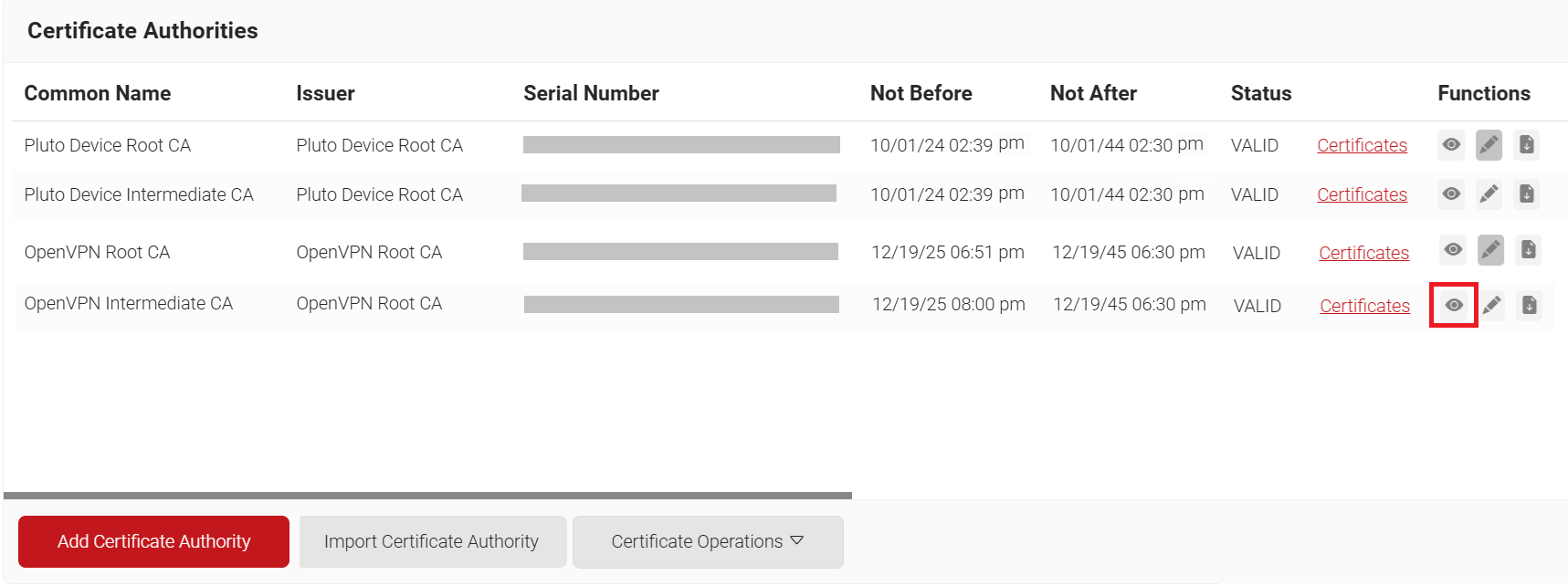
- Navigate to Dynamic PKI > Certificate Authorities.
- Select the Intermediate CA created in Step 3, and then select the View icon under Functions.
- On the displayed page, scroll to the CRL section and copy the Base CRL URL.
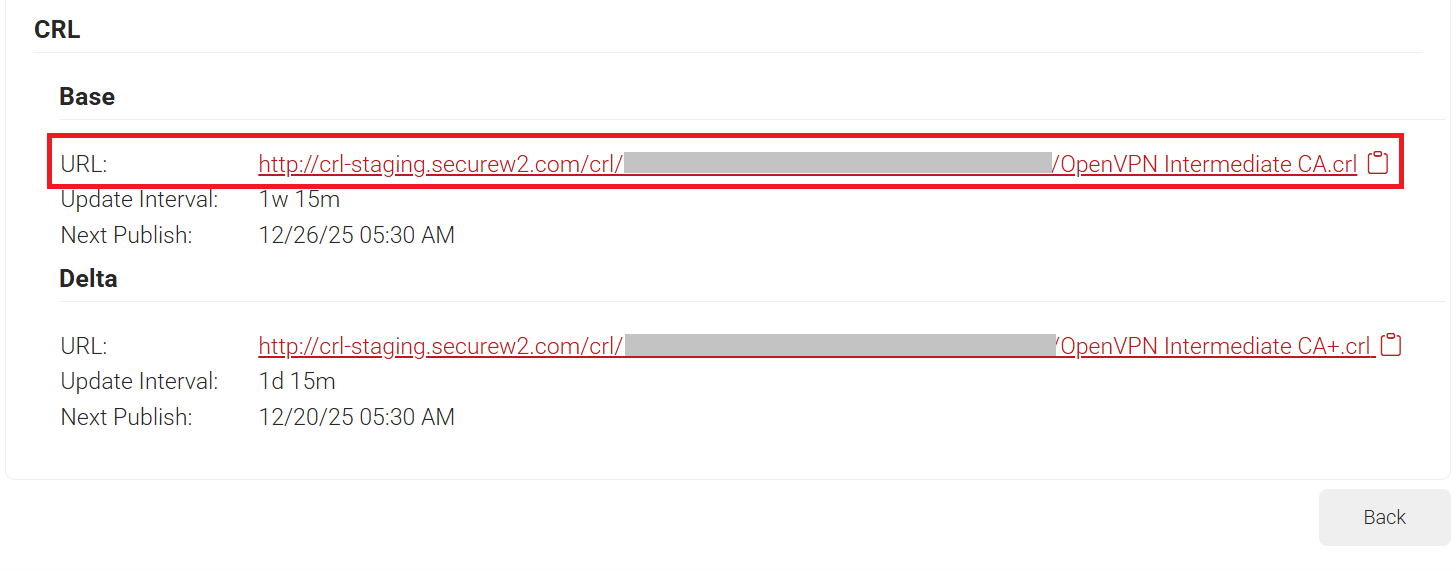
- Example: http://crl.securew2.com/crl/abcde12345/OpenVPN Intermediate CA.crl
Note: SecureW2’s Base CRL updates on a default one-week interval. This means newly revoked certificates aren’t reflected in the CRL until the next update cycle completes.
If your deployment requires more frequent updates, such as immediate revocation enforcement, contact SecureW2 Support to request a shorter CRL update interval.