Introduction
The Intune CA Partner integration allows organizations to automate certificate lifecycle management based on the real-time status of their Intune-managed devices. The system uses the Simple Certificate Enrollment Protocol (SCEP) and an OAuth API during the enrollment process to validate that each device requesting a certificate exists in your Intune organization.
SecureW2 monitors Intune to ensure that devices that have been deleted, have changed permissions, or have fallen out of compliance have their authorization modified appropriately. The diagram below, created by Microsoft, illustrates the enrollment process.
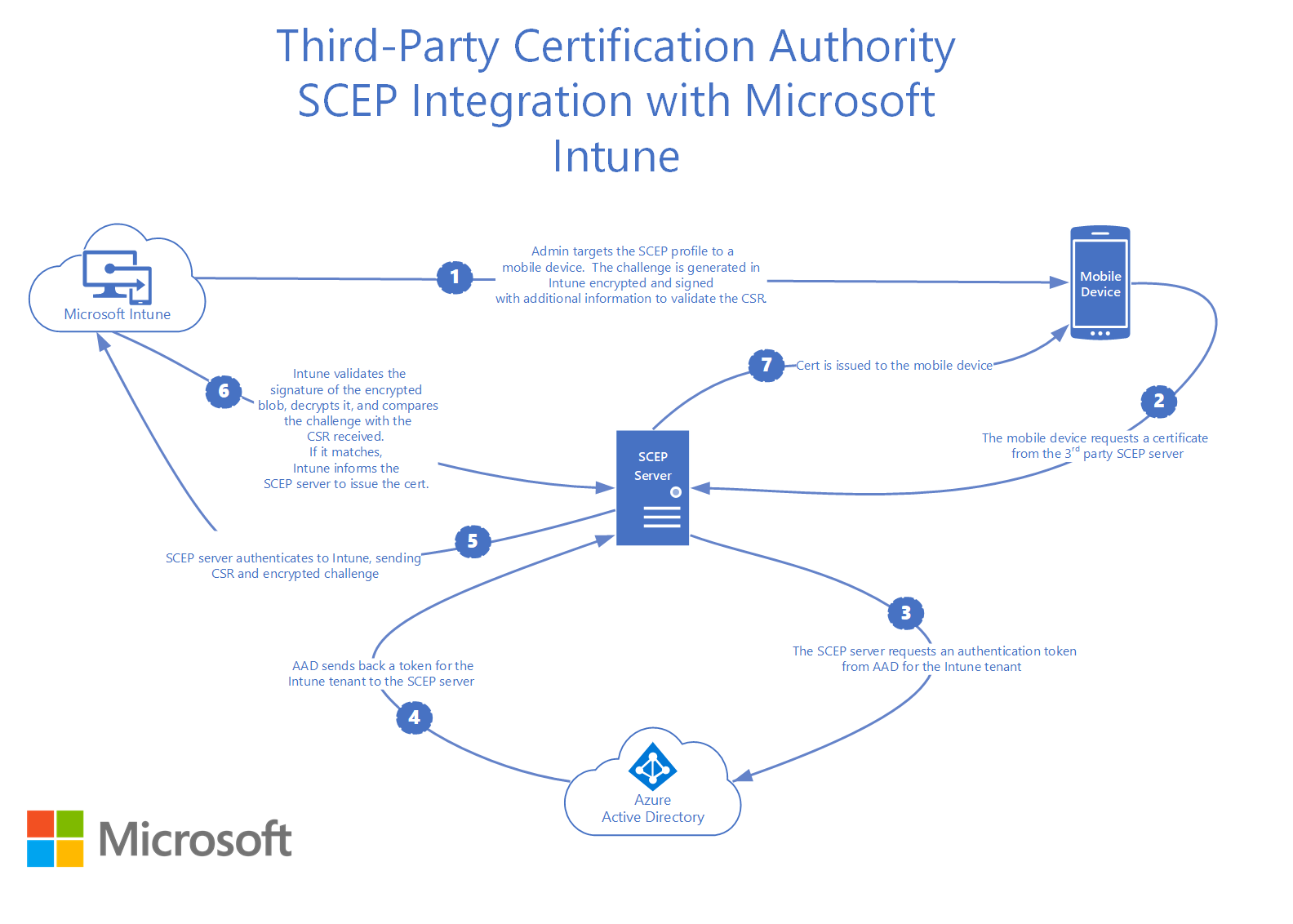
This article describes the steps to integrate SecureW2 PKI as a third-party CA with Microsoft Intune to create and auto-enroll certificates for Microsoft Intune-managed devices using the Simple Certificate Enrollment Protocol (SCEP).
Along with Intune, SecureW2 also supports Addigy, Google Workspace, Jamf, Kandji, Soti, and other popular MDMs.
The flowchart below describes the high-level steps to set up Microsoft Intune to allow devices to enroll for digital certificates using the SCEP:
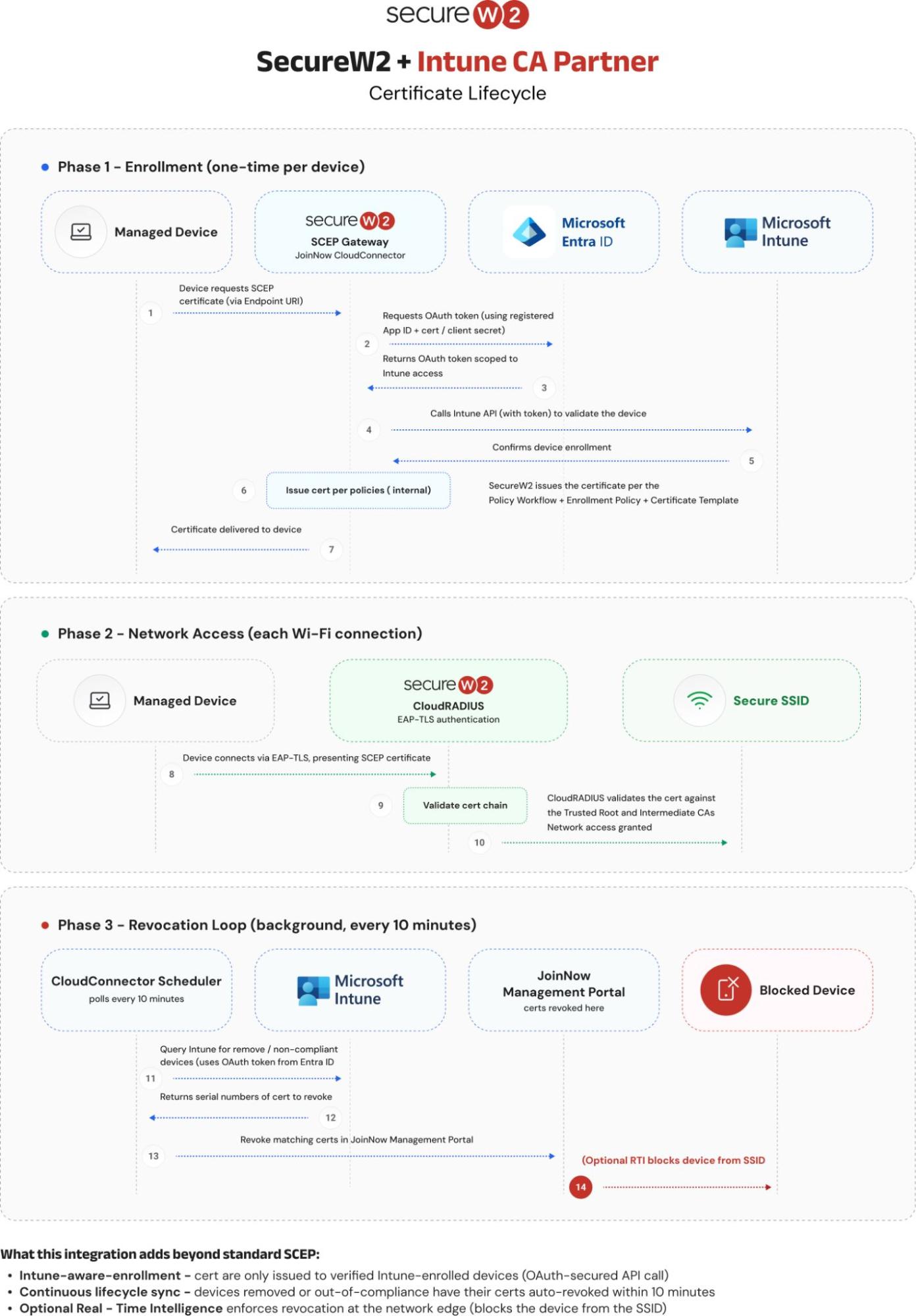
NOTE: When a device enrolled through the Intune third-party CA integration is removed from Intune, the corresponding certificates are automatically revoked in the JoinNow Management Portal.
Prerequisites
The following prerequisites are required to allow device enrollment for digital certificates using SCEP in Microsoft Intune:
- A Microsoft Online Services account with a Microsoft Intune (Microsoft Endpoint Manager) subscription and the following roles assigned in Entra ID:
- Intune Administrator
- Application Administrator
- Cloud App Security Administrator
- A valid JoinNow Cloud Management Portal account with a Managed Device Gateway license.
- Permission to register an application in Microsoft Entra ID.
NOTE: By default, when a device enrolled through the Intune third-party CA integration is removed from Intune, the corresponding certificates are automatically revoked in the JoinNow Management Portal.
Configuring Microsoft Entra
This section describes the steps to configure Microsoft Entra and Intune to work with the SecureW2 PKI.
Registering a New Application
To register an application in Microsoft Entra for the Intune CA Partner integration, perform the following steps:
- Log in to the Microsoft Entra admin center.
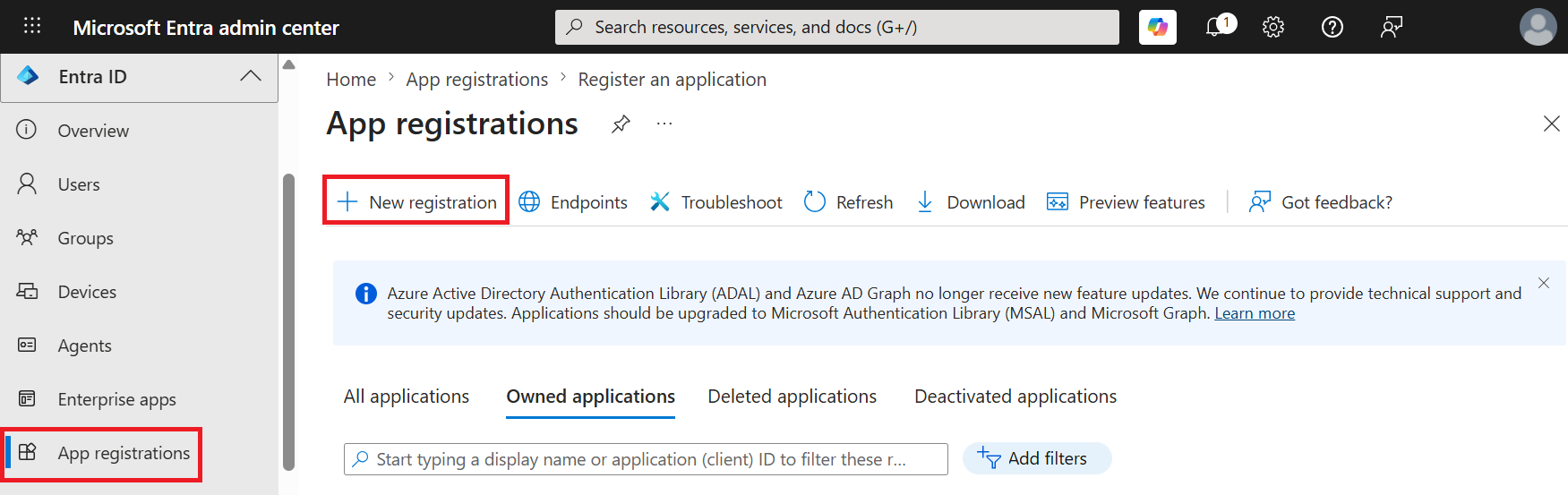
- From the left pane, navigate to Entra ID > App registrations.
- Click New registration.

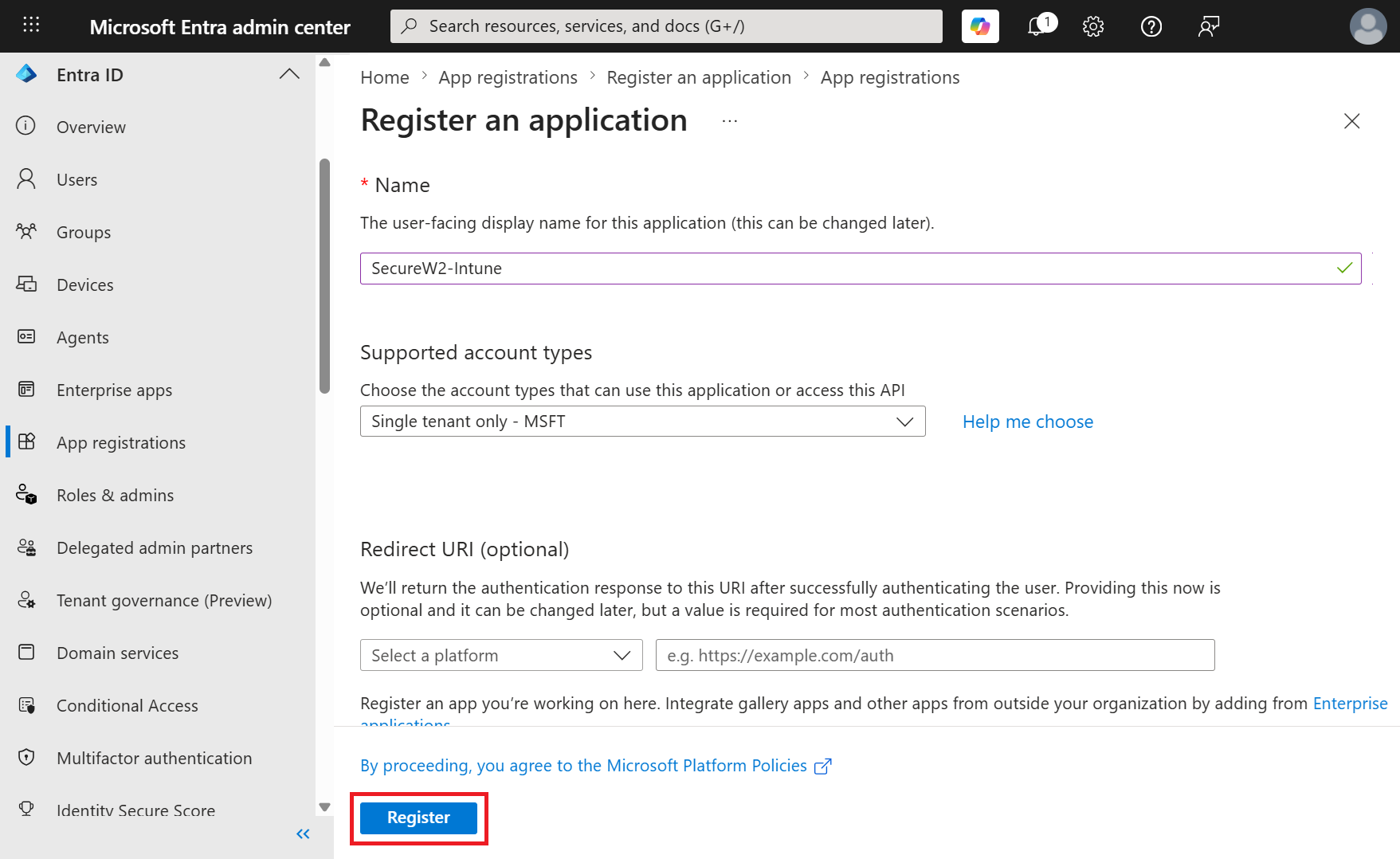
- On the Register an application page, enter the application’s name in the Name field.

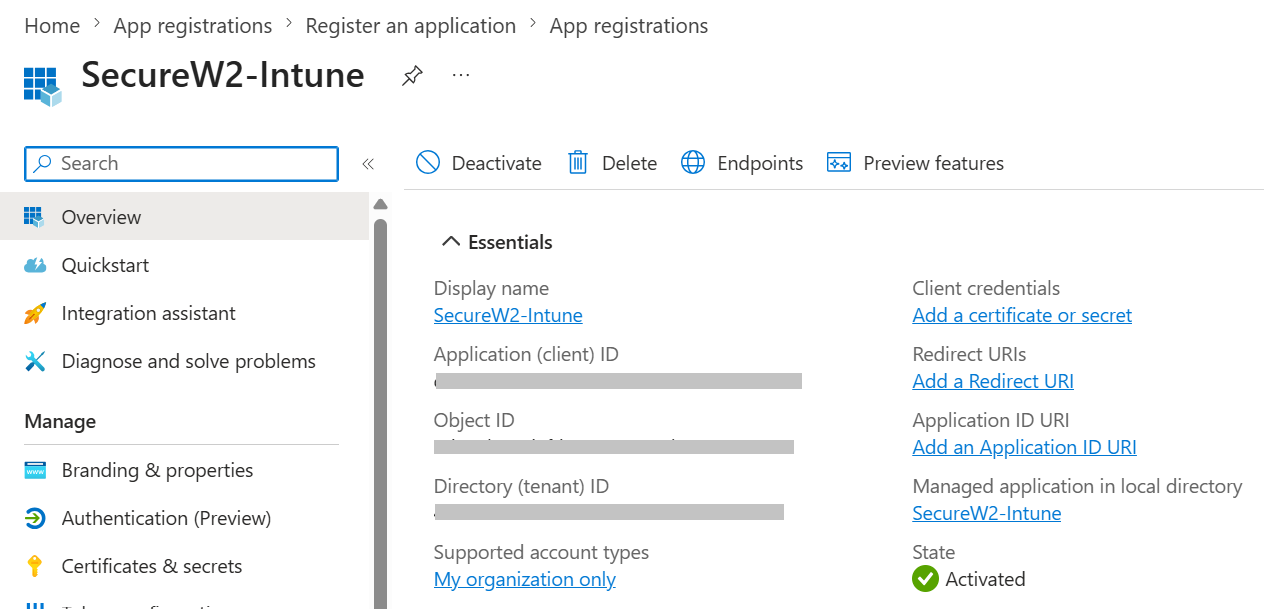
- Click Register. The following screen is displayed.

- Copy the Application (client) ID, Object ID, and Directory (tenant) ID values to a text editor for later use. These values are required to create an Intune CA partner in the JoinNow Management Portal.
Uploading a Self-Signed Certificate
Use a certificate as the credential type because it provides stronger security than a client secret.
To upload a certificate, perform the following steps:
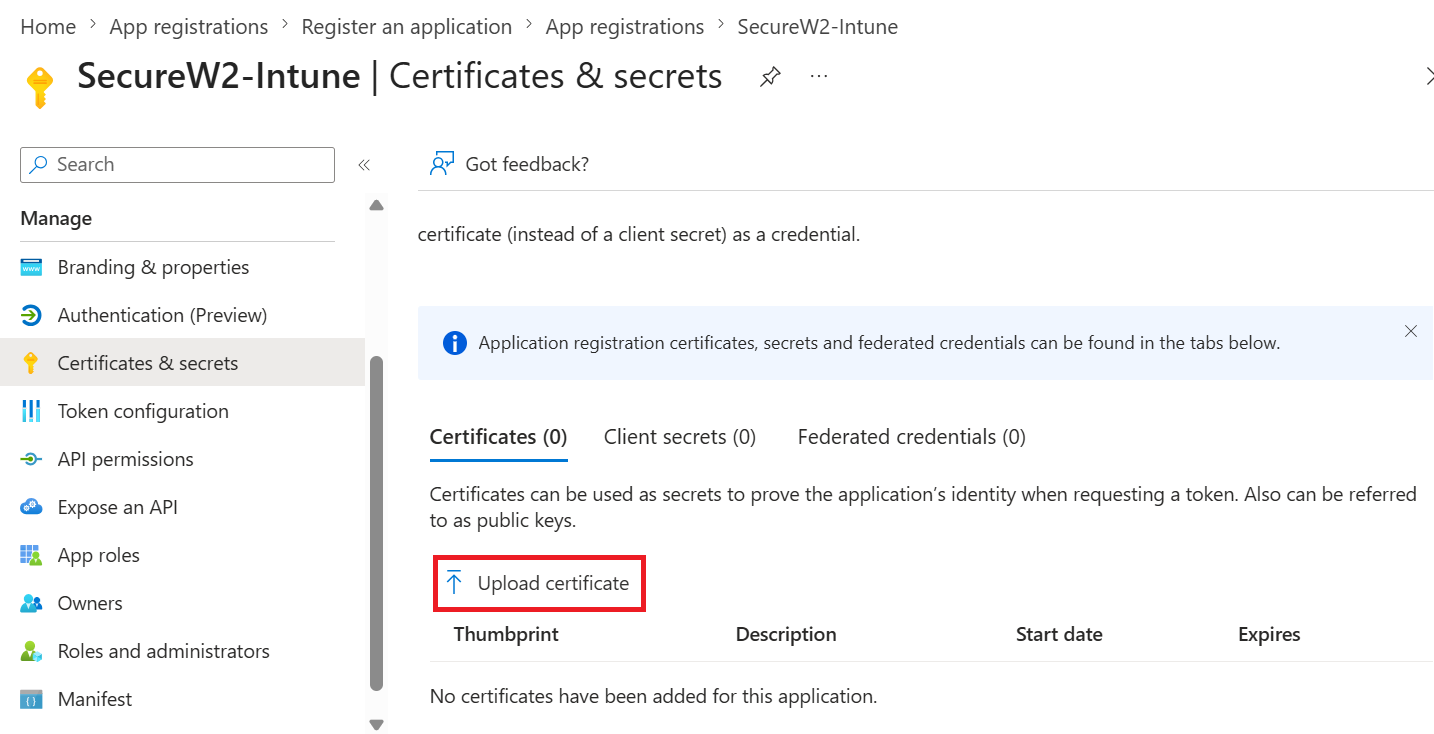
- In the left pane, navigate to Manage > Certificates & secrets.
- Select the Certificates tab.
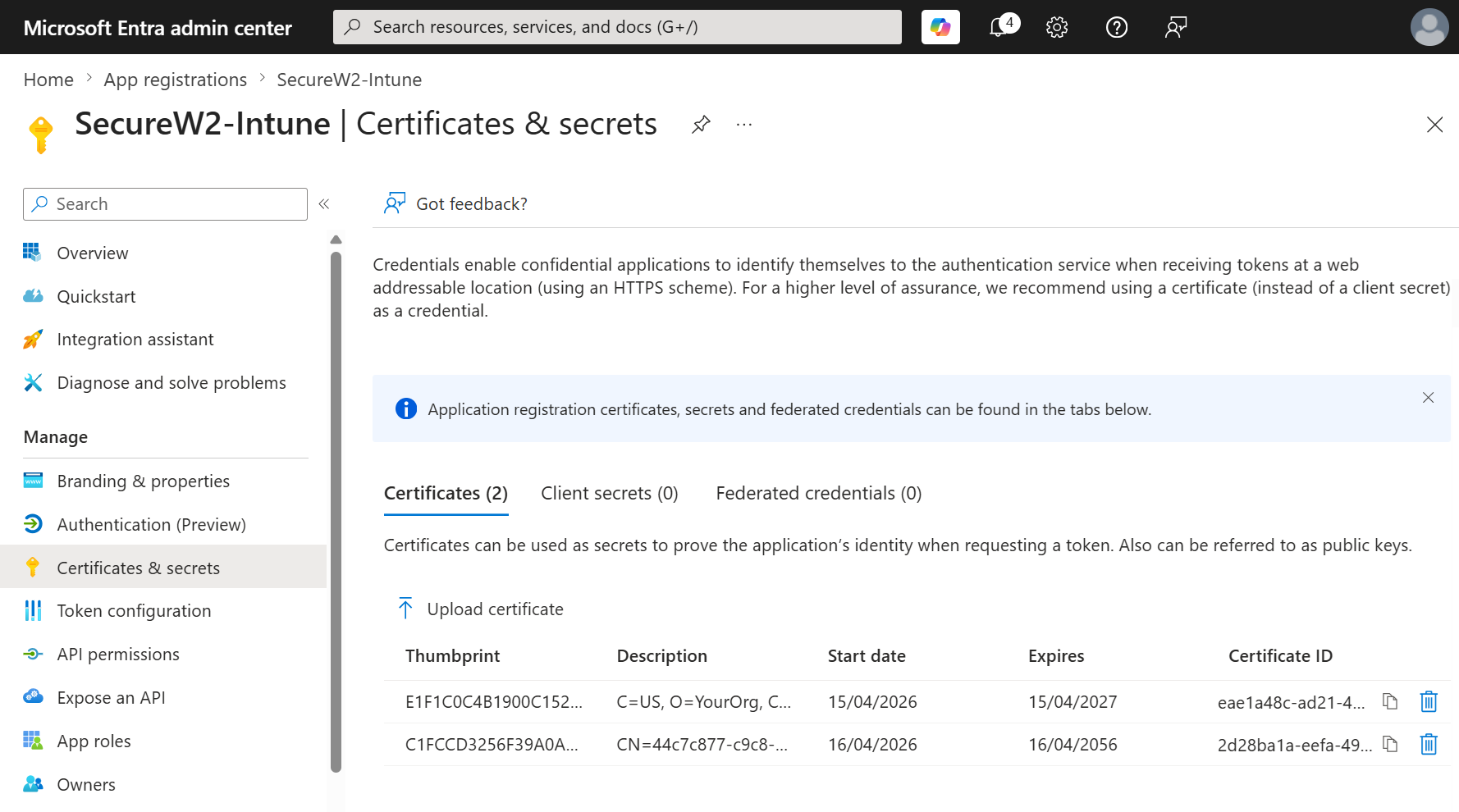
- Click Upload certificate and then select the certificate downloaded from the JoinNow Management Portal.


Creating a Client Secret
In this section, you’ll create a client secret that your application will use to authenticate with Microsoft Entra ID.
To create a client secret, perform the following steps:
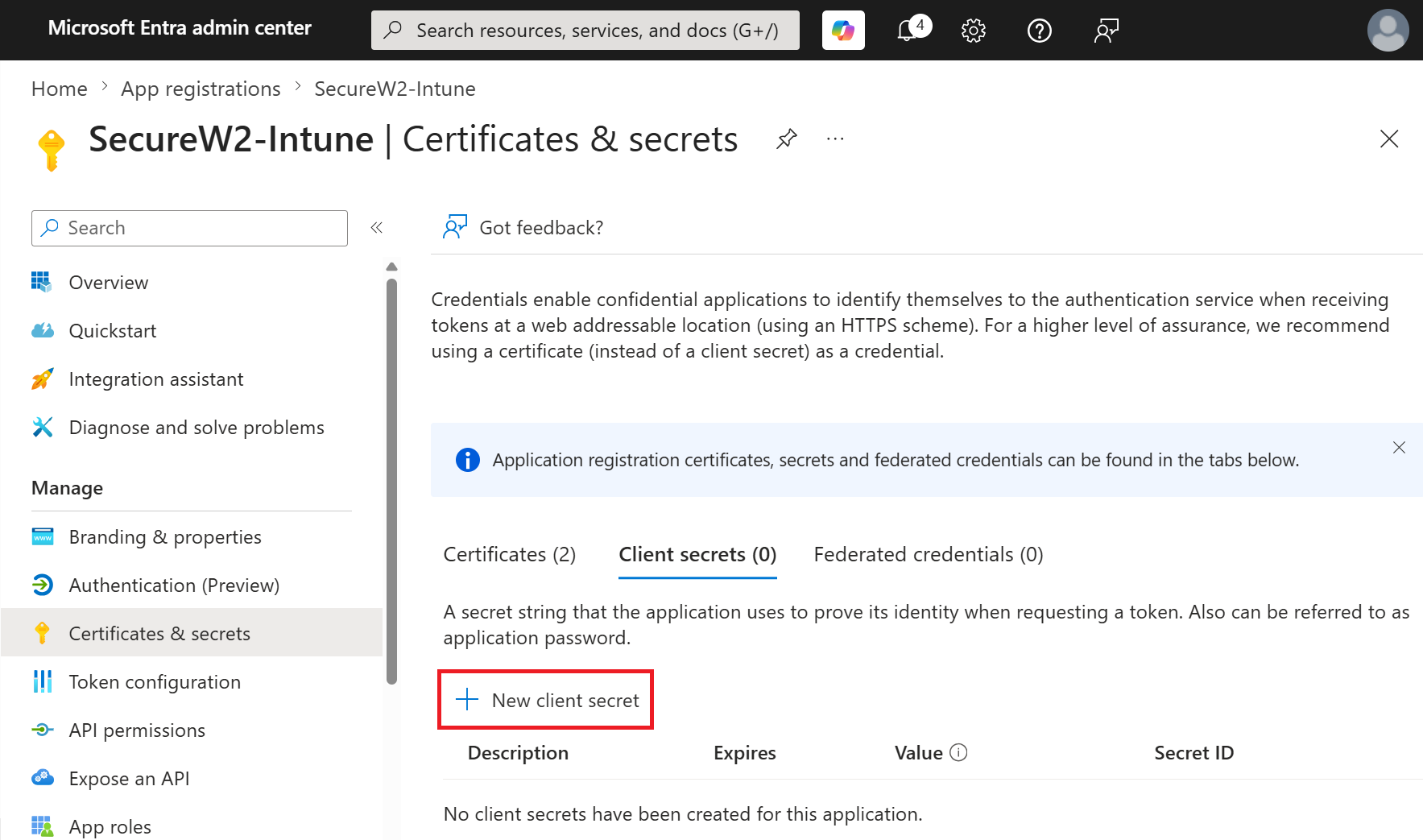
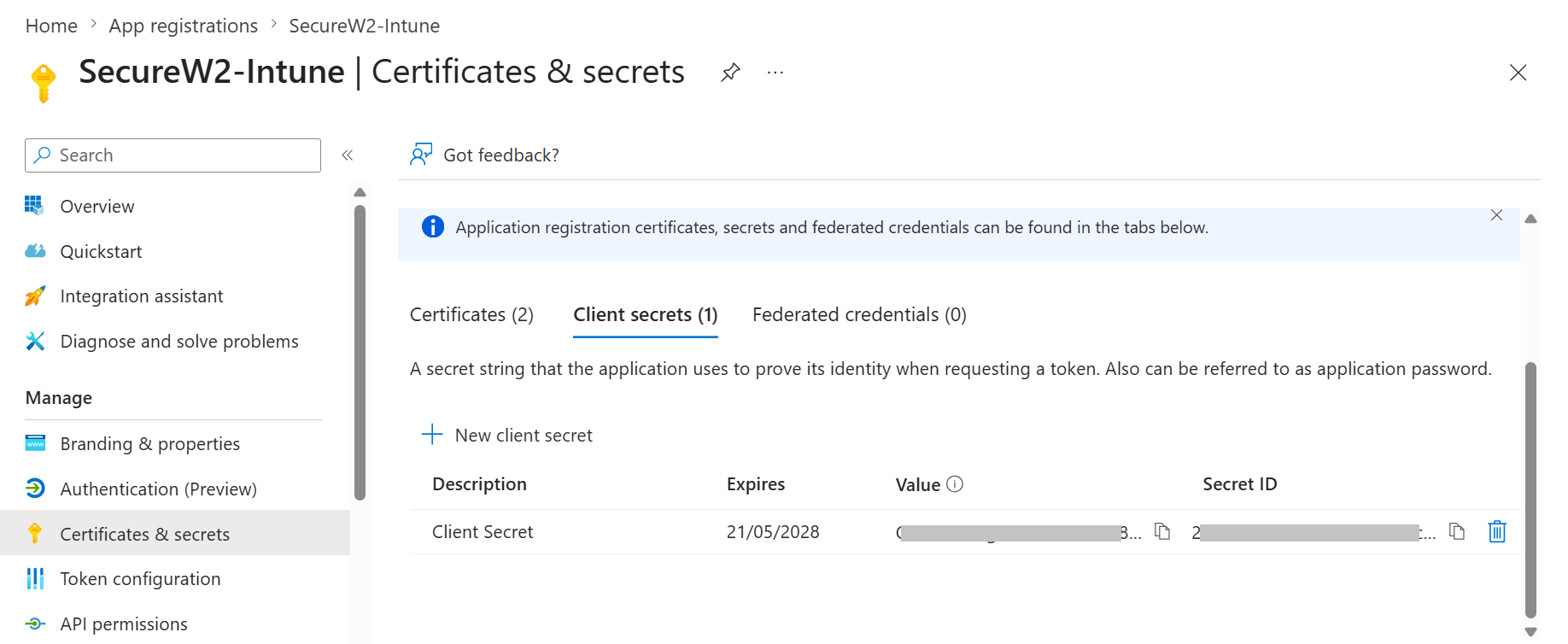
- In the left pane, go to Manage, then click Certificates & secrets.
- Click New client secret.

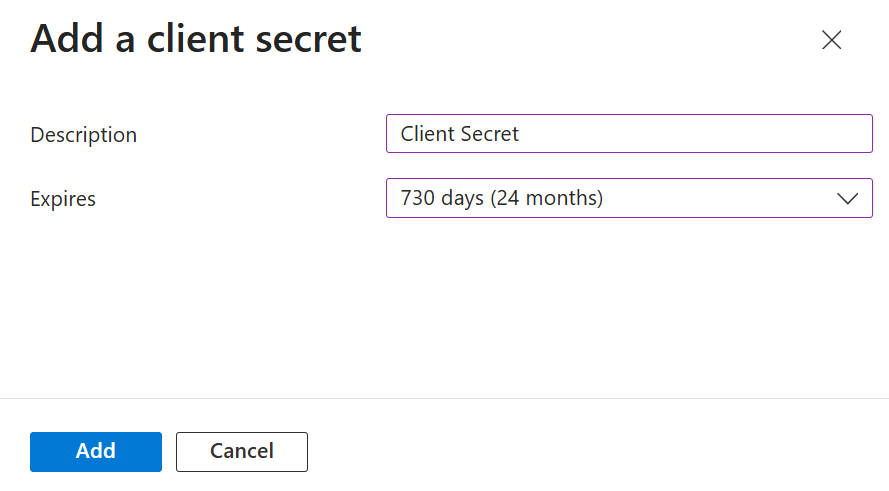
- In the Add a client secret pop-up window, enter a description of the client secret in the Description field.
- From the Expires drop-down list, select the client secret’s expiration date.

- Click Add.
- The client’s secret is displayed under the Value column. Copy the client secret and expiration date to a text editor.

NOTE: Ensure you properly save the client secret on your console, as it is non-recoverable.
Adding API Permissions
SecureW2 requires API permissions to interact with Entra ID services. Use the following steps to assign the necessary Microsoft Graph and Intune permissions, then grant admin consent to apply them.
To provide API permission for SecureW2 to access the Entra ID, follow the given steps:
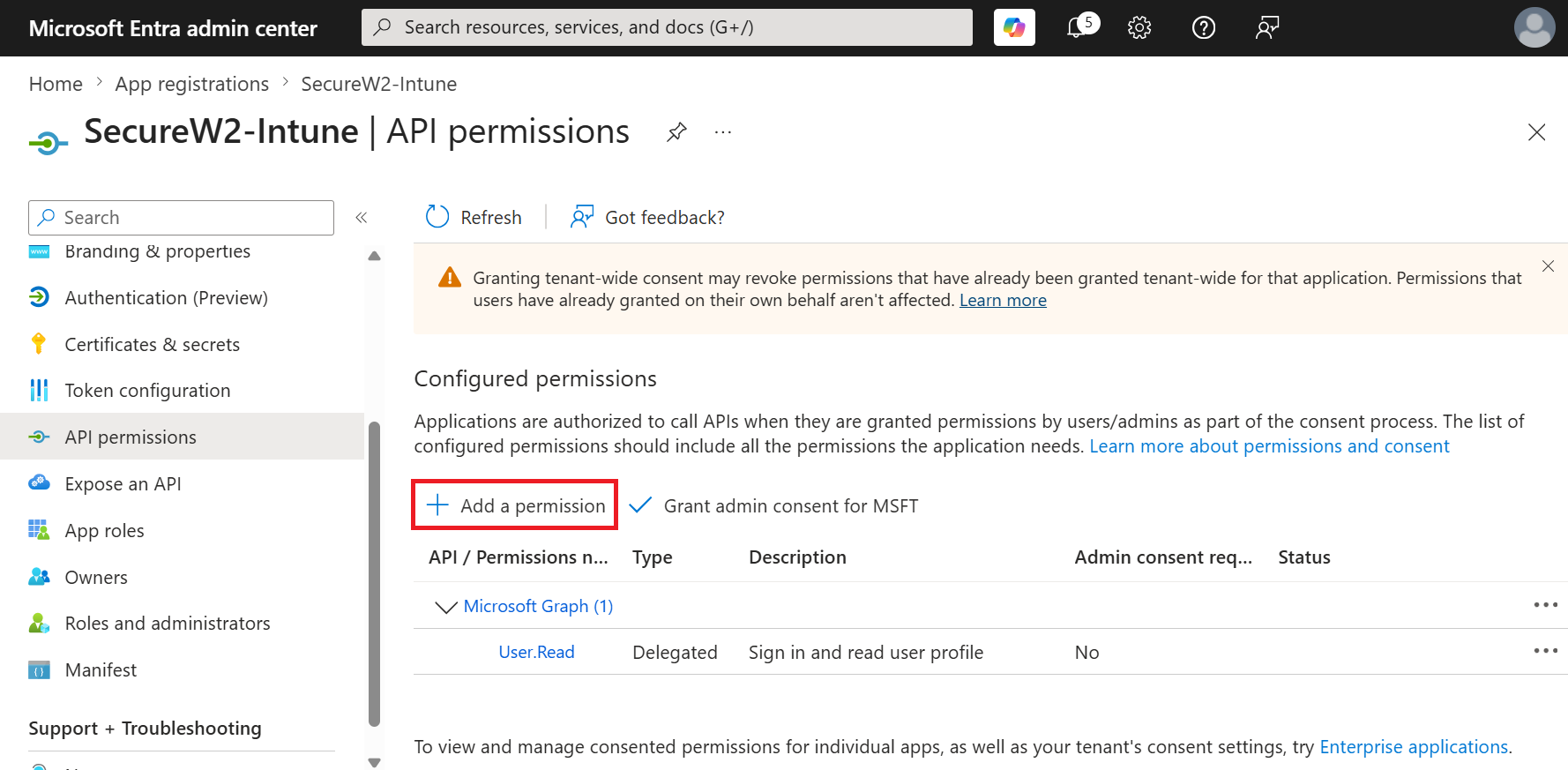
- In the left pane, go to Manage and select API Permissions.
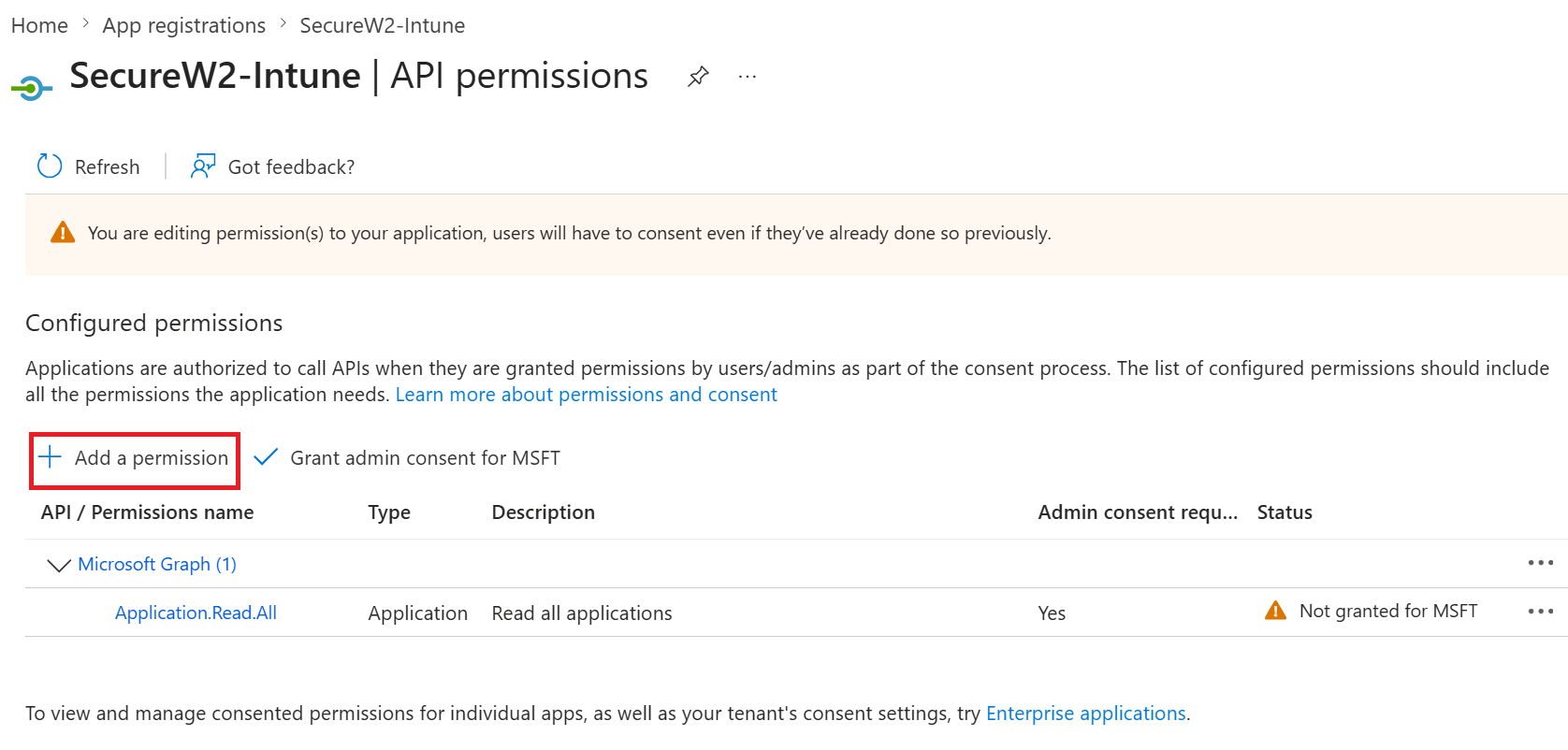
- On the API permissions screen, click Add a permission.

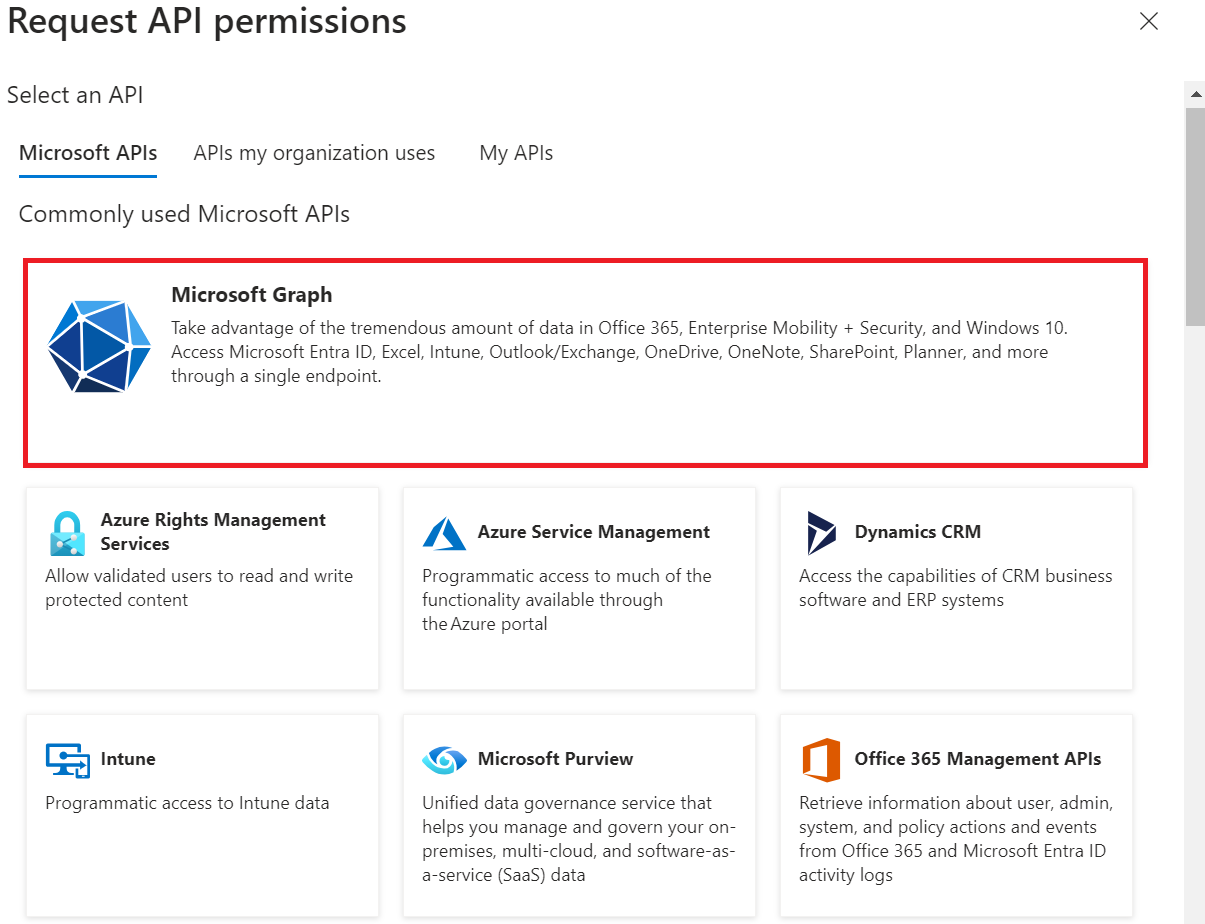
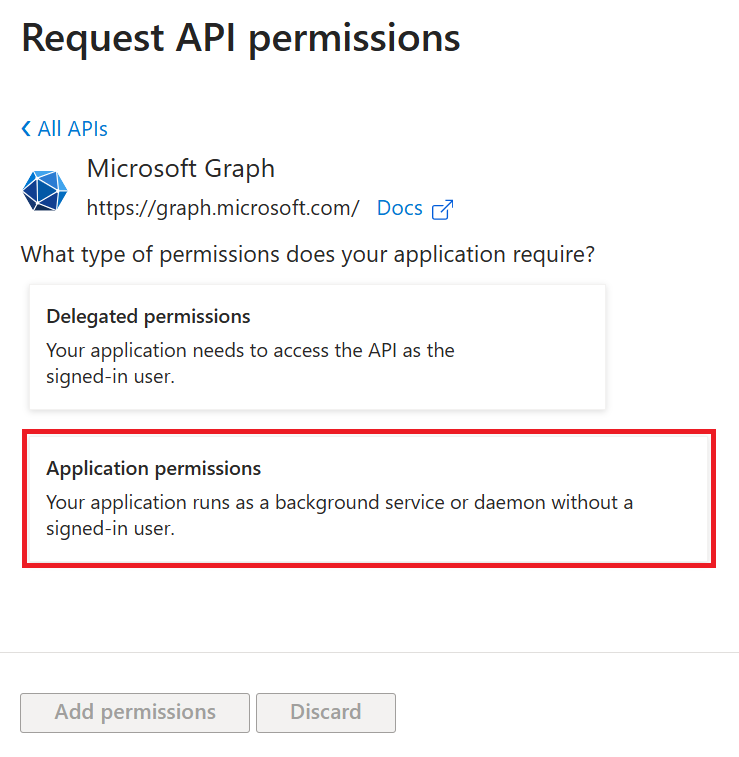
- Select Microsoft Graph.

- Select Application permissions.

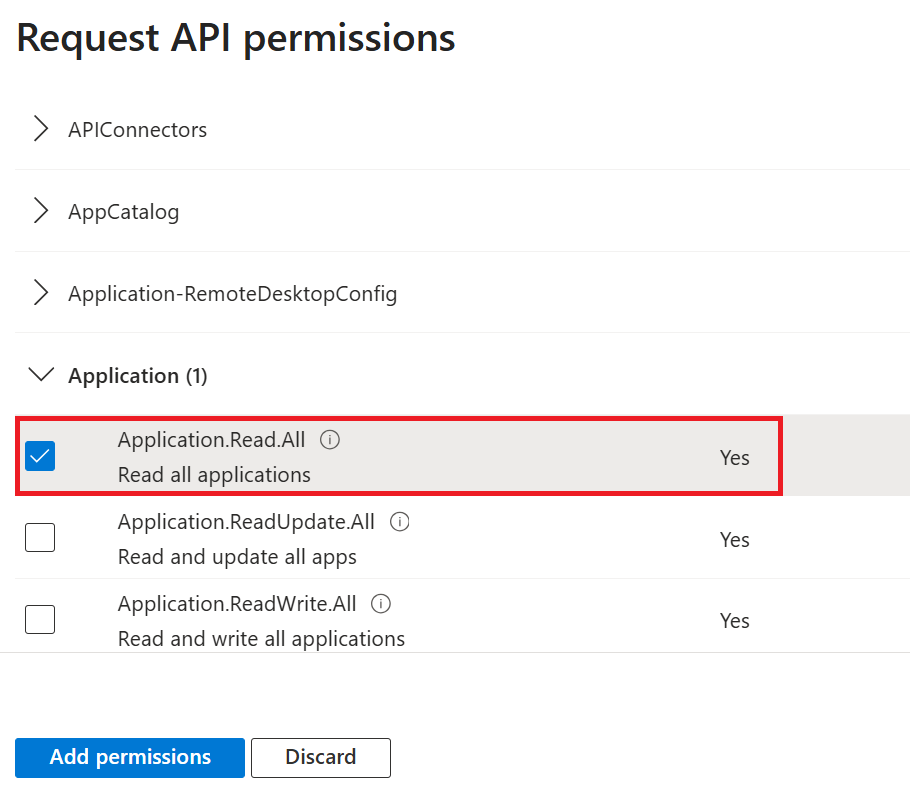
- In the Select permissions section, from the Application drop-down menu, select Application.Read.All.

- Click Add permissions.
- Click Add a permission.

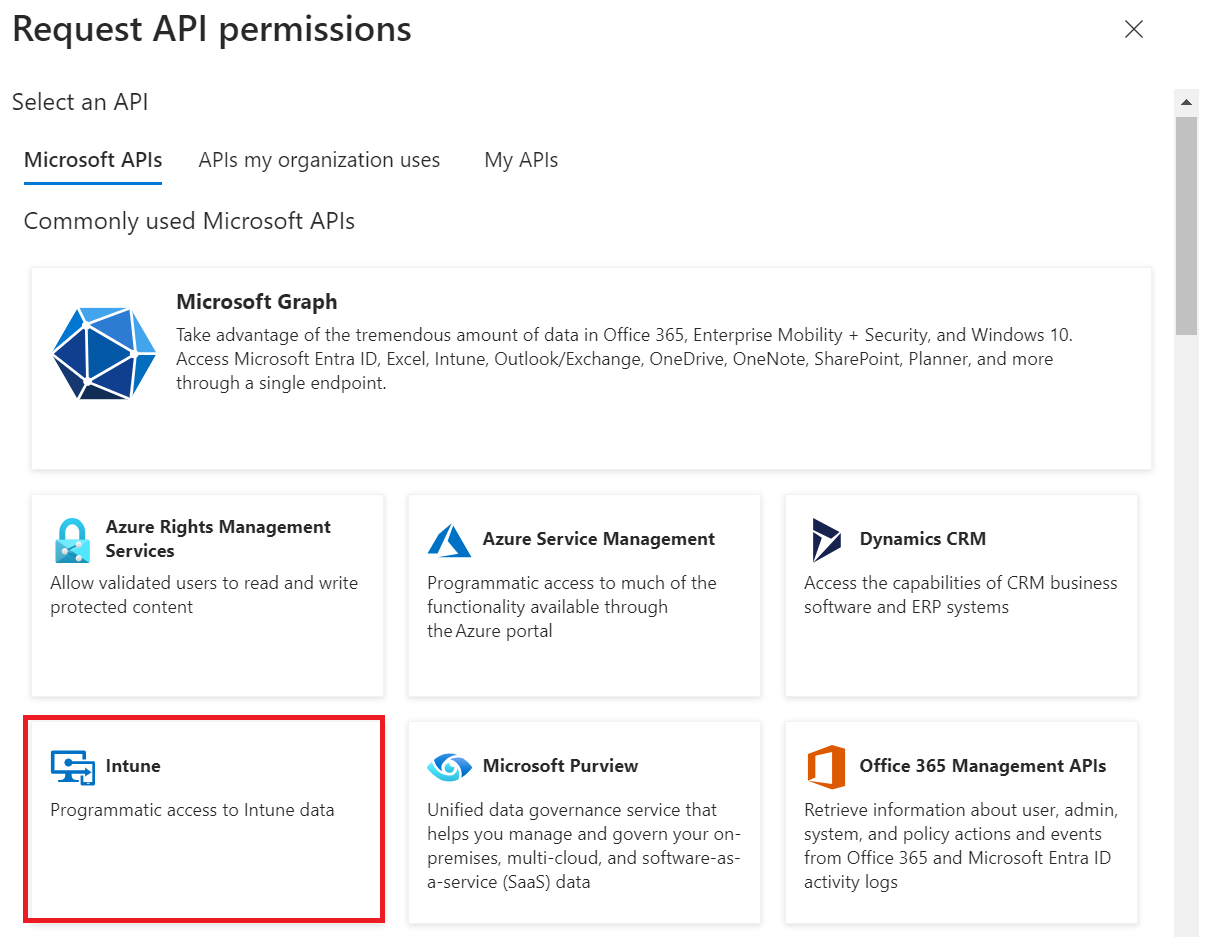
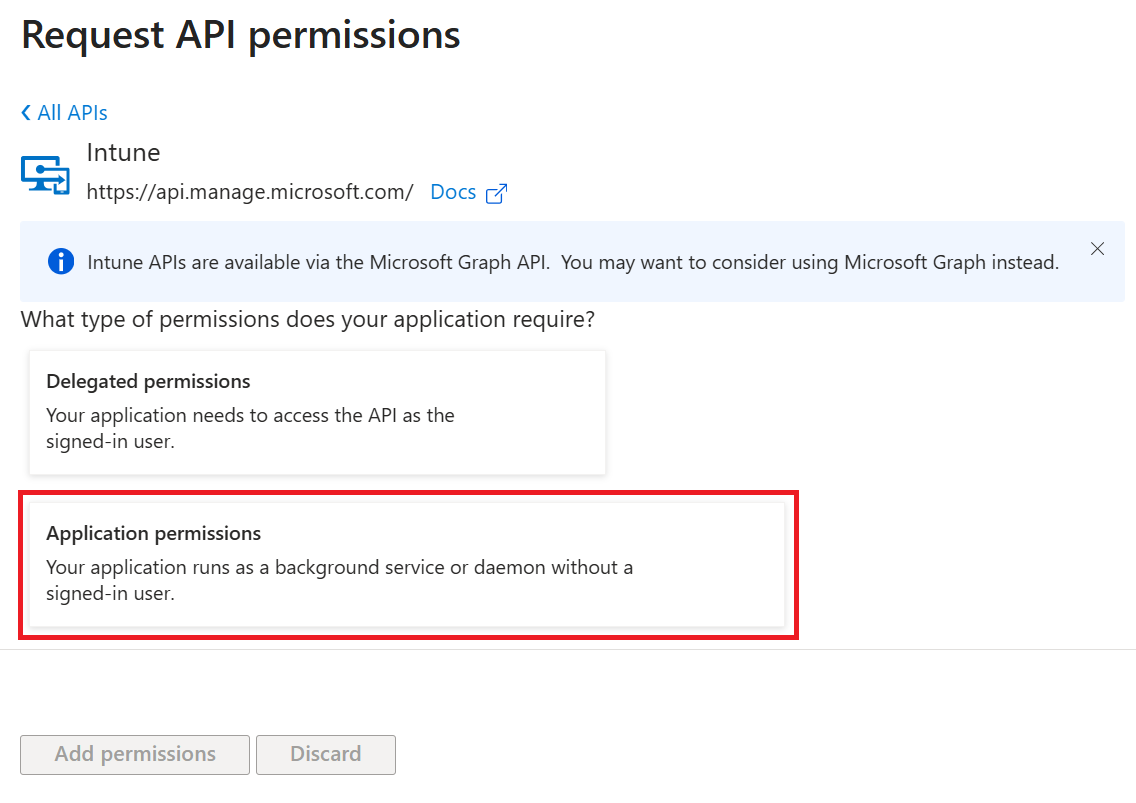
- Select Intune.

- Select Application permissions.

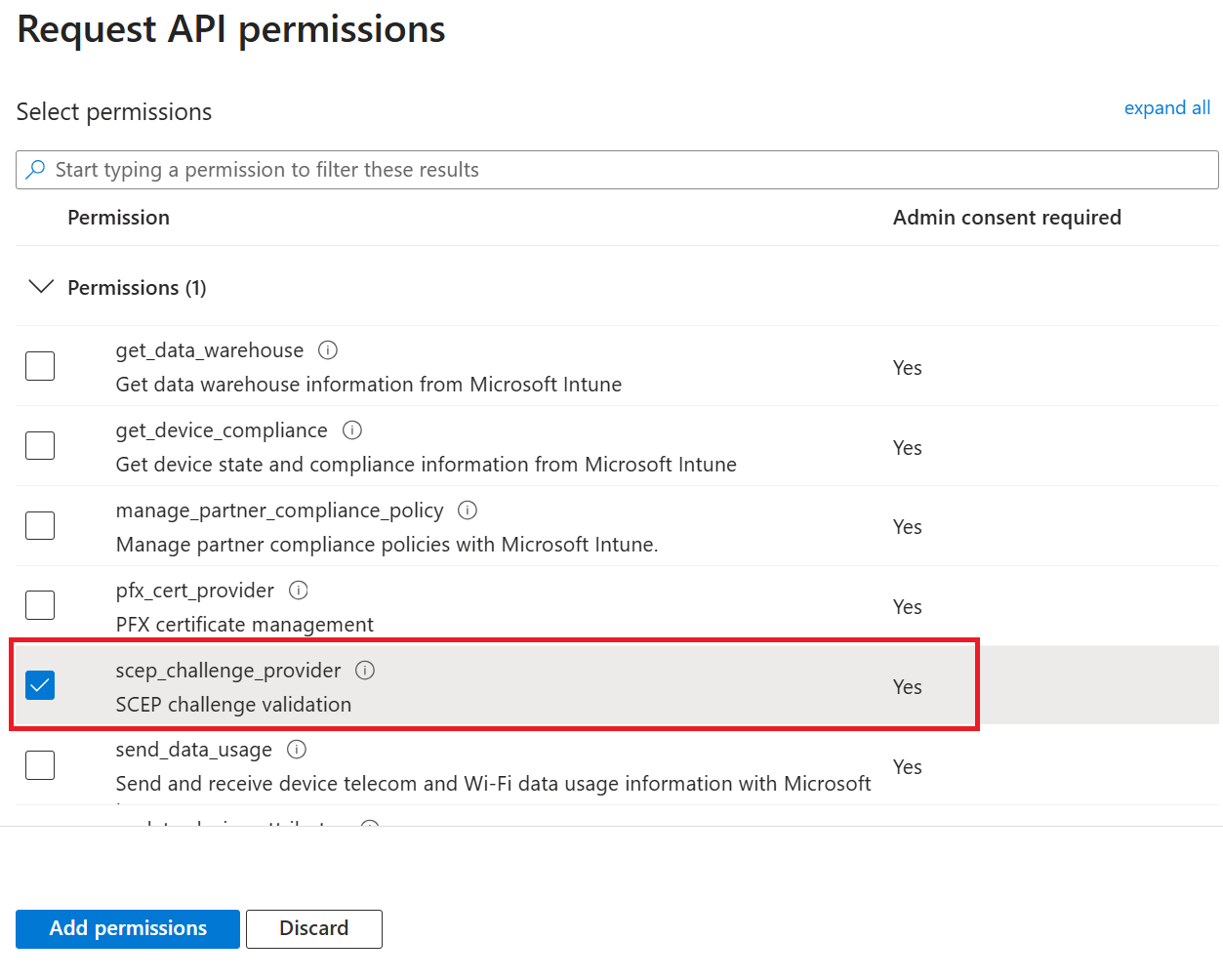
- In the Select permissions section, from the Permissions drop-down menu, select scep_challenge_provider for Dynamic SCEP certificate request validation, and then click Add permissions.

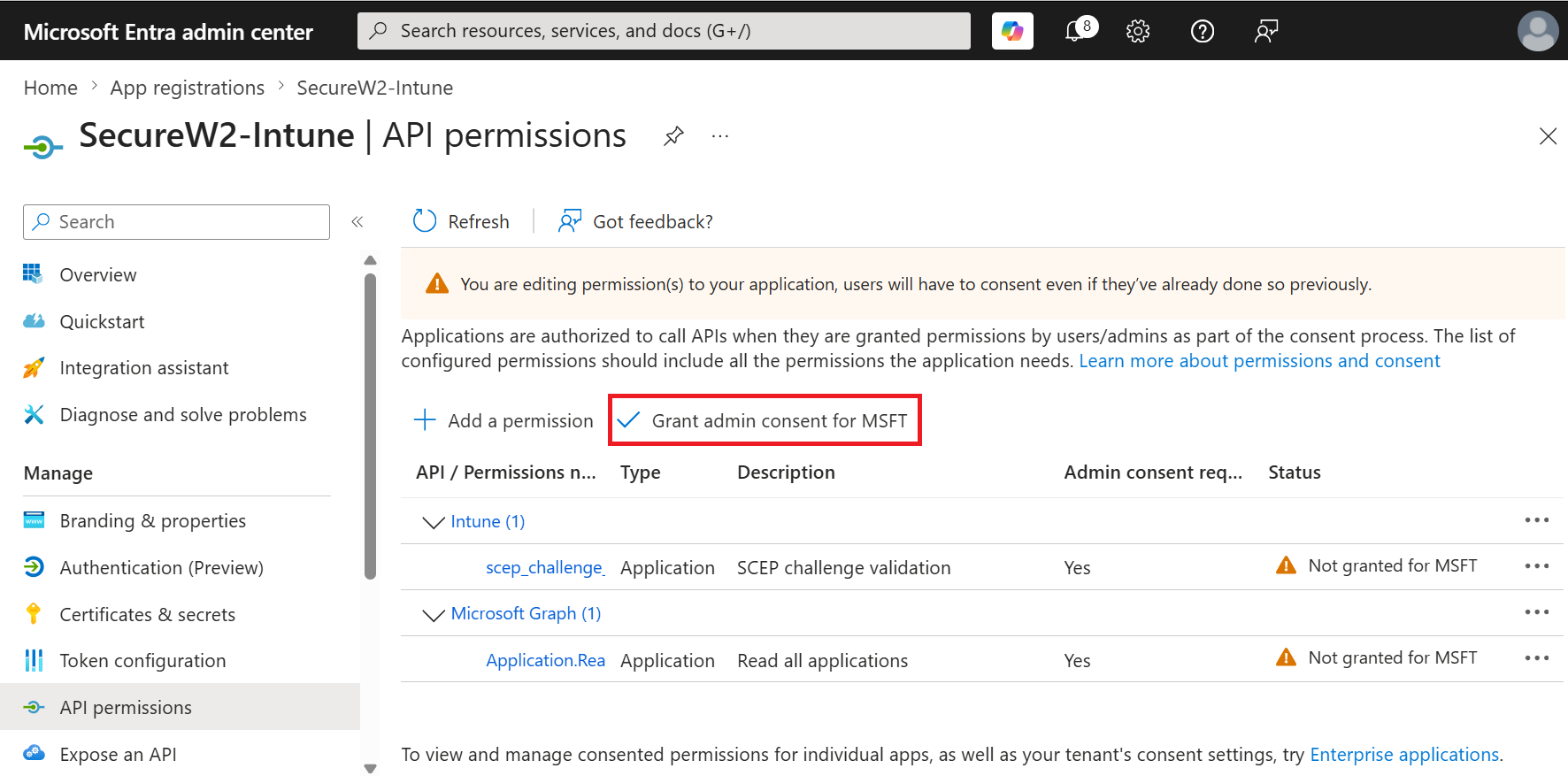
- After adding the permissions, click Grant admin consent for {your organization} to grant consent for the requested permissions.

- In the Grant admin consent confirmation pop-up window, click Yes.

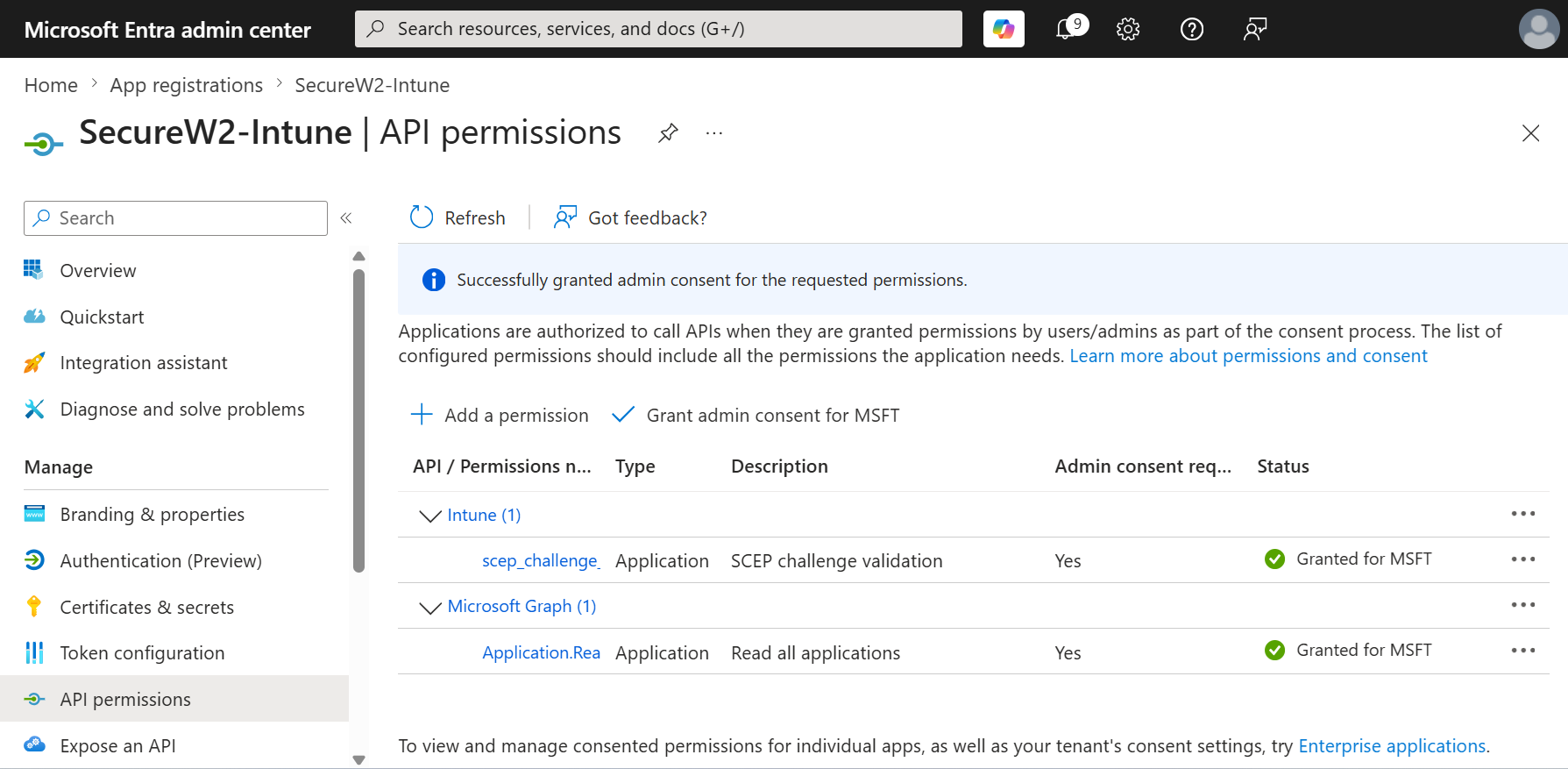
- The configured APIs are displayed on the Configured permissions page.


Configuring JoinNow Management Portal
This section explains how to configure the JoinNow Management Portal to authenticate with the Intune CA partner using a certificate or a client secret.
- Generating the required network profiles
- Creating a SecureW2 Intermediate CA
- Creating a Certificate Template
- Creating a Device Management Platform
- Creating the policies (Policy Workflow, Enrollment, and Network policies)
Getting Started
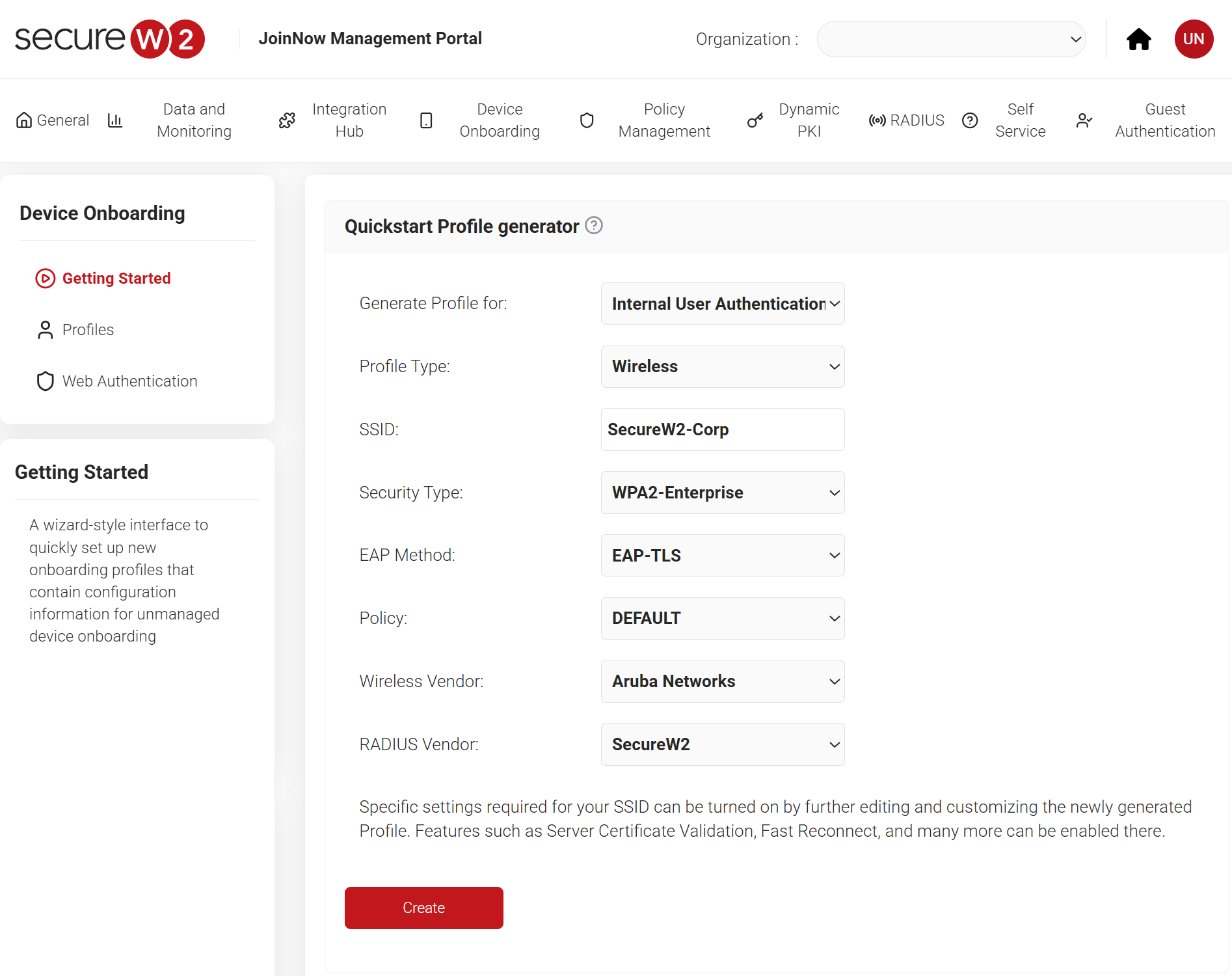
The Getting Started wizard provides a quick way to set up a wireless network profile in the JoinNow Management Portal. Follow the steps below to generate a profile:
NOTE: If you have configured SecureW2 for your network, skip this section.
- Log in to the JoinNow Management Portal.
- Navigate to Device Onboarding > Getting Started.
- On the Quickstart Network Profile generator page, from the Generate Profile for drop-down list, select Internal User Authentication.
- From the Profile Type drop-down list, select Wireless.
- In the SSID field, enter a name for the wireless network.
- From the Security Type drop-down list, select WPA2-Enterprise.
- From the EAP Method drop-down list, select EAP-TLS.
- From the Policy drop-down list, select DEFAULT.
- From the Wireless Vendor drop-down list, select a wireless infrastructure vendor.
- From the RADIUS Vendor drop-down list, select SecureW2.
- Click Create. The Getting Started wizard typically takes 60-90 seconds to create the profile.

Creating an Intermediate CA for Intune SCEP Gateway Integration
As a best practice, SecureW2 recommends having a new intermediate CA for JoinNow SCEP Gateway integration with Microsoft Intune. The CA that issues certificates for BYOD devices should be separate from the CA that issues certificates for managed devices, since managed devices do not require email notifications. You can disable email notifications for a dedicated CA that issues certificates to Intune-managed devices.
To create a new intermediate CA, perform the following steps:
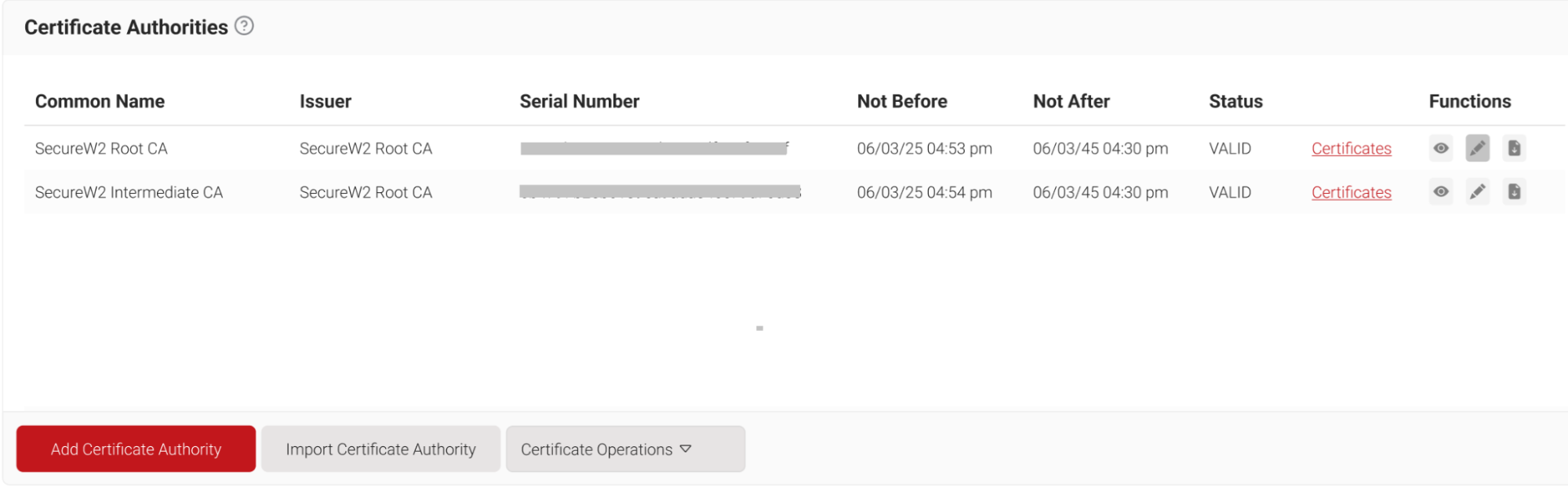
- Navigate to Dynamic PKI > Certificate Authorities.
- Click Add Certificate Authority.

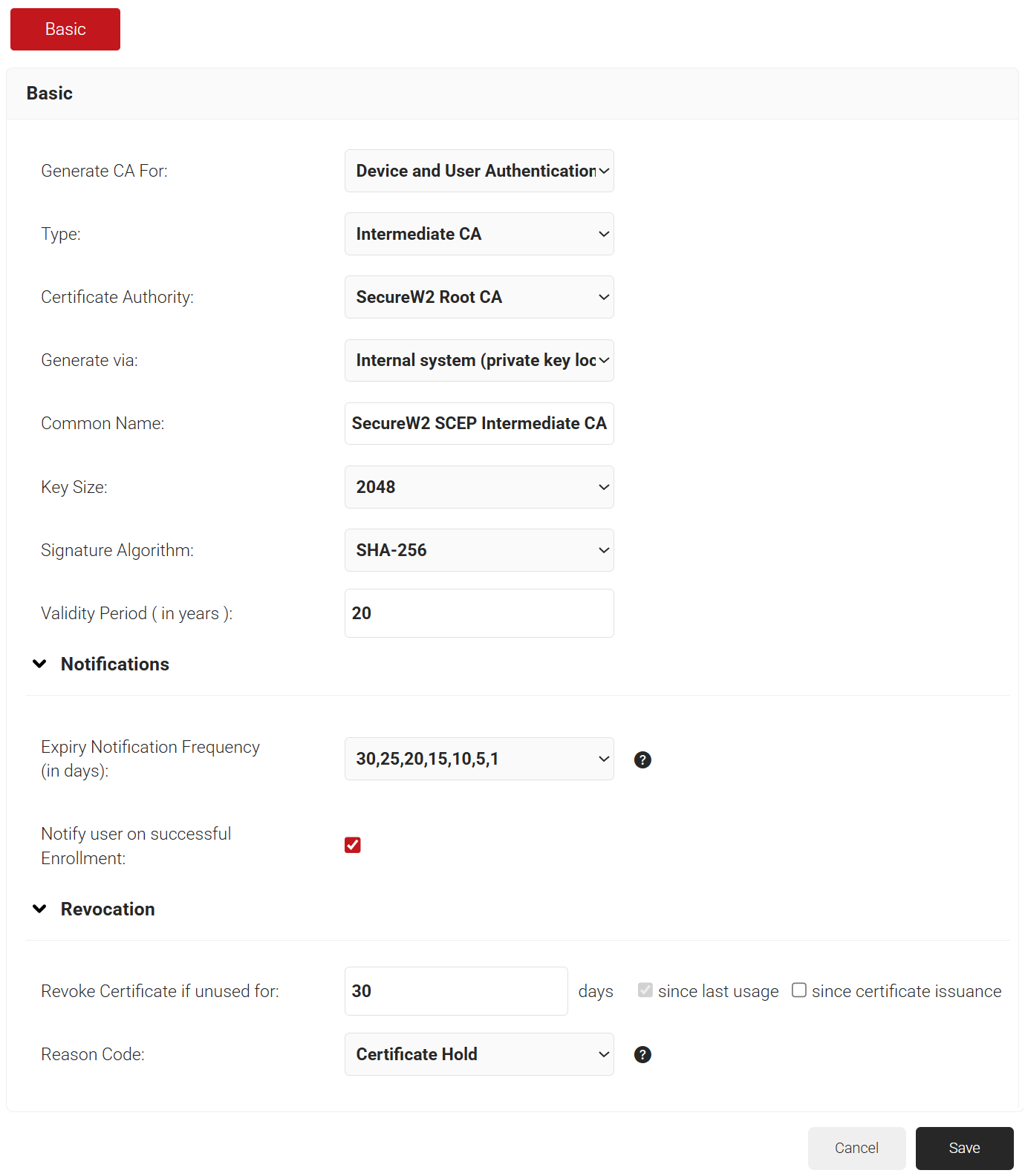
- In the Basic section, from the Generate CA For drop-down list, select the Device and User Authentication option to authenticate devices and users.
- From the Type drop-down list, select Intermediate CA.
- From the Certificate Authority drop-down list, select the default Root CA for your organization.
- From the Generate via drop-down list, select Internal system (private key locked and non-exportable).
- In the Common Name field, enter a name for the CA certificate.
- From the Key Size drop-down list, select 2048 for the CA certificate key pair.
- From the Signature Algorithm drop-down list, select SHA-256 as the signature algorithm for the certificate signing request.
- In the Validity Period field, enter the validity period for the Intermediate CA in terms of the number of years.
- In the Notifications section:
- From the Expiry Notification Frequency (in days) drop-down list, select the frequency interval for which a certificate expiration notification should be sent to users.
- Select the Notify user on successful Enrollment checkbox to notify users after a successful enrollment.
- If the RFC has a valid email address, the user will receive a certificate-issued or expired notification; otherwise, they will not receive one.
- In the Revocation section:
- In the Revoke Certificate if unused for the field, select the number of days after which an unused certificate can be revoked.
- Since last usage – Select this checkbox to revoke the certificate after a specified number of days if it remains unused.
- Since certificate issuance – Select this checkbox to revoke the certificate after a specified number of days after it is issued.
- From the Reason Code drop-down list, select any one of the following reasons for which the certificate is revoked.
- Certificate Hold
- AA Compromise
- Privilege Withdrawn
- Unspecified

- In the Revoke Certificate if unused for the field, select the number of days after which an unused certificate can be revoked.
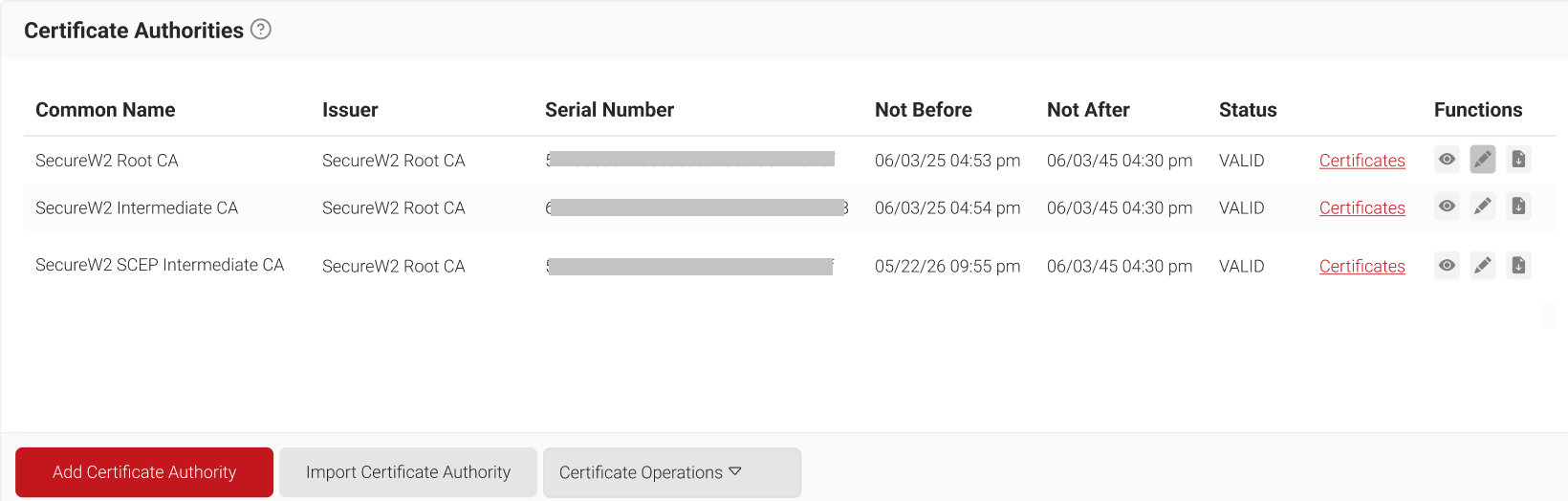
- Click Save. The new intermediate CA is generated.

Creating a Certificate Template
A certificate template defines the attributes included in a certificate issued by the Certificate Authority (CA) and the values assigned to each attribute.
To create a certificate template, perform the following steps:
- Navigate to Dynamic PKI > Certificate Authorities.
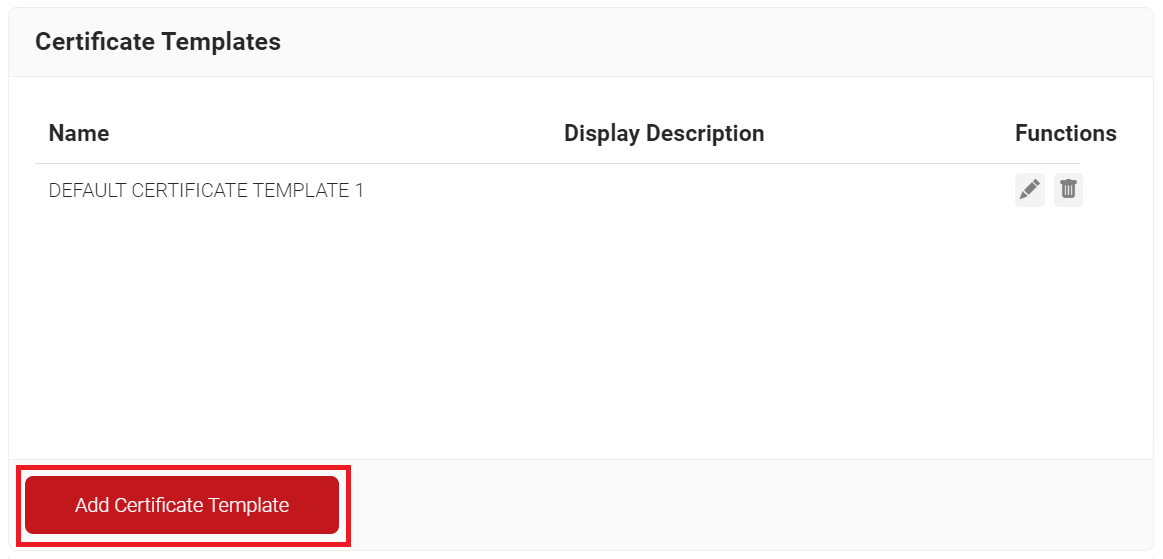
- Scroll to the Certificate Templates section and click Add Certificate Template.

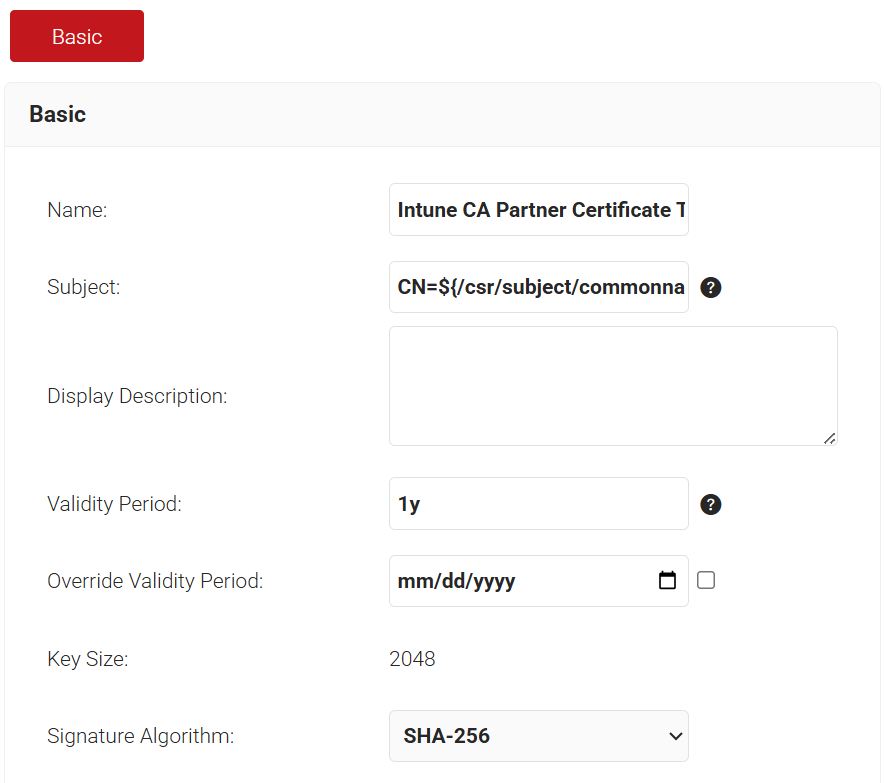
- In the Basic section, enter the certificate template name in the Name field.
- In the Subject field, enter the following source value recommended for the Intune-specific certificate template: CN=${/csr/subject/commonname}
- In the Display Description field, enter a suitable description for the certificate template.
- In the Validity Period field, type the validity period of the certificate (based on the requirement).
- From the Signature Algorithm drop-down list, select SHA-256 as the signature algorithm for the certificate signing request.

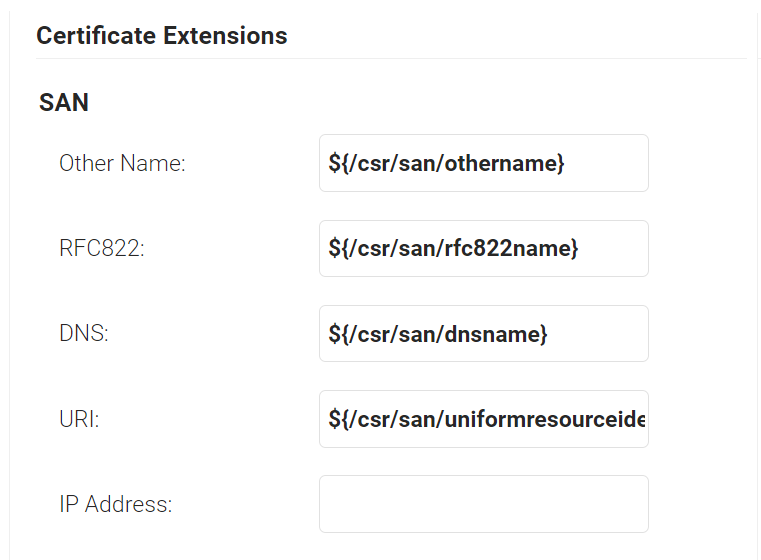
- In the SAN section, the following configurations are the recommended values. This can be changed as per the requirements of the infrastructure and setup.
- In the Other Name field, enter ${/csr/san/othername}. This will fetch the User Principal Name value (UPN) configured in Intune.
- In the RFC822 field, enter ${/csr/san/rfc822name}. RFC822name normally refers to the email address. But this can be configured in Intune according to the business requirements.
- In the DNS field, enter ${/csr/san/dnsname}. This will fetch the DNS name from the client device, as configured in Intune.

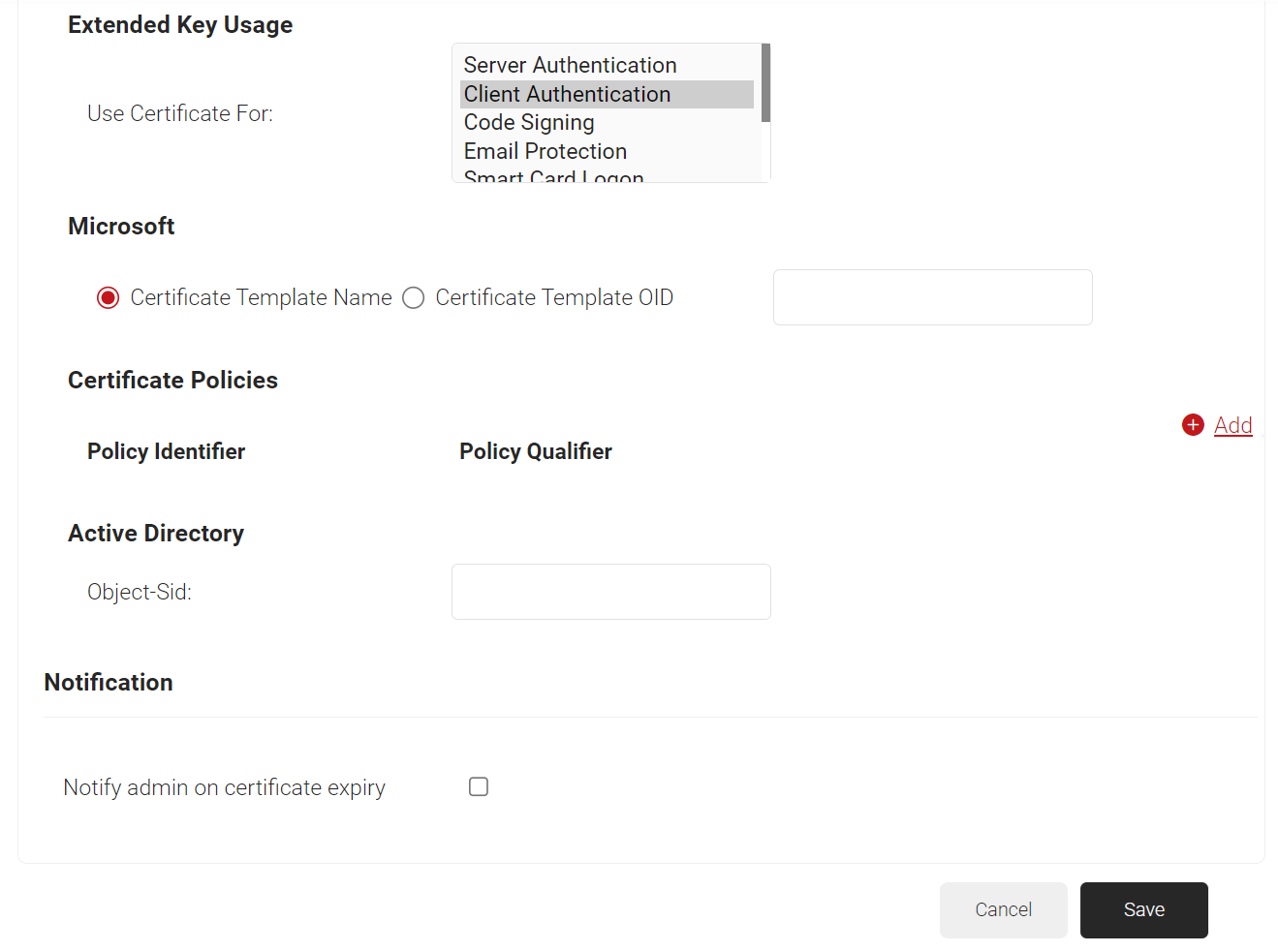
- In the Extended Key Usage section, from the Use Certificate For list, select Client Authentication.

- Click Save.
Creating a Device Management Platform
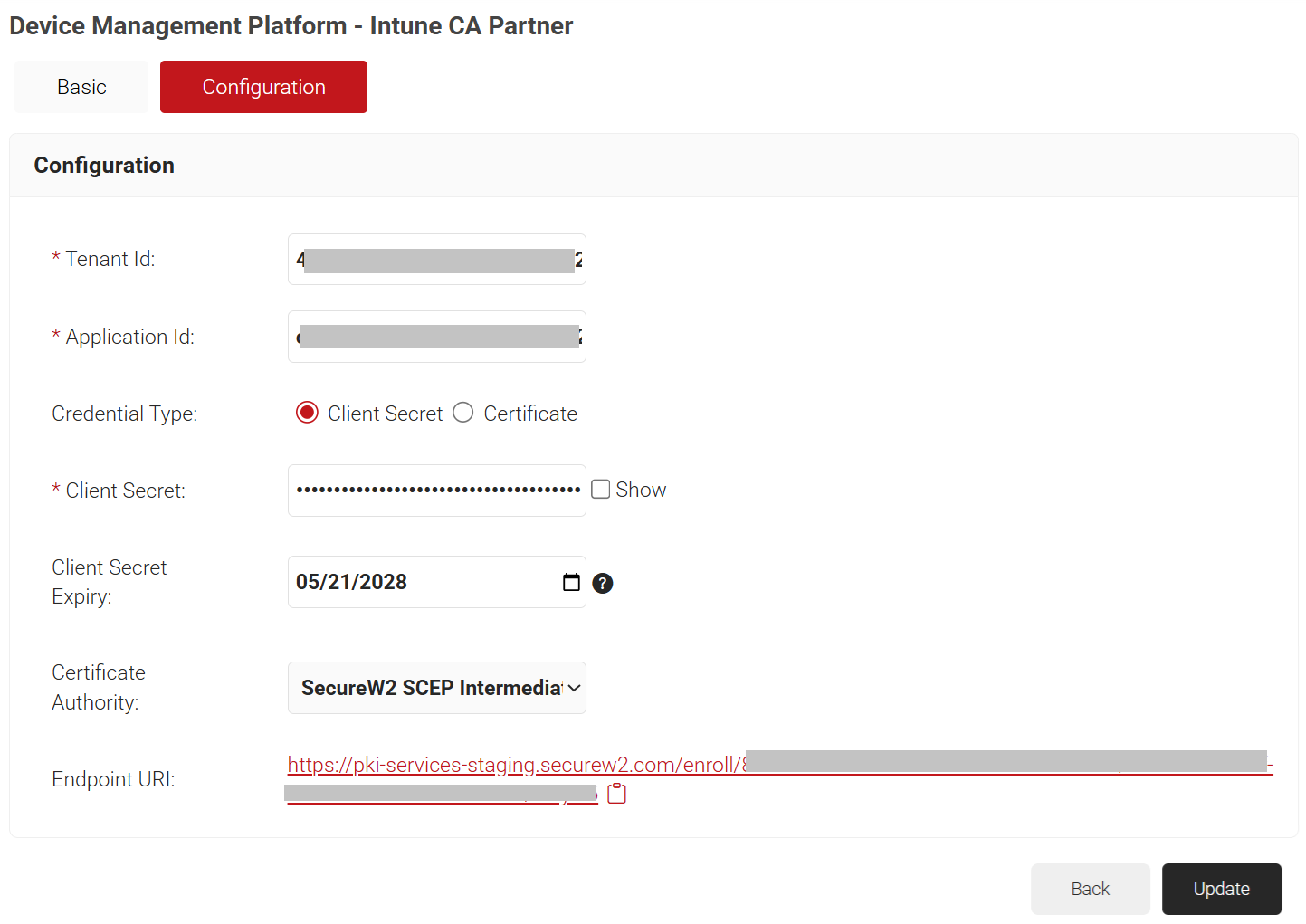
In the JoinNow Management Portal, create a device management platform for the Intune CA to accept requests from the Intune portal. The device management platform provides the Endpoint URI for the SCEP profiles in Intune.
To create a device management platform, perform the following steps:
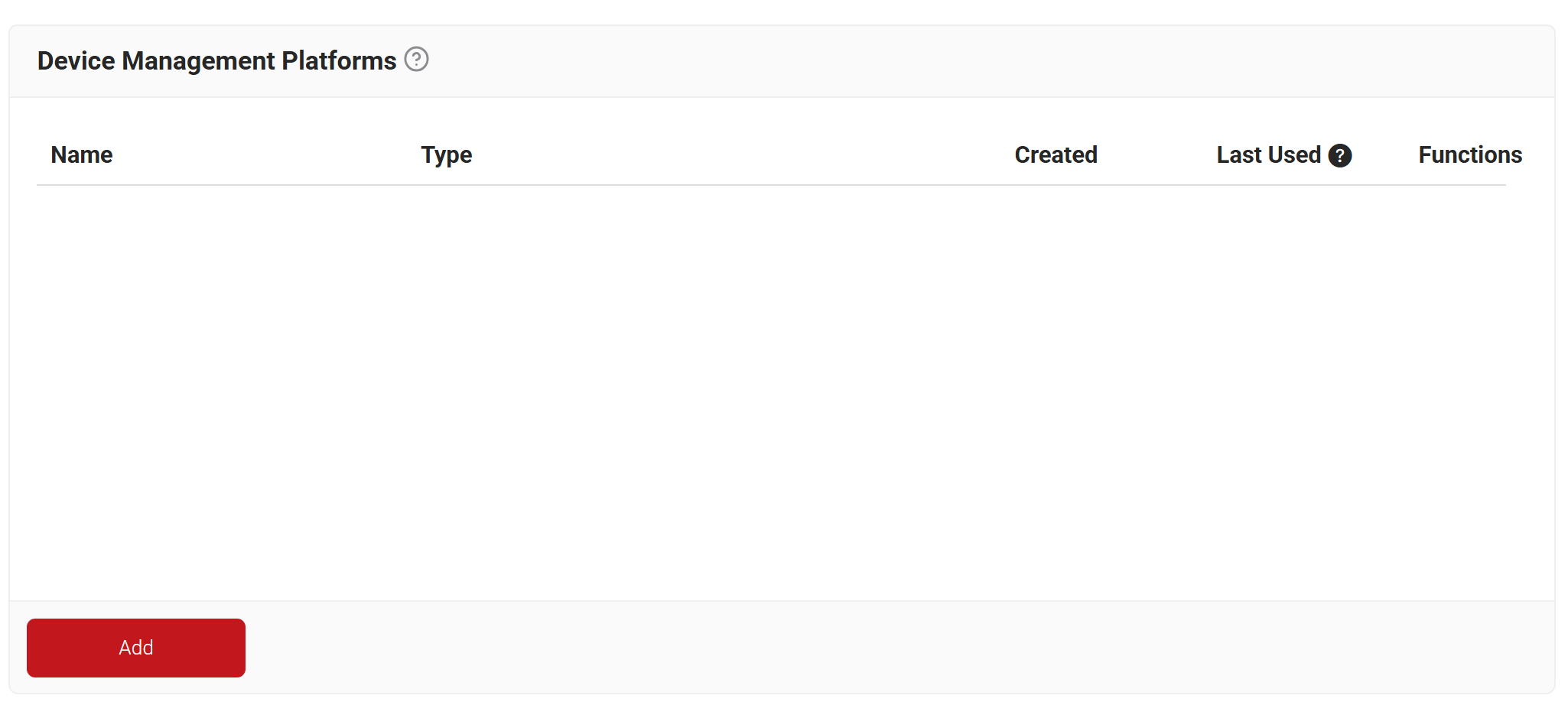
- Go to Integration Hub > Device Management Platforms.
- Click Add.

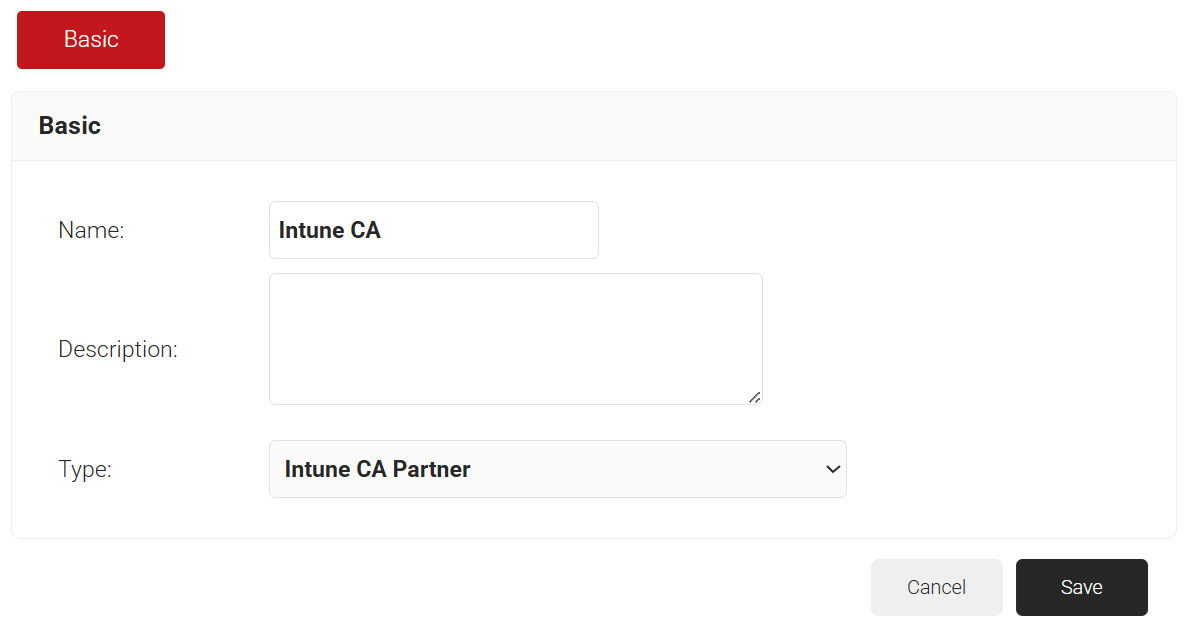
- In the Basic section, enter the name of the device management platform in the Name field.
- In the Description field, enter a suitable description for the device management platform.
- From the Type drop-down list, select Intune CA Partner.

- Click Save.
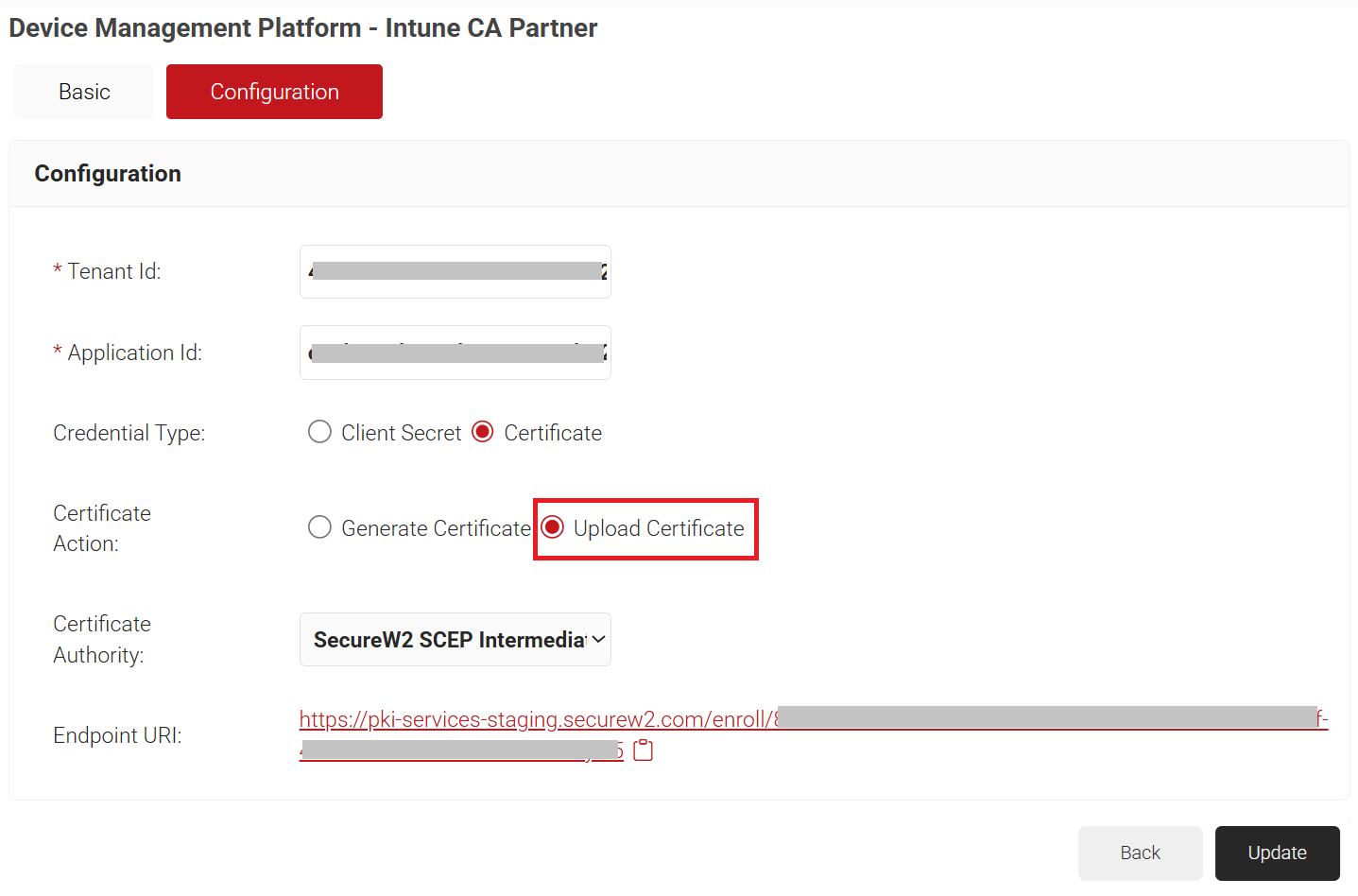
- The page refreshes, and the Configuration tab is displayed.
- Select the Configuration tab.
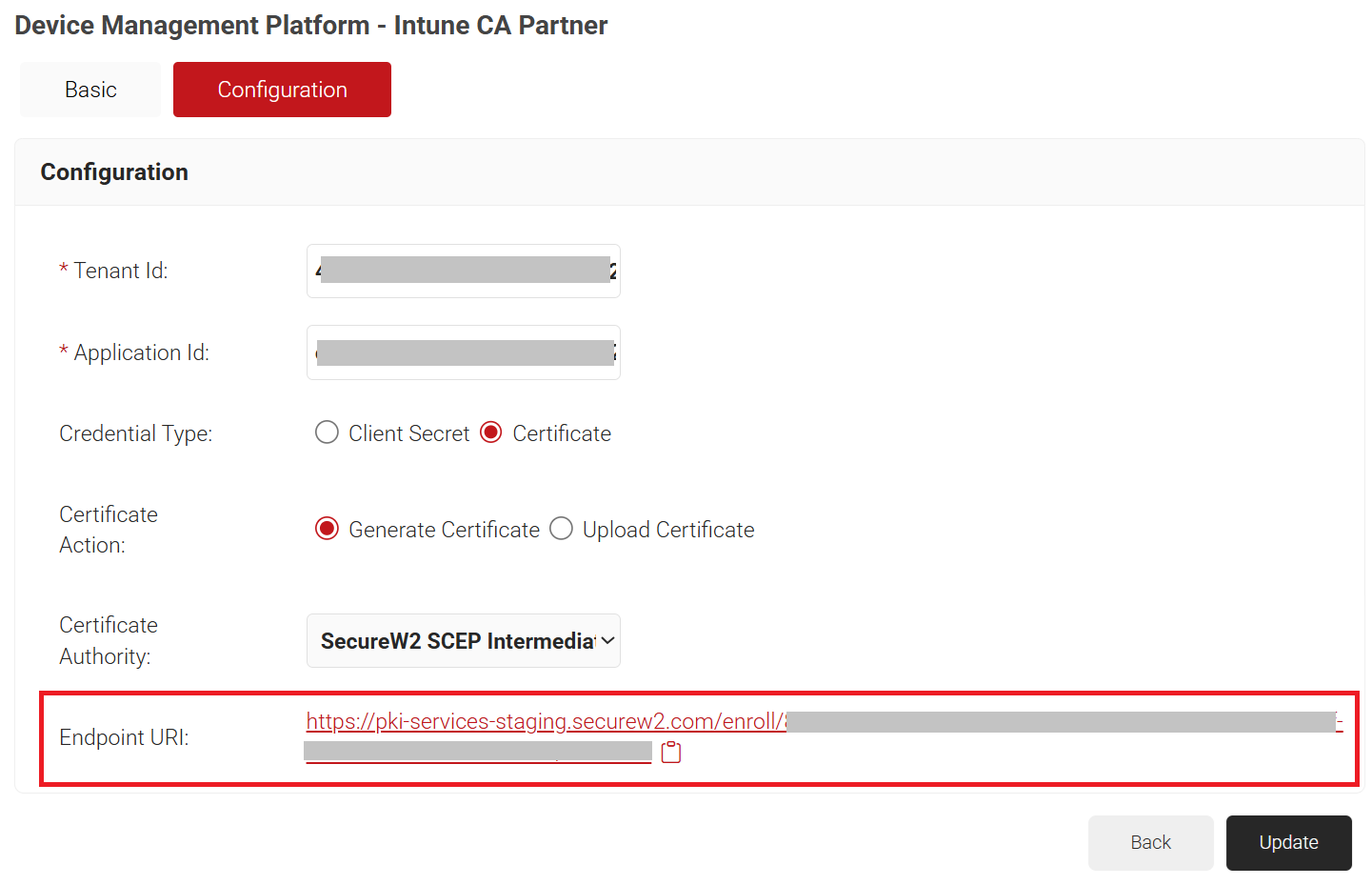
- In the Tenant Id and Application Id fields, enter the values you obtained after registering an application in the Microsoft Entra admin center(see the Registering a New Application section).
- In Credential Type, select one of the following options:
- Certificate
- Client Secret
- Certificate: A cryptographic credential that offers stronger security than a client secret. It supports long-term use and enables passwordless authentication.

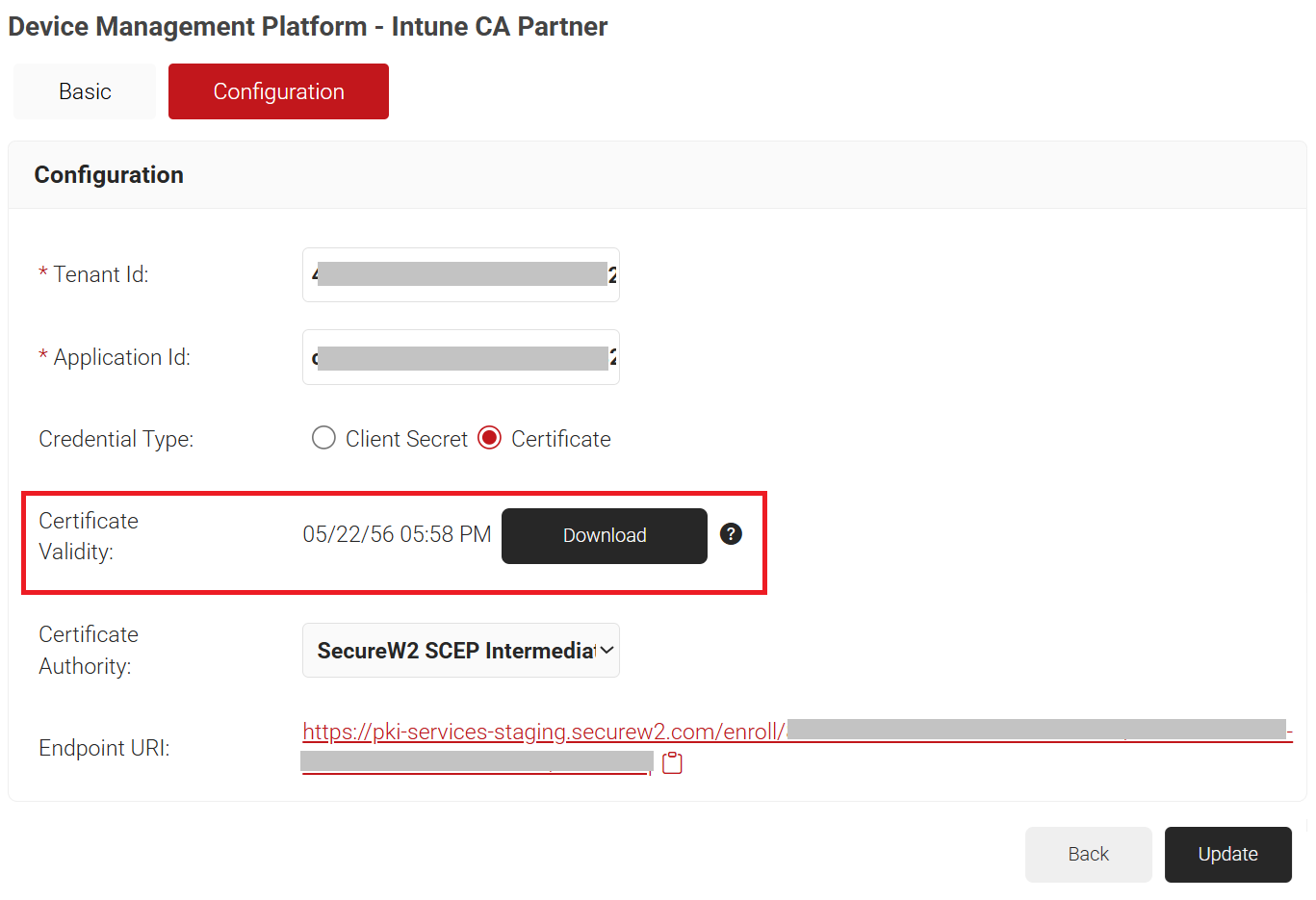
- Generate Certificate – Select this option and click Update to automatically download a certificate. You can then upload the certificate to the Microsoft Entra admin center to establish trust for authentication. To view the validity period of the downloaded certificate:
- Click Update again. The Device Management Platforms page opens.
- Open the Intune CA Partner platform you just created.
- Select the Configuration tab to view the certificate validity date.
NOTE: The default-generated certificate is valid for 30 years.
- Upload Certificate – Select this option to generate a custom certificate that you can upload to the Microsoft Entra admin center to establish authentication trust.

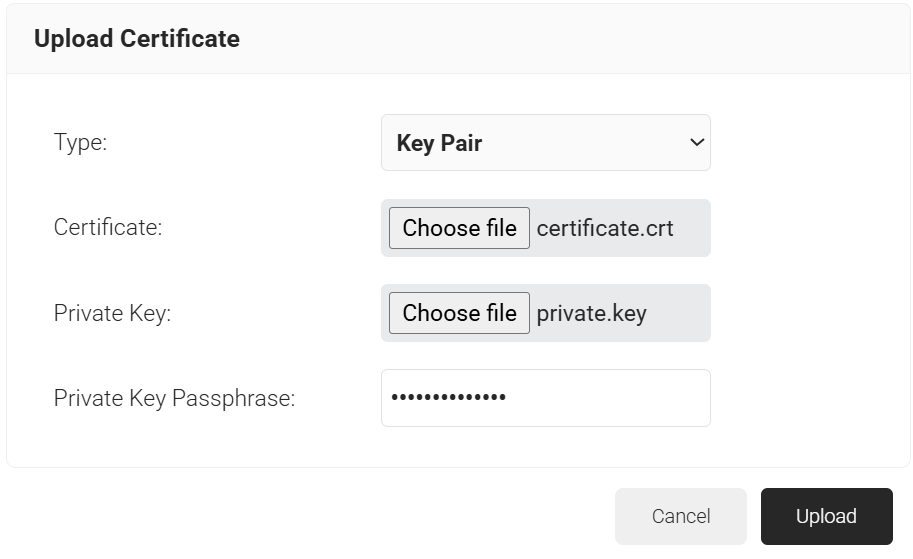
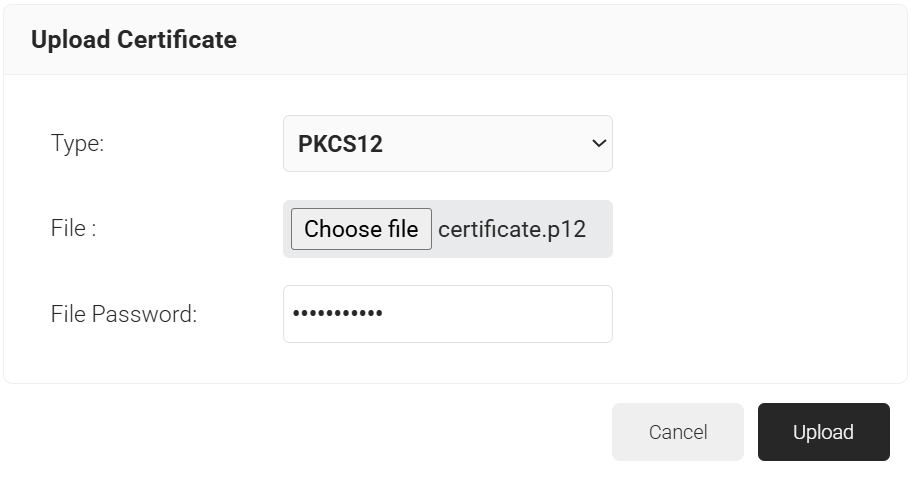
- From the Type drop-down list, select one of the following options:
- Key Pair
- PKCS12
- If the key pair is selected:
- In the Certificate field, click Choose file to upload the user-generated certificate.
- In the Private Key field, click Choose file to upload the user-generated private key.
- In the Private Key Passphrase field, enter the passphrase used to encrypt the private key. If the private key is not encrypted, leave this field blank.

- If the PKCS12 is selected:
- In the File field, click Choose file to locate and upload the .p12 file that contains the CA certificate and its associated private key.
- In the File Password field, enter the password for the file.

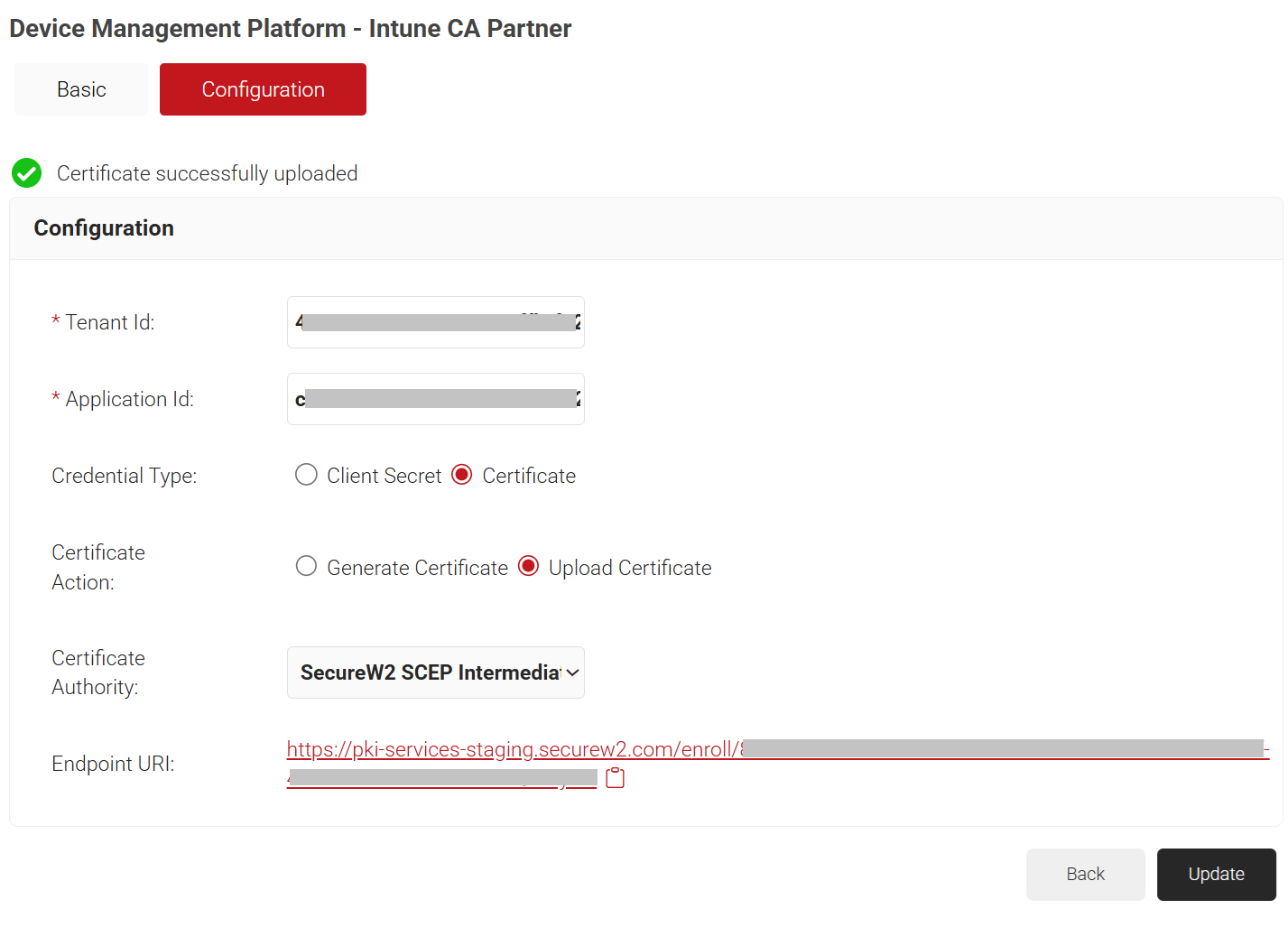
- Click Upload.

- From the Type drop-down list, select one of the following options:
- Generate Certificate – Select this option and click Update to automatically download a certificate. You can then upload the certificate to the Microsoft Entra admin center to establish trust for authentication. To view the validity period of the downloaded certificate:
- Client Secret: A shared string the application uses to authenticate. It is less secure than a certificate and requires periodic rotation.
- In the Client Secret field, enter the value you obtained when you created the client secret in the Microsoft Entra admin center (see the Creating a Client Secret section).
- From the Client Secret Expiry drop-down list, select the expiration date of the client secret you created in the Microsoft Entra admin center (see the Creating a Client Secret section.
- From the Certificate Authority drop-down list, select the intermediate CA you created earlier (see the Creating an Intermediate CA for Intune SCEP Gateway Integration section).
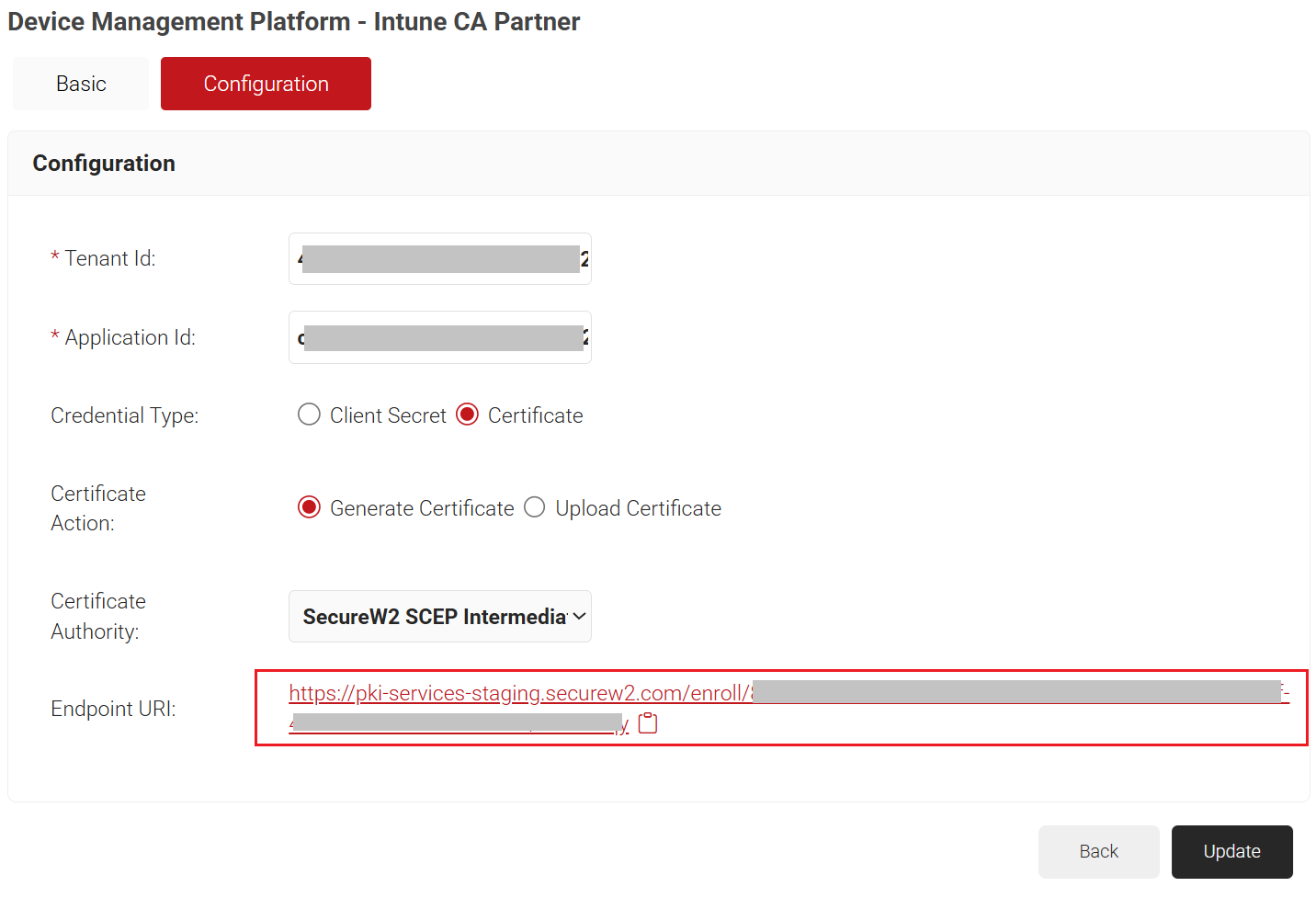
- Copy the Endpoint URI to your console. Use this endpoint URI to configure an SCEP Profile in Intune.

- Click Update.
Configuring Policy Management
This section outlines the policies required in the JoinNow Management Portal to enable SCEP-based enrollment.
NOTE: Microsoft Intune does not need a dedicated Device Role policy. You can use the Default Device Role policy in the configuration.
Configuring a Policy Workflow
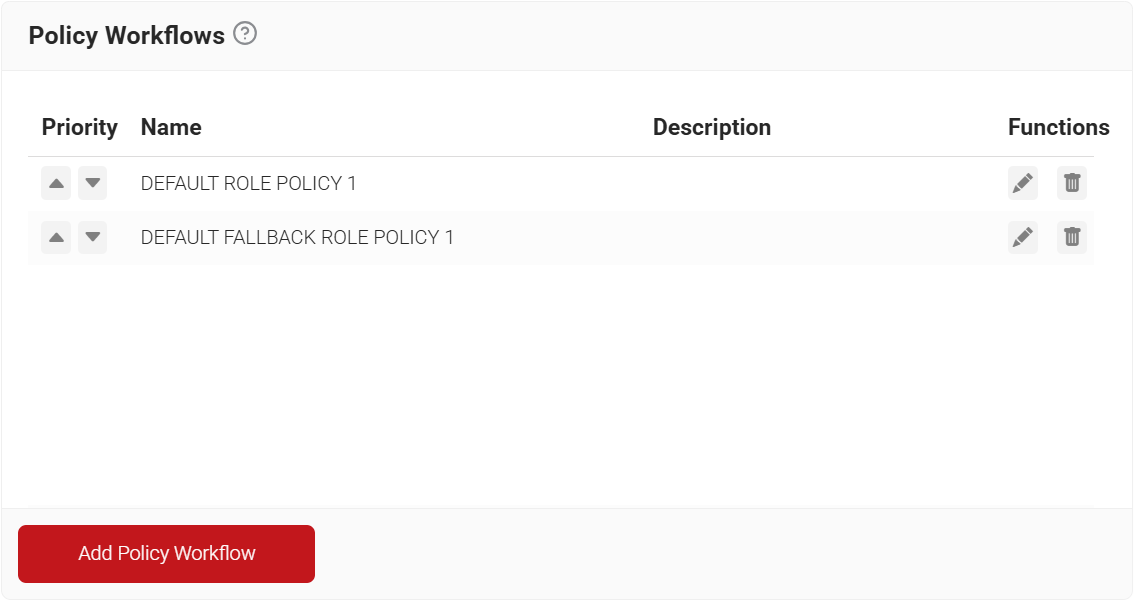
The Policy Workflow facilitates the segmentation of users and devices based on predefined criteria, associated attributes, and groups, with each segment identified as a distinct Policy Workflow. This allows admins to configure the issuance of specific certificate types or formats for each Policy Workflow through an Enrollment Policy.
To create a policy workflow, perform the following steps:
- Navigate to Policy Management > Policy Workflows.
- Click Add Policy Workflow.

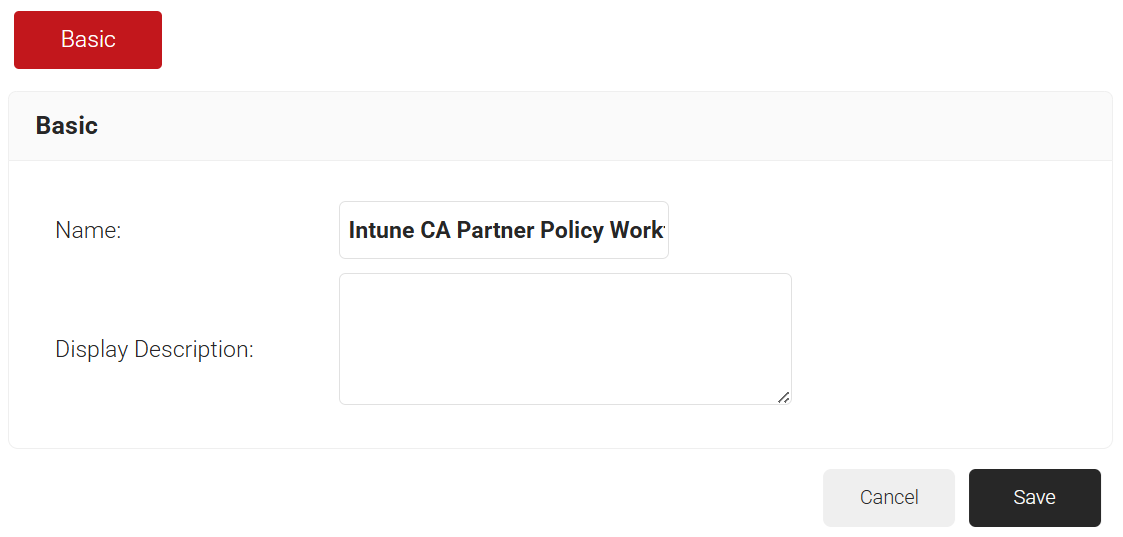
- In the Basic section, enter the name of the policy workflow in the Name field.
- In the Display Description field, enter a suitable description for the policy workflow.

- Click Save.
- The page refreshes, and the Conditions tab is displayed.
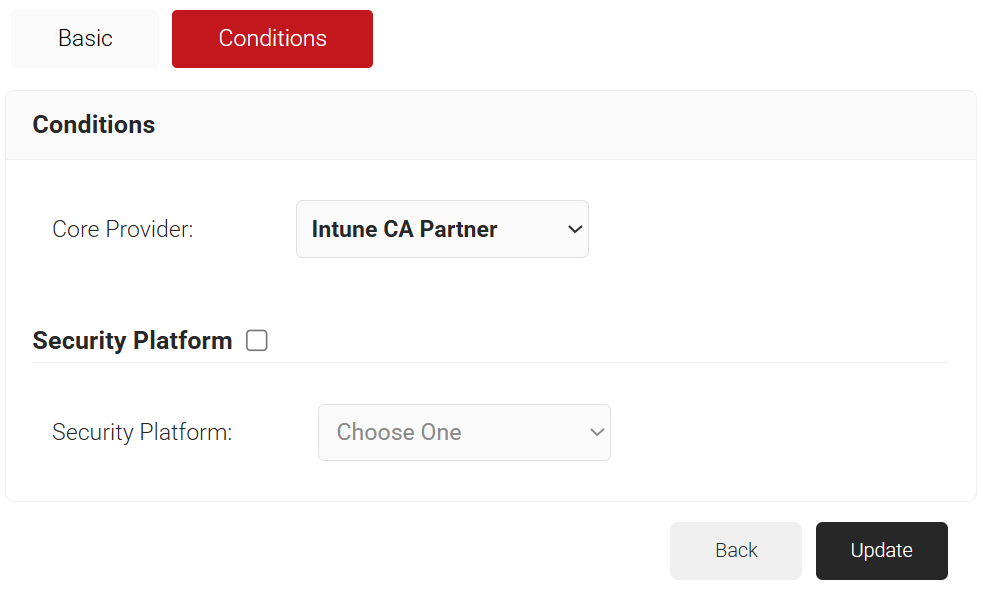
- Select the Conditions tab.
- From the Core Provider drop-down list, select the Intune CA device management platform you created earlier.

- Click Update.
Configuring an Enrollment Policy
An Enrollment Policy defines the client certificate template and the Certificate Issuer to be used for each Policy Workflow. It leverages the segmentation established in the Policy Workflow to ensure that the appropriate client certificate template is issued for each workflow.
To create an Enrollment policy, perform the following steps:
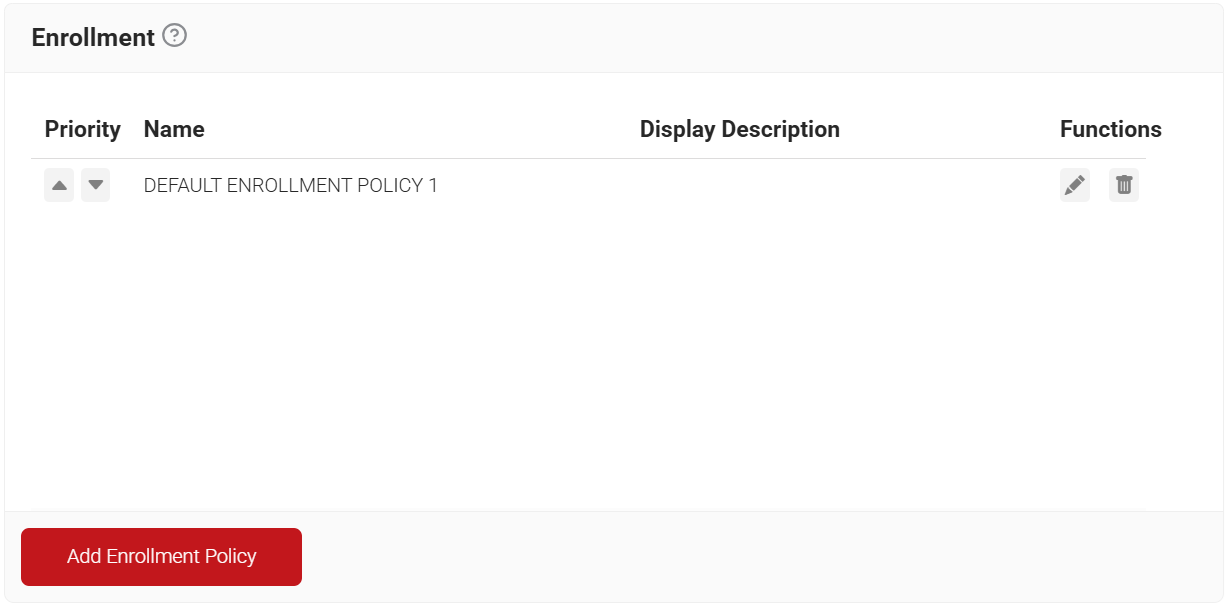
- Navigate to Policy Management > Enrollment.
- Click Add Enrollment Policy.

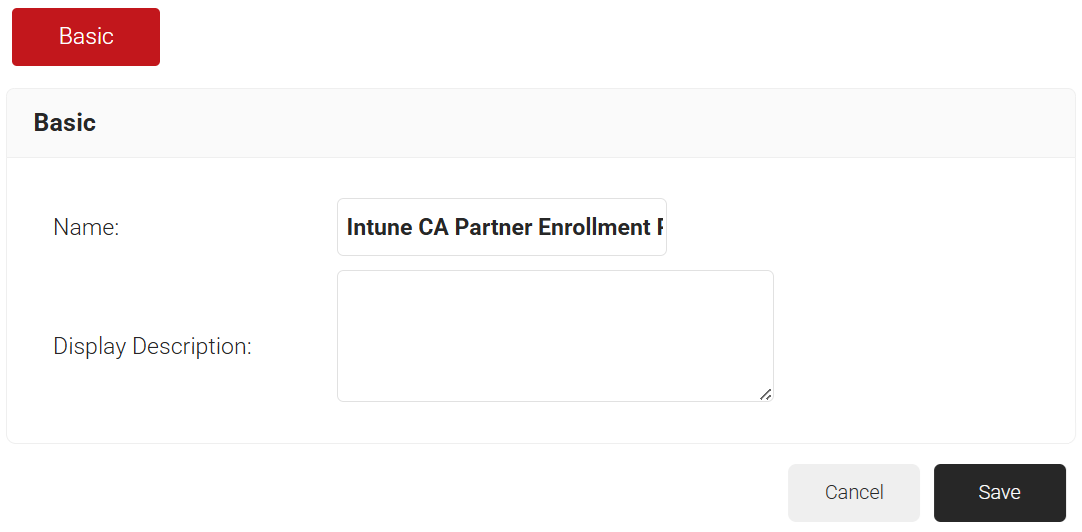
- In the Basic section, enter the name of the enrollment policy in the Name field.
- In the Display Description field, enter a suitable description for the enrollment policy.

NOTE: You must select a User Role and Device Role for enrollment. You can use a Fallback Device policy to allow enrollment based on the Policy Workflow. - Click Save.
- The page refreshes, and the Conditions and Settings tabs are displayed.
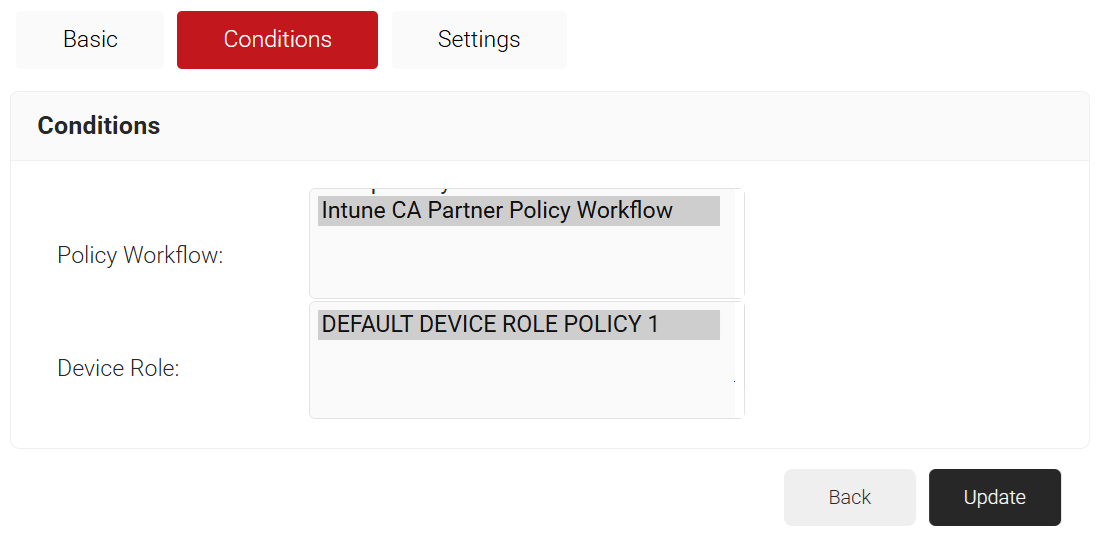
- Select the Conditions tab.
- In the Policy Workflow field, select the policy workflow you created earlier.
- In the Device Role field, select DEFAULT DEVICE ROLE POLICY 1.

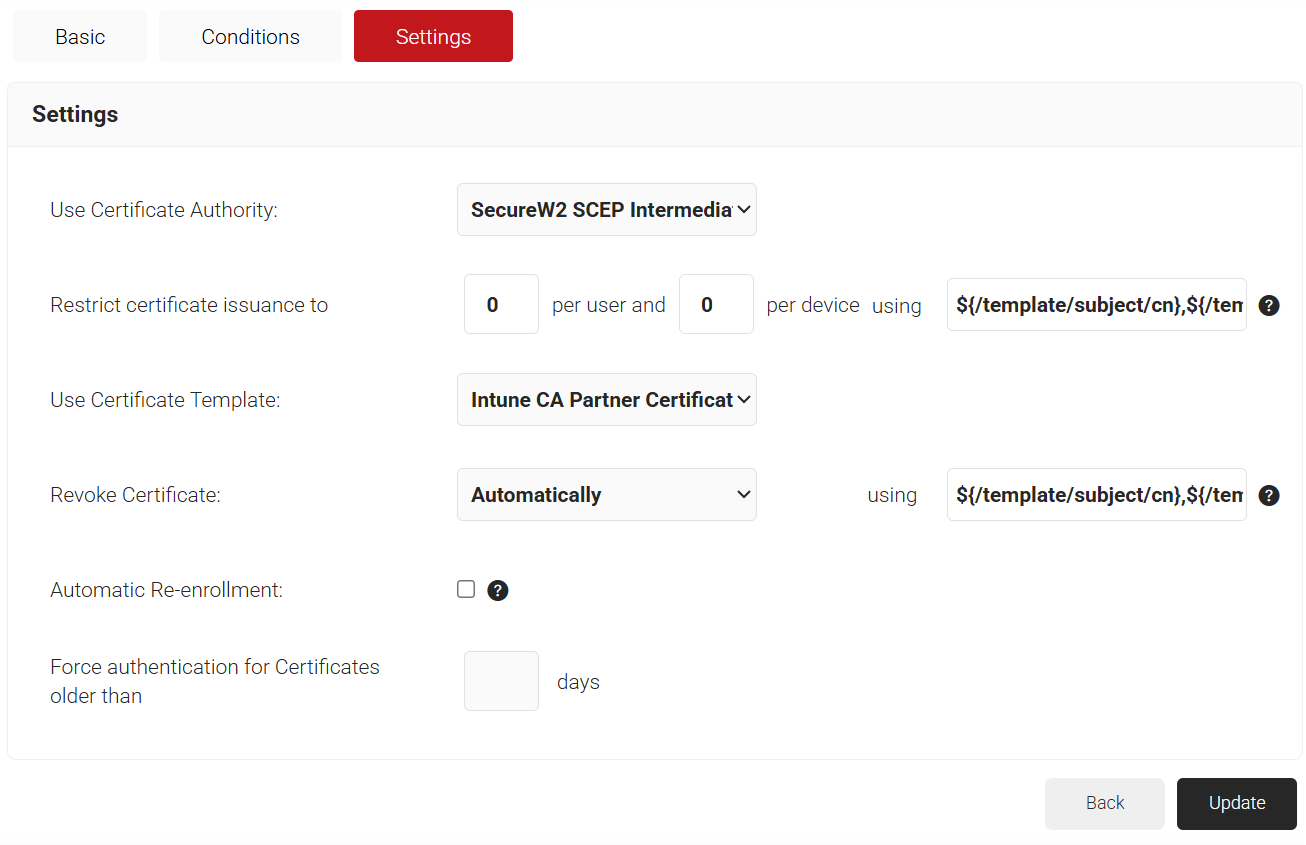
- Select the Settings tab.
- In the Settings section, from the Use Certificate Authority drop-down list, select the intermediate CA you created earlier (see the Creating an Intermediate CA for Intune SCEP Gateway Integration section).
- From the Use Certificate Template drop-down list, select the template you created earlier (see the Creating a Certificate Template section).

- In the other settings, retain the default values.
- Click Update.
Configuring Network Policy
To configure network policy:
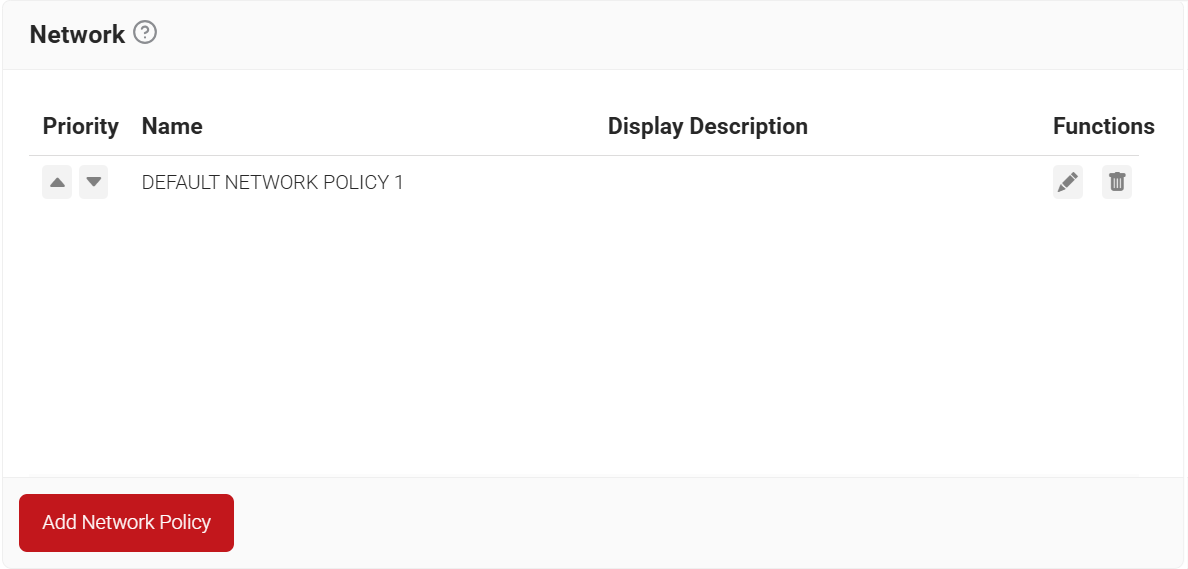
- Go to Policy Management > Network.
- Click Add Network Policy.

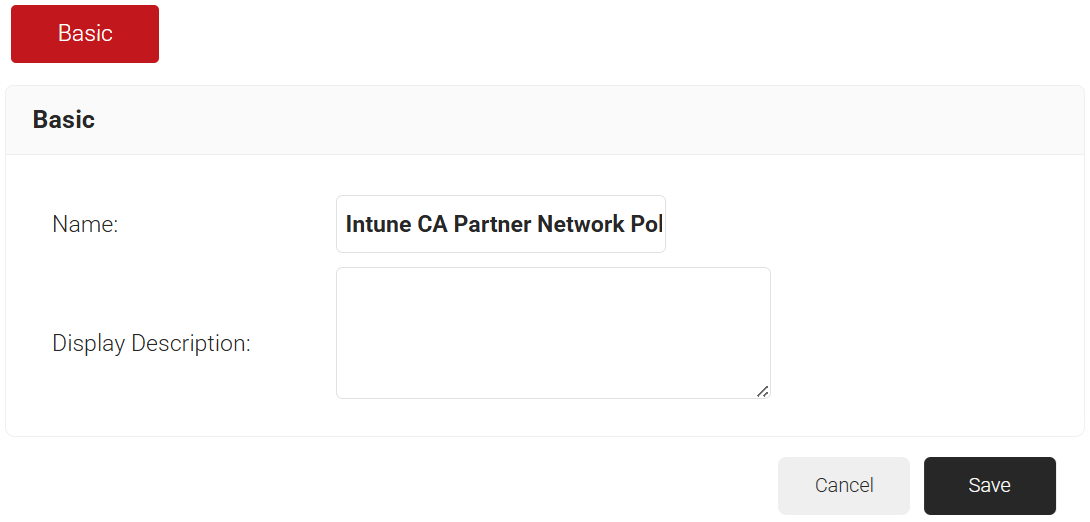
- In the Basic section, enter the name of the network policy in the Name field.
- In the Display Description field, enter a suitable description for the network policy.

- Click Save. The page refreshes, and the Conditions and Settings tabs are displayed.
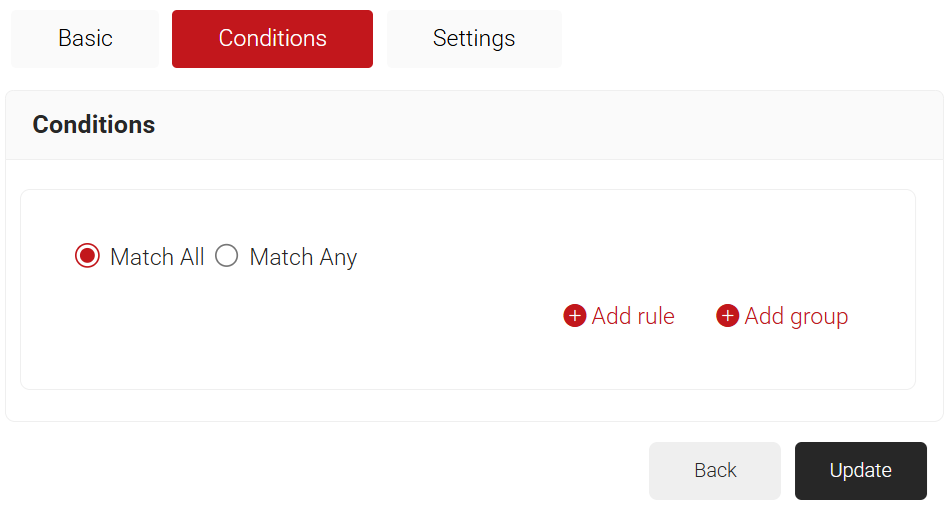
- Select the Conditions tab.
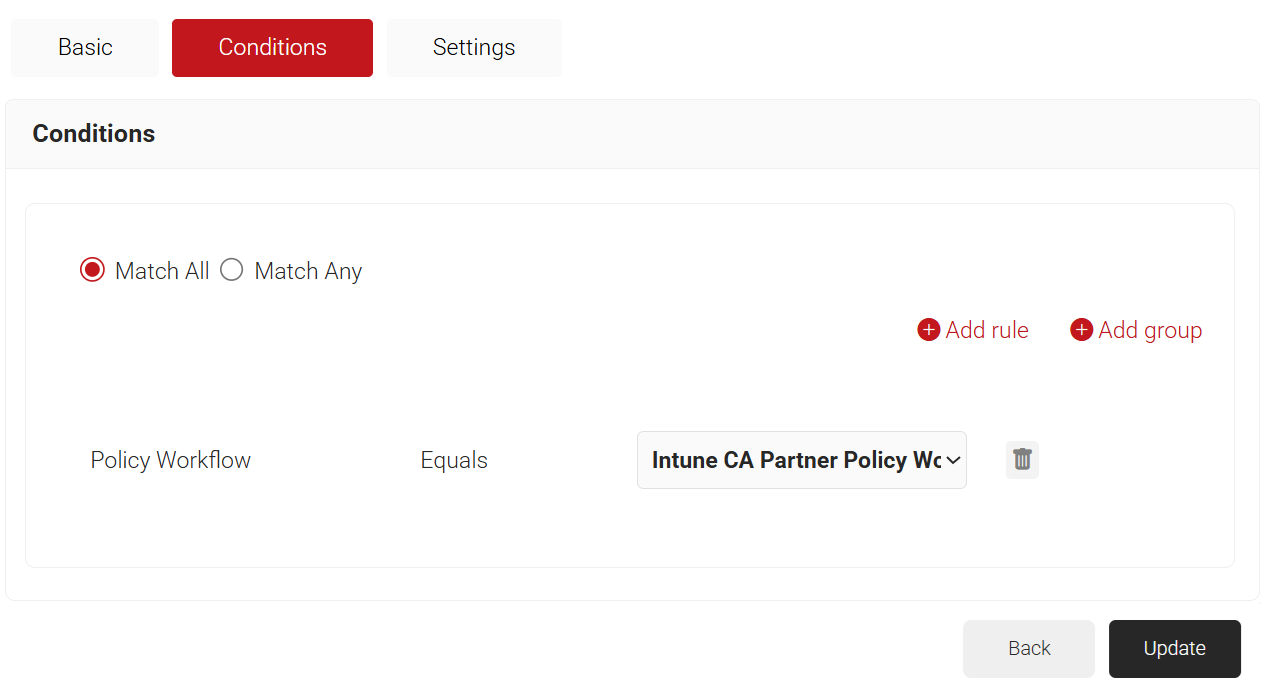
- Select Match All or Match Any based on your requirement to set authentication criteria. In the case explained here, we are selecting Match All.
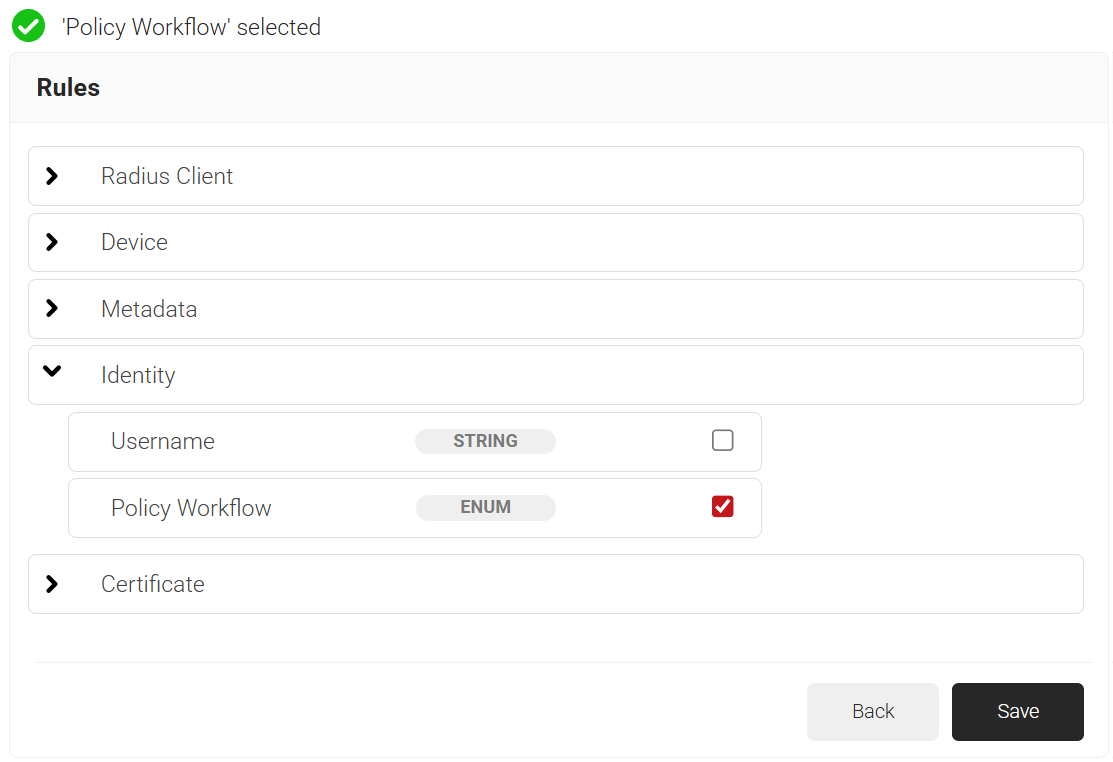
- Click Add rule and select the policy workflow you want to assign to this network policy. It is essential to select the appropriate policy workflow, as it triggers the network policy. This menu offers various rules that you can select based on your business requirements.

NOTE: You can assign a network policy to multiple user roles.
- Click Save.
- From the Policy Workflow Equals drop-down list, select the policy workflow you created earlier (see the Configuring a Policy Workflow section).

- Select the Settings tab.

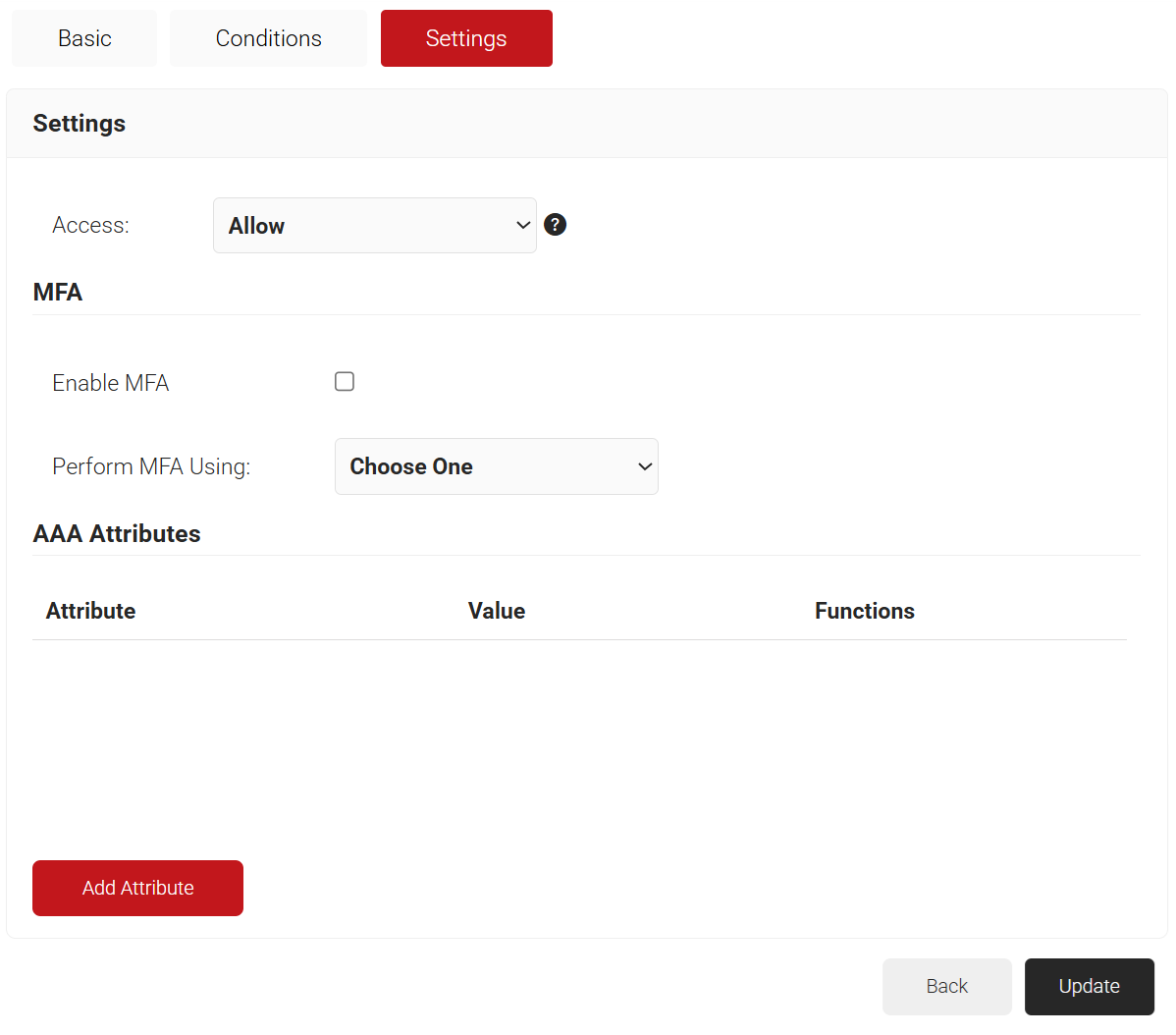
- From the Access drop-down list, select any one of the options to allow or deny authentication requests. The default value is “Allow”.
- To configure MFA, select the checkbox to enable MFA.
- From the Perform MFA Using drop-down list, select a Core Provider for MFA.
- Click Add Attribute.
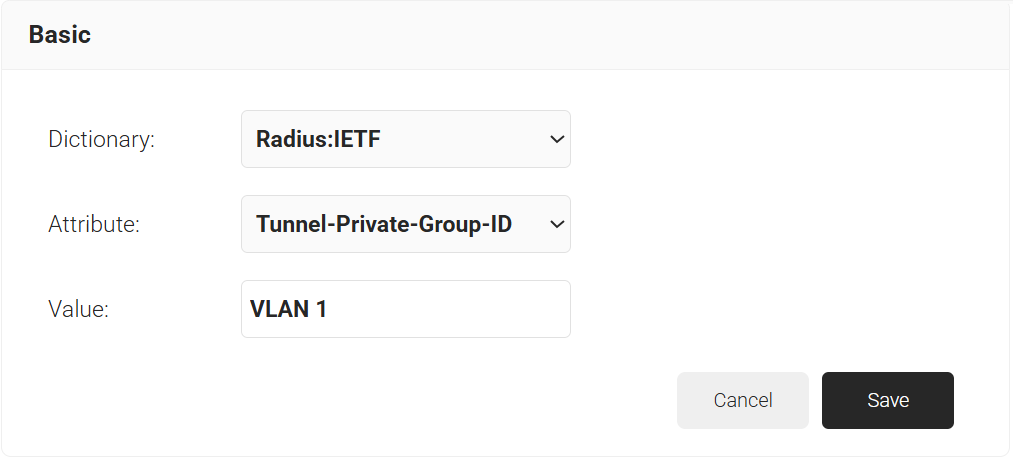
- From the Dictionary drop-down list, select an option:
- Radius: IETF – This is what we will use for the following attributes, as we are using standard RADIUS attributes for VLAN assignment.
- Custom: Used for any VSAs (Vendor-Specific Attributes).
- From the Attribute drop-down list, select an option.
- In the Value field, enter the appropriate value for the attribute.

- From the Dictionary drop-down list, select an option:
- Click Save.
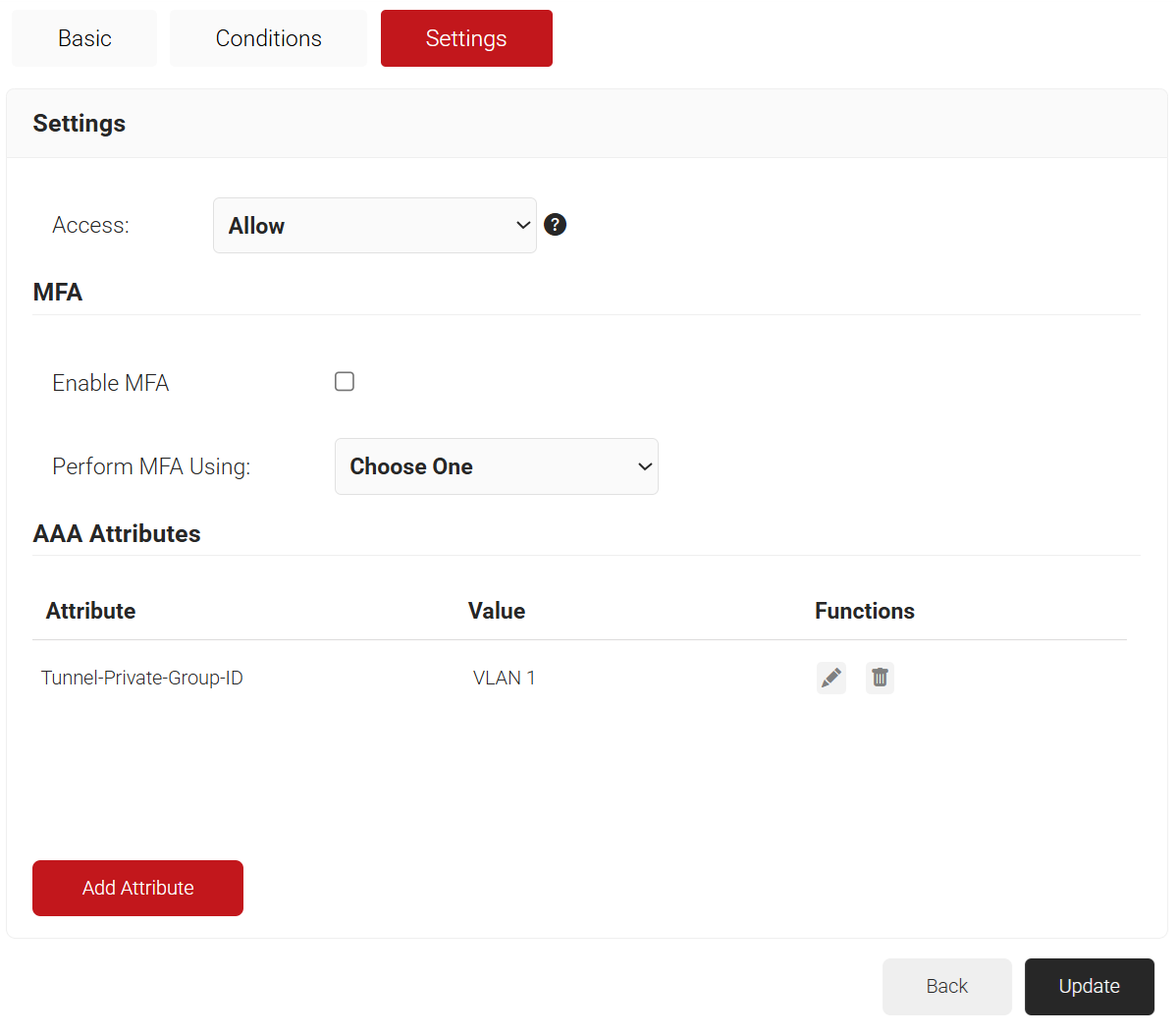
- Repeat for any other RADIUS attribute you would like to send. For reference, here is what is commonly required for VLAN Assignment:
- Tunnel-Medium-Type: IEE-802
- Tunnel-Private-Group-ID: {VLAN Name}
- Server Tunnel-Type: VLAN
- Click Update.
Trusted Certificate Profiles
You should configure the Trusted Certificate Profile with the certificate of your RADIUS server’s issuing authority. This is to make the devices trust your RADIUS server by validating its certificate. We achieve this server validation in the profile configuration by adding the Root and/or Intermediate Certificate Authorities (CAs) that issued the RADIUS server certificate. When you assign this profile, the Microsoft Intune-managed devices receive the trusted certificates.
NOTE: For RADIUS vendors other than the SecureW2 CloudRADIUS server, ensure that you have the Root or Intermediate CA that issues the RADIUS server certificate.
NOTE: You must create a separate profile for each OS platform. The steps to create trusted certificates are similar across device platforms.
Exporting the SecureW2 Root, Intermediate, and RADIUS CA
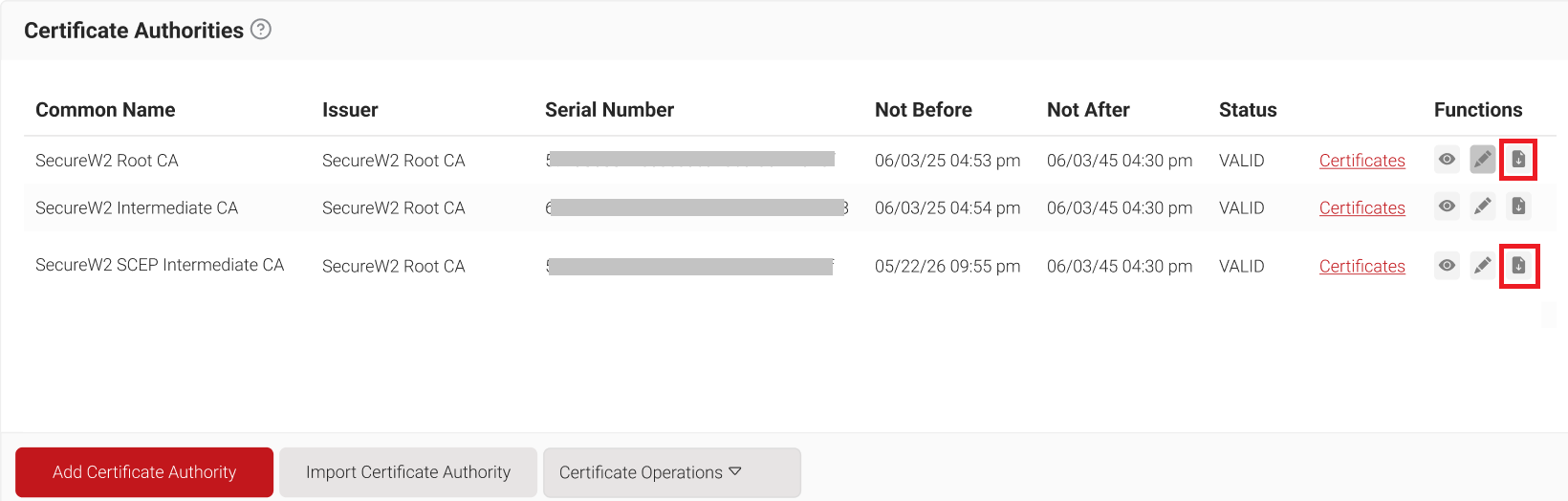
To create trusted profiles in Intune, the Root, Intermediate, and RADIUS Server CA must be uploaded in their respective profiles in the Intune Endpoint Manager. To download these certificates from the JoinNow Management portal, follow the steps below:
- Navigate to Dynamic PKI > Certificate Authorities.
- In the Certificate Authorities section, click Download for the Root CA and the intermediate CA issued to your organization. For information about creating the intermediate CA, see Creating an Intermediate CA for Intune SCEP Gateway Integration.
Exporting RADIUS Root CA
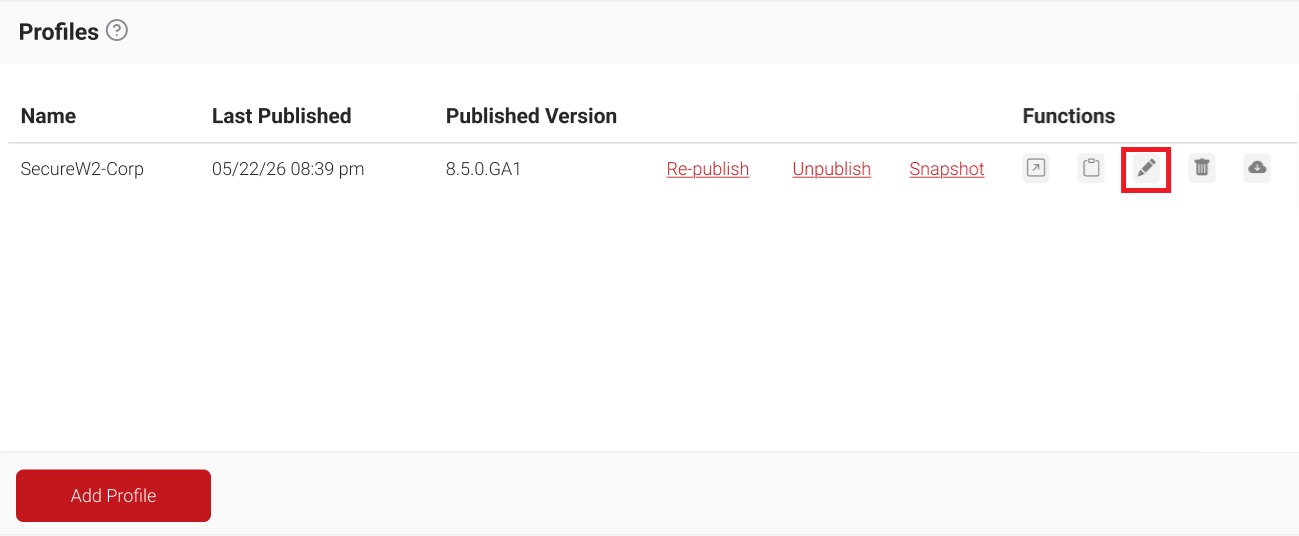
To export the RADIUS Root CA, perform the following steps:
- Navigate to Device Onboarding > Profiles.
- On the Profiles page, click the Edit link for the network profile you configured earlier. For information about configuring a network profile, see Getting Started.

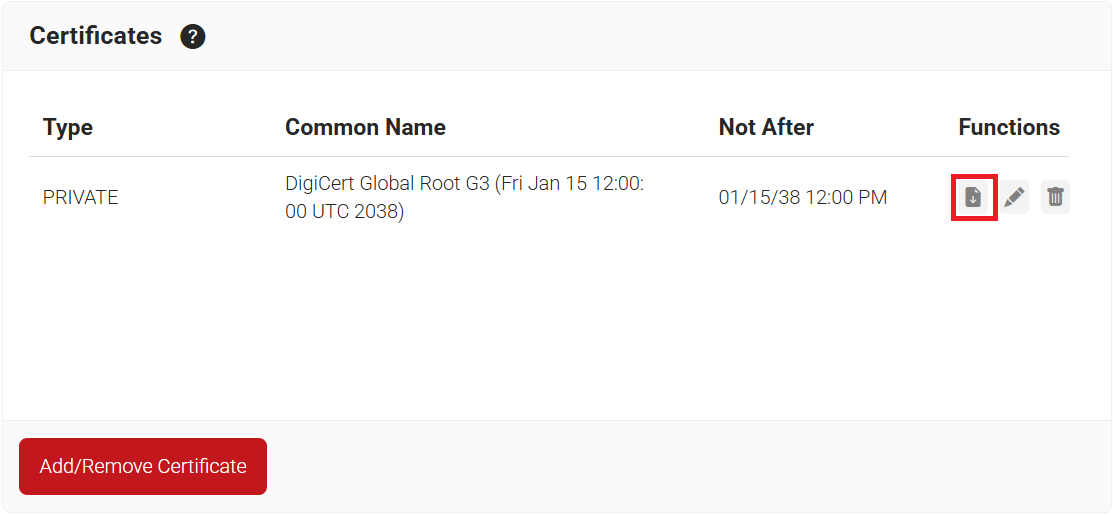
- Scroll down to the Certificates section and click Download next to DigiCert Global Root G3 (Fri Jan 15 12:00:00 UTC 2038). You can use either a private or a public certificate.

Creating Trusted Certificate Profile – Root, Intermediate, and RADIUS Root CA
The downloaded CA certificates must be uploaded to the respective trusted profiles to deploy them on the client devices. The deployment of these CA certificates is necessary to form a chain of trust during enrollment and RADIUS authentication. Intune requires the creation of three trusted certificate profiles:
- Trusted Certificate Profile for Root CA
- Trusted Certificate Profile for the Intermediate CA of the RADIUS Server certificate
- Trusted Certificate Profile for Root CA of the RADIUS Server certificate
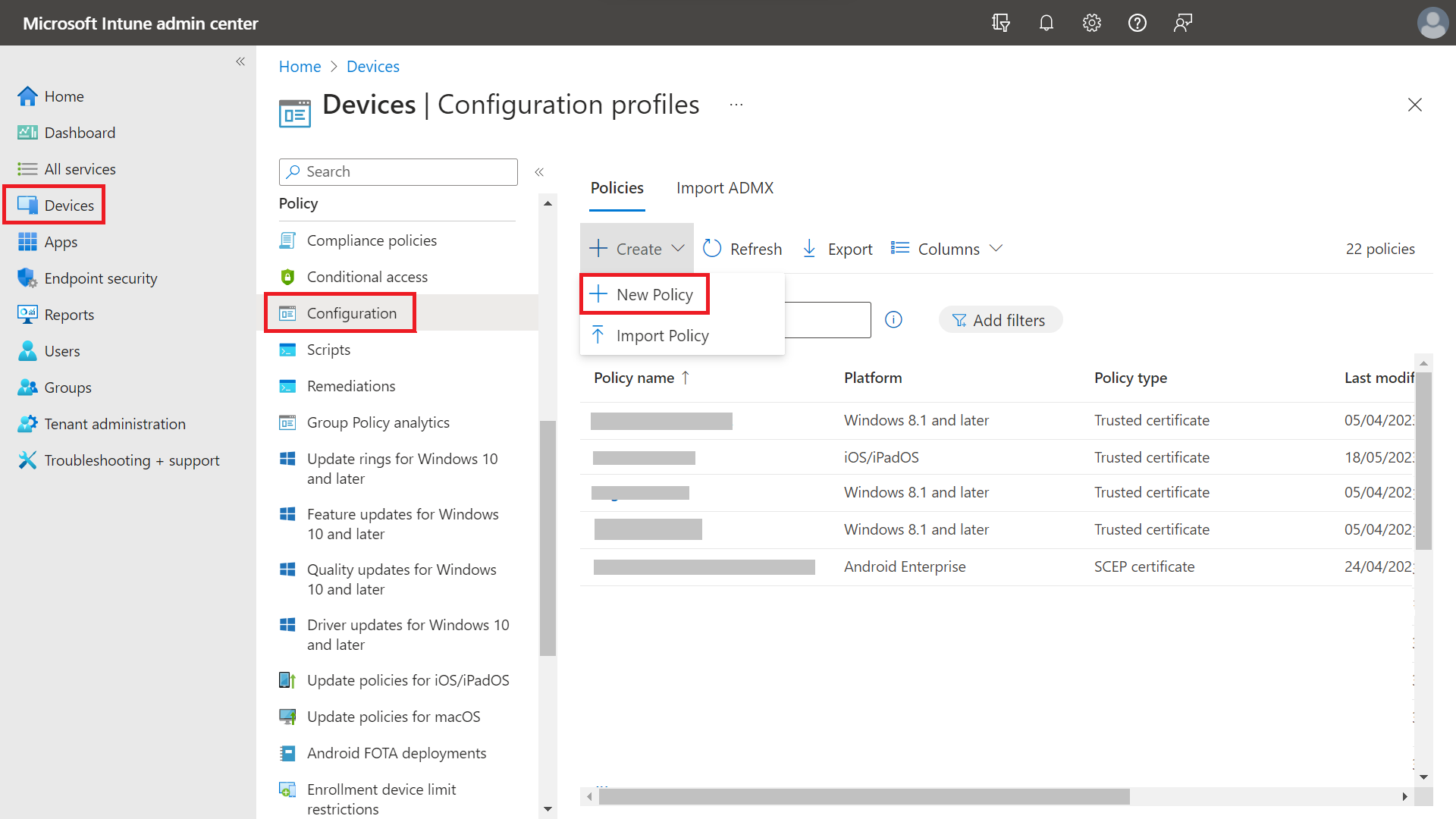
To create trusted profiles in Intune:
- Sign in to the Microsoft Intune admin center.
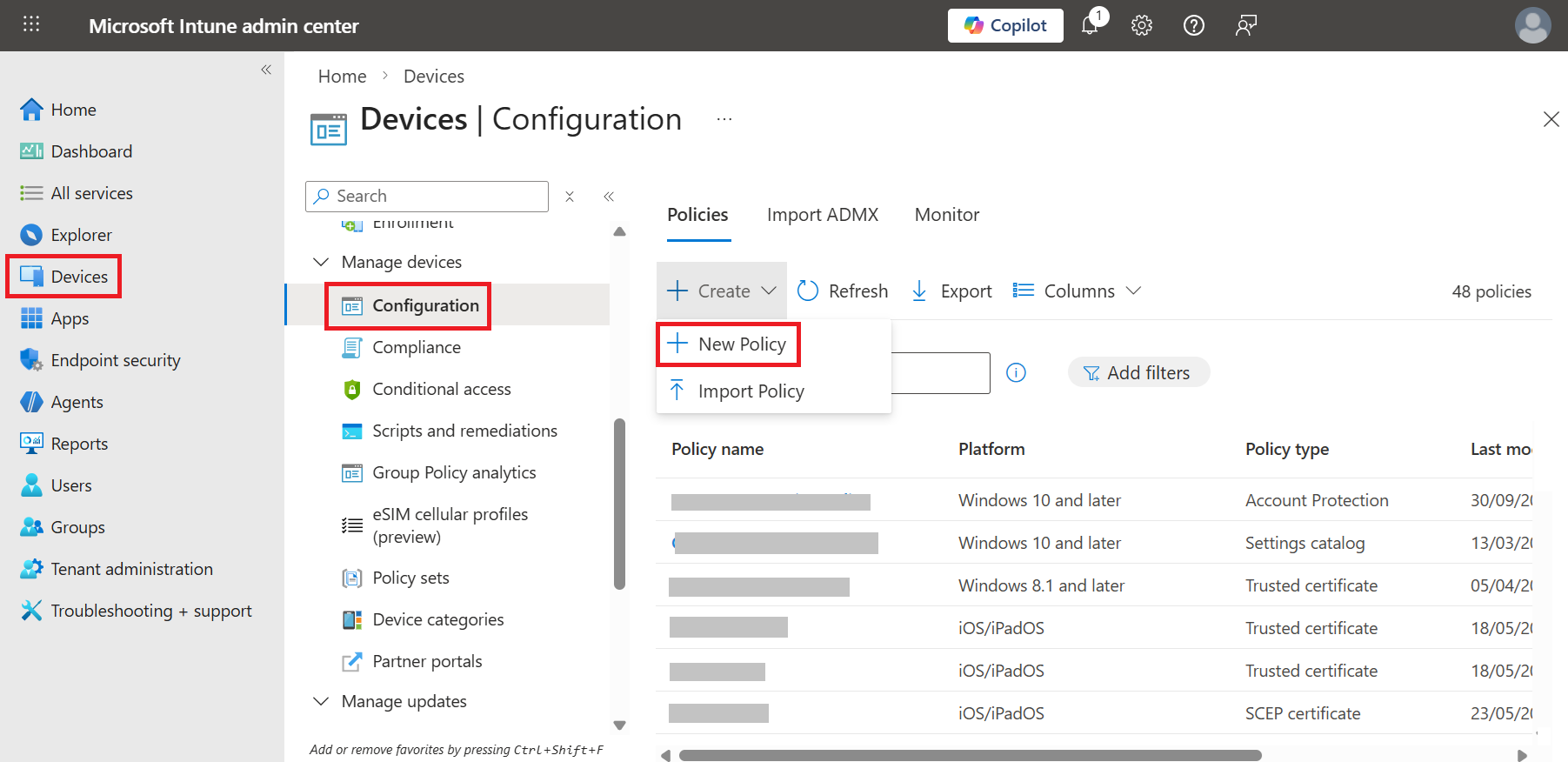
- Navigate to Devices > Manage devices > Configuration.
- Click Create and select New Policy.

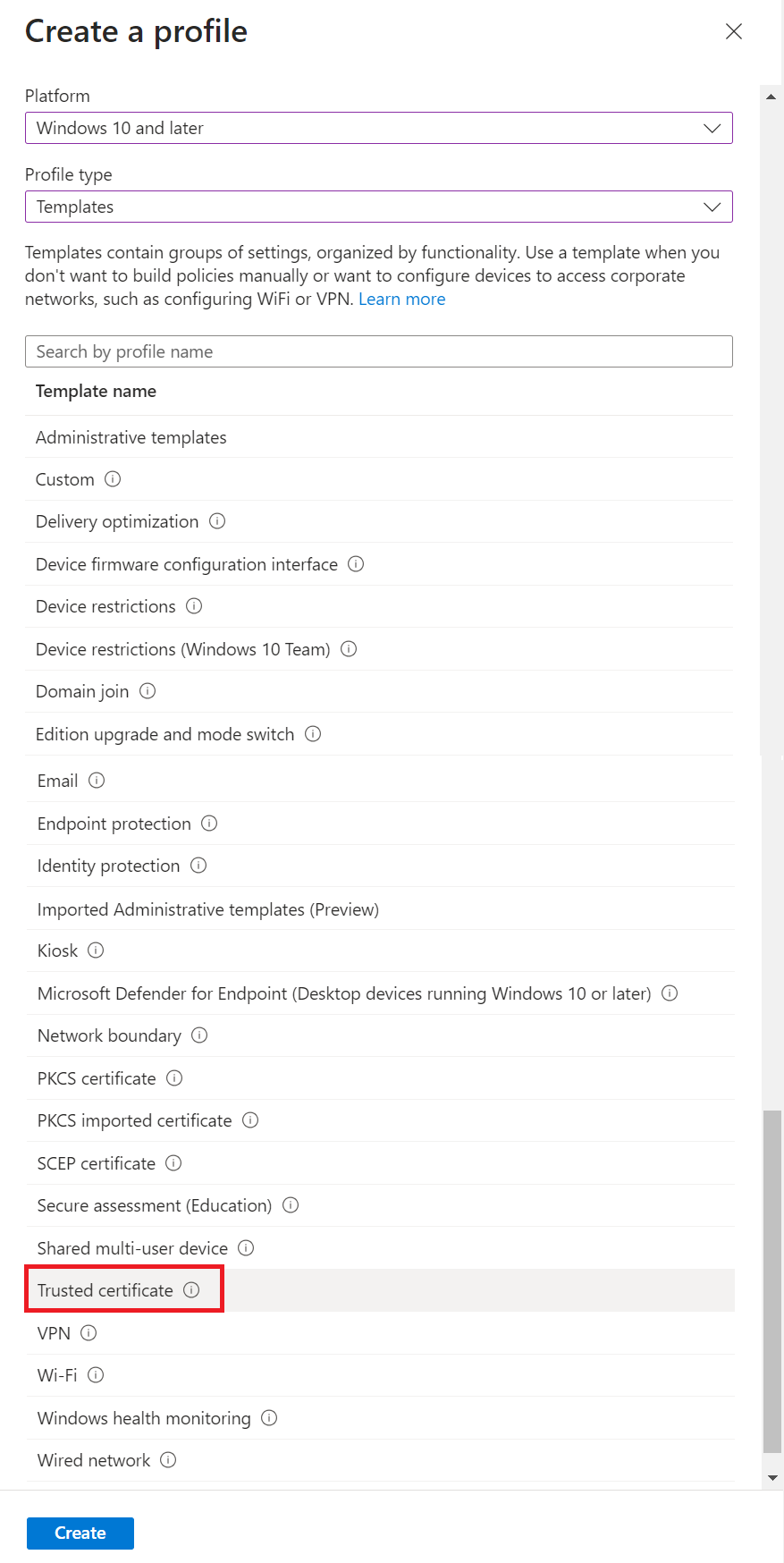
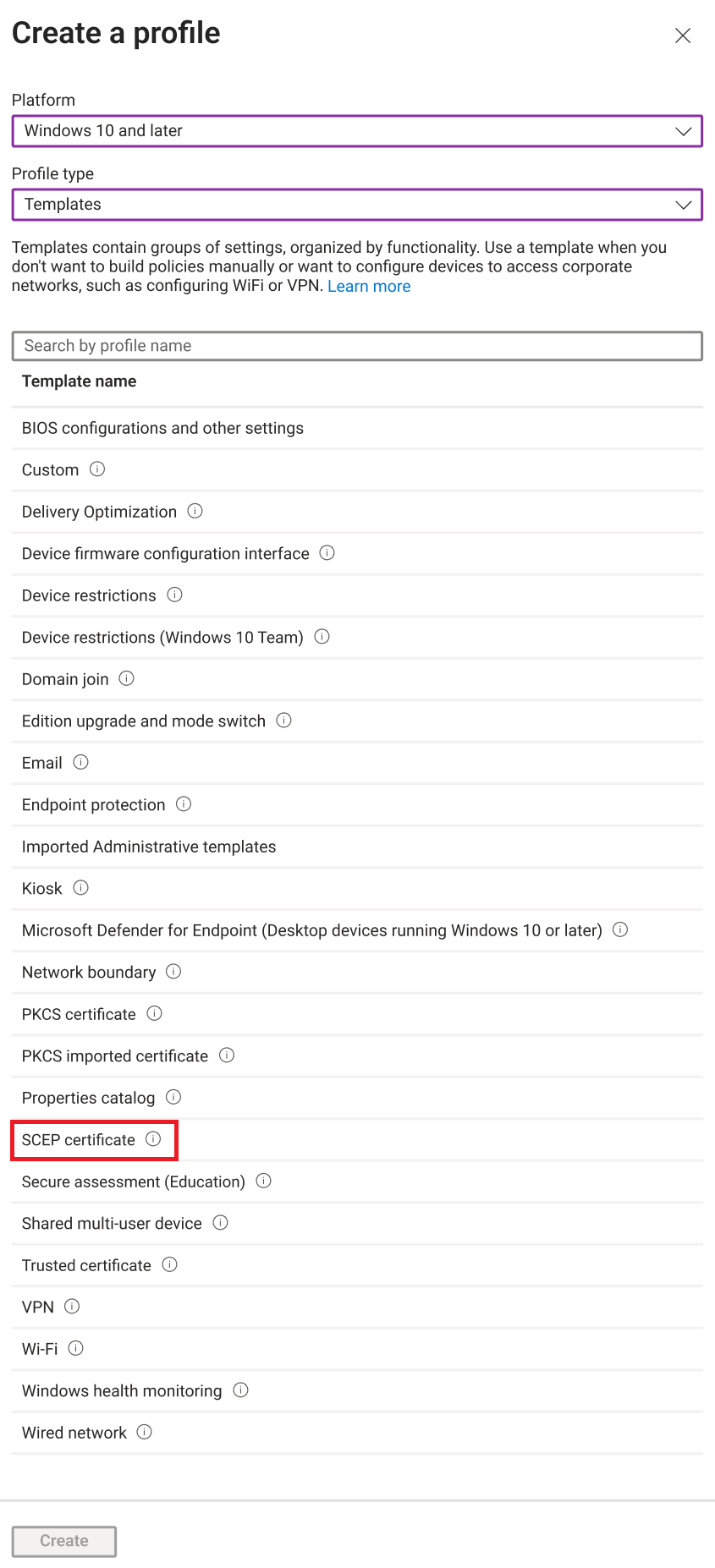
- On the Create a profile page, from the Platform drop-down list, select the device platform for this trusted certificate.NOTE: You must create a separate profile for each OS platform. The steps to create trusted certificates are similar for each device platform.
- From the Profile type drop-down list, select Templates, and then select Trusted certificate.

- Click Create.
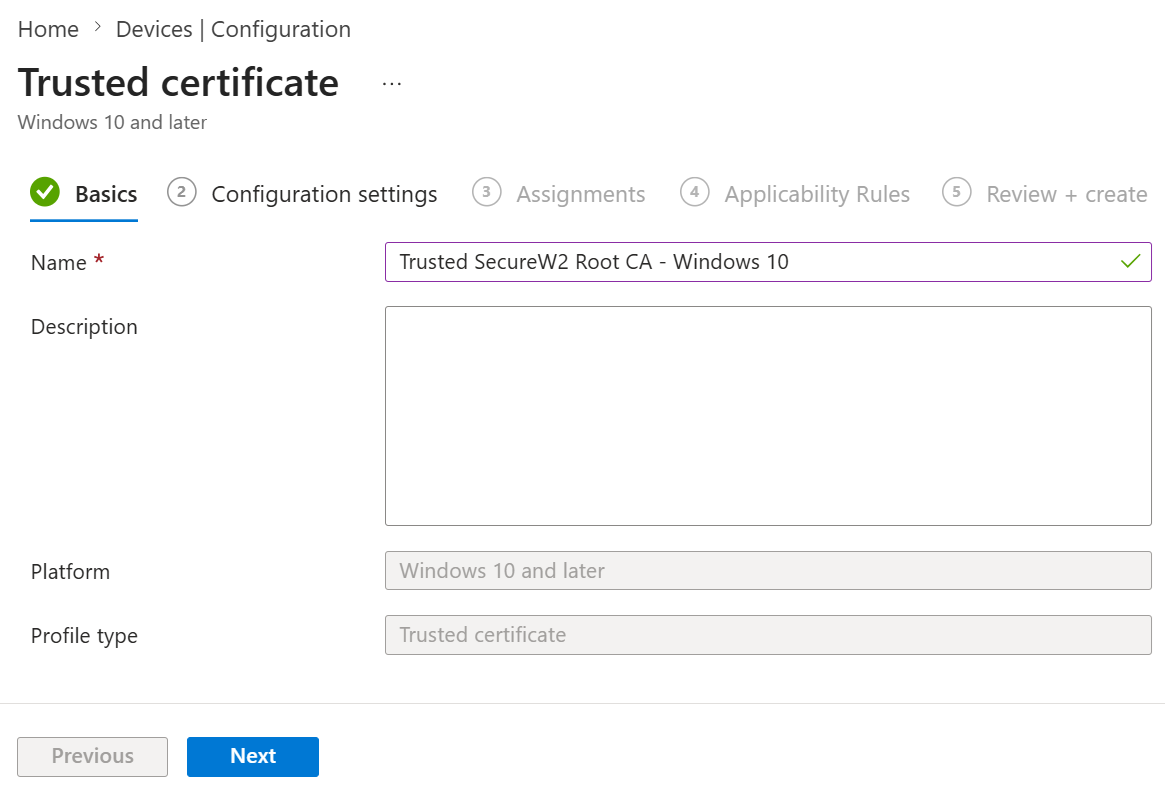
- On the Trusted Certificate page, in the Basics section, enter a name in the Name field. To make certificates easy to identify, include the type in the name — for example, Root CA, Intermediate CA, or RADIUS CA.
- In the Description field, enter a suitable description for the trusted certificate.

- Click Next.
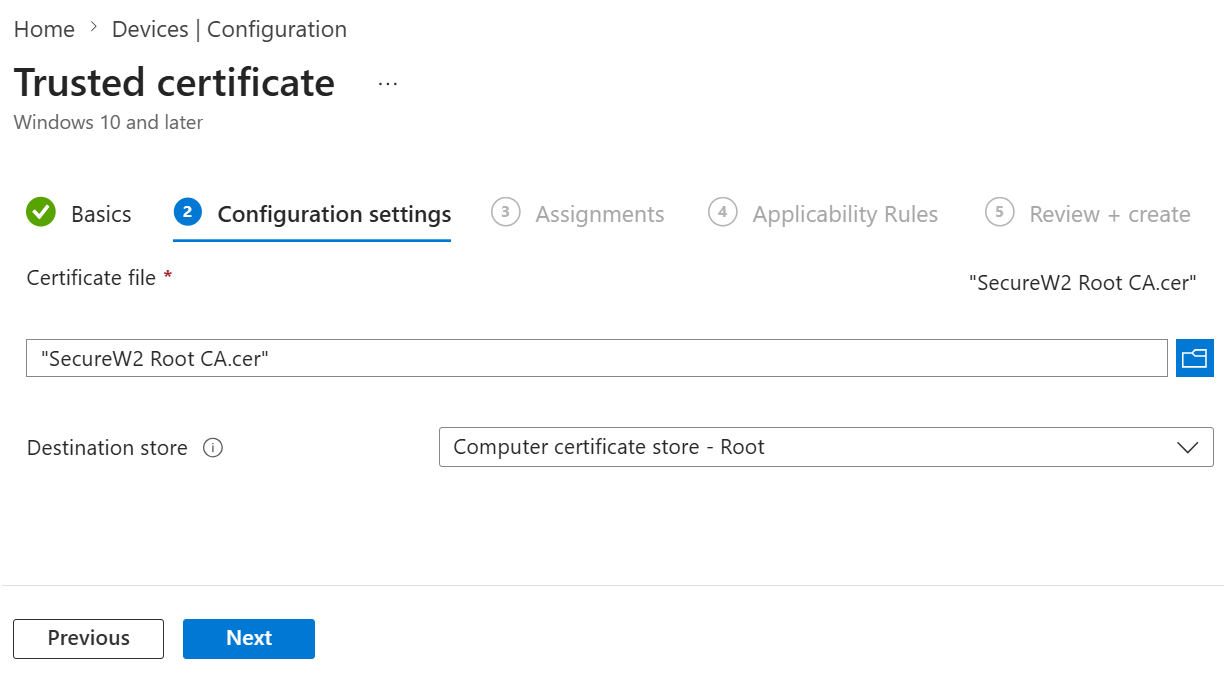
- On the Configuration settings tab, next to the Certificate file field, click the browse icon and upload the certificate that corresponds to the trusted profile you are creating. Refer to the table below to choose the correct file.
Trusted Profile mapped with Intermediate CA Trusted Profile mapped with Root CA Trusted Profile mapped with RADIUS Server Root CA Upload the Intermediate CA that you downloaded from the JoinNow portal in 6.1 Exporting the SecureW2 Root, Intermediate, and RADIUS CA From the Destination store drop-down list, select “Computer certificate store – Intermediate”
Upload the Root CA that you downloaded from the JoinNow portal in 6.1 Exporting the SecureW2 Root, Intermediate, and RADIUS CA From the Destination store drop-down, select “Computer certificate store – Root”
Upload the RADIUS Server Root CA downloaded from the JoinNow portal in 6.1.1 Exporting RADIUS Root CA From the Destination store drop-down, select “Computer certificate store – Root”
- Click Next.

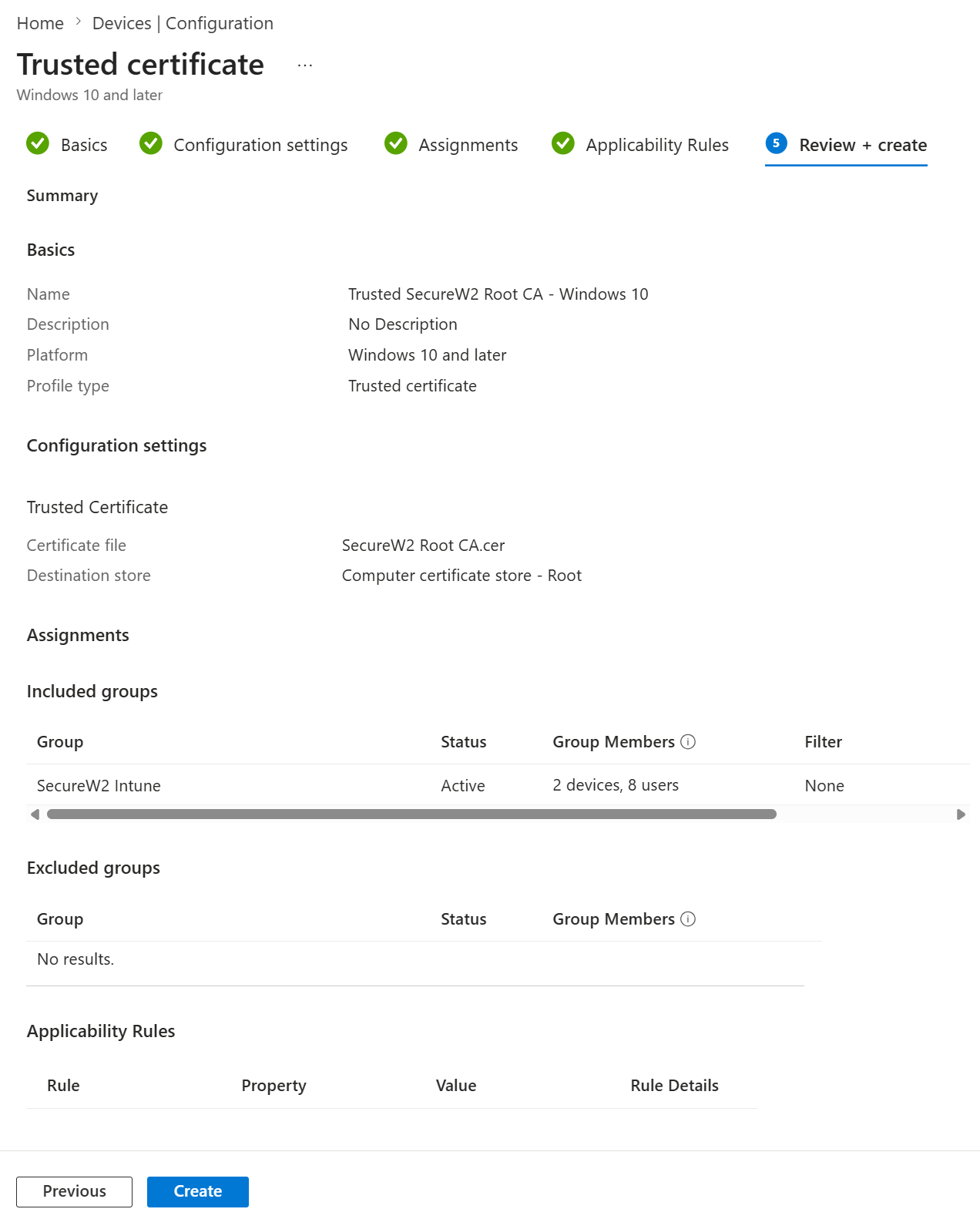
- On the Assignments tab, assign the profile to the appropriate groups. Configure any Applicability Rules if needed, review the profile on the Review + create tab, and click Create.

SCEP Profile for SecureW2 SCEP Certificate Requests
The SCEP profile is required for end-user devices to communicate with the SCEP Server—SecureW2 CloudConnector and request the enrollment of end-user certificates.
NOTE: You must create a separate profile for each OS platform. The steps to create trusted certificates are similar across device platforms.
For more information, see Configuring SCEP Profiles in Intune.
Creating a SCEP Certificate Profile
To create an SCEP certificate profile, perform the following steps:
- Log in to the Microsoft Intune admin center.
- Navigate to Devices > Manage devices > Configuration.
- Click Create and select New Policy.

- On the Create a profile page, in the Platform dropdown list, select the device platform on which the SCEP certificate will be deployed.NOTE: You must create a separate profile for each OS platform. The steps to create trusted certificates are similar across device platforms.
- From the Profile type drop-down list, select Templates and then select SCEP certificate.

- Click Create.
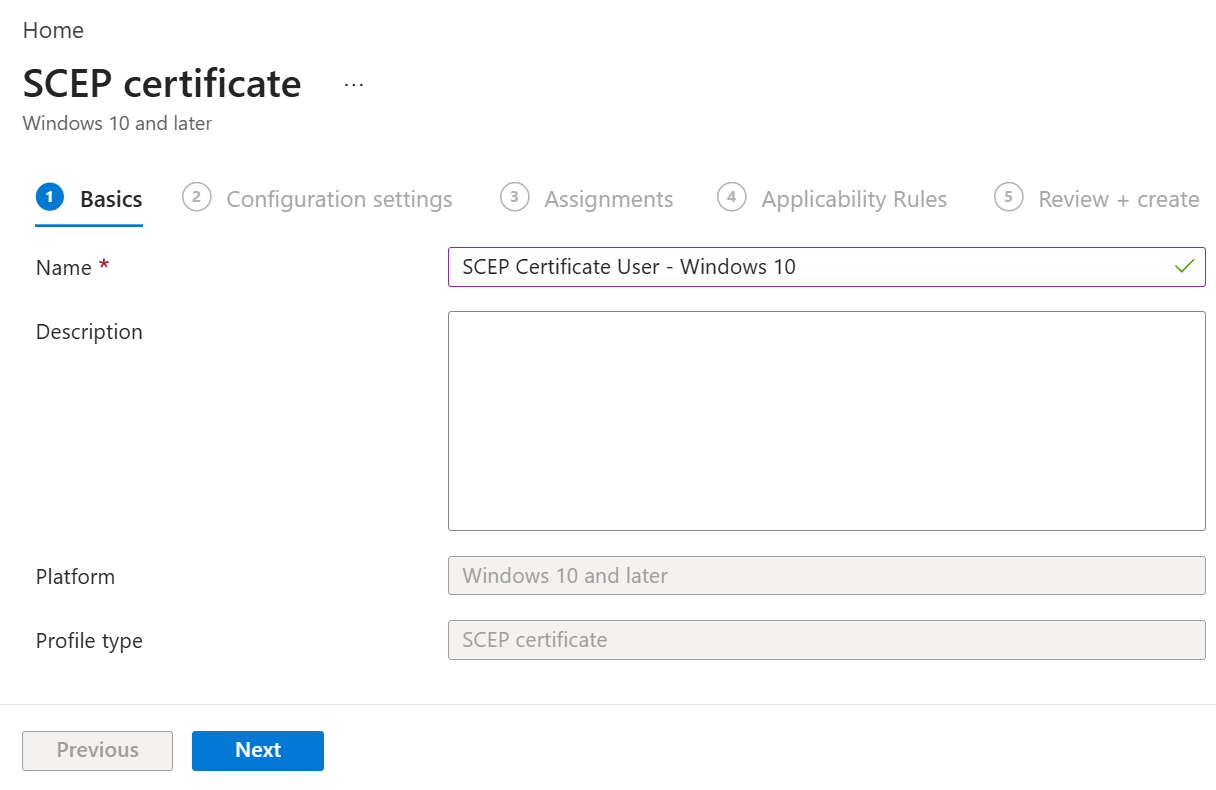
- On the SCEP certificate page, in the Basics section, enter a name for the SCEP certificate in the Name field.
- In the Description field, enter a suitable description for the SCEP certificate.

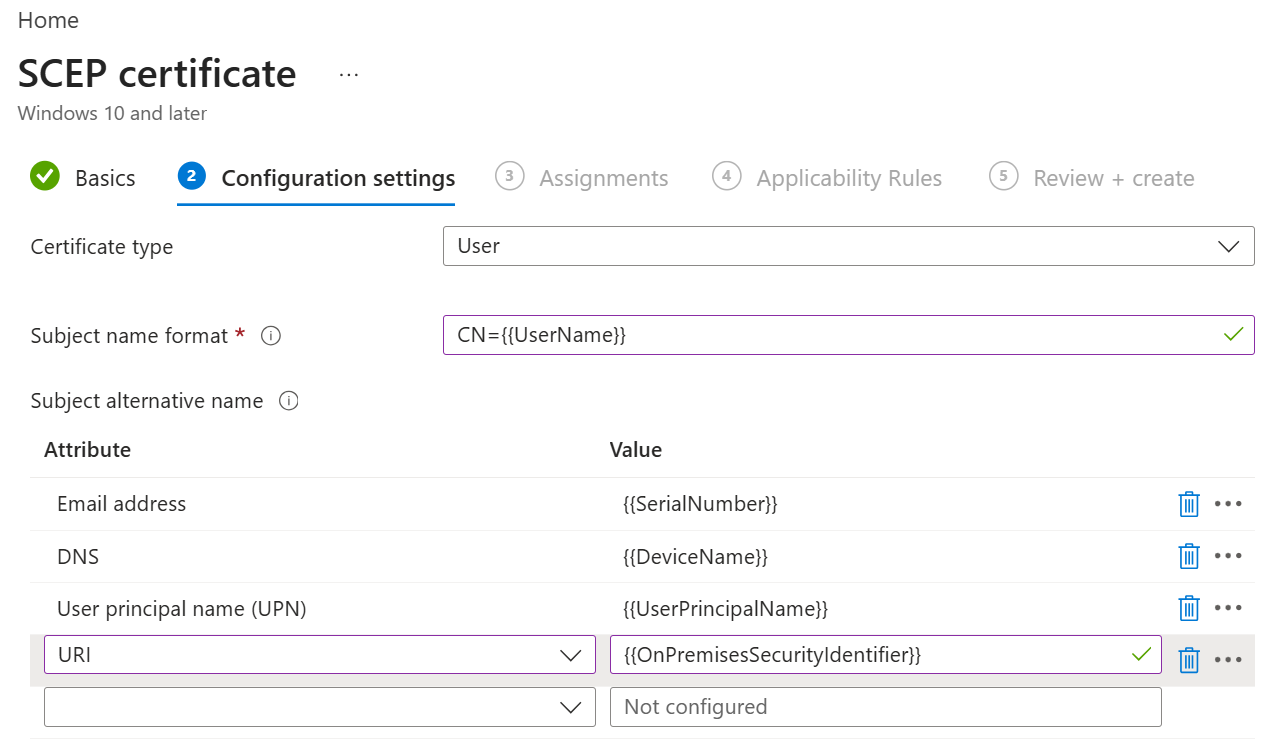
- Click Next. The Configurations settings tab opens. Two types of certificates can be issued to a client device.
- For Certificate Type – User

- For Certificate Type – Device
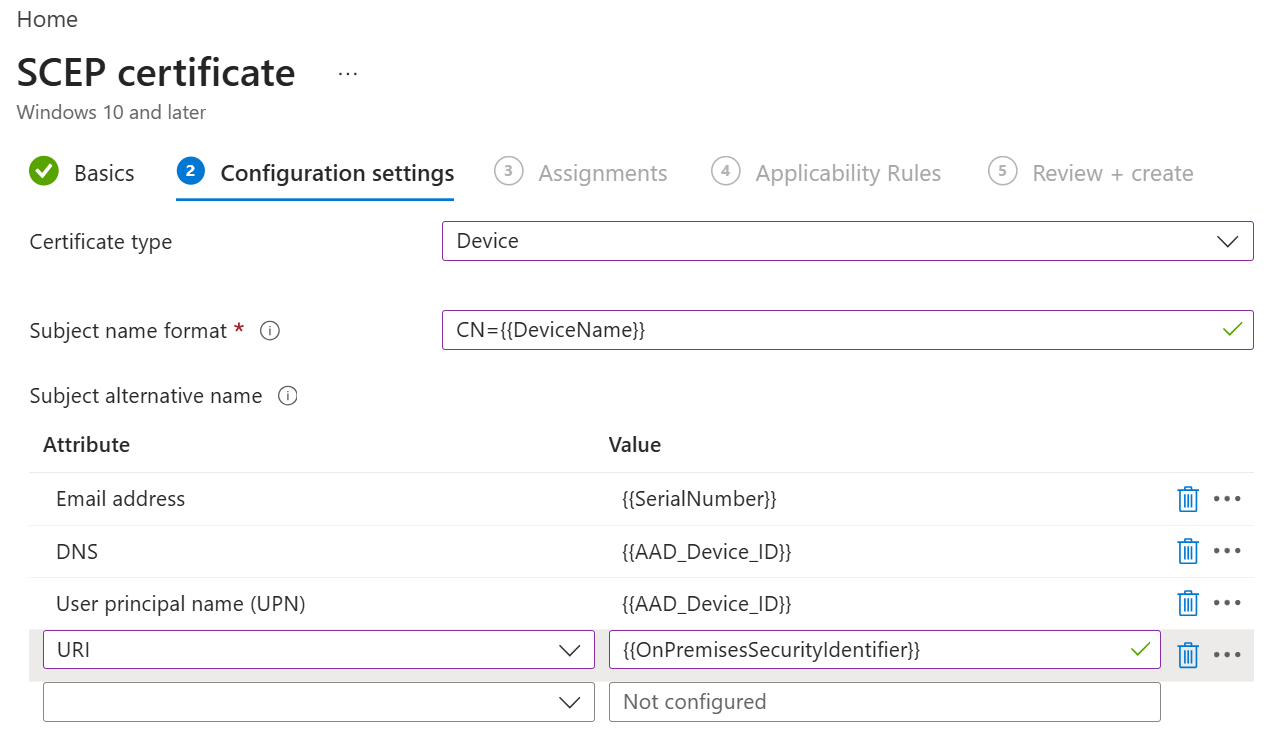
 The following tabular column shows the configuration values for the two SCEP profiles:
Field User Certificate Device Certificate Certificate type Select User Select Device Subject name format CN={{UserName}} CN={{DeviceName}} Subject alternative name Configure attributes with respective value: - For Email address, enter {{SerialNumber}}
- For DNS, enter {{DeviceName}}
- For User principal name, enter {{UserPrincipalName}}
- For URI, enter {{OnPremisesSecurityIdentifier}}
Configure attributes with respective value: - For Email address, enter {{SerialNumber}}
- For DNS, enter {{AAD_Device_ID}}
- For User principal name, enter {{AAD_Device_ID}}
- For URI, enter {{OnPremisesSecurityIdentifier}}
Certificate validity period Validity in number of Years Key storage provider (KSP) Select Enroll to Trusted Platform Module (TPM) KSP if present, otherwise Software KSP to store the certificate’s key. Key usage Select both the Key encipherment and Digital signature checkboxes to exchange the certificate’s public key. - Key encipherment: Allows key exchange only when the key is encrypted.
- Digital signature: Allows key exchange only when the key is protected by a digital signature.
Key size (bits) Select 2048 or 4096 as necessary. Hash algorithm Select SHA-2, the highest level of security supported by the connecting devices. 
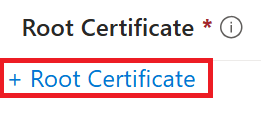
- Click + Root Certificate under the Root Certificate section.

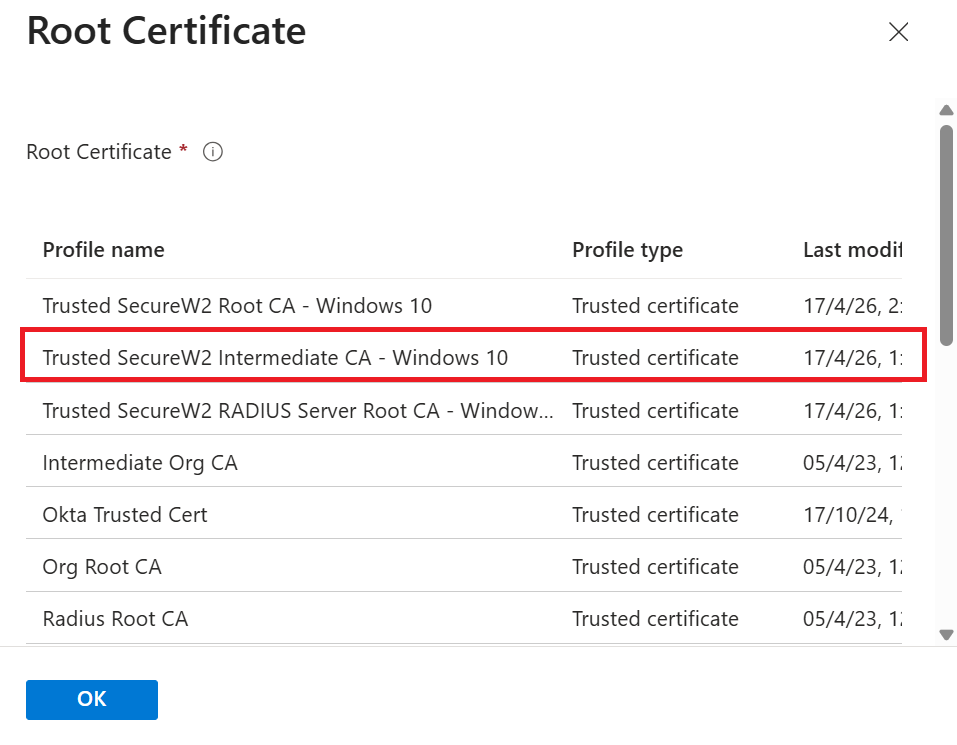
- In the Root Certificate pop-up window, select the Trusted SecureW2 Intermediate CA profile created in the Creating Trusted Certificate Profile – Root, Intermediate, and RADIUS Root CA.

- Click OK.
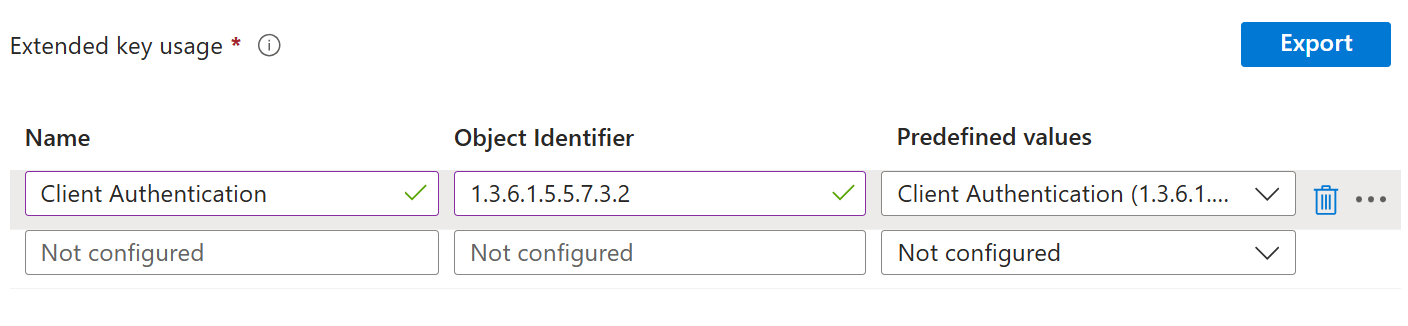
- Under Extended key usage, add values for the certificate’s intended purpose. In most cases, the certificate requires Client Authentication so the user can authenticate to a server.
- From the Predefined values drop-down list, select Client Authentication.

- From the Predefined values drop-down list, select Client Authentication.
- Under the Enrollment Settings section, in the Renewal Threshold (%) field, enter the remaining percentage of the certificate’s lifetime before the device requests renewal. The recommended value in Microsoft Intune is 20%.
- In the SCEP Server URLs field, enter the Endpoint URI generated in the JoinNow Management Portal (see the Creating a Device Management Platform section).

- Click Next.
- For Certificate Type – User
- On the Assignments tab, assign the profile to the appropriate groups. Configure any Applicability Rules if needed, review the profile on the Review + create tab, and click Create.
 The following tabular column shows the configuration values for the two SCEP profiles: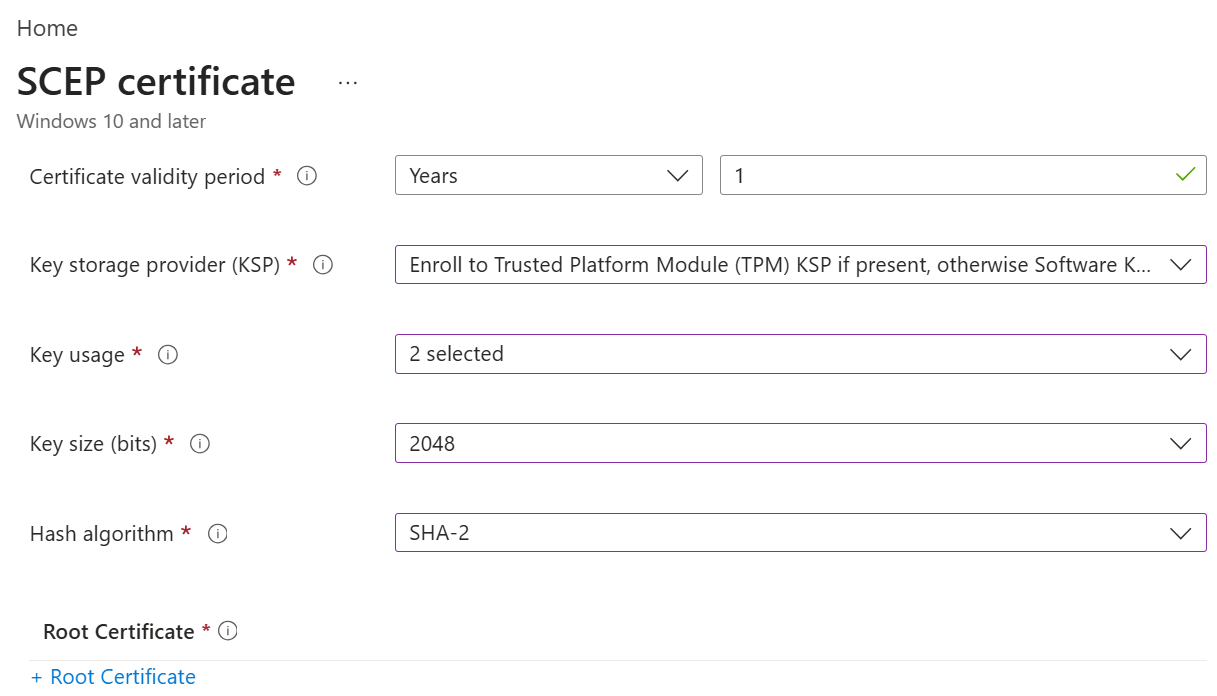
8. Wi-Fi Profile for Secure SSID Configuration
Microsoft Intune includes built-in Wi-Fi settings that you can deploy to users and devices in your organization. This group of settings is called a profile, which can be assigned to different users and groups. Once you assign users a profile, they can obtain access to the network without configuring it themselves.
8.1 Creating a Wi-Fi Profile
To create a Wi-Fi Profile, perform the following steps:
- Sign in to the Microsoft Endpoint Manager portal.
- Navigate to Devices > Configuration.
- Click Create and select New Policy.
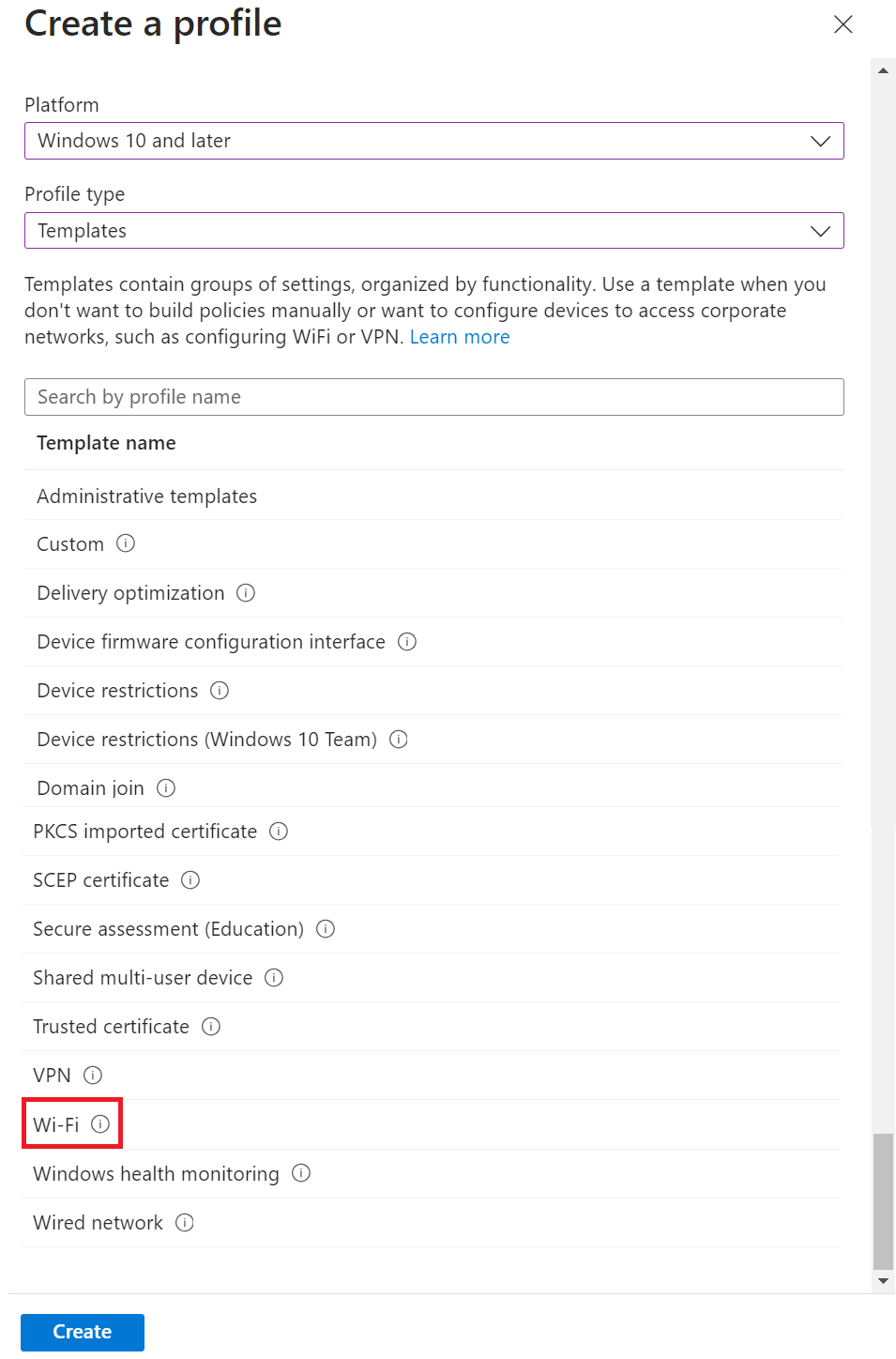
- On the Create a profile page, from the Platform drop-down list, select the device platform for this trusted certificate. The options are:
- Android device administrator
- Android (AOSP)
- Android Enterprise
- iOS/iPadOS
- macOS
- Windows 10 and later
- Windows 8.1 and later
NOTE: You must create a separate profile for each OS platform. The steps to create trusted certificates are similar for each device platform.
- From the Profile type drop-down list, select Templates and then select Wi-Fi.

- Click Create.
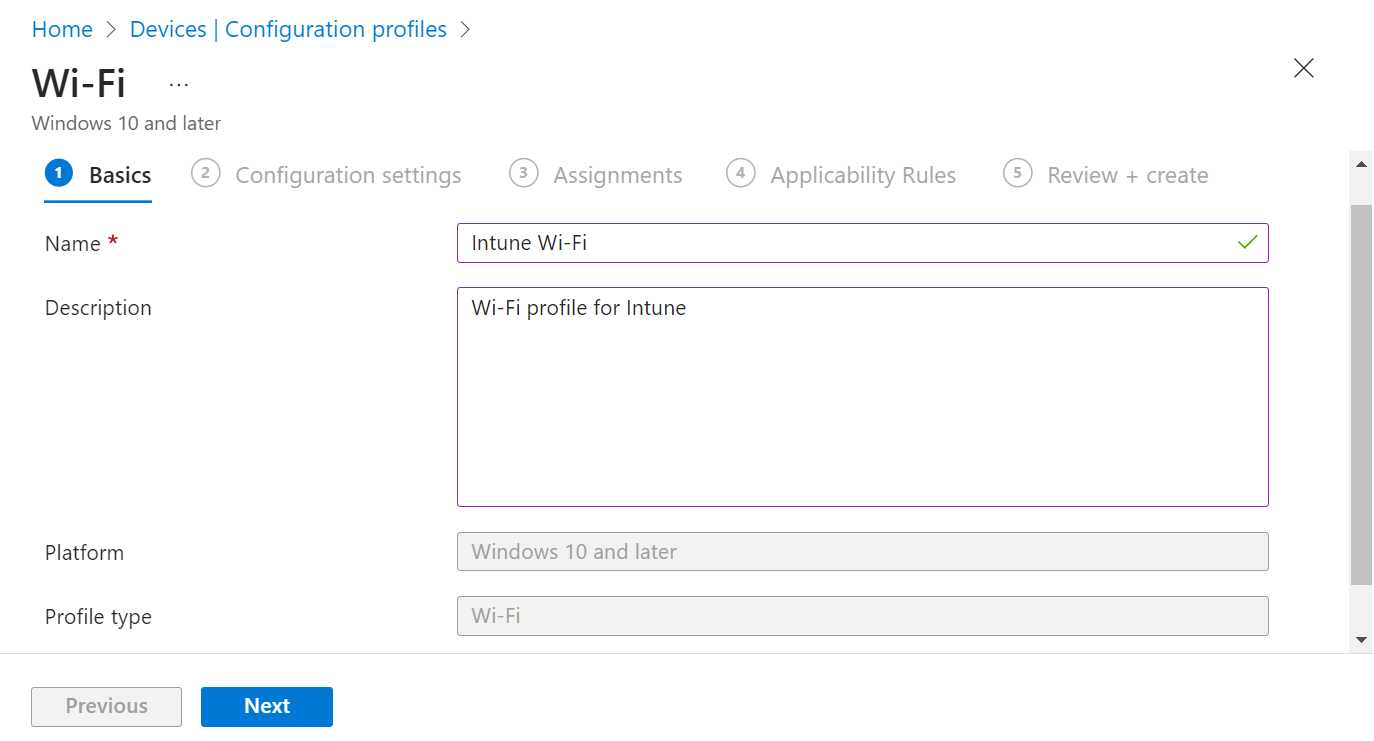
- On the Wi-Fi page, in the Basics section, enter the Wi-Fi’s name in the Name field.
- In the Description field, enter a suitable description for the Wi-Fi.

- Click Next.
- In the Configuration settings section, from the Wi-Fi type drop-down list, select any one of the following options:
- Basic
- Enterprise
- Configure your Wi-Fi settings and click Next.

- Assign the profile to the appropriate Groups and Rules, review it, and click Create.

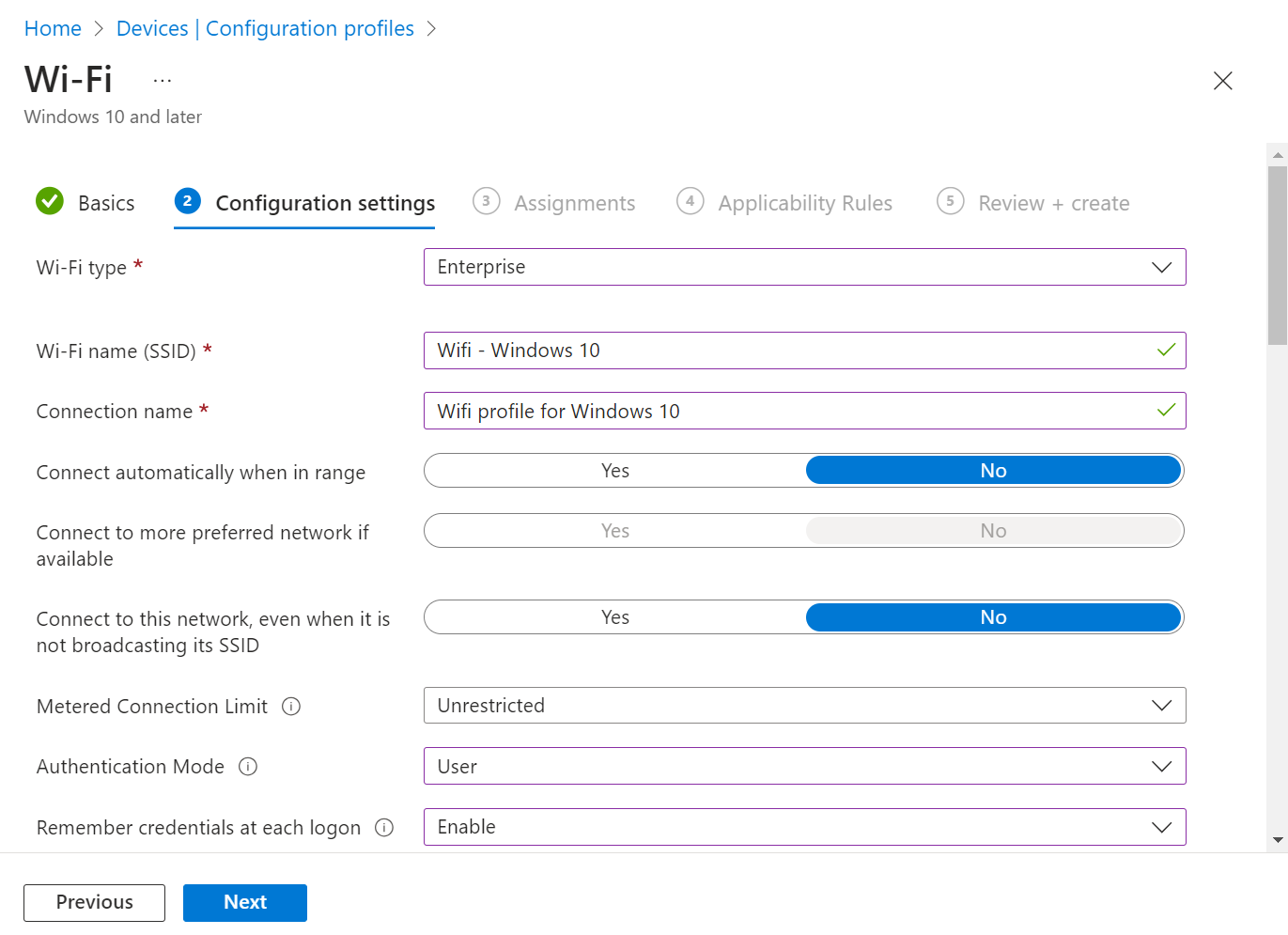
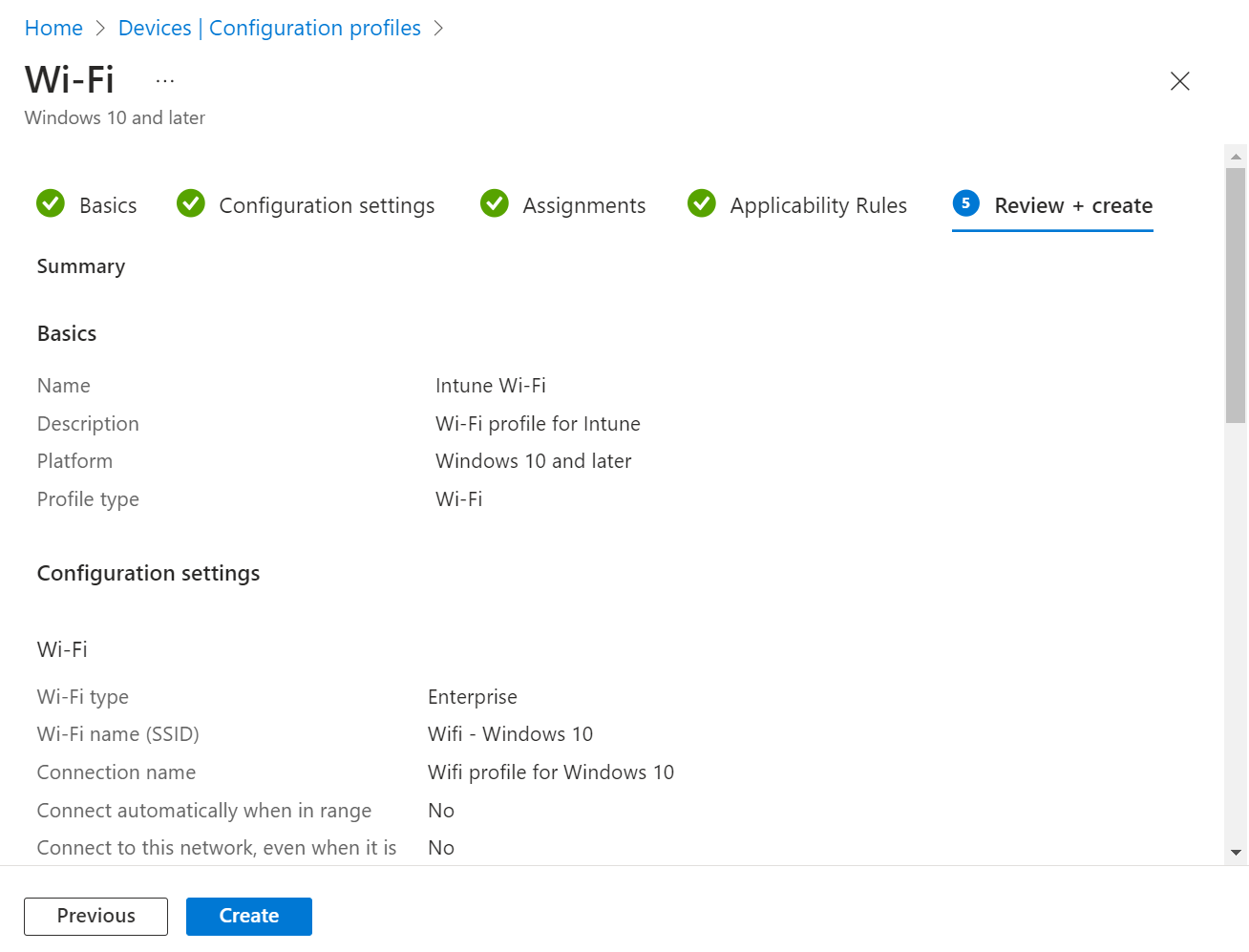
8.2 Assign a Device Profile
After creating a profile, you must specify the devices to which the profiles are to be pushed. To assign the devices, perform the following steps:
- Sign in to the Microsoft Endpoint Manager portal.
- Navigate to Devices > Configuration.
- Select the profile you want to assign a policy to users or groups.
- Scroll to the Assignments section and click the Edit link.

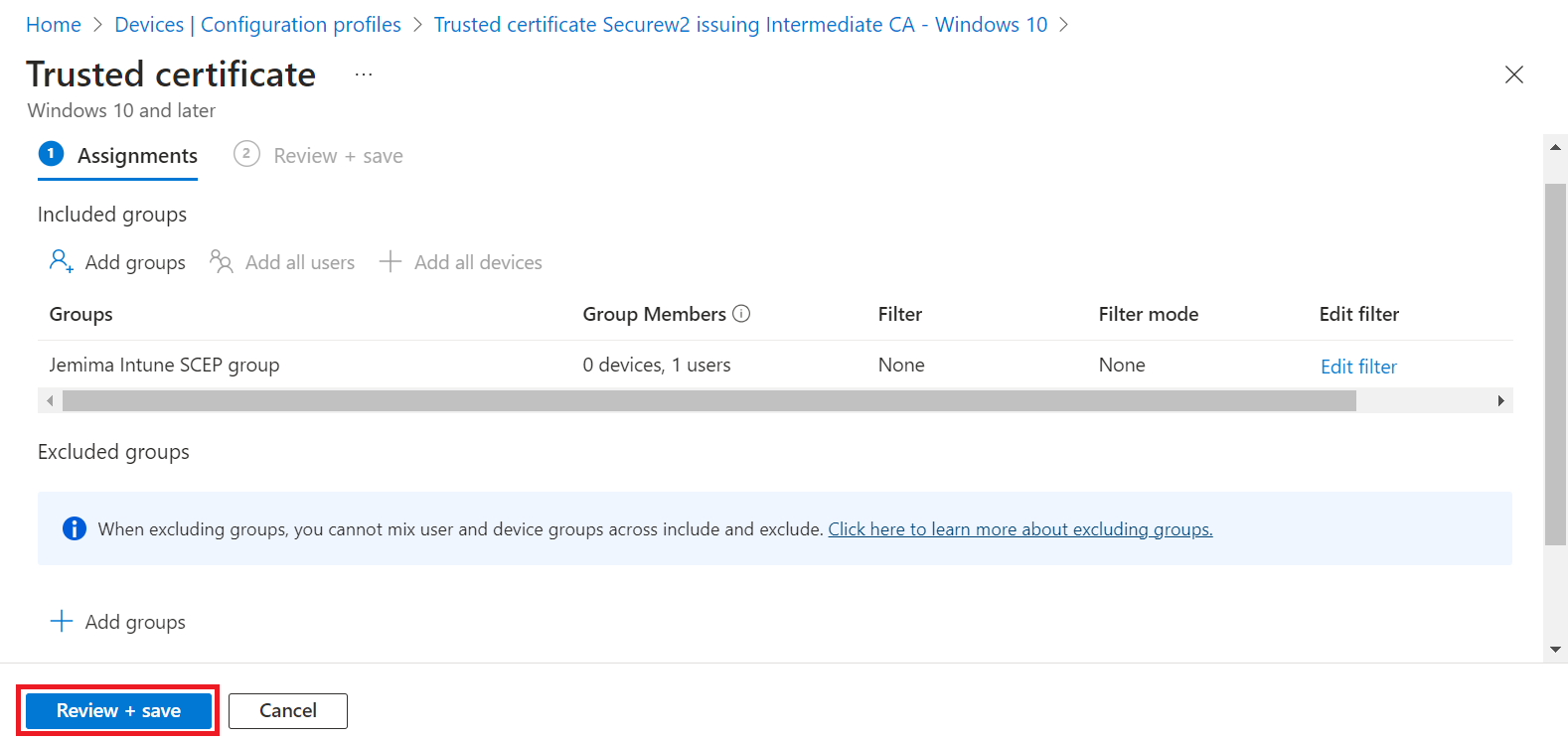
- Under the Included groups or Excluded groups section, click Add groups to add one or more Entra ID Groups. To apply the policy to all relevant devices, select Add all users or Add all devices.

NOTE: If you click Add all users or Add all devices, the Add groups option is disabled.
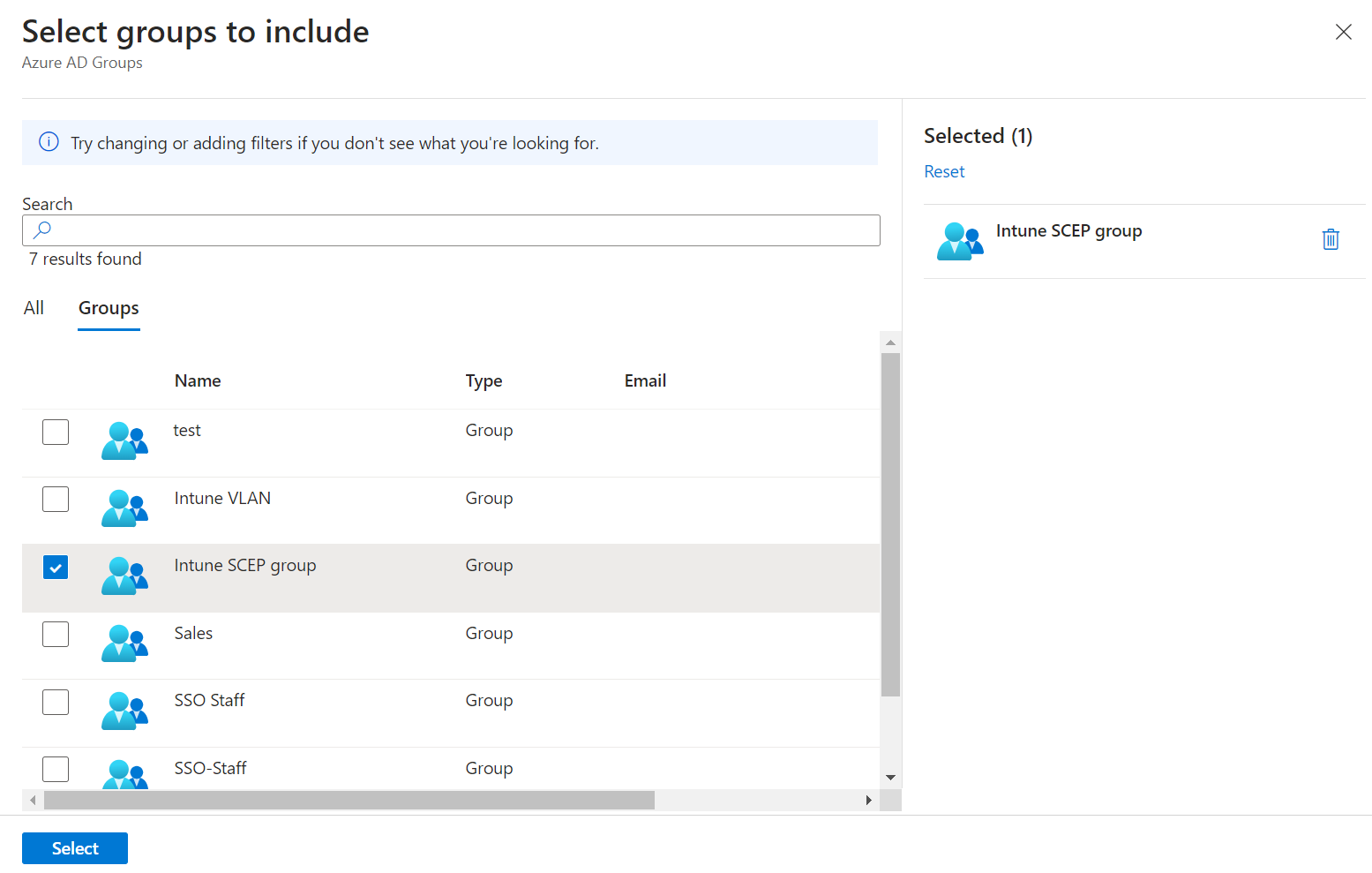
- On the Select groups to include page, select the Entra ID group to which the policy must be assigned and click Select to add the group.

- Click the Review + save button.

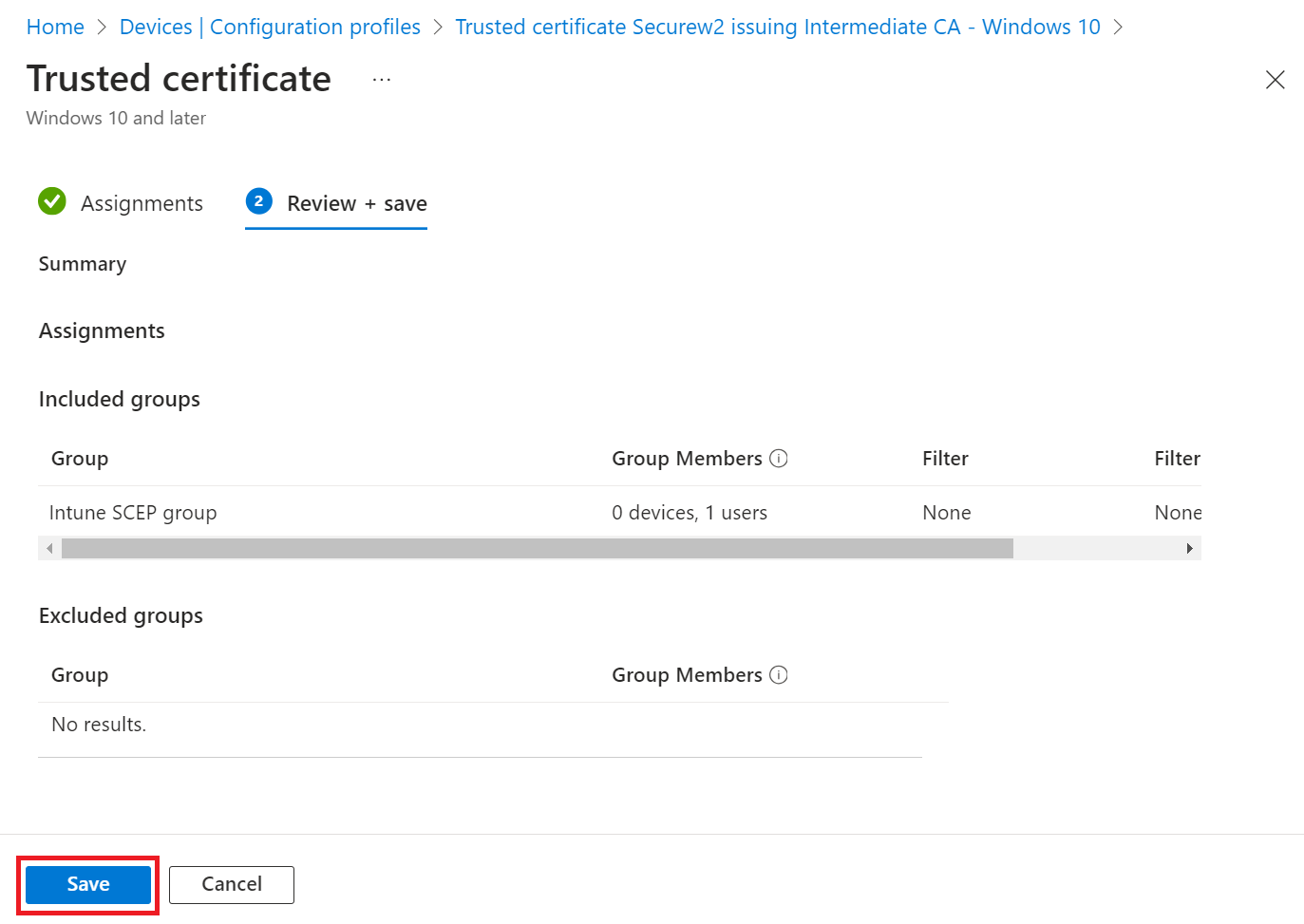
- Click Save.

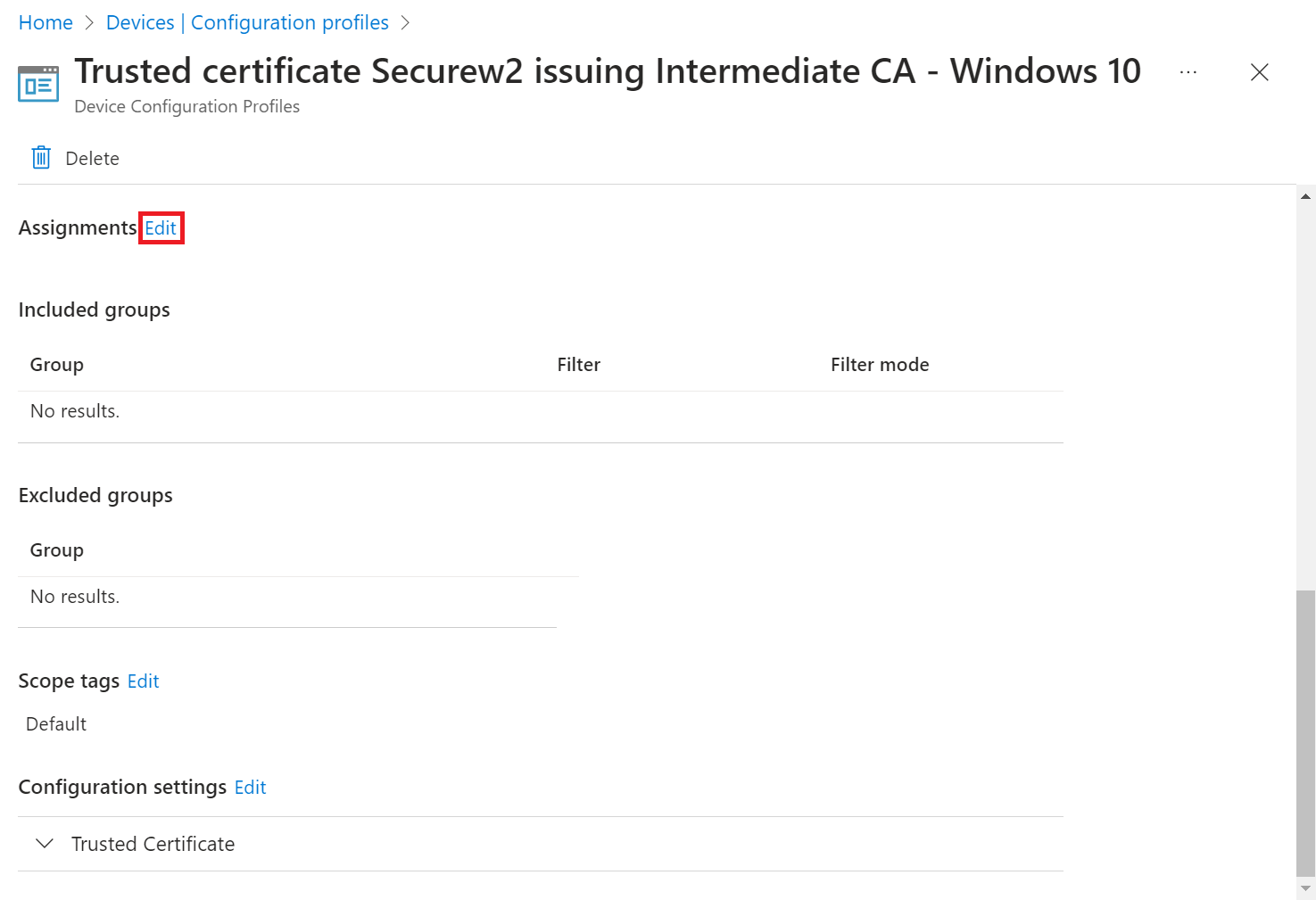
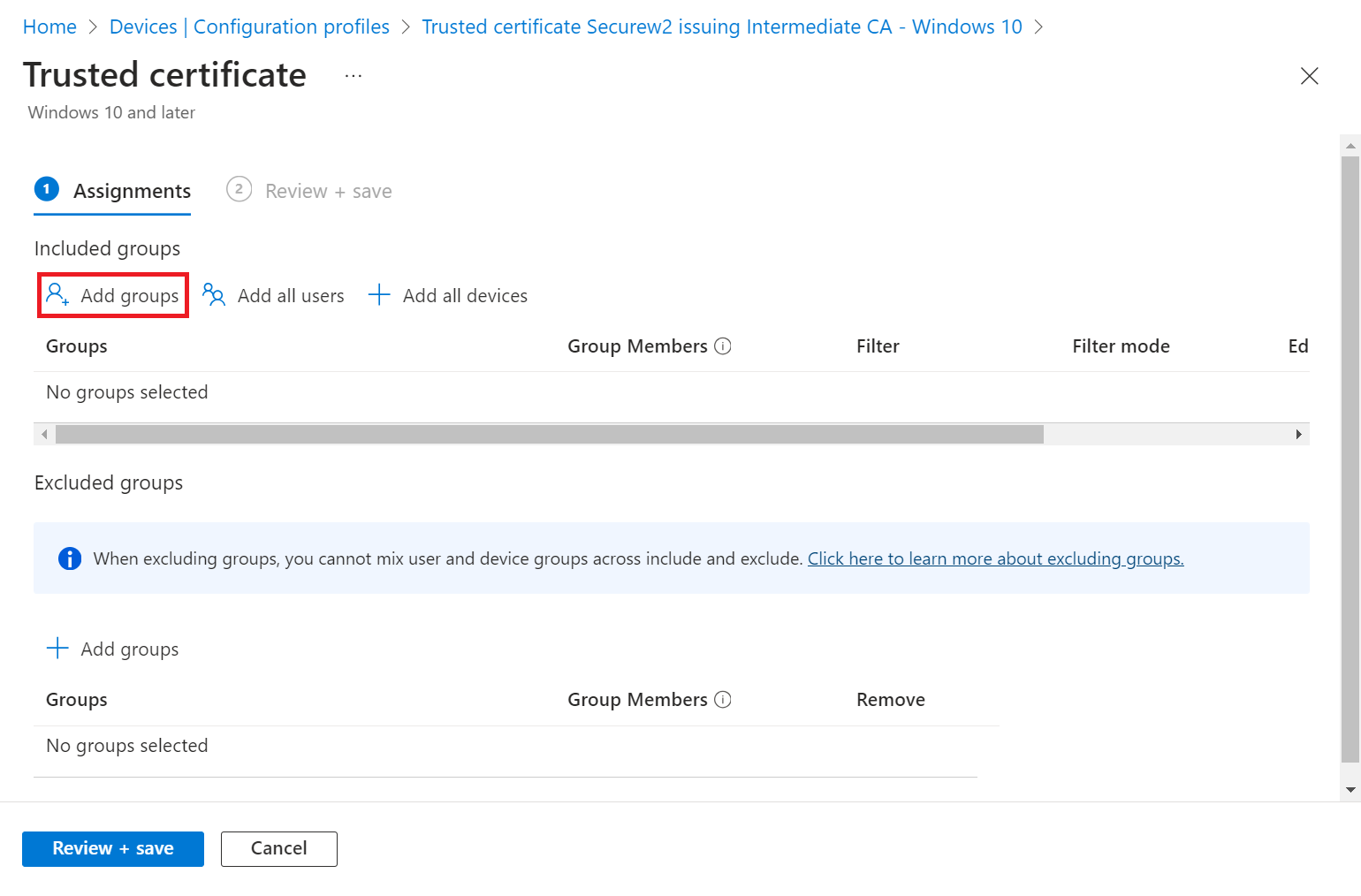
8.3 Add Wi-Fi Settings for Devices Running Android
You can create a profile with specific Wi-Fi settings, and then deploy this profile to your Android devices.
| Setting Name | Configuration Step |
| Wi-Fi type | Select Enterprise. |
| Network name | Enter a name for your reference. |
| SSID | This setting is the real name of the wireless network that devices connect to. |
| EAP type | Select the Extensible Authentication Protocol (EAP) type used to authenticate secured wireless connections. Select EAP-TLS.
|
NOTE: Retain the default values for the Connect automatically, Connect to this network and even when it is not broadcasting its SSID attributes.
After you have configured the Wi-Fi settings, select Next and then click Create. The profile is created and displayed in the profiles list.
8.4 Add Wi-Fi Settings for iOS Devices
You can create a profile with specific Wi-Fi settings, and then deploy the profile to your iOS devices.
| Setting Name | Configuration Step |
| Wi-Fi type | Select Enterprise. |
| Network name | Enter a user-friendly reference name for this Wi-Fi connection. |
| SSID | This setting is the real name of the wireless network that devices connect to. |
| EAP type | Select the Extensible Authentication Protocol (EAP) type used to authenticate secured wireless connections. Select EAP-TLS. |
| Server Trust – Certificate server names | Add one or more common names used on your RADIUS server certificates issued by your trusted CA. For the SecureW2 RADIUS, it is: radius01.securew2.com |
| Root certificate for server validation | Select an existing trusted Root certificate profile, created in the Creating a Trusted Certificate Profile – RADIUS Server Root CA Certificate section. This certificate is presented to the server when the client connects to the network and is used to authenticate the connection. Select OK to save your changes. |
| Client Authentication – Client certificate for client authentication (Identity certificate) | Select the SCEP client certificate profile created previously in the Creating a SCEP Certificate Profile section. This certificate is the identity presented by the device to the server to authenticate the connection. Select OK to save your changes. |
NOTE: Retain the default values for the Connect automatically, Connect to this network, even when it is not broadcasting its SSID, and Proxy settings attributes.
After you have configured the Wi-Fi settings, select Next and then click Create. The profile is created and displayed in the profiles list.
8.5 Add Wi-Fi Settings for macOS Devices
You can create a profile with specific Wi-Fi settings, and then deploy this profile to your macOS devices.
| Setting Name | Configuration Step |
| Wi-Fi type | Select Enterprise. |
| Network name | Enter a user-friendly reference name for this Wi-Fi connection. |
| SSID | This setting is the real name of the wireless network that devices connect to. |
| EAP type | Select the Extensible Authentication Protocol (EAP) type used to authenticate secured wireless connections. Select EAP-TLS. |
| Server Trust – Certificate server names | Add one or more common names used on your RADIUS server certificates issued by your trusted CA. For the SecureW2 RADIUS, it is: radius01.securew2.com |
| Root certificate for server validation | Select an existing trusted Root certificate profile, created in the Creating a Trusted Certificate Profile – RADIUS Server Root CA Certificate section. This certificate is presented to the server when the client connects to the network and is used to authenticate the connection. Select OK to save your changes. |
| Client Authentication – Client certificate for client authentication (Identity certificate) | Select the SCEP client certificate profile created previously in the Creating a SCEP Certificate Profile section. This certificate is the identity presented by the device to the server to authenticate the connection. Select OK to save your changes. |
NOTE: Retain the default values for the Connect automatically when in range, Connect to this network, even when it is not broadcasting its SSID, and Company Proxy settings attributes.
After you have configured the Wi-Fi settings, select Next and then click Create. The profile is created and displayed in the profiles list.
8.6 Add Wi-Fi Settings for Windows 10 and Later Devices
You can create a profile with specific Wi-Fi settings, and then deploy this profile to your Windows 10 and later devices.
| Setting Name | Configuration Step |
| Wi-Fi type | Select Enterprise. |
| Wi-Fi name (SSID) | This value is the real name of the wireless network that devices connect to. |
| Connection name | Enter a user-friendly reference name for this Wi-Fi connection. |
| EAP type | Select the Extensible Authentication Protocol (EAP) type used to authenticate secured wireless connections. Select EAP-TLS.
|
After you have configured the Wi-Fi settings, click Next and then Create. The profile is created and displayed in the profiles list.
NOTE: Retain the default values for the Connect automatically when in range, Metered Connection Limit, Single sign-on (SSO), Enable Pairwise Master Key (PMK) caching, Enable pre-authentication, and Company proxy settings attributes.
9. Troubleshooting
This section lists the common issues and the steps to resolve them. Common issues that you may encounter after the configuration is done:
- Certificate fails to enroll.
- Connection to the secure SSID fails.
- Error messages are displayed:
- The “Device Creation Failed” error message is displayed on the Events page (Log in to the JoinNow Management Portal, navigate to Data and Monitoring > General Events).
- The “SCEP enrollment failed” error message is displayed in the Intune portal.
- Users not assigned to the application in Microsoft Intune.
To resolve them:
- Check if the attributes have values and are mapped correctly. For more information, see the Creating an Intermediate CA for Intune SCEP Gateway Integration section.
- Make sure that the SCEP profile (in the Intune Portal) is configured to send values in the SAN attribute using the Email address (RFC822). The common attributes configured are DeviceName and AAD_Device_ID. For more information, see the Creating an Intermediate CA for Intune SCEP Gateway Integration section.
- Confirm if the User Role Policy is mapped to the Intune API Token as identity Provider and similarly ensure that the Enrollment Policy is mapped to the User Role and default Device Role. For more information, see the Configuring a Policy Workflow section.
- Ensure that the SCEP profile is configured accurately. For more information, see the Creating an Intermediate CA for Intune SCEP Gateway Integration section.
- Check if the RADIUS server certificate’s Trusted Root CA is mapped in the Wi-Fi profile. For more information, see the Creating a Wi-Fi Profile section.
- Remove the SCEP profile and push any other profile, like the Trusted Root CA profile, to confirm if the user is successful with the configuration. For more information, see the Exporting the Trusted RADIUS Server Root CA Certificate section.
- An administrator manually adds the users to Microsoft Intune via Microsoft 365 admin center or the Microsoft Intune admin center and assigns the license to the user accounts. For more information, see: Add users and grant administrative permission to Intune