This section describes the steps to integrate the CloudRADIUS server with FortiGate for WiFi authentication.
To set up a CloudRADIUS server:
- Log in to FortiGate.
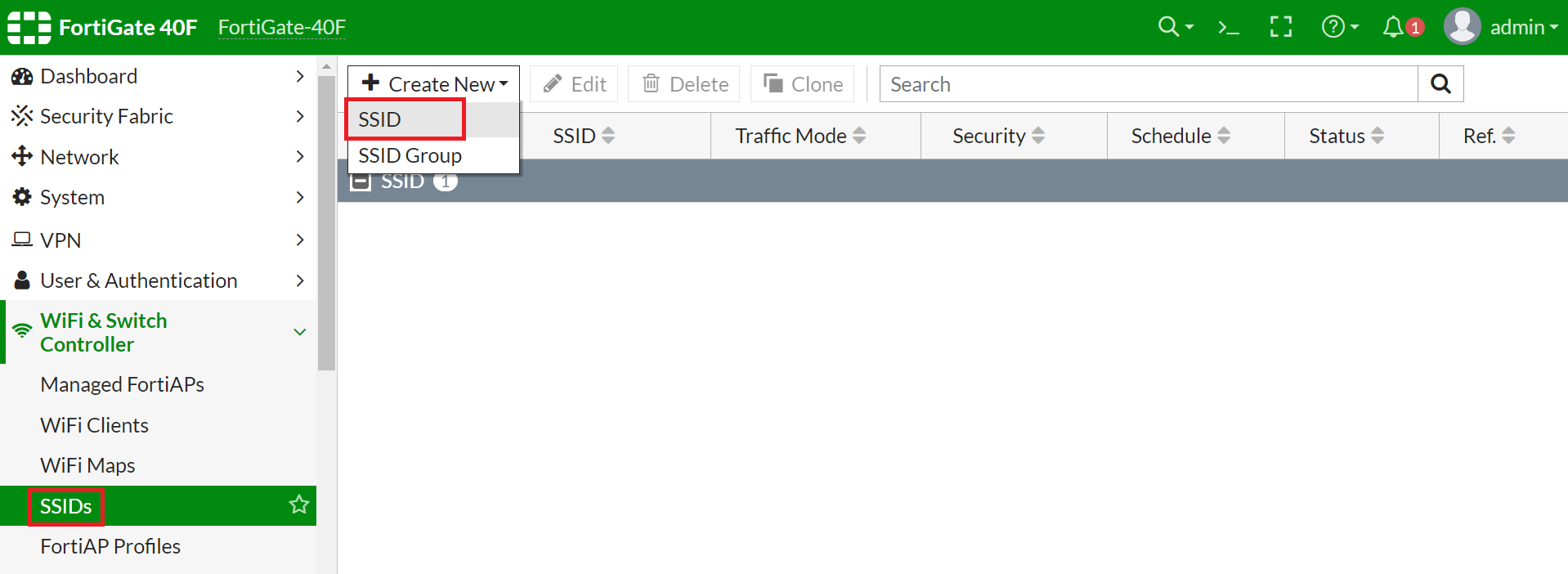
- Navigate to WiFi & Switch Controller > SSIDs.
- From the Create New drop-down menu, select SSID.
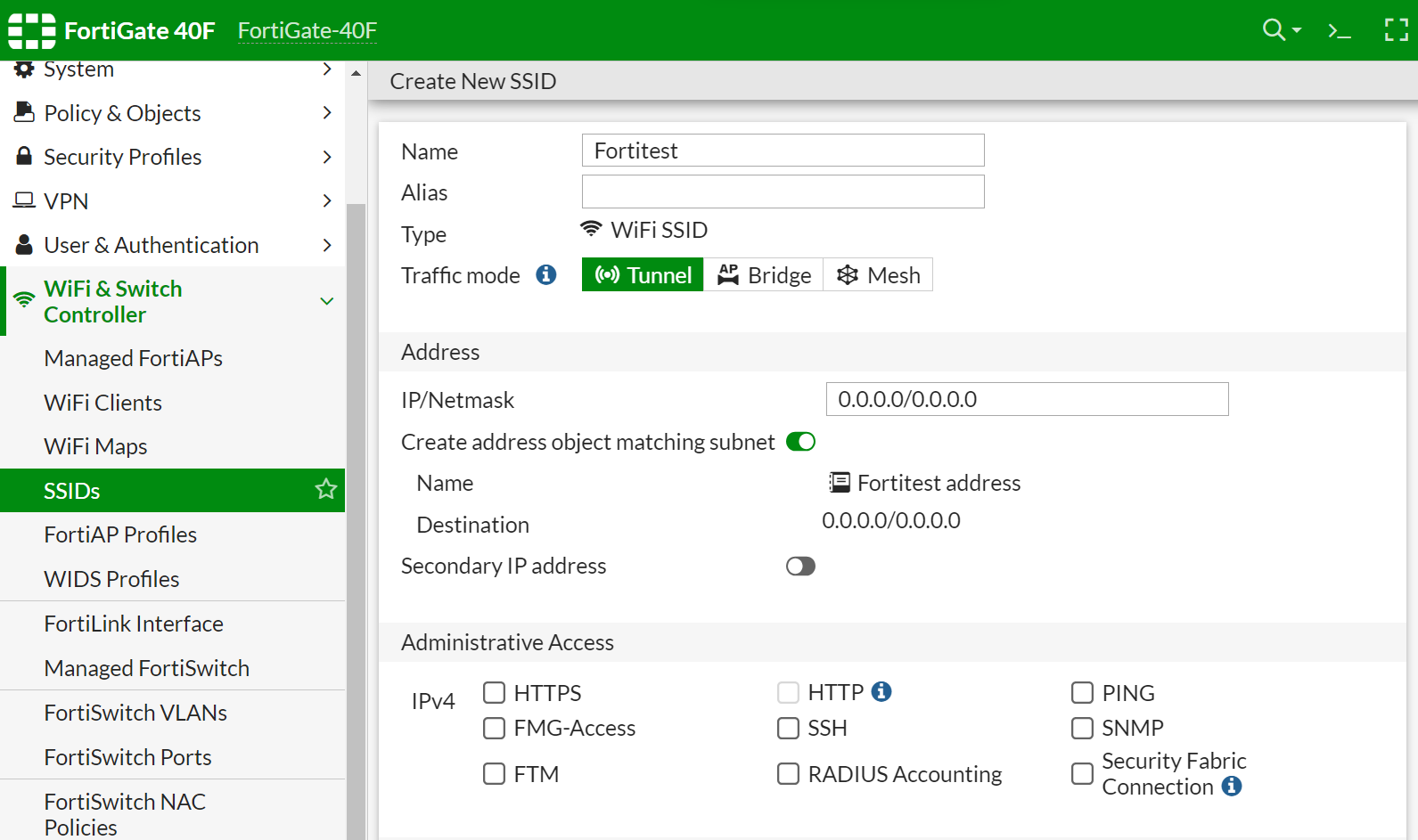
- On the Create New SSID screen, in the Name field, enter the name of the SSID.
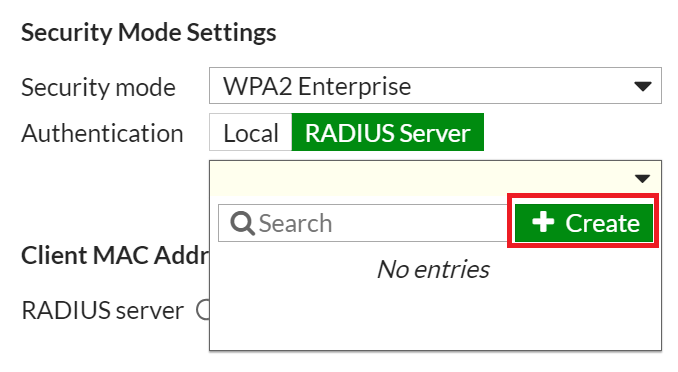
- Under WiFi Settings, in the Security Mode Settings section, from the Security mode drop-down list, select WPA2 Enterprise.
- In the Authentication field, enable the RADIUS Server option.
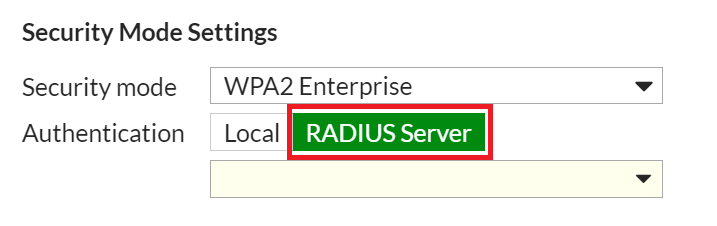
- From the drop-down list, click Create.
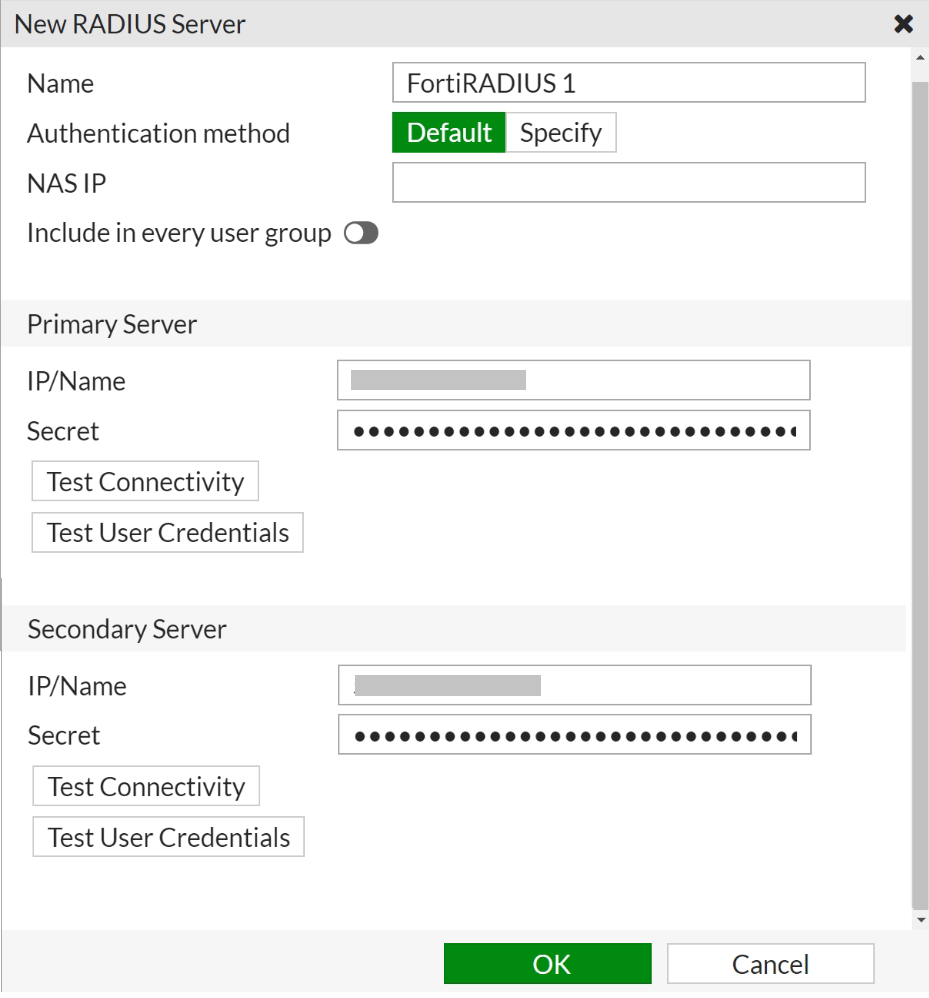
- On the New RADIUS Server screen, in the Name field, enter the name of the RADIUS server.
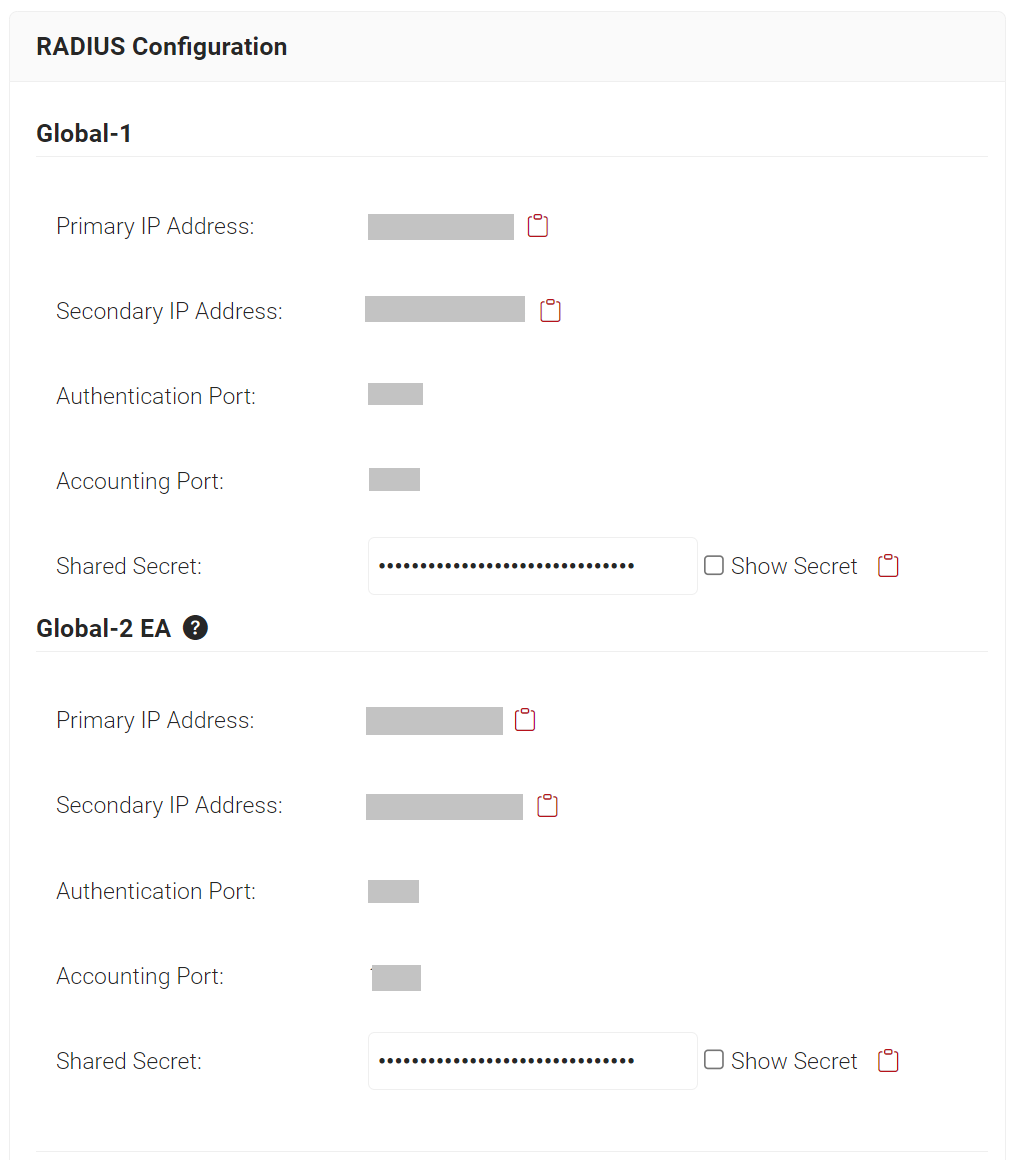
- Log in to the JoinNow Management Portal, and navigate to RADIUS > RADIUS Configuration.
- Copy the Primary IP Address, Secondary IP Address, and Shared Secret values from Global-1 to your console.
- In the Primary Server section, enter the Primary IP Address and Shared Secret values, obtained from Global-1 (in the JoinNow Management Portal), in the IP/Name and Secret fields respectively.
- In the Secondary Server section, enter the Secondary IP Address and Shared Secret values, obtained from Global-1 (in the JoinNow Management Portal), in the IP/Name and Secret fields respectively.
- If the customer has a subscription for Global -2 EA, the Primary IP Address or the Secondary IP Address, and Shared Secret values (in the JoinNow Management Portal) can be used to configure the Secondary Server in the FortiGate Controller for higher availability.
- Click OK.
- The FortiGate controller’s default RADIUS port number is 1812. CloudRADIUS assigns each Customer a unique port number which can be obtained from the JoinNow Management portal under RADIUS > RADIUS Configuration > Authentication Port. This port number should be configured in the FortiGate Controller to change the default port number.
- To modify the default RADIUS port on the FortiGate controller with the CloudRADIUS port number, use the Command-Line Interface (CLI) to change the RADIUS port number on your FortiGate. Run the following command:
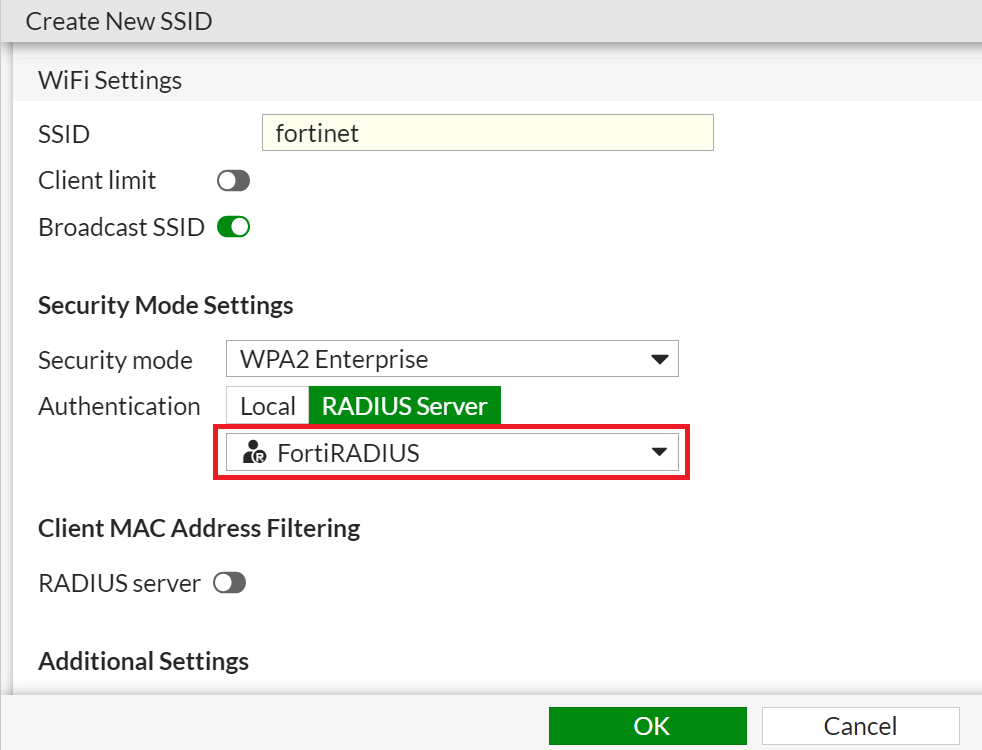
NOTE: Configuring the CloudRADIUS port number on the FortiGate controller is a global change.config system global set radius-port <port number> end - From the Authentication drop-down list, select the RADIUS server created earlier.
- Click OK.
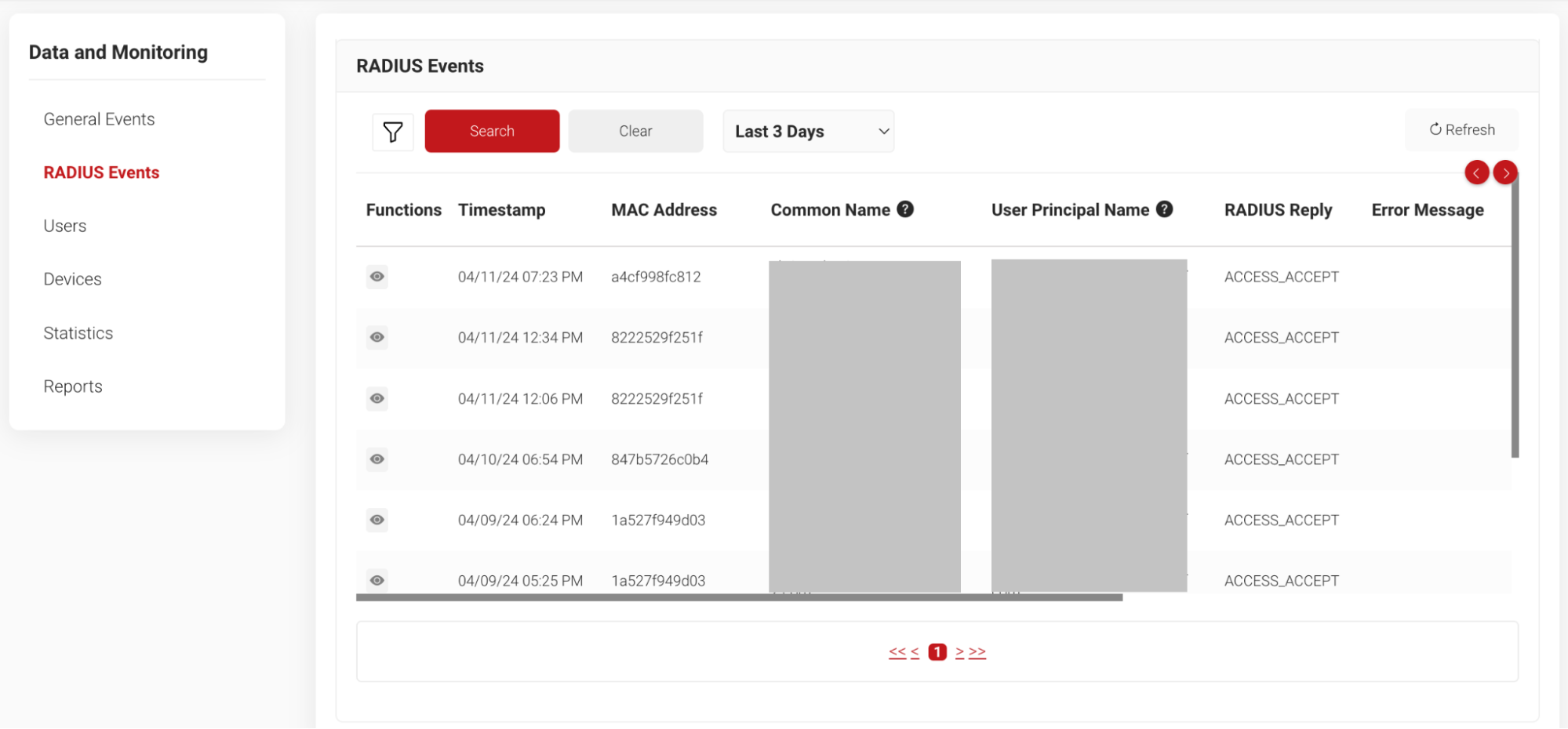
With the above successful configuration, the setup is ready for RADIUS authentication. The RADIUS authentication requests from the devices are logged on the RADIUS Events section of the JoinNow Management Portal. To access the RADIUS Events page, log in to the JoinNow Management Portal and navigate to Data and Monitoring > RADIUS Events.