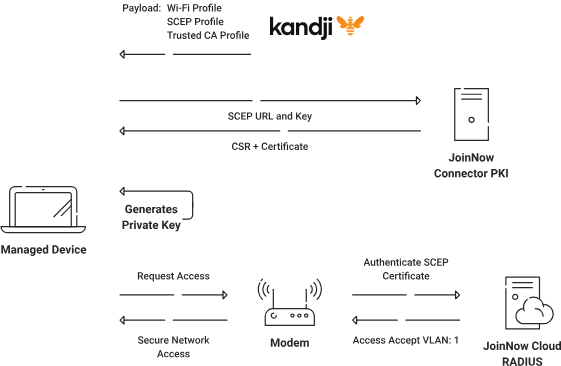
MDMs can use the Simple Certificate Enrollment Protocol (SCEP) to automate the certificate life cycle for Managed devices. This saves administrators time compared to manually enrolling managed devices for certificates.
Kandji (Iru) is an MDM platform that supports Apple devices, including macOS, iOS, iPadOS, and tvOS. It also supports security and productive global work with the help of an advanced automation system. When it comes to certificate enrollment with SCEP, Kandji provides the SCEP URL and key, which the device can use to request a certificate from the PKI.
In this document, we will show you how to configure the SecureW2 SCEP Gateway API to auto-enroll Kandji-managed devices for certificates and configure the user device for Certificate-Based Wi-Fi authentication.
As a best practice, SecureW2 recommends creating a new intermediate CA for each SCEP Gateway API we create. Using a separate CA makes it easier to manage certificates and enables us to generate enrollment and network policies based on the issuing CA.
To create a new intermediate CA:
- Log in to the JoinNow Management Portal.
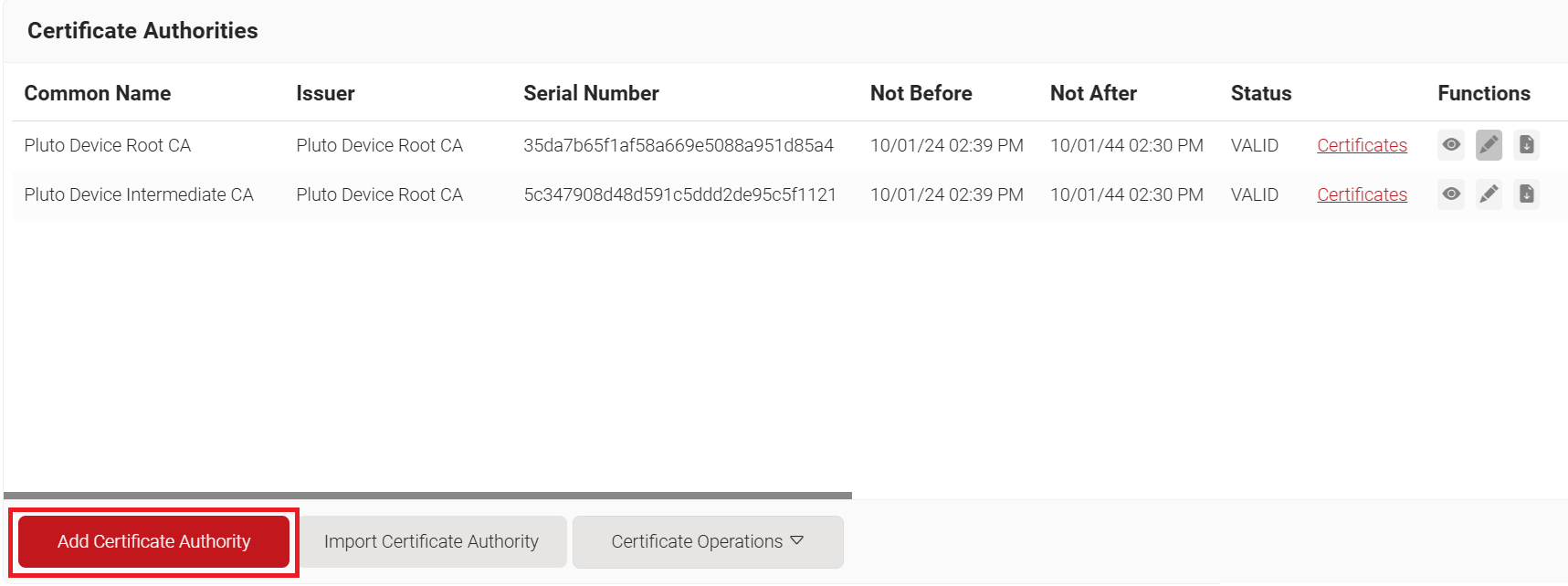
- Navigate to Dynamic PKI > Certificate Authorities.
- Click Add Certificate Authority.

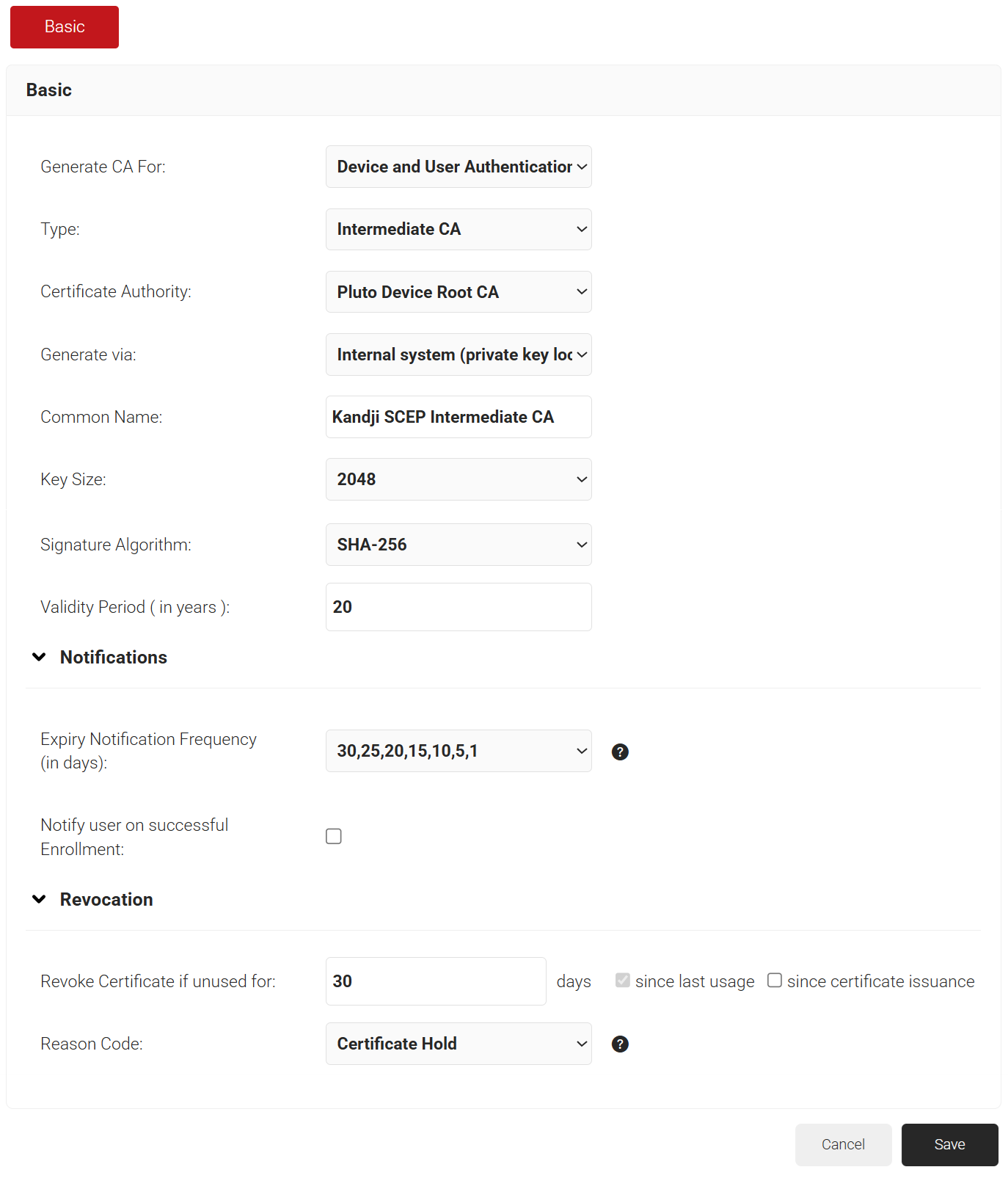
- In the Basic section, from the Generate CA For drop-down list, select Device and User Authentication to authenticate devices and users.
- From the Type drop-down list, select Intermediate CA.
- From the Certificate Authority drop-down list, select the default Root CA that comes with your organization.
- In the Common Name field, enter a common name for the CA certificate. SecureW2 recommends a name that includes “SCEP.”
- From the Key Size drop-down list, select 2048 for the CA certificate key pair.
- From the Signature Algorithm drop-down list, select the signature algorithm for the certificate signing request. The option available is SHA-256.
- In the Validity Period (in years) field, enter the validity period of the CA certificate.
- In the Notifications section:
- From the Expiry Notification Frequency (in days) drop-down list, select the frequency interval for which a certificate expiration notification should be sent to users.
- Select the Notify user on successful Enrollment check box to notify users after a successful enrollment.
- In the Revocation section:
- In the Revoke Certificate if unused for field, select the number of days after which an unused certificate can be revoked.
- Since last usage – Select this checkbox to revoke the certificate after a specified number of days if it remains unused.
- Since certificate issuance – Select this checkbox to revoke the certificate after a specified number of days after it is issued.
- From the Reason Code drop-down list, select any one of the following reasons for which the certificate is revoked.
- Certificate Hold
- AA Compromise
- Privilege Withdrawn
- Unspecified
- In the Revoke Certificate if unused for field, select the number of days after which an unused certificate can be revoked.
- Click Save. The new intermediate CA is generated.

The steps are to be followed for creating a Kandji Certificate Template to configure with EAP-TLS Authentication:
- Navigate to Dynamic PKI > Certificate Authorities.
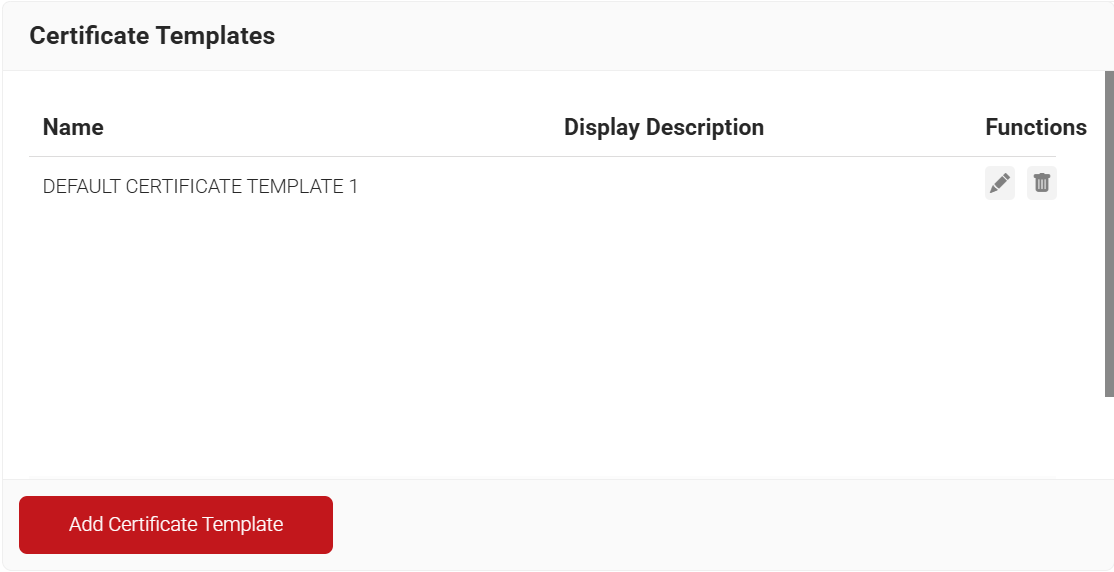
- Scroll down to the Certificate Templates section.
- Click Add Certificate Template.

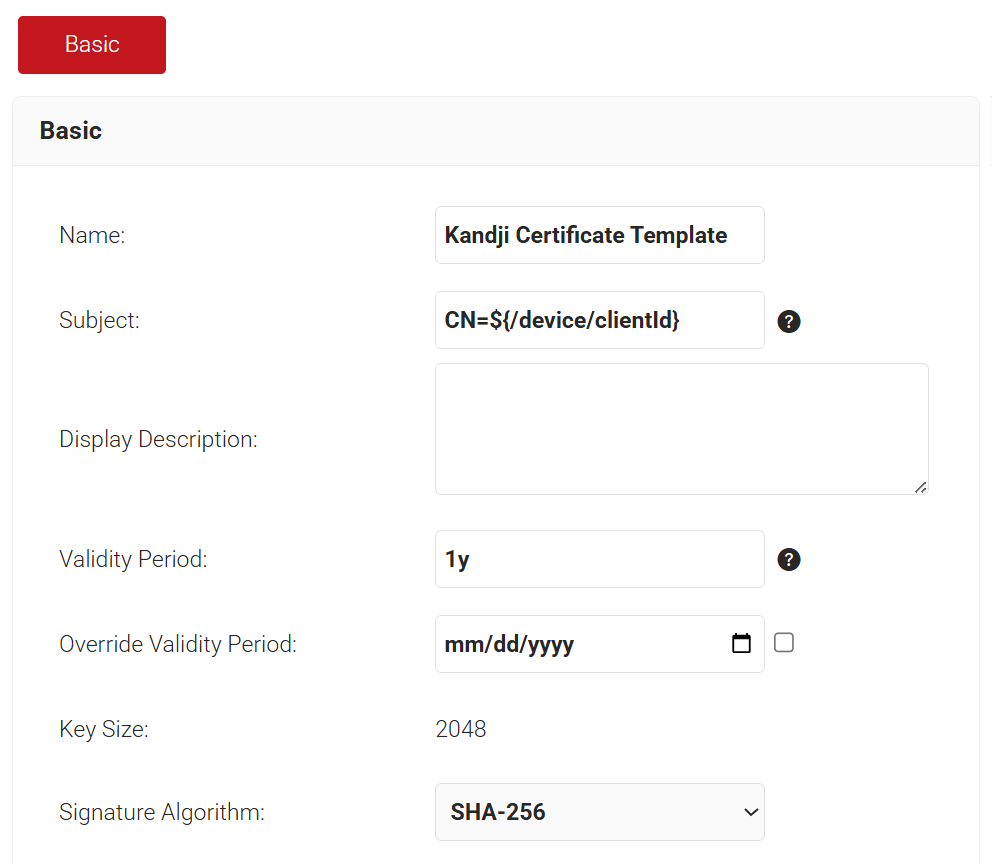
- In the Basic section, enter the name of the certificate template in the Name field.
- In the Subject field, enter CN=${/device/clientId}
- In the Display Description field, enter a suitable description for the certificate template.
- In the Validity Period field, type the validity period of the certificate (based on the requirement).
- From the Signature Algorithm drop-down list, select the signature algorithm for the certificate signing request. The option available is SHA-256.

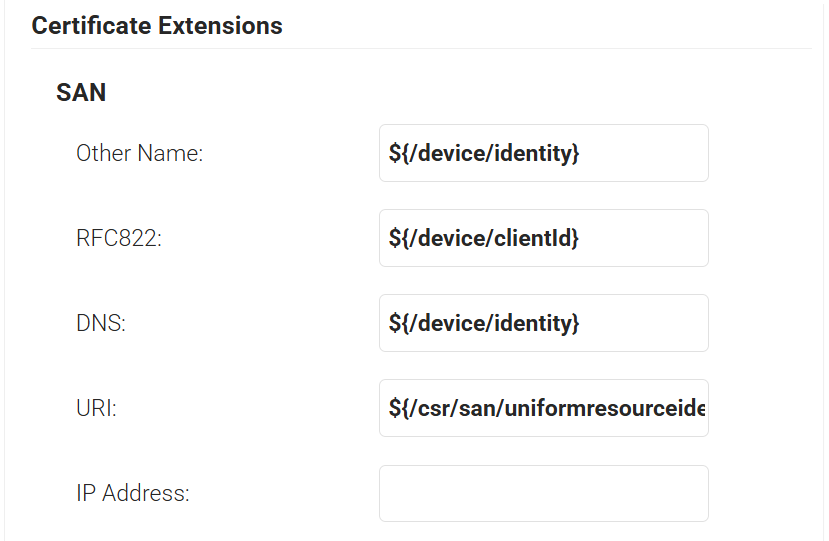
- In the SAN section:
- In the Other Name field, enter ${/device/identity}
- In the RFC822 field, enter ${/device/clientId}
- In the DNS field, enter ${/device/identity}

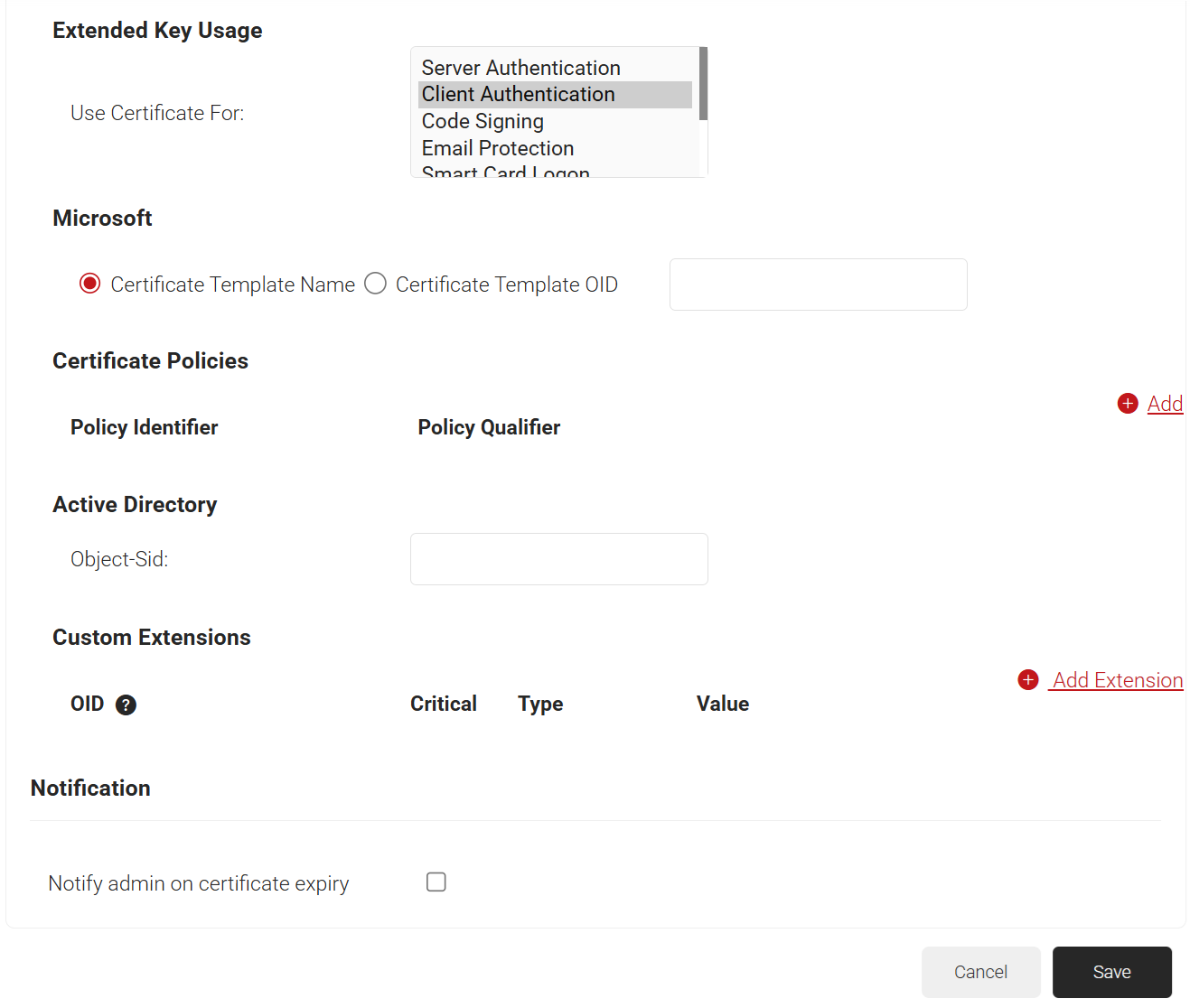
- In the Extended Key Usage section, from the Use Certificate For list, select Client Authentication.

- Click Save.
The SCEP URL serves as an endpoint that allows managed devices to connect with the SCEP server and enroll for certificates. The secret is also passed to Kandji’s external CA to authenticate these certificate requests.
The API Secret and Enrollment URL can be generated by creating a Device Management Platform in the JoinNow Management Portal.
Additionally, the tokens created for SCEP Enrollment can be used in Policy Management to assign a Policy Workflow/Device role based on the token in the incoming request.
To create a device management platform, perform the following steps:
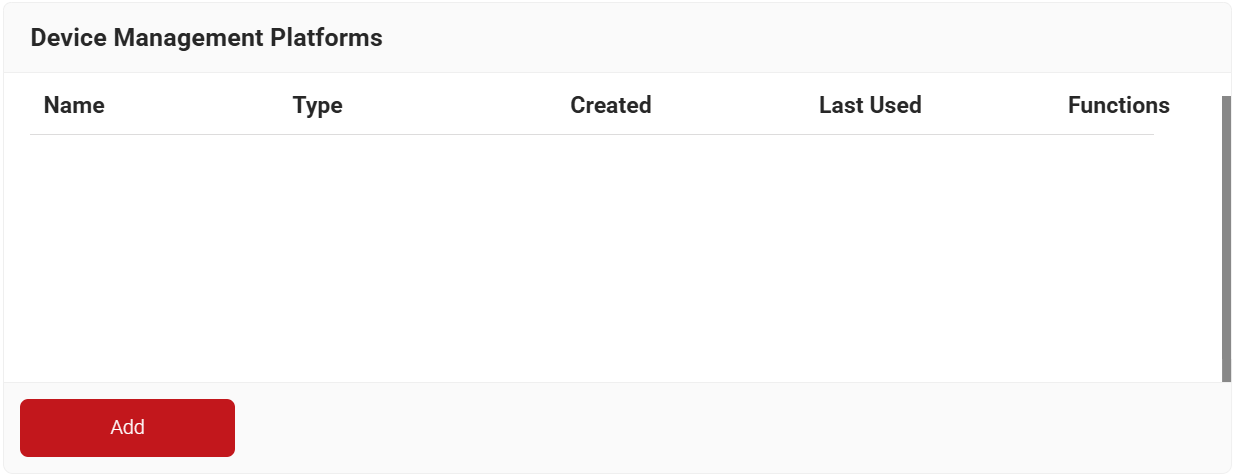
- Navigate to Integration Hub > Device Management Platforms.
- Click Add.

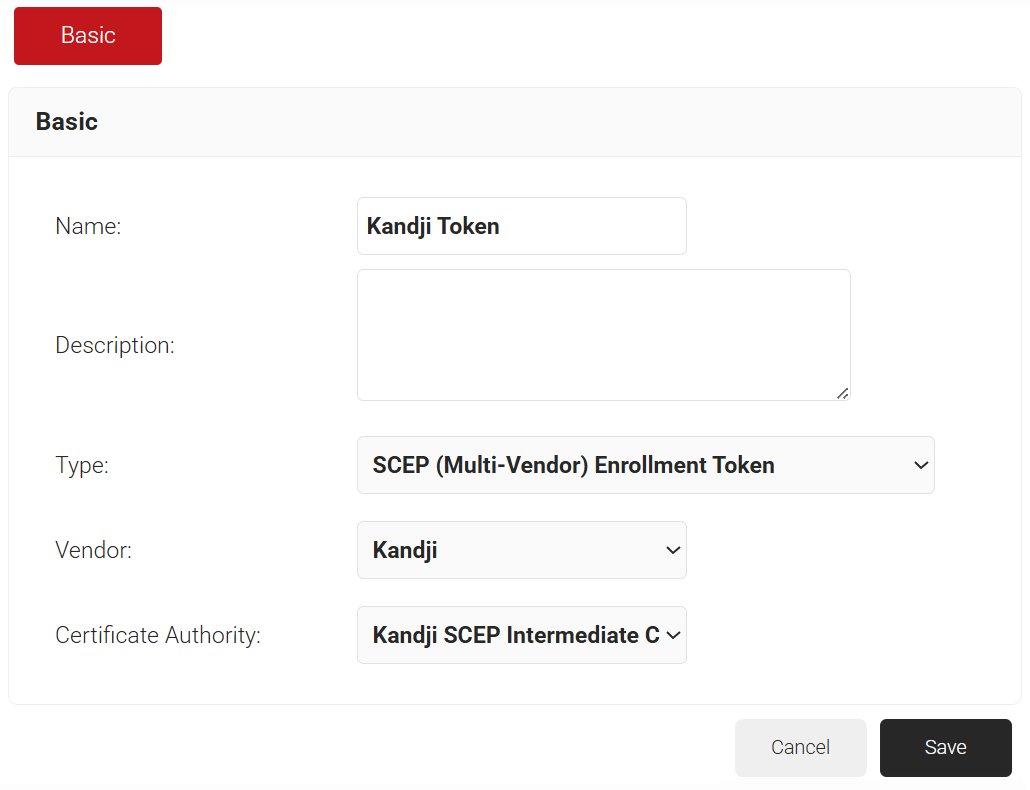
- In the Basic section, enter the name of the Device Management Platform in the Name field.
- In the Description field, enter a suitable description for the Device Management Platform.
- From the Type drop-down list, select SCEP (Multi-Vendor) Enrollment Token.
- From the Vendor drop-down list, select Kandji.
- From the Certificate Authority drop-down list, select the intermediate CA you created earlier in the Creating an Intermediate CA for Kandji SCEP Gateway Integration section. If you do not select a CA, the organization’s default CA is chosen.

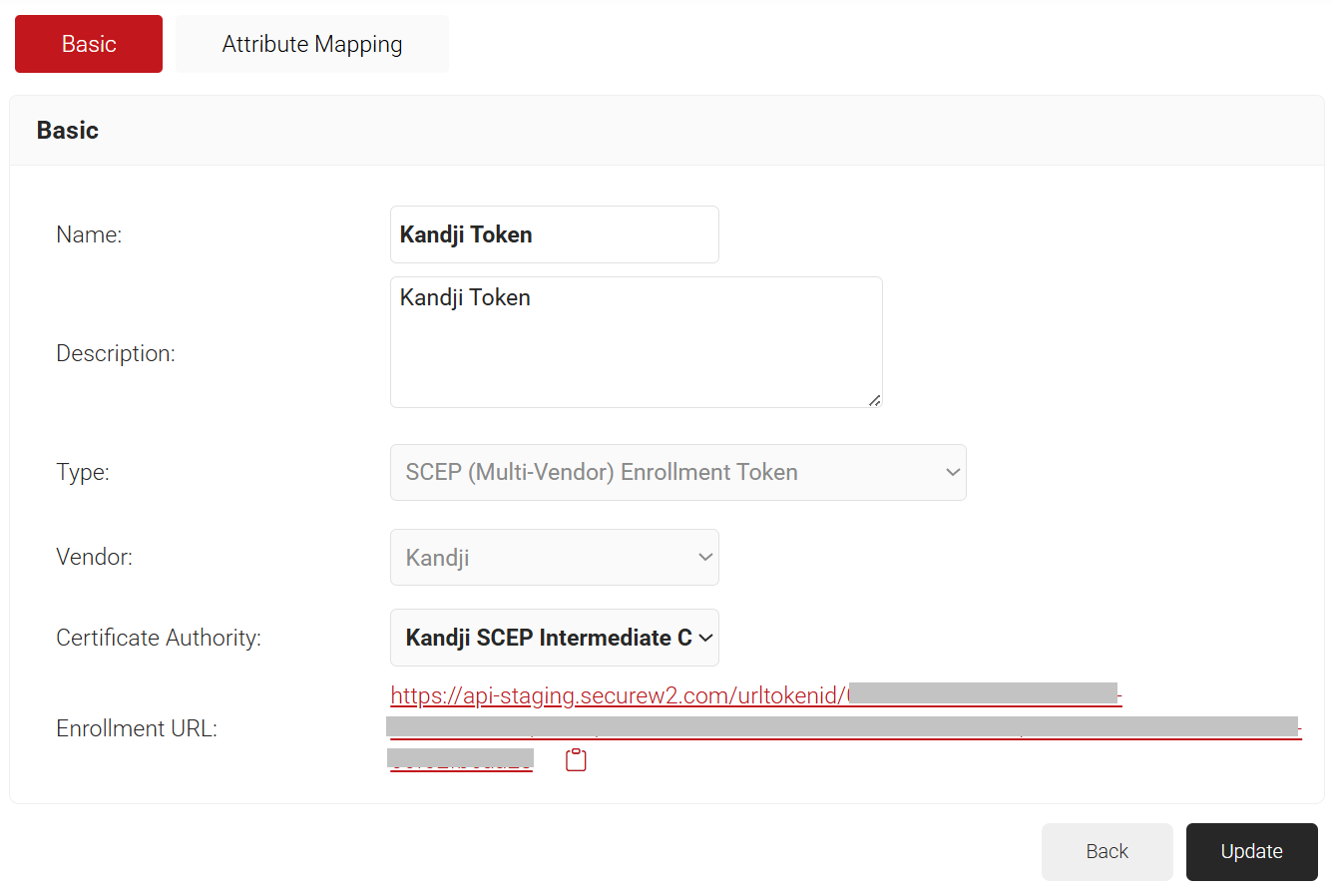
- Click Save. A .csv file containing the API Secret and Enrollment URL is downloaded. In addition, the Enrollment URL is displayed on the page.

NOTE: Save the file securely. This file is downloaded only once during token creation. If lost, the token and secret cannot be retrieved.
The Policy Workflow defines roles that can be created based on specified criteria or attributes for a user or device. These roles can then be used as conditions in Network and Enrollment Policies.
To create a policy workflow, perform the following steps:
- Navigate to Policy Management > Policy Workflows.
- Click Add Policy Workflow.

- In the Basic section, enter the name of the policy workflow in the Name field.
- In the Display Description field, enter a suitable description for the policy workflow.

- Click Save.
- The page refreshes, and the Conditions tab is displayed.
- Select the Conditions tab.
- In the Conditions section, from the Core Provider drop-down list, select the Device Management Platform that you created earlier (refer to the Creating a Device Management Platform section).

- Click Update.
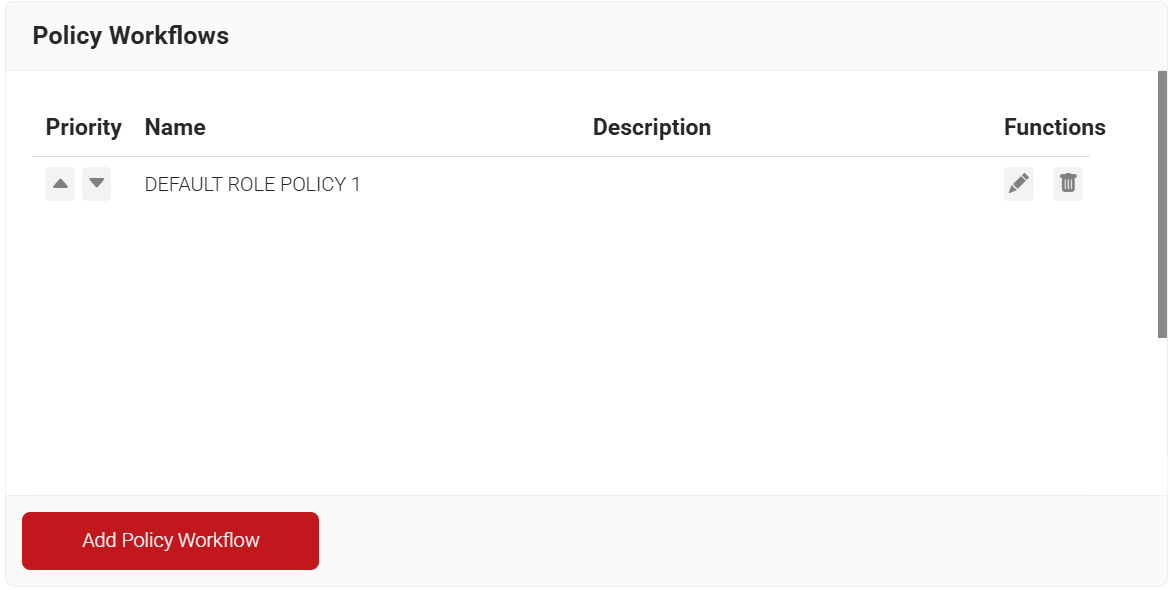
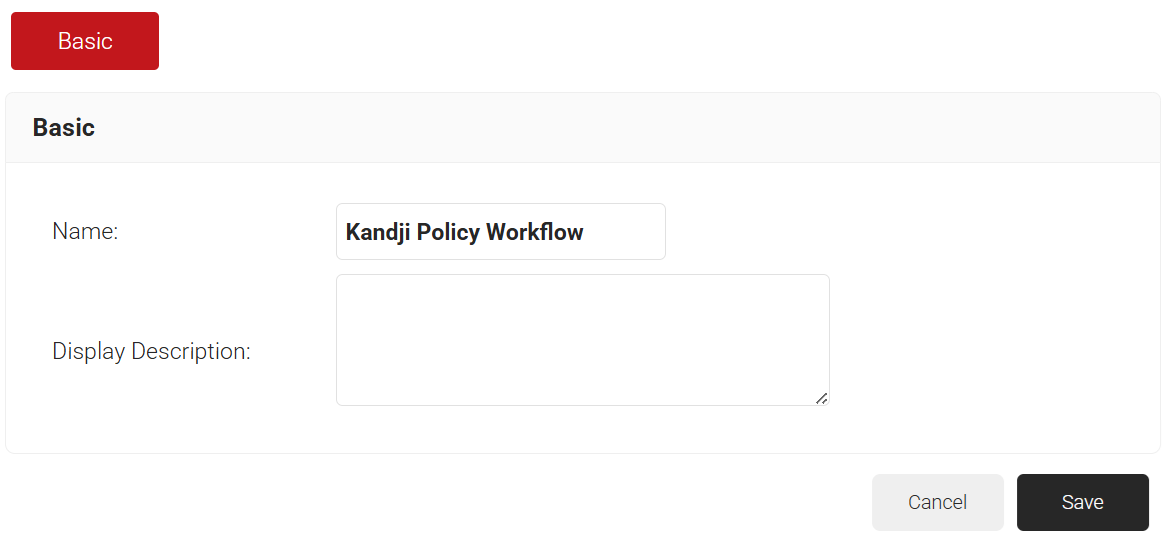
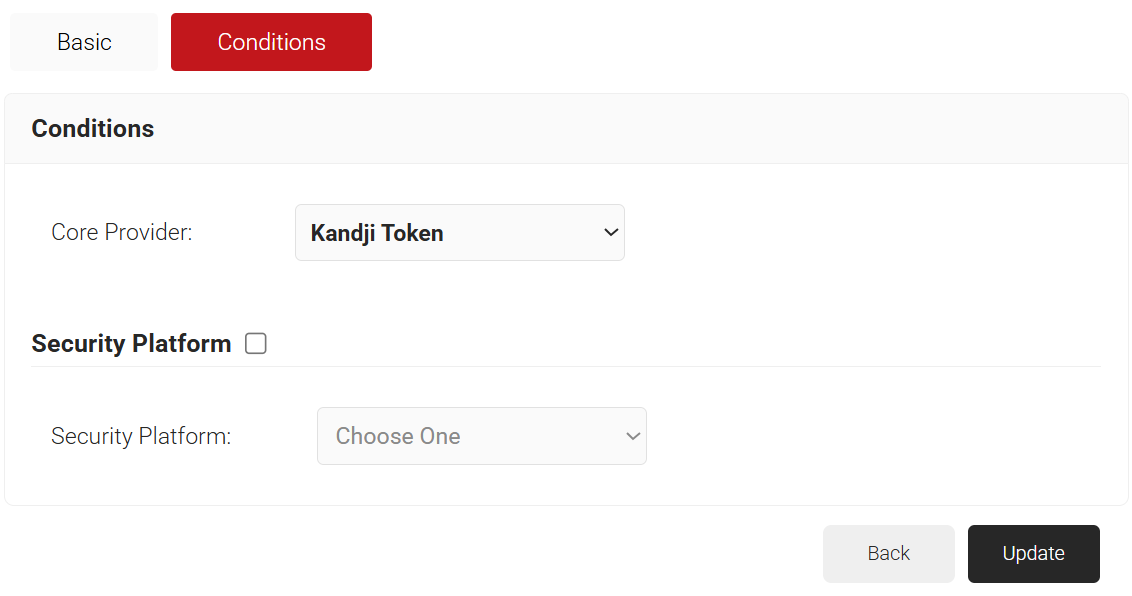
Policy Workflows function as roles that can be mapped to Enrollment Policies to dynamically issue different types of certificates.
To configure an enrollment policy:
- Navigate to Policy Management > Enrollment.
- Click Add Enrollment Policy.

- In the Basic section, enter the name of the enrollment policy in the Name field.
- In the Display Description field, enter a suitable description for the enrollment policy.

- Click Save.
- The page refreshes, and the Conditions and Settings tabs are displayed.
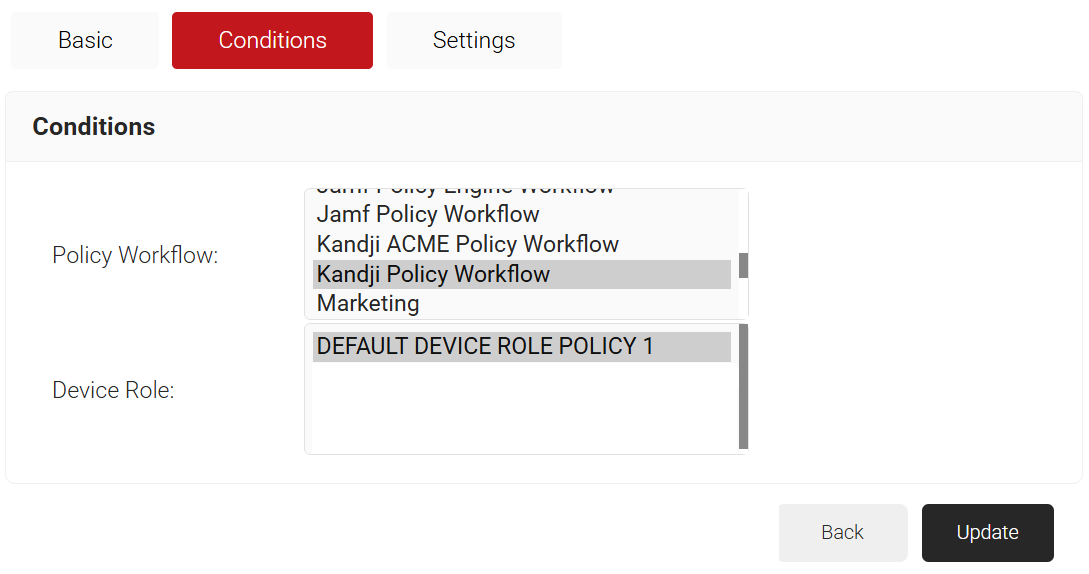
- Select the Conditions tab.
- In the Conditions section, select the Policy Workflows you created earlier from the Policy Workflow list (refer to the Configuring a Policy Workflow section).
- From the Device Role list, select DEFAULT DEVICE ROLE POLICY 1.

NOTE: You must select a User Role and Device Role for enrollment. Based on the Policy Workflows, you can use a fallback device policy to allow enrollment. - Select the Settings tab.
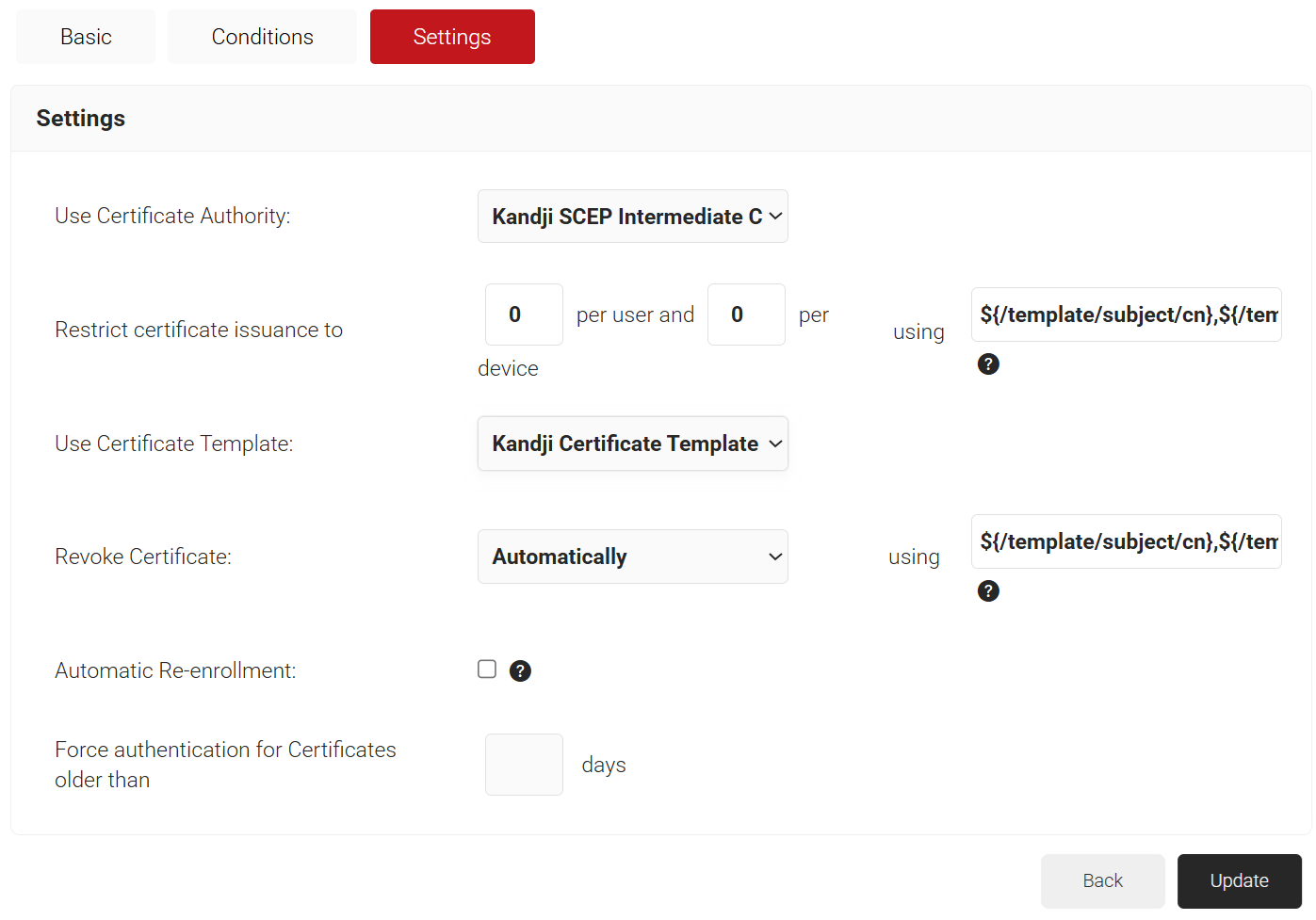
- In the Settings section, from the Use Certificate Authority drop-down list, select the intermediate CA you created earlier (refer to the Creating an Intermediate CA for Kandji SCEP Gateway Integration section).
- From the Use Certificate Template drop-down list, select the template you created earlier (refer to the Creating a Kandji Certificate Template section).
- In the other settings, retain the default values.

- Click Update.
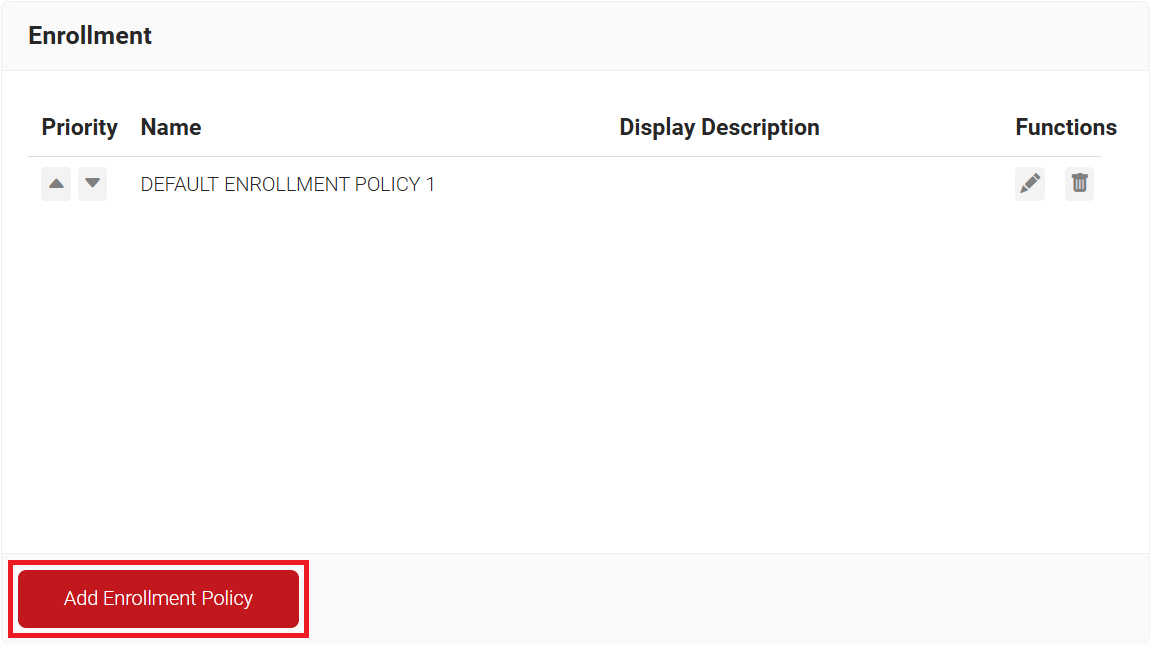
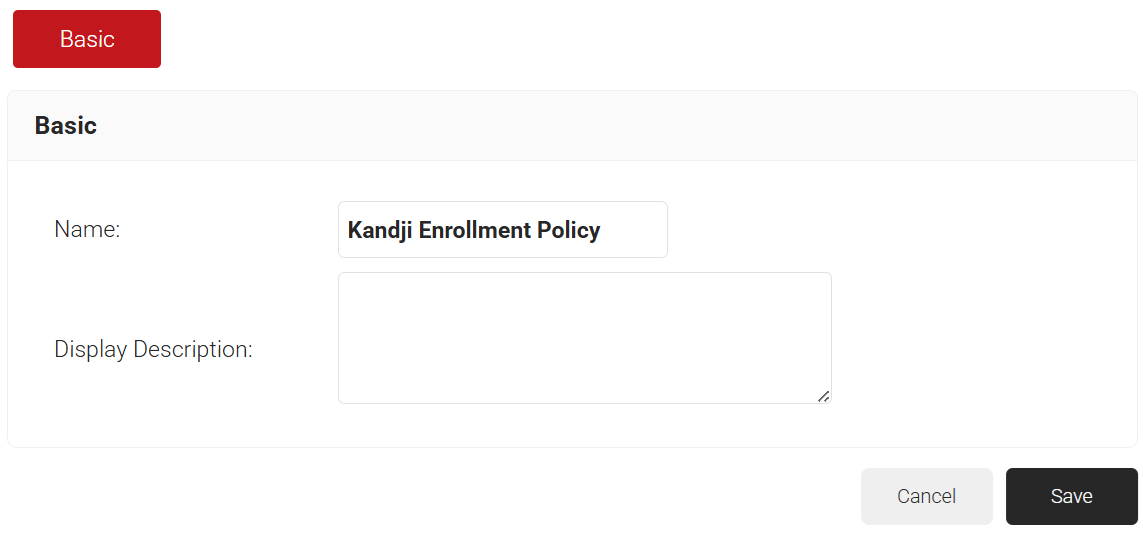
Similar to the Enrollment Policy, the Network Policy applies settings to a particular Policy Workflow. It allows us to specify whether the device will be allowed or denied network access, along with other RADIUS attributes that can be sent, which are most commonly VLAN assignments. This segmentation allows us to quarantine at-risk devices, reducing the risk of lateral threat movement on the network.
To configure a network policy, follow these steps:
- Navigate to Policy Management > Network.
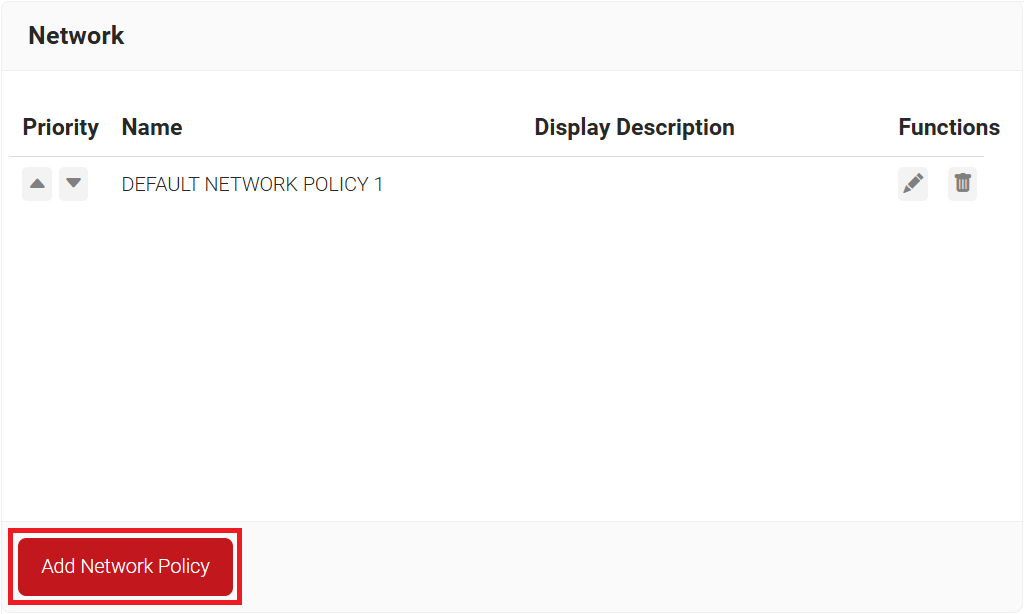
- Click Add Network Policy.

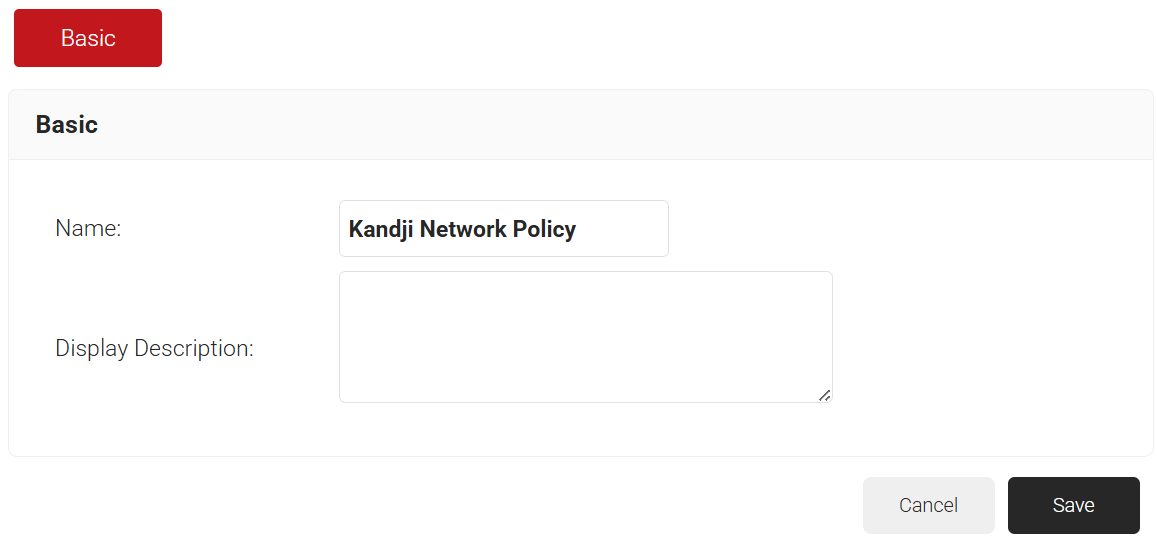
- In the Basic section, enter the name of the network policy in the Name field.
- In the Display Description field, enter a suitable description for the network policy.

- Click Save.
- The page refreshes, and the Conditions and Settings tabs are displayed.
- Select the Conditions tab.
- Select Match All or Match Any based on your requirement to set authentication criteria. In the case explained here, we are selecting Match All.

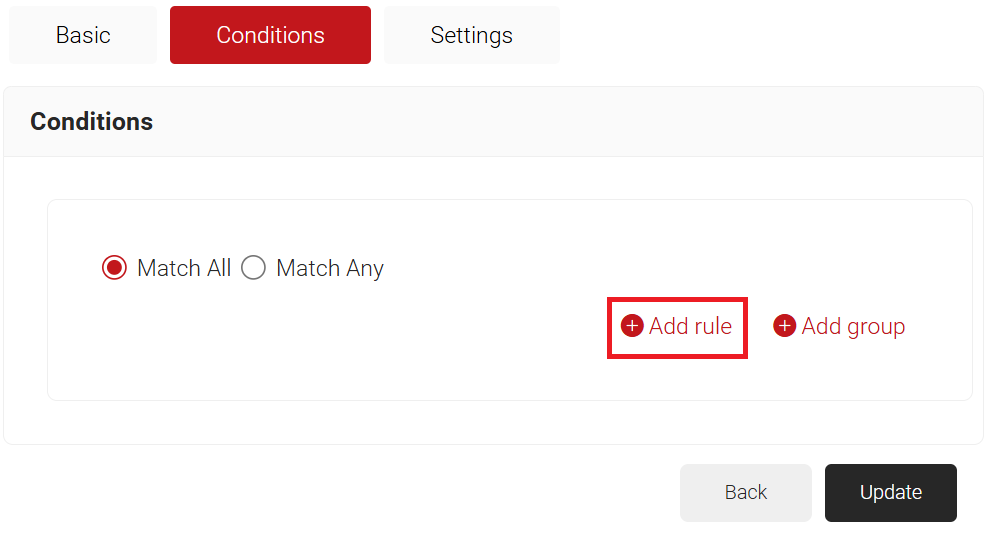
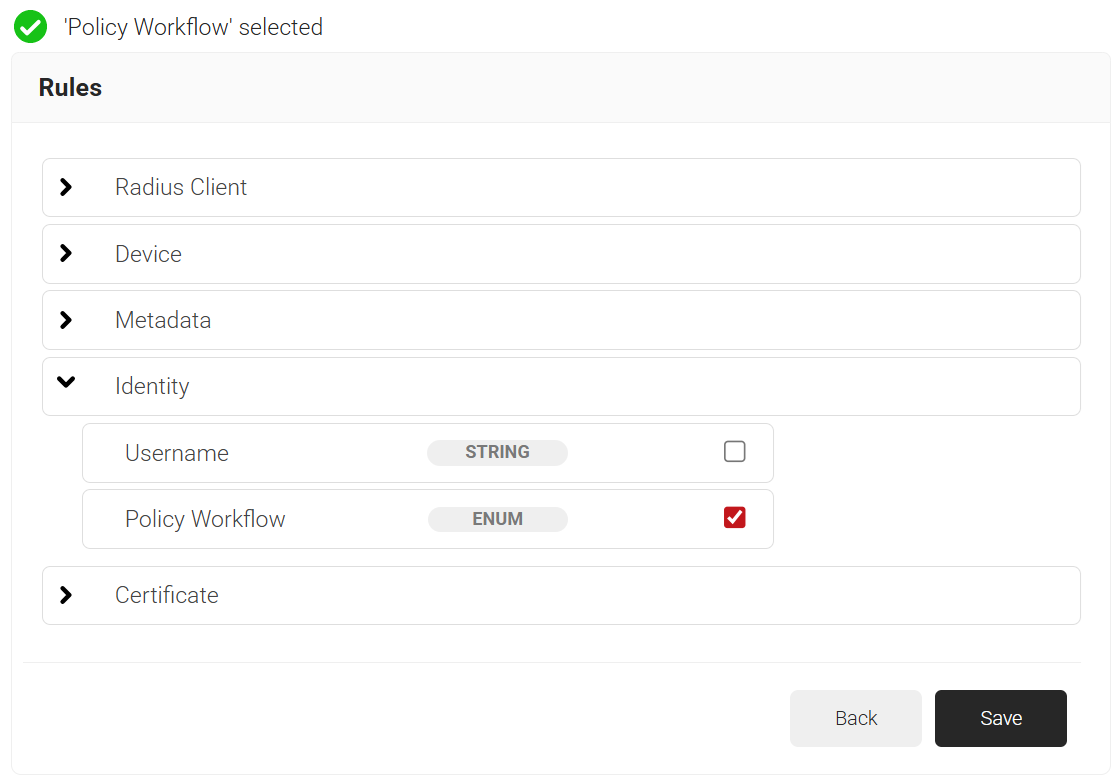
- Click the Add rule and select the Policy Workflow you want to assign to this network policy. It is essential to select the appropriate policy workflow, as it triggers the network policy. This menu offers various rules that you can select based on your business requirements.

- Click Save.
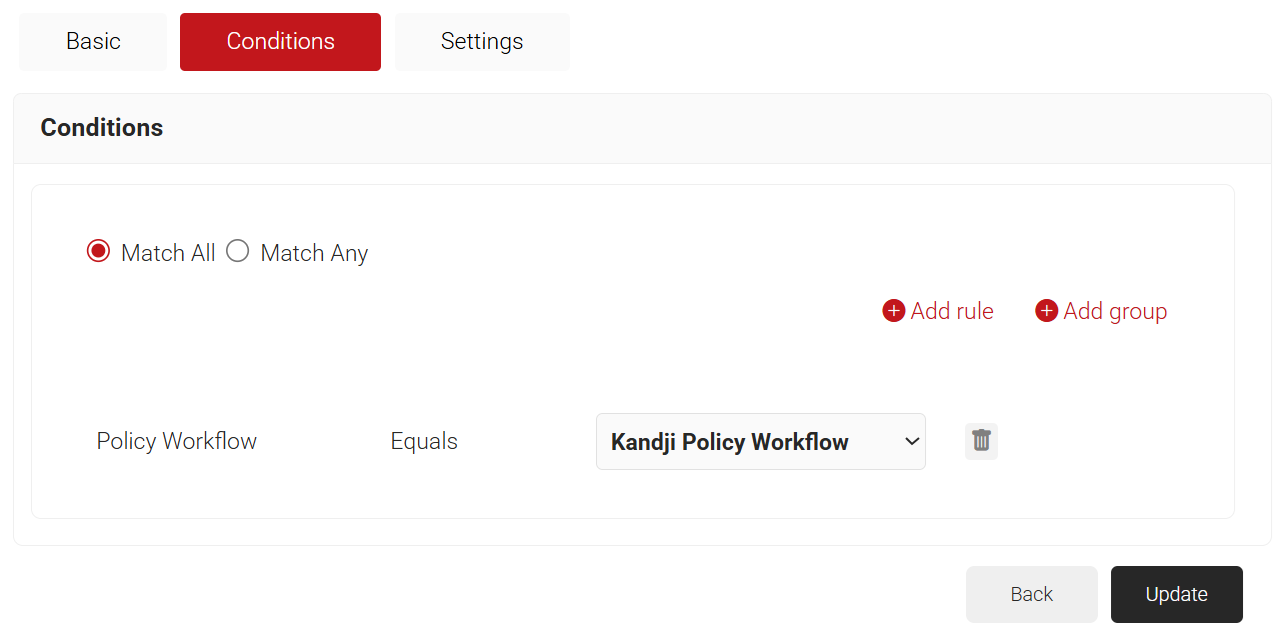
- The Policy Workflow option appears under the Conditions tab.
- From the Policy Workflow Equals drop-down list, select the user role policy you created earlier (refer to the Configuring a Policy Workflow section). You can select multiple User Roles to assign to a Network Policy.

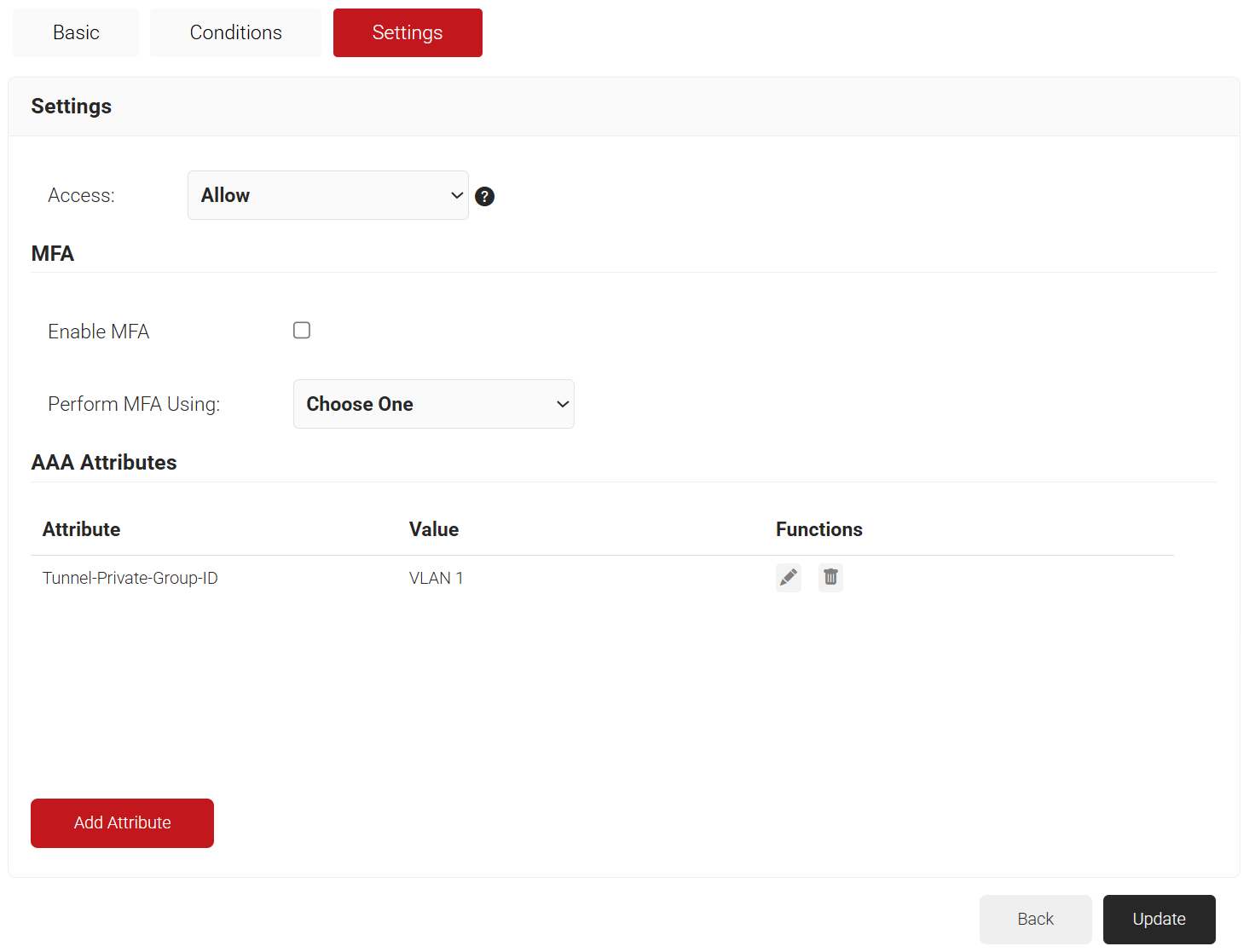
- Navigate to the Settings tab.
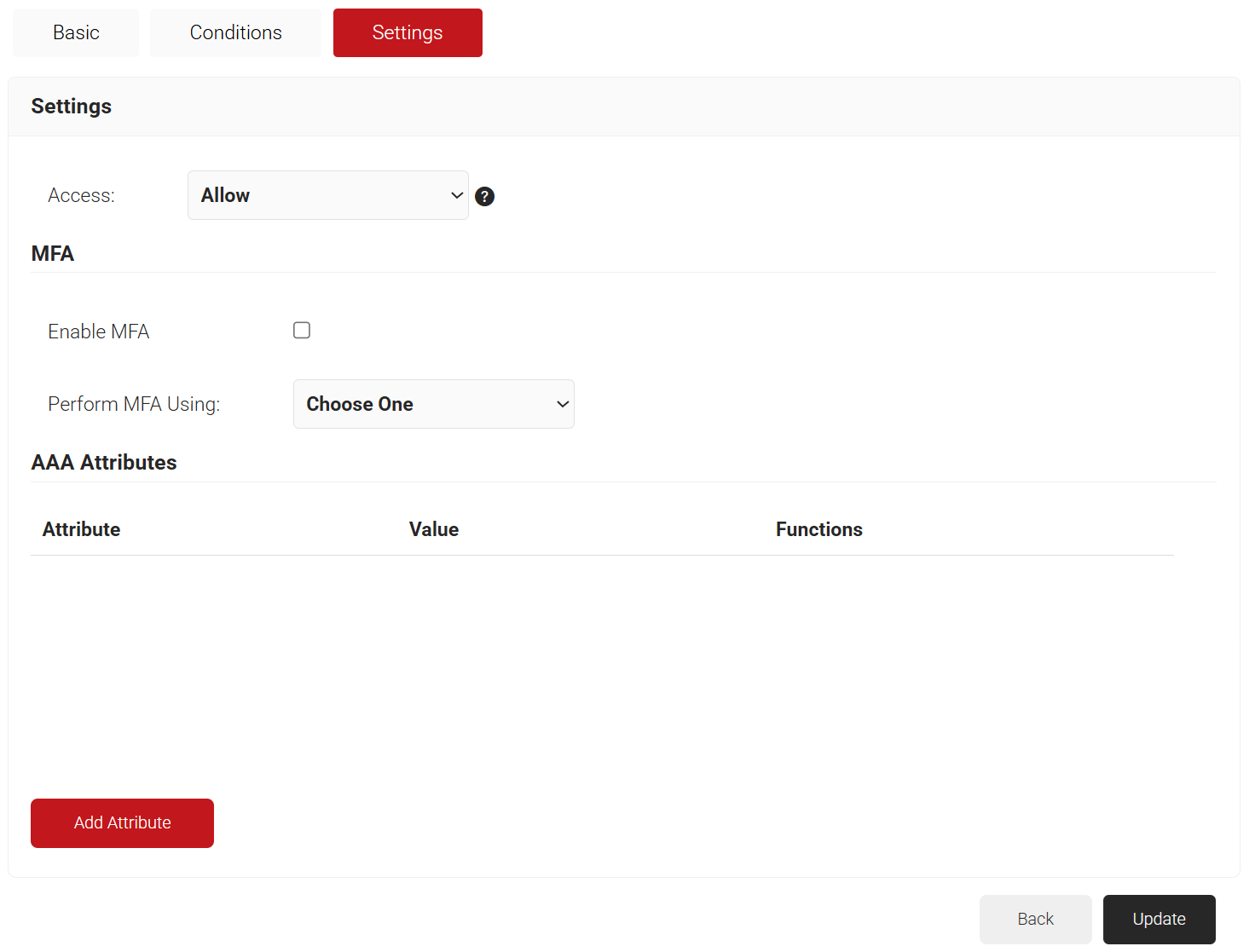
- From the Access drop-down list, select any one of the options to allow or deny authentication requests. The default value is “Allow”.
- To configure MFA, select the checkbox to enable MFA.
- From the Perform MFA Using drop-down list, select a Core Provider for MFA.

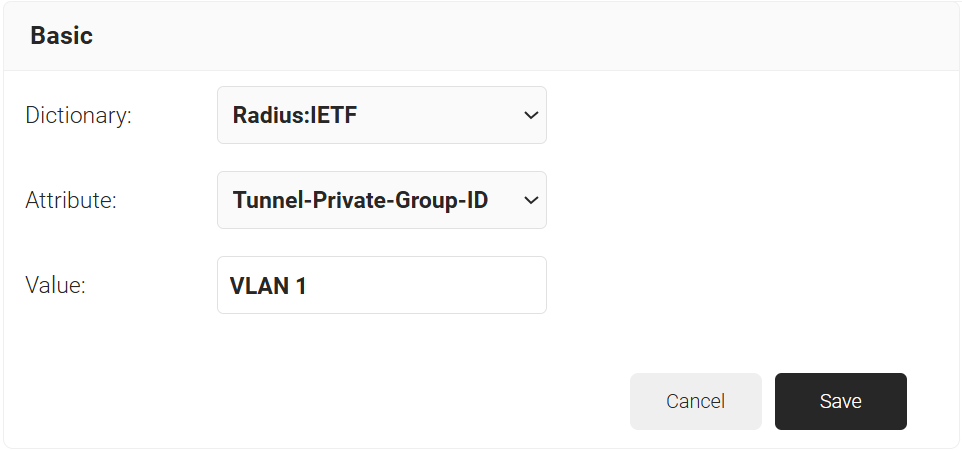
- Click Add Attribute.
- From the Dictionary drop-down list, select an option:
- Radius: IETF – This is what we will use for the following attributes, as we are using standard RADIUS attributes for VLAN assignment.
- Custom: Used for any VSAs (Vendor-Specific Attributes).
- From the Attribute drop-down list, select any of the following options:
- Framed-Protocol
- Framed-IP-Address
- Framed-IP-NetMask
- Framed-Routing
- Filter-Id
- Framed-MTU
- Framed-Compression
- Reply-Message
- Framed-Route
- Framed-IPX-Network
- State
- Class
- Session-Timeout
- Tunnel-Type
- Tunnel-Medium-Type
- Tunnel-Private-Group-ID
- Framed-Pool
- User-Name
- In the Value field, enter the appropriate value for the attribute.

- Click Save.
- Repeat for any other RADIUS attribute you would like to send. For reference, here is what is commonly required for VLAN Assignment:
- Tunnel-Medium-Type: IEE-802
- Tunnel-Private-Group-ID: {VLAN Name}
- Server Tunnel-Type: VLAN
- Click Update.
- From the Dictionary drop-down list, select an option:
To configure SCEP-based enrollment through Kandji, create a Wi-Fi profile and set up a SCEP certificate as described below:
- Log in to the Kandji Portal.
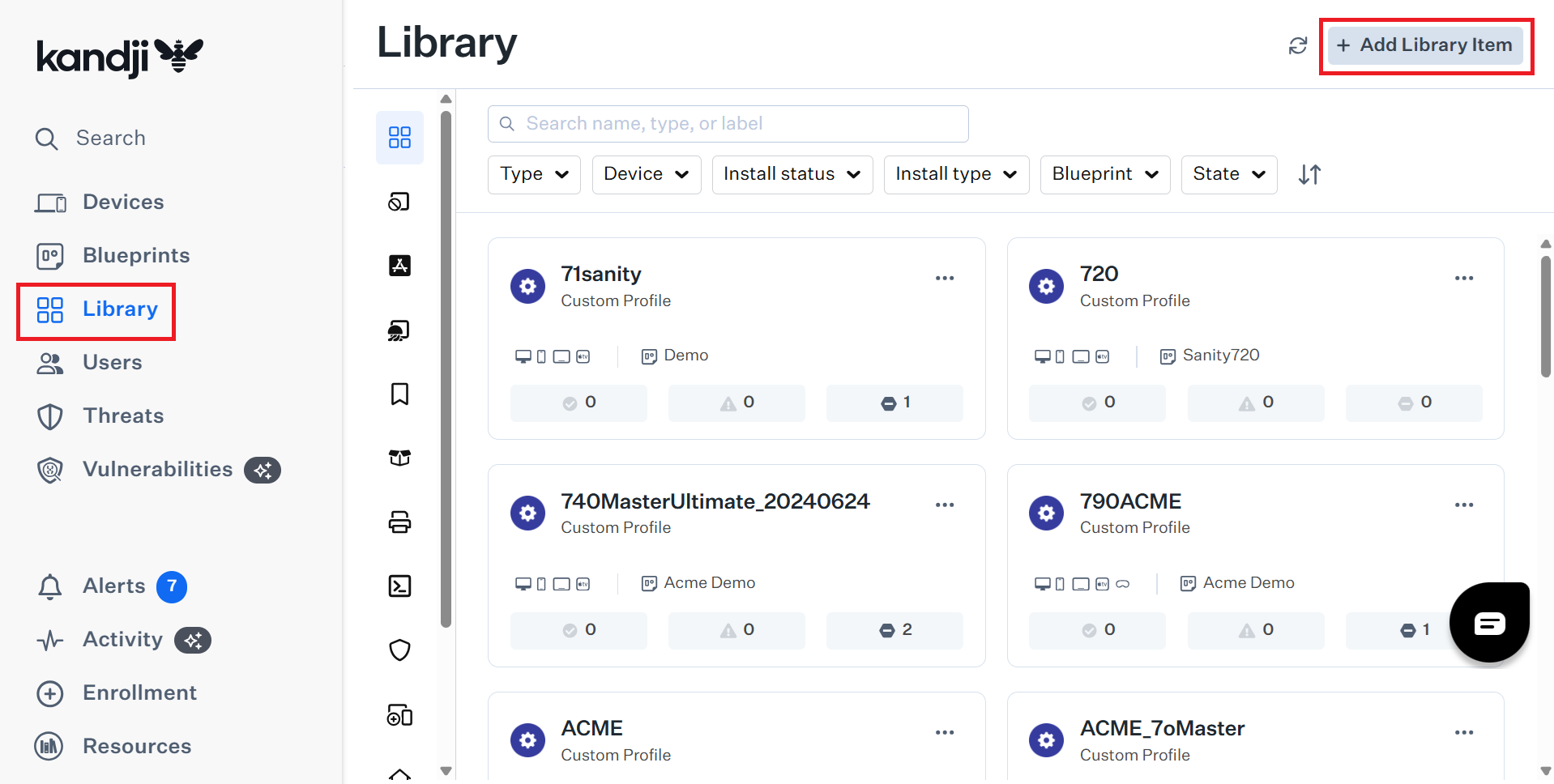
- On the left Navigation bar, click Library.
- Click + Add Library Item on the top-right.

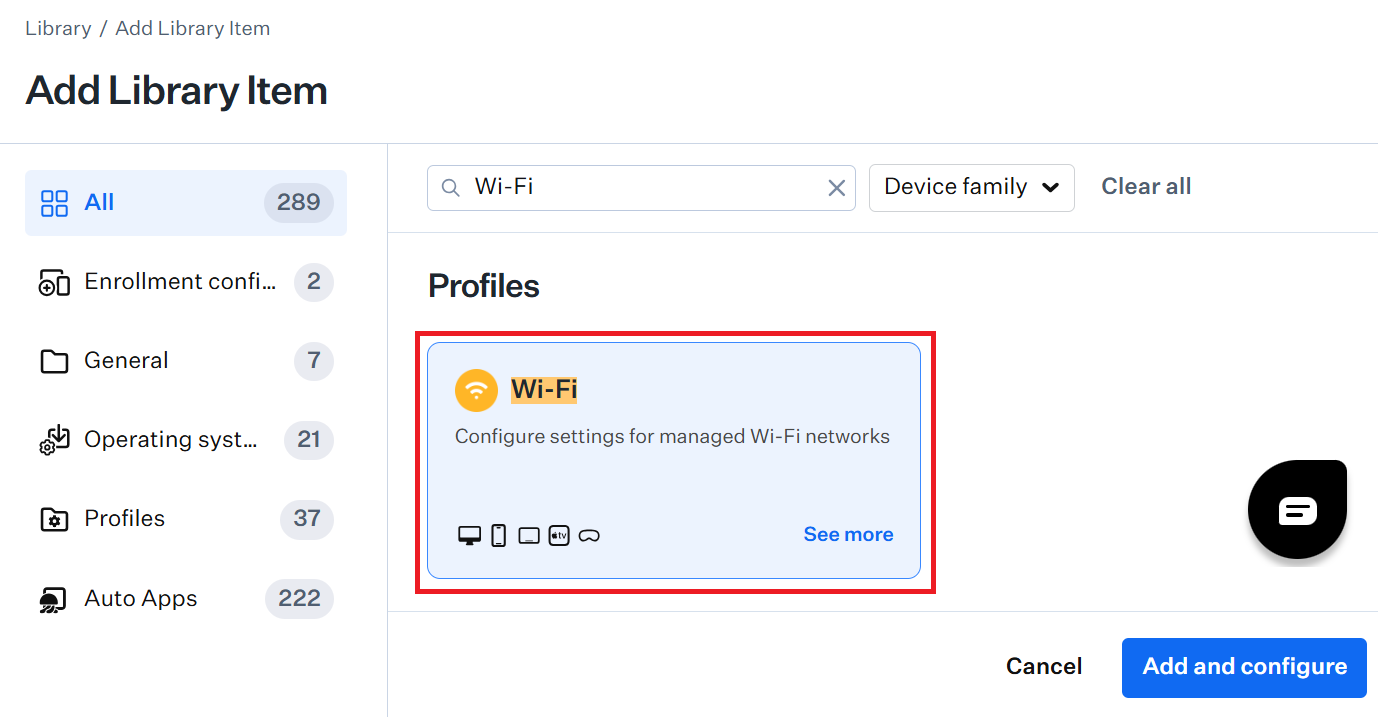
- In the Search Library Item field, enter Wi-Fi.
- Select Wi-Fi.

- Click Add and configure. A new Wi-Fi Library Item will be opened for configuration.
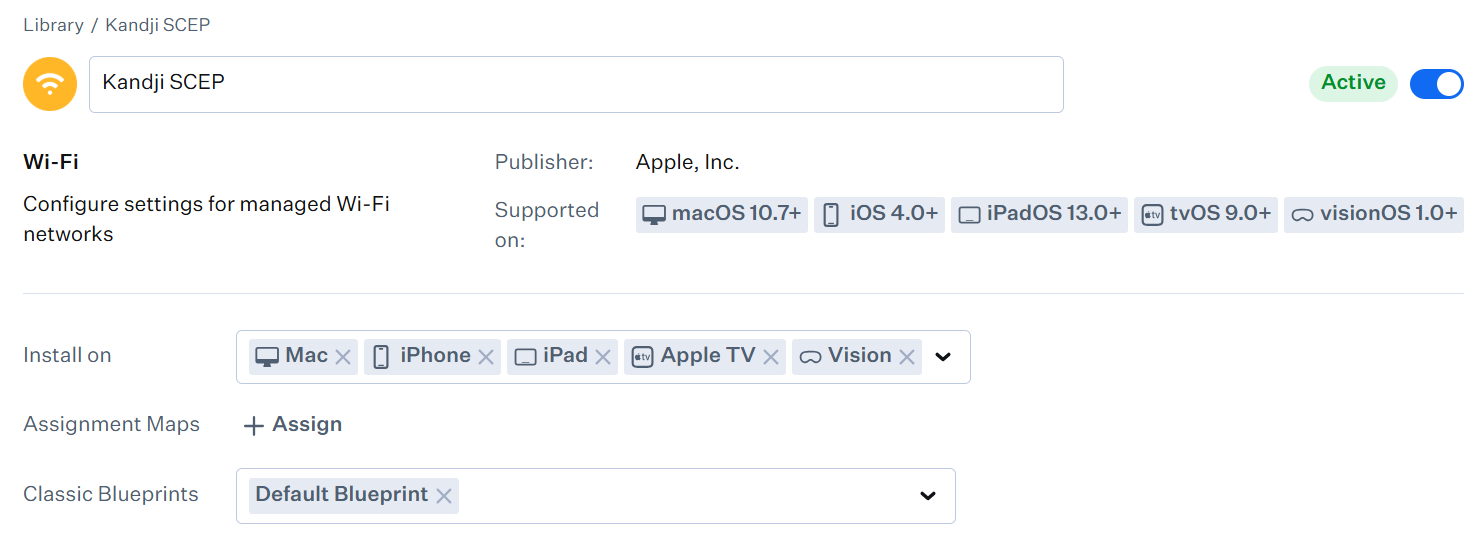
- In the Add a title field, enter a name for the new Wi-Fi Library Item.
NOTE: Use the title to differentiate this Library Item from other Wi-Fi Library Items. Use a name that identifies the item — for example, the title might include the SSID or the location where the Wi-Fi configuration is used.
- From the Classic Blueprints drop-down list, select the blueprint that contains the devices you want to deploy to.

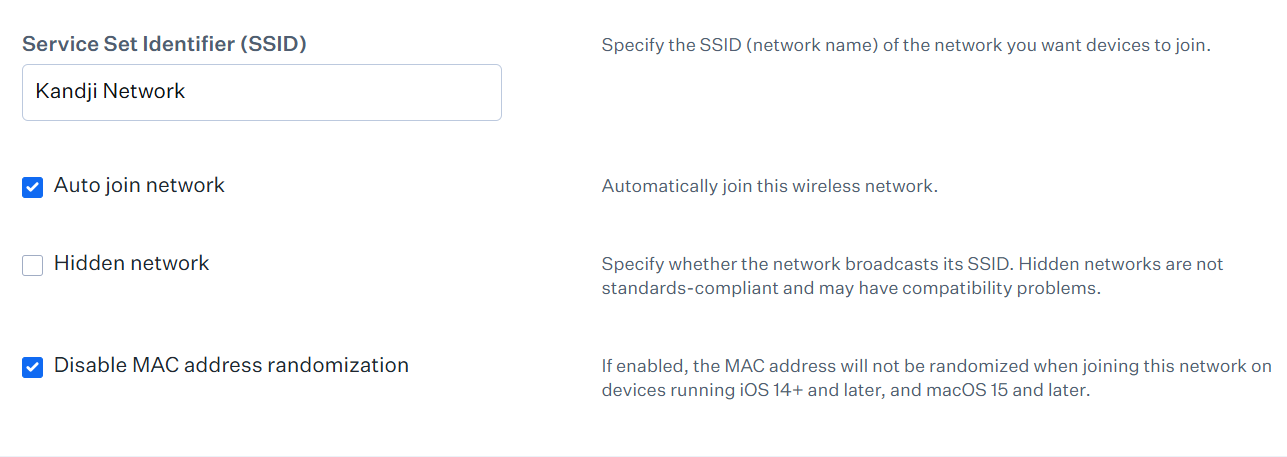
- In the Service Set Identifier (SSID) field, enter a name for your network.
- Select Auto join network to enable devices to automatically connect to this network when it is available.
NOTE: If you do not select Auto Join Network, devices will have the configuration required to connect to the network; however, users must manually choose to connect.
- Select Hidden network if the network does not broadcast its SSID. Hidden networks are not standards-compliant and are not recommended for use.
- If you wish to turn off MAC address randomization, select Disable MAC address randomization.

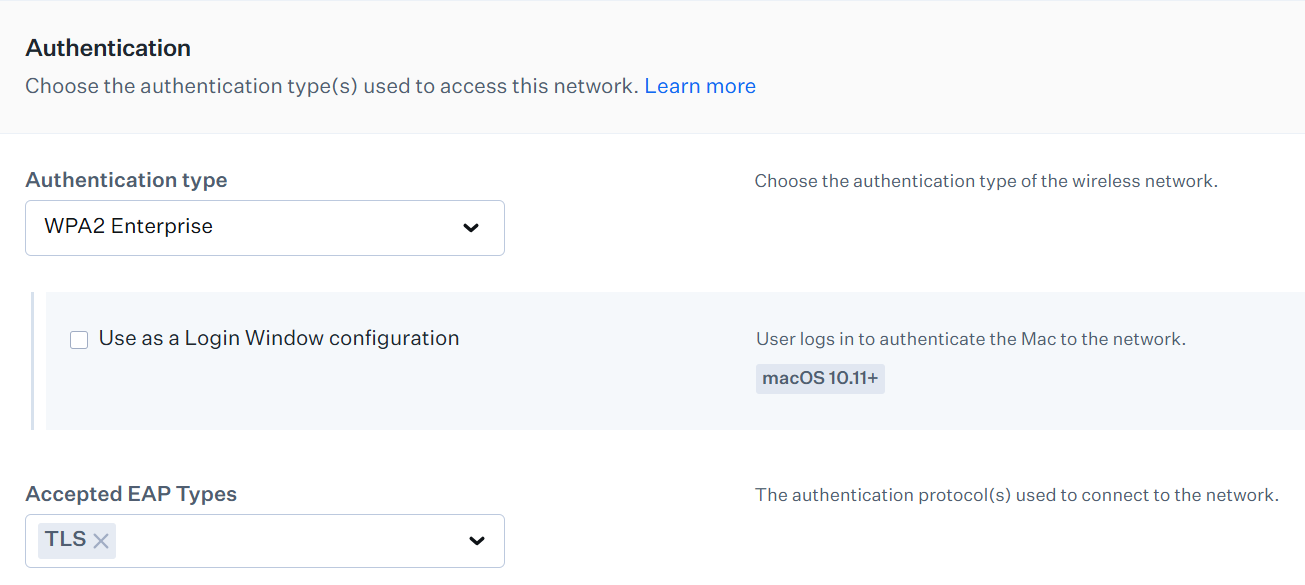
- From the Authentication type drop-down list, choose WPA2-Enterprise.
- From the Accepted EAP Types drop-down list, select TLS.

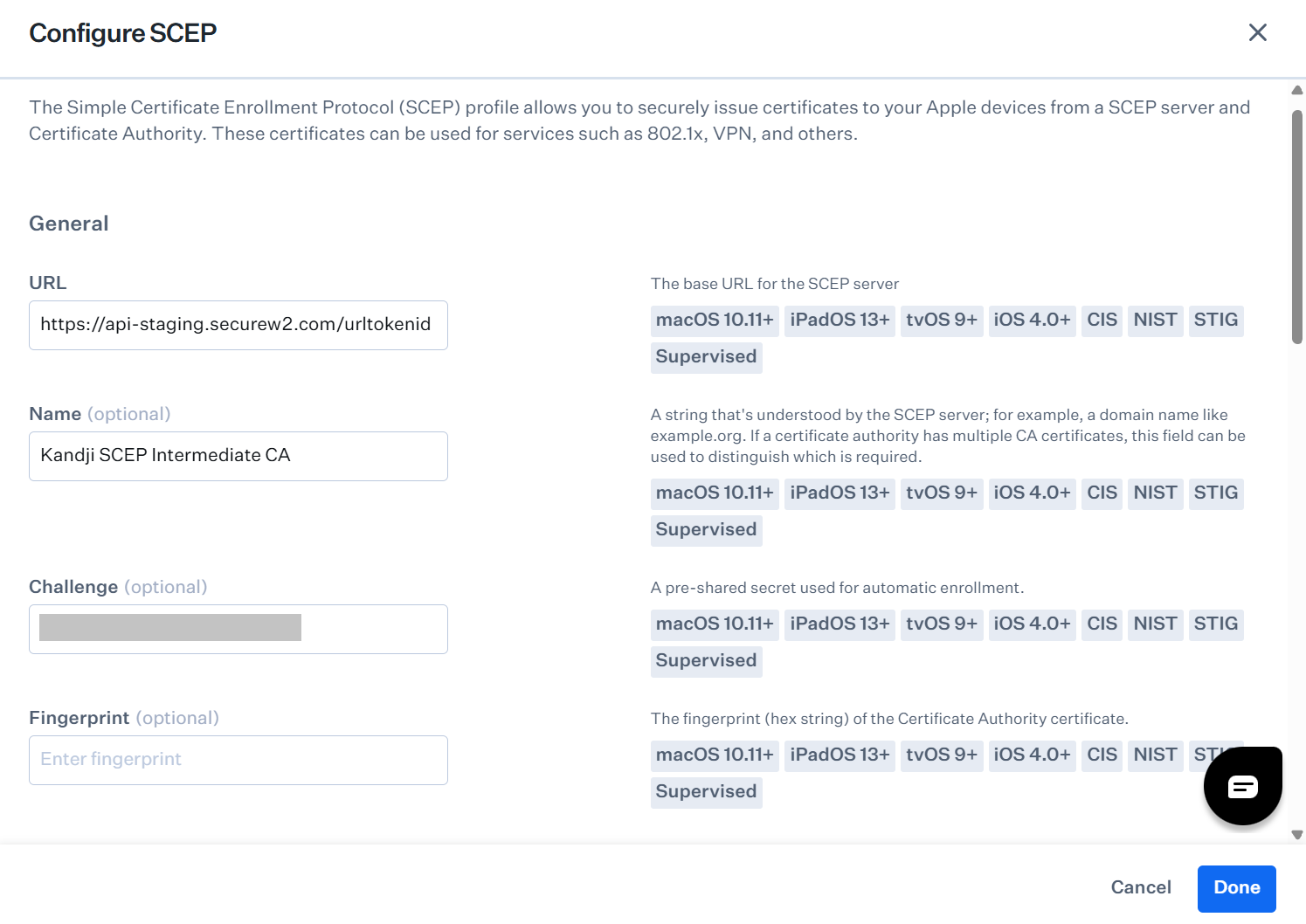
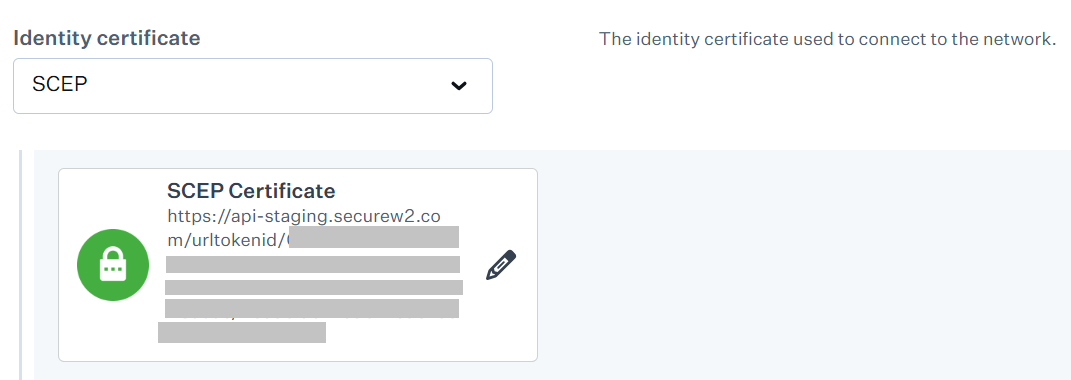
- From the Identity certificate drop-down list, select SCEP. The Configure SCEP page is displayed.
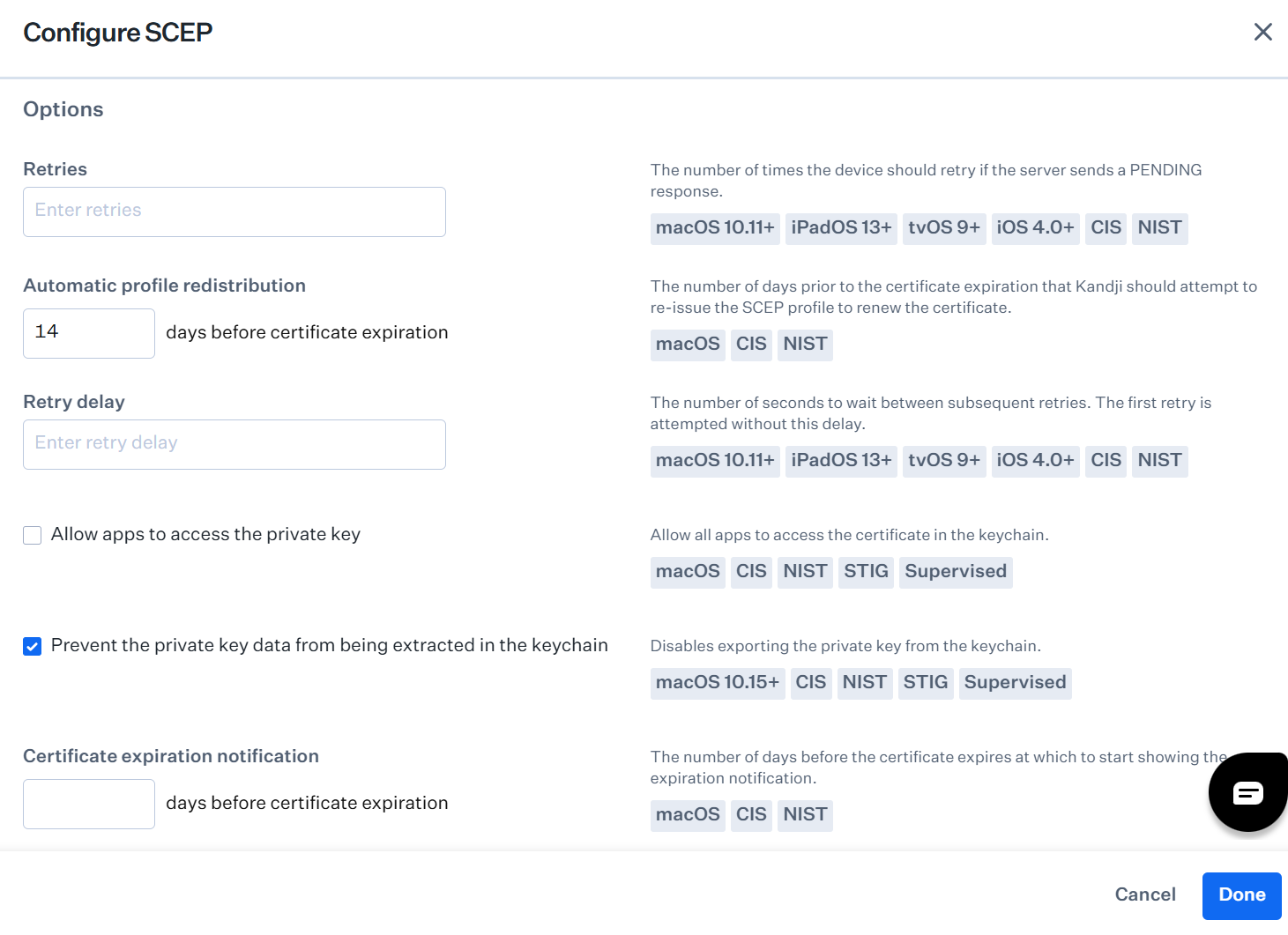
- In the Configure SCEP page:
- In the URL field, enter the Enrollment URL for the SCEP server obtained from the .csv file created in the Creating a Device Management Platform section.
- In the Name field, enter a name as needed by your SCEP server. We recommend using the name of the CA where the SCEP service is requesting a certificate.
- In the Challenge field, enter the API Secret Key obtained from the .csv file created in the Creating a Device Management Platform section.

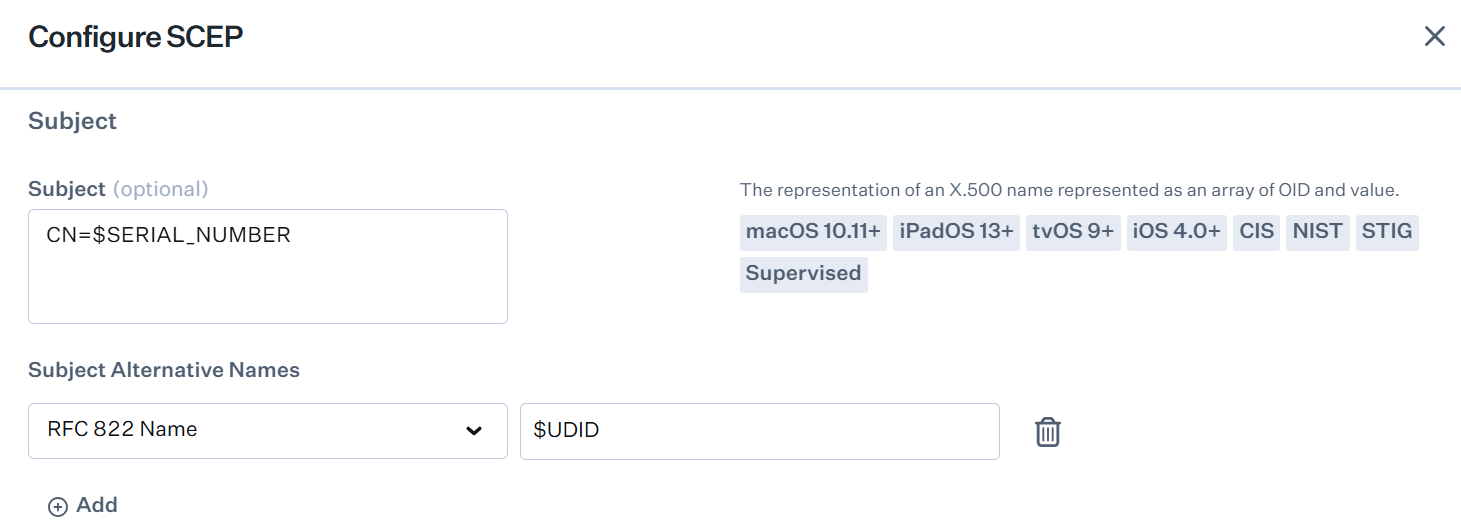
- In the Subject field, enter CN=$SERIAL_NUMBER
- In the Subject Alternative Names field, click + Add.
- From the SAN Type drop-down list, select RFC 822 Name. In the adjacent field, enter $UDID

- From the SAN Type drop-down list, select RFC 822 Name. In the adjacent field, enter $UDID
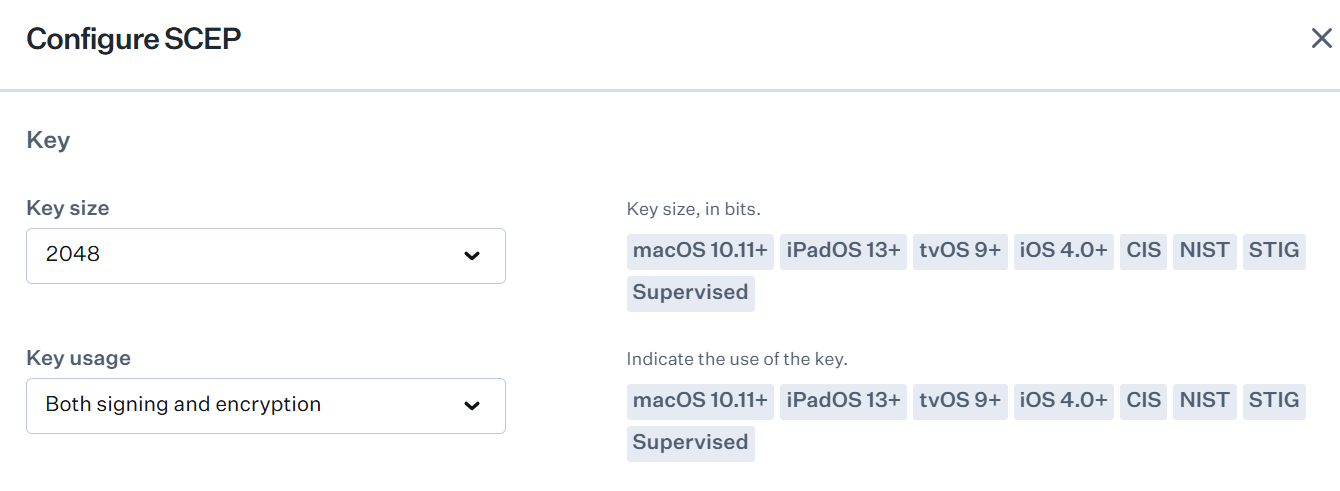
- Under Key, from the Key size drop-down list, select 2048.
- From the Key usage drop-down list, select Both signing and encryption.

- Under Options, in the Automatic profile redistribution field, enter the number of days before the certificate expires.
- Select the Prevent the private key data from being extracted in the keychain checkbox.

- Click Done.

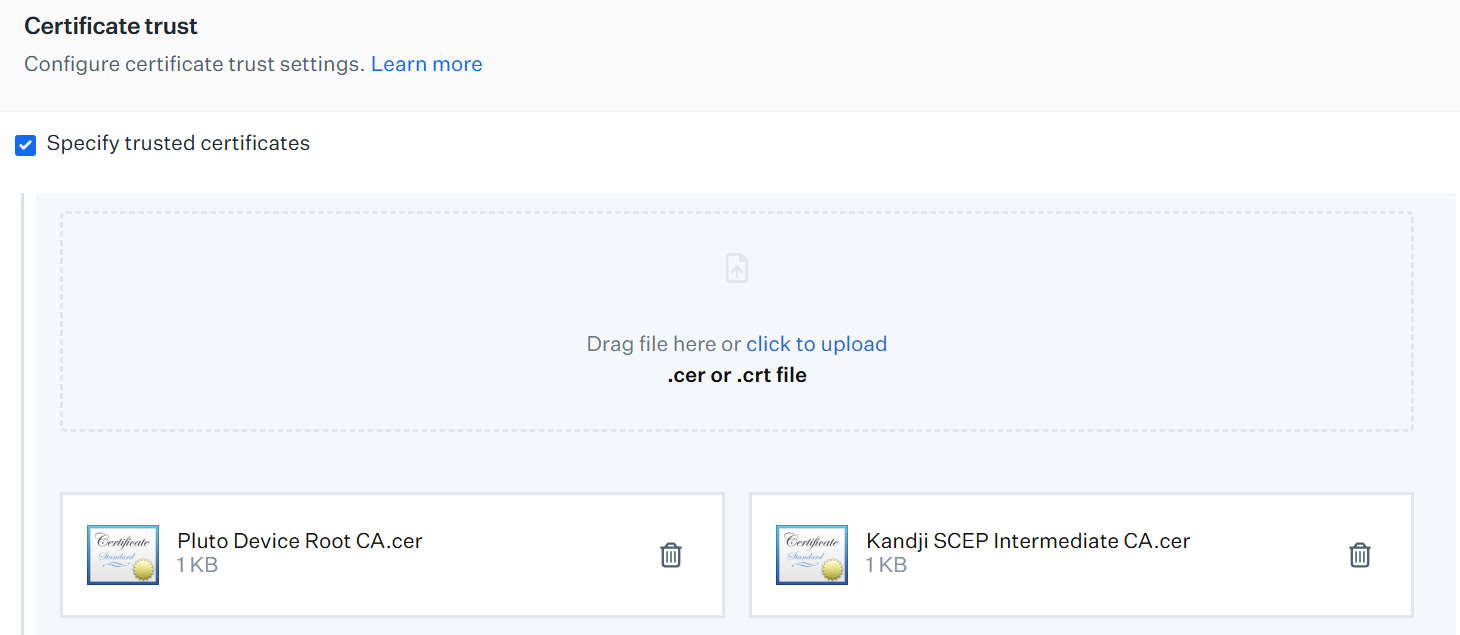
NOTE: The certificate trust settings allow you to specify which certificates presented by the server or devices should be trusted. - Under Certificate trust, select the Specify trusted certificates checkbox to provide certificates for the configured devices to trust.
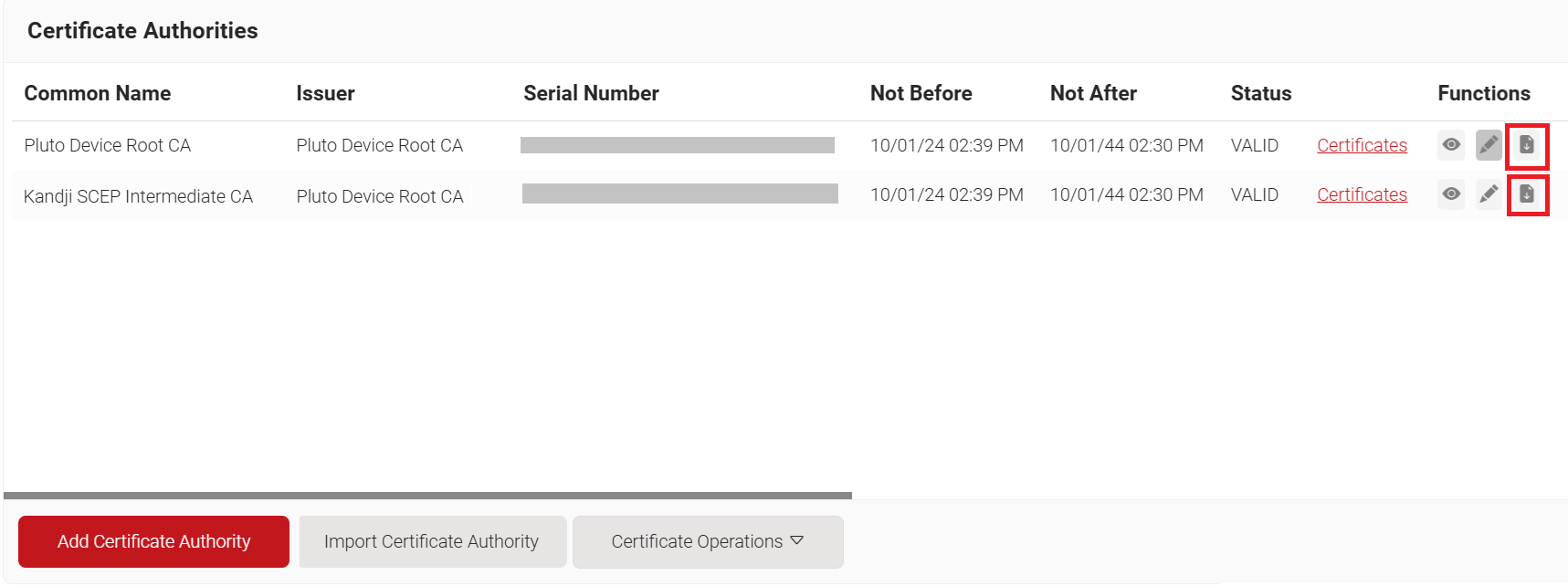
- Download the Root and Intermediate CA certificates from the JoinNow Management Portal, and upload them in .cer or .crt format. To download the intermediate CA, use the one you created earlier in the Creating an Intermediate CA for Kandji SCEP Gateway Integration section.

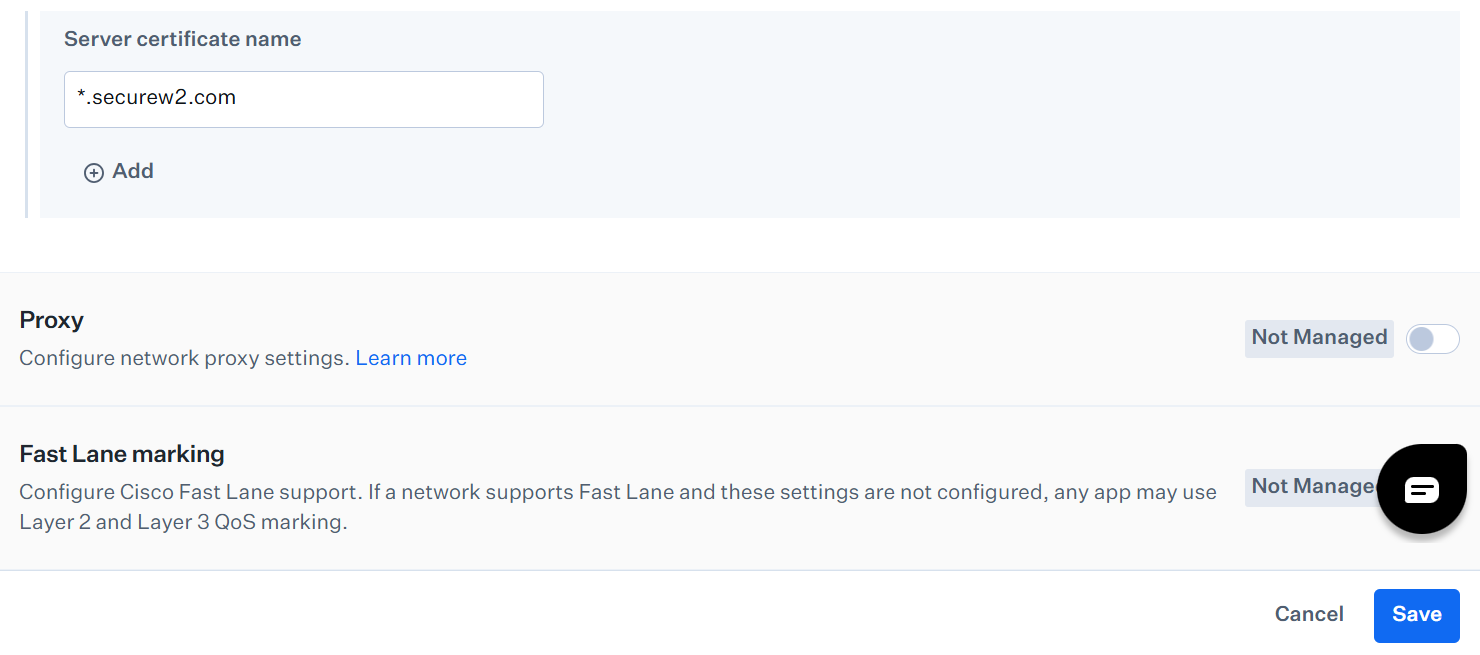
- Select the Specify server certificate names checkbox and click + Add.
- In the Server certificate name field, enter *.securew2.com

- Click Save.