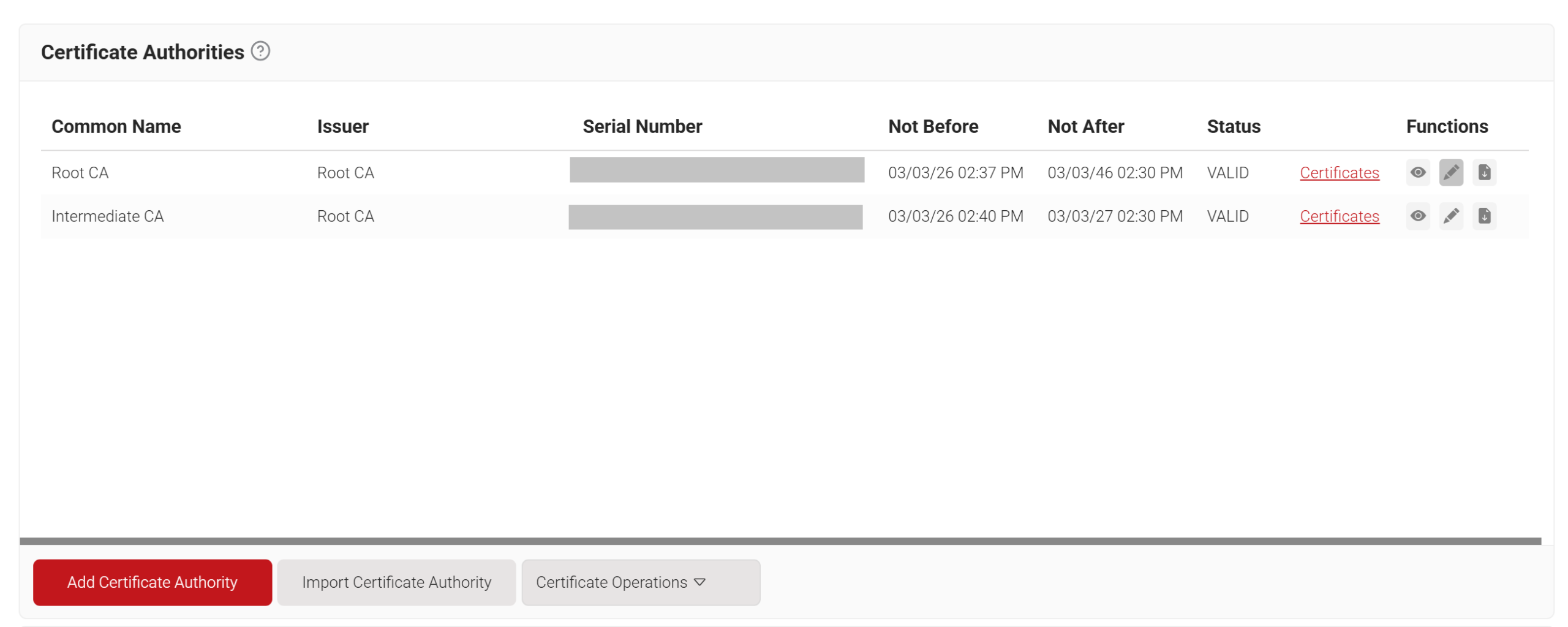
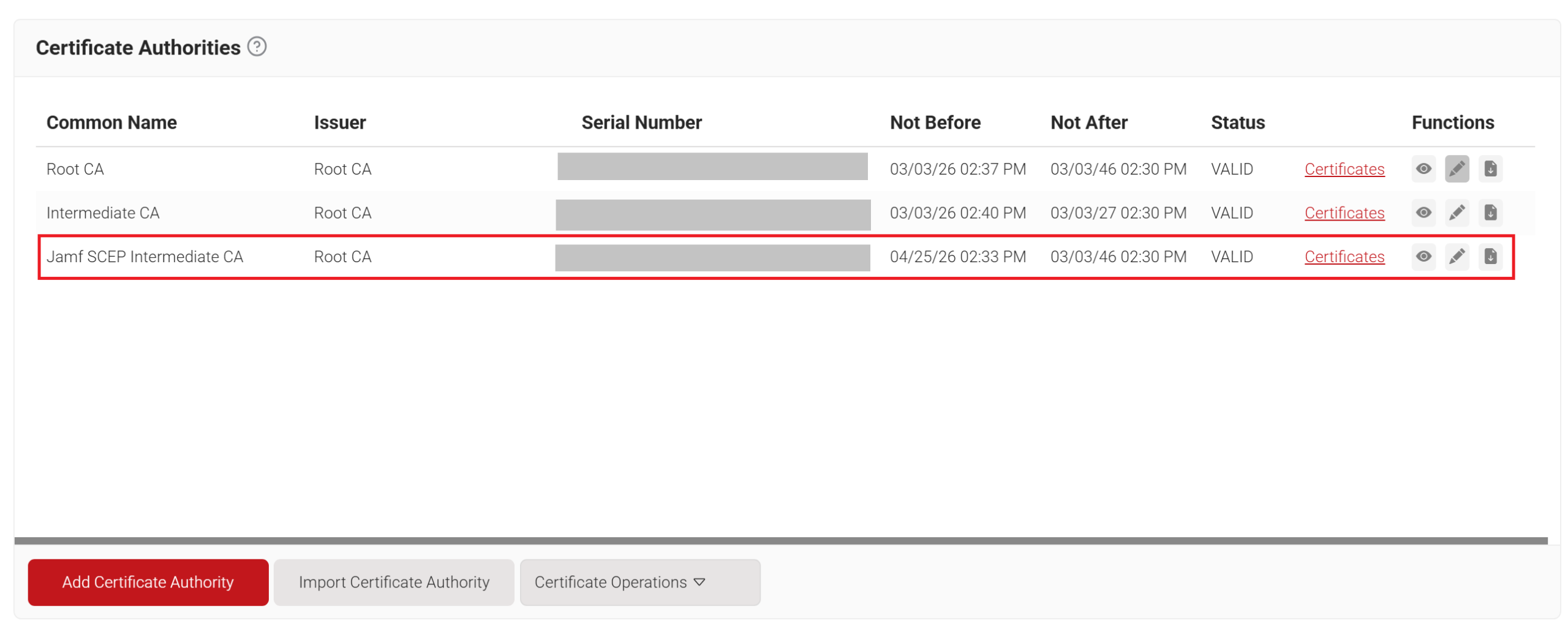
SecureW2 recommends having a new intermediate CA for JoinNow SCEP Gateway integration with Jamf as a best practice. The CA that issues certificates for BYOD devices should be separate from the CA that issues certificates for managed devices, since managed devices do not require email notifications. You can disable email notifications for the dedicated CA issuing certificates to Jamf-managed devices.
To create a new intermediate CA:
- Log in to the JoinNow Management Portal.
- Navigate to Dynamic PKI > Certificate Authorities.
- Click Add Certificate Authority.

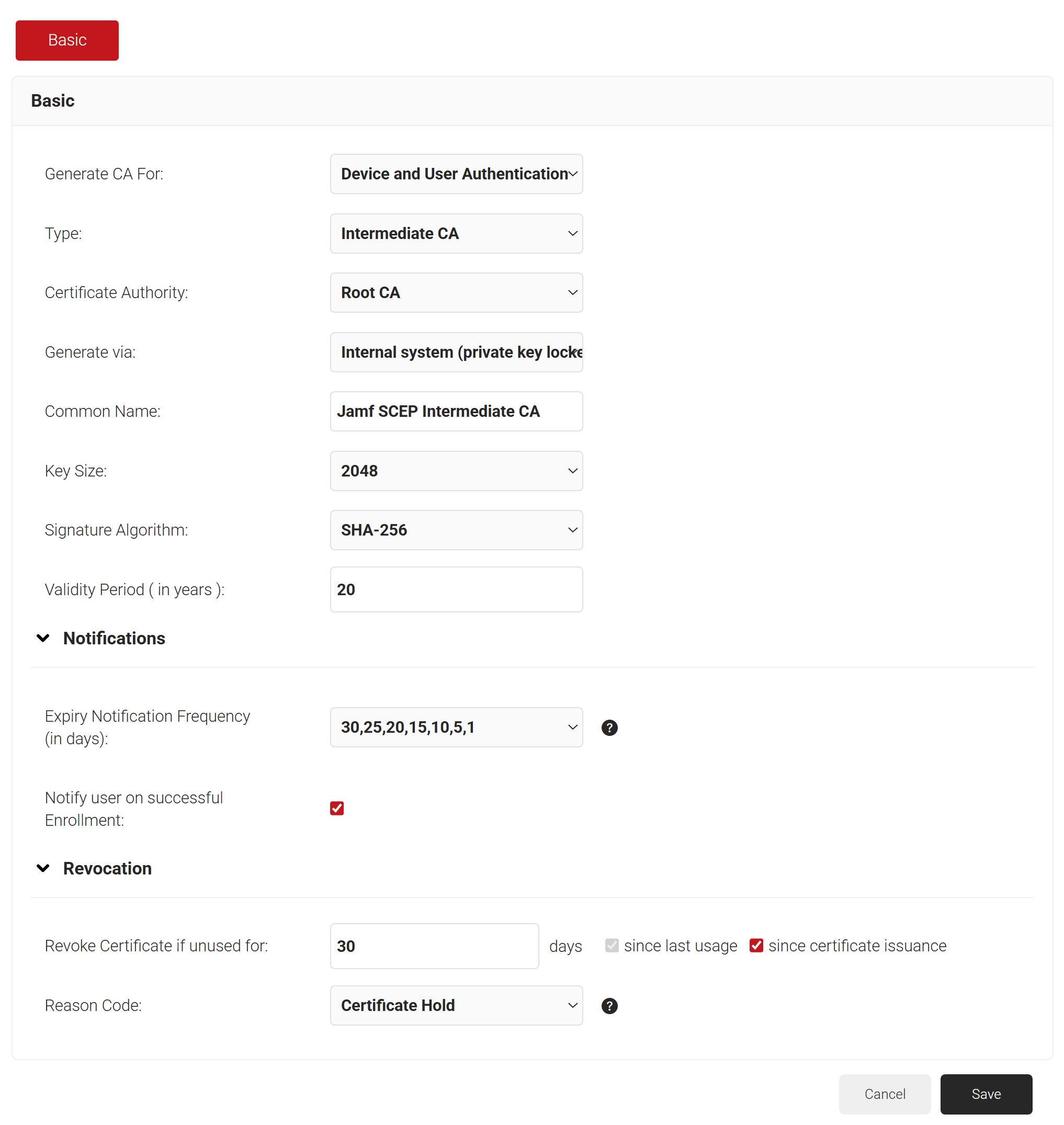
- In the Basic section, from the Generate CA For drop-down list, select the Device and User Authentication option to authenticate devices.
- From the Type drop-down list, select Intermediate CA.
- From the Certificate Authority drop-down list, select the default Root CA for your organization.
- For the Common Name field, enter a name. SecureW2 recommends a name that includes “SCEP.”
- From the Key Size drop-down list, select 2048 for the CA certificate key pair.
- From the Signature Algorithm drop-down list, select the signature algorithm for the certificate signing request. The option available is SHA-256.
- In the Validity Period (in years) field, enter the validity period for the Intermediate CA in terms of the number of years.
- In the Notifications section:
- From the Expiry Notification Frequency (in days) drop-down list, select the frequency interval for which a certificate expiration notification should be sent to users.
- Select the Notify user on successful Enrollment checkbox to notify users after a successful enrollment.
- If the RFC has a valid email address, the user will receive a certificate-issued or expired notification; otherwise, they will not.
- In the Revocation section:
- In the Revoke Certificate if unused for field, select the number of days after which an unused certificate can be revoked.
- Since last usage – Select this checkbox to revoke the certificate after a specified number of days if it remains unused
- Since certificate issuance – Select this checkbox to revoke the certificate after a specified number of days after it is issued.
- From the Reason Code drop-down list, select any one of the following reasons for which the certificate is revoked.
- Certificate Hold.
- AA Compromise.
- Privilege Withdrawn.
- Unspecified.

- In the Revoke Certificate if unused for field, select the number of days after which an unused certificate can be revoked.
- Click Save. The new intermediate CA is generated.

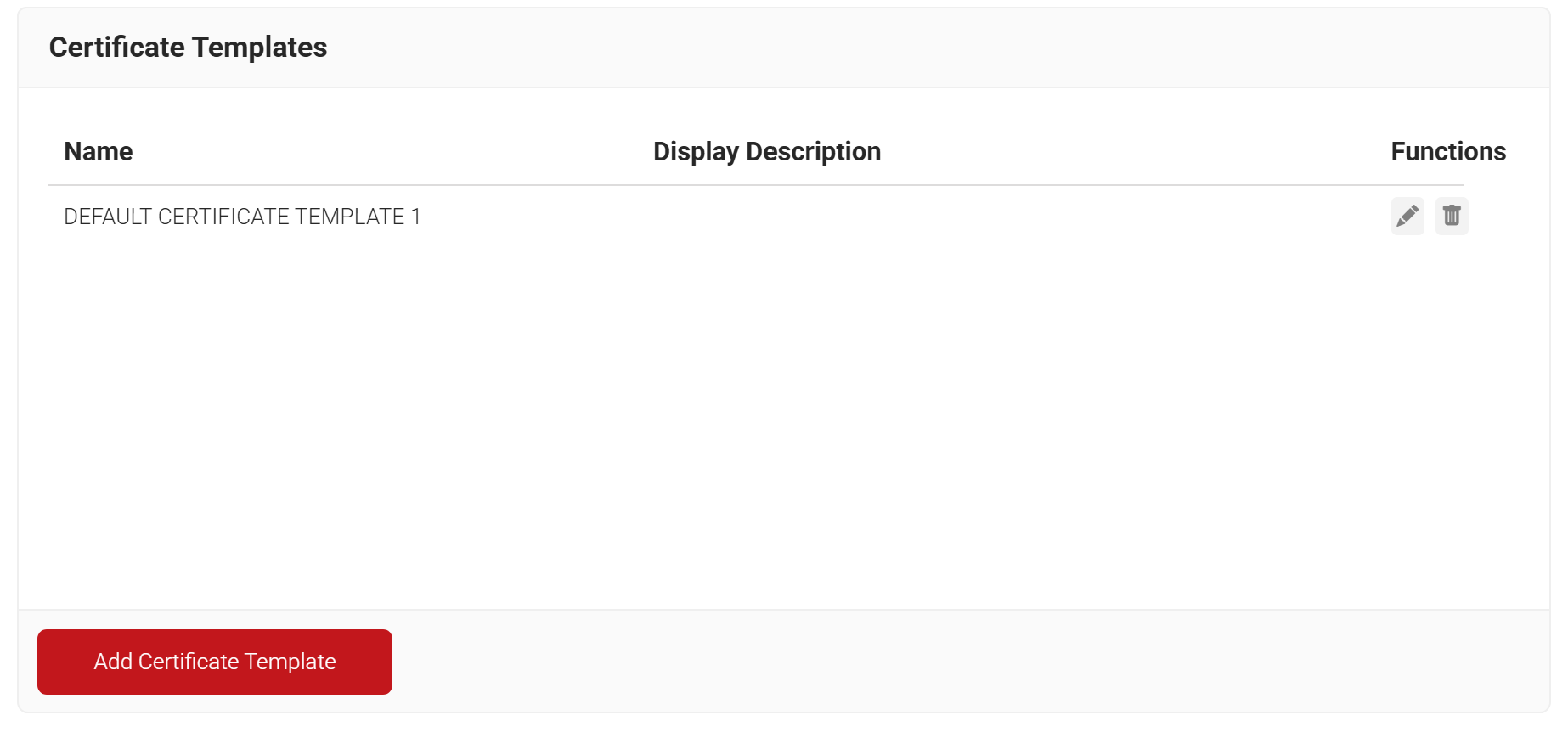
A certificate template determines how information is encoded in the certificate issued by the Certificate Authority (CA). The Certificate template consists of a list of certificate attributes and the encoding of their values. These details are provided by the organization administrator in the Management Portal.
MDM usually has a certificate template you can configure using the SCEP gateway.
To create a Jamf certificate template, perform the following steps:
- Navigate to Dynamic PKI > Certificate Authorities.
- Click Add Certificate Template.

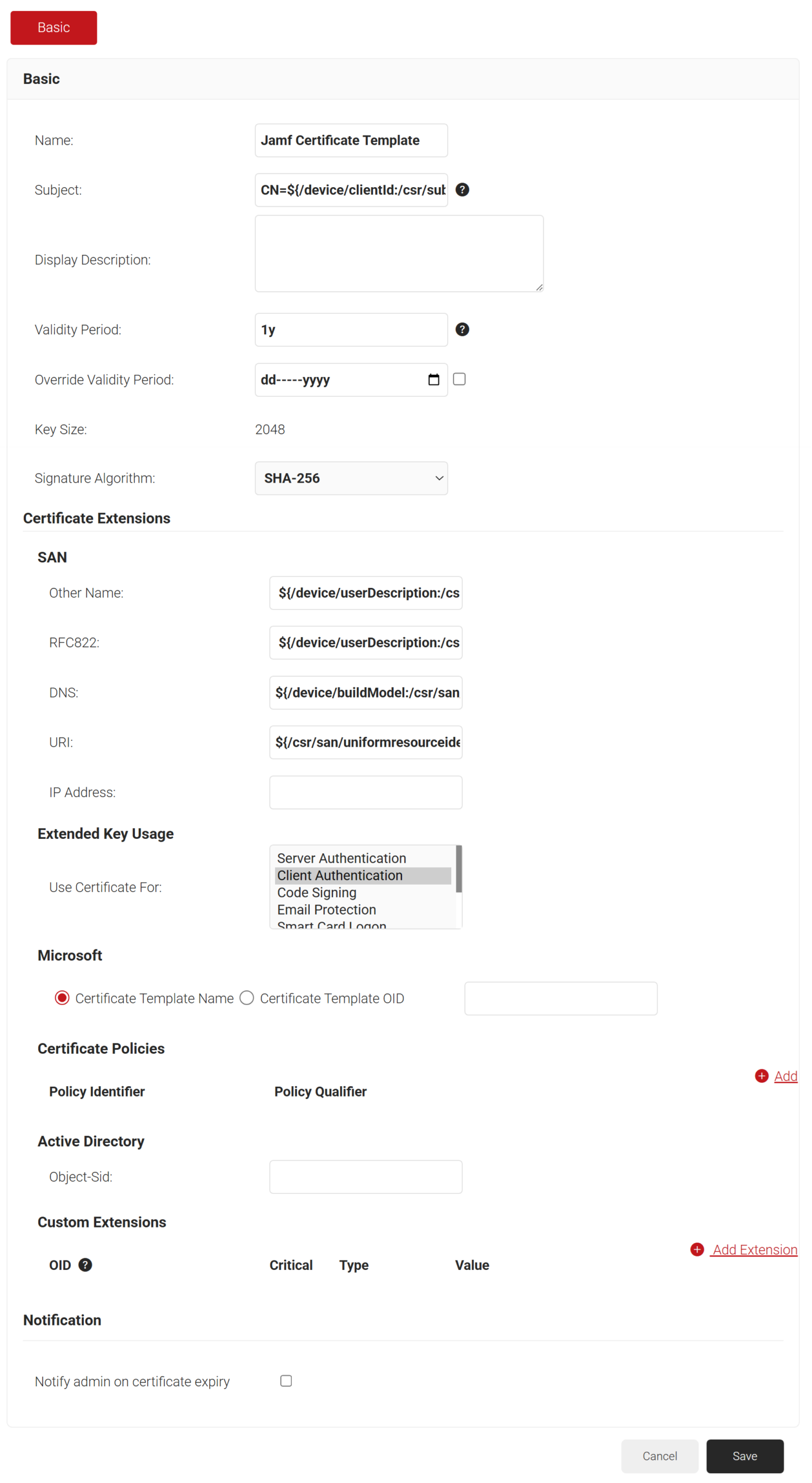
- In the Basic section, enter the name of the certificate template in the Name field.
- In the Subject field, enter CN=${/device/clientId:/csr/subject/commonname}.
- In the Display Description field, enter a suitable description for the certificate template.
- In the Validity Period field, type the validity period of the certificate (based on the requirement).
- From the Signature Algorithm drop-down list, select the signature algorithm for the certificate signing request. The option available is SHA-256.
- In the SAN section:
- In the Other Name field, enter ${/device/userDescription:/csr/san/othername}
- In the RFC822 field, enter ${/device/userDescription:/csr/san/rfc822name}
- In the DNS field, enter ${/device/buildModel:/csr/san/dnsname}
- In the Extended Key Usage section, from the Use Certificate For list, select Client Authentication.

- Click Save.
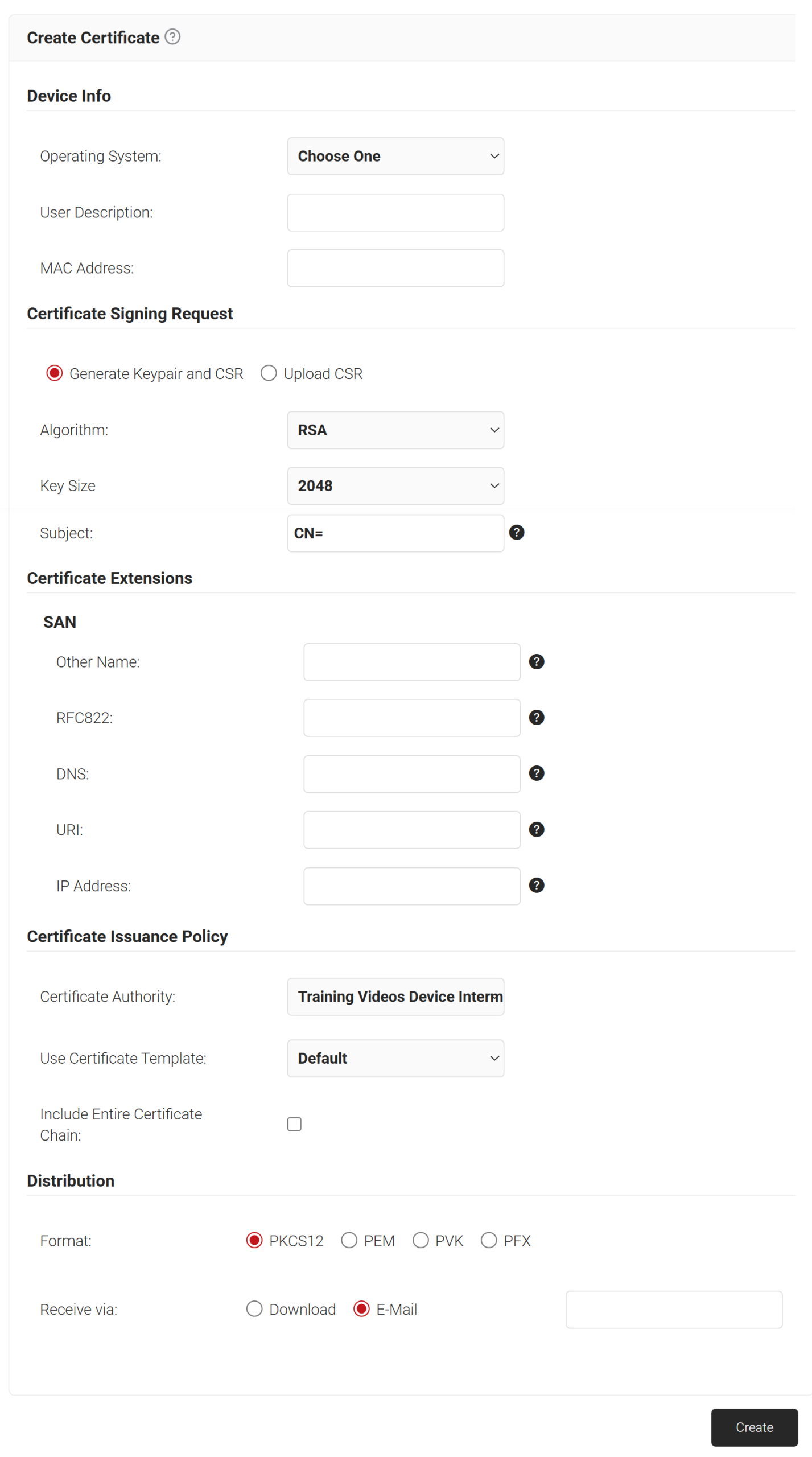
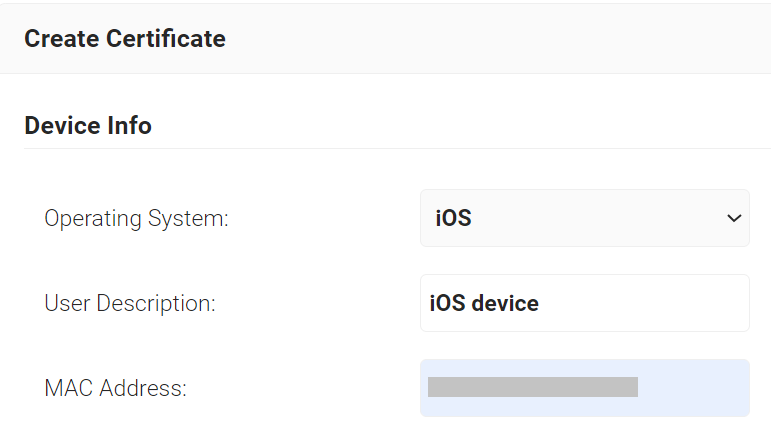
The signing certificate can be created from the JoinNow Management Portal using the Create Certificate option.
NOTE: The CA that is configured in Policy Management > Enrollment to issue certificates for Jamf enrollment requests should be the same CA with which you create this signing certificate.
To create a Jamf signing certificate:
- Navigate to PKI > Create Certificate.

- In the Device Info section, from the Operating System drop-down list, select an operating system.
- In the User Description field, enter a suitable description.
- In the MAC Address field, enter the MAC address of the device.

- In the Certificate Signing Request section, select the Generate Keypair and CSR option. The following attributes should be selected:
- From the Algorithm drop-down list, select an option. The options are:
- RSA (default value).
Here, the Key Size options are:- 2048 (default value)
- 4096

- ECC. Here, the Curve Type options are:
- P-256 (secp256r1)
- P-238(secp238r1)

- RSA (default value).
- From the Algorithm drop-down list, select an option. The options are:
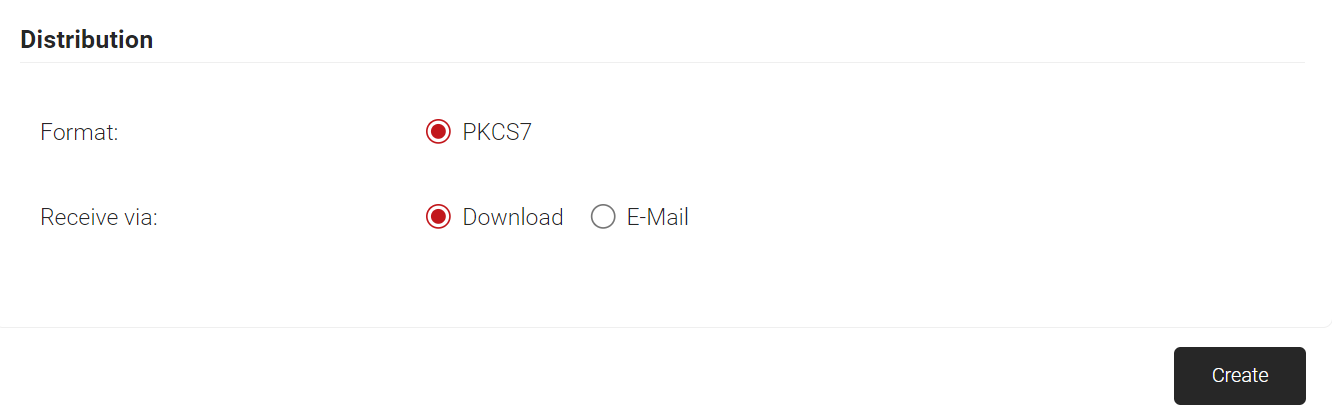
- Select the Upload CSR option to create client certificates by using a .csr file. In the CSR File field, click the Choose File button to upload the .csr file.

NOTE: The Distribution Format for the uploaded .csr file is only PKCS7.
- In the Subject field, enter the subject name of the certificate.
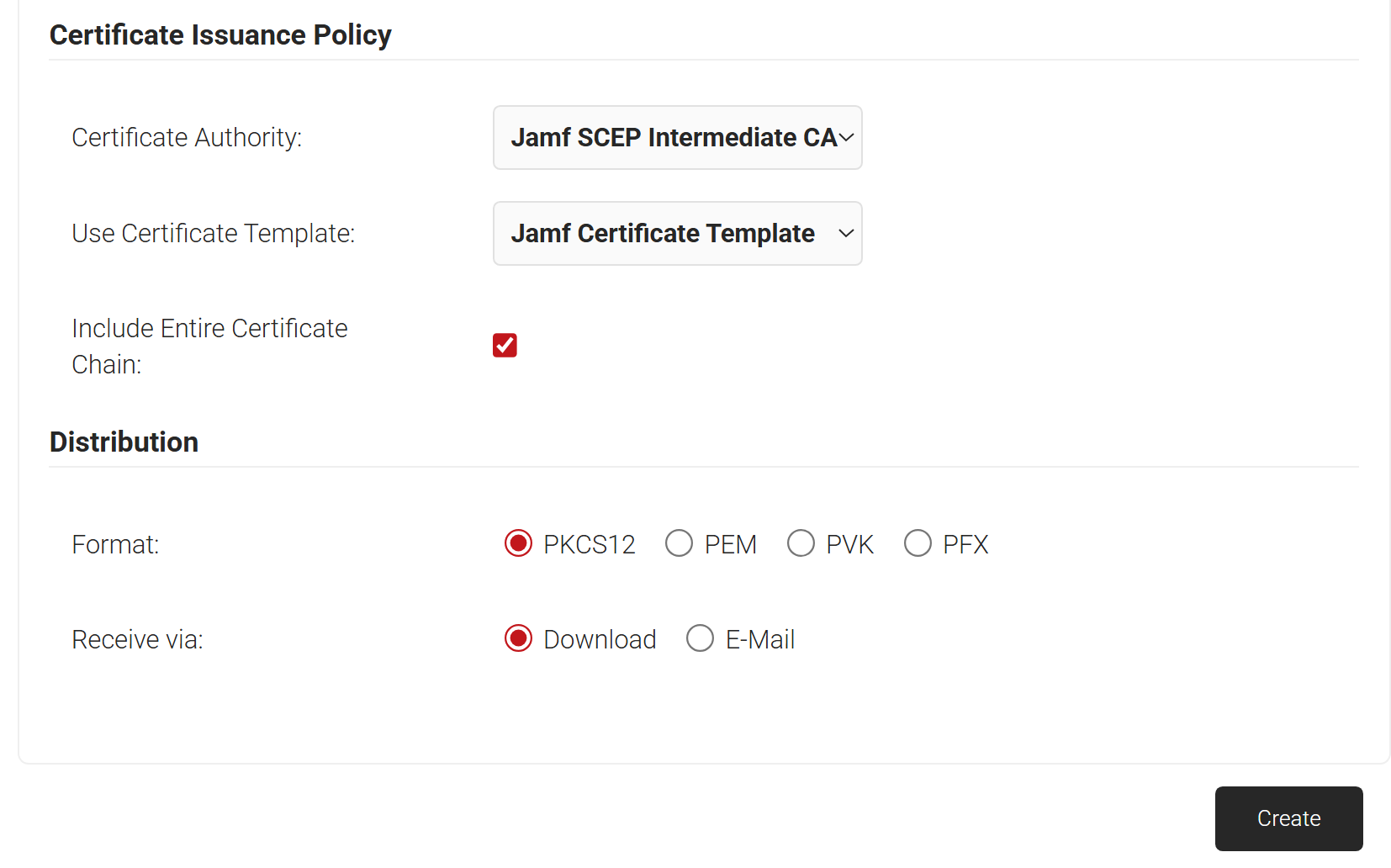
- In the Certificate Issuance Policy field, from the Certificate Authority drop-down list, select the intermediate CA you created earlier (see the Create an Intermediate CA for SCEP Gateway Integration).
- From the Use Certificate Template drop-down list, select the certificate template you created earlier to create this certificate (see the Create a Jamf Certificate Template section).
- Select the Include Entire Certificate Chain checkbox to add the Root and Intermediate CA certificate to the certificate file.
- In the Distribution sectio:
- In the Format field, select a format for the certificate. The options are:
- PKCS12
- PEM
- PVK
- PFX
- In the Receive via field, select any one of the options to send the certificate file to a user.
- Download – The file is downloaded to the user’s device.
- E-Mail – The file is sent to the user via email. Enter the email address of the recipient.

- In the Format field, select a format for the certificate. The options are:
- Click the Create button, and a pop-up window opens.
- In the Password for private key pop-up window, enter the password for the certificate file and click Submit.




The SCEP URL serves as an endpoint that managed devices can use to connect to the SCEP server and enroll for certificates. The secret is also passed along to Jamf’s external CA for authentication of these certificate requests.
The SCEP URL and secret can be generated by creating a Device Management Platform in the JoinNow Management Portal.
Additionally, the tokens created for SCEP Enrollment can also be used in Policy Management to assign a user/device role based on the token in the incoming request.
To generate the SCEP URL and secret:
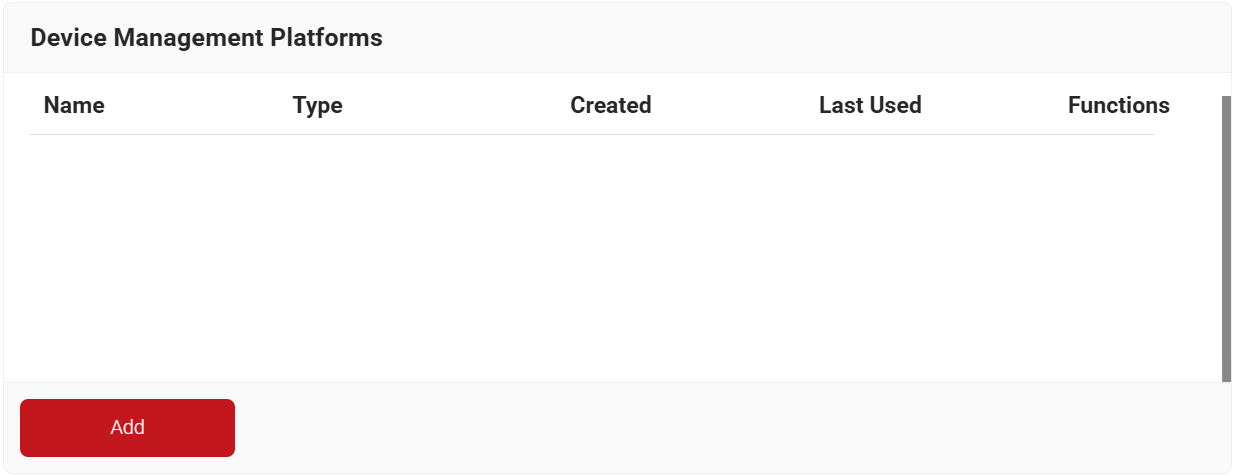
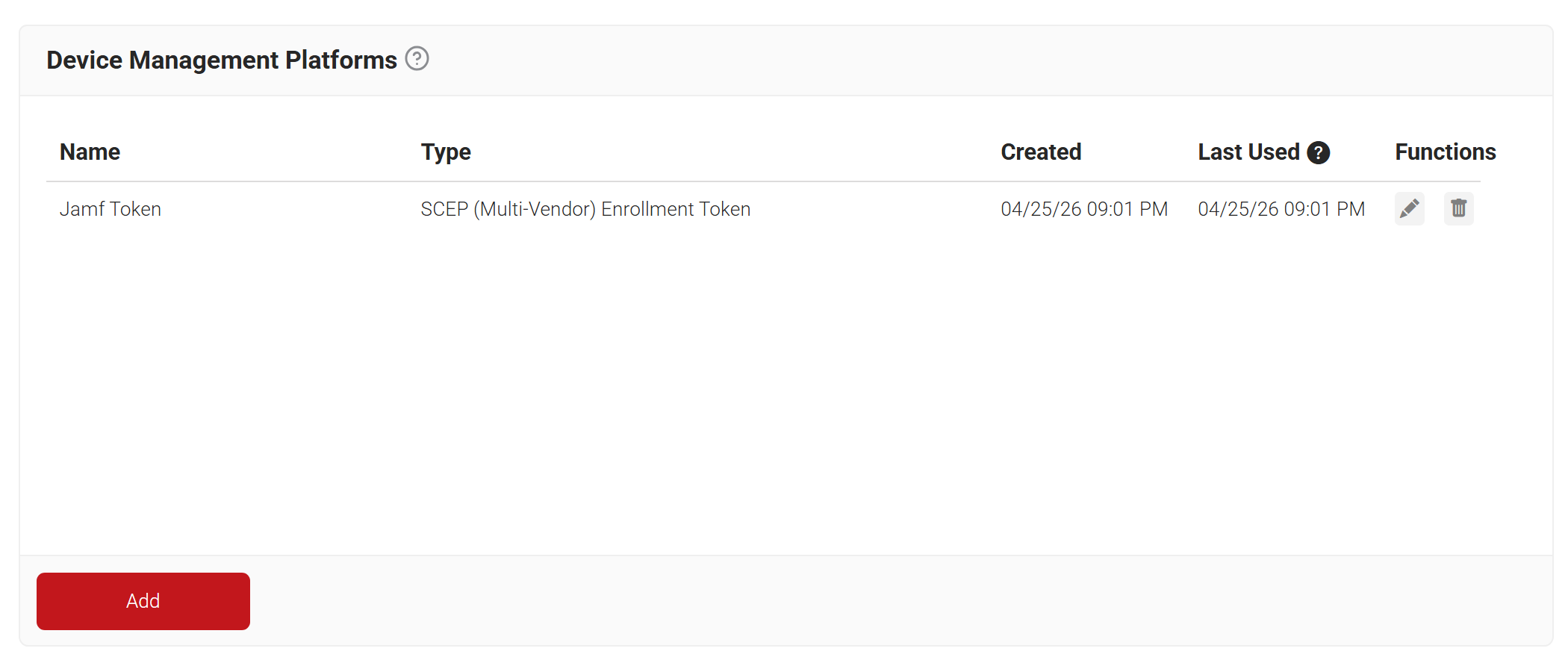
- Navigate to Integration Hub > Device Management Platforms.
- Click Add.

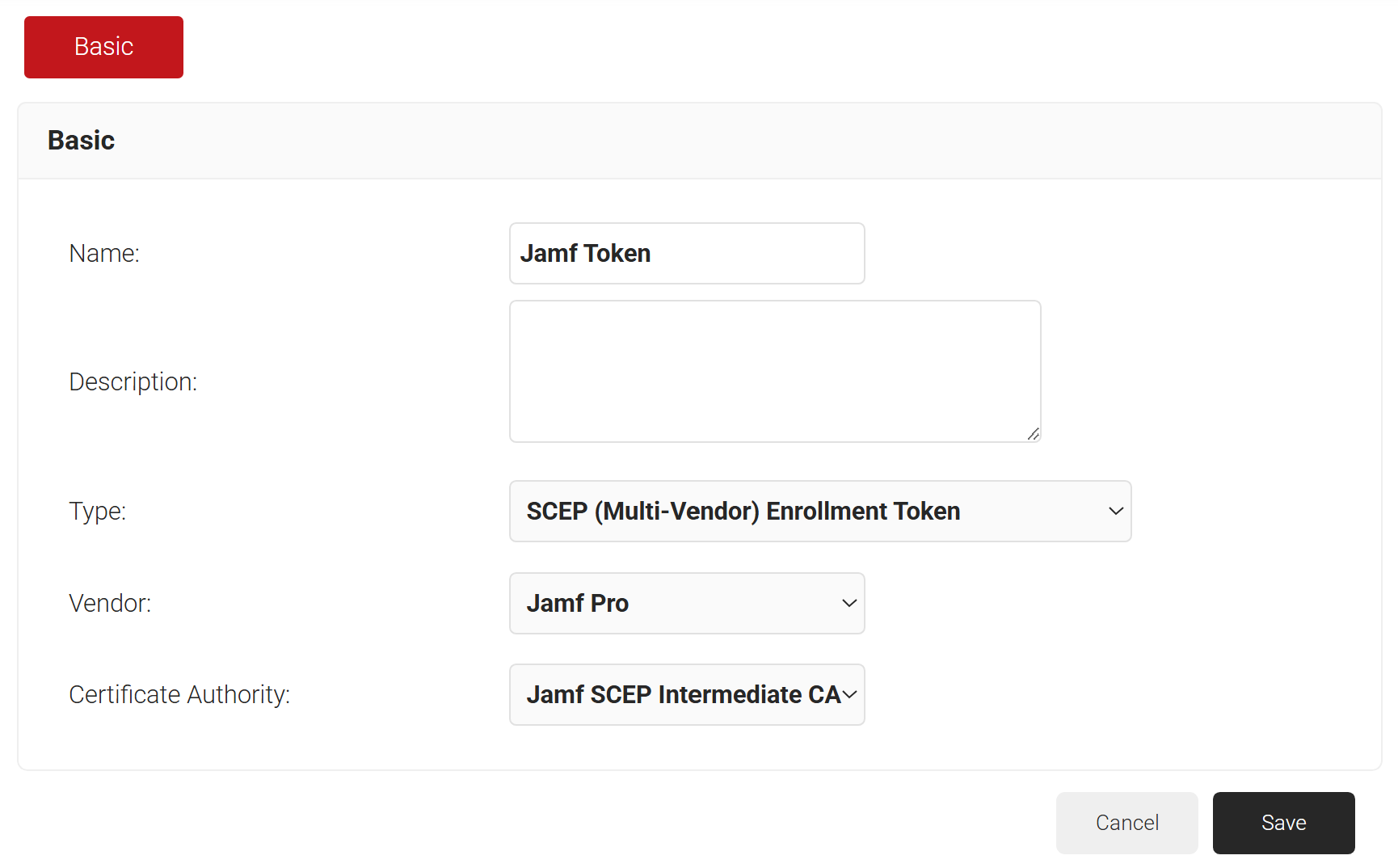
- In the Basic section, in the Name field, enter the name of the device management platform.
- In the Description field, enter a suitable description for the device management platform.
- From the Type drop-down list, select SCEP (Multi-Vendor) Enrollment Token.
- From the Vendor drop-down list, select Jamf Pro.
- From the Certificate Authority drop-down list, select the CA you created earlier (see the Create an Intermediate CA for SCEP Gateway Integration section). If you do not select a CA, by default, the organization CA is chosen.

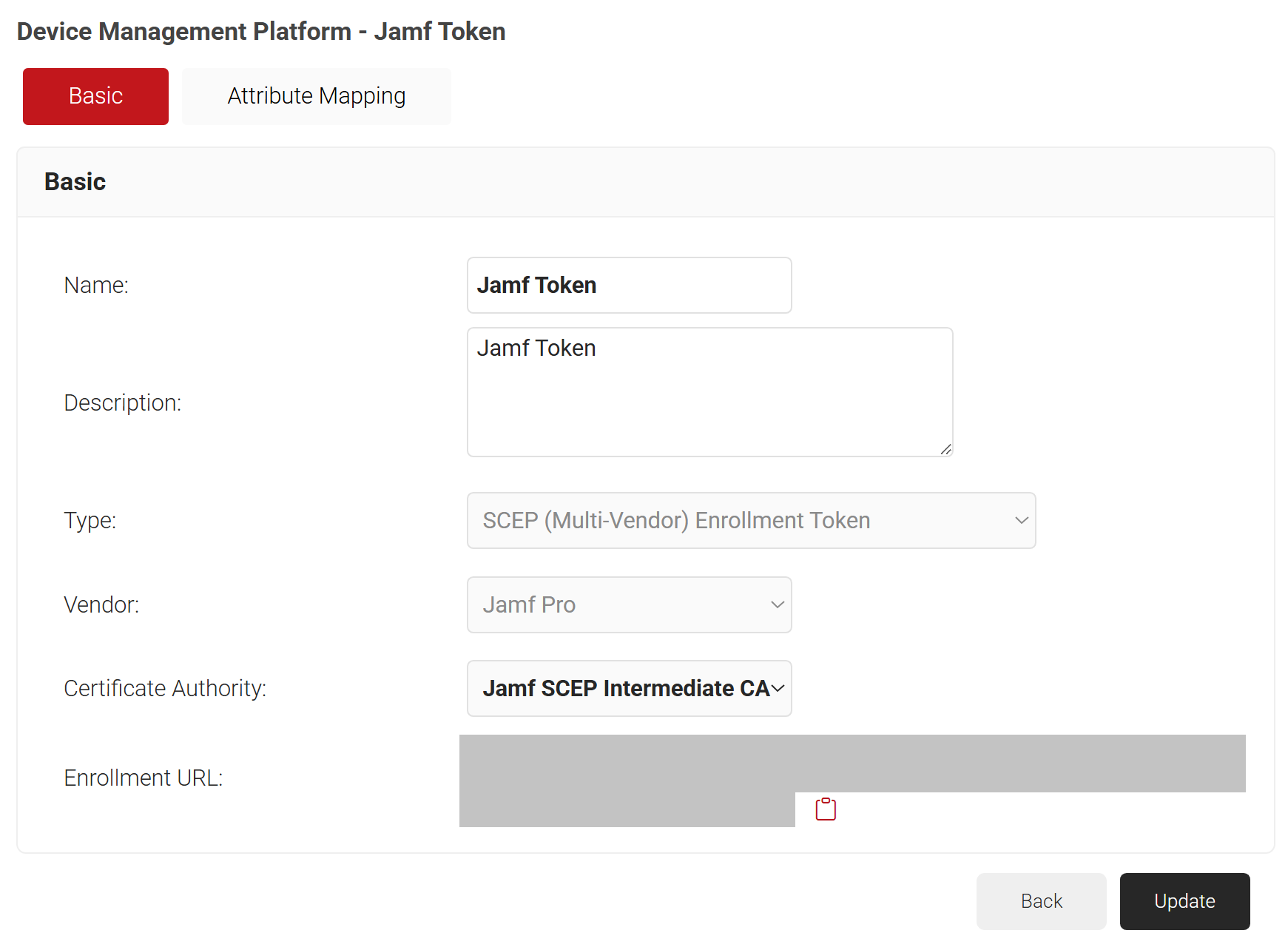
- Click Save. A .csv file containing the API secret and Enrollment URL is downloaded, and the Enrollment URL is displayed on the screen.
NOTE: Save this file securely. It is downloaded only once during token creation. If you lose it, you can not retrieve the secret.
- The page refreshes, and the Attribute Mapping tab is displayed.

- Click Update.

NOTE: You can also refer to the steps in Configuring Device Management Platform (SCEP (Multi-Vendor) Enrollment Token) in the JoinNow MultiOS and Connector Configuration Guide, which is available in the JoinNow Management Portal.
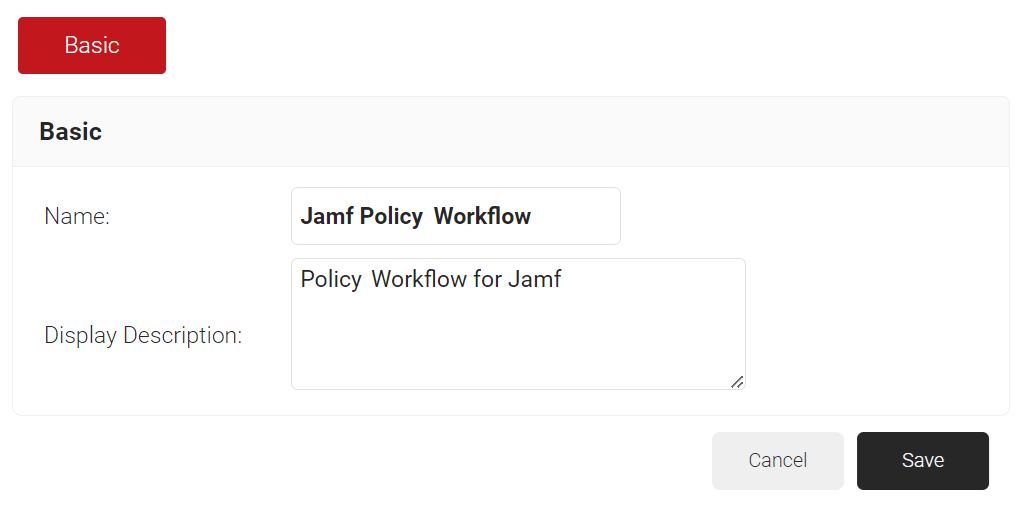
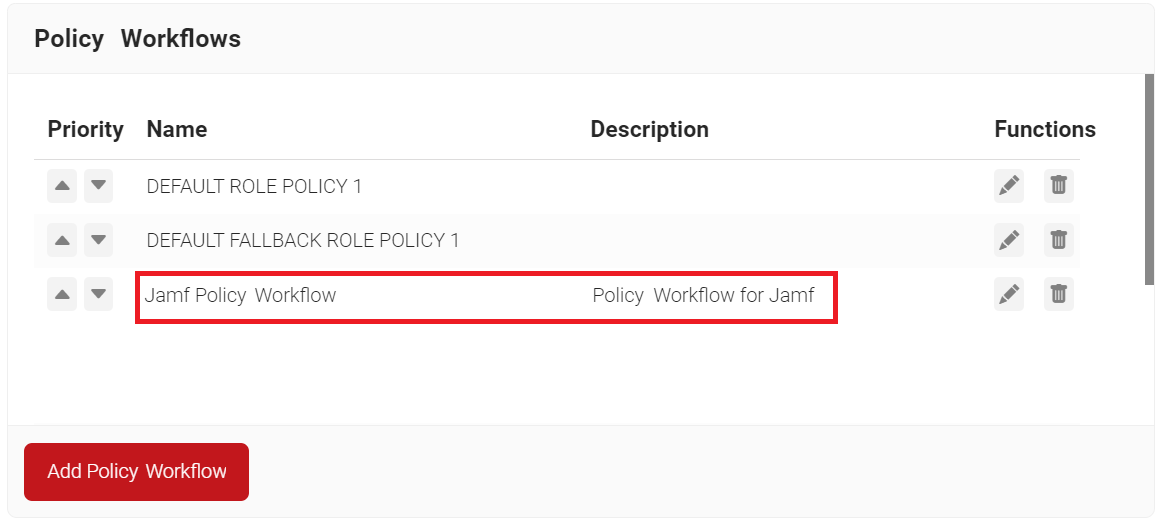
To configure a Policy Workflow:
- Navigate to Policy Management > Policy Workflows.
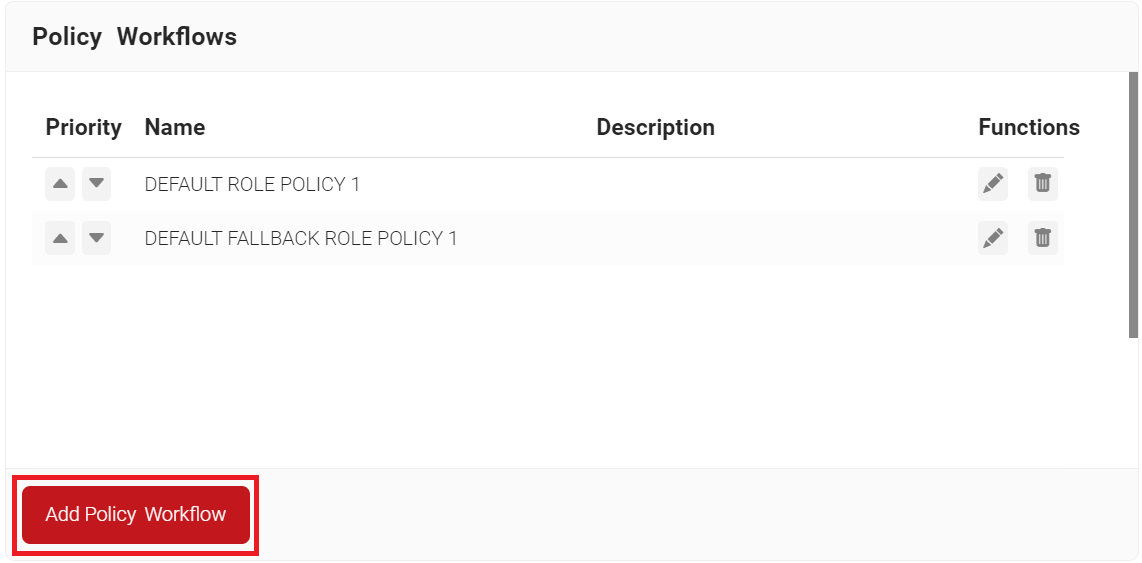
- Click Add Policy Workflow.

- In the Basic section, enter the name of the policy workflow in the Name field.
- In the Display Description field, enter a suitable description for the policy workflow.

- Click Save.
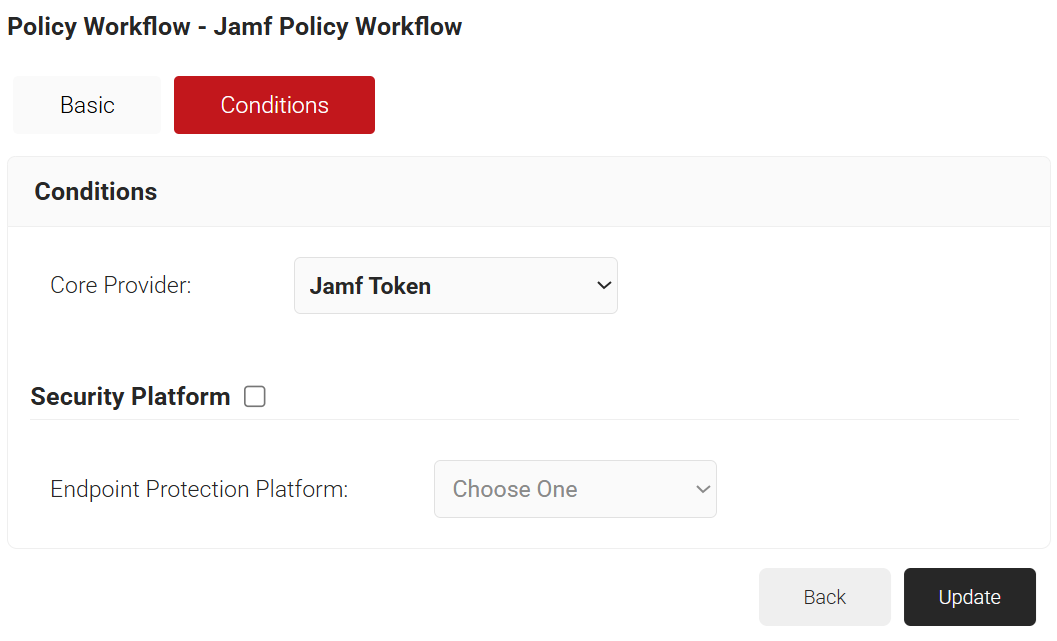
- The page refreshes, and the Conditions tab is displayed.
- Select the Conditions tab.
- From the Core Provider drop-down list, select the JAMF token you created earlier (see the Generating a SCEP URL and Secret section).

- Click Update.

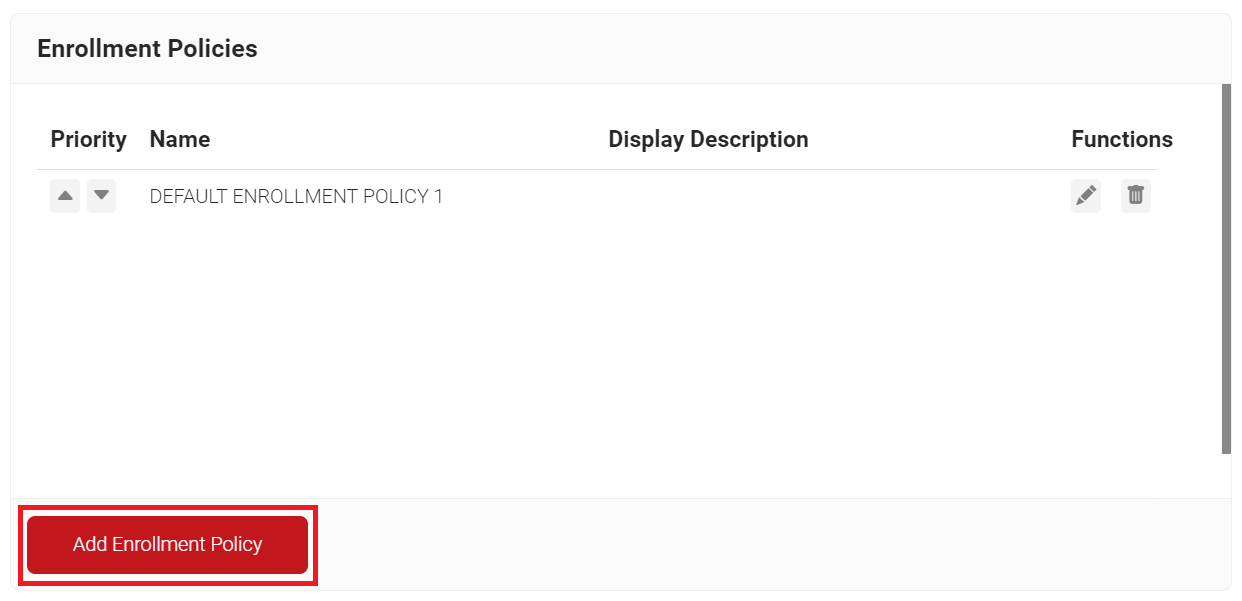
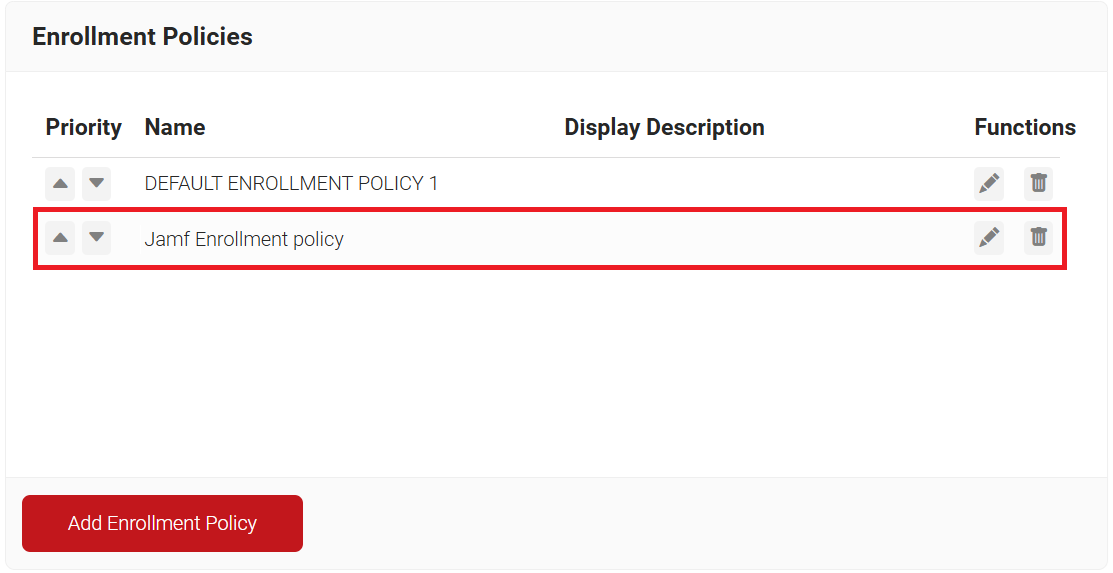
To add an Enrollment Policy, perform the following steps:
- Navigate to Policy Management > Enrollment.
- Click Add Enrollment Policy.

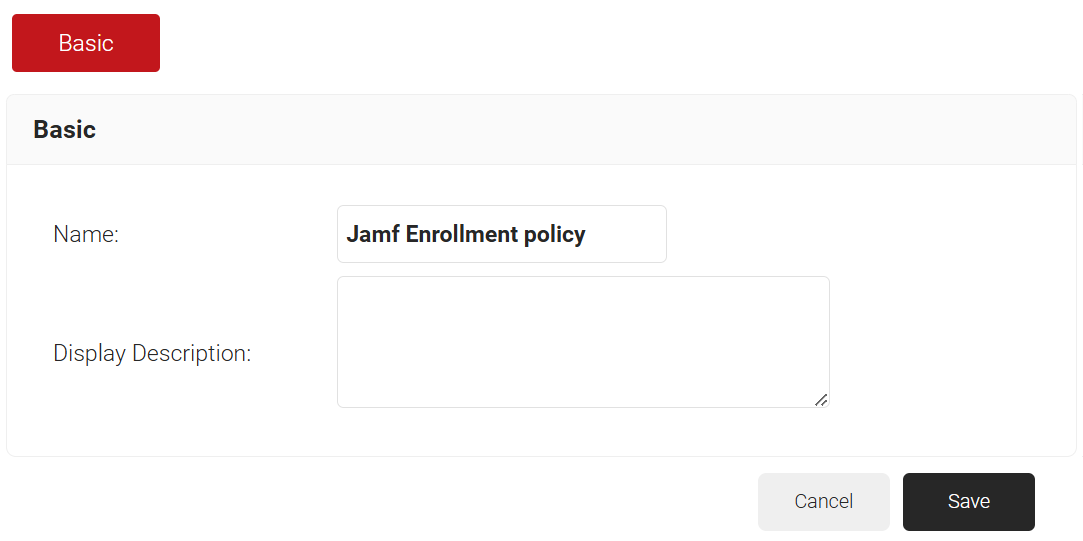
- Under the Basic section, in the Name field, enter the name of the enrollment policy.
- In the Display Description field, enter a suitable description for the enrollment policy.

- Click Save.
- The page refreshes, and the Conditions and Settings tabs are displayed.
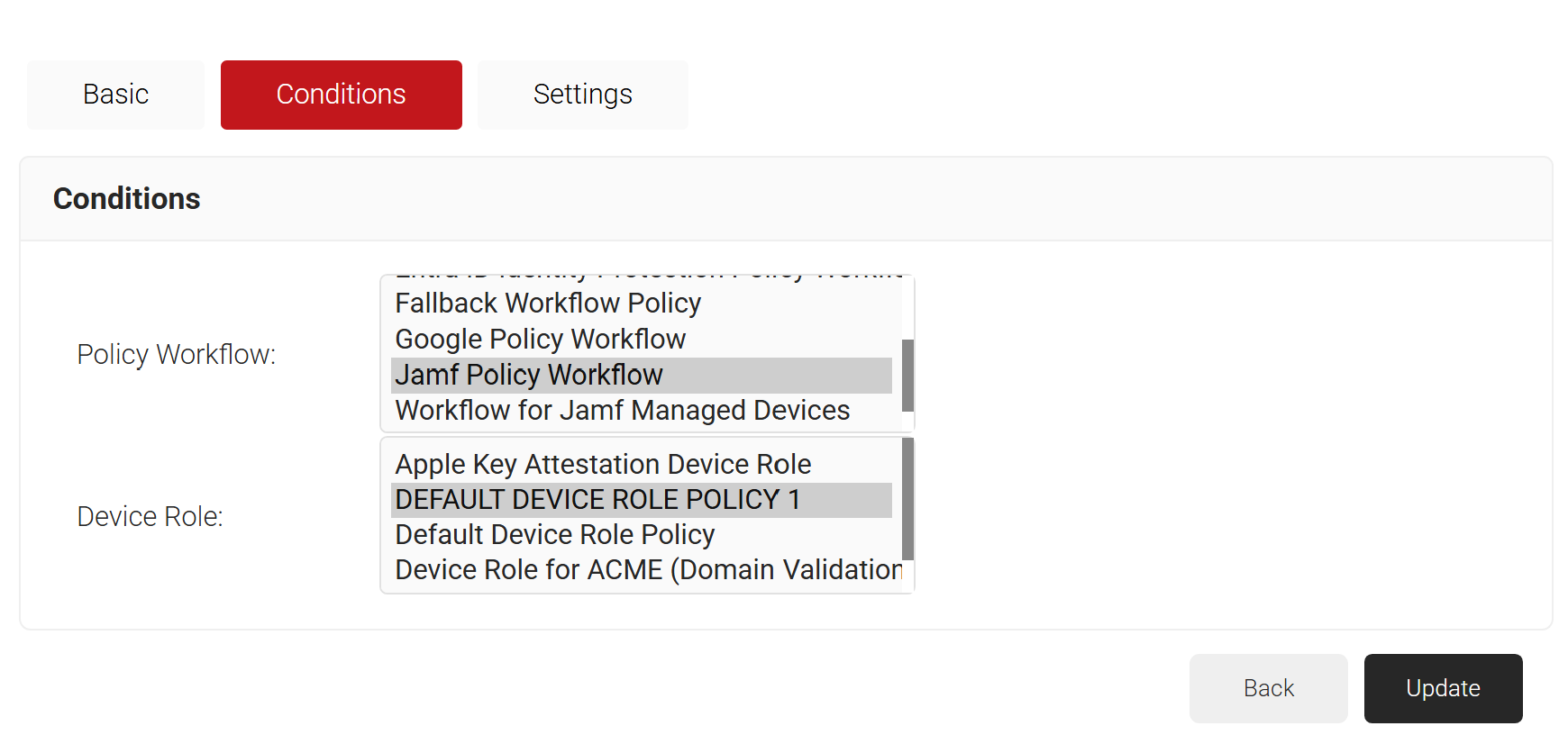
- Select the Conditions tab.
- In the Conditions section, from the Policy Workflow list, select the role policy you created in the Configuring a Policy Workflow section.
- From the Device Role drop-down list, select DEFAULT DEVICE ROLE POLICY 1.

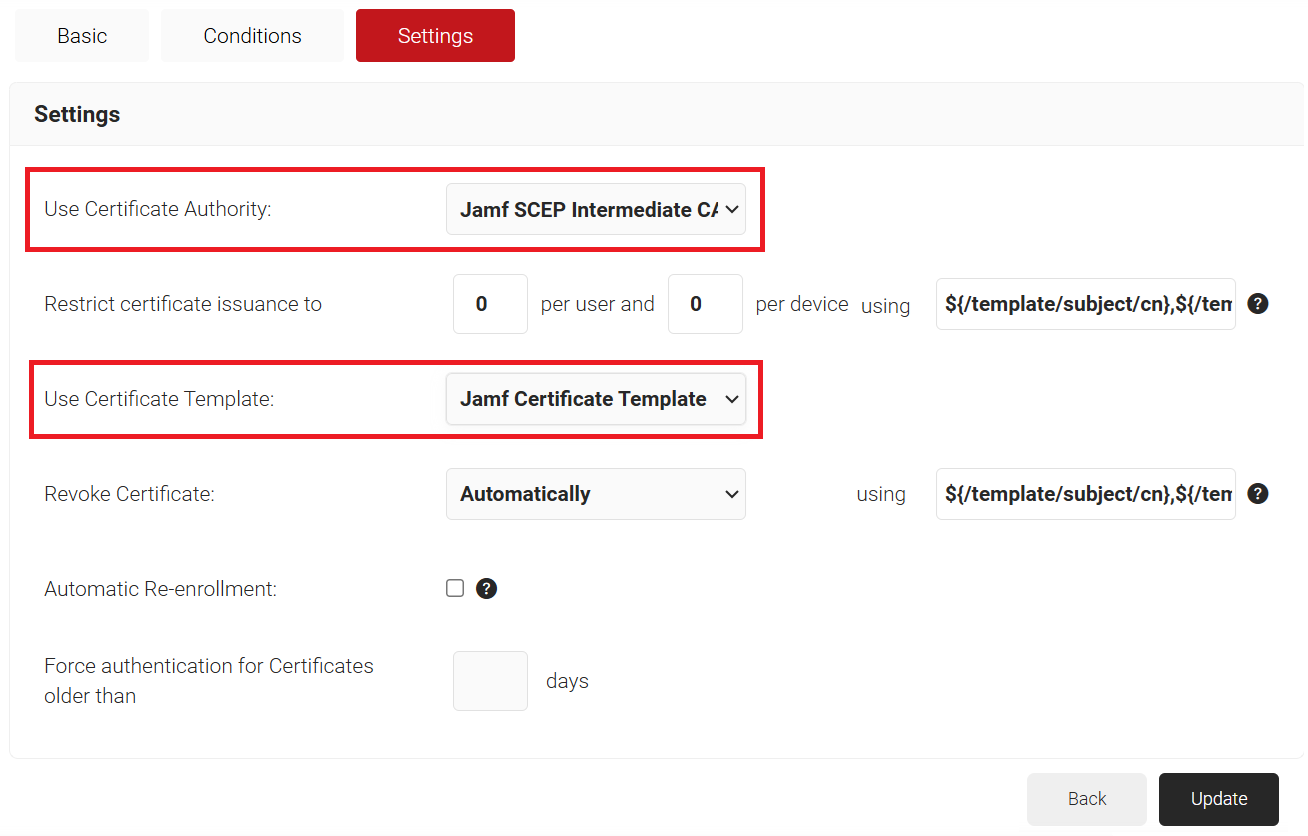
- Select the Settings tab.
- In the Settings section, from the Use Certificate Authority drop-down list, select the intermediate CA you created earlier (see the Create an Intermediate CA for SCEP Gateway Integration section).
- From the Use Certificate Template drop-down list, select the template you created earlier (see the Create a Jamf Certificate Template section).
- Retain the default values for the other settings.

- Click Update.

To configure a Jamf Profile for the Simple Certificate Enrollment Protocol (SCEP), we need to set up our CA in Global Management settings.
- Log in to the Jamf Pro console.
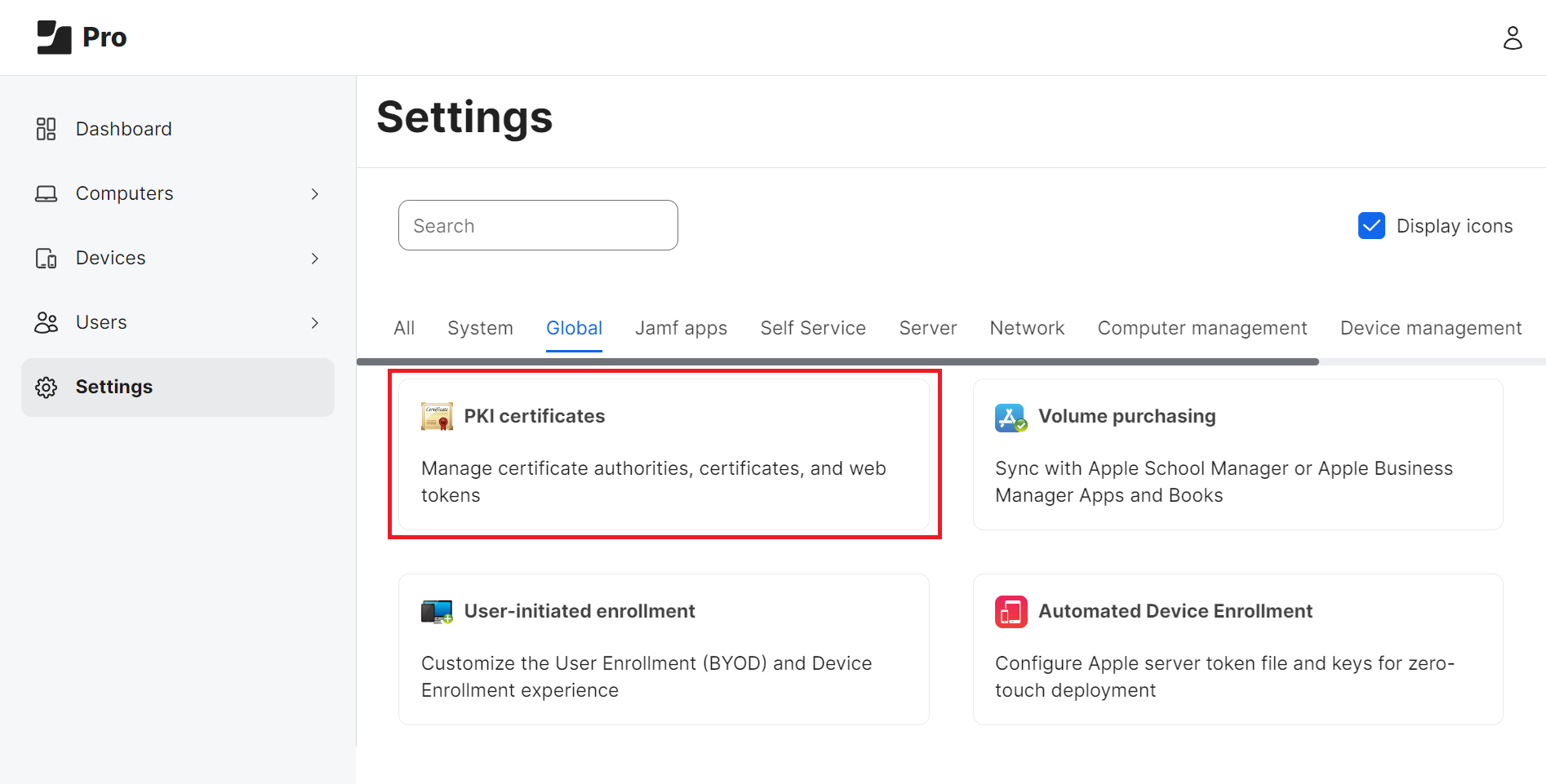
- Navigate to Settings(Gear icon on top right corner) > Global.
- Click PKI certificates.

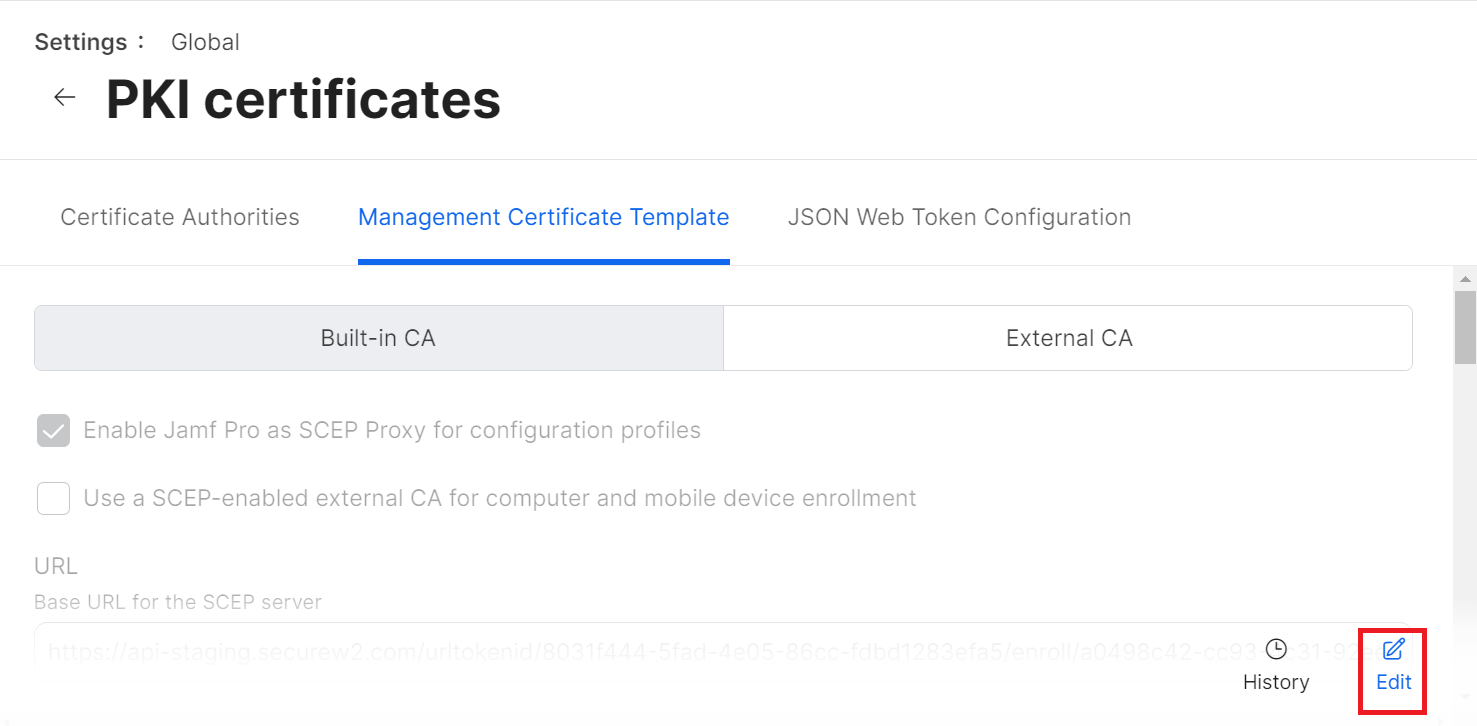
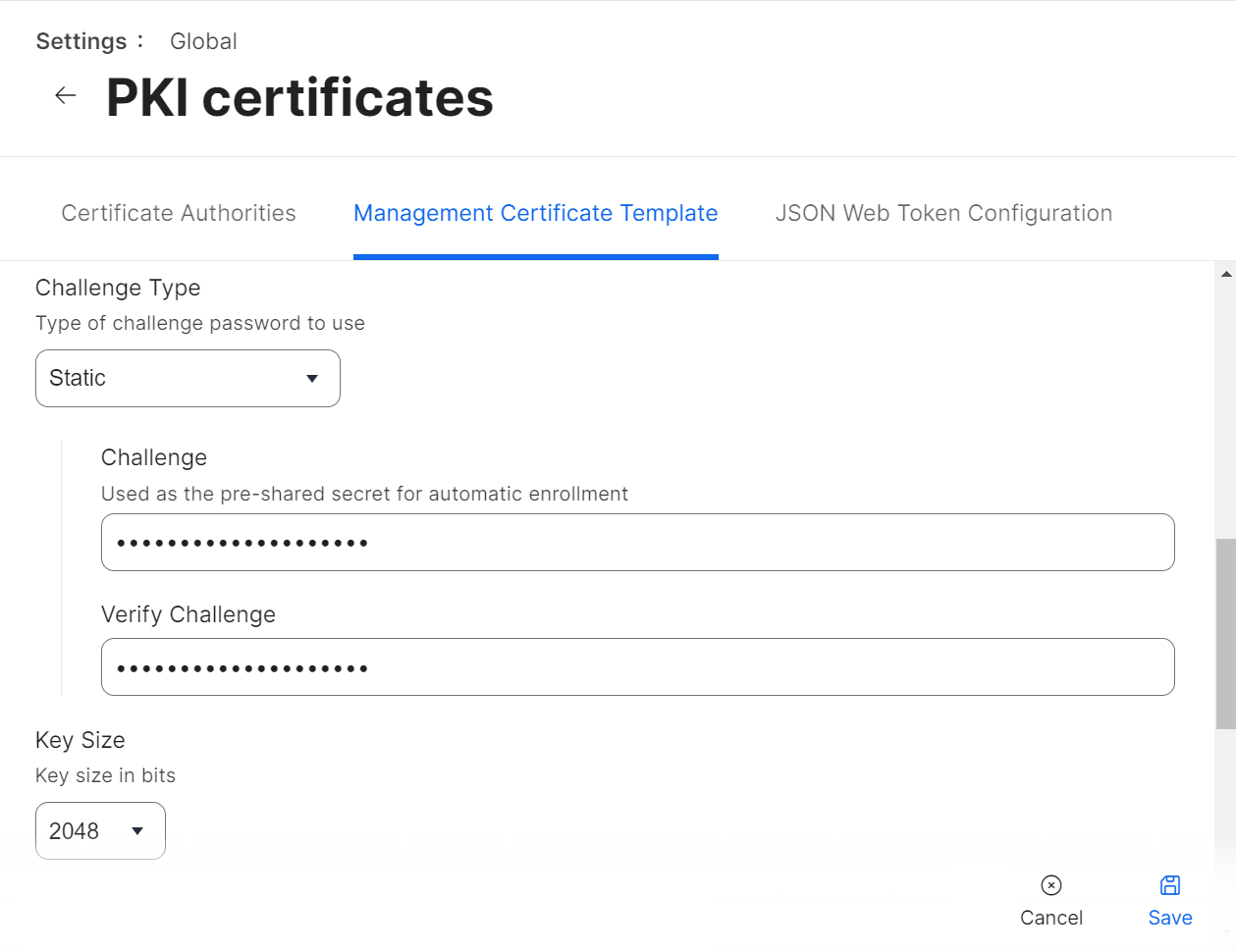
- Select the Management Certificate Template tab, select External CA, and click Edit.

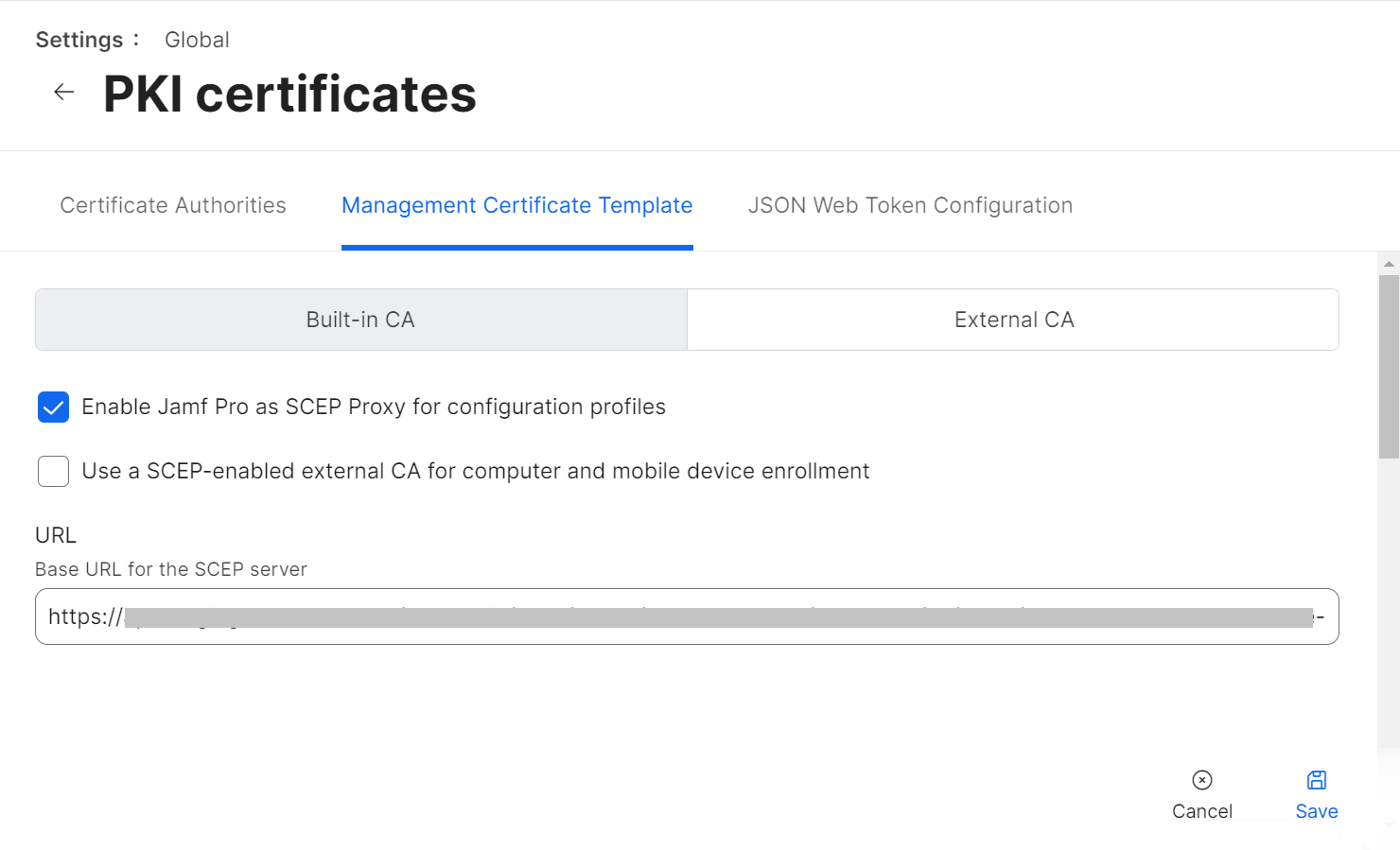
- Select the Enable Jamf Pro as SCEP Proxy for configuration profiles checkbox.
- In the URL field, enter the new SCEP URL you saved in the CSV file.

NOTE: You can also refer to the steps in the Configuring API Tokens (SCEP Enrollment Token) section in the JoinNow MultiOS and Connector Configuration Guide available in the JoinNow Management Portal.
NOTE: Write to support@securew2.com to confirm that this URL works with the intermediate CA you configured in the Creating Enrollment Policy section. However, you can proceed with the remaining steps and write to SecureW2 support if you notice any failures.
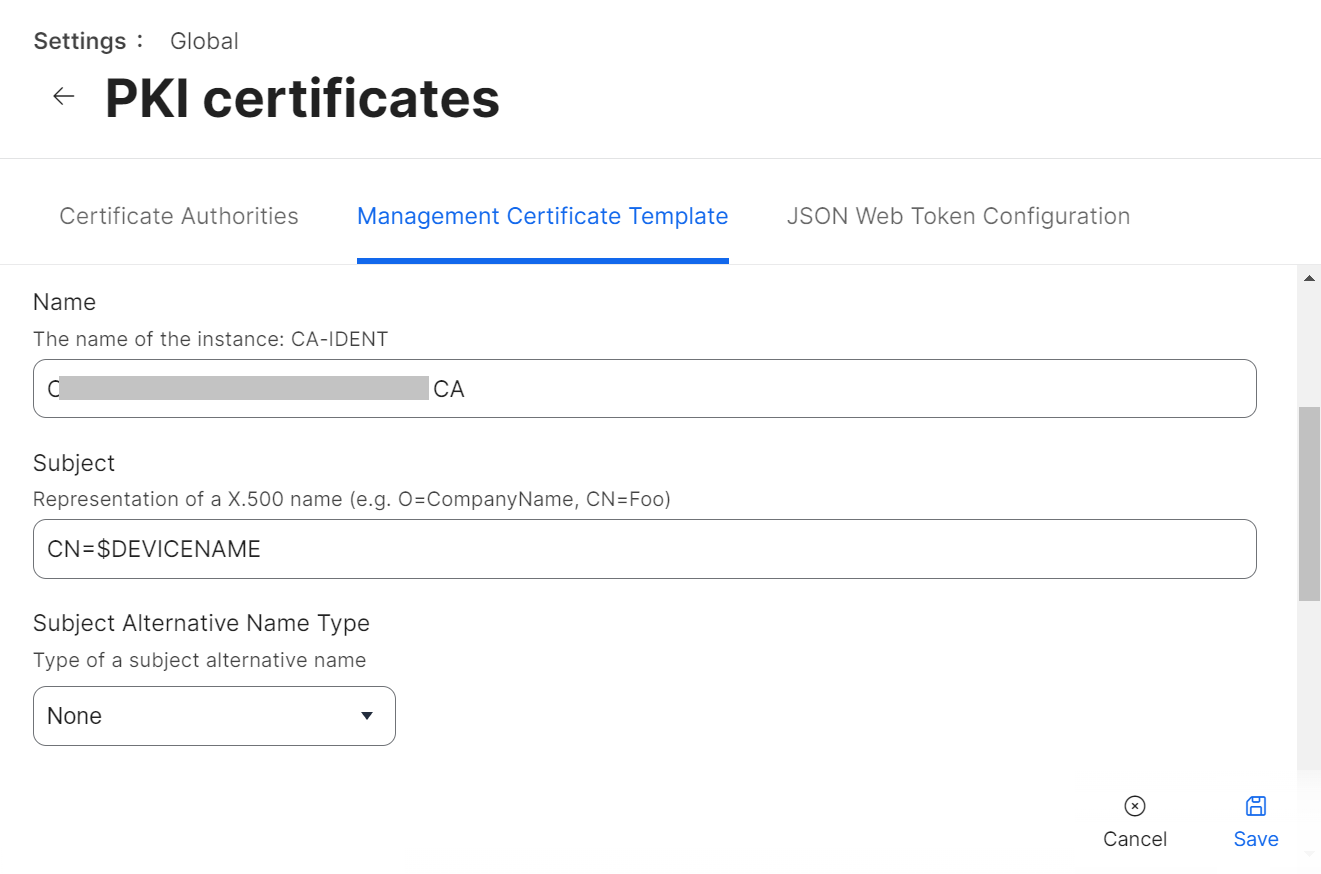
- In the Name field, enter the name of the certificate issuing CA created in the JoinNow Management portal.
- In the Subject field, enter “CN=$DEVICENAME”.
- From the Subject Alternative Name Type drop-down list, select None.

- From the Challenge Type drop-down list, select Static.
- In the Challenge and Verify Challenge fields, enter the Secret from the CSV file you downloaded in the Generating a SCEP URL and Secret section.
- From the Key Size drop-down list, select 2048. SecureW2 does not recommend selecting 1024.

- Click Save.
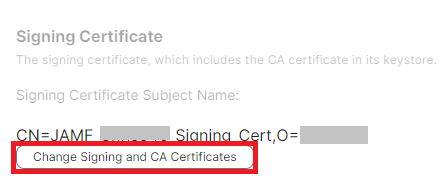
- Under the Signing Certificate section, click Change Signing and CA Certificates to upload the signing certificate you created in Creating a Signing Certificate for Jamf.

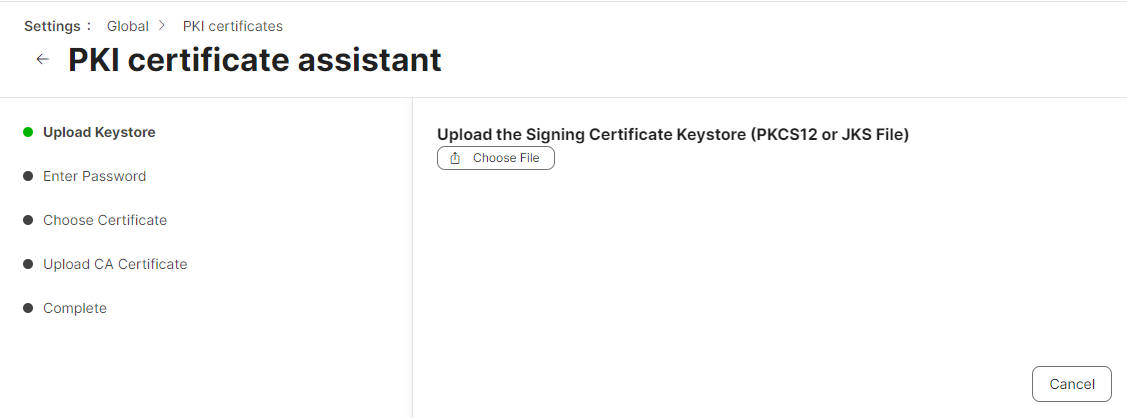
- On the Upload Keystore step, click Choose File and upload the PKCS12 file you downloaded in “Creating a Signing Certificate for Jamf”.

- Click Next.
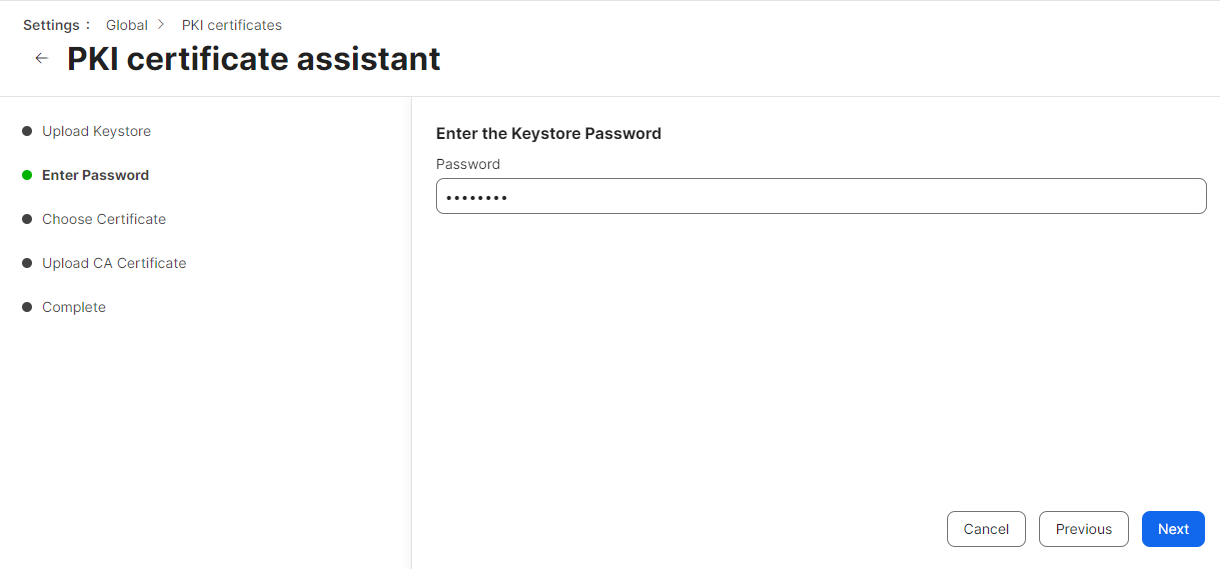
- On the Enter Password step, enter the password you entered in the Password for private key prompt in the Creating a Signing Certificate for Jamf section when you created the certificate.

- Click Next.
- On the Choose Certificate step, verify that the correct CA certificate is selected from the Choose Certificate drop-down list and that the correct certificate chain is displayed.

- Click Next.
- On the Upload CA Certificate step, click Next to skip the upload. The CA certificate is already present in PKCS12.
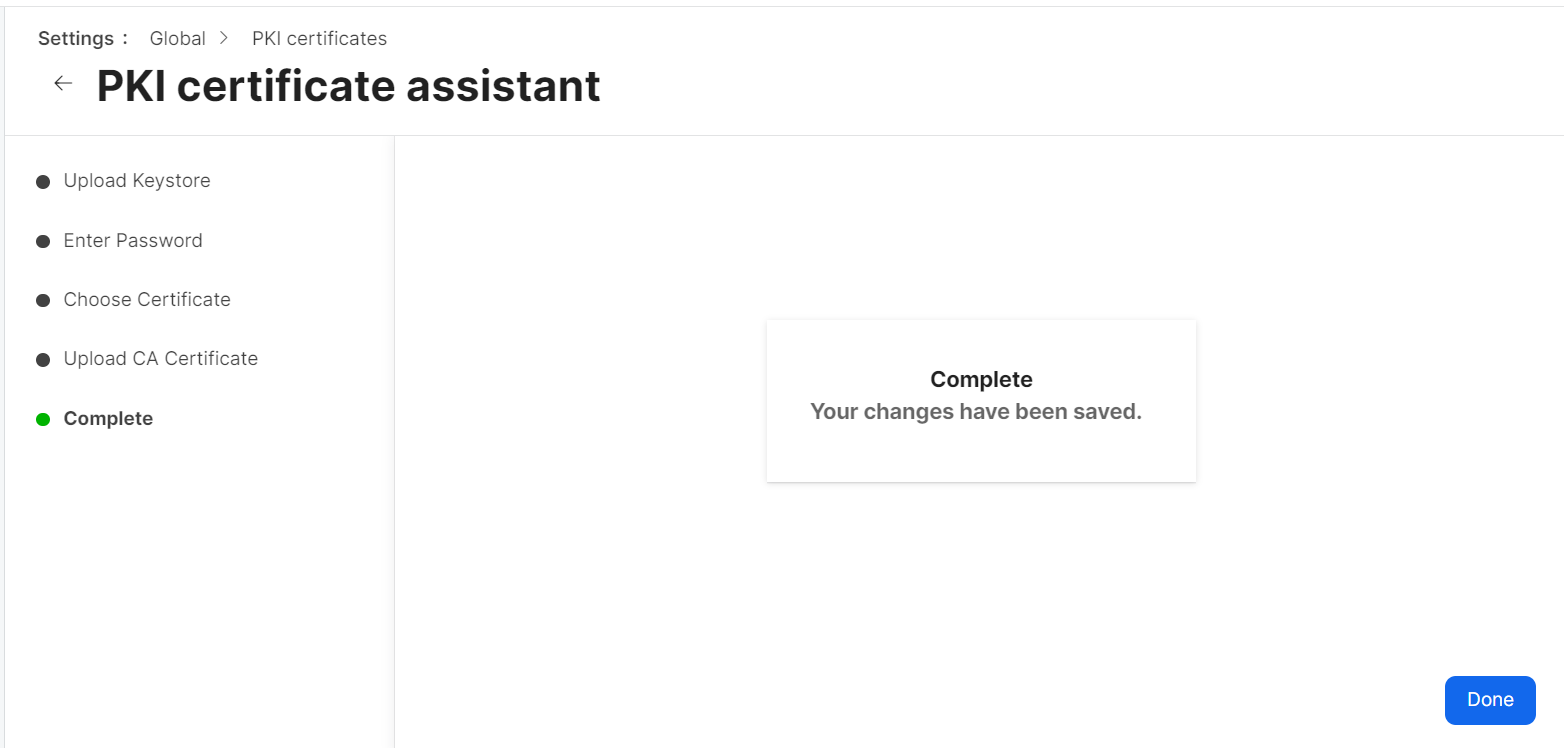
- On the Complete step, click Done.

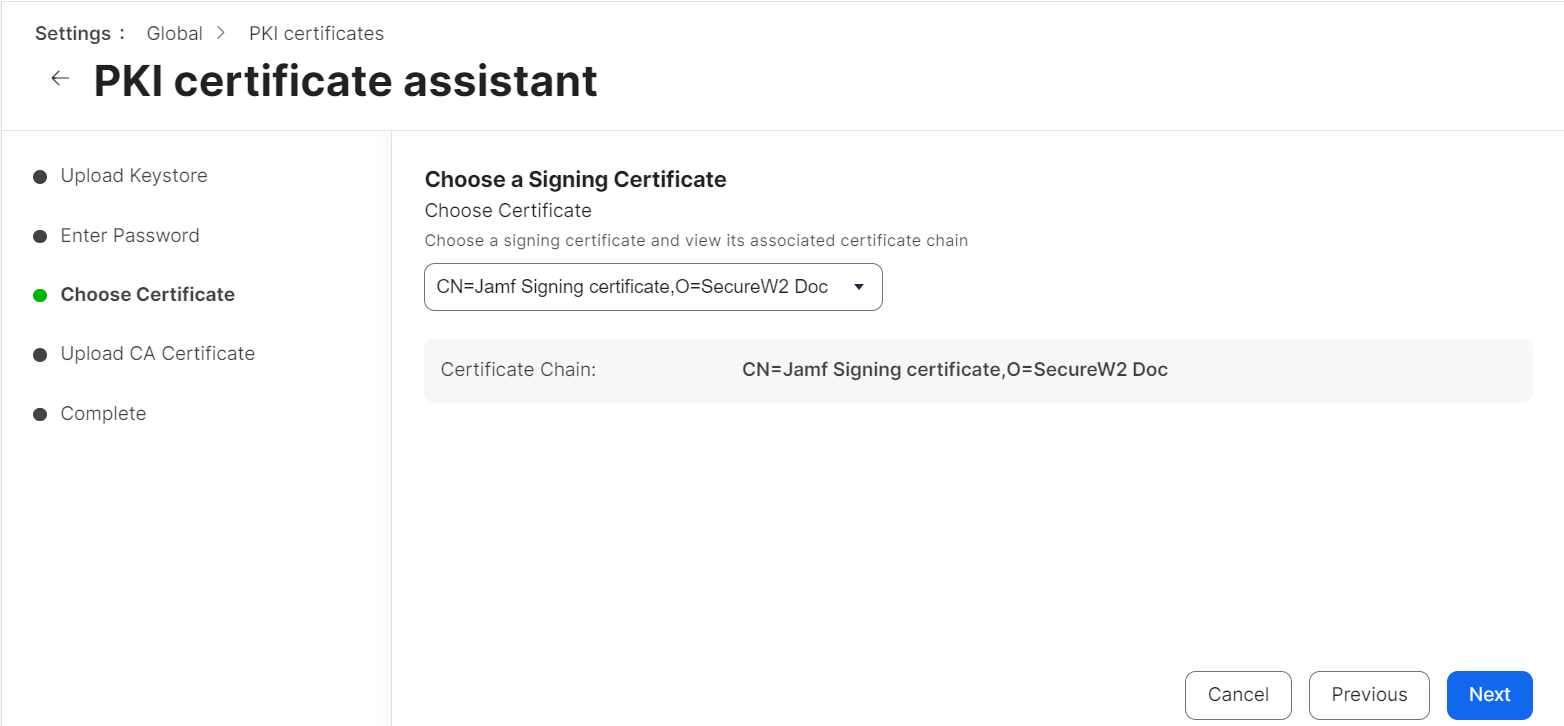
NOTE: The signing certificate must be issued by the intermediate CA used for certificate enrollment and must include the complete CA chain (signing certificate, intermediate CA certificate, and root CA certificate).
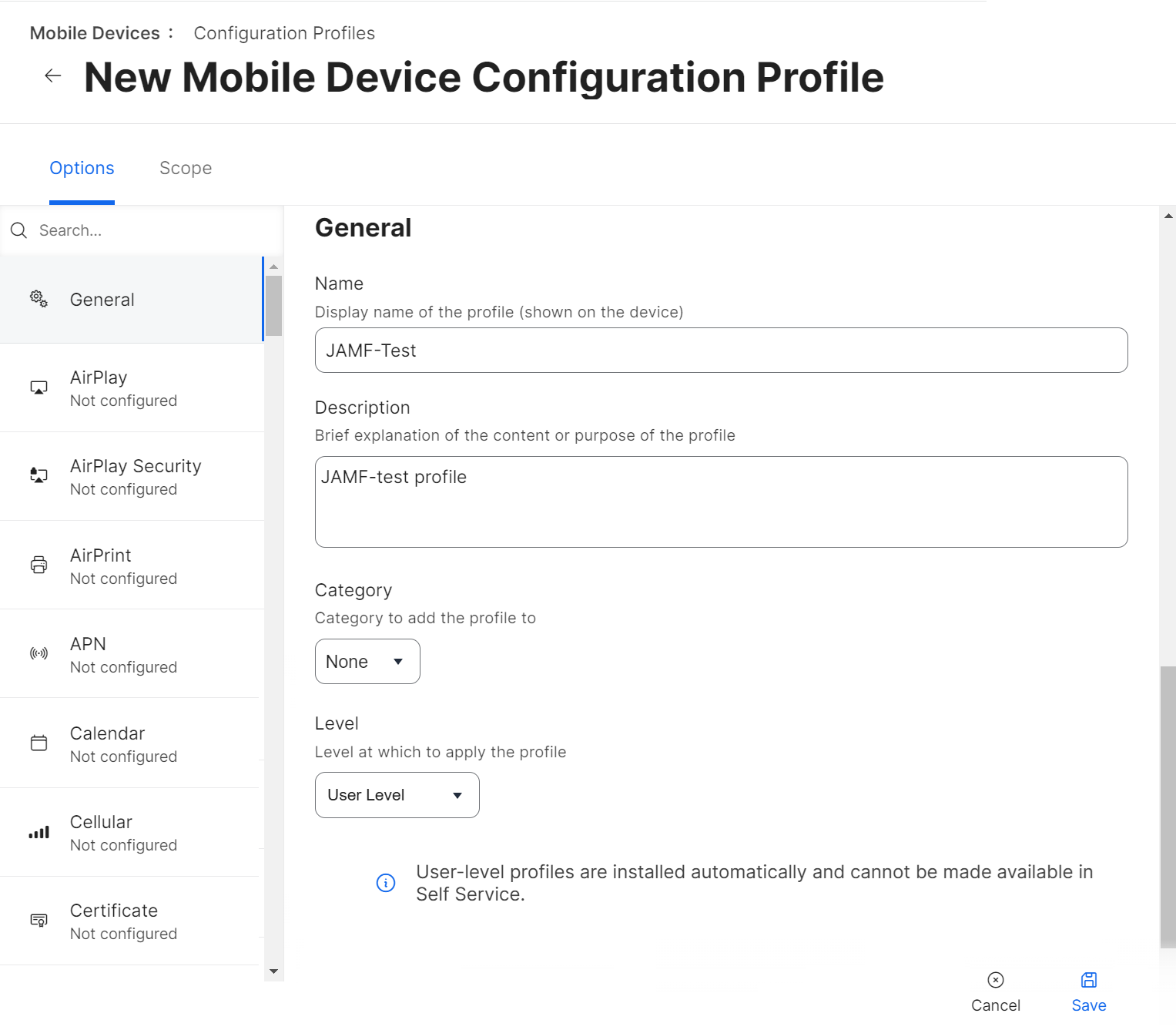
To set up a Jamf configuration profile for iOS, perform the following steps:
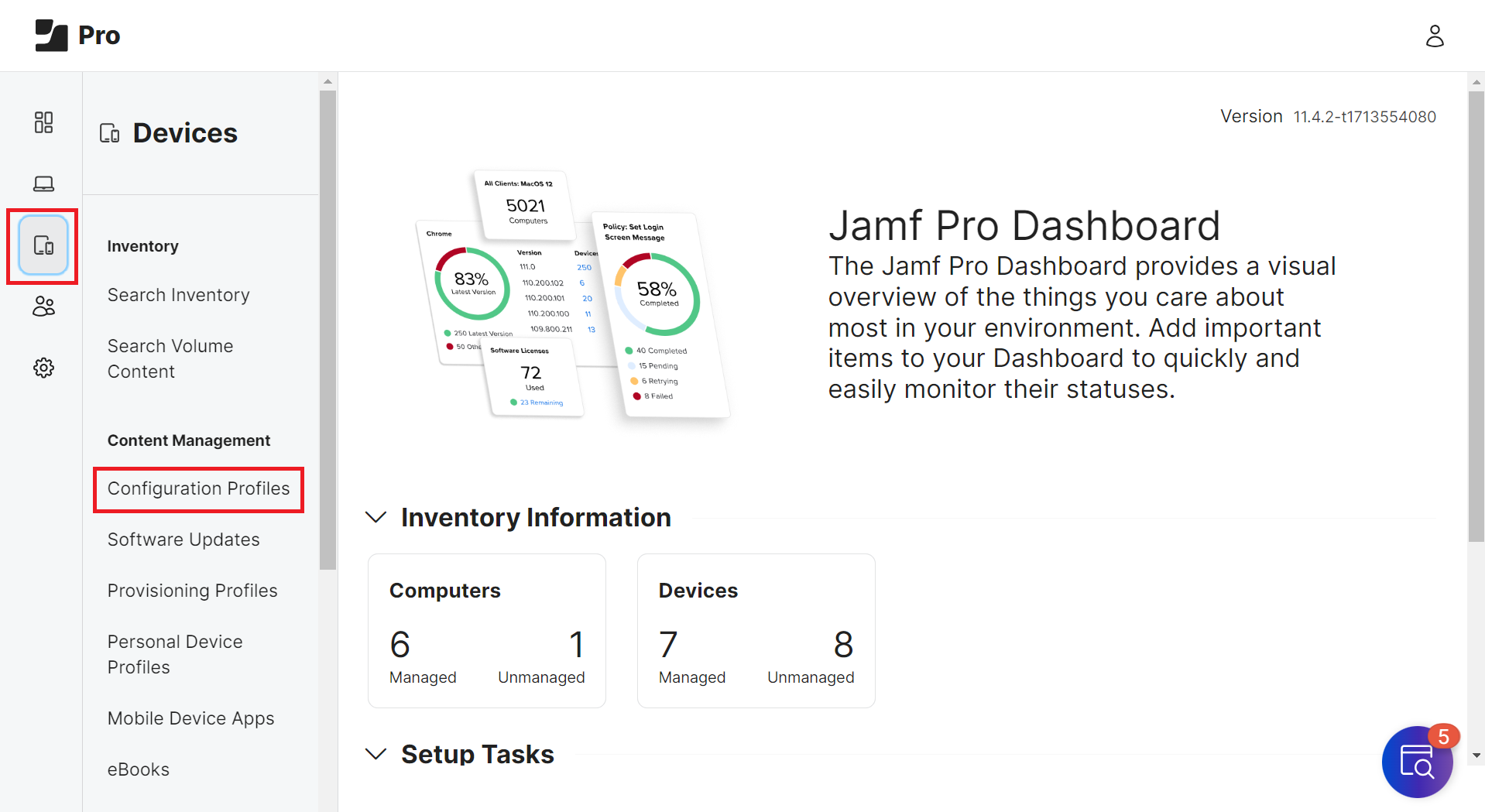
- From your Jamf Pro console, go to Devices > Configuration Profiles.

- Click the + New button.
NOTE: To update an existing configuration profile, click Edit for the profile.
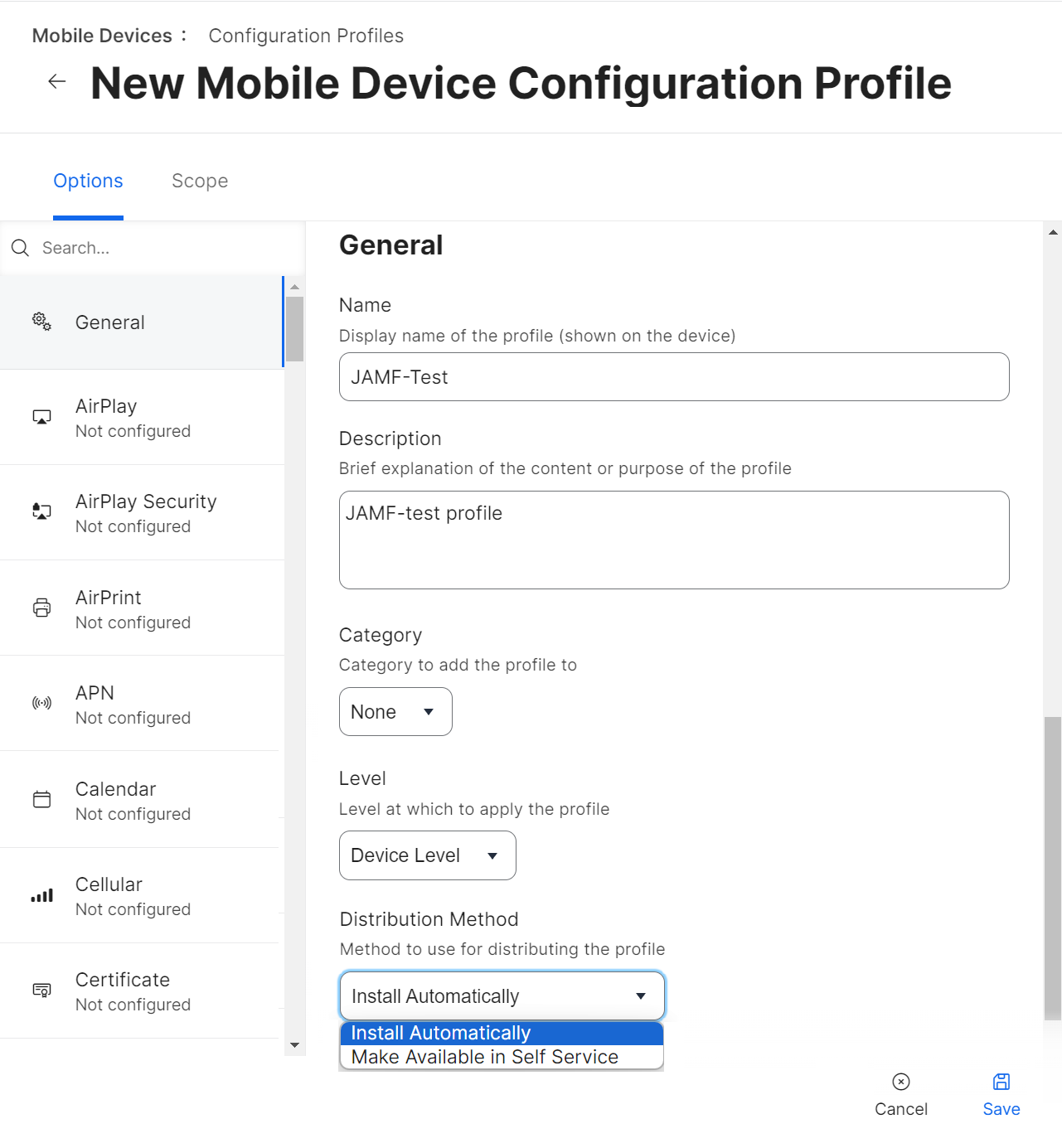
- Navigate to Options > General.
- In the Name field, enter a name that can reflect the profile for the specific OS.
- In the Description field, enter a descriptive text explaining the purpose of this configuration.
- For Level – Device Level, use the following settings:
- From the Level drop-down list, select Device Level to connect to the network using a device certificate.

- From the Level drop-down list, select Device Level to connect to the network using a device certificate.
- From the Distribution Method drop-down list, select Install Automatically or Make Available in Self-Service.
NOTE: You can only access the Distribution Method drop-down list at the Device Level.
- For Level – User Level, use the following settings:
- From the Level drop-down list, select User Level to connect to the network using a user certificate.

NOTE: You cannot manually install User-level profiles or access them in Self Service. They are installed automatically.
- Click Save.
- From the Level drop-down list, select User Level to connect to the network using a user certificate.
To set up a Jamf configuration profile for macOS:
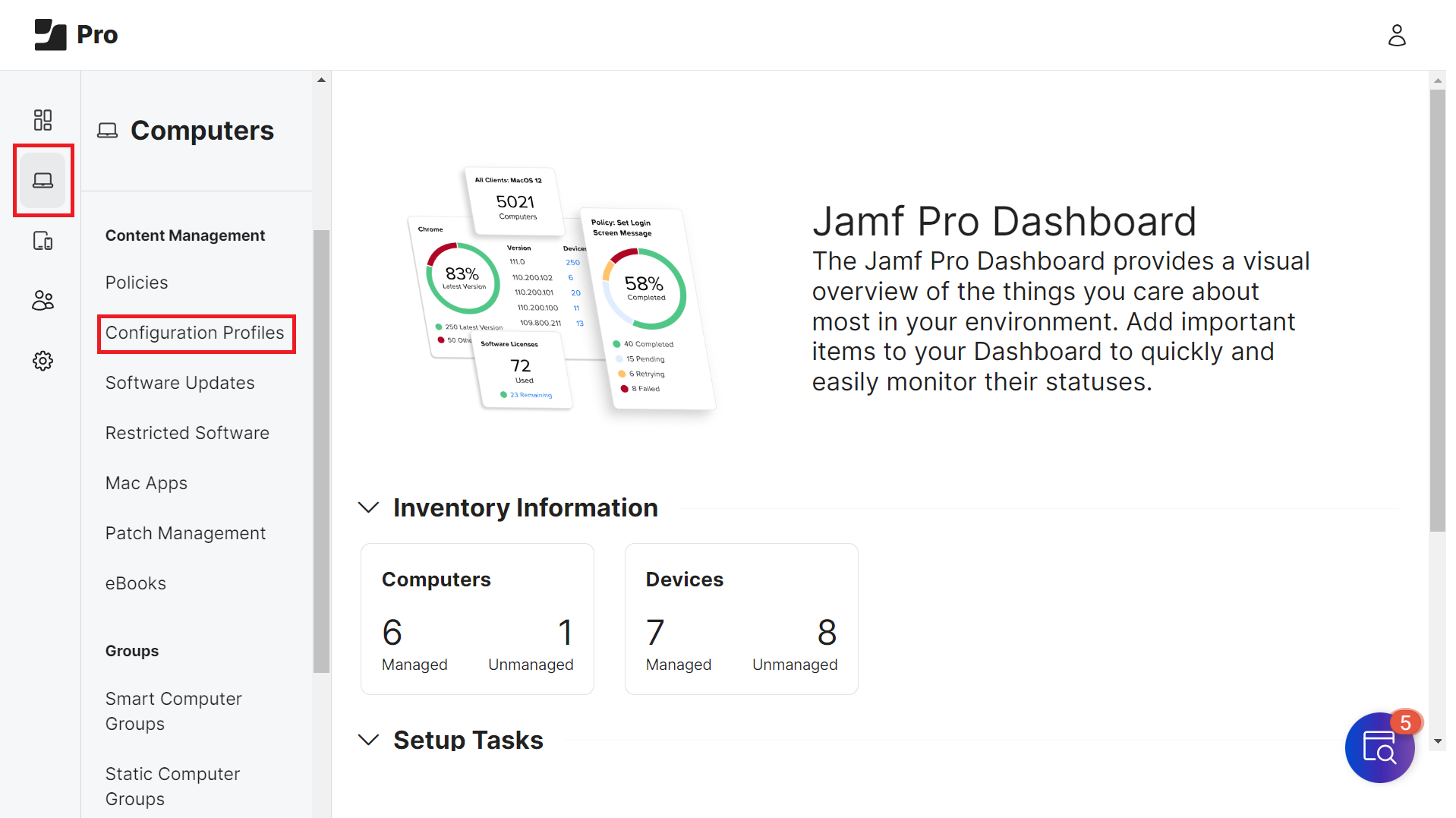
- From your Jamf Pro console, go to Computers > Configuration Profiles.

- Click the + New button.
NOTE: To update an existing configuration profile, click Edit for the profile.
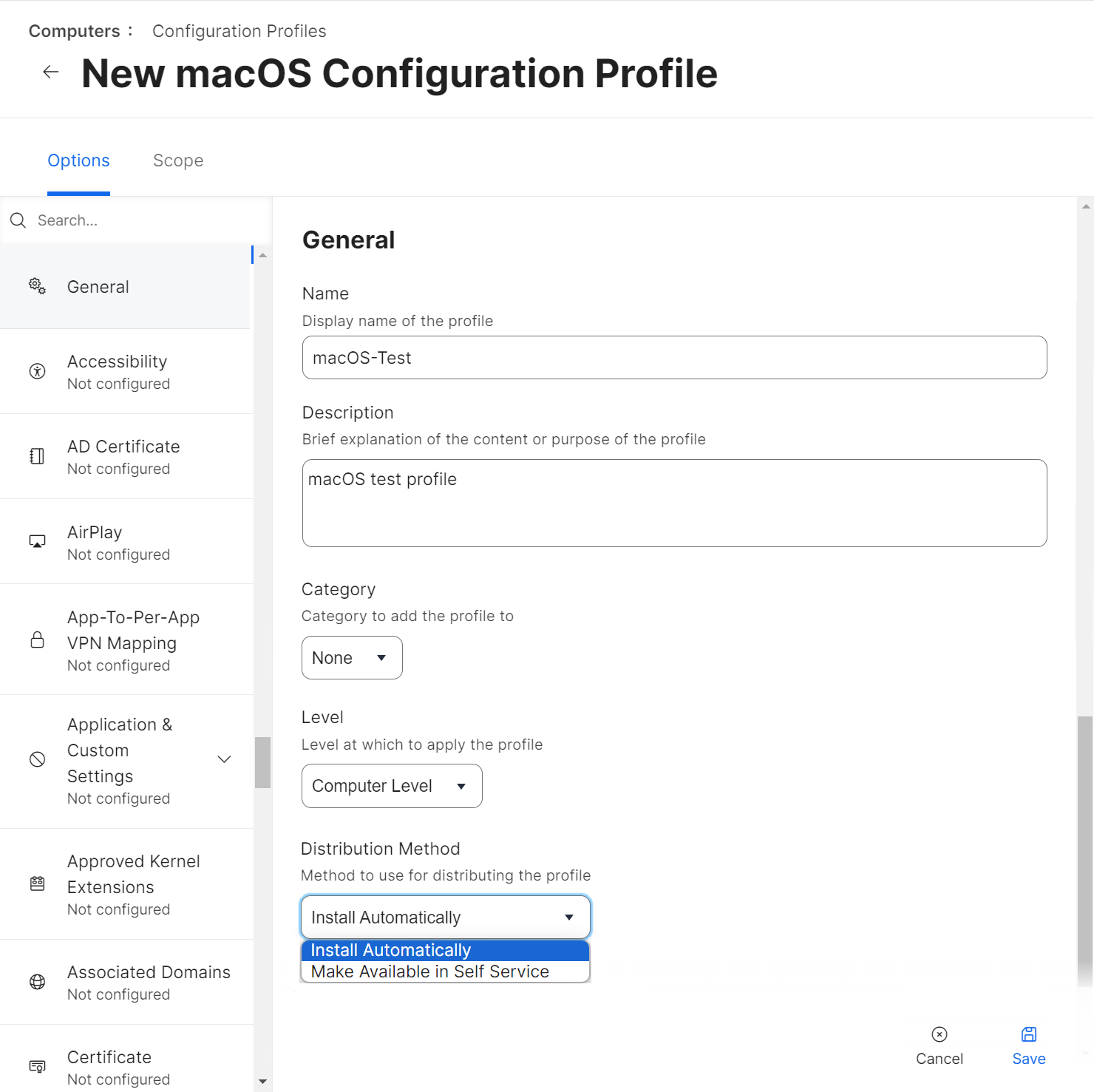
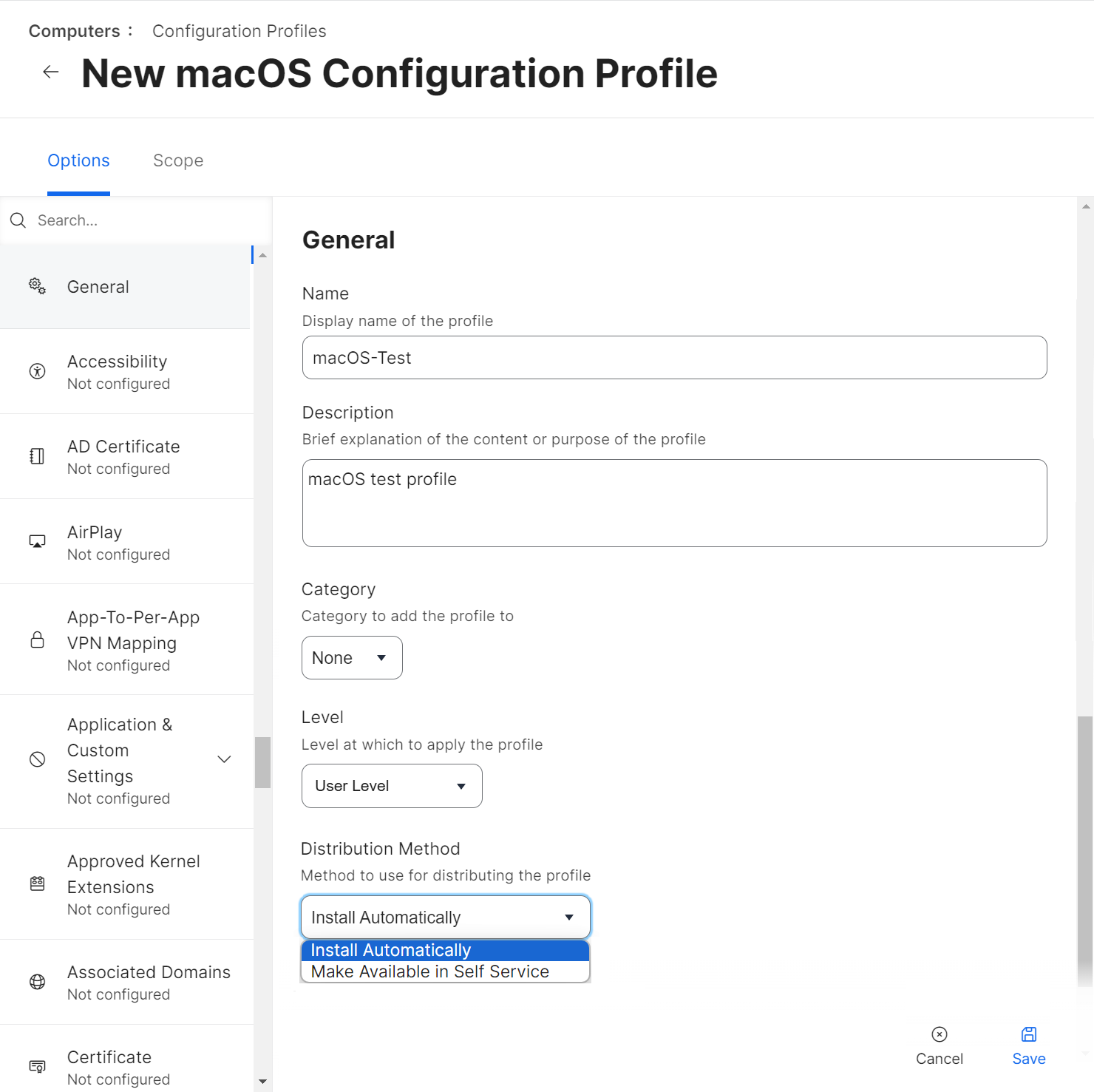
- Navigate to Options > General.
- In the Name field, enter a name for the OS profile. E.g. MacOS_Office.
- In the Description field, enter a description for the configuration profile.
- For Level – Computer Level, use the following settings:
- From the Level drop-down list, select Computer Level to connect to the network using a device certificate.

- From the Level drop-down list, select Computer Level to connect to the network using a device certificate.
- For Level – User Level, use the following settings:
- From the Level drop-down list, select User Level to connect to the network using a user certificate.
- From the Level drop-down list, select User Level to connect to the network using a user certificate.
- From the Distribution Method drop-down list, select Install Automatically or Make Available in Self Service.
Jamf can deploy configuration profiles that install certificates for users to access wireless networks. By setting up Jamf as the SCEP proxy in the configuration profile, Jamf communicates with the SCEP server to download and install the certificate directly on macOS or iOS devices.
This section explains how to set up Jamf as an SCEP proxy for the iOS and macOS configuration profiles.
To set up Jamf as SCEP proxy, perform the following steps:
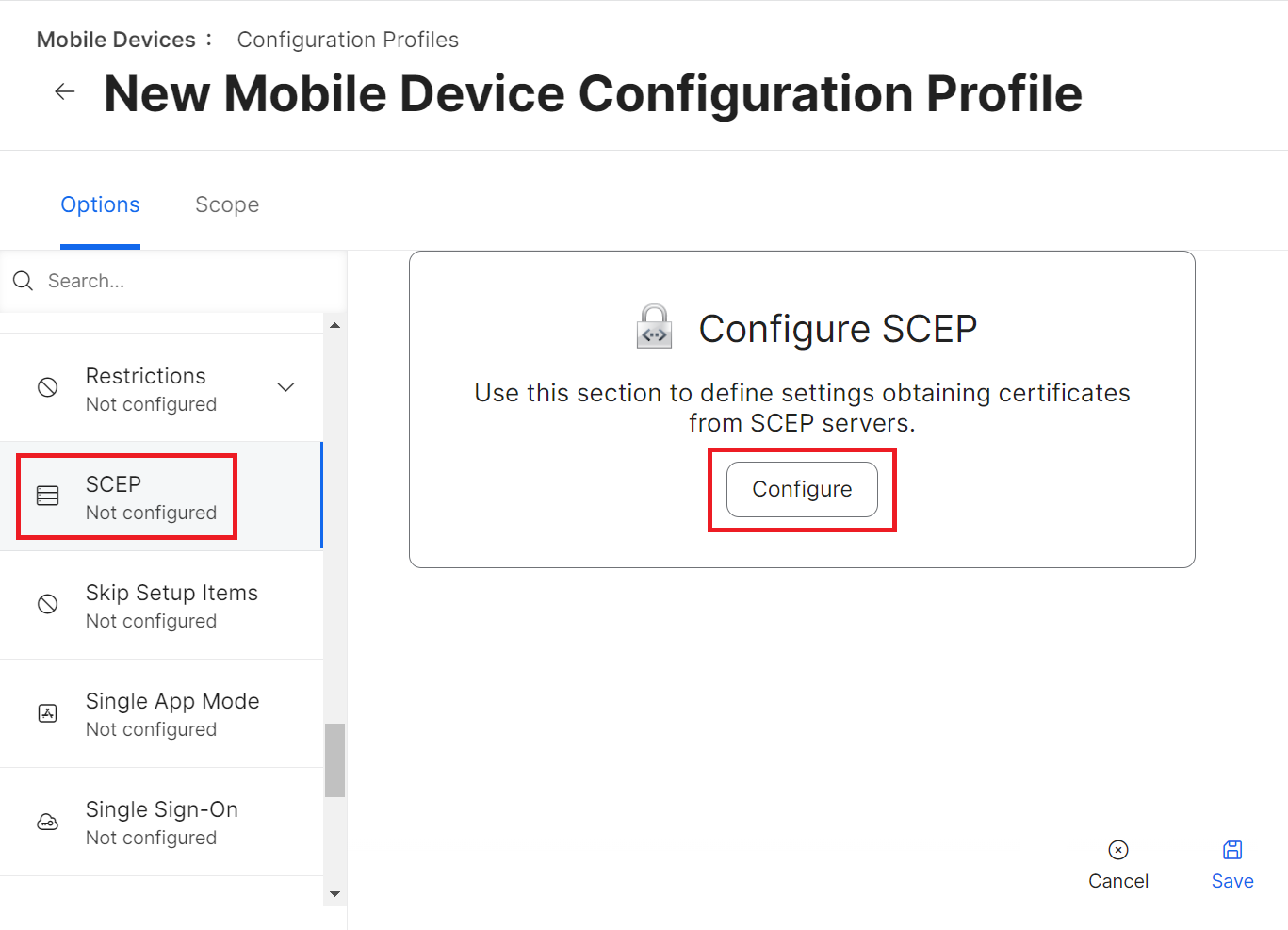
- From your Jamf Pro console, go to Options > SCEP. The steps are similar for both the iOS and macOS configuration profiles.
- Click Configure.

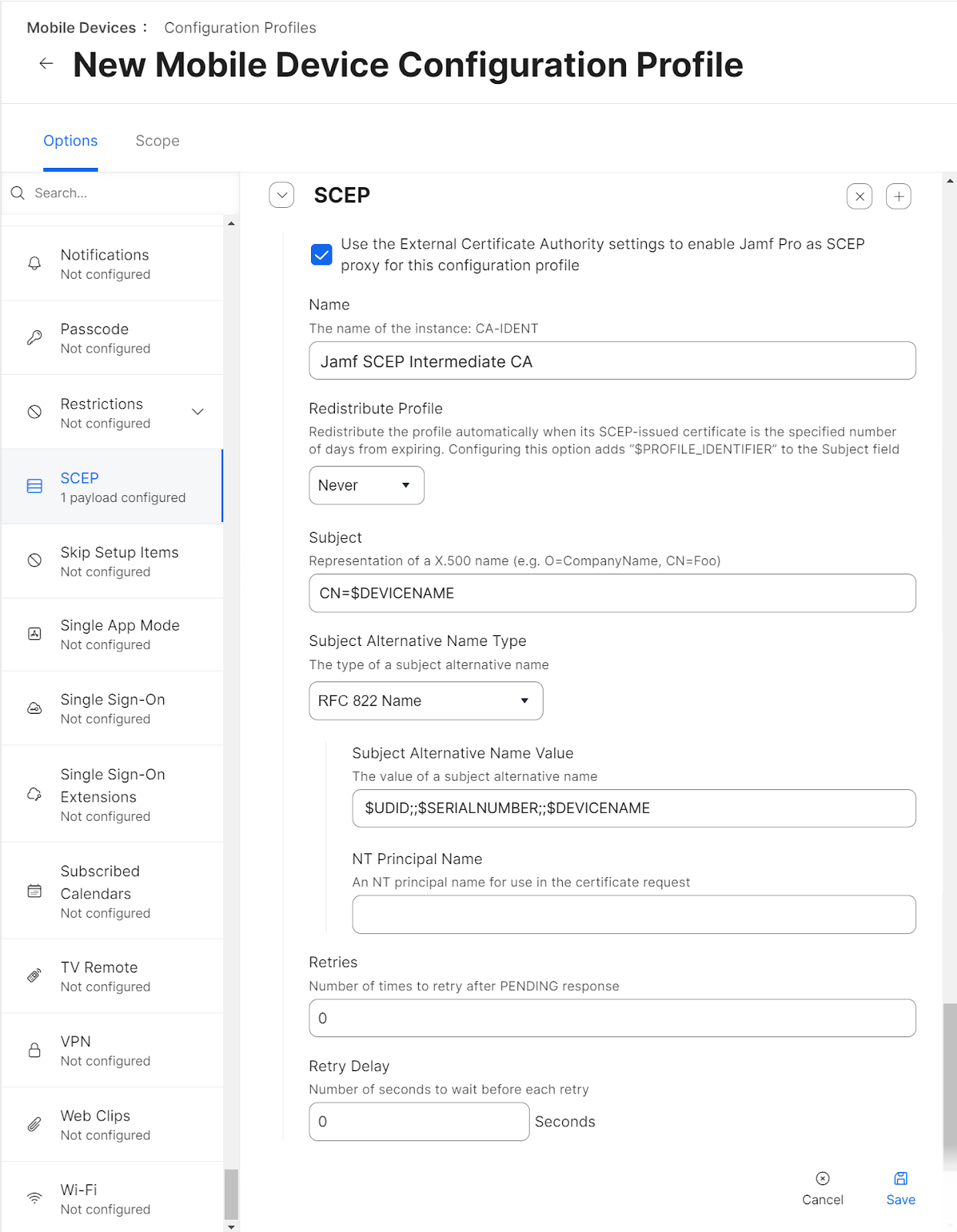
- Select the “Use the External Certificate Authority settings to enable Jamf Pro as the SCEP proxy for this configuration profile” checkbox.
- In the Name field, enter the common name of the intermediate CA that will issue the certificate for the client. The common name can be found in the JoinNow Management Portal.
- From the Redistribute Profile drop-down list, select the desired number of days.
- In the Subject field, enter a value that helps administrators identify the device. You can make this a static value if needed.
Examples:- CN=$DEVICENAME
- CN=$UDID
- CN=$SERIALNUMBER
NOTE: What you enter as Subject and Subject Alternative Name are referred to as payload variables, and define the common name that you want to be encoded on certificates. You can find available iOS payload variables here: https://docs.jamf.com/9.9/casper-suite/administrator-guide/iOS_Configuration_Profiles.html.
- From the Subject Alternative Name Type drop-down list, select RFC 822 Name. This is mandatory.
- In the Subject Alternative Name Value field, enter the payload variables. The recommended attributes are:
$UDID;;$SERIALNUMBER;;$DEVICENAME
The values returned by these variables will be encoded as Subject Alternative Name (SAN) attributes in issued certificates.
- Click Save.
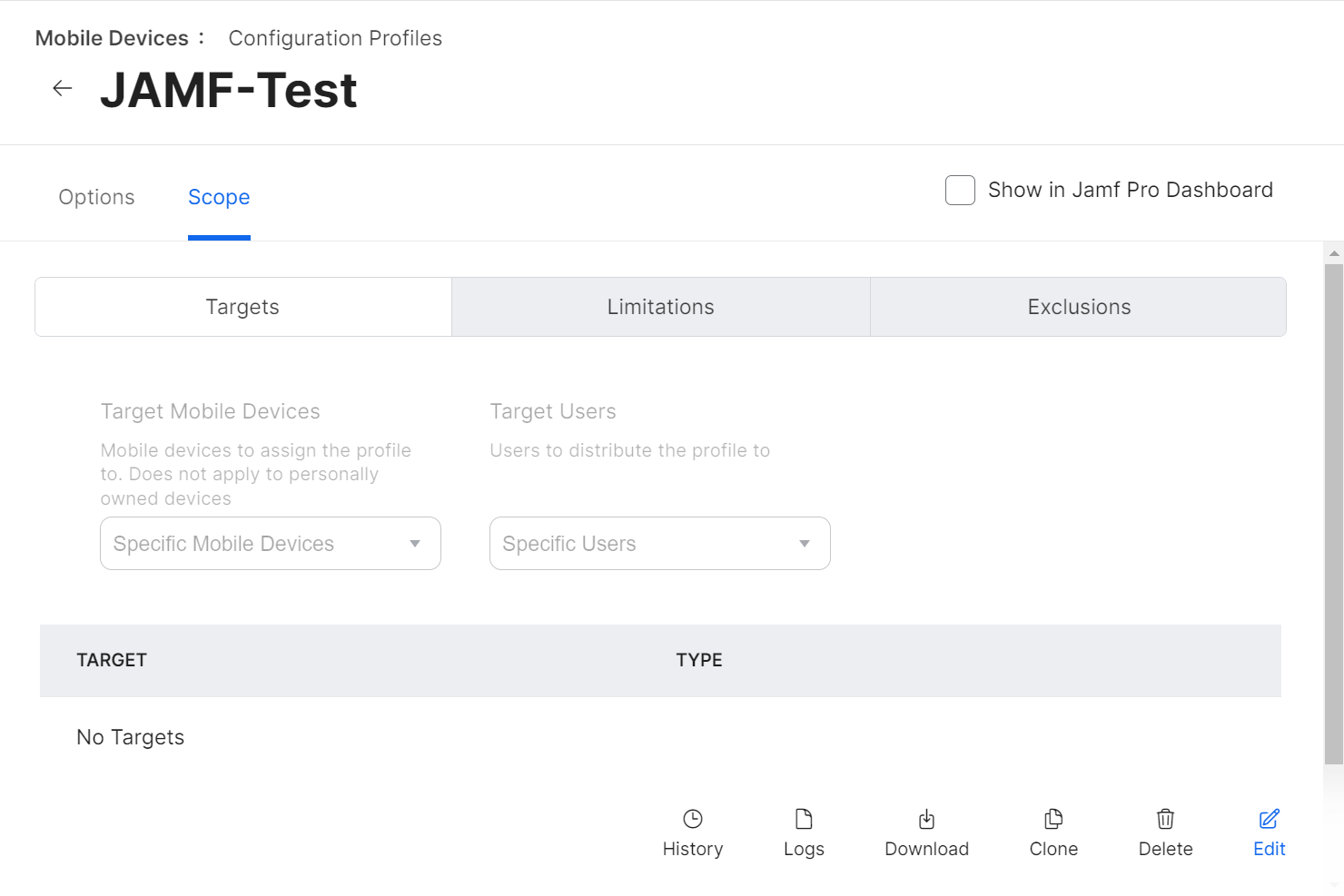
- Navigate to the Scope section and update the scope for the devices to which the configuration profile will be pushed.

NOTE: If you want to change Jamf as an SCEP proxy in Settings > Global > PKI Certificates > Management Certificate Template > External CA, first disable the Use the External Certificate Authority settings to enable Jamf Pro as an SCEP proxy for this configuration profile checkbox. If you proceed without disabling this, it will affect the corresponding profile using Jamf as an SCEP proxy.
This section explains how to set up the certificate payload so our devices can perform Server Certificate Validation. This is a form of server authentication that is a standard part of any EAP (Extensible Authentication Protocol) protocol. Since Cloud RADIUS will be the authentication server, you must upload its RADIUS server authentication certificate.
If your RADIUS server certificate also has one or more intermediate CA certificates as part of the certificate chain, you can add those certificates (Root and Intermediate) to this payload.
NOTE: Do not upload the actual RADIUS server certificate.
This section explains how to set up a Certificate Payload for RADIUS Connections. It applies to both iOS and macOS configuration profiles.
To set up a certificate payload, perform the following steps:
- From your Jamf Pro console, go to Devices > Configuration Profiles. Steps 2 to 10 are the same for both iOS and macOS configuration profiles.
- Click Edit for the configuration profile you want to configure.
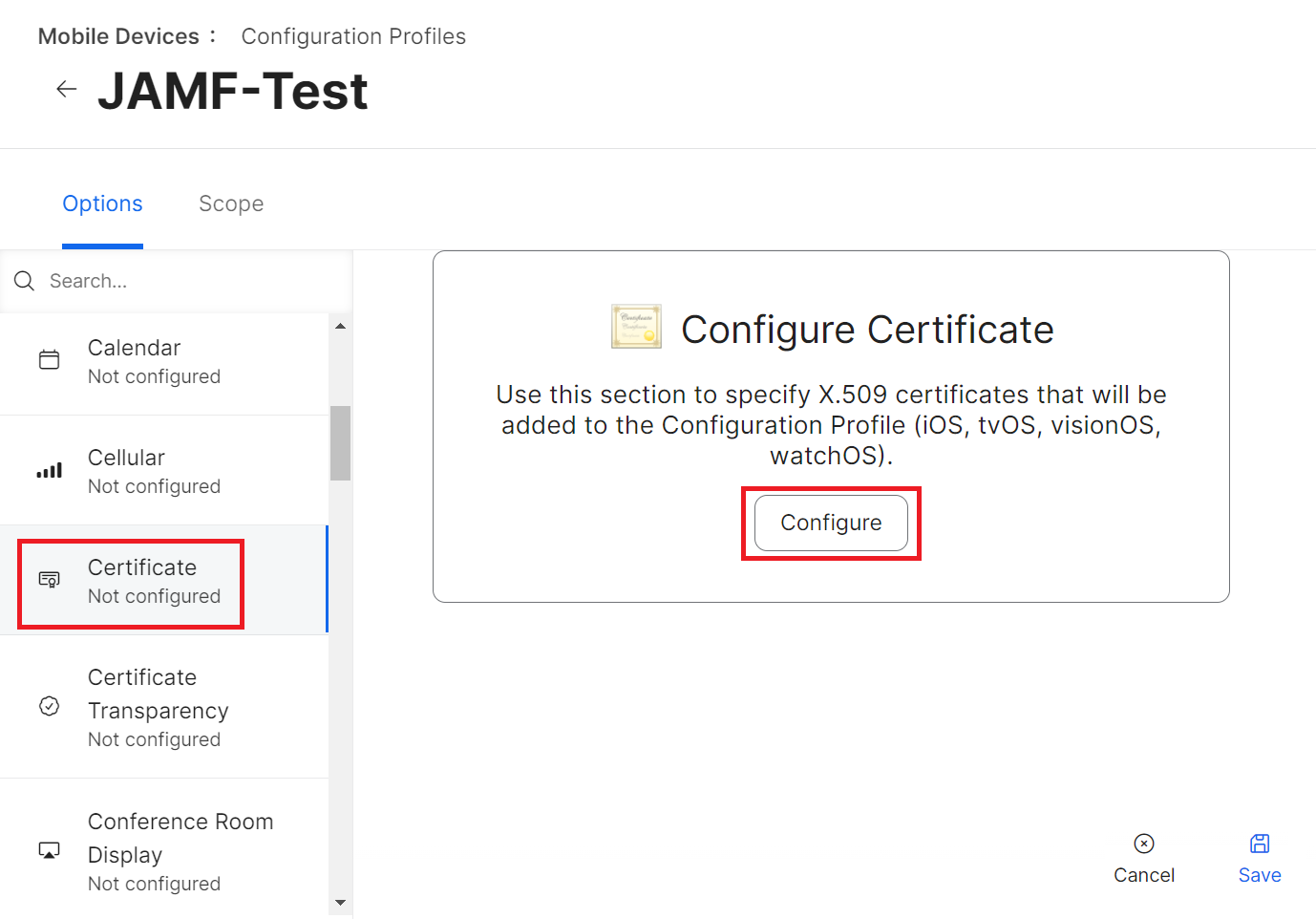
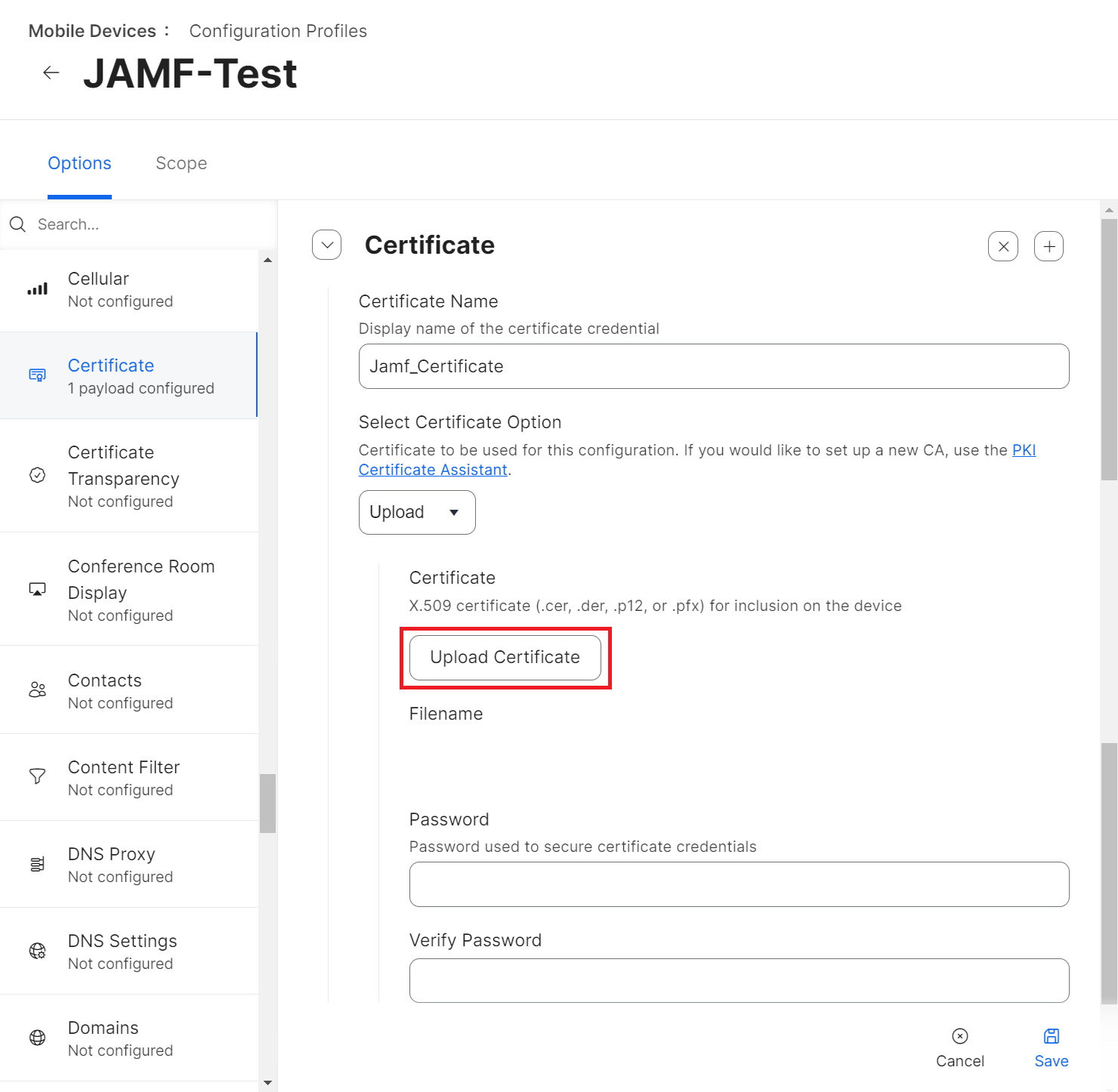
- Navigate to Options > Certificate.
- Click Configure.

- In the Certificate Name field, enter the name of the certificate. This will be the Common Name (Issued To name).
- From the Select Certificate Option drop-down list, select Upload.
- Click the Upload Certificate button.

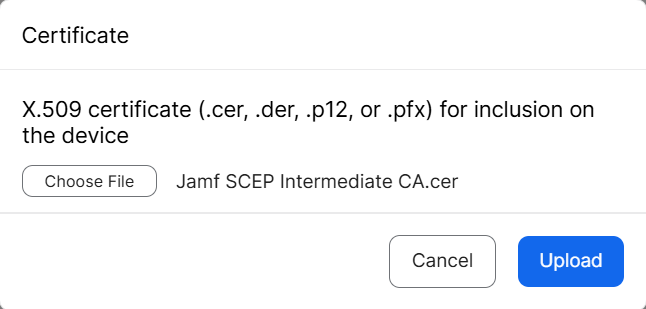
- On the Certificate pop-up window, click Choose File and upload the issuing Root CA from the JoinNow Management portal under PKI > Certificate Authorities.

- Click Upload.
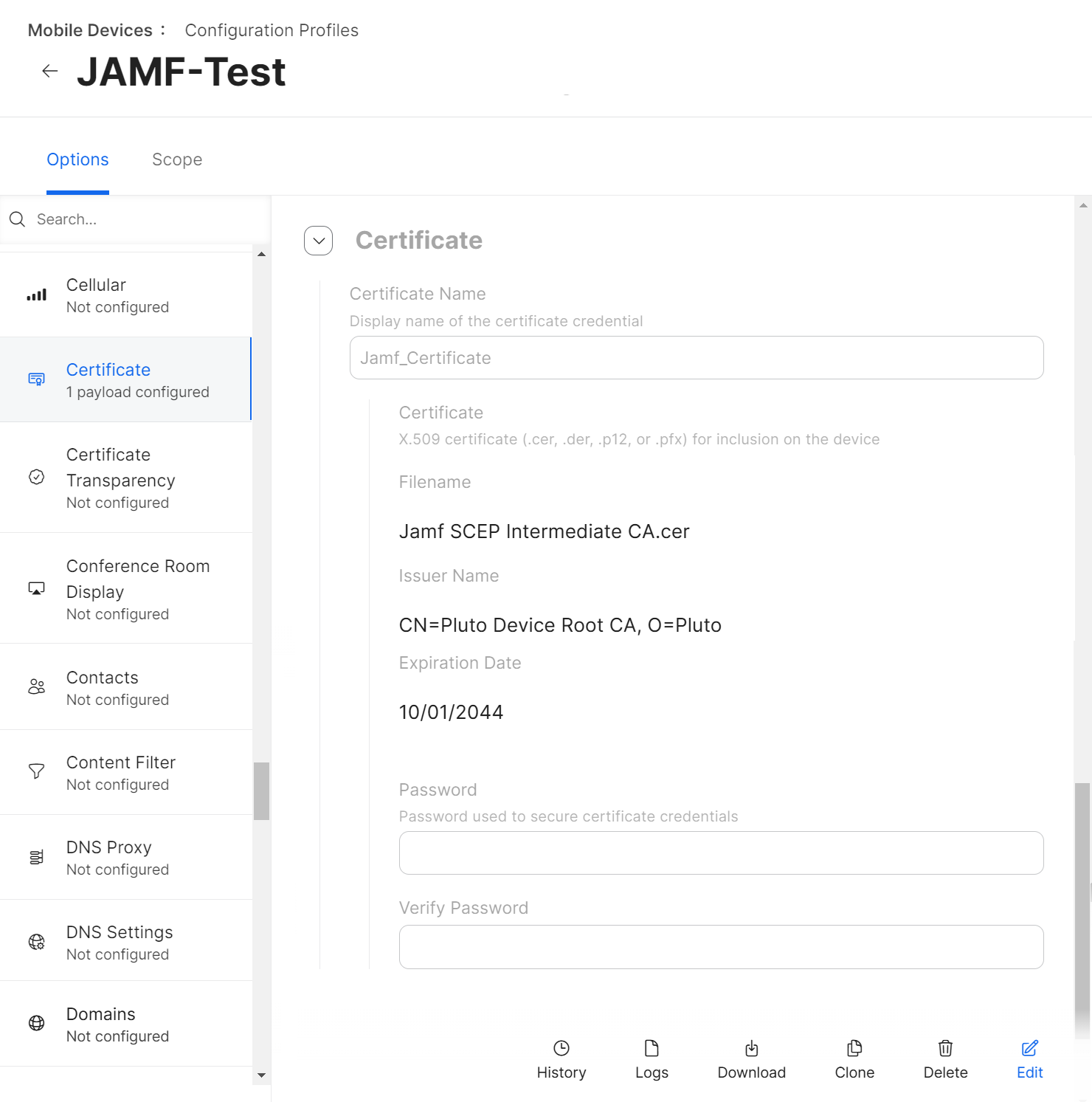
- After uploading the certificate, click Save.

- Upload the certificate and then click Save.
NOTE: If your setup has more than one RADIUS server for validation, you can add multiple Common Names with the same certificate payload configuration.
The WiFi profile/payload helps in configuring the device to connect to the preferred secure network. Jamf includes built-in Wi-Fi settings that the admin can configure and deploy to devices in your organization. This Wi-Fi profile can be assigned based on different Device users and Device groups.
This section explains how to set up Wi-Fi Payload for iOS and macOS devices.
To set up the Wi-Fi Payload for iOS, perform the following steps:
- From your Jamf Pro console, go to Devices > Configuration Profiles. For macOS devices, navigate to Computers > Configuration Profiles > Edit > Options > Network. Steps 4 to 16 are similar for both the iOS and macOS configuration profiles.
- Click Edit for the configuration profile you want to configure.
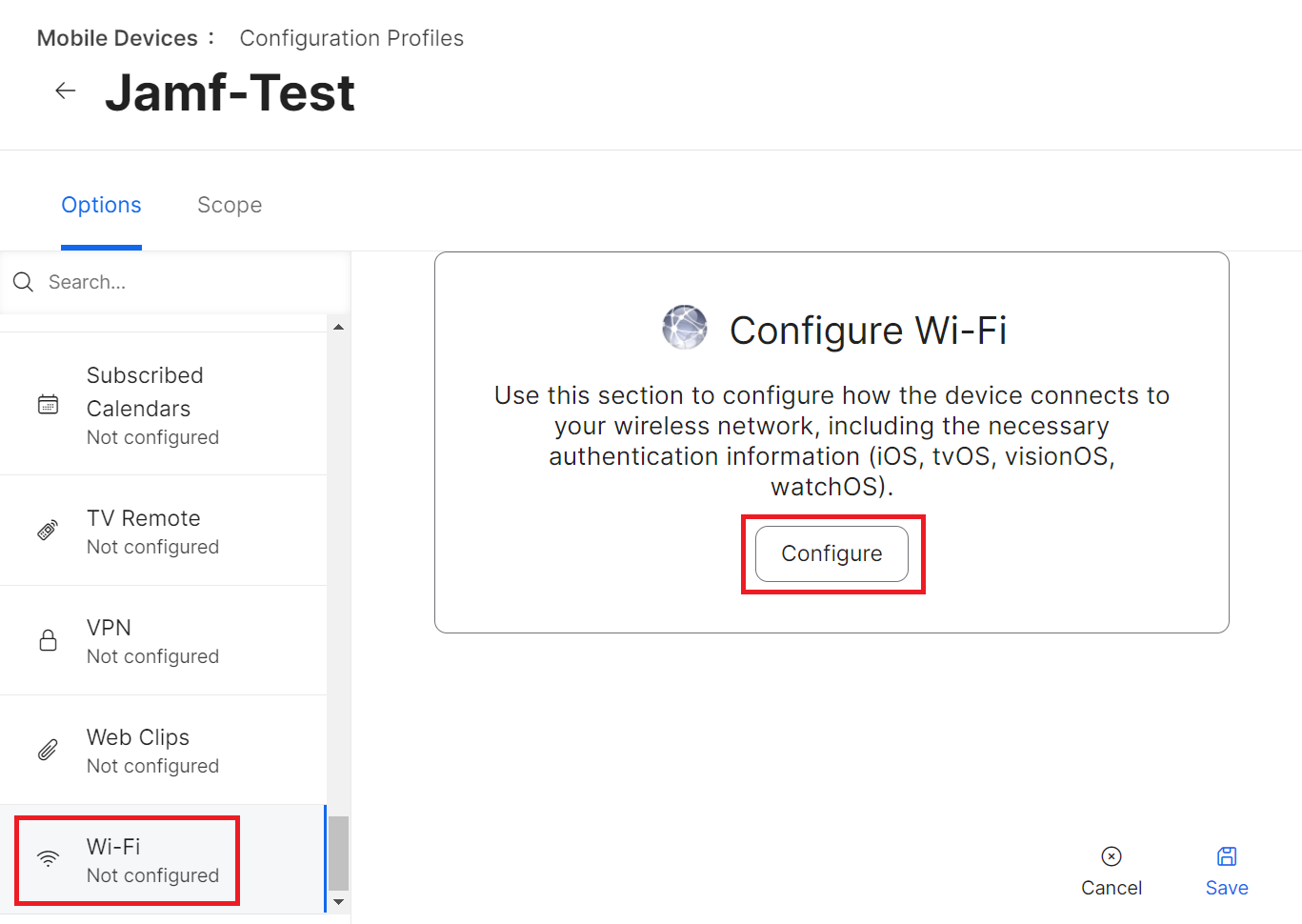
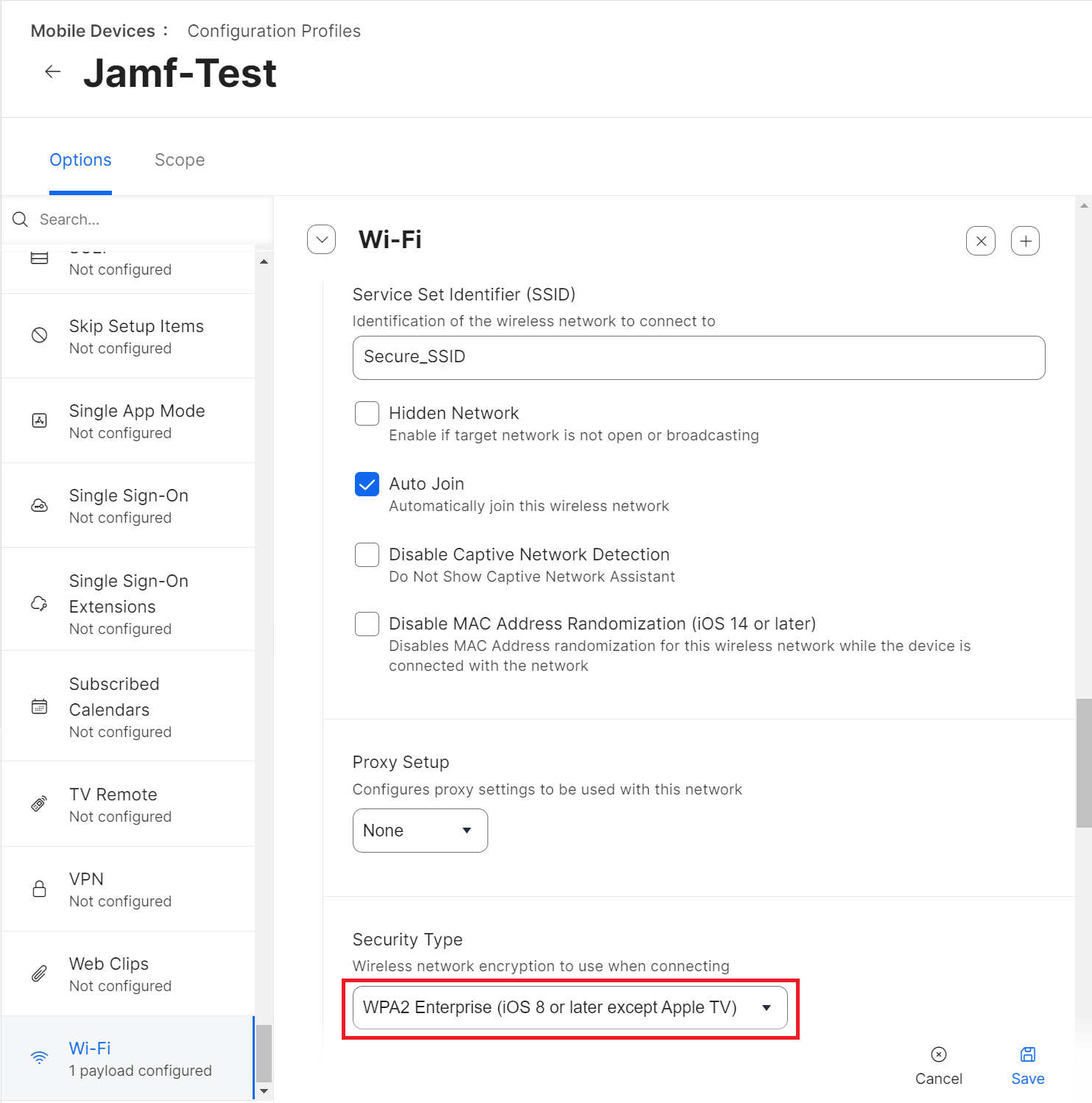
- Navigate to Options > Wi-Fi.
- Click Configure.

- In the Service Set Identifier (SSID) field, enter the name of the wireless network.
- Select other applicable settings as required by the organization.
- From the Security Type drop-down list, select WPA2 Enterprise (iOS 8 or later except Apple TV).

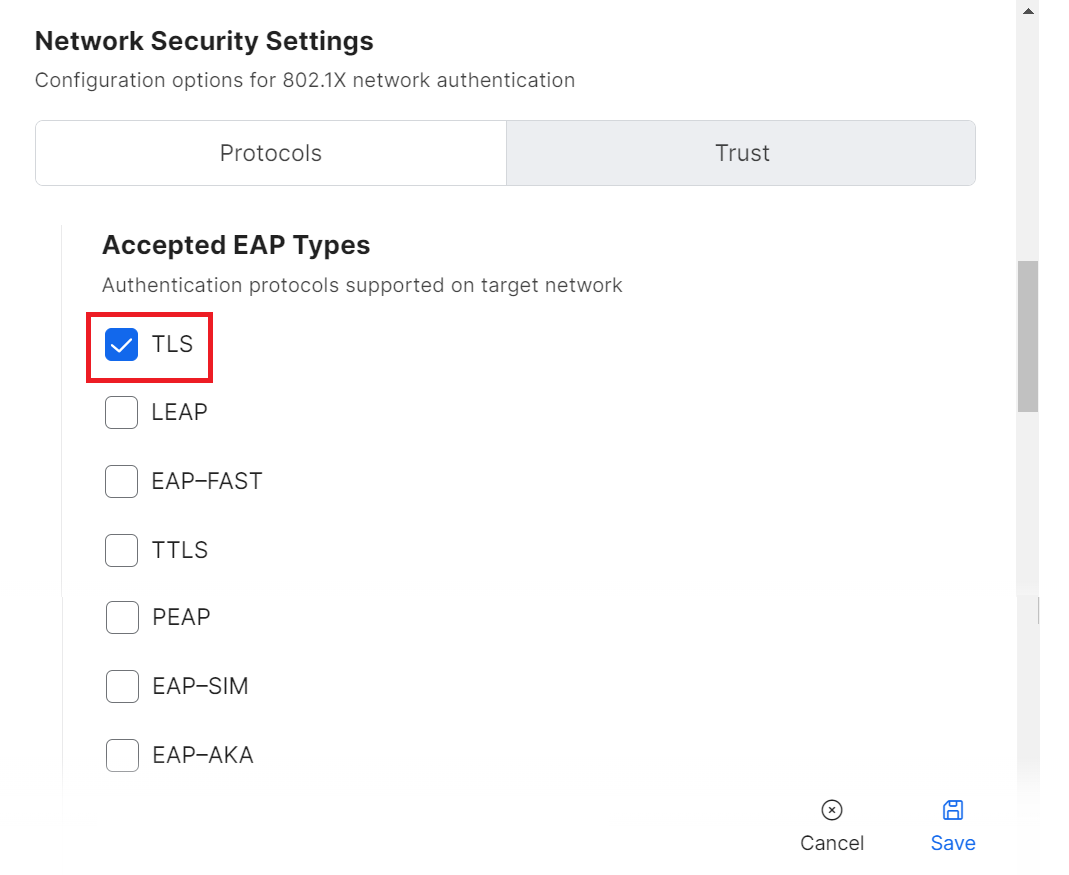
- Under the Network Security Settings section, select the Protocols tab.
- In the Accepted EAP Types section, select the TLS checkbox.

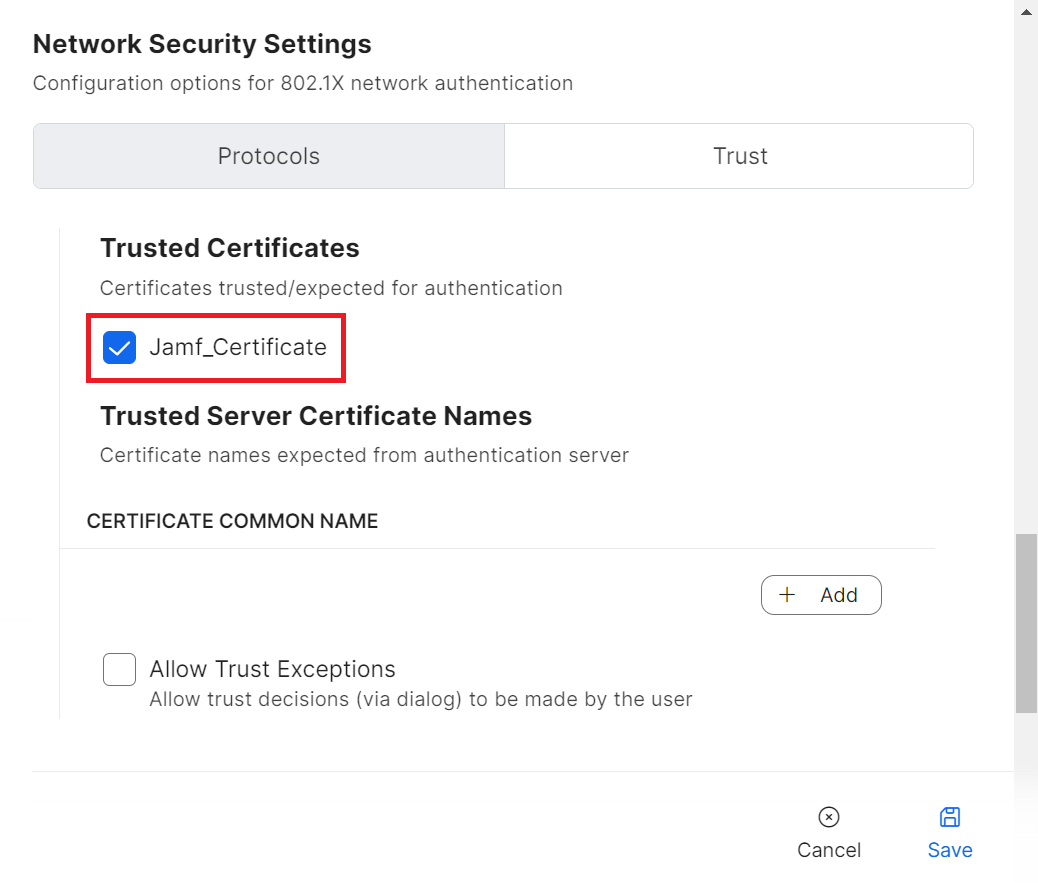
- Select the Trust tab.
- In the Trusted Certificates section, select the checkbox for the certificate you uploaded.

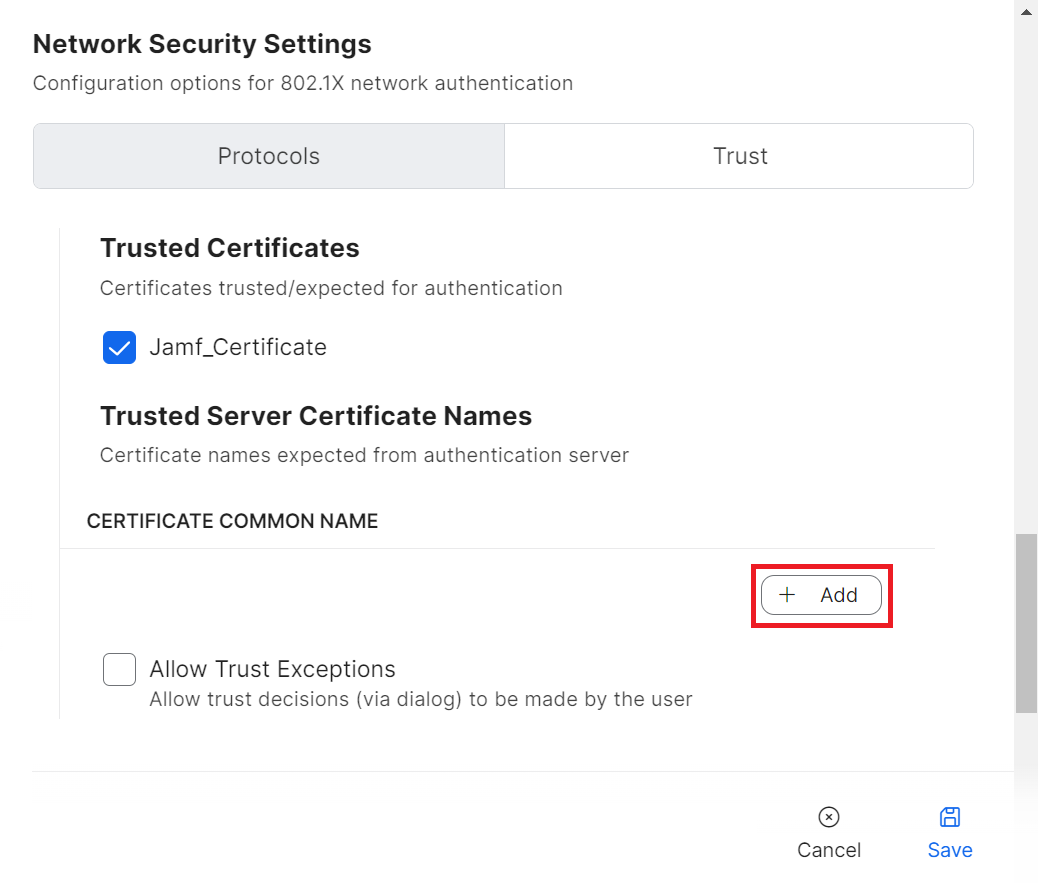
NOTE: Along with validating a RADIUS server by certificates, specify the RADIUS server certificate names for validation as an additional security measure. This is available in the Wi-Fi payload when the uploaded certificate is enabled. - In the CERTIFICATE COMMON NAME section, click Add.
- In the field that appears, enter the name of the RADIUS server used for validation and then click Save.

- Navigate back to the Protocols tab.
- From the Identity Certificate drop-down list, select the CA from the SCEP payload.

- Click Save to save the Wi-Fi payload.
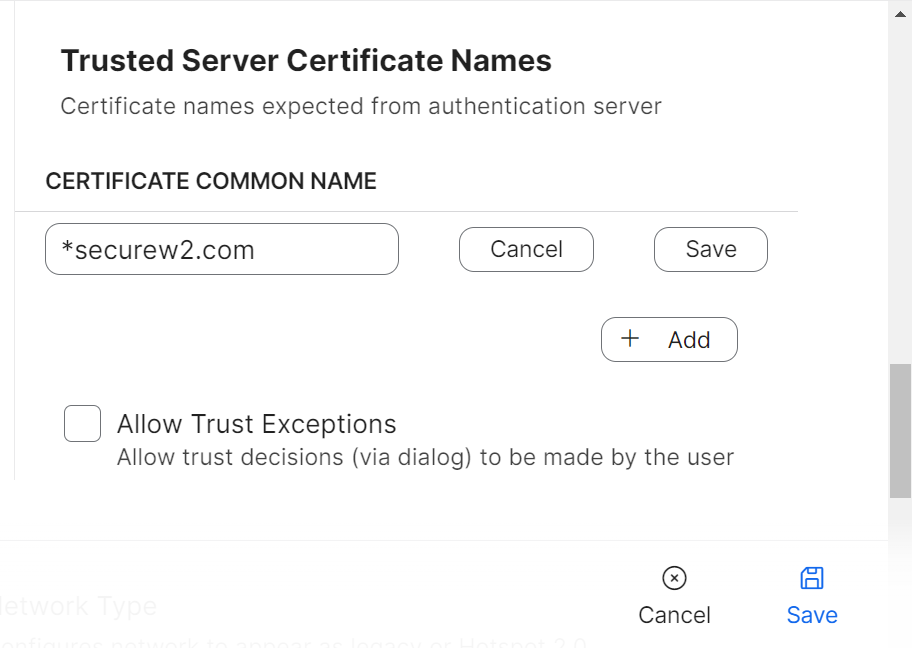
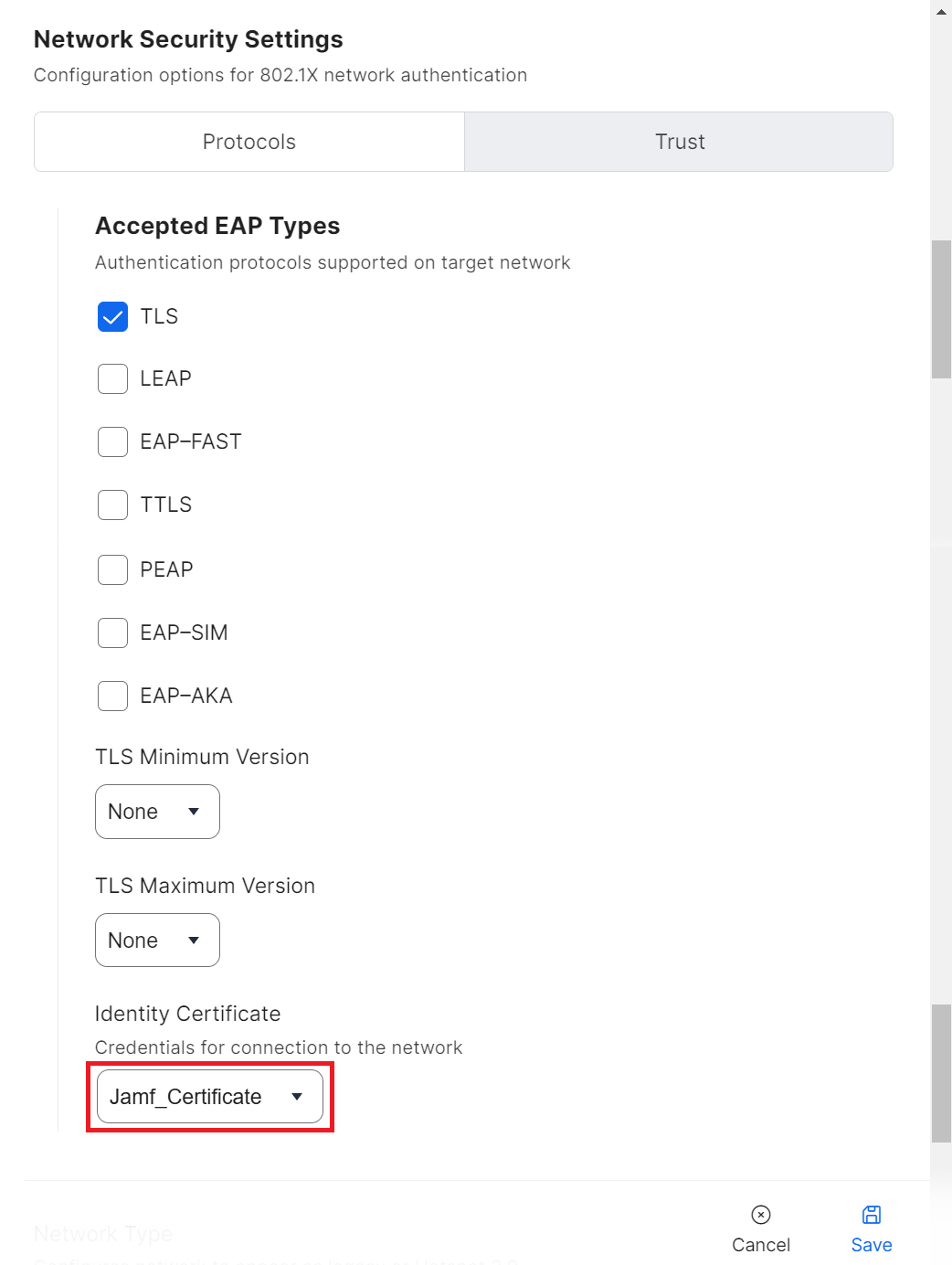
NOTE: Using the previous steps for Devices and Computers, both iOS and macOS devices can be configured for Wi-Fi.
When a device successfully enrolls, the Configuration Profiles table shows an increase in the Completed value.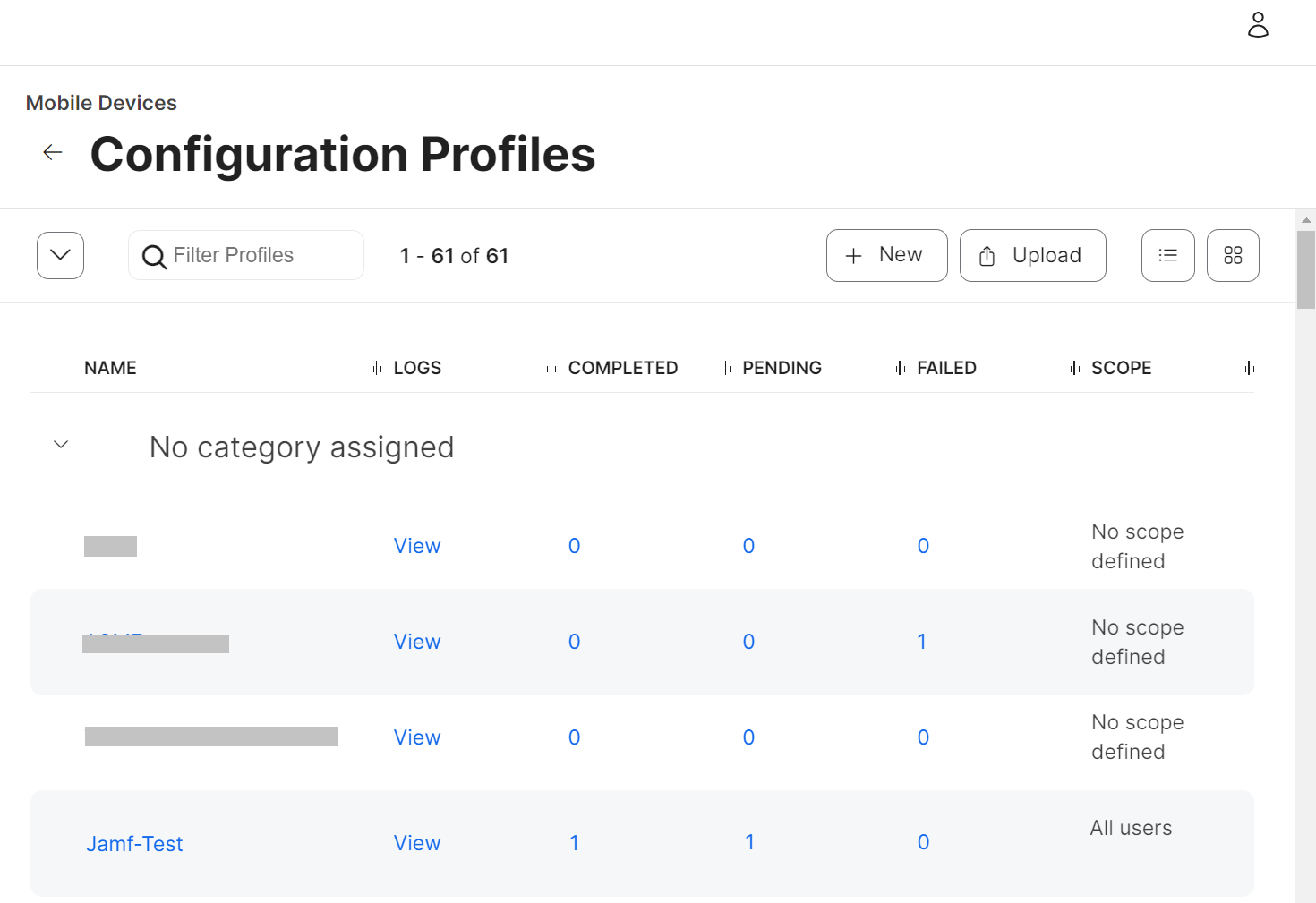
Admins can also check for successful certificate enrollment under Data and Monitoring > General Events. The Chrome device that is enrolled will display a ‘Certificate Issued’ message.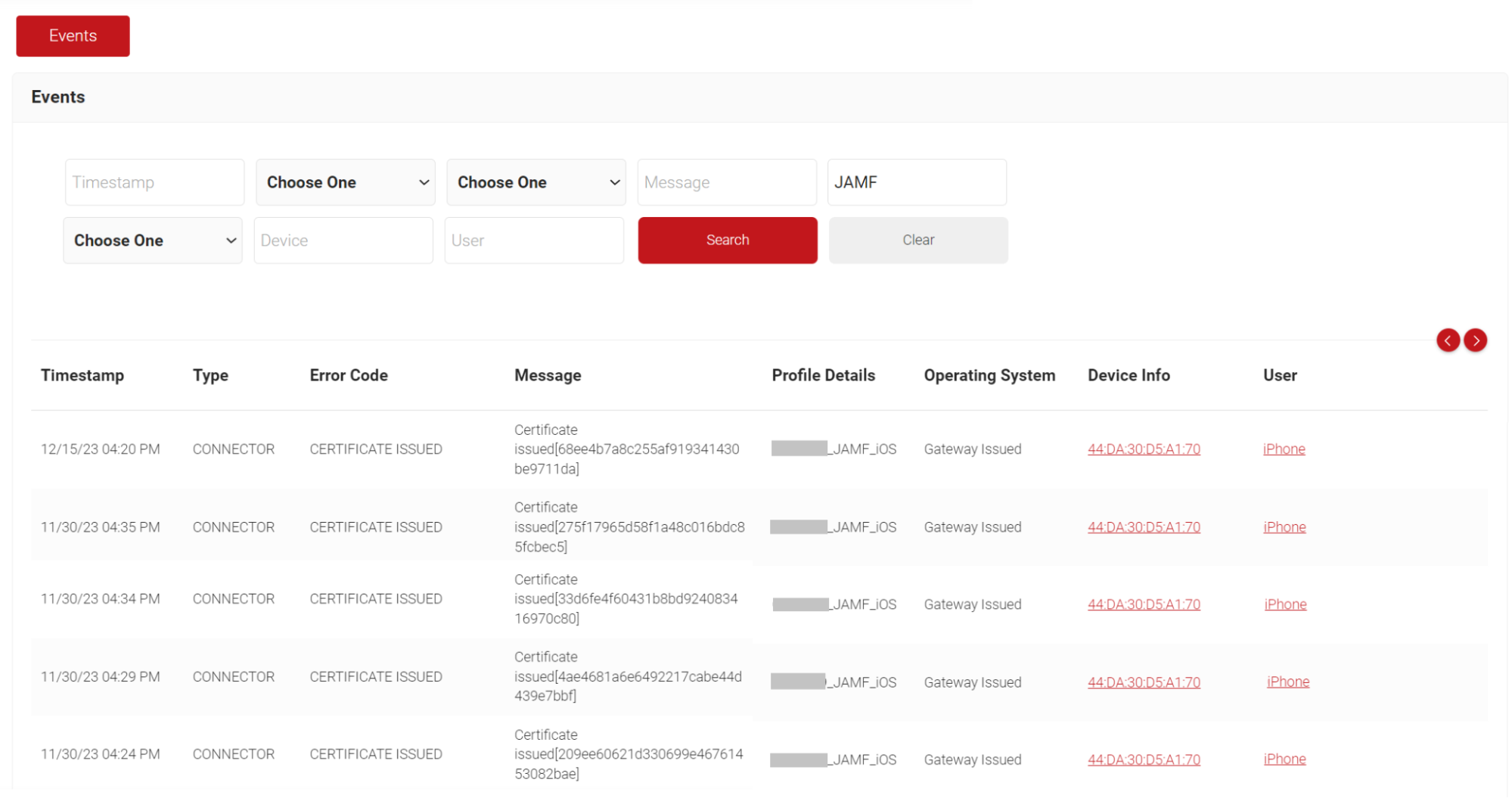
JoinNow Management Portal facilitates auto-revocation of the certificates based on device groups configured in the Jamf portal. There are two kinds of groups you can create and add mobile devices and computers to the Revocation Group list:
- Smart Device/Computer Groups (Revocation of devices/computers is based on set criteria)
To add Smart Device Groups:
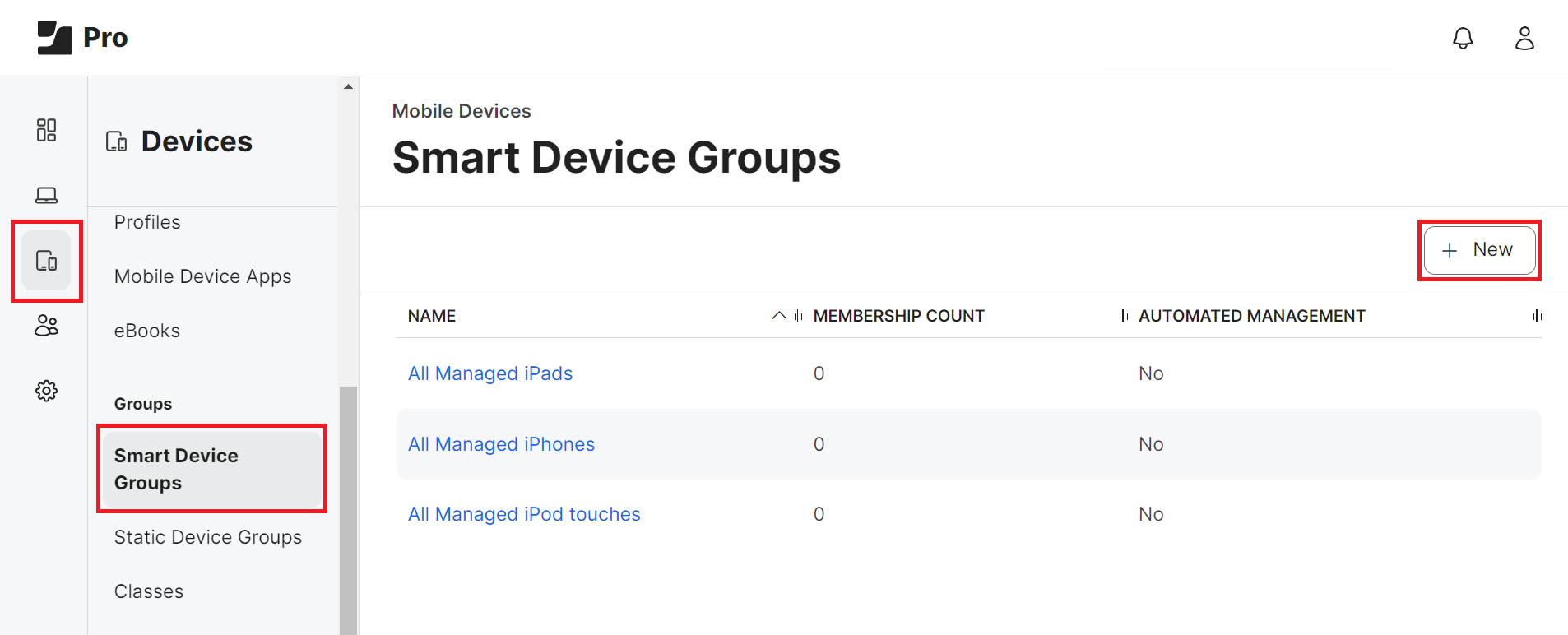
- From your Jamf Pro console, go to Devices > Smart Device Groups. For Smart Computer Groups, please click on Computers. Steps II to VIII are similar for both the Smart Device Groups and Computer Groups.
- Click + New.

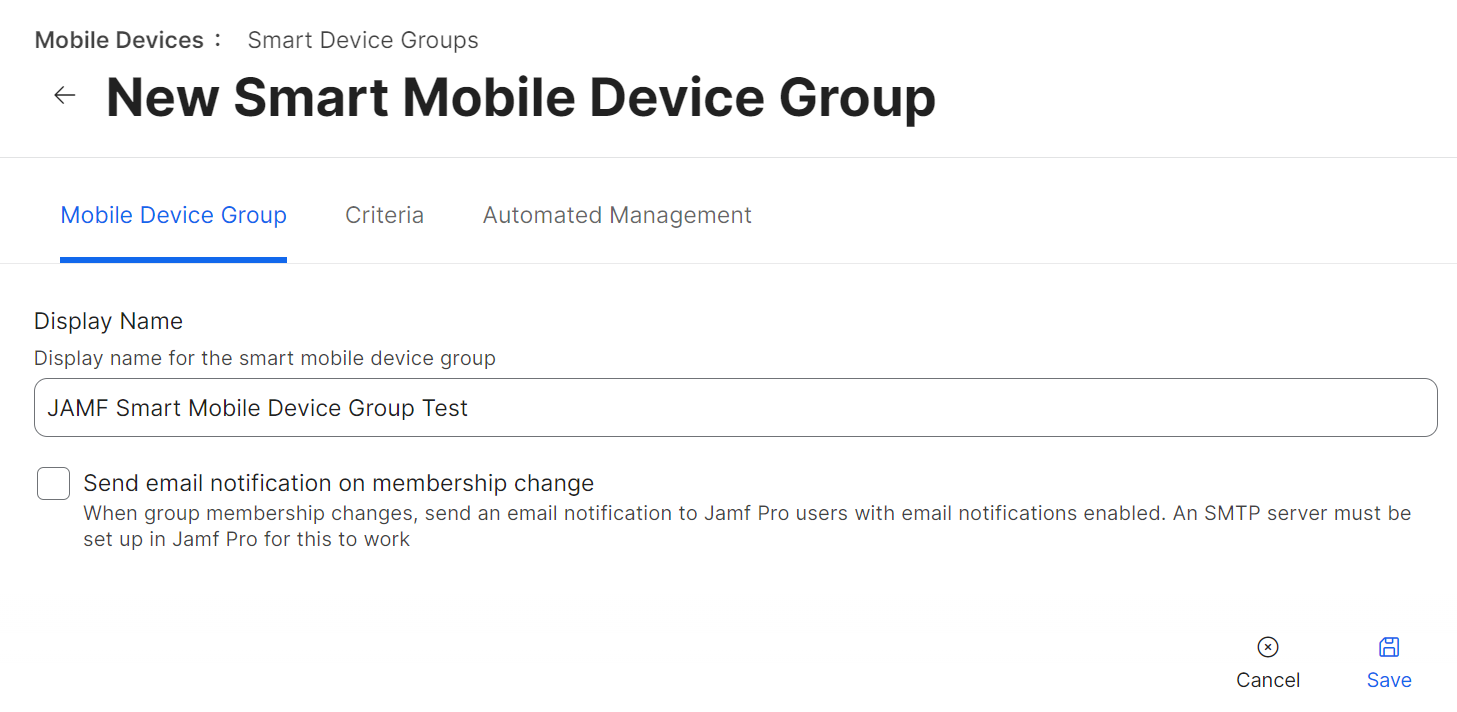
- Under the Mobile Device Group tab, in the Display Name field, enter a name for your group.

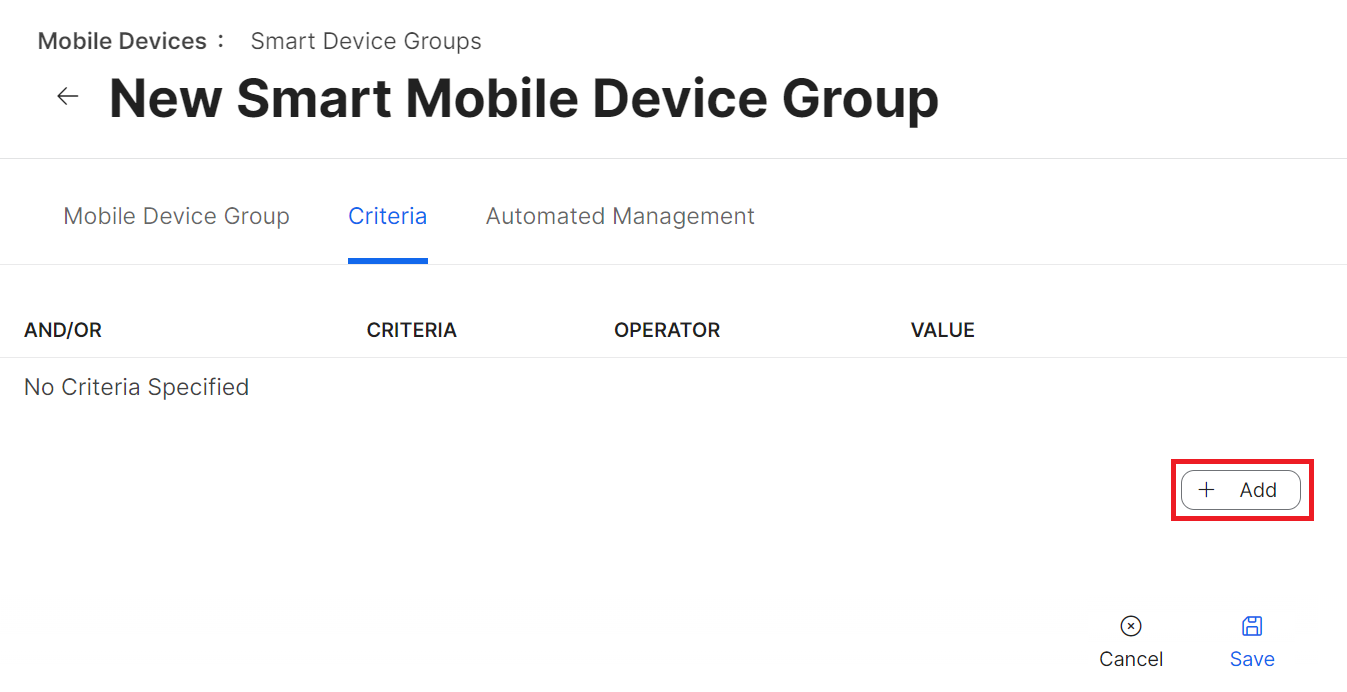
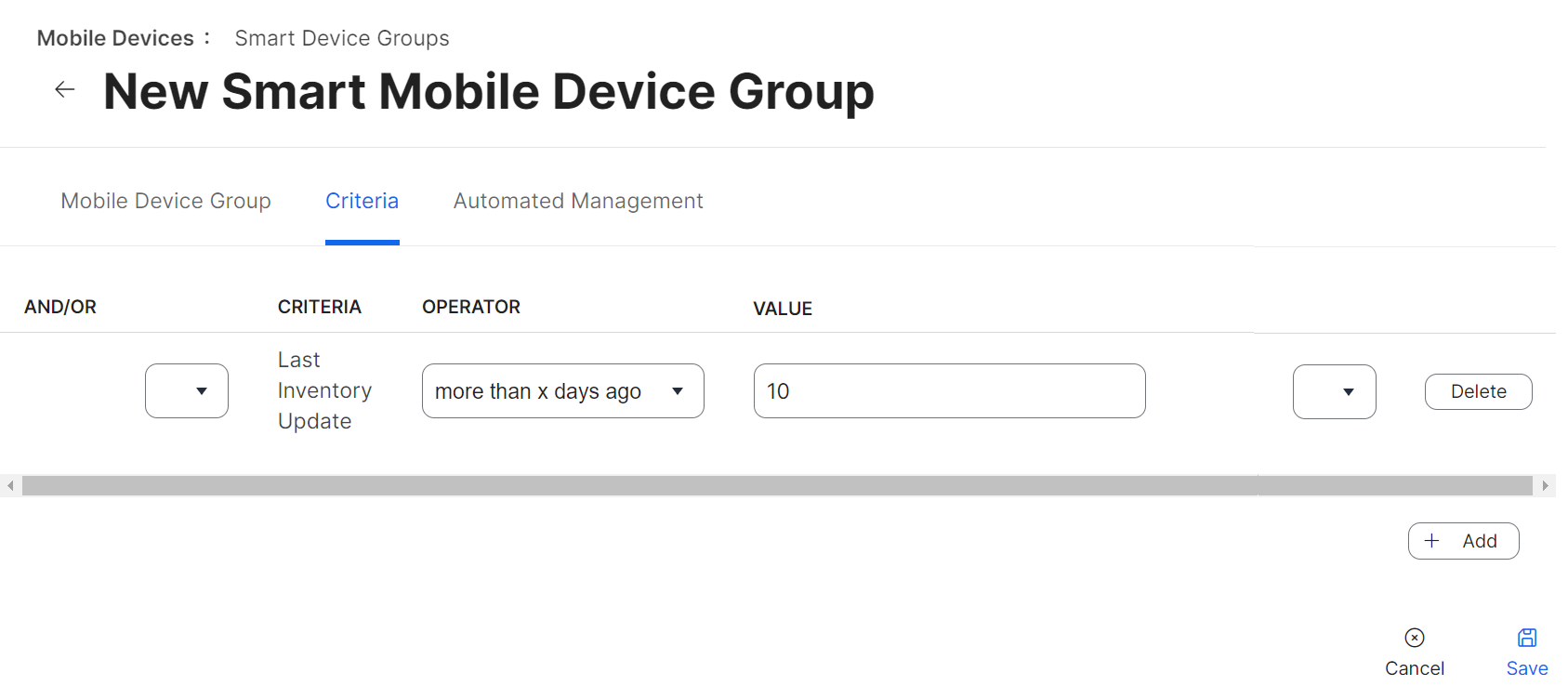
- Navigate to the Criteria tab and click Add. You can establish criteria for a group and add devices when they meet those conditions.

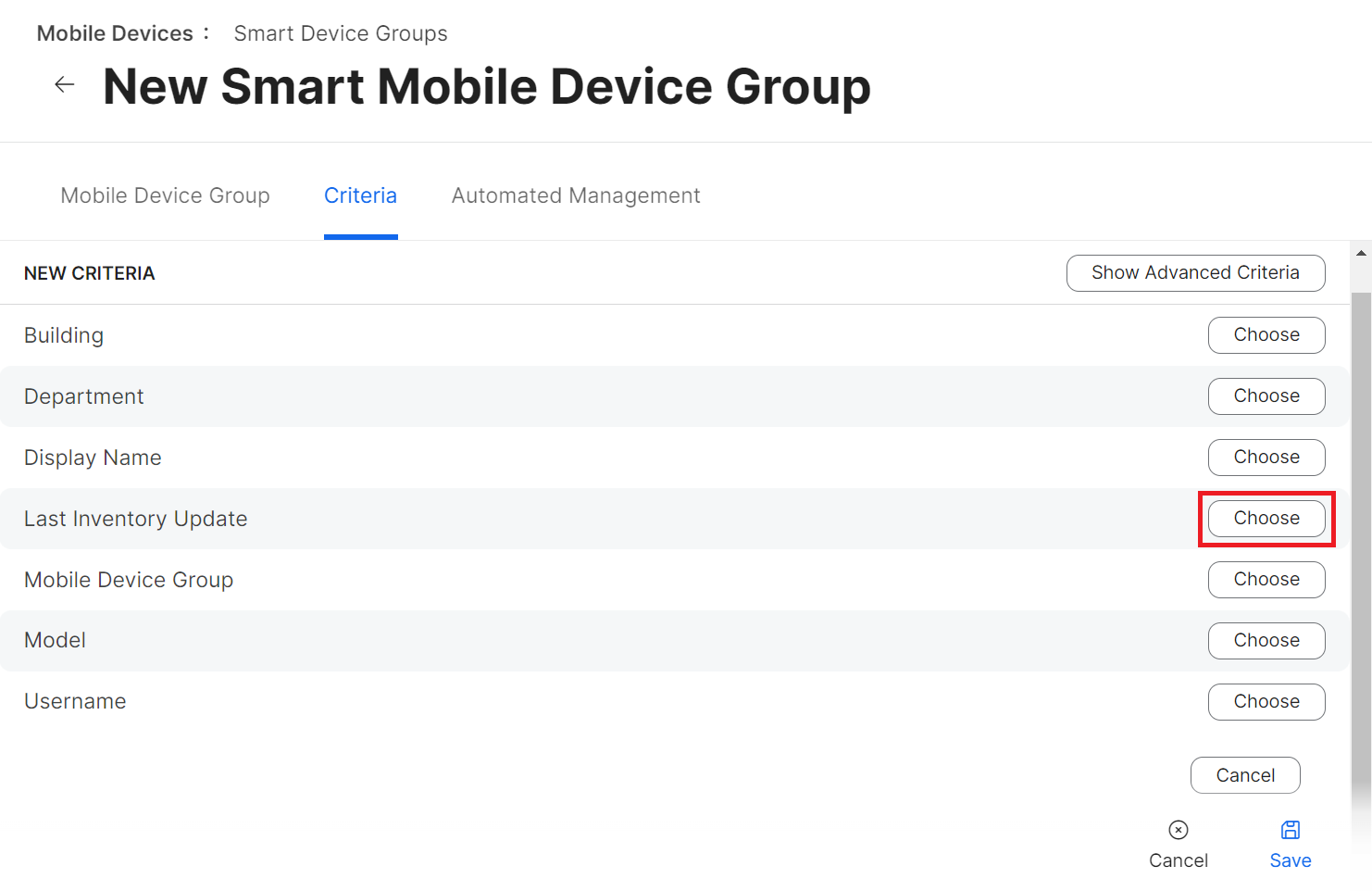
In the following example, the criterion used is the Last Inventory Update.
Jamf synchronizes with managed devices regularly. If an update between a device and Jamf has not occurred within the configured time interval, Jamf verifies that the criteria have been met and automatically moves the device to this group. The relevant device information is then shared with the JoinNow Management Portal, and the device’s corresponding certificate is automatically revoked.
Please refer to https://docs.jamf.com/10.42.0/jamf-pro/documentation/Smart_Groups.html for more information on Smart Device/Computer group configurations.
- Click Choose.

- From the OPERATOR drop-down list, choose the period type/date based on which revocation should be applied.
- In the VALUE field, enter the date/number of days. In our example, the OPERATOR selected is more than x days ago, and the VALUE is entered as “10”.
If an update between Jamf and the device has not occurred for more than 10 days, all certificates on the device will be revoked.

Click Save. The Smart Device Group is created.
- Static Device/Computer Groups (Revocation of devices/computers is automatic when added to these groups)
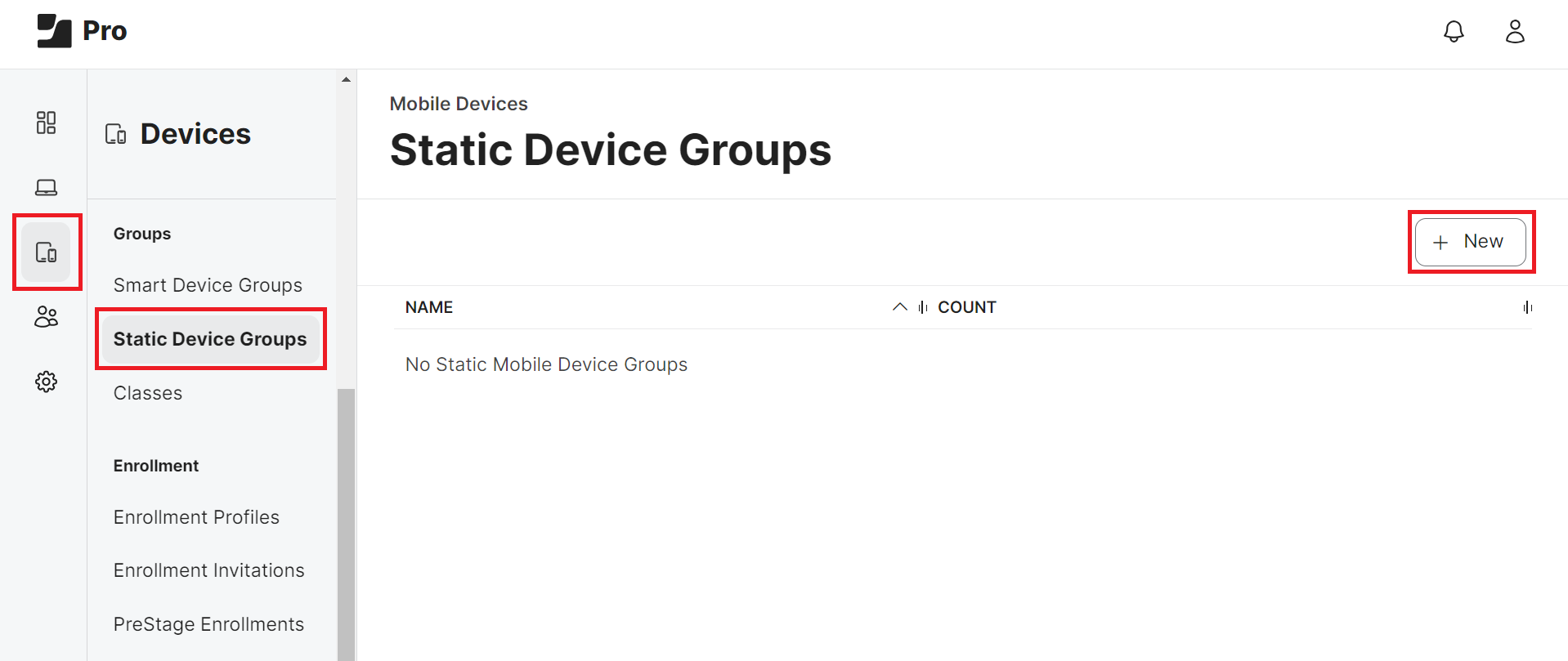
- From your Jamf Pro console, go to Devices > Static Device Groups. For Static Computer Groups, please click on Computers. Steps II to VI are similar for both the Static Device Groups and Computer Groups.
- Click + New.

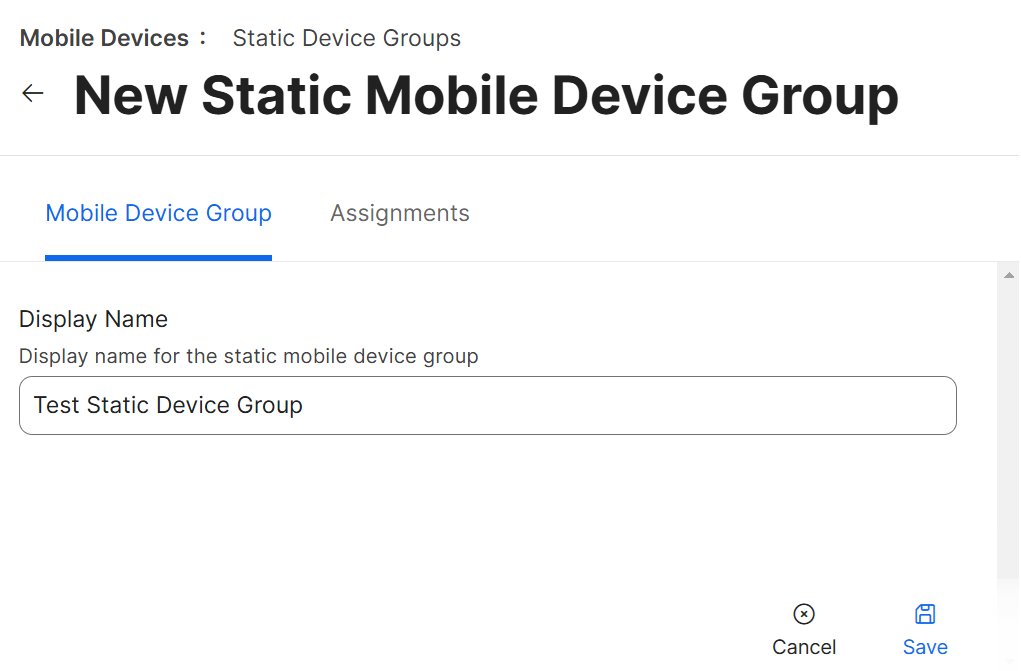
- Under the Mobile Device Group tab, in the Display Name field, enter a name for your group.

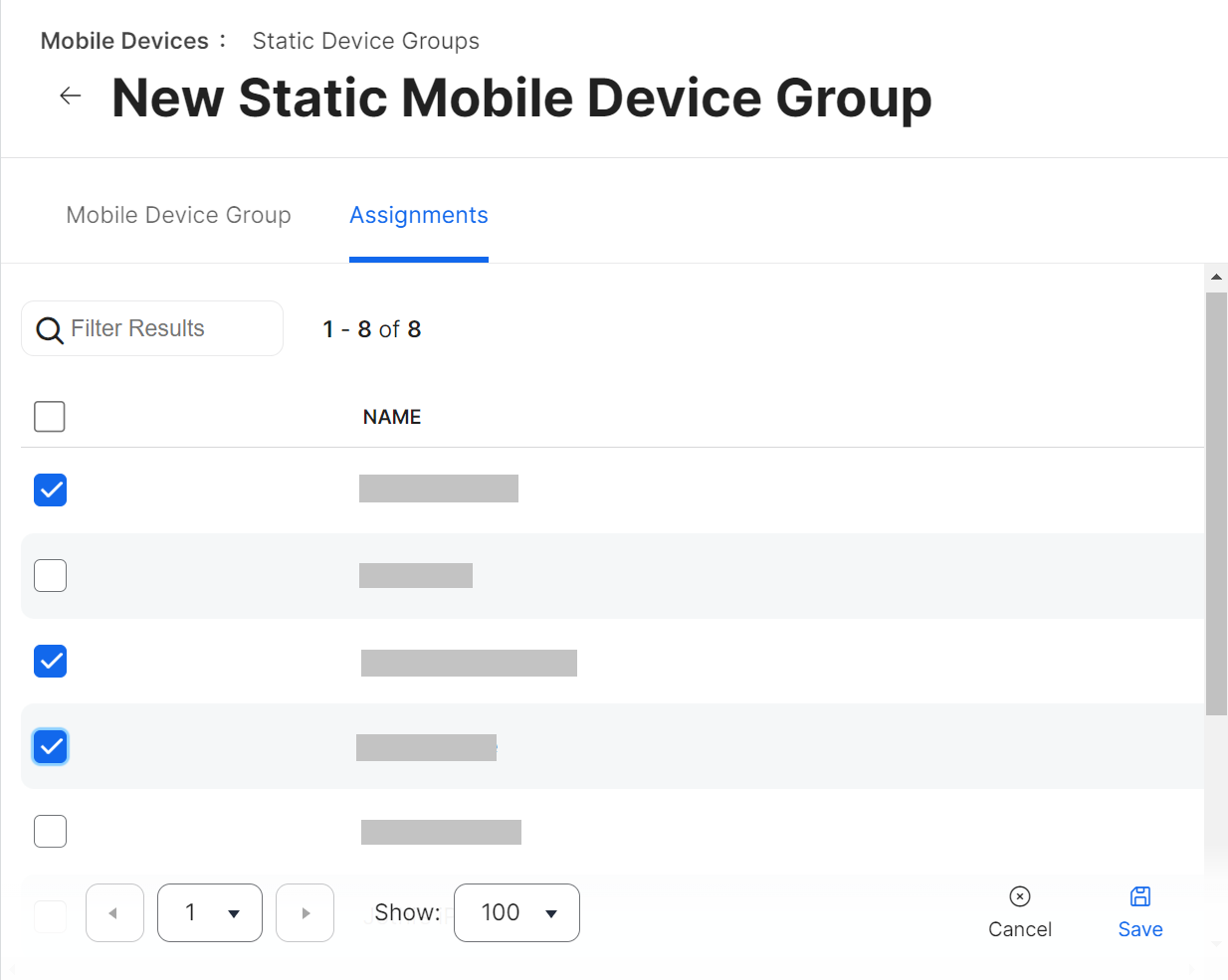
- Navigate to the Assignments tab.
- Select the devices you want to add to this group by clicking the checkbox.

- Click Save.
The security plan that scales with you.
Our solutions can scale from mid-market to global enterprises. Compare options and see how our solutions protect you from costly breaches and ensure peace of mind.
To create a read-only user in Jamf:
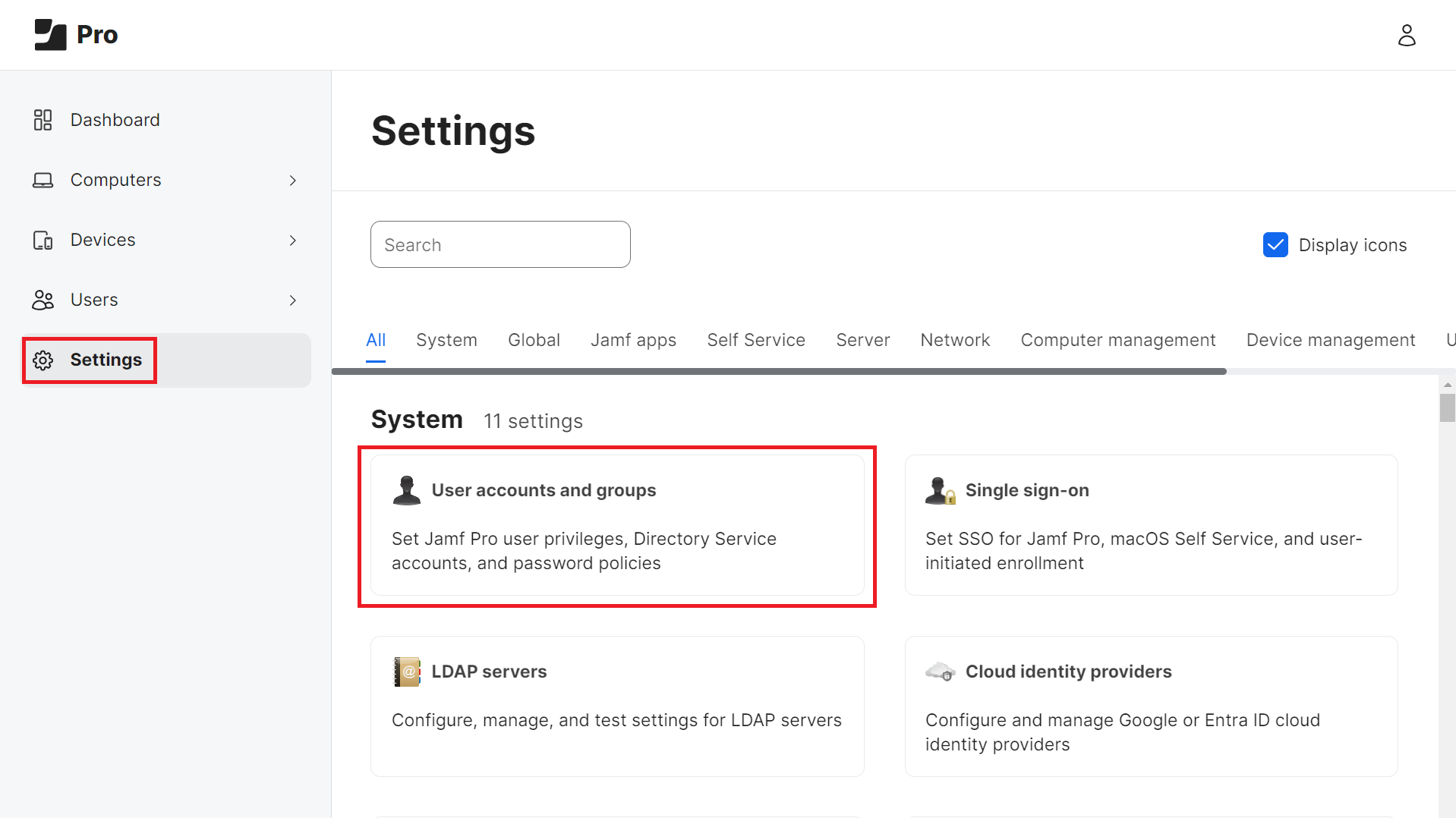
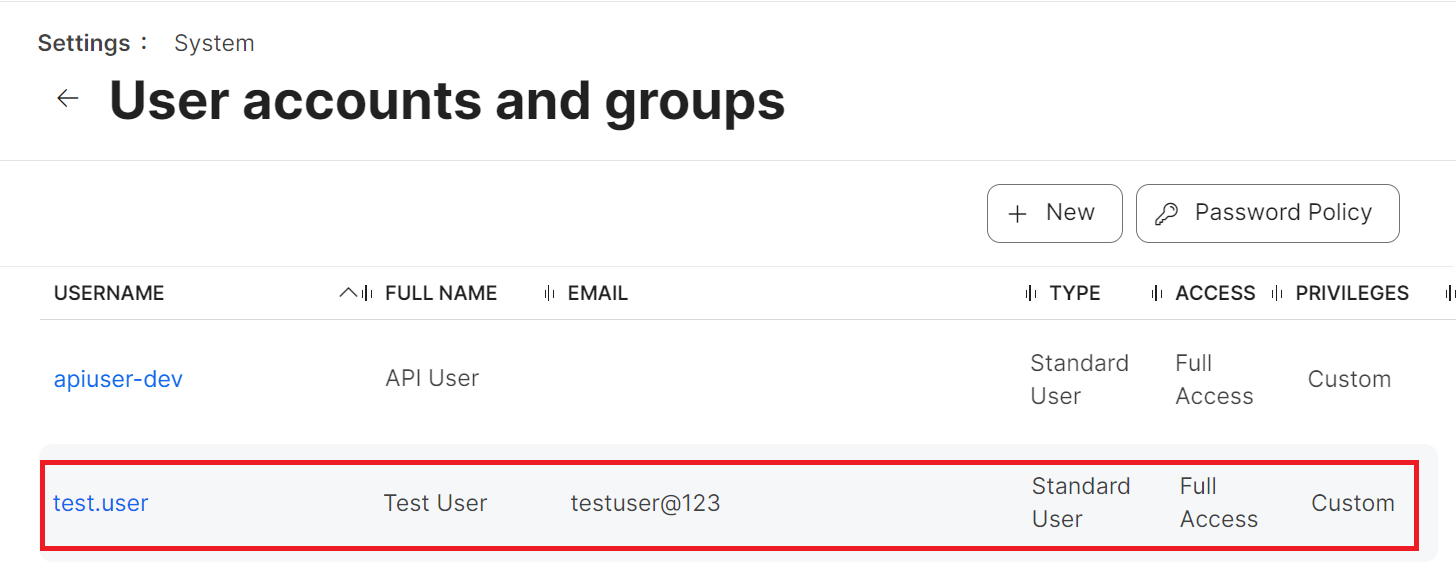
- From your Jamf Pro console, go to Settings > User accounts and groups.

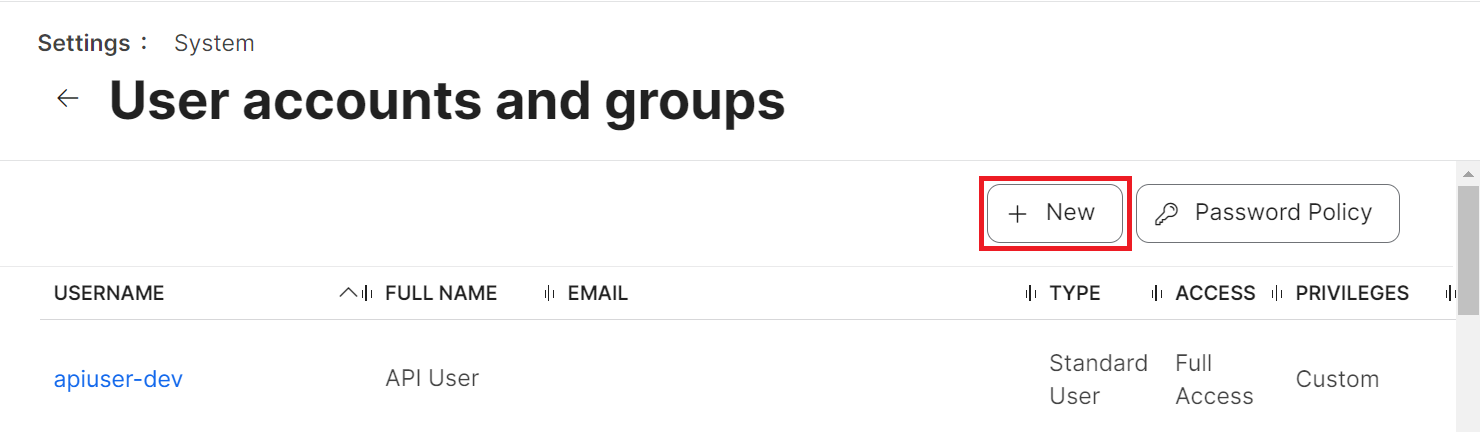
- Click the + New button.

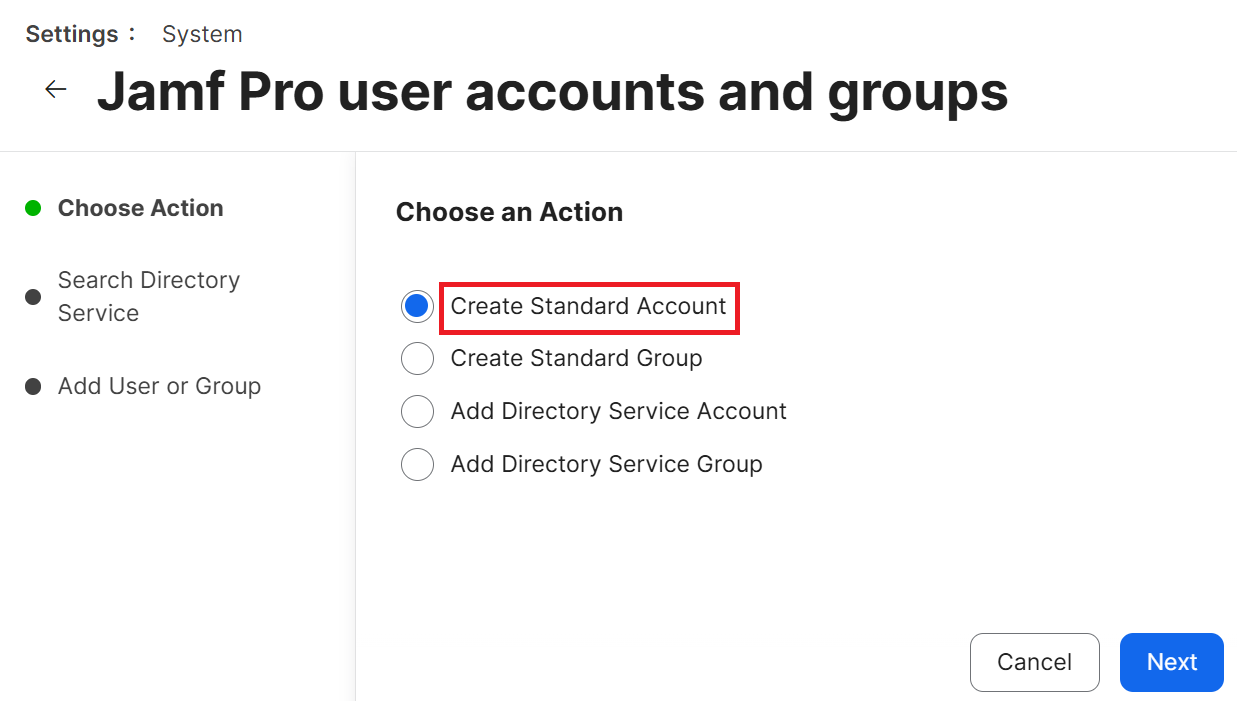
- On the Choose an Action step, select Create Standard Account, then click Next.

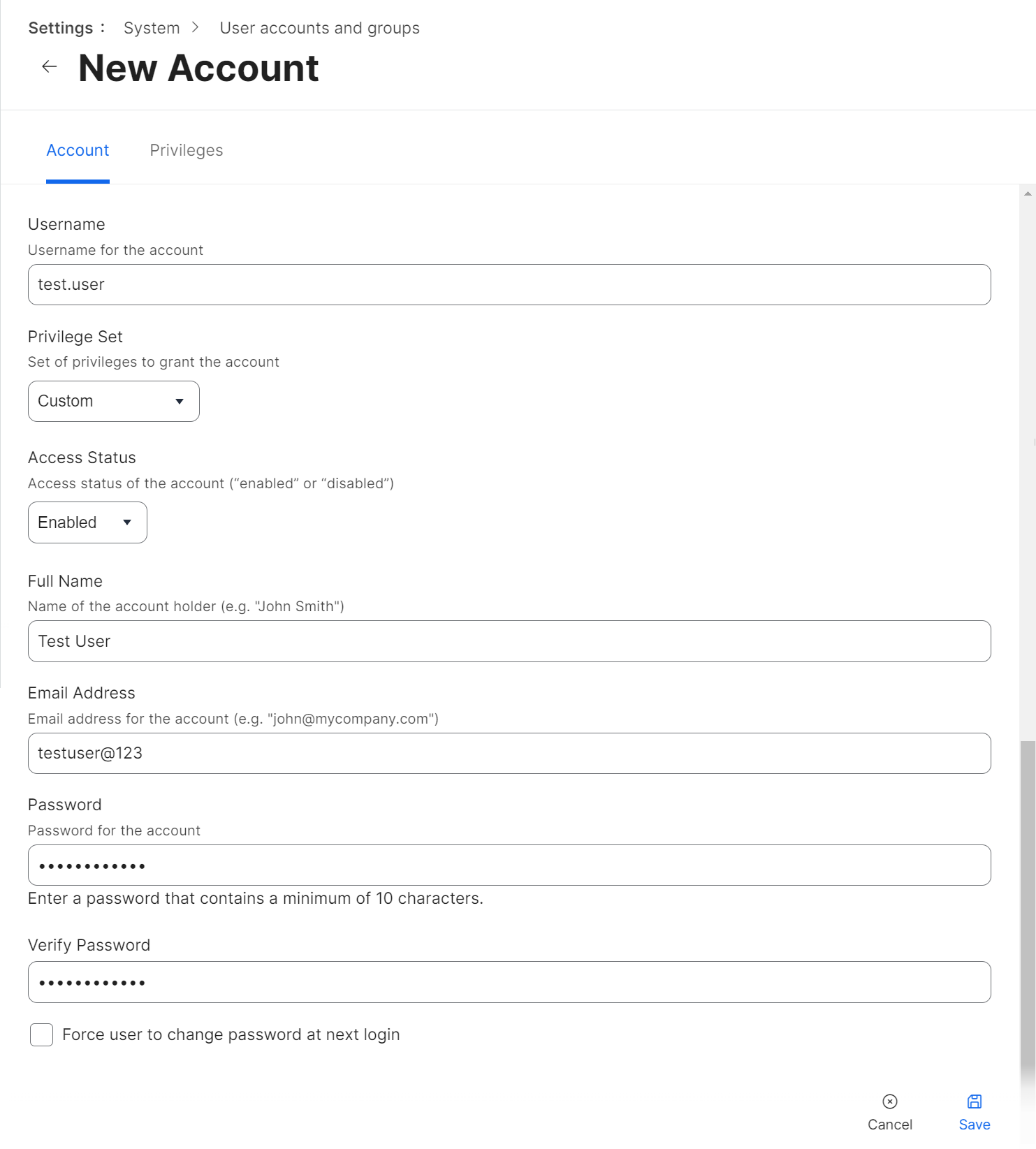
- In the Account tab:
- In the Username field, enter a username for the account.
- From the Privilege Set drop-down list, select Custom.
- Enter the other details, such as email address, password, and so on, in the respective fields.

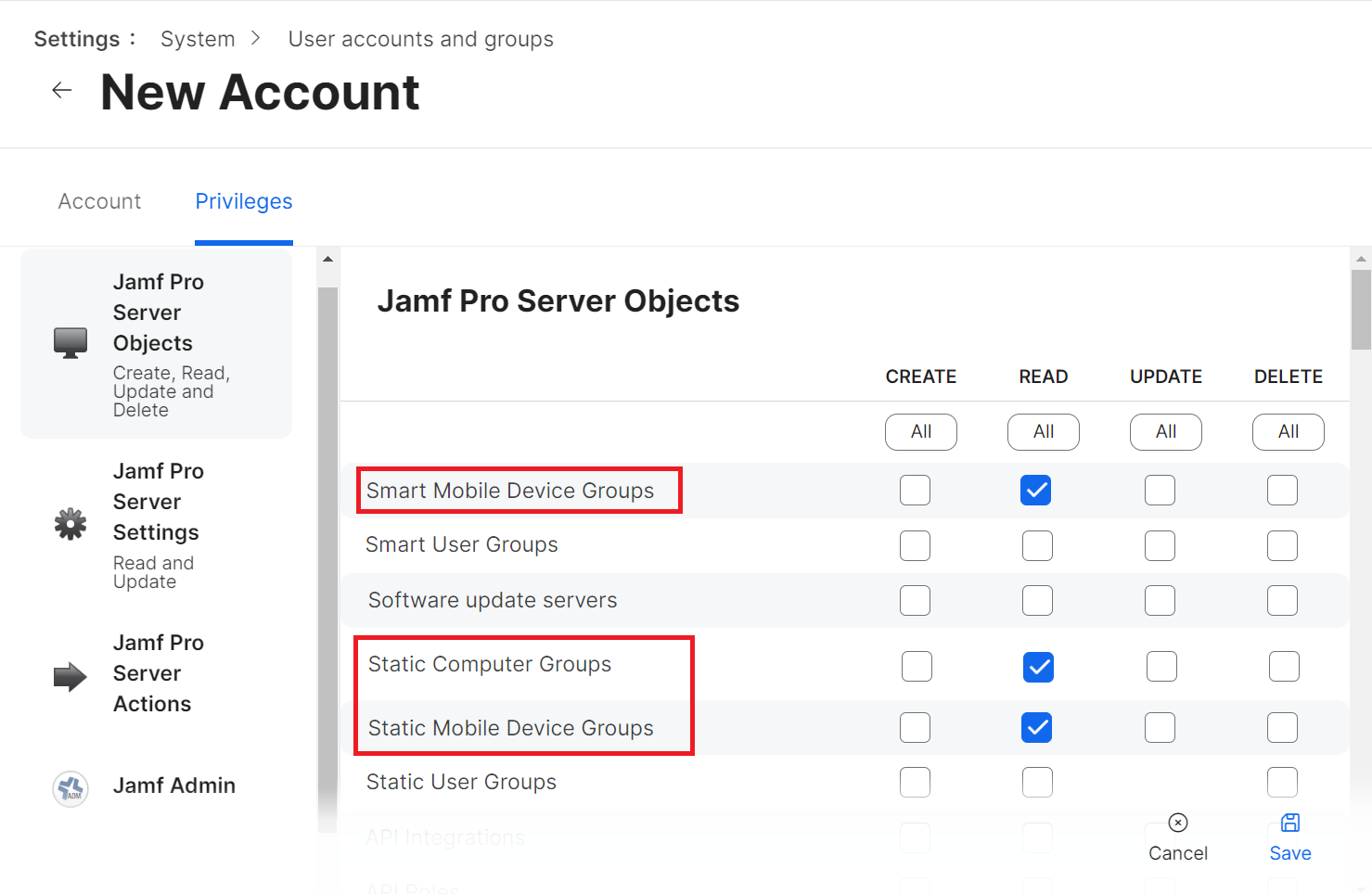
- Click the Privileges tab and select the READ checkbox for the following items.
- Mobile Devices
- Smart Computer Groups
- Smart Mobile Device Groups
- Static Computer Groups
- Static Mobile Device Groups
- Computers

- Click Save.