To configure port forwarding in the ISP router, follow the given steps.
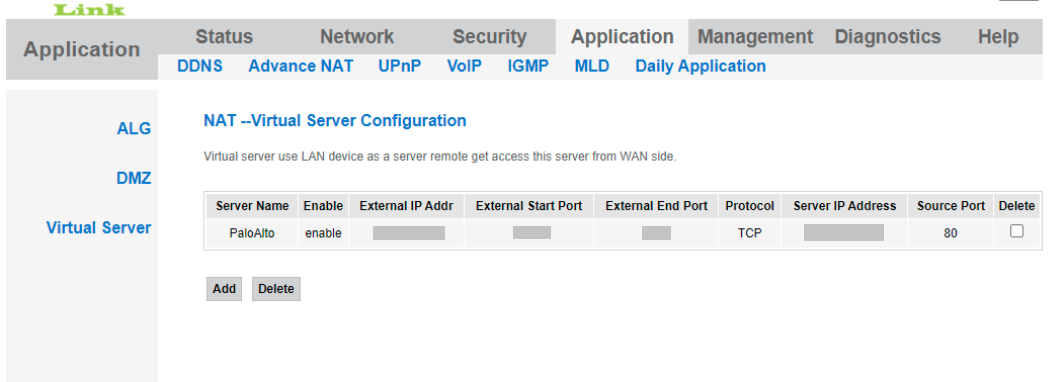
- Create a NAT – Virtual Server Configuration in the ISP router as follows:
Attributes –- External IP Address – SecureW2 NAT IP
- External Start Port – User desired
- External End Port – User desired
- Protocol – TCP
- Server IP Address – LAN IP of the PaloAlto firewall, which is connected to the ISP router
- Source Port – 80

The Palo Alto firewall helps with SSL-encrypted traffic and applications. Perform the following configurations to receive RADIUS accounting events.
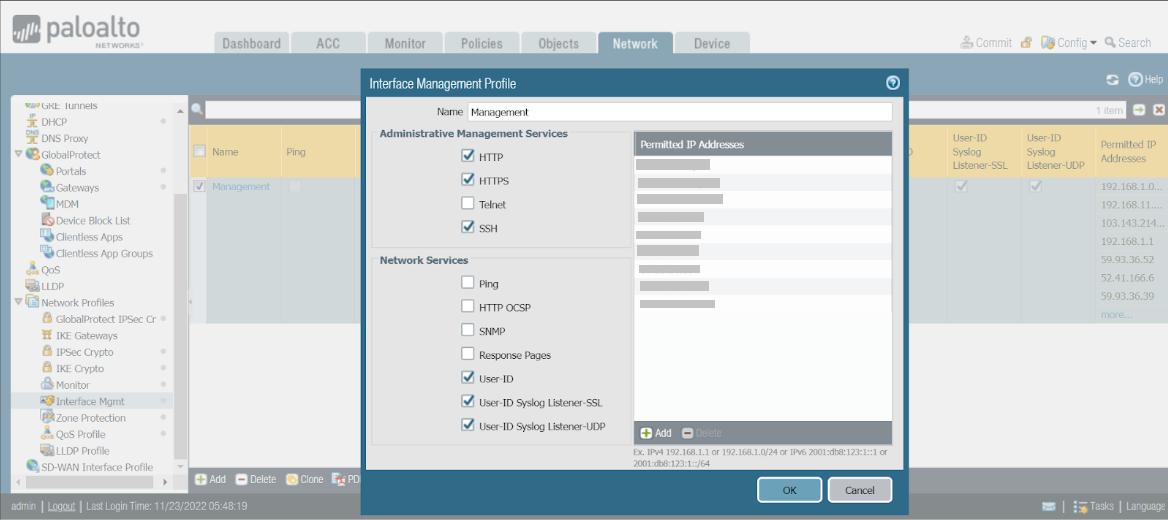
- Navigate to Network > Network Profiles > Interface Management > Management.
- Add the CENT NAT IP as shown in the following image.

- Log in to the JoinNow Management Portal.
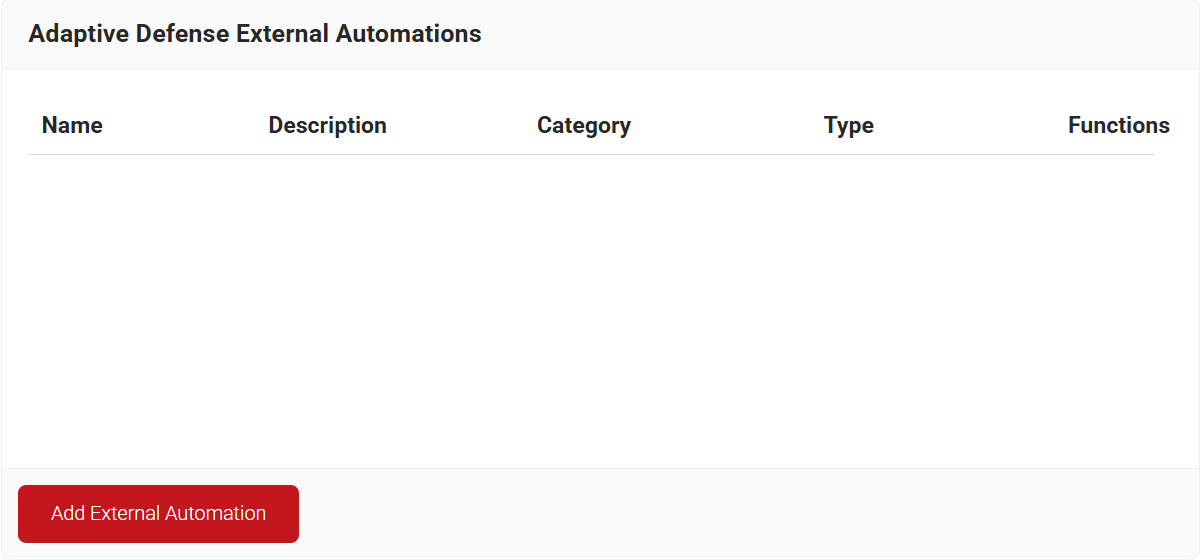
- Go to Integration Hub > Adaptive Defense External Automations.
- Click Add External Automation.

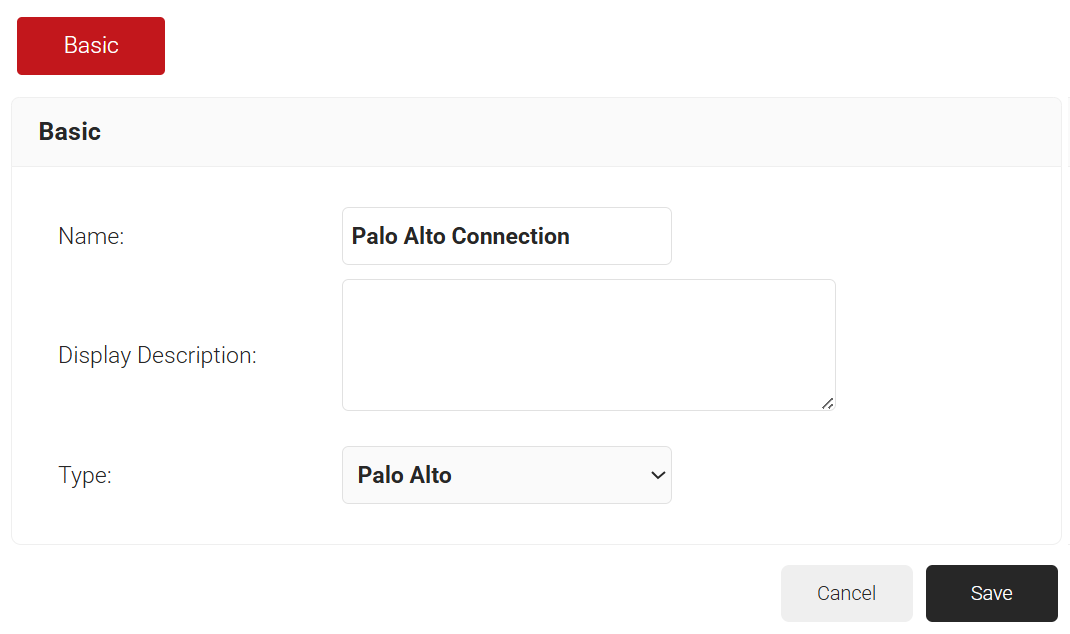
- In the Name and Display Description fields, enter a name and a suitable description for the external connection.
- From the Type drop-down list, select Palo Alto.

- Click Save. The page reloads, and the Configuration tab is displayed.
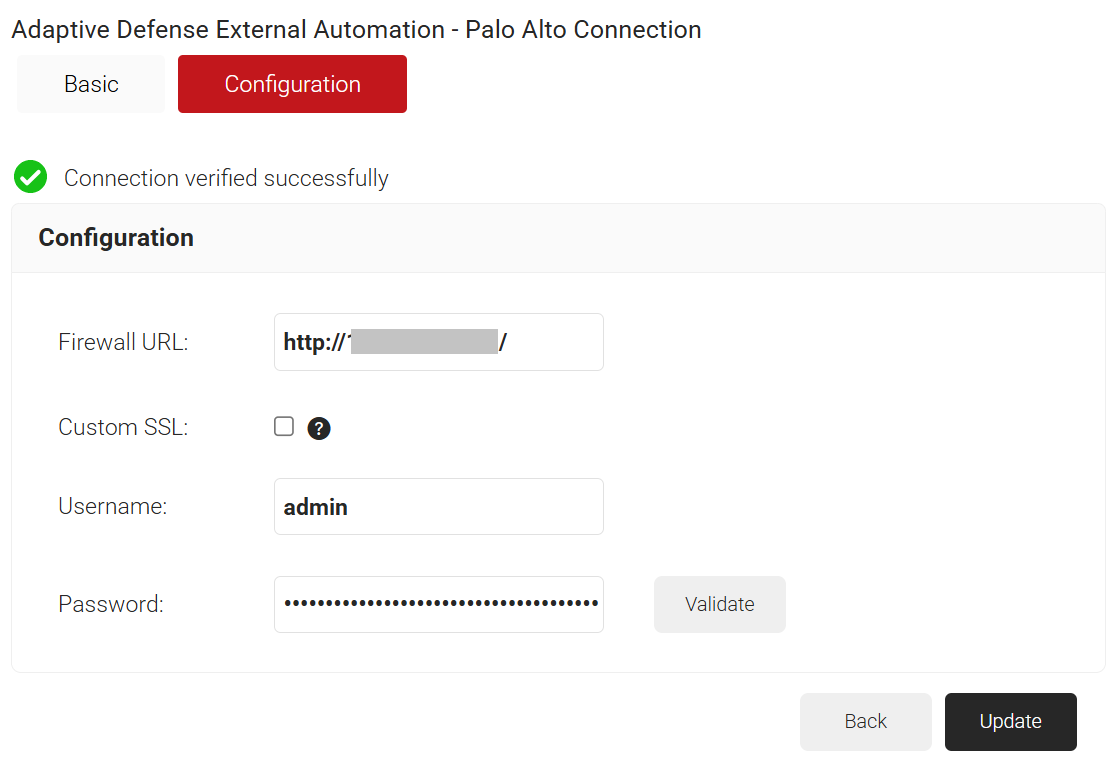
- Click the Configuration tab:
- In the Firewall URL field, enter the server URL.
- In the Username and Password fields, enter the credentials.
- (Optional) Check the Custom SSL check-box to use your organization’s certificate, if required.
- In the Certificate field, click Choose File.
- Select the required certificate and click Upload.
- Click the Validate button to confirm the connection to the Firewall.

- Click Update.
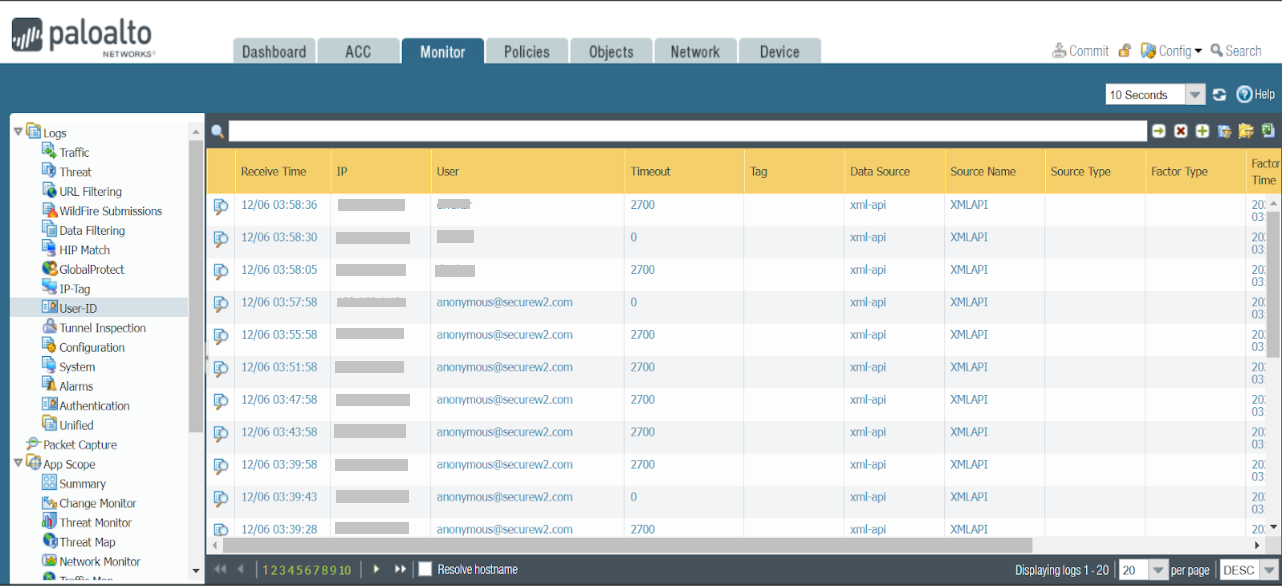
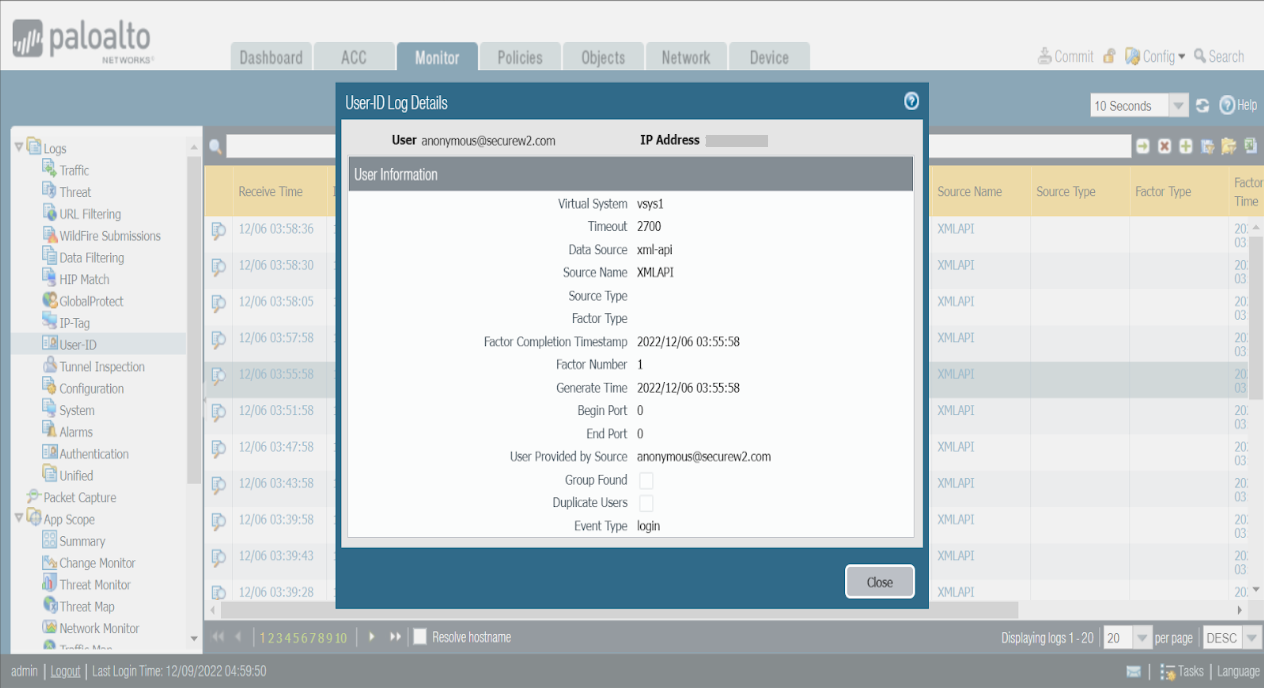
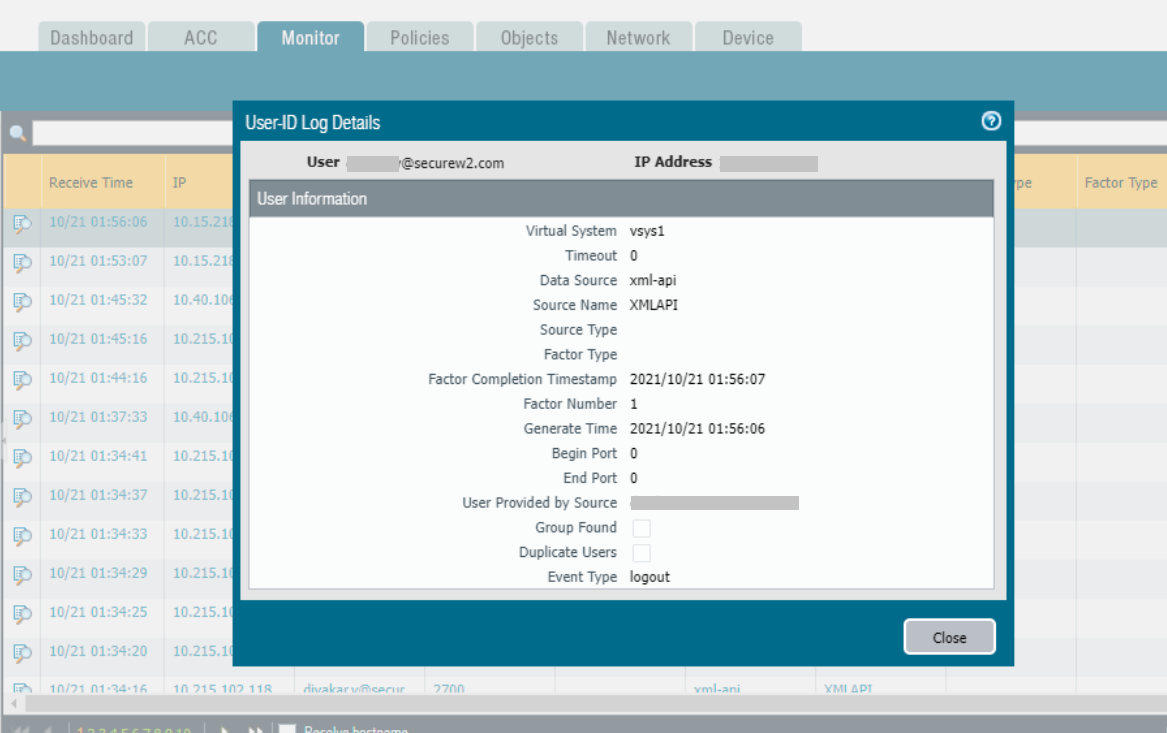
Here is a sample RADIUS Accounting event for Login and Logout sent to the Palo Alto Firewall for the above configurations.